listmonk with Docker: Your Own Newsletter and Mailing-List Manager (Linux, Windows, Mac)
Before you start
- 22 min read
- Updated November 2026
Boxes marked Run in terminal are what you type; plain text explains why. Check what you need first
What you get in one minute#
listmonk is a free, self-hosted newsletter and mailing-list manager: you keep subscribers and campaigns in your own database, write and schedule mail in a web dashboard, and a separate SMTP service does the actual sending.

Logo: the official listmonk project (github.com/knadh/listmonk, static/public/static/logo.svg at v6.2.0)
It is one small Go program plus PostgreSQL. It handles lists, double opt-in, subscriber attributes, templates, tracking, bounces and a REST API. It is a one-way tool: not an inbox, not a discussion list. It cannot deliver mail by itself, so read the deliverability section first.
| What | Value (official sources, read November 2026) |
|---|---|
| Version we pin | v6.2.0, released 26 June 2026 (previous stable: v6.1.0, March 2026) |
| Why not the newest | v6.1.0 and older have a SQL access bug (CVE-2026-62361) that v6.2.0 fixes. The newest GitHub release, v7.0.0-beta.2 (10 November 2026), is a beta by its own notes, with a new admin screen and breaking changes. The latest Docker tag still points to v6.2.0 |
| Image to pin | listmonk/listmonk:v6.2.0 (amd64, arm64, arm/v7, arm/v6) |
| Time needed | About 20 minutes (our estimate, not measured) |
| RAM | No official minimum. The project site reports 57 MB peak for the app during a 7 million email campaign (PostgreSQL not included) |
| Ports | 9000 (the app), 5432 (PostgreSQL, inside the Docker network only) |
| Licence | AGPL v3. We found no paid edition |
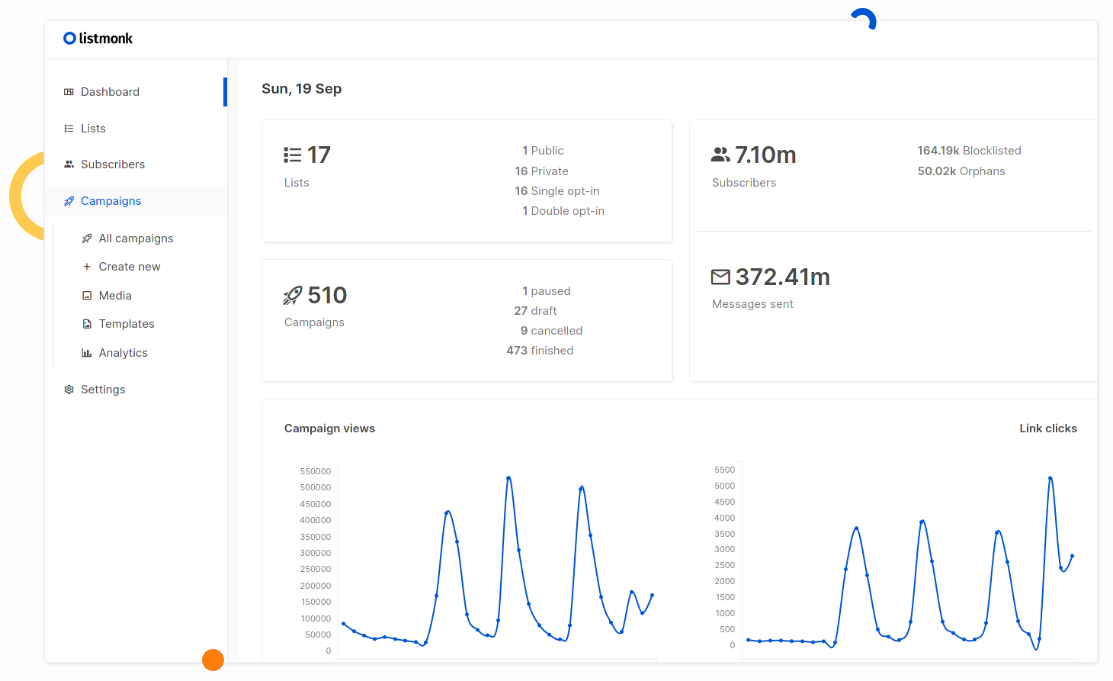
Image: the official listmonk project (docs images at v6.2.0, "splash" screenshot). It shows an older look than v6.2.0, and the numbers are the project's demo data.
At a glance:
- What it is: the app (dashboard, API, public pages) and PostgreSQL. No Redis, no worker container.
- Config: environment variables in the Compose file; everything else on the Settings page.
- Storage: PostgreSQL holds the data. Uploaded images sit in an
uploadsfolder. - Not included: an email-sending service. You bring your own SMTP account.
- Local AI: none. listmonk has no AI feature.
How it fits together#
You open the dashboard on port 9000, listmonk stores everything in PostgreSQL, and when you send a campaign it hands each message to your SMTP service.

Drawn for this guide from the official Compose file and docs at v6.2.0. The HTTPS proxy (dashed) is optional.
In 127.0.0.1:9000:9000 the left number is the port on your computer, the right one is inside the container. The app reaches the database at db:5432.
Before you start#
| System | What to have |
|---|---|
| Linux | Docker Engine and the Compose plugin; x86-64, arm64 or ARM |
| Windows | Docker Desktop in Linux-container mode (WSL 2 backend), PowerShell |
| Mac | Docker Desktop, Intel or Apple Silicon |
Check Docker (the same on every system):
docker --version
docker compose version
Checklist:
- [ ] Docker and Compose print versions
- [ ] Port 9000 is free on the host (we publish it on
127.0.0.1only) - [ ] You have SMTP details from a mail service: host, port, user, password
- [ ] For the HTTPS section only: a domain, a DNS record, and ports 80 and 443 free
Tested by DIY Lab Hub: not yet. Commands come from the official Compose file and source code at v6.2.0, read November 2026. We did not run them.
Deliverability: read this before you install#
listmonk makes and queues the mail. Your SMTP service, your DNS records and your sending habits decide whether it reaches an inbox.
Do not send straight from a home internet line. The Spamhaus Policy Block List holds address ranges that "should not be sending email directly to the Internet", often home ranges. Many hosts also block outgoing SMTP ports 25 and 465, as the listmonk docs say.
A home server can still run listmonk, if it hands the mail to an authenticated SMTP service that gives you SPF and DKIM records for your own domain.
Google's sender rules for Gmail (read November 2026) are the bar to aim for:
| Rule | Who it applies to |
|---|---|
| SPF or DKIM, valid reverse DNS (PTR), TLS, spam rate under 0.30% (aim for 0.10%) | Everyone who mails Gmail |
SPF and DKIM and DMARC (policy may be none), From domain aligned with SPF or DKIM | More than 5,000 messages a day to Gmail |
| One-click unsubscribe headers and a visible unsubscribe link | Marketing and subscribed mail, over 5,000 a day |
In one line each: SPF is a DNS record listing the servers allowed to send for your domain. DKIM is a signature your mail service adds, checked against a DNS record. DMARC is a DNS record telling receivers what to do when SPF and DKIM fail.
listmonk adds the List-Unsubscribe and one-click headers by default. They only work with a correct public Root URL, which we set later.
Tip: Before you pay for a mail service, ask for its send-rate limit, whether it supports bounce webhooks or a custom Return-Path, and which port and TLS mode it wants.
Step 1: Create the folders and the .env file#
Everything lives under ~/docker_volumes/listmonk: the Compose file, the .env secrets file, an uploads folder and a backups folder. PostgreSQL uses a Docker named volume, as in the official file.
The .env file holds three values. The app refuses to install if the admin name has under 3 characters or the password under 8 (source code).
Linux#
mkdir -p ~/docker_volumes/listmonk/{uploads,backups}
cd ~/docker_volumes/listmonk
openssl rand -hex 24
openssl rand -hex 24
Each openssl line prints a random password: the first is for the database, the second for the admin. Write the file, replacing the placeholders:
cat > .env << 'EOF'
POSTGRES_PASSWORD=<first-random-value>
LISTMONK_ADMIN_USER=admin
LISTMONK_ADMIN_PASSWORD=<second-random-value>
EOF
chmod 600 .env
Windows (PowerShell)#
New-Item -ItemType Directory -Force "$HOME\docker_volumes\listmonk\uploads", "$HOME\docker_volumes\listmonk\backups" | Out-Null
Set-Location "$HOME\docker_volumes\listmonk"
1..2 | ForEach-Object {
  $b = New-Object byte[] 24
  [System.Security.Cryptography.RandomNumberGenerator]::Create().GetBytes($b)
  -join ($b | ForEach-Object { $_.ToString("x2") })
}
The loop prints two random passwords. Write the file, then open it and replace the placeholders:
@'
POSTGRES_PASSWORD=<first-random-value>
LISTMONK_ADMIN_USER=admin
LISTMONK_ADMIN_PASSWORD=<second-random-value>
'@ | Set-Content -Encoding ascii .env
notepad .env
Only the random text goes after the = sign, with no spaces or quotes.
Mac (Terminal)#
Same commands as Linux.
Check it worked. .env has three lines and no < left. On Linux and Mac, ls -l .env shows -rw-------. Windows has no chmod; keep the folder in your own profile.
Tip: The hex passwords contain no
$. Compose reads$in a.envfile as the start of a variable, so a password with$in it breaks in confusing ways.
Step 2: Write the Compose file and start listmonk#
This is the official file from the v6.2.0 tag with five changes: the image is pinned, the app port listens on 127.0.0.1 only, the database password comes from .env, the PostgreSQL ports: block is gone (the app reaches it by name), and the app waits for a healthy database.
The command: line is the official one. It installs the tables only into an empty database (--idempotent), runs upgrades (--upgrade) and starts the app. --config '' means "use only the environment variables".
Linux#
cd ~/docker_volumes/listmonk
cat > docker-compose.yml << 'EOF'
x-db-credentials: &db-credentials
  POSTGRES_USER: &db-user listmonk
  POSTGRES_PASSWORD: &db-password ${POSTGRES_PASSWORD:?Set POSTGRES_PASSWORD in .env}
  POSTGRES_DB: &db-name listmonk

services:
  app:
    image: listmonk/listmonk:v6.2.0
    container_name: listmonk_app
    restart: unless-stopped
    ports:
      - "127.0.0.1:9000:9000"
    networks:
      - listmonk
    hostname: listmonk.example.com
    depends_on:
      db:
        condition: service_healthy
    command:
      - sh
      - -c
      - "./listmonk --install --idempotent --yes --config '' && ./listmonk --upgrade --yes --config '' && ./listmonk --config ''"
    environment:
      LISTMONK_app__address: 0.0.0.0:9000
      LISTMONK_db__user: *db-user
      LISTMONK_db__password: *db-password
      LISTMONK_db__database: *db-name
      LISTMONK_db__host: db
      LISTMONK_db__port: 5432
      LISTMONK_db__ssl_mode: disable
      LISTMONK_db__max_open: 25
      LISTMONK_db__max_idle: 25
      LISTMONK_db__max_lifetime: 300s
      TZ: Etc/UTC
      LISTMONK_ADMIN_USER: ${LISTMONK_ADMIN_USER:-}
      LISTMONK_ADMIN_PASSWORD: ${LISTMONK_ADMIN_PASSWORD:-}
    volumes:
      - ./uploads:/listmonk/uploads:rw

  db:
    image: postgres:17-alpine
    container_name: listmonk_db
    restart: unless-stopped
    networks:
      - listmonk
    environment:
      <<: *db-credentials
    healthcheck:
      test: ["CMD-SHELL", "pg_isready -U listmonk"]
      interval: 10s
      timeout: 5s
      retries: 6
    volumes:
      - type: volume
        source: listmonk-data
        target: /var/lib/postgresql/data

networks:
  listmonk:

volumes:
  listmonk-data:
EOF
docker compose config -q
docker compose up -d
docker compose ps
docker compose logs --tail=50 app
docker compose config -q prints nothing when the file is valid. It stops with a message if .env is missing or a line is mis-indented.
Windows (PowerShell)#
Set-Location "$HOME\docker_volumes\listmonk"
@'
x-db-credentials: &db-credentials
  POSTGRES_USER: &db-user listmonk
  POSTGRES_PASSWORD: &db-password ${POSTGRES_PASSWORD:?Set POSTGRES_PASSWORD in .env}
  POSTGRES_DB: &db-name listmonk

services:
  app:
    image: listmonk/listmonk:v6.2.0
    container_name: listmonk_app
    restart: unless-stopped
    ports:
      - "127.0.0.1:9000:9000"
    networks:
      - listmonk
    hostname: listmonk.example.com
    depends_on:
      db:
        condition: service_healthy
    command:
      - sh
      - -c
      - "./listmonk --install --idempotent --yes --config '' && ./listmonk --upgrade --yes --config '' && ./listmonk --config ''"
    environment:
      LISTMONK_app__address: 0.0.0.0:9000
      LISTMONK_db__user: *db-user
      LISTMONK_db__password: *db-password
      LISTMONK_db__database: *db-name
      LISTMONK_db__host: db
      LISTMONK_db__port: 5432
      LISTMONK_db__ssl_mode: disable
      LISTMONK_db__max_open: 25
      LISTMONK_db__max_idle: 25
      LISTMONK_db__max_lifetime: 300s
      TZ: Etc/UTC
      LISTMONK_ADMIN_USER: ${LISTMONK_ADMIN_USER:-}
      LISTMONK_ADMIN_PASSWORD: ${LISTMONK_ADMIN_PASSWORD:-}
    volumes:
      - ./uploads:/listmonk/uploads:rw

  db:
    image: postgres:17-alpine
    container_name: listmonk_db
    restart: unless-stopped
    networks:
      - listmonk
    environment:
      <<: *db-credentials
    healthcheck:
      test: ["CMD-SHELL", "pg_isready -U listmonk"]
      interval: 10s
      timeout: 5s
      retries: 6
    volumes:
      - type: volume
        source: listmonk-data
        target: /var/lib/postgresql/data

networks:
  listmonk:

volumes:
  listmonk-data:
'@ | Set-Content -Encoding ascii docker-compose.yml
docker compose config -q
docker compose up -d
docker compose ps
docker compose logs --tail=50 app
Mac (Terminal)#
Same commands as Linux (Docker Desktop).
Check it worked. docker compose ps shows listmonk_db healthy and listmonk_app running. The app log should contain ** first time (idempotent) installation ** (a string from the source; we captured no real run). After a restart it says skipping install as database appears to be already setup, which is correct. Ask the health route (on Windows use curl.exe):
curl -s http://127.0.0.1:9000/health
{"data":true}
That shape comes from the v6.2.0 source: /health is public, while /api/health needs a login.
Tip: Never remove
--idempotent. Without it,--installwipes the existing listmonk tables in the database the next time the container starts.
First login: set three things before anything else#
Open http://127.0.0.1:9000/admin and sign in with the .env values. They only create the first Super Admin; changing them later resets nothing. If you left them empty, the first visit asks you to create the account.
Open Settings and change these (names from the app's own language file):
- General -> Root URL. The default is
http://localhost:9000. Every unsubscribe and tracking link in your mail is built from it. Use your final publichttps://address before you send anything real. - General -> Default
fromemail. Use an address on a domain you authenticate with SPF and DKIM. - Media uploads -> Upload path. Set it to
/listmonk/uploads. This matches the folder we mounted.
Click Save.
Tip: The default upload path is the relative word
uploads. Here it resolves to the mounted folder, but issue 3026 shows setups where it does not. The absolute path is safer.
Connect your SMTP service and send a test#
Open Settings -> SMTP. The shipped entry is a placeholder (smtp.yoursite.com, port 25, STARTTLS) and there is a disabled Gmail example. Edit the enabled one with your provider's values:
| Field | What to enter |
|---|---|
| Host and Port | From your provider. Port 587 with STARTTLS or 465 with TLS are common |
| Auth protocol | LOGIN, CRAM, PLAIN or none, as your provider says |
| Username, Password | Your SMTP credentials |
| TLS | none, STARTTLS or TLS. It must match the port |
Use Test connection, then Send e-mail to your own inbox. Check the From address, that it is not in spam, and that SPF and DKIM pass.
Sending speed is under Settings -> Performance: concurrency 10 and message rate 10 by default. The help text says the rate is per worker per second, so 10 times 10 allows 100 messages a second. Keep the total under your provider's limit.
Lists, subscribers and your first campaign#
- Open Lists and create a list. Single opt-in adds a person at once. Double opt-in sends a confirmation mail first, which keeps fake addresses out.
- Open Subscribers and add yourself, or import a CSV file.
- Open Campaigns -> Create new, pick your list, write a short message, use Send test, then send it.
- Open the unsubscribe link from a phone on mobile data. If it fails, your Root URL is wrong or not reachable.
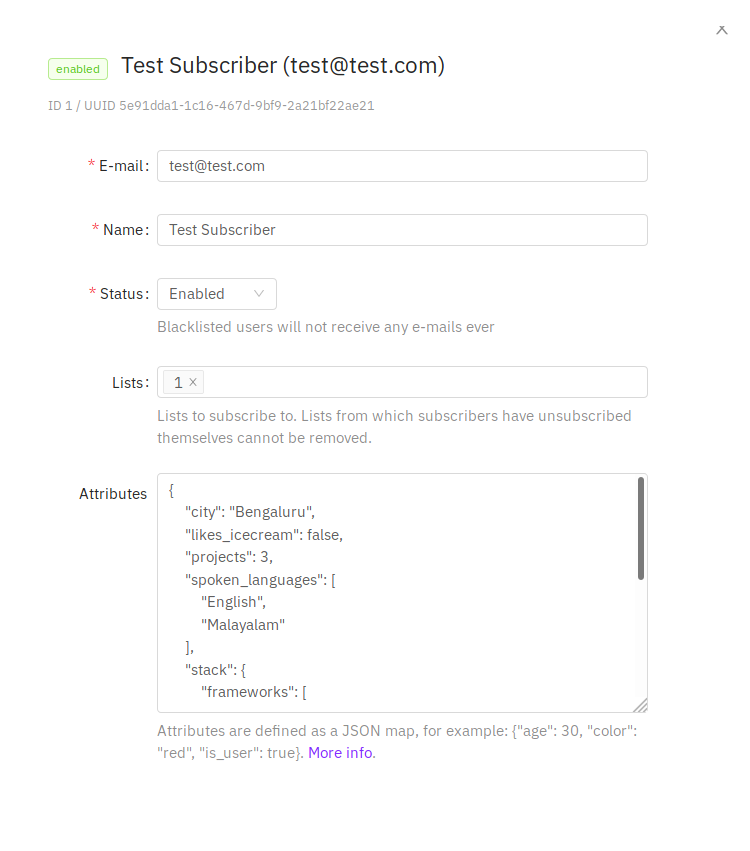
Image: the official listmonk project (docs images at v6.2.0, "edit-subscriber" screenshot; an older look than v6.2.0). Attributes are a JSON map you can use in templates and in segments.
The public sign-up form is at /subscription/form under your Root URL. Link to it from your website.
Process bounces#
A bounce is a rejection from a receiving mail server; mailing dead addresses hurts your reputation. Turn on Settings -> Bounces -> Enable bounce processing. The docs give two ways:
- POP3 mailbox. Set the mailbox in Settings -> Bounces and add it as the envelope sender under Settings -> SMTP -> Custom headers:
[{"Return-Path": "[email protected]"}]. - Webhook. Turn on Enable bounce webhooks, then point your provider at
https://<your-domain>/webhooks/service/<name>. The names areses,azure,sendgrid,postmark,forwardemailandlettermint.
The defaults: soft bounce twice, no action; hard bounce once, blocklist; complaint once, blocklist. The webhook routes exist only while webhooks are enabled.
Put it behind HTTPS (with or without Traefik)#
This is for a server with a domain. If you only use listmonk on your own computer, skip it. Give listmonk its own host name such as newsletter.<your-domain>; a path like example.com/listmonk/ does not work (issue 2241).
Both routes drop the host port and use a shared proxy network. Create it once (an error means it exists, which is fine):
docker network create proxy
With Traefik#
On a server that already runs Traefik v3 with the Docker provider, join the proxy network and add labels. Our Traefik guide uses the entrypoint https and the resolver le; use your own names if they differ. Each router that wants a Let's Encrypt certificate needs its own tls.certresolver label.
Change only the app service. Remove its ports: block, keep the listmonk network (it still needs the database) and add proxy:
  app:
    image: listmonk/listmonk:v6.2.0
    # ...keep container_name, restart, depends_on, command, environment and volumes...
    networks:
      - listmonk
      - proxy
    labels:
      - "traefik.enable=true"
      - "traefik.docker.network=proxy"
      - "traefik.http.routers.listmonk.rule=Host(`newsletter.<your-domain>`)"
      - "traefik.http.routers.listmonk.entrypoints=https"
      - "traefik.http.routers.listmonk.tls=true"
      - "traefik.http.routers.listmonk.tls.certresolver=le"
      - "traefik.http.services.listmonk.loadbalancer.server.port=9000"
At the bottom of the file the networks block becomes:
networks:
  listmonk:
  proxy:
    external: true
Run docker compose up -d. Check it worked. curl -I https://newsletter.<your-domain>/health returns an HTTP 200 status line over HTTPS with a valid certificate.
Without Traefik: Caddy#
Choose this if you have no Traefik. Caddy gets and renews its own certificates. Change the app service the same way (no ports:, add the proxy network, no labels). Then give Caddy its own folder:
mkdir -p ~/docker_volumes/caddy/{conf,data,config}
cd ~/docker_volumes/caddy
cat > docker-compose.yml << 'EOF'
services:
  caddy:
    image: caddy:2.11.9
    container_name: caddy
    restart: unless-stopped
    ports:
      - "80:80/tcp"
      - "443:443/tcp"
      - "443:443/udp"
    volumes:
      - ./conf:/etc/caddy:ro
      - ./data:/data
      - ./config:/config
    networks:
      - proxy

networks:
  proxy:
    external: true
EOF
Save ~/docker_volumes/caddy/conf/Caddyfile. Caddy reaches the app by container name, so never write 127.0.0.1 there (inside the Caddy container that is Caddy itself):
newsletter.example.com {
    reverse_proxy listmonk_app:9000
}
For a home-only name use tls internal. Each device must trust Caddy's root certificate once; our Caddy guide has the Linux, Windows and Mac steps:
newsletter.home.arpa {
    tls internal
    reverse_proxy listmonk_app:9000
}
Start both stacks with docker compose up -d in each folder. The file-writing lines above are bash; on Windows write the same files with a PowerShell here-string as in Step 2. Check it worked. curl -I https://newsletter.example.com/health shows an HTTP status line over HTTPS.
If a login proxy guards the whole host name, keep /subscription/*, /link/*, /campaign/*, /public/*, POST /webhooks/service/* and GET /uploads/* open, or subscribers and webhooks break. Admin routes are /admin/*, /api/* and POST /webhooks/bounce.
Security and testing#
A mailing list holds people's addresses, your SMTP password and admin accounts.
| Control | How |
|---|---|
| Where it listens | Keep 127.0.0.1:9000 or a proxy network. Never publish PostgreSQL (we removed the official 127.0.0.1:5432) |
| Secrets | In .env (chmod 600). The image also reads LISTMONK_*_FILE variables for Docker secrets (entrypoint script) |
| Docker socket | listmonk does not need it. Never mount it |
| API calls | Create an API user (Admin -> Users), then curl -u "api_user:token" or the header Authorization: token api_user:token (API docs) |
| Risky permissions | Give subscribers:sql_query only to trusted people. Uploaded SVG or HTML is not cleaned, and a published campaign page can run script (docs, "security reports") |
| OIDC login | Settings -> Security -> OIDC. The app warns: "When OIDC is enabled, default password login is disabled. Invalid config can lock you out." Copy the redirect URL it shows and test in a second browser first. See our Authentik guide |
What leaves the machine: your mail to the SMTP service, and, per the source, one plain GET to update.listmonk.app 15 minutes after start and then every 24 hours. Turn that off under Settings -> General -> Check for updates. Open and click tracking is Settings -> Privacy -> Disable tracking. Image pulls and any webhook or login provider are separate.
Quick tests:
cd ~/docker_volumes/listmonk
docker compose ps
docker compose logs --tail=100 app
curl -s http://127.0.0.1:9000/health
curl -s -o /dev/null -w "%{http_code}\n" http://127.0.0.1:9000/api/health
The last line prints a non-200 code, because /api/health needs a login. On Windows use curl.exe.
Common mistakes#
From GitHub issues we read, the source code, and what AI assistants write.
| Mistake | Why it happens | Do this instead |
|---|---|---|
password authentication failed for user "listmonk" after changing the password in .env (issue 517) | An old listmonk-data volume keeps the first password | Fresh test install only: docker compose down -v and start again. Live data: change the role password in PostgreSQL |
| The app cannot be reached after you set the address to port 9001 (issue 813) | The listen address inside the container was changed too | Keep LISTMONK_app__address: 0.0.0.0:9000; change only the left side of ports: |
connection refused to the database after publishing it as 5433:5432 (issue 2354) | Containers talk on the inside port | Leave LISTMONK_db__port: 5432 |
Unsubscribe links say localhost:9000 (issue 2393) | Root URL never set. The maintainer: there is no public_url setting | Set Settings -> General -> Root URL |
open uploads/<file>: no such file or directory (issue 3026, open) | A relative upload path on some setups | Set /listmonk/uploads and mount the folder |
| Images are gone after a restore (issue 3215) | PostgreSQL stores only file names; the files sit in uploads | Back up the dump and the uploads folder |
| A pasted image is missing in the received mail (issue 3325) | A v6.2.0 bug with pasted data: images, fixed on the main branch on 1 November 2026 | Upload through Media and insert from there |
| API calls fail with permission errors (issue 2111) | Credentials of a normal user were used | Create an API user and use its token |
A test campaign "finishes" but nothing arrives, log shows EOF (issue 288) | The TLS mode does not match the SMTP port | Match STARTTLS or TLS to the provider's port |
| 502 Bad Gateway behind a proxy (issue 1881) | The proxy cannot reach the app | Use listmonk_app:9000 on a shared network; test the direct port first |
Install stops with LISTMONK_ADMIN_USER should be min 3 chars and LISTMONK_ADMIN_PASSWORD should be min 8 chars | Short admin values (source, cmd/install.go) | Use at least 3 and 8 characters |
AI assistants: a public_url or LISTMONK_BASE_URL setting, admin_username and admin_password in TOML, a default login listmonk / listmonk | Old guides, or other tools' variables | Root URL is in Settings; admin values are first-install variables; listmonk/listmonk is only the sample database login |
AI assistants: port 9432, a Redis or worker container, the latest tag, Authorization: Bearer ..., /api/health without login | The official config page shows 9432 as an example; the Compose file uses 5432. listmonk has no Redis | Port 5432, no Redis, pin v6.2.0, Authorization: token user:token, /health for checks |
Tip: After every mail setting change, send yourself a test. A working dashboard proves the app and database, not that mail leaves.
Tip: Do not downgrade to v6.1.0 to dodge a bug. It has the SQL access flaw fixed in v6.2.0 (advisory).
Tip: Back up before every upgrade, even a small one.
Troubleshooting#
| Problem | Solution |
|---|---|
| App restarts again and again | docker compose logs --tail=100 app: look for error connecting to DB or a short admin value |
| Dashboard works, no mail arrives, or it lands in spam | Check SMTP host, port and TLS mode, that ports 25 and 465 are not blocked, and SPF, DKIM and DMARC for the From domain |
| Admin account was not created | The values were short, or the database already had data. Create the Super Admin on the first visit |
| Port 9000 already in use | Change only the left side: 127.0.0.1:9001:9000 |
Exact error texts#
error connecting to DB: pq: password authentication failed for user "listmonk": the volume already holds another password. See the first mistake.error connecting to DB: dial tcp 172.18.0.2:5433: connect: connection refused(from issue 2354): wrong database port.there are N pending database upgrade(s): [...]. The last upgrade was X. Backup the database and run listmonk --upgrade: the image is newer than the database. Ourcommand:runs the upgrade; check you kept it.inline image "data:image/jpeg;base64,..." not embedded: code=404, message=not found(issue 3325): use Media upload.error sending message in campaign test: subscriber ...: EOF(issue 288): TLS mode mismatch.
Known bugs (November 2026)#
- Issue 3026: open. The relative upload path is confusing. Set the absolute path.
- Issue 3325: fixed on the main branch after v6.2.0. We did not check v7.0.0-beta.2.
Diagnose with docker compose ps, docker compose logs --tail=100 app, docker compose exec db pg_isready -U listmonk and curl -s http://127.0.0.1:9000/health (then on the public address, if a proxy is in front).
Updates and backups#
Update. Read the release notes, back up, edit the image tag in docker-compose.yml, then:
cd ~/docker_volumes/listmonk
docker compose stop app
docker compose pull
docker compose up -d app
docker compose logs --tail=100 app
The official page shows docker compose down app; stop does the same here. Migrations run on start because our command: has --upgrade; keep it. Do not change postgres:17-alpine to a new major version at the same time. A database upgraded by a newer listmonk must not be used with an older one: to go back, restore the pre-upgrade database and the matching tag. On Windows run the same lines in PowerShell.
Back up four things: a database dump, the uploads folder, the Compose file and .env. Stop the app so they match. The script stops on the first error and always restarts the app.
Linux and Mac#
Save as ~/docker_volumes/listmonk/backup.sh, then chmod +x backup.sh:
#!/usr/bin/env bash
set -euo pipefail
cd ~/docker_volumes/listmonk
STAMP=$(date +%F_%H%M%S)
mkdir -p "backups/$STAMP"
docker compose stop app
trap 'docker compose start app' EXIT
docker compose exec -T db pg_dump -U listmonk -Fc listmonk -f /tmp/listmonk.dump
docker compose cp db:/tmp/listmonk.dump "backups/$STAMP/listmonk.dump"
docker compose exec -T db rm -f /tmp/listmonk.dump
tar -czf "backups/$STAMP/uploads.tar.gz" uploads
cp docker-compose.yml .env "backups/$STAMP/"
chmod 600 "backups/$STAMP/.env"
echo "Backup written to backups/$STAMP"
Schedule it at 03:00 with crontab -e and 0 3 * * * /home/<you>/docker_volumes/listmonk/backup.sh (use your own home path on a Mac). Backups hold .env and SMTP passwords: treat them as secrets and keep copies off the machine, for example with our restic guide.
Windows (PowerShell)#
$ErrorActionPreference = "Stop"
Set-Location "$HOME\docker_volumes\listmonk"
function Invoke-Docker { & docker @args; if ($LASTEXITCODE -ne 0) { throw "docker $args failed" } }
$stamp = Get-Date -Format "yyyy-MM-dd_HHmmss"
$dir = "backups\$stamp"
New-Item -ItemType Directory -Force $dir | Out-Null
Invoke-Docker compose stop app
try {
  Invoke-Docker compose exec -T db pg_dump -U listmonk -Fc listmonk -f /tmp/listmonk.dump
  Invoke-Docker compose cp db:/tmp/listmonk.dump "$dir\listmonk.dump"
  Invoke-Docker compose exec -T db rm -f /tmp/listmonk.dump
  tar -czf "$dir\uploads.tar.gz" uploads
  if ($LASTEXITCODE -ne 0) { throw "tar failed" }
  Copy-Item docker-compose.yml, .env -Destination $dir
}
finally {
  Invoke-Docker compose start app
}
Save it as backup.ps1 and run it nightly with Task Scheduler. Windows 10 and 11 include tar.exe.
Restore test. Never restore over the live stack. Load the dump into a throwaway PostgreSQL container. This proves the dump is readable, not that listmonk starts on it.
cd ~/docker_volumes/listmonk
STAMP=<your-backup-folder-name>
docker run -d --rm --name pgtest -e POSTGRES_PASSWORD=test postgres:17-alpine
sleep 10
until docker exec pgtest pg_isready -U postgres; do sleep 2; done
docker cp "backups/$STAMP/listmonk.dump" pgtest:/tmp/listmonk.dump
docker exec pgtest createdb -U postgres restoretest
docker exec pgtest pg_restore -U postgres -d restoretest --no-owner --exit-on-error /tmp/listmonk.dump
docker exec pgtest psql -U postgres -d restoretest -c "SELECT count(*) FROM subscribers;"
docker stop pgtest
tar -tzf "backups/$STAMP/uploads.tar.gz" | head
The count prints a number and the archive lists your files. On Windows use the same docker lines in PowerShell with $stamp, backslash paths, and this wait instead of the until line: do { Start-Sleep 2; docker exec pgtest pg_isready -U postgres | Out-Null } until ($LASTEXITCODE -eq 0).
Performance and resources#
There is no official hardware table; the only figure is the project's 57 MB app peak. Measure your own:
docker stats --no-stream listmonk_app listmonk_db
| Setting | Default | What it does |
|---|---|---|
| Concurrency | 10 | Workers sending at the same time |
| Message rate | 10 | Messages per second per worker |
| Batch size | 1000 | Subscribers read from the database per cycle (about 5 seconds). More uses more memory, fewer database trips |
| Cache slow database queries | off, cron 0 3 * * * | For millions of subscribers: counts update once a night, so the dashboard loads fast |
The docs advise VACUUM ANALYZE about weekly on a large database ("blocking", "generally only a few seconds"). We found no supported way to run several app copies for more speed.
FAQ#
Is listmonk free? Yes, under the AGPL v3. We found no paid edition.
Can I send from my home internet line? Not directly: home ranges are often listed by Spamhaus and ISPs block mail ports. Send through an authenticated SMTP service.
Do I need PostgreSQL? Yes. The binary install needs version 12 or newer; the official Compose file uses 17.
Can I change port 9000? Yes. Change only the left side of ports:, for example 127.0.0.1:9001:9000.
Can it run at example.com/listmonk/? No. Use its own host name (issue 2241).
Sources#
- listmonk release v6.2.0, release v7.0.0-beta.2, docker-compose.yml, LICENSE, README, Dockerfile and source files at the v6.2.0 tag (
cmd/install.go,cmd/handlers.go,cmd/updates.go,schema.sql,docker-entrypoint.sh,i18n/en.json) - read November 2026 - Docs at the tag: installation, upgrade, configuration, bounces, OIDC, security reports, performance and the project site - November 2026
- Docker Hub listmonk/listmonk (
v6.2.0,latest), caddy (2.11.9), postgres (17-alpine) - November 2026 - Advisory GHSA-xgjr-7j9q-2h4r, Google sender guidelines, Spamhaus PBL - November 2026
- GitHub issues #288, #517, #813, #1881, #2111, #2241, #2354, #2393, #3026, #3215, #3325 - read November 2026
Checked against the official docs on 2026-11-25.