authentik with Docker: single sign-on for your self-hosted apps (Linux, Windows, Mac)
Before you start
- 22 min read
Boxes marked Run in terminal are what you type; plain text explains why. Check what you need first
What you get in one minute#
authentik is a free, self-hosted identity provider: you sign in once, and every app you connect to it (through OpenID Connect, SAML, LDAP or a forward-auth proxy) trusts that sign-in.

Logo: the official authentik project (github.com/goauthentik/authentik)
It suits a home lab or a small team that is tired of one password per app. You add users and groups in one place, decide who may open which app, and switch someone off everywhere at once. Apps with their own OIDC support (Grafana, Immich, Paperless-ngx and many more) talk to authentik directly. Apps with no login of their own sit behind your reverse proxy, which asks authentik first.
| What | Value (official docs, read October 2026) |
|---|---|
| Current version | authentik 2026.8.5, released 21 October 2026 (latest on GitHub; the official Compose file points to it) |
| Image to pin | ghcr.io/goauthentik/server:2026.8.5 (tag checked on the registry; amd64 and arm64) |
| Time needed | About 30 minutes to install and sign in; more for your first app (our estimate) |
| Size and RAM | Docs ask for a host with at least 2 CPU cores and 2 GB RAM; no other figures published |
| Ports | 9000 (HTTP) and 9443 (HTTPS) inside the container; this guide publishes 9000 on the host's loopback only |
| Licence | MIT for the core; authentik/enterprise/ has its own licence; docs are CC BY-SA 4.0 (LICENSE at the release tag) |
| Official docs | docs.goauthentik.io and the repository |
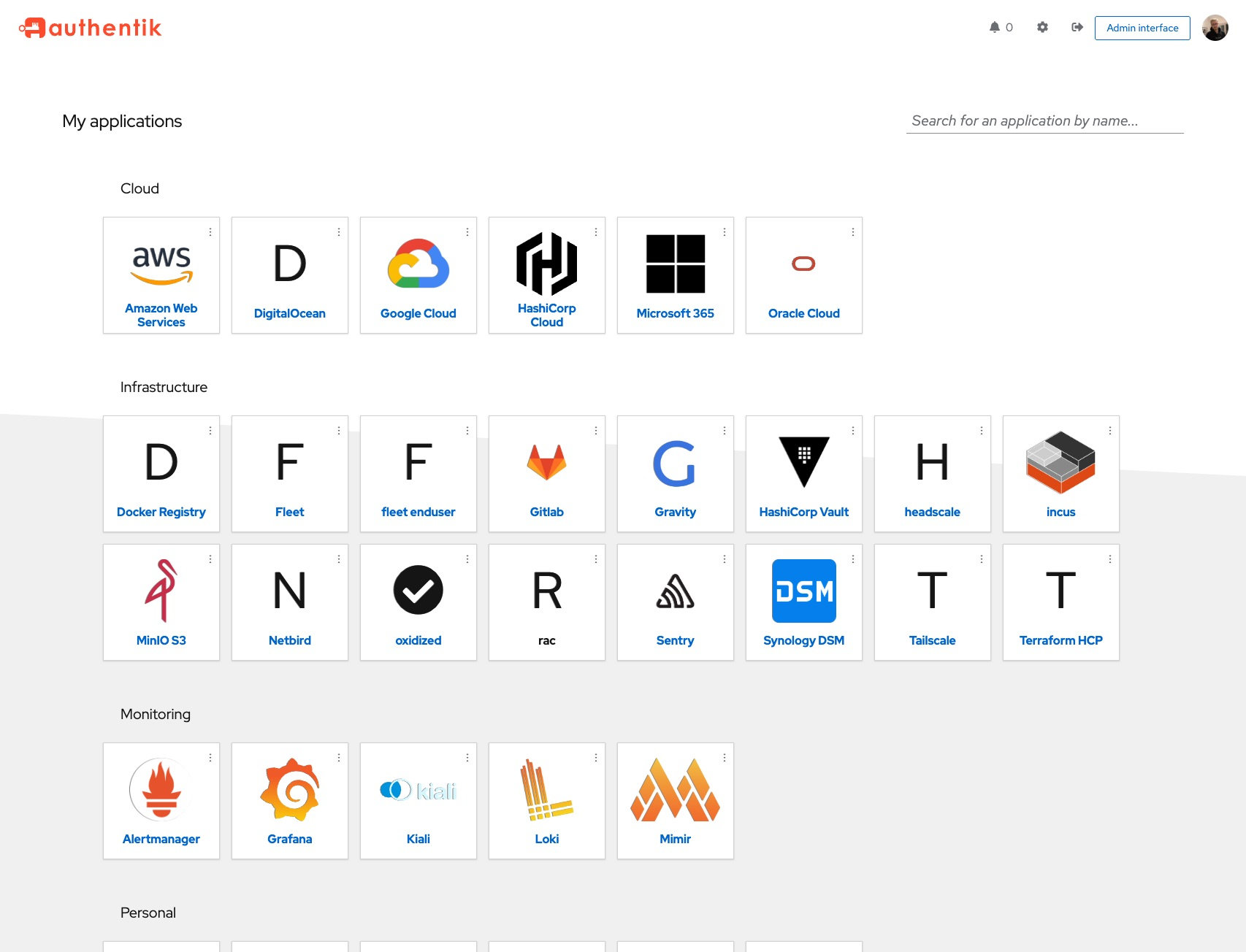
Image: the official authentik project (README at version/2026.8.5). Your page will show only the apps you connect.
At a glance:
- What it is: three containers (server, worker, PostgreSQL). Redis is gone since 2025.10.
- Two ways to protect an app: OIDC (the app redirects you to authentik) or forward auth (your proxy asks authentik first).
- 2026.8 changed proxy rules: authentik only believes
X-Forwarded-*headers from trusted proxy networks. Section "Put it behind HTTPS" shows the setting. - Pin the tag: never
latest. The official Compose file points to a fixed version, and so does this guide. - Back up PostgreSQL: it holds users, flows and settings. Without it authentik cannot be restored.
- Platforms: Docker Compose runs on Linux, Windows and Mac. We recommend a Linux server for real use; we did not test Windows or Mac.
How it fits together#
Your proxy ends HTTPS and asks the authentik server (which contains the embedded outpost) whether the visitor may pass. The worker and the server share one PostgreSQL database.

Drawn for this guide from the official Compose file and proxy docs, authentik 2026.8.5. Only the proxy faces the internet.
Before you start#
You need a machine with Docker and Compose v2. The docs name two requirements: at least 2 CPU cores and 2 GB of RAM, and Podman or Docker Compose (Compose v2).
Linux: Docker Engine and the Compose plugin, openssl and curl.
Windows: Docker Desktop (WSL 2 backend), PowerShell 5.1 or 7. Check:
docker --version
docker compose version
Mac: Docker Desktop, Terminal. Check:
docker --version
docker compose version
Checklist:
- [ ]
docker compose versionprints a v2 version - [ ] Ports 9000 free on the host (and 80 and 443 for the HTTPS section)
- [ ] For HTTPS: a domain such as
sso.example.comwith a DNS record pointing to the server - [ ] A place to store
.envsafely: it holds the database password and the secret key - [ ] A plan for backups (see "Updates and backups")
Tested by DIY Lab Hub: not yet. Every command comes from the official docs, the official Compose file, the Caddy docs or standard Docker and PostgreSQL tools, read in October 2026. We did not run them.
Step 1: Create the folders and the secrets#
authentik keeps files in ~/docker_volumes/authentik. Two secrets go into a .env file: the PostgreSQL password and the authentik secret key. The docs generate them with openssl.
Linux#
mkdir -p ~/docker_volumes/authentik/{data,certs,custom-templates,backups}
cd ~/docker_volumes/authentik
{
  echo "PG_PASS=$(openssl rand -base64 36 | tr -d '\n')"
  echo "AUTHENTIK_SECRET_KEY=$(openssl rand -base64 60 | tr -d '\n')"
  echo "AUTHENTIK_TAG=2026.8.5"
} > .env
chmod 600 .env
Windows (PowerShell)#
Windows has no openssl by default, so this uses .NET random bytes (works in 5.1 and 7). It writes the file as plain UTF-8:
$dir = "$HOME\docker_volumes\authentik"
New-Item -ItemType Directory -Force "$dir\data","$dir\certs","$dir\custom-templates","$dir\backups" | Out-Null
function New-Secret($n) { $b = New-Object byte[] $n; [Security.Cryptography.RandomNumberGenerator]::Create().GetBytes($b); [Convert]::ToBase64String($b) }
$text = "PG_PASS=$(New-Secret 36)`nAUTHENTIK_SECRET_KEY=$(New-Secret 60)`nAUTHENTIK_TAG=2026.8.5`n"
[IO.File]::WriteAllText("$dir\.env", $text)
icacls "$dir\.env" /inheritance:r /grant:r "${env:USERNAME}:F" | Out-Null
Mac (Terminal)#
Same commands as Linux:
mkdir -p ~/docker_volumes/authentik/{data,certs,custom-templates,backups}
cd ~/docker_volumes/authentik
{
  echo "PG_PASS=$(openssl rand -base64 36 | tr -d '\n')"
  echo "AUTHENTIK_SECRET_KEY=$(openssl rand -base64 60 | tr -d '\n')"
  echo "AUTHENTIK_TAG=2026.8.5"
} > .env
chmod 600 .env
Check it worked. The file has three lines. Do not print it on a shared screen:
grep -c "=" ~/docker_volumes/authentik/.env
On Windows use (Get-Content "$HOME\docker_volumes\authentik\.env").Count. Both print 3.
Tip: Run this step once. PostgreSQL reads
POSTGRES_PASSWORDonly when it creates an empty data directory (Postgres image docs), so a newPG_PASSlater will not match the existing database.
Step 2: Write the Compose file and start authentik#
This is the official compose.yml (default tag 2026.8.5) with three changes: the tag comes from .env, the port is published on 127.0.0.1 only (the official file publishes 9000 and 9443 on every interface), and the Docker socket mount is removed. The socket is for managed outposts; the docs call it a security risk and say you may remove it and use manual outposts. We use the embedded outpost, which needs no socket. PostgreSQL keeps the official named volume database.
Linux#
cd ~/docker_volumes/authentik
cat > docker-compose.yml << 'EOF'
services:
  postgresql:
    image: docker.io/library/postgres:16-alpine
    restart: unless-stopped
    env_file:
      - .env
    environment:
      POSTGRES_DB: ${PG_DB:-authentik}
      POSTGRES_PASSWORD: ${PG_PASS:?database password required}
      POSTGRES_USER: ${PG_USER:-authentik}
    healthcheck:
      test: ["CMD-SHELL", "pg_isready -d $${POSTGRES_DB} -U $${POSTGRES_USER}"]
      interval: 30s
      timeout: 5s
      retries: 5
      start_period: 20s
    volumes:
      - database:/var/lib/postgresql/data

  server:
    image: ghcr.io/goauthentik/server:${AUTHENTIK_TAG:-2026.8.5}
    container_name: authentik-server
    restart: unless-stopped
    command: server
    env_file:
      - .env
    environment:
      AUTHENTIK_POSTGRESQL__HOST: postgresql
      AUTHENTIK_POSTGRESQL__NAME: ${PG_DB:-authentik}
      AUTHENTIK_POSTGRESQL__PASSWORD: ${PG_PASS}
      AUTHENTIK_POSTGRESQL__USER: ${PG_USER:-authentik}
      AUTHENTIK_SECRET_KEY: ${AUTHENTIK_SECRET_KEY:?secret key required}
    depends_on:
      postgresql:
        condition: service_healthy
    ports:
      - "127.0.0.1:9000:9000"
    shm_size: 512mb
    volumes:
      - ./data:/data
      - ./custom-templates:/templates

  worker:
    image: ghcr.io/goauthentik/server:${AUTHENTIK_TAG:-2026.8.5}
    restart: unless-stopped
    command: worker
    user: root
    env_file:
      - .env
    environment:
      AUTHENTIK_POSTGRESQL__HOST: postgresql
      AUTHENTIK_POSTGRESQL__NAME: ${PG_DB:-authentik}
      AUTHENTIK_POSTGRESQL__PASSWORD: ${PG_PASS}
      AUTHENTIK_POSTGRESQL__USER: ${PG_USER:-authentik}
      AUTHENTIK_SECRET_KEY: ${AUTHENTIK_SECRET_KEY:?secret key required}
    depends_on:
      postgresql:
        condition: service_healthy
    shm_size: 512mb
    volumes:
      - ./data:/data
      - ./certs:/certs
      - ./custom-templates:/templates

volumes:
  database:
    driver: local
EOF
docker compose up -d
docker compose ps
Windows (PowerShell)#
Write the same file with a single-quoted here-string (the closing '@ must start at column 0), then start it:
cd "$HOME\docker_volumes\authentik"
$compose = @'
services:
  postgresql:
    image: docker.io/library/postgres:16-alpine
    restart: unless-stopped
    env_file:
      - .env
    environment:
      POSTGRES_DB: ${PG_DB:-authentik}
      POSTGRES_PASSWORD: ${PG_PASS:?database password required}
      POSTGRES_USER: ${PG_USER:-authentik}
    healthcheck:
      test: ["CMD-SHELL", "pg_isready -d $${POSTGRES_DB} -U $${POSTGRES_USER}"]
      interval: 30s
      timeout: 5s
      retries: 5
      start_period: 20s
    volumes:
      - database:/var/lib/postgresql/data

  server:
    image: ghcr.io/goauthentik/server:${AUTHENTIK_TAG:-2026.8.5}
    container_name: authentik-server
    restart: unless-stopped
    command: server
    env_file:
      - .env
    environment:
      AUTHENTIK_POSTGRESQL__HOST: postgresql
      AUTHENTIK_POSTGRESQL__NAME: ${PG_DB:-authentik}
      AUTHENTIK_POSTGRESQL__PASSWORD: ${PG_PASS}
      AUTHENTIK_POSTGRESQL__USER: ${PG_USER:-authentik}
      AUTHENTIK_SECRET_KEY: ${AUTHENTIK_SECRET_KEY:?secret key required}
    depends_on:
      postgresql:
        condition: service_healthy
    ports:
      - "127.0.0.1:9000:9000"
    shm_size: 512mb
    volumes:
      - ./data:/data
      - ./custom-templates:/templates

  worker:
    image: ghcr.io/goauthentik/server:${AUTHENTIK_TAG:-2026.8.5}
    restart: unless-stopped
    command: worker
    user: root
    env_file:
      - .env
    environment:
      AUTHENTIK_POSTGRESQL__HOST: postgresql
      AUTHENTIK_POSTGRESQL__NAME: ${PG_DB:-authentik}
      AUTHENTIK_POSTGRESQL__PASSWORD: ${PG_PASS}
      AUTHENTIK_POSTGRESQL__USER: ${PG_USER:-authentik}
      AUTHENTIK_SECRET_KEY: ${AUTHENTIK_SECRET_KEY:?secret key required}
    depends_on:
      postgresql:
        condition: service_healthy
    shm_size: 512mb
    volumes:
      - ./data:/data
      - ./certs:/certs
      - ./custom-templates:/templates

volumes:
  database:
    driver: local
'@
[IO.File]::WriteAllText("$HOME\docker_volumes\authentik\docker-compose.yml", $compose)
docker compose up -d
docker compose ps
Mac (Terminal)#
Same commands as Linux. Start Docker Desktop first.
Check it worked. docker compose ps lists postgresql (healthy), server and worker as running. Then read the server log for errors and ask for the setup page:
docker compose logs --tail=50 server
curl -I http://127.0.0.1:9000/if/flow/initial-setup/
On Windows use curl.exe. The docs publish no expected log text; an HTTP status line from curl means the server answers.
Tip: The setup URL needs the trailing slash. Without it you get "Not Found" (official first-steps page).
Tip: Never mount
/etc/timezoneor/etc/localtimeinto the authentik containers. The docs warn it breaks OAuth and SAML sign-in; authentik works in UTC and shows local time in the browser.
Step 3: Set the admin password and add your first user#
authentik asks you to set the password of the default user akadmin on first visit. Then you create a group and a normal user, so you do not use the admin account every day. The docs call "group, then users, then application" the best order.
Linux#
On the server open http://127.0.0.1:9000/if/flow/initial-setup/. From another computer, open a tunnel and keep it running:
ssh -N -L 9000:127.0.0.1:9000 <your-user>@<your-server-address>
Then open http://localhost:9000/if/flow/initial-setup/ on that computer.
Windows (PowerShell)#
If authentik runs in Docker Desktop on this PC, open http://localhost:9000/if/flow/initial-setup/. For a remote Linux server, run the same tunnel from PowerShell and keep the window open:
ssh -N -L 9000:127.0.0.1:9000 <your-user>@<your-server-address>
Mac (Terminal)#
Docker Desktop on this Mac: open http://localhost:9000/if/flow/initial-setup/. For a remote server use the tunnel from the Linux block.
In the browser, in the Admin interface:
- Set the
akadminpassword and store it in a password manager. - Directory > Groups > Create: for example
familyorteam. - Directory > Users > New User > Internal User: fill in a unique username, name and email, and put the user in the group.
- Sign out, and sign in as the new user. You should see the My applications page (empty for now).
Check it worked. The new user signs in and lands on the dashboard. If you cannot reach the setup flow, the docs give a last-resort command that sets the admin password directly: docker compose exec server ak changepassword akadmin. Their lock-out recovery link:
docker compose run --rm server create_recovery_key 10 akadmin
The link works for 10 minutes and gives full access to whoever holds it. On Windows run the same line in PowerShell.
Tip: Treat
akadminlike a root password. Keep the everyday account separate.
Put it behind HTTPS (with or without Traefik)#
Apps and browsers need https://sso.example.com, not a loopback port. Do this on a server with a domain and a DNS record; at home you can use Caddy's local certificates. Both routes make the server container join an external Docker network called proxy and drop the host port. Create it once:
docker network create proxy
authentik 2026.8 only accepts X-Forwarded-Proto, X-Forwarded-Host and X-Forwarded-For from trusted proxy networks. The default list covers loopback, 10.0.0.0/8, 172.16.0.0/12, the 192.168 private range, fe80::/10 and ::1/128. Docker's default address pools fall inside it. If your proxy connects from another range, set it in .env (it replaces the default list):
AUTHENTIK_LISTEN__TRUSTED_PROXY_CIDRS=127.0.0.0/8,172.16.0.0/12,<your-proxy-network>/<prefix>
Use CIDR notation even for one address (/32): a bare IP stops the server at start (issue 25225). Docs also require HTTP/1.1 or newer and WebSocket upgrade headers.
With Traefik#
For a server that already runs Traefik v3 with the Docker provider, add labels and remove the published port.
The labels below follow the official reverse-proxy page. It names the entrypoint websecure; this guide uses https, so use yours. Replace the server service in docker-compose.yml with this and add the networks block at the bottom:
  server:
    image: ghcr.io/goauthentik/server:${AUTHENTIK_TAG:-2026.8.5}
    container_name: authentik-server
    restart: unless-stopped
    command: server
    env_file:
      - .env
    environment:
      AUTHENTIK_POSTGRESQL__HOST: postgresql
      AUTHENTIK_POSTGRESQL__NAME: ${PG_DB:-authentik}
      AUTHENTIK_POSTGRESQL__PASSWORD: ${PG_PASS}
      AUTHENTIK_POSTGRESQL__USER: ${PG_USER:-authentik}
      AUTHENTIK_SECRET_KEY: ${AUTHENTIK_SECRET_KEY:?secret key required}
    depends_on:
      postgresql:
        condition: service_healthy
    shm_size: 512mb
    volumes:
      - ./data:/data
      - ./custom-templates:/templates
    networks:
      - default
      - proxy
    labels:
      traefik.enable: "true"
      traefik.docker.network: proxy
      traefik.http.routers.authentik.rule: "Host(`sso.example.com`)"
      traefik.http.routers.authentik.entrypoints: https
      traefik.http.routers.authentik.tls: "true"
      traefik.http.routers.authentik.service: authentik
      traefik.http.services.authentik.loadbalancer.server.port: "9000"
networks:
  proxy:
    external: true
Run docker compose up -d. Traefik ends TLS and talks to authentik over HTTP on port 9000, so only attach trusted containers to proxy. Do not put authentik's own forward-auth middleware on this router or its entrypoint: the docs warn it causes a redirect loop.
Check it worked. curl -I https://sso.example.com/ returns an HTTP status line over HTTPS (a redirect to the sign-in flow is normal), and the page opens with a valid certificate.
Without Traefik: Caddy#
Choose this if you have no Traefik. Caddy gets and renews its certificates itself.
Use the server service from above without the labels: block, and keep the same networks entries. Then run Caddy on the same proxy network:
mkdir -p ~/docker_volumes/caddy/{data,config}
cd ~/docker_volumes/caddy
Windows: New-Item -ItemType Directory -Force "$HOME\docker_volumes\caddy\data","$HOME\docker_volumes\caddy\config". Save as docker-compose.yml in that folder (caddy:2.11.7 is the latest Caddy release read in October 2026):
services:
  caddy:
    image: caddy:2.11.7
    container_name: caddy
    restart: unless-stopped
    ports:
      - "80:80/tcp"
      - "443:443/tcp"
      - "443:443/udp"
    volumes:
      - ./Caddyfile:/etc/caddy/Caddyfile:ro
      - ./data:/data
      - ./config:/config
    networks:
      - proxy

networks:
  proxy:
    external: true
Save the Caddyfile next to it. For a public domain Caddy uses Let's Encrypt automatically; it needs the DNS record and open ports 80 and 443:
sso.example.com {
    reverse_proxy authentik-server:9000
}
Home only, no public domain? Use Caddy's own local certificate:
sso.home.arpa {
    tls internal
    reverse_proxy authentik-server:9000
}
Caddy sets X-Forwarded-For, -Proto and -Host itself and ignores incoming values from untrusted clients (Caddy docs). Start both stacks with docker compose up -d in each folder.
For tls internal, each device must trust Caddy's root certificate. The Caddy docs give these commands, run in ~/docker_volumes/caddy:
# Linux (Debian/Ubuntu style; we copy to /tmp first because the target folder needs root)
docker compose cp caddy:/data/caddy/pki/authorities/local/root.crt /tmp/root.crt && sudo cp /tmp/root.crt /usr/local/share/ca-certificates/root.crt && sudo update-ca-certificates
# Mac
docker compose cp caddy:/data/caddy/pki/authorities/local/root.crt /tmp/root.crt && sudo security add-trusted-cert -d -r trustRoot -k /Library/Keychains/System.keychain /tmp/root.crt
On Windows, in an administrator PowerShell (the docs show this for cmd; we adapted it):
docker compose cp caddy:/data/caddy/pki/authorities/local/root.crt "$env:TEMP\root.crt"
certutil -addstore -f "ROOT" "$env:TEMP\root.crt"
Browsers with their own store (Firefox, Chrome) need the file imported by hand.
Check it worked. curl -I https://sso.example.com/ returns an HTTP status line over HTTPS. With tls internal, the padlock appears only after the root is trusted on that device.
Tip: Apps that call authentik from their own server (token and discovery URLs) must also trust that certificate. With
tls internalthis is the usual reason an OIDC login fails while the browser looks fine.
Connect your first app with OIDC#
OIDC suits apps with an "OpenID Connect" or "Generic OAuth" setting. The steps are the same on every system. We follow the official first-steps page, which uses Grafana:
- Applications > Applications > New Application. Give it a name and choose OAuth2/OpenID Connect as the provider type.
- Pick the default authorization flow, and add a Redirect URI of type Strict: the exact callback of your app, for example
https://grafana.example.com/login/generic_oauth. - Copy the Client ID, Client Secret and the application slug.
- Put them into the app. For Grafana the docs set these variables (trimmed):
environment:
  GF_AUTH_GENERIC_OAUTH_ENABLED: "true"
  GF_AUTH_GENERIC_OAUTH_NAME: "authentik"
  GF_AUTH_GENERIC_OAUTH_CLIENT_ID: "<client-id>"
  GF_AUTH_GENERIC_OAUTH_CLIENT_SECRET: "<client-secret>"
  GF_AUTH_GENERIC_OAUTH_SCOPES: "openid profile email"
  GF_AUTH_GENERIC_OAUTH_AUTH_URL: "https://sso.example.com/application/o/authorize/"
  GF_AUTH_GENERIC_OAUTH_TOKEN_URL: "https://sso.example.com/application/o/token/"
  GF_AUTH_GENERIC_OAUTH_API_URL: "https://sso.example.com/application/o/userinfo/"
  GF_SERVER_ROOT_URL: "https://grafana.example.com"
authentik serves these paths for every app: /application/o/authorize/, /token/, /userinfo/, and per app /application/o/<slug>/.well-known/openid-configuration. Most other apps only ask for that discovery URL.
Check it worked. Sign out of the app and use its "Sign in with authentik" button. You land on authentik, sign in, and return to the app. If you see "missing, invalid, or mismatching redirection URI", compare the redirect URI character by character.
Tip: Redirect URIs match exactly: scheme, host, port, path and trailing slash.
https://app/cbandhttps://app:443/cbare different (issue 23662). If a proxy adds:443, fix the proxy, or switch the URI to Regex and escape the dots:https://app\.example\.com(:443)?/cb.
Tip: The default "Any" policy mode lets everyone in when an application has no bindings. Bind the app to a group (the docs' best practice) so only that group sees and opens it.
Browse the integration guides for your app. Our guides for Immich, Paperless-ngx, Open WebUI and Beszel use the same pattern.
Protect an app with no login: forward auth#
Forward auth puts authentik in front of any web app. Your proxy sends each request to the embedded outpost, which says yes or no. We use a tiny test app, traefik/whoami, which prints the request headers. Choose Forward auth (single application) so each app can get its own rules.
- Applications > Applications > New Application, type Proxy Provider, mode Forward auth (single application), External host
https://whoami.example.com. - Applications > Outposts, edit authentik Embedded Outpost, add the application, and set
authentik_hostto the full URLhttps://sso.example.com(a bare hostname does not work). - Bind the application to your group.
- Add the proxy part below.
Traefik#
The docs list the middleware and the callback router Host(app) && PathPrefix(/outpost.goauthentik.io/) with priority 15. The embedded outpost listens on the server container, so we point both at it (the docs allow the authentik host for an embedded outpost; we use the container name). Add these labels to the server service:
      traefik.http.middlewares.authentik.forwardauth.address: http://authentik-server:9000/outpost.goauthentik.io/auth/traefik
      traefik.http.middlewares.authentik.forwardauth.trustForwardHeader: "true"
      traefik.http.middlewares.authentik.forwardauth.authResponseHeaders: X-authentik-username,X-authentik-groups,X-authentik-entitlements,X-authentik-email,X-authentik-name,X-authentik-uid,X-authentik-jwt,X-authentik-meta-jwks,X-authentik-meta-outpost,X-authentik-meta-provider,X-authentik-meta-app,X-authentik-meta-version
      traefik.http.routers.authentik-outpost.rule: "Host(`whoami.example.com`) && PathPrefix(`/outpost.goauthentik.io/`)"
      traefik.http.routers.authentik-outpost.priority: "15"
      traefik.http.routers.authentik-outpost.entrypoints: https
      traefik.http.routers.authentik-outpost.tls: "true"
      traefik.http.routers.authentik-outpost.service: authentik
Then run the test app with the middleware:
services:
  whoami:
    image: traefik/whoami:v1.11.0
    restart: unless-stopped
    networks:
      - proxy
    labels:
      traefik.enable: "true"
      traefik.docker.network: proxy
      traefik.http.routers.whoami.rule: "Host(`whoami.example.com`)"
      traefik.http.routers.whoami.entrypoints: https
      traefik.http.routers.whoami.tls: "true"
      traefik.http.routers.whoami.middlewares: authentik@docker

networks:
  proxy:
    external: true
Caddy#
The official Caddy template, with the outpost address adapted to our container. Header capitalisation matters; the docs say otherwise they come through empty:
whoami.example.com {
    route {
        reverse_proxy /outpost.goauthentik.io/* http://authentik-server:9000
        forward_auth http://authentik-server:9000 {
            uri /outpost.goauthentik.io/auth/caddy
            copy_headers X-Authentik-Username X-Authentik-Groups X-Authentik-Entitlements X-Authentik-Email X-Authentik-Name X-Authentik-Uid X-Authentik-Jwt X-Authentik-Meta-Jwks X-Authentik-Meta-Outpost X-Authentik-Meta-Provider X-Authentik-Meta-App X-Authentik-Meta-Version
            trusted_proxies private_ranges
        }
        reverse_proxy whoami:80
    }
}
Run whoami on the proxy network without labels. Reload with docker compose restart caddy.
Check it worked. Open https://whoami.example.com in a private window: you are sent to authentik. After signing in you return to whoami, which should list X-Authentik-Username among the headers (our expectation from the docs' header list). To sign out, open https://whoami.example.com/outpost.goauthentik.io/sign_out.
Tip: Forward auth cannot protect authentik itself. Keep authentik's router and the whole entrypoint free of the middleware.
Security and testing#
authentik is the front door to everything else, so protect it first.
| Control | How |
|---|---|
| Admin account | Long unique password; use a separate everyday user (Step 3). |
| Host ports | Port 9000 stays on 127.0.0.1; 9443 is never published. Behind a proxy publish no port at all. |
| Docker socket | Not mounted in this guide. The docs call it risky; if you need managed outposts, use a socket proxy. |
.env file | chmod 600. It holds the database password and the secret key. Changing the key signs everyone out. |
| App access | Bind each application to a group. No bindings in "Any" mode means everyone can open it. |
| Trusted proxies | Only the proxy's network, as CIDR. Never a network clients can reach directly. |
| Outbound traffic | An hourly update check goes to version.goauthentik.io; add AUTHENTIK_DISABLE_UPDATE_CHECK=true to .env to stop it. Error reporting (Sentry) is off by default. |
| Backups | Database dumps are secret: chmod 600, off the same disk when possible. |
Quick tests after every change:
cd ~/docker_volumes/authentik
docker compose ps
docker compose logs --tail=100 server
curl -I https://sso.example.com/
Windows: use cd "$HOME\docker_volumes\authentik" and curl.exe. The version appears under Dashboards > Overview in the Admin interface.
Common mistakes#
These come from the official docs' warnings, GitHub issues and answers AI assistants give.
| Mistake | Why it happens | Do this instead |
|---|---|---|
Using latest and jumping versions | One reporter ran :latest, got a schema error, went back, and then "Major version skips are not allowed" (issue 25652, closed). latest had pointed to an old image | Pin AUTHENTIK_TAG=2026.8.5. Go to the newest patch of your current release before the next one |
| Upgrading to 2026.8 behind a proxy and getting an endless loading screen | 2026.8 trusts forwarded headers only from trusted networks, so HTTPS looks like HTTP (issues 25675 and 25559, closed) | Check the proxy's network is in AUTHENTIK_LISTEN__TRUSTED_PROXY_CIDRS; look for blocked http:// requests in the browser tools |
| Listing a single IP as a trusted proxy | Only CIDRs were ever supported; the server stops with invalid IP address syntax (issue 25225, open) | Write 172.16.0.15/32, not 172.16.0.15 |
Redirect URI with or without :443 | Matching is exact by design (issue 23662); a proxy that forwards Host with the port changes it (issue 26808) | Fix the proxy header, or use a Regex URI with \. for dots |
| Putting the forward-auth middleware on authentik's own router | The docs warn this loops forever | Apply it only to the apps you protect |
| Re-running the secret commands after the first start | PostgreSQL ignores a new password for an existing database | Generate once; keep .env in your backup |
| Mounting the Docker socket without thinking | The official file does it for managed outposts | Remove it (as here) unless you need managed outposts |
| Setting the outpost log level only in the environment | A level saved in the outpost's configuration overrides it (issue 26076) | Change log_level in the outpost config in the Admin interface |
AI assistants: adding a Redis service or AUTHENTIK_REDIS__* | Old tutorials predate 2025.10, which removed Redis | Use the three services in Step 2 only |
AI assistants: docker compose pull as the update | The Compose file names a fixed version, so pull changes nothing | Change AUTHENTIK_TAG, then pull and up -d. Also read the notes: in 2026.8 hash_password no longer takes the password as an argument |
Tip: Before you copy a Compose file from a blog, compare its image tag and service list with the official
compose.ymlat docs.goauthentik.io/compose.yml.
Troubleshooting#
| Problem | Solution |
|---|---|
| "Not Found" at the setup page | Add the trailing slash: /if/flow/initial-setup/. Check docker compose ps for three healthy services |
| Setup page never loads | Restart (docker compose restart); if it still fails, docker compose exec server ak changepassword akadmin (last resort) |
| Endless loading, generic error, or blocked mixed content after HTTPS | The proxy must send X-Forwarded-Proto: https and its network must be in AUTHENTIK_LISTEN__TRUSTED_PROXY_CIDRS |
| 502 from Traefik | Both on the proxy network, traefik.docker.network=proxy set, port 9000 with http |
| Client IP in the logs is the proxy's | Same fix: trusted proxy networks |
| "Redirect URI Error" or "mismatching redirection URI" | Compare the URI in the provider with the app's real callback (scheme, port, trailing slash) |
| Forward auth returns 404 or loops | The outpost is not assigned to the application, or authentik_host is a bare hostname; check the router for /outpost.goauthentik.io/ |
| CSRF error when saving | Wrong Host or Origin at the proxy; keep the original host |
| Locked out | The recovery key command in Step 3 |
Diagnostics: docker compose ps, docker compose logs --tail=200 server worker, and the outpost logs searched for the provider's client ID.
Known bugs (open, October 2026)#
- Issue 25225: a bare IP in
AUTHENTIK_LISTEN__TRUSTED_PROXY_CIDRSgives an unclear startup error. - Issue 26980: a manually deployed proxy outpost ignores
SSL_CERT_FILEfor its WebSocket since 2026.8, so a private CA fails. The embedded outpost is not what the reporter used. - Issue 26280: a standalone proxy outpost loops with
InvalidIssuerwhenAUTHENTIK_HOSTdiffers from the public URL. Use the embedded outpost, as this guide does.
Updates and backups#
Update. Read the release notes first. authentik does not support downgrades, so back up first. Edit AUTHENTIK_TAG in .env, then:
cd ~/docker_volumes/authentik
docker compose pull
docker compose up -d
docker compose logs --tail=100 server
Upgrade one release at a time and update any outposts to the same version. If admin pages feel slow afterwards, the docs suggest running ANALYZE; in the authentik database.
Back up. The docs call PostgreSQL the most important part, plus /data, /certs and /custom-templates. They name pg_dump and pg_restore but give no command lines, so these are standard PostgreSQL tools. The dump happens inside the container and docker compose cp copies it out (this avoids shell encoding problems on Windows). If you changed PG_USER or PG_DB, use those names.
Linux#
Save as ~/docker_volumes/authentik/backup.sh and make it executable:
#!/bin/sh
set -e
cd ~/docker_volumes/authentik
D=$(date +%F)
docker compose exec -T postgresql pg_dump -U authentik -d authentik -Fc -f /tmp/authentik.dump
docker compose cp postgresql:/tmp/authentik.dump "backups/authentik-$D.dump"
docker compose exec -T postgresql rm /tmp/authentik.dump
tar -czf "backups/authentik-files-$D.tar.gz" data certs custom-templates .env docker-compose.yml
chmod 600 backups/authentik-*
find backups -name 'authentik-*' -mtime +14 -delete
Schedule it with crontab -e for 03:00 every day: 0 3 * * * /bin/sh $HOME/docker_volumes/authentik/backup.sh.
Windows (PowerShell)#
Save as $HOME\docker_volumes\authentik\backup.ps1:
Set-Location "$HOME\docker_volumes\authentik"
$d = Get-Date -Format "yyyy-MM-dd"
docker compose exec -T postgresql pg_dump -U authentik -d authentik -Fc -f /tmp/authentik.dump
docker compose cp postgresql:/tmp/authentik.dump "backups\authentik-$d.dump"
docker compose exec -T postgresql rm /tmp/authentik.dump
Compress-Archive -Path data,certs,custom-templates,.env,docker-compose.yml -DestinationPath "backups\authentik-files-$d.zip" -Force
Schedule it for 03:00 in Task Scheduler:
schtasks /Create /SC DAILY /ST 03:00 /TN "authentik-backup" /TR "powershell.exe -NoProfile -File $HOME\docker_volumes\authentik\backup.ps1"
Mac (Terminal)#
Use the Linux script and the same crontab -e line. Docker Desktop must be running at 03:00.
Restore test. Restore into a throwaway database, never over the live one:
cd ~/docker_volumes/authentik
docker compose cp backups/authentik-<date>.dump postgresql:/tmp/test.dump
docker compose exec -T postgresql createdb -U authentik authentik_restore_test
docker compose exec -T postgresql pg_restore -U authentik -d authentik_restore_test /tmp/test.dump
docker compose exec -T postgresql psql -U authentik -d authentik_restore_test -c "SELECT count(*) FROM authentik_core_user;"
docker compose exec -T postgresql dropdb -U authentik authentik_restore_test
The count should match your number of users. To restore for real, stop server and worker, restore the database, then start them. Our restic backup guide shows how to copy the backups folder off the machine.
Performance and resources#
The docs ask for 2 CPU cores and 2 GB RAM and publish no other figures, so we give none. Measure yours with docker stats. The 2025.10 release notes say that without Redis authentik uses roughly 50% more PostgreSQL connections than before, so keep an eye on the database container. Both server and worker set shm_size: 512mb in the official file.
FAQ#
Is authentik free? The core is MIT-licensed. The release notes mark some features as Enterprise (for example access requests and agent accounts); they have their own licence.
Does it need Redis? No. Since 2025.10 authentik stores caching, tasks and WebSocket data in PostgreSQL.
Can I run it without a domain? Yes, on http://localhost:9000 for testing. For real apps use HTTPS: Let's Encrypt for a public domain or Caddy's tls internal at home.
Does it send data to the project? It checks for new releases hourly at version.goauthentik.io; turn it off with AUTHENTIK_DISABLE_UPDATE_CHECK. Error reporting is off unless you enable it.
Can I run it on Windows or Mac? The docs list Docker Compose without an OS restriction, so Docker Desktop should work. We did not test it and recommend a Linux server.
Should I put the Docker socket proxy in? Only if you use managed outposts. This guide uses the embedded outpost and no socket.
Sources#
- authentik release 2026.8.5, README and LICENSE - read October 2026
- Docker Compose installation, compose.yml, Reverse proxy, Configuration, Upgrade and First steps - read October 2026
- Release 2026.8 and Release 2025.10 notes - read October 2026
- Proxy provider, forward auth, Traefik, Caddy, embedded outpost and OAuth2 provider - read October 2026
- Backup and restore and login troubleshooting - read October 2026
- authentik image on GitHub Container Registry (tag
2026.8.5checked) - October 2026 - Caddy release v2.11.7, Automatic HTTPS, reverse_proxy and Running Caddy - read October 2026
- PostgreSQL Docker image - read October 2026
- GitHub issues #23662, #25225, #25559, #25652, #25675, #26076, #26280, #26808, #26980 - read October 2026
Checked against the official docs on 2026-10-31.