DocuSeal with Docker: self-hosted e-signatures for PDFs (Linux, Windows, Mac)
Before you start
- 21 min read
- Updated November 2026
Boxes marked Run in terminal are what you type; plain text explains why. Check what you need first
What you get in one minute#
DocuSeal is a free, open-source web app where you upload a PDF, place signature and date boxes on it, send it to people by link, and keep the signed copy on your own server. It is a self-hosted DocuSign alternative for everyday paperwork.

Logo: the official DocuSeal project (github.com/docusealco/docuseal, public/logo.svg at tag 3.4.0)
It suits family forms, club sheets and small-business quotes. Signers use any browser and need no account. The project is active: 3.4.0 came out on 23 November 2026.
| What | Value (official sources, read November 2026) |
|---|---|
| Current version | DocuSeal 3.4.0, released 23 November 2026 ("Bug fixes and security hardening"). Before it: 3.3.8, 19 November 2026 |
| Image to pin | docuseal/docuseal:3.4.0 (Docker Hub lists amd64 and arm64, about 248 MB compressed; no 32-bit ARM) |
| Time needed | About 20 minutes for the local setup, 15 more for HTTPS (our estimate, not measured) |
| RAM and disk | 1 vCPU and 1 GB RAM is the docs' floor for small files; see "Performance and resources" |
| Port | TCP 3000 (the web app) |
| Licence | AGPLv3 with Section 7(b) Additional Terms: keep the DocuSeal attribution in the interface. A paid Pro edition exists |
| Official docs | docuseal.com/docs and the README at 3.4.0 |
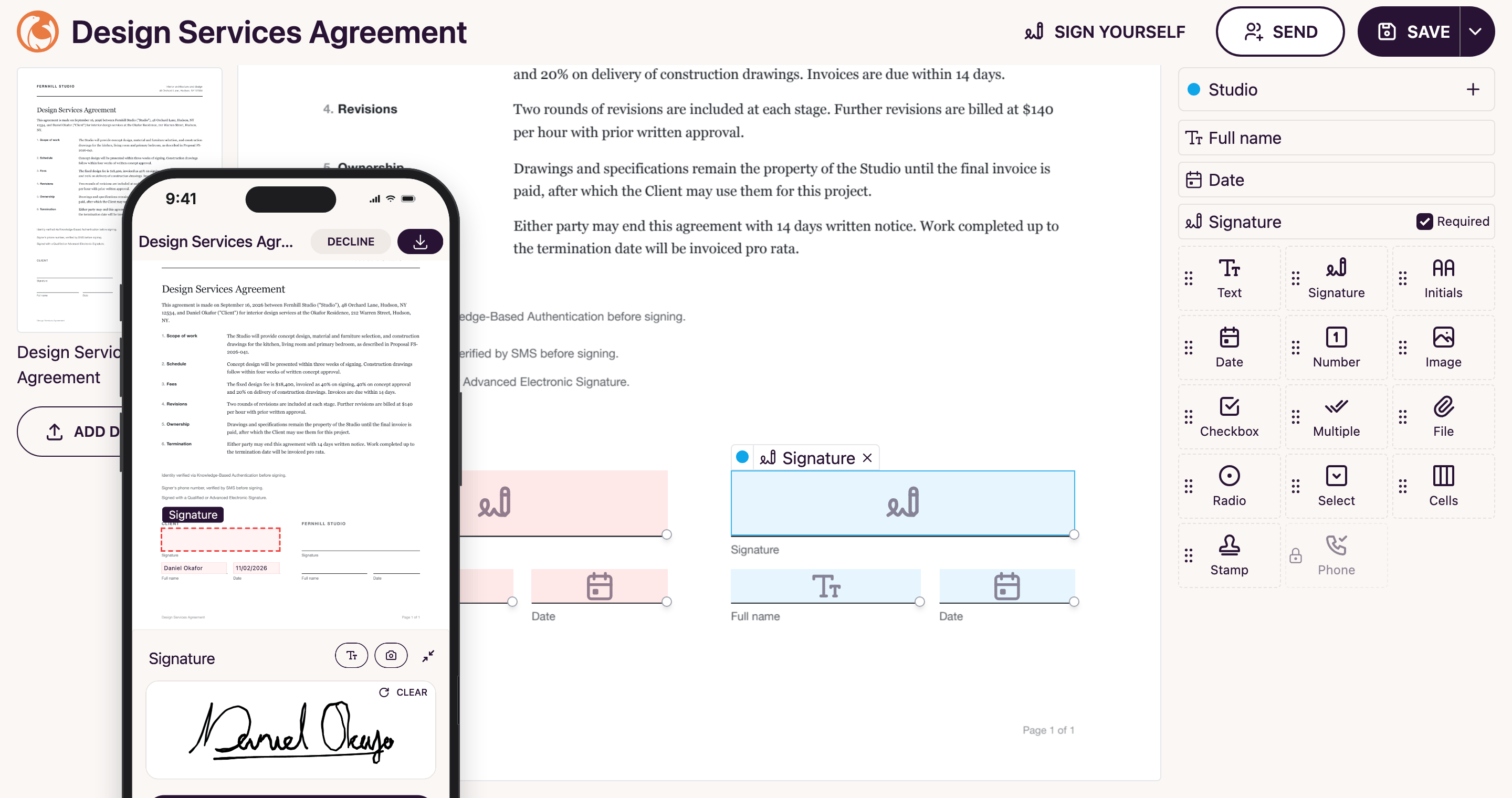
Image: the official DocuSeal project (README at 3.4.0, "Demo" screenshot)
At a glance:
- What it is: one container with the web app, background jobs and a small Redis inside.
- Free versus Pro: forms, email invitations, signing and storage are free. Branding, SSO, reminders, bulk send and embedded forms are Pro.
- Database: SQLite by default (one file). PostgreSQL is the documented choice for bigger use. We found no official way to move data between them, so choose first.
- Email and HTTPS: bring your own SMTP server. Outside signers need a domain name and a certificate.
- Legal note: a simple e-signature is not a qualified one. Read "Are e-signatures valid?".
- Update: versions below 3.3.8 have a security hole. We pin 3.4.0.
How it fits together#

Drawn for this guide from the official Dockerfile, compose file and docs at 3.4.0. The HTTPS front door (dashed) is optional for local tests.
The container runs a web server (Puma) on port 3000 and a job queue (Sidekiq). Redis listens only inside it, on 127.0.0.1:16379. Your data folder holds db.sqlite3, your PDFs and docuseal.env (the secret key).
Before you start#
Linux server: any 64-bit Linux with Docker Engine and the Compose plugin (amd64 or arm64). A public signing server should be Linux.
docker --version
docker compose version
uname -m
Windows: Docker Desktop with Linux containers (Docker's guide). Good for local tests. There is no native Windows build.
docker --version
docker compose version
Mac: Docker Desktop (Docker's guide). Apple Silicon runs the arm64 image.
docker --version
docker compose version
Checklist:
- [ ] Docker and the Compose plugin work, and Docker Desktop is running on Windows and Mac
- [ ] Port 3000 is free on your machine
- [ ] An SMTP account for sending mail
- [ ] For the HTTPS section only: a domain name, a DNS record, and ports 80 and 443 open on a Linux server
Tested by DIY Lab Hub: not yet. The commands come from the official README, Dockerfile, compose file and source at tag 3.4.0. We did not run them.
Step 1: Create the folders#
We keep the Compose file, data and backups in one folder.
Linux#
mkdir -p ~/docker_volumes/docuseal/{data,backups}
cd ~/docker_volumes/docuseal
Windows (PowerShell)#
New-Item -ItemType Directory -Force -Path "$HOME\docker_volumes\docuseal\data", "$HOME\docker_volumes\docuseal\backups"
Set-Location "$HOME\docker_volumes\docuseal"
Mac (Terminal)#
Same commands as Linux:
mkdir -p ~/docker_volumes/docuseal/{data,backups}
cd ~/docker_volumes/docuseal
Check it worked. ls (Linux, Mac) or dir (PowerShell) lists backups and data.
Step 2: Write the Compose file and start DocuSeal#
The official command is docker run --name docuseal -p 3000:3000 -v.:/data docuseal/docuseal. Our Compose file adds a pinned tag, a port open to your own machine only (127.0.0.1) and a restart policy. The app keeps its files in /data/docuseal, so we mount our data folder there.
Linux#
cat > docker-compose.yml << 'EOF'
services:
  docuseal:
    image: docuseal/docuseal:3.4.0
    container_name: docuseal
    restart: unless-stopped
    ports:
      - "127.0.0.1:3000:3000"
    volumes:
      - ./data:/data/docuseal
EOF
docker compose pull
docker compose up -d
docker compose ps
docker compose logs --tail=50 docuseal
Windows (PowerShell)#
@'
services:
  docuseal:
    image: docuseal/docuseal:3.4.0
    container_name: docuseal
    restart: unless-stopped
    ports:
      - "127.0.0.1:3000:3000"
    volumes:
      - ./data:/data/docuseal
'@ | Set-Content -Path docker-compose.yml -Encoding ascii
docker compose pull
docker compose up -d
docker compose ps
docker compose logs --tail=50 docuseal
Mac (Terminal)#
Same commands as Linux.
Check it worked. docker compose ps shows docuseal as running. This request should answer with status 200 (it is Rails' health check, /up):
curl -i http://127.0.0.1:3000/up
On Windows use curl.exe -i http://127.0.0.1:3000/up. The first start can take a minute. This only shows the app is up.
The container starts as root, hands the data folder to user ID 2000 and runs as that user. If it cannot (some Docker Desktop shares), the log says Unable to run as 2000:2000, running as <uid>:<gid> and it carries on.
Tip: The first start creates
data/docuseal.envwith a randomSECRET_KEY_BASE(the key behind sessions and stored settings). Never delete it. It is root-owned, mode 600.
Step 3: Open DocuSeal and create the admin account#
The setup page appears only while no user exists. DocuSeal has no public sign-up page: an admin adds people.
Linux#
Open http://127.0.0.1:3000 on the server. From another computer, make an SSH tunnel and leave it running:
ssh -N -L 3000:127.0.0.1:3000 <your-user>@<your-server-address>
Windows (PowerShell)#
Open http://127.0.0.1:3000. For a remote Linux server, run the tunnel in PowerShell:
ssh -N -L 3000:127.0.0.1:3000 <your-user>@<your-server-address>
Mac (Terminal)#
Open http://127.0.0.1:3000. For a remote server use the Linux tunnel command.
Fill in the form: account name, time zone, language, name, email, a long password and the App URL. The App URL goes into the links that signers receive. For a local test use http://127.0.0.1:3000. For a real server use your final address, such as https://sign.example.com.
The next page is an optional developer newsletter. Click Skip.
Then turn on two-factor login under Settings, Profile, Two-Factor Authentication.
Check it worked. You see the dashboard. http://127.0.0.1:3000/setup no longer shows the form.
Tip: Save the password in a password manager first. DocuSeal has no default account. Create the admin before anyone else can reach the page: whoever opens an empty instance first gets the setup form.
Step 4: Set up outgoing email (SMTP)#
SMTP is how DocuSeal sends signing invitations and finished copies. Without it the Send page says SMTP not Configured. A Copy Link button exists (we did not test that route).
Linux#
The easy way is the web page: Settings, Email. Enter host, port, user, password and From address. DocuSeal sends you a test email. The default port is 587.
Or use environment variables. Put the password in a .env file next to the Compose file:
cat > .env << 'EOF'
SMTP_PASSWORD=<your-smtp-password>
EOF
chmod 600 .env
Add this to the docuseal service in docker-compose.yml, then run docker compose up -d:
    environment:
      - SMTP_ADDRESS=smtp.example.com
      - SMTP_PORT=587
      - SMTP_DOMAIN=example.com
      - SMTP_USERNAME=<your-smtp-user>
      - SMTP_PASSWORD=${SMTP_PASSWORD}
      - SMTP_AUTHENTICATION=plain
      - [email protected]
Windows (PowerShell)#
Use the web page, or create the file with Set-Content -Path .env -Value 'SMTP_PASSWORD=<your-smtp-password>' -Encoding ascii, add the same environment: block in any editor and run docker compose up -d.
Mac (Terminal)#
Same as Linux.
If your SMTP password contains $ or #, use the web page instead of .env. The variables work only when SMTP_ADDRESS is set. SMTP_ENABLE_STARTTLS and SMTP_SSL_VERIFY are on by default; the docs say to pass false to switch them off. Do that only for a relay you trust.
Check it worked. The test email arrives in your inbox.
Tip: If a recipient gets nothing and the app shows no error, open
/jobs(the admin job queue) and look for failed SMTP jobs. Then check spam, your mail provider's logs and your domain's SPF and DKIM records. If/jobsdoes not open, readdocker compose logs.
Step 5: Send your first document for signature#
Use a harmless one-page PDF and a second email address of yours.
Linux#
- Upload the PDF as a new template.
- Drag a Signature and a Date box onto the page, as in the picture at the top.
- Press Save, then Send, and enter your second address.
- Open the link on your phone, draw or type a signature, and submit.
- Download the signed PDF from the dashboard.
Windows (PowerShell)#
Same steps in your browser.
Mac (Terminal)#
Same steps in your browser.
Check it worked. The dashboard shows the document as completed. The PDF has your signature and date.
Open the PDF in a viewer that shows signatures. At setup DocuSeal creates its own certificate, "DocuSeal Self-Host Autogenerated" (Settings, E-Signature). A private authority made it, so some viewers say the signer is not trusted. That is expected. You can upload your own certificate there and set a time-stamp server. The "DocuSeal Trusted Signature" row says "Unlock with DocuSeal Pro".
Step 6 (optional): Use PostgreSQL instead of SQLite#
The requirements page says SQLite is fine under 1,000 documents a year, and PostgreSQL is "primary and recommended" for heavy use. We found no official tool to copy SQLite data into PostgreSQL. In discussion 271 a maintainer only explained that Compose had started a new app with a new database. Start with the database you want.
This starts a new, empty database. Your SQLite users and templates stay in the old file. We use a hex-only password, because special characters in DATABASE_URL have crashed the app. The >> keeps any SMTP lines already in .env. If you added SMTP variables to the Step 2 file, copy them into this one.
Linux#
docker compose down
mkdir -p pgdata
echo "POSTGRES_PASSWORD=$(openssl rand -hex 24)" >> .env
chmod 600 .env
cat > docker-compose.yml << 'EOF'
services:
  docuseal:
    image: docuseal/docuseal:3.4.0
    container_name: docuseal
    restart: unless-stopped
    depends_on:
      postgres:
        condition: service_healthy
    ports:
      - "127.0.0.1:3000:3000"
    volumes:
      - ./data:/data/docuseal
    environment:
      - DATABASE_URL=postgresql://postgres:${POSTGRES_PASSWORD}@postgres:5432/docuseal

  postgres:
    image: postgres:18.7
    container_name: docuseal-postgres
    restart: unless-stopped
    volumes:
      - ./pgdata:/var/lib/postgresql/18/docker
    environment:
      - POSTGRES_USER=postgres
      - POSTGRES_PASSWORD=${POSTGRES_PASSWORD}
      - POSTGRES_DB=docuseal
    healthcheck:
      test: ["CMD-SHELL", "pg_isready -U postgres"]
      interval: 5s
      timeout: 5s
      retries: 5
EOF
docker compose up -d
docker compose ps
The official file mounts PostgreSQL at /var/lib/postgresql/18/docker with the floating tag postgres:18. We pin 18.7, the newest 18.x tag we saw.
Windows (PowerShell)#
docker compose down
New-Item -ItemType Directory -Force -Path pgdata
$bytes = New-Object byte[] 24
[System.Security.Cryptography.RandomNumberGenerator]::Create().GetBytes($bytes)
$pw = ($bytes | ForEach-Object { $_.ToString("x2") }) -join ""
Add-Content -Path .env -Value "POSTGRES_PASSWORD=$pw" -Encoding ascii
Then write the same docker-compose.yml as in the Linux part (any editor, same indentation) and run docker compose up -d.
Mac (Terminal)#
Same commands as Linux.
Check it worked. docker compose ps shows both containers running, PostgreSQL healthy. curl -i http://127.0.0.1:3000/up answers 200. The database is empty, so the setup page appears again.
Tip: Keep the
datafolder when you switch. It holdsdocuseal.env, the key from Step 2.
Put it behind HTTPS (with or without Traefik)#
People outside your network need an https:// address. This part is for a Linux server with a domain; skip it for home tests. There is no documented sub-path support, so use a host name such as sign.example.com. See our Traefik guide and Caddy guide.
Set two variables on the docuseal container: HOST (your domain) and FORCE_SSL=true (the app treats every request as HTTPS). Then change Settings, Account, App URL to your https:// address.
With Traefik#
On a server that already runs Traefik v3, add labels and remove the host port. We use the names from our Traefik guide: network proxy, entrypoint https, resolver le. Each router that wants a Let's Encrypt certificate needs its own tls.certresolver label. Create the network once with docker network create proxy (an error means it exists).
services:
  docuseal:
    image: docuseal/docuseal:3.4.0
    container_name: docuseal
    restart: unless-stopped
    volumes:
      - ./data:/data/docuseal
    environment:
      - HOST=sign.example.com
      - FORCE_SSL=true
    networks:
      - proxy
    labels:
      - "traefik.enable=true"
      - "traefik.docker.network=proxy"
      - "traefik.http.routers.docuseal.rule=Host(`sign.example.com`)"
      - "traefik.http.routers.docuseal.entrypoints=https"
      - "traefik.http.routers.docuseal.tls=true"
      - "traefik.http.routers.docuseal.tls.certresolver=le"
      - "traefik.http.services.docuseal.loadbalancer.server.port=3000"

networks:
  proxy:
    external: true
With PostgreSQL, add the same environment, networks and labels to the Step 6 file and remove its ports: block. Keep any SMTP lines you added. Run docker compose up -d. Traefik passes the original host and protocol on.
Check it worked. curl -I https://sign.example.com/up answers over HTTPS with status 200.
Without Traefik: Caddy#
Choose this if you have no Traefik. Caddy gets and renews its own certificates. Mount a conf folder:
mkdir -p conf caddy_data caddy_config
cat > conf/Caddyfile << 'EOF'
sign.example.com {
    reverse_proxy docuseal:3000
}
EOF
For a home-only name, put tls internal inside the braces. Caddy then uses its own local certificate, and each device must trust Caddy's root certificate. In docker-compose.yml remove the ports: block of docuseal, set HOST and FORCE_SSL, and add:
  caddy:
    image: caddy:2.11.9
    container_name: docuseal-caddy
    restart: unless-stopped
    ports:
      - "80:80/tcp"
      - "443:443/tcp"
      - "443:443/udp"
    volumes:
      - ./conf:/etc/caddy:ro
      - ./caddy_data:/data
      - ./caddy_config:/config
Run docker compose up -d. Both share the Compose network, so docuseal:3000 works.
Check it worked. curl -I https://sign.example.com/up shows a valid certificate and status 200.
Tip: Do not set
FORCE_SSL=truefor a plainhttp://localhost:3000test. In the source it forces HTTPS, so login can fail over plain HTTP. Our reading of the code, not a tested result.
Security and testing#
| Control | How |
|---|---|
| Ports | Keep 3000 on 127.0.0.1 or behind a proxy. Never publish 3000 or PostgreSQL's 5432 |
| Secret key | data/docuseal.env or SECRET_KEY_BASE (docs: openssl rand -hex 64). Keep it across restores |
| Admin login | Long password, two-factor login, no public sign-up route (an admin adds users) |
| SSO | SAML single sign-on is Pro. We found no OIDC option in the free app |
| Docker socket | DocuSeal does not need it. Never mount /var/run/docker.sock |
| Backups | They hold signed PDFs and the key. Keep them private (chmod 600) |
| Encryption at rest | Issue 693: a maintainer says use disk or PostgreSQL storage encryption; column encryption is not planned |
| Official sample file | It uses latest tags, the password postgres and publishes port 3000. Do not copy it unchanged to a public server |
What leaves your machine. Our reading of the 3.4.0 source, not a network test: the app contacts only what you configure (SMTP, webhooks, storage, a time-stamp server). The newsletter form posts to docuseal.com only if you submit it, and Pro's trusted signature sends a PDF checksum to DocuSeal. The model that finds form fields runs inside the image. We found no telemetry switch.
Quick tests:
docker compose ps
docker compose logs --tail=100 docuseal
curl -I http://127.0.0.1:3000/up
docker exec docuseal ruby -v
The last command should start with ruby 4.0.10, the patched Ruby.
Are e-signatures valid? (not legal advice)#
We are not lawyers. This summarises DocuSeal's own compliance page. Ask a lawyer before you rely on a signature.
- Laws listed: ESIGN and UETA (United States), eIDAS (European Union), with three EU levels: simple, advanced and qualified.
- What you get: simple signatures are included. Advanced and qualified ones cost extra through partner trust providers. This guide's install gives the simple level with an audit trail.
- Cloud claims: SOC 2, ISO 27001, HIPAA and EU-server statements describe DocuSeal's cloud service, not your server.
- Document types: many countries limit e-signatures for wills, property transfers and notarised papers.
Free edition or Pro?#
DocuSeal is open core: the free app is AGPLv3, Pro is a paid licence. Under the AGPL, if you change the code and let others use it over a network, you must share your changes and keep the DocuSeal attribution.
| Free (README, 3.4.0) | Pro |
|---|---|
| PDF form builder, 12 field types | Company logo and white-label |
| Several signers per document | User roles |
| Email by SMTP | Automatic reminders, SMS invitations and checks |
| Storage on disk, S3, Google or Azure | Conditional fields and formulas |
| Automatic PDF signature and verification | Bulk send from CSV or XLSX |
| User management, two-factor login | SSO and SAML |
| API, webhooks, iOS and Android apps | HTML, PDF and DOCX template APIs, embedded forms |
The on-premises page calls the open-source edition "Free Forever without any limitations" and lists Pro at $240 per year per user plus $0.20 per document signed through the API or embedded forms. Check it for current prices. Documenso and OpenSign are other self-hosted signing projects we did not test.
Common mistakes#
| Mistake | Why it happens | Do this instead |
|---|---|---|
@, # or / in the DATABASE_URL password | Issue 412: crash with undefined method 'has_many_inversing='. URL-encoding the characters fixed it | Use a hex password (openssl rand -hex 24) |
Mounting a host folder over /tmp | Issue 585: could not find a temporary directory. The maintainer said to remove the mount. That file also set PUID and PGID, which the docs do not list | Mount only your data folder at /data/docuseal |
| Hardening the container until Redis cannot write | Issue 642 (Enterprise image): uploads gave HTTP 500 and MISCONF from the Redis inside | Let the container write to its data folder, or set REDIS_URL to your own Redis |
| Missing emails and no error | Issue 579: some recipients got nothing and /jobs showed no failure. No fix found | Check /jobs, spam and provider logs. Send a test mail from Settings, Email |
Wrong HOST or App URL | Issue 514: uploads gave HTTP 500; Compose warned The "HOST" variable is not set. The maintainer asked to check the App URL | Set HOST and check Settings, Account, App URL |
| Old CPU or old NAS kernel | Issue 600 (2.3.1 and newer: Aborted in oj.so, old AMD CPU) and issue 90 (failed to get urandom, old Synology kernel) | Use a current host. For 600 the maintainer said the oj gem was removed later |
| Blaming the server for a Safari "Submit does nothing" | Issue 746 (open): two page loads at once give Can't verify CSRF token authenticity on iPhone | Ask the signer to reopen the link. Never switch protection off |
| Looking for a sign-up page | Issue 101: no public sign-up in the self-hosted app | Invite users as admin |
| Staying below 3.3.8 | Advisory GHSA-78g6-f52x-q3jx: one crafted request can crash the workers. No workaround | Update to 3.4.0 |
| AI assistants: invented settings | Typical wrong answers: BASE_URL or NEXT_PUBLIC_WEBAPP_URL (the docs use HOST and the App URL setting; APP_URL is only in the source), PUID, PGID, DISABLE_SIGNUP, DISABLE_TELEMETRY, OLLAMA_BASE_URL, a separate Redis container (issue 587: the image has one) or Sidekiq container, port 8080, latest tags | Copy only from this guide and the official docs at the tag you pin |
Tip:
latestmoves. You should choose the day you update, so we pin3.4.0.
Tip: Read the log first:
docker compose logs --tail=100 docuseal. In the issues above the cause was in the first error lines.
Tip: A strange Rails error at first start is often a bad
DATABASE_URL. Check the password characters before you blame the image.
Troubleshooting#
| Problem | Solution |
|---|---|
| 422 page behind a proxy | Pass the original host and protocol. Set FORCE_SSL=true and HOST (see below) |
Bind for 127.0.0.1:3000 failed: port is already allocated | Change the left side: 127.0.0.1:3001:3000 |
mkdir /data/docuseal: permission denied on Windows | Issue 256 (2024, -v.:/data in PowerShell). Use our Step 1 folders and Compose file |
| Signing link has the wrong address | Set Settings, Account, App URL |
/setup shows again | You started with a new empty data folder or database (discussion 271) |
422 behind a proxy#
The log shows this line, from the official docs:
ActionController::InvalidAuthenticityToken (HTTP Origin header (https://docuseal.mydomain.com) didn't match request.base_url (http://docuseal.mydomain.com)):
The browser used HTTPS but the app thought the request was HTTP. For nginx, the docs add three proxy_set_header lines in location /: X-Forwarded-For $proxy_add_x_forwarded_for, X-Forwarded-Proto $scheme and X-Forwarded-Host $host. Traefik and Caddy send them for you.
The app crashes on start#
! Unable to load application: NoMethodError: undefined method 'has_many_inversing=' for class ActiveRecord::Base
Fix the database password characters (issue 412). The /tmp case (issue 585) prints system temporary path is not writable: /tmp and ArgumentError: could not find a temporary directory.
Uploads fail and Redis complains#
MISCONF Redis is configured to save RDB snapshots, but it's currently unable to persist to disk
The Redis inside the container cannot write (issue 642). Allow writes, or point REDIS_URL at your own Redis.
A Pro-only call on the free edition#
{"status":404,"message":"This feature is available in Pro Edition: https://www.docuseal.com/pricing"}
This is not a bug. The HTML, PDF and DOCX template API paths need Pro.
Known bugs#
- Issue 730 (open): a 22-page PDF adds about 475 MB while processed. In a 740 MB container the second upload in a row was killed. A fix (pull request 731) is proposed.
- Issues 746 and 579 (open): see "Common mistakes".
- 3.4.0 itself: the newest GitHub issue we saw is from 12 November 2026. We found no reports against 3.3.8 or 3.4.0.
Updates and backups#
Update. Back up first. Then change the tag in docker-compose.yml, read the release notes, and run:
cd ~/docker_volumes/docuseal
docker compose pull docuseal
docker compose up -d docuseal
docker exec docuseal ruby -v
The advisory says docker compose pull app for the official file, where the service is called app; ours is docuseal. Some releases migrate the database on start: 3.3.4 took a few seconds under 10,000 submissions and 1 to 2 minutes at about 500,000. Release 3.3.6 removed an old download path: links made before 22 February 2024 now give a 404 page.
Back up (SQLite). Stop the container so the database file is quiet. On Linux sudo is needed because docuseal.env is root-only (on Mac try without it). If you have a .env file, add it to the list.
cd ~/docker_volumes/docuseal
docker compose stop docuseal
mkdir -p backups
sudo tar -czf "backups/docuseal-$(date +%F-%H%M).tar.gz" data docker-compose.yml
sudo chmod 600 backups/docuseal-*.tar.gz
docker compose start docuseal
Back up (PostgreSQL). Stop the app so the database and the files match. The dump goes through a file inside the container, so it is safe in every shell:
docker compose stop docuseal
docker compose exec -T postgres pg_dump -U postgres -d docuseal -Fc -f /tmp/docuseal.dump
docker compose cp postgres:/tmp/docuseal.dump "./backups/docuseal-db-$(date +%F-%H%M).dump"
sudo tar -czf "backups/docuseal-files-$(date +%F-%H%M).tar.gz" data docker-compose.yml .env
docker compose start docuseal
Schedule it: on Linux and Mac put the commands in a script and run it from crontab -e with 0 3 * * * (03:00 daily). Copy the archives to another machine too.
Windows (PowerShell)#
Save this as backup.ps1 and run it from Task Scheduler (daily, 03:00, as your own user, with Docker Desktop running):
Set-Location "$HOME\docker_volumes\docuseal"
docker compose stop docuseal
$items = @('data', 'docker-compose.yml')
if (Test-Path .env) { $items += '.env' }
Compress-Archive -Path $items -DestinationPath "backups\docuseal-$(Get-Date -Format yyyy-MM-dd-HHmm).zip"
docker compose start docuseal
Mac (Terminal)#
Use the Linux commands and cron.
Restore test. Unpack into a new empty folder, change the port to 127.0.0.1:3001:3000, start it, log in and download one signed PDF. For PostgreSQL, start only the postgres service first, copy the dump in and restore it:
docker compose cp ./backups/<your-dump-file> postgres:/tmp/docuseal.dump
docker compose exec -T postgres pg_restore -U postgres -d docuseal --clean --if-exists /tmp/docuseal.dump
Performance and resources#
The official requirements page gives these approximate estimates for storing 10,000 signed documents.
| Case (vCPU / RAM / disk) | 500 KB files | 5 MB files | 100 MB files |
|---|---|---|---|
| Template used once, one signer | 1/1 GB/12 GB | 1/2 GB/125 GB | 2/4 GB/2,250 GB |
| Template used once, several signers | 1/1 GB/25 GB | 1/2 GB/225 GB | 2/4 GB/4,500 GB |
| Template reused, one signer | 1/1 GB/6 GB | 1/2 GB/60 GB | 2/4 GB/1,100 GB |
| Template reused, several signers | 1/1 GB/18 GB | 1/2 GB/175 GB | 2/4 GB/3,500 GB |
- More RAM than the floor: issue 730 shows 740 MB is too small for a long PDF. Use SSD disks and 2 GB or more for big files (docs).
- Tuning:
WEB_CONCURRENCYsets the web processes (default 1, one CPU core). - Measure:
docker stats docuseal. No idle figures are published.
FAQ#
Do I need to run Redis myself? No. The image starts one inside the container (maintainer, issue 587). Set REDIS_URL only if you want your own.
Can I use it without SMTP? The app works, but the Send page says "SMTP not Configured". Copying links by hand should work (not tested by us).
Is it really free? The app is free and open source. Pro features cost money, as listed above.
Does it send my documents to DocuSeal? We found no such upload in the 3.4.0 source. See "What leaves your machine" for the two exceptions.
Can I move from SQLite to PostgreSQL later? We found no official tool or guide. Decide at the start.
Is a signed PDF legally binding? It depends on your country and the document type. See the legal note and ask a lawyer.
Sources#
- DocuSeal at tag 3.4.0: release, README, docker-compose.yml, Dockerfile, additional terms, logo and the source files for setup, routes and SMTP - read November 2026
- DocuSeal on Docker Hub (tag
3.4.0checked), the changelog and the security advisory GHSA-78g6-f52x-q3jx - November 2026 - Official docs: environment variables, server requirements, updating, reverse proxy (nginx), on-premises page and compliance - November 2026
- GitHub issues 90, 101, 256, 412, 514, 579, 585, 587, 600, 642, 693, 730, 746 and discussion 271 - read November 2026
- Caddy v2.11.9, reverse_proxy, Docker Desktop for Windows and for Mac - November 2026

Checked against the official docs on 2026-11-25.