Docmost with Docker: a self-hosted wiki and docs space (Linux, Windows, Mac)
Before you start
- 22 min read
- Updated November 2026
Boxes marked Run in terminal are what you type; plain text explains why. Check what you need first
What you get in one minute#
Docmost is a free, self-hosted wiki: you write pages in a browser, organise them in spaces, and several people can edit the same page at the same time, all on your own server.

Logo: the Docmost app icon from the official project (app-icon-512x512.png in the repository at v0.98.0). The project publishes no separate logo file.

It suits a home-lab runbook, family notes or a small team's documentation. It calls itself an open-source alternative to Notion and Confluence. The core is free; single sign-on, two-factor login, the API and AI are paid.
| What | Value (official sources, read 25 November 2026) |
|---|---|
| Current version | Docmost 0.98.0, released 20 November 2026 (previous: 0.97.0, 25 October 2026) |
| Image to pin | docmost/docmost:0.98.0 (Docker Hub; amd64 and arm64) |
| Time needed | About 20 minutes (our estimate, not measured) |
| Size and RAM | No official figure. Docker Hub shows about 133 MB compressed for the image. Measure with docker stats |
| Port | TCP 3000 (the web app). PostgreSQL 5432 and Redis 6379 stay inside Docker |
| Licence | AGPL 3.0 for the core; Business and Enterprise editions are commercial |
| Official docs | docmost.com/docs and the README at v0.98.0 |
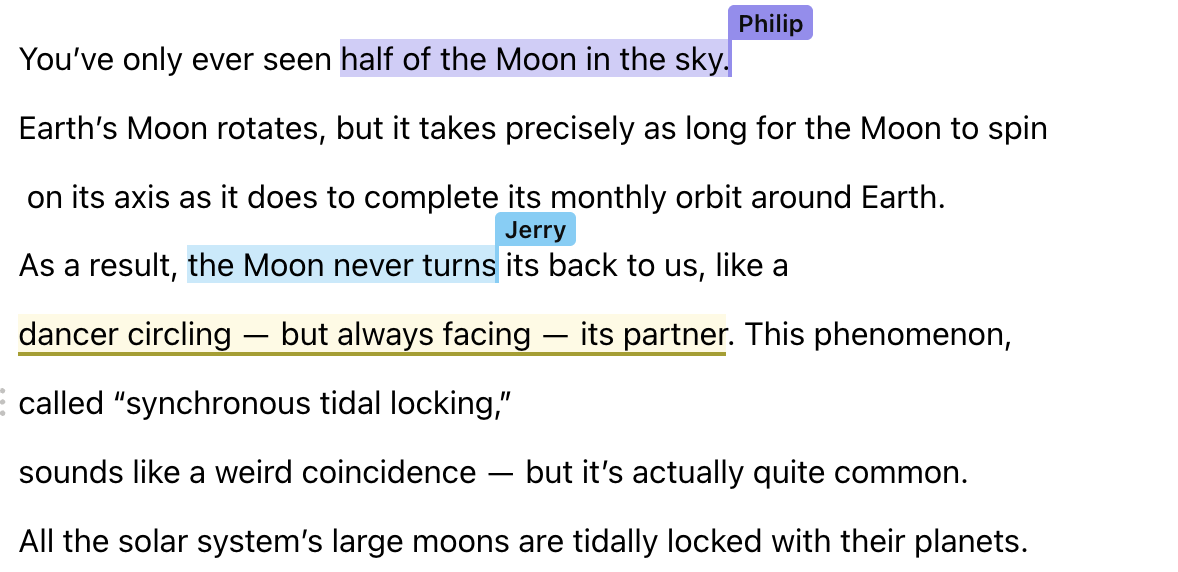
Image: the official Docmost website (docmost.com, "real-time" feature picture), shown unchanged. It is not dated and may differ from 0.98.0.
At a glance:
- What it is: one app container, plus PostgreSQL for your data and Redis for background jobs.
- Login: built-in email and password. SSO, LDAP and two-factor login are paid.
- Hardened image: since 0.98.0 the image has no shell, no
curland no package manager. - No sub-path: it needs its own host name, never
example.com/docmost.
Which version. 0.98.0 is the newest stable release, and it was five days old when we read the sources. We found one small open report (issue 2763, a setting that looked switched off after upgrading) and no wave of breakage. Older tags are not safer: the 0.96.0 and 0.97.0 notes recommend upgrading for security fixes. The official file uses latest; we pin the tag.
How it fits together#
You open Docmost in a browser; the app container keeps pages and users in PostgreSQL, background jobs in Redis, and uploaded files in a storage volume.

Drawn for this guide from the official Compose file and docs. The dashed boxes are optional.
Three named volumes hold the data: docmost (uploads), db_data (PostgreSQL) and redis_data (Redis job queues, not backed up).
Before you start#
Linux server: Docker Engine and the Compose plugin. The image exists for amd64 and arm64. The docs give no RAM, CPU or disk minimum, so we give none.
docker --version
docker compose version
uname -m
Windows: Docker Desktop with Linux containers (WSL2). The docs describe Docker on a server; Docker Desktop is our adaptation.
docker --version
docker compose version
Mac: Docker Desktop. Apple Silicon works because an arm64 image exists.
docker --version
docker compose version
Checklist:
- [ ] Docker is running (
docker infoshows a Server section) - [ ] Port 3000 is free on your machine
- [ ] A password manager is ready for the owner password
- [ ] For the HTTPS section only: a domain name with a DNS record, and ports 80 and 443 free
Tested by DIY Lab Hub: not yet. The commands come from the official docs, compose file and source at the v0.98.0 tag. We did not run them.
Step 1: Create the folder and the secrets#
Docmost needs two secrets: APP_SECRET (it protects sessions and stored credentials) and the database password. The docs say APP_SECRET must be at least 32 characters and suggest openssl rand -hex 32. Hex text has no special characters, so it is safe inside a database URL.
Linux#
mkdir -p ~/docker_volumes/docmost/backups
cd ~/docker_volumes/docmost
umask 077
printf 'APP_SECRET=%s\nPOSTGRES_PASSWORD=%s\n' "$(openssl rand -hex 32)" "$(openssl rand -hex 32)" > .env
chmod 600 .env
Windows (PowerShell)#
Windows has no openssl. This snippet makes the same kind of secret and works in Windows PowerShell 5.1 and PowerShell 7:
New-Item -ItemType Directory -Force -Path "$HOME\docker_volumes\docmost\backups" | Out-Null
Set-Location "$HOME\docker_volumes\docmost"
function New-HexSecret {
  $b = New-Object byte[] 32
  $rng = [Security.Cryptography.RandomNumberGenerator]::Create()
  $rng.GetBytes($b)
  $rng.Dispose()
  ($b | ForEach-Object { $_.ToString('x2') }) -join ''
}
"APP_SECRET=$(New-HexSecret)", "POSTGRES_PASSWORD=$(New-HexSecret)" | Set-Content -Path .env -Encoding ascii
Mac (Terminal)#
Same commands as Linux. Check that openssl version prints a version first.
Check it worked. .env has two lines, each with a 64-character value. On Linux and Mac, ls -l .env shows -rw-------. On Windows, Get-Content .env shows two lines.
Tip: Keep
.envout of Git and out of screenshots. LosingAPP_SECRETlater makes encrypted settings unreadable after a restore.
Step 2: Write the Compose file and start Docmost#
This is the official file with four changes: the pinned tag, secrets read from .env, the port bound to 127.0.0.1, and a health check. The check is the Node version from the 0.98.0 release notes (the image has no curl); the timings are ours.
PostgreSQL 18 changed its data folder, so db_data mounts at /var/lib/postgresql (17 and older used /var/lib/postgresql/data). The three volumes are managed by Docker, not folders next to the file: docker volume ls lists them, and their names start with the folder name.
Linux#
cd ~/docker_volumes/docmost
cat > docker-compose.yml << 'EOF'
services:
  docmost:
    image: docmost/docmost:0.98.0
    depends_on:
      - db
      - redis
    environment:
      APP_URL: "http://localhost:3000"
      APP_SECRET: ${APP_SECRET}
      DATABASE_URL: "postgresql://docmost:${POSTGRES_PASSWORD}@db:5432/docmost"
      REDIS_URL: "redis://redis:6379"
    ports:
      - "127.0.0.1:3000:3000"
    healthcheck:
      test: ["CMD", "node", "-e", "fetch('http://localhost:3000/api/health').then(r => process.exit(r.ok ? 0 : 1)).catch(() => process.exit(1))"]
      interval: 30s
      timeout: 5s
      retries: 5
      start_period: 60s
    restart: unless-stopped
    volumes:
      - docmost:/app/data/storage

  db:
    image: postgres:18
    environment:
      POSTGRES_DB: docmost
      POSTGRES_USER: docmost
      POSTGRES_PASSWORD: ${POSTGRES_PASSWORD}
    restart: unless-stopped
    volumes:
      - db_data:/var/lib/postgresql

  redis:
    image: redis:8
    command: ["redis-server", "--appendonly", "yes", "--maxmemory-policy", "noeviction"]
    restart: unless-stopped
    volumes:
      - redis_data:/data

volumes:
  docmost:
  db_data:
  redis_data:
EOF
docker compose config --quiet
docker compose up -d
docker compose ps
docker compose logs --tail=50 docmost
docker compose config --quiet prints nothing when the file is valid. Without --quiet it shows your secrets.
Windows (PowerShell)#
Create the same docker-compose.yml in $HOME\docker_volumes\docmost. Open it with notepad docker-compose.yml, paste the YAML above (everything between the two EOF lines), save it as plain text, then run:
Set-Location "$HOME\docker_volumes\docmost"
docker compose config --quiet
docker compose up -d
docker compose ps
docker compose logs --tail=50 docmost
Make sure Notepad did not save the file as docker-compose.yml.txt.
Mac (Terminal)#
Same commands as Linux.
Check it worked. The log shows a line like Listening on http://127.0.0.1:3000 / http://localhost:3000 (the wording comes from the source). docker compose ps shows docmost as healthy after about a minute. Then test the health address, which checks the database and Redis. We show no output because we did not run it:
curl http://127.0.0.1:3000/api/health
On Windows use curl.exe http://127.0.0.1:3000/api/health, so PowerShell does not use its own curl alias.
Tip:
localhostmeans "this computer". To open Docmost from another computer you need a proper address, so use the HTTPS section instead of opening port 3000 to your whole network.
Step 3: Create your workspace#
Linux#
Open http://localhost:3000. You see a setup page. Enter a workspace name, your name, your email and a long password. The first person to finish setup becomes the workspace owner. There is no default login.
Windows (PowerShell)#
Open the same address in your browser.
Mac (Terminal)#
Same as Windows.
Check it worked. You land in an empty workspace. Save the password in a password manager before you close the tab.
Tip: Finish this setup before you open the server to anyone else. Whoever reaches a fresh install first becomes the owner. That is our reading of the documented setup flow, not a reported attack.
Step 4: Write a first page and test it#
Linux#
- Create a space (a section for related pages), then a page inside it.
- On an empty line type
/. A menu of blocks opens: headings, lists, tables, diagrams. - Attach a small file, then reload the browser tab. Text and file are still there.
- Run
docker compose restart docmost. Reload again. Nothing is lost. - Open the page in a second browser or private window and type in both. Each window shows the other person's marker.
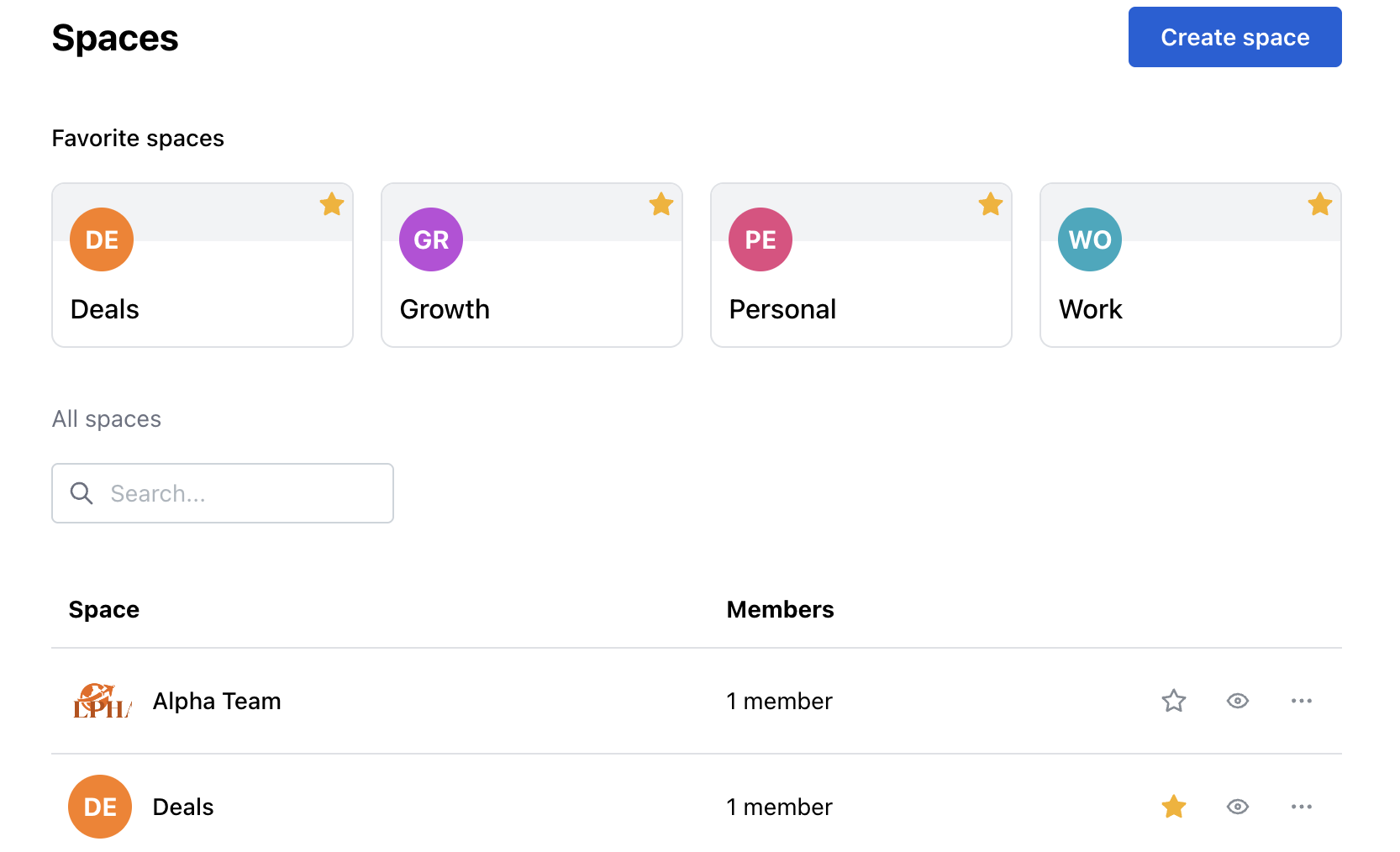
Image: the official Docmost website (docmost.com, "teamspace" feature picture), shown unchanged. Your screen may look different.
Windows (PowerShell)#
Steps 1 to 3 and 5 are in the browser. For step 4 run docker compose restart docmost.
Mac (Terminal)#
Same as Windows.
Check it worked. The page survives a restart, and two windows edit together. If the second window cannot type, WebSockets are blocked (see Troubleshooting).
Step 5: Invite people with or without email#
Docmost emails invitations only if you set up a mail server. You do not have to: a pending invitation has a Copy link button (issue 1072). Send the link yourself.
Linux#
Open Settings, Members, invite someone, then copy the link from the pending list. The browser only copies it on localhost or HTTPS (issue 874). To send email, add these to the docmost service environment: and run docker compose up -d --force-recreate docmost:
MAIL_DRIVER (smtp or postmark), SMTP_HOST, SMTP_PORT (the docs' example is 587), SMTP_USERNAME, SMTP_PASSWORD (keep it in .env), SMTP_SECURE (default false, usually true with port 465), MAIL_FROM_ADDRESS and MAIL_FROM_NAME.
Windows (PowerShell)#
Same browser steps. After editing the file, run the same docker compose up -d --force-recreate docmost.
Mac (Terminal)#
Same as Windows.
Check it worked. The invited person opens the link and sets a password, or the mail arrives. If mail does not arrive, see Troubleshooting.
Free and paid: what you really get#
The core is AGPL 3.0. Three folders in the repository (apps/server/src/ee, apps/client/src/ee, packages/ee) use the Docmost Enterprise licence. A licence key unlocks the paid features and is checked offline. If it expires, you keep all users and content and fall back to the open-source features. A free trial key is at customers.docmost.com.
| Free (Open Source edition) | Paid (Business or Enterprise) |
|---|---|
| Real-time editor, spaces, groups, nested pages | Bases (database views) |
| Workspace and space permissions | Single sign-on (SAML 2.0 and OIDC), LDAP, SCIM |
| Comments, resolving them (free since 0.98.0), page history | Two-factor login (TOTP) |
| Draw.io, Excalidraw and Mermaid diagrams, tables, maths | AI chat, Ask AI, AI Answers and a Model Context Protocol server |
| Public sharing, search, attachments, Markdown and HTML import and export, Notion import | REST API with personal API keys |
| Email and password login, dark mode, 12+ languages | Confluence, DOCX and PDF importers, templates, page-level permissions, page verification, disabling sharing or export |
| Audit logs and SIEM (Enterprise) |
In discussion 1889 users complain that two-factor login and SSO are paid. If you need them free, read the next section.
Docmost, Outline or BookStack?#
| Docmost | Outline | BookStack | |
|---|---|---|---|
| Licence | AGPL 3.0 core, paid extras | Business Source License 1.1 | MIT |
| Login | Built in (email and password) | None of its own: needs an OIDC provider | Built in, plus LDAP, SAML2 and OIDC |
| Stack | App, PostgreSQL, Redis | App, PostgreSQL, Redis | PHP, MariaDB or MySQL |
| Good at | Real-time editing, spaces, easy start | Polished editor, markdown | Books and chapters, free SSO options |
| Watch out for | SSO, MFA, API are paid | You must run an identity provider first | No Docker image from the project itself |
Pick Docmost if you want a modern editor and a simple first login. Pick BookStack if free SSO or MFA matters. Pick Outline if you already run an OIDC provider such as Authentik.
Put it behind HTTPS with Traefik or Caddy#
Skip this on your own computer. For https://docmost.<your-domain> you need a DNS record pointing to the server and ports 80 and 443 open. Set APP_URL to the HTTPS address. Use one proxy, not both.
Two maintainer rules. Sub-paths are unsupported (issue 966). And WebSockets must work, or the editor is read-only. The paths are /socket.io and /collab; nginx needs the Upgrade and Connection headers (issue 846). Traefik and Caddy handle this by themselves.
With Traefik#
If you already run Traefik v3 as in our Traefik guide, join the shared network and add labels. That guide names the entrypoints http and https, the network proxy and the certificate resolver le. Use your own names if they differ. Every router that uses Let's Encrypt needs its own tls.certresolver label.
docker network create proxy
(An "already exists" error is fine.) In docker-compose.yml, replace the docmost: service with this, remove its ports:, and add the proxy network at the bottom. Keep db, redis and the volumes as they are:
services:
  docmost:
    image: docmost/docmost:0.98.0
    depends_on:
      - db
      - redis
    environment:
      APP_URL: "https://docmost.<your-domain>"
      APP_SECRET: ${APP_SECRET}
      DATABASE_URL: "postgresql://docmost:${POSTGRES_PASSWORD}@db:5432/docmost"
      REDIS_URL: "redis://redis:6379"
    healthcheck:
      test: ["CMD", "node", "-e", "fetch('http://localhost:3000/api/health').then(r => process.exit(r.ok ? 0 : 1)).catch(() => process.exit(1))"]
      interval: 30s
      timeout: 5s
      retries: 5
      start_period: 60s
    restart: unless-stopped
    volumes:
      - docmost:/app/data/storage
    networks:
      - default
      - proxy
    labels:
      - "traefik.enable=true"
      - "traefik.docker.network=proxy"
      - "traefik.http.routers.docmost.rule=Host(`docmost.<your-domain>`)"
      - "traefik.http.routers.docmost.entrypoints=https"
      - "traefik.http.routers.docmost.tls=true"
      - "traefik.http.routers.docmost.tls.certresolver=le"
      - "traefik.http.services.docmost.loadbalancer.server.port=3000"

networks:
  proxy:
    external: true
Run docker compose up -d. The default network keeps db and redis private. Check it worked. curl -I https://docmost.<your-domain>/ returns an HTTP status line over HTTPS, and two browser windows edit together.
Without Traefik: Caddy#
Caddy gets and renews the certificate for you. Add this service to docker-compose.yml, remove the ports: block from docmost, set APP_URL to the HTTPS address, and add caddy_data: and caddy_config: to the bottom volumes: list:
  caddy:
    image: caddy:2.11.9
    depends_on:
      - docmost
    restart: unless-stopped
    ports:
      - "80:80"
      - "443:443/tcp"
      - "443:443/udp"
    volumes:
      - ./caddy/conf:/etc/caddy:ro
      - caddy_data:/data
      - caddy_config:/config
Create the folder and Caddyfile (we mount the folder, not the file; on Windows use New-Item -ItemType Directory -Force caddy\conf). Public domain:
mkdir -p ~/docker_volumes/docmost/caddy/conf
docmost.example.com {
    reverse_proxy docmost:3000
}
Save the text as caddy/conf/Caddyfile. For a home-only name, use Caddy's own certificate:
docmost.home.arpa {
    tls internal
    reverse_proxy docmost:3000
}
Run docker compose up -d. For tls internal, each device must trust Caddy's root certificate (our advice, not Docmost's):
docker compose cp caddy:/data/caddy/pki/authorities/local/root.crt ./caddy-root.crt
Install caddy-root.crt as a trusted root: Windows, "Trusted Root Certification Authorities"; macOS, Keychain Access with "Always Trust"; Linux, your CA store. Only trust a certificate from your own Caddy.
Check it worked. curl -I https://docmost.example.com/ returns a status line over HTTPS. For a home name the padlock appears after the root is trusted.
Security and testing#
| Control | How |
|---|---|
| Keep it off the open internet | The Compose file binds 127.0.0.1. Publish only the proxy on 80 and 443. Never publish 5432 or 6379 |
| Secrets | Only in .env (chmod 600). Never lose APP_SECRET: it decrypts MFA secrets, integration tokens and SIEM credentials after a restore |
| Public sign-up | We found no setting to switch it off. Do not invent one |
| Docker socket | Docmost does not need it. Only the docs' Traefik example mounts it. A :ro mount does not make the Docker API read-only |
| Telemetry | Anonymous counts of version, users, pages, spaces and workspaces. Set DISABLE_TELEMETRY: "true" to stop it |
| Other outbound calls | The Draw.io editor loads from https://embed.diagrams.net (DRAWIO_URL changes it). SMTP, S3 and AI call out when set |
Local AI. The AI features are paid and need AI_DRIVER plus PostgreSQL with pgvector. The postgres:18 image above is not a pgvector image, so you would migrate by dump and restore (test first). The docs' Ollama example: AI_DRIVER=ollama, OLLAMA_API_URL=http://ollama:11434, AI_EMBEDDING_MODEL=nomic-embed-text, AI_COMPLETION_MODEL=qwen2.5:7b, AI_EMBEDDING_DIMENSION=768. No llama.cpp or vLLM recipe exists; only an openai-compatible driver.
Quick tests (on Windows write curl.exe):
docker compose ps
docker compose logs --tail=100 docmost
curl -I http://127.0.0.1:3000/
Common mistakes#
| Mistake | Why it happens | Do this instead |
|---|---|---|
| The editor is read-only, or "Real-time editor connection lost" | The WebSocket does not connect (discussion 1239). One reporter proxied a guessed /websocket path (issue 846) | Proxy the whole site. The real paths are /socket.io and /collab |
Hosting at example.com/docmost | Sub-paths are unsupported (issue 966) | Use docmost.<your-domain> |
| An invite's "Copy link" copies nothing | Browsers allow the clipboard only on HTTPS or localhost (issue 874) | Open the HTTPS address and set APP_URL to it |
Error processing file upload. or Draw.io "Save & Exit" does nothing | The storage folder is not writable for the app user, UID 1000 (issue 803, issue 1808) | Keep the named volume, or make a bind-mounted folder writable for UID 1000 |
Adding user: 1001:1001 to run rootless | The image does not accept another user; still open (issue 1743) | Leave user: out |
Redis restarts in a loop with Bad file format reading the append only file | A damaged Redis file (discussion 2468) | Redis state is disposable, says the maintainer: delete redis_data |
postgres:18 with the old mount /var/lib/postgresql/data | PostgreSQL 18 moved its data folder | Mount /var/lib/postgresql. Move an old 16 or 17 database by dump and restore (issue 1811 asks for a guide) |
| Docmost 0.24.0 would not start on a Proxmox VM | The VM's default CPU type lacked instructions a library needs (issue 1784) | Set the VM CPU type to x86-64-v3 or host |
docker exec -it docmost sh or a curl health check on 0.98.0 | The hardened image has no shell or curl | Use the Node health check above |
Changing POSTGRES_PASSWORD after the first start | PostgreSQL stores it on first start only (our note) | Change it inside PostgreSQL, or start with an empty db_data |
| AI assistants: wrong image, variables and port | Typical wrong answers: :latest, Outline's URL and SECRET_KEY instead of APP_URL and APP_SECRET, an invented DISABLE_SIGNUP, a default admin login, port 8080, MongoDB, "SSO is free" | Copy only from the official docs and this guide |
Tip: After any proxy change, open the page in two windows and type in both. A page that loads does not prove WebSockets work.
Tip: Never run
docker compose down -vordocker volume pruneon a stack you care about. Named volumes hold all your pages.
Tip: Read the release notes before each upgrade. 0.98.0 changed the image itself.
Troubleshooting#
| Problem | Solution |
|---|---|
| Page does not open | docker compose ps, then docker compose logs --tail=100 docmost db redis. Is Docker running? |
port is already allocated | Another program uses 3000. Change the left number, for example 127.0.0.1:3001:3000 |
| Editor read-only | WebSockets blocked. Look for /socket.io and /collab in the browser's network tab. Reload once (issue 2377) |
| Uploads fail | Look for EACCES in the log, then check the volume owner (UID 1000) and FILE_UPLOAD_SIZE_LIMIT (default 50mb) |
Exact error texts#
The Environment variables has failed the following validations:followed by JSON lines andPlease fix the environment variables and try again. Exiting program.... Docmost refuses to start. From the source, the messages includeAPP_SECRET must be longer than or equal to 32 characters,APP_SECRET should not be one of the following values: REPLACE_WITH_LONG_SECRETandDATABASE_URL must be a valid postgres connection string. Fix.envor the Compose file.Error processing file upload.withEACCES: permission denied, mkdir '/app/data/storage/...'in the log (issue 803). The app user cannot create folders. Fix the owner; do not usechmod 777.Bad file format reading the append only file: Redis cannot read its journal (discussion 2468). Rundocker compose down, remove theredis_datavolume (seedocker volume ls), thendocker compose up -d. Pages and uploads are untouched.Internal server errorat login withinvalid input syntax for type inet: "(null)": reported after a jump from 0.70.2 to 0.80.2 behind a proxy (issue 2197). The 0.98.0 source trusts proxies on private ranges, so a proxy container on the Docker network counts. There is noTRUST_PROXYsetting. We could not prove the issue is fixed.connect ECONNREFUSED 127.0.0.1:587: no mail server is set, so invitation emails fail (issue 128). Set theSMTP_variables or copy the invite link.
Known bugs (open, November 2026)#
- Issue 2377: after fast page switching the editor can freeze with
[onAuthenticate] Invalid collab tokenin the log. A full reload recovers it. - Issue 2763: after upgrading to 0.98.0, "Allow personal spaces" looked switched off.
- Issue 2578: the app polls the database every few seconds for SIEM jobs even with none set up (seen on 0.97.0). Serverless databases are unsupported, says the maintainer.
Diagnose with docker compose ps, docker compose logs --tail=100 docmost, docker compose exec -T db pg_isready -U docmost -d docmost and docker stats --no-stream.
Updates and backups#
Update. Read the release notes, back up, change the tag in docker-compose.yml, then run the two commands from the official docs:
cd ~/docker_volumes/docmost
docker compose pull docmost
docker compose up -d --force-recreate docmost
docker compose logs --tail=100 docmost
On Windows, run the same commands from $HOME\docker_volumes\docmost. Do not assume you can go back: a database may not work with an older app.
What to back up. The PostgreSQL dump, the uploads, docker-compose.yml, .env (with the original APP_SECRET) and a note of the versions. Redis is not included. The official guide stops Docmost while copying and keeps PostgreSQL running.
The official uploads command runs tar inside the Docmost container. The 0.98.0 image has no shell or package manager, and we could not confirm tar is there. So this guide copies the uploads with a throw-away postgres:18 container that borrows the Docmost volumes with --volumes-from. This is our own method and we did not run it.
Linux#
Save this as ~/docker_volumes/docmost/backup.sh and run chmod +x backup.sh:
#!/usr/bin/env bash
set -euo pipefail
umask 077
cd "$HOME/docker_volumes/docmost"
backup_dir="$PWD/backups/docmost-$(date +%Y%m%d-%H%M%S)"
mkdir -p "$backup_dir"
cid="$(docker compose ps -aq docmost)"
test -n "$cid" || { echo "Docmost container not found" >&2; exit 1; }
docker compose stop docmost
trap 'docker compose start docmost' EXIT
docker compose exec -T db pg_dump -U docmost -d docmost -Fc > "$backup_dir/docmost-database.dump"
test -s "$backup_dir/docmost-database.dump"
docker run --rm --volumes-from "$cid" -v "$backup_dir":/backup --user root \
  --entrypoint tar postgres:18 -czf /backup/docmost-storage.tar.gz -C /app/data/storage .
cp docker-compose.yml .env "$backup_dir/"
echo "Backup written to $backup_dir"
For a nightly run at 03:00, run crontab -e and add (your user must be in the docker group):
0 3 * * * $HOME/docker_volumes/docmost/backup.sh >> $HOME/docker_volumes/docmost/backup.log 2>&1
Windows (PowerShell)#
The official commands use > to write a binary dump, which PowerShell would damage. This version writes the dump inside the database container and copies it out. Save it as backup.ps1:
Set-Location "$HOME\docker_volumes\docmost"
$stamp = Get-Date -Format "yyyyMMdd-HHmmss"
$backupDir = Join-Path $PWD "backups\docmost-$stamp"
New-Item -ItemType Directory -Force -Path $backupDir | Out-Null
$cid = (docker compose ps -aq docmost).Trim()
docker compose stop docmost
try {
  docker compose exec -T db sh -c "pg_dump -U docmost -d docmost -Fc -f /tmp/docmost.dump"
  docker compose cp db:/tmp/docmost.dump "$backupDir\docmost-database.dump"
  docker compose exec -T db rm -f /tmp/docmost.dump
  docker run --rm --volumes-from $cid -v "${backupDir}:/backup" --user root `
    --entrypoint tar postgres:18 -czf /backup/docmost-storage.tar.gz -C /app/data/storage .
  Copy-Item docker-compose.yml, .env -Destination $backupDir
}
finally {
  docker compose start docmost
}
Schedule it with Task Scheduler. Docker Desktop must be running then, or the run fails:
schtasks /Create /SC DAILY /ST 03:00 /TN "Docmost backup" /TR "powershell.exe -NoProfile -ExecutionPolicy Bypass -File `"$HOME\docker_volumes\docmost\backup.ps1`""
Mac (Terminal)#
Same script and cron line as Linux. A sleeping Mac or a stopped Docker Desktop skips the run; a launchd job is the Mac-native alternative.
Restore test. Use the official order, but try it in a copy so the live stack is untouched. Copy docker-compose.yml and .env to a folder such as ~/docmost-restore-test, change the port to 127.0.0.1:3001:3000, and run this there. The docs' rules: same Docmost version, same PostgreSQL major version, the original APP_SECRET, and a matching database and uploads backup. pg_restore overwrites data, and unpacking uploads deletes nothing, so restore into fresh volumes.
Linux and Mac:
cd ~/docmost-restore-test
backup_dir="$HOME/docker_volumes/docmost/backups/docmost-<date>"
docker compose up -d db redis
docker compose create docmost
until docker compose exec -T db pg_isready -U docmost -d docmost; do sleep 2; done
docker compose exec -T db pg_restore -U docmost -d docmost --clean --if-exists --no-owner --no-privileges --single-transaction < "$backup_dir/docmost-database.dump"
cid="$(docker compose ps -aq docmost)"
docker run --rm --volumes-from "$cid" -v "$backup_dir":/backup:ro --user root \
  --entrypoint tar postgres:18 -xzf /backup/docmost-storage.tar.gz -C /app/data/storage
docker compose up -d docmost
Windows (PowerShell), from the copy folder:
Set-Location "$HOME\docmost-restore-test"
$backupDir = "$HOME\docker_volumes\docmost\backups\docmost-<date>"
docker compose up -d db redis
docker compose create docmost
do { Start-Sleep -Seconds 2; docker compose exec -T db pg_isready -U docmost -d docmost } until ($LASTEXITCODE -eq 0)
docker compose cp "$backupDir\docmost-database.dump" db:/tmp/docmost.dump
docker compose exec -T db pg_restore -U docmost -d docmost --clean --if-exists --no-owner --no-privileges --single-transaction /tmp/docmost.dump
docker compose exec -T db rm -f /tmp/docmost.dump
$cid = (docker compose ps -aq docmost).Trim()
docker run --rm --volumes-from $cid -v "${backupDir}:/backup:ro" --user root `
  --entrypoint tar postgres:18 -xzf /backup/docmost-storage.tar.gz -C /app/data/storage
docker compose up -d docmost
Open http://localhost:3001. Your pages and attachments should be there. Remove the test with docker compose down -v inside the test folder only. For off-machine copies, see our restic backup guide.
Performance and resources#
The project publishes no RAM, CPU or disk figures, and we found no trustworthy measurement, so we give none. Measure yours:
docker stats --no-stream
docker system df
| Setting | Default | What it does |
|---|---|---|
FILE_UPLOAD_SIZE_LIMIT | 50mb | Largest single upload |
FILE_IMPORT_SIZE_LIMIT | 200mb (the docs' example shows 100mb) | Largest import |
PAGE_HISTORY_INTERVAL | 5m (minimum 1m) | How often history is saved while editing |
We found no supported recipe for running several Docmost copies at once, so do not use --scale.
FAQ#
Is Docmost free? The core is, under AGPL 3.0. SSO, LDAP, two-factor login, the API and AI need a paid key.
Can I add users without an email server? Yes. Copy the invite link from the pending invitations. Do it over HTTPS or on localhost.
Why can I read a page but not edit it? Usually your proxy blocks the WebSocket. An open bug can also freeze the editor (issue 2377); reload.
Does Docmost send my data anywhere? Only anonymous counts, unless you set DISABLE_TELEMETRY, plus the Draw.io editor from embed.diagrams.net. Mail, S3 and AI call out only if you set them.
Can I log in with Authentik or another OIDC provider? Only with a paid edition. A login page in front of Docmost is a different layer and does not create Docmost accounts.
Sources#
- Docmost release 0.98.0 with its README, docker-compose.yml, Dockerfile.hardened, LICENSE and server source - read November 2026
- Docmost docs: introduction, installation, editions, environment variables, backups, reverse proxy, Traefik, Caddy, AI search - read November 2026
- Docker Hub tags, postgres image notes, Caddy v2.11.9 - November 2026
- GitHub issues 128, 803, 846, 874, 966, 1072, 1743, 1784, 1808, 1811, 2197, 2377, 2578, 2763; discussions 1239, 1889, 2468 - read November 2026
Checked against the official docs on 2026-11-25.