BookStack with Docker: a self-hosted wiki for home and teams (Linux, Windows, Mac)
Before you start
- 22 min read
Boxes marked Run in terminal are what you type; plain text explains why. Check what you need first
What you get in one minute#
BookStack is a free, self-hosted wiki where you write pages in a browser and keep them in books and shelves, so your family notes, home-lab runbooks or team documentation stay on your own server.

Logo: the official BookStack project (icon.png in the repository at v26.09.2)

You create a book, add chapters and pages, and write in a visual editor or in Markdown. Search, roles, permissions, diagrams and export are built in. Content stays in a database on your machine; no cloud account is involved.
Two honest points. The BookStack project does not publish a Docker image of its own: its installation page lists two community images (LinuxServer.io and solidnerd). We use the LinuxServer.io one, which the project's own example compose file uses. And the project moved to Codeberg; the GitHub repository still exists, says "now managed on Codeberg", and is not archived.
| What | Value (official docs, read 31 October 2026) |
|---|---|
| Current version | BookStack v26.09.2, a security release from October 2026 (latest release) |
| Image to pin | lscr.io/linuxserver/bookstack:version-v26.09.2 (tag checked on the registry) |
| Database | lscr.io/linuxserver/mariadb:11.4.12 (BookStack needs MySQL 8.0 or newer, or MariaDB 10.6 or newer) |
| Time needed | About 15 minutes (our estimate; the first start took about a minute after the images were pulled) |
| RAM and size | Measured idle, empty wiki: BookStack about 58 MiB, MariaDB about 92 MiB; images about 500 MB each on disk |
| Port | 6875 on the host, port 80 inside the container |
| Licence | MIT (LICENSE at the release tag) |
| Official docs | bookstackapp.com/docs and the repository on Codeberg |
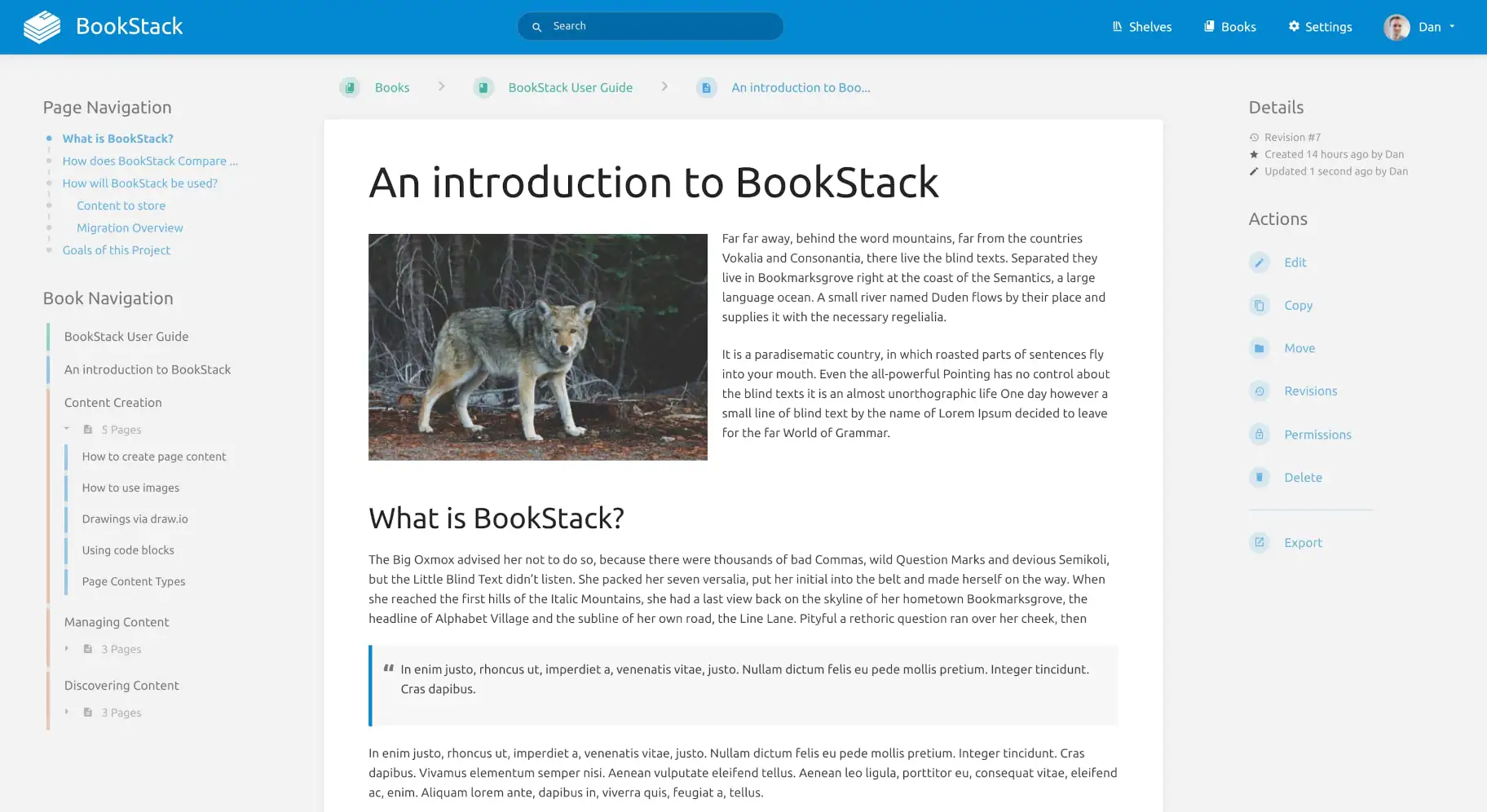
Image: the official BookStack website (bookstackapp.com), shown unchanged. Your version may look slightly different.
At a glance:
- What it is: a wiki with a fixed structure: shelves hold books, books hold chapters and pages.
- What you run: two containers, BookStack (web server and PHP) and MariaDB, plus two folders on the host.
- The two settings that break most installs:
APP_URL(the address you type in the browser) andAPP_KEY(a secret key you must create). - First thing to change: the default login
[email protected]with the passwordpassword. - Pin the tag and update on purpose: several recent BookStack releases were security fixes, so read the notes first.
- Platforms: Linux is the normal server. Windows and Mac run it through Docker Desktop. We tested only Windows.
How it fits together#
You open the wiki in a browser. An optional HTTPS proxy sits in front, and BookStack keeps everything in MariaDB and two host folders.

Drawn for this guide from the official example compose file and docs. The proxy (dashed) is optional.
Before you start#
You need a computer that runs Linux containers with Compose. The docs give no RAM or disk figures, so use our measured numbers above and keep a few GB free for uploads.
Linux: Docker Engine and the Compose plugin, x86-64 or arm64 (the LinuxServer.io image lists both). Check:
docker --version
docker compose version
Windows: Docker Desktop with the WSL 2 backend (Linux containers). Check in PowerShell:
docker --version
docker compose version
Mac: Docker Desktop. Check in Terminal:
docker --version
docker compose version
Checklist:
- [ ] Docker and Compose answer the commands above
- [ ] Port 6875 is free (nothing else listens on it)
- [ ] You know what address people will type:
http://localhost:6875now, or a domain name later - [ ] For the HTTPS section only: a domain with a DNS record for the server, and ports 80 and 443 free
Tested by DIY Lab Hub on 2026-10-31: Linux = not run (the same image and compose file, bind-mount folders untested), Windows = full run with Docker Desktop and named volumes (install, health check, admin change, HTTPS with Caddy, backup and restore), Mac = not run.
Step 1: Create the folders and the secrets file#
Everything private goes into one .env file next to the compose file: the APP_KEY, two database passwords and the user IDs. We use ~/docker_volumes/bookstack, as all DIY Lab Hub guides do.
APP_KEY is a random key BookStack uses to encrypt sessions and two-factor secrets. The image does not make one for you, and the docs say a changed key breaks those features, so create it once and keep it. We use hex passwords (letters and digits only) so nothing needs escaping.
Linux#
mkdir -p ~/docker_volumes/bookstack/{config,db,backups}
cd ~/docker_volumes/bookstack
APP_KEY=$(docker run --rm --entrypoint /bin/bash lscr.io/linuxserver/bookstack:version-v26.09.2 appkey)
cat > .env << EOF
PUID=$(id -u)
PGID=$(id -g)
TZ=Etc/UTC
APP_URL=http://localhost:6875
APP_KEY=${APP_KEY}
DB_PASSWORD=$(openssl rand -hex 16)
DB_ROOT_PASSWORD=$(openssl rand -hex 16)
EOF
chmod 600 .env
Windows (PowerShell)#
Bind-mounted folders on Windows can cause database permission errors, so the official example says to use named Docker volumes there. Only the backups folder lives on disk here:
New-Item -ItemType Directory -Force "$HOME\docker_volumes\bookstack\backups" | Out-Null
Set-Location "$HOME\docker_volumes\bookstack"
function New-Secret { $b = New-Object byte[] 16; [Security.Cryptography.RandomNumberGenerator]::Create().GetBytes($b); -join ($b | ForEach-Object { $_.ToString('x2') }) }
$key = docker run --rm --entrypoint /bin/bash lscr.io/linuxserver/bookstack:version-v26.09.2 appkey
@"
PUID=1000
PGID=1000
TZ=Etc/UTC
APP_URL=http://localhost:6875
APP_KEY=$key
DB_PASSWORD=$(New-Secret)
DB_ROOT_PASSWORD=$(New-Secret)
"@ | Set-Content -Path .env -Encoding ascii
Mac (Terminal)#
Same as Linux, except PUID and PGID: a Mac gives 501, but Docker Desktop maps ownership itself, so use 1000. Not tested by us.
mkdir -p ~/docker_volumes/bookstack/{config,db,backups}
cd ~/docker_volumes/bookstack
APP_KEY=$(docker run --rm --entrypoint /bin/bash lscr.io/linuxserver/bookstack:version-v26.09.2 appkey)
cat > .env << EOF
PUID=1000
PGID=1000
TZ=Etc/UTC
APP_URL=http://localhost:6875
APP_KEY=${APP_KEY}
DB_PASSWORD=$(openssl rand -hex 16)
DB_ROOT_PASSWORD=$(openssl rand -hex 16)
EOF
chmod 600 .env
Check it worked. The file has seven lines and the key starts with base64:. This shows the names without the secrets:
sed 's/=.*/=<hidden>/' .env
grep -c '^APP_KEY=base64:' .env
On Windows use (Get-Content .env) -replace '=.*','=<hidden>' and (Select-String -Path .env -Pattern '^APP_KEY=base64:').Count. The count must be 1.
Tip: Copy
.envinto your password manager now. Without the sameAPP_KEY, a restored backup cannot decrypt two-factor secrets. Our Vaultwarden guide shows a self-hosted one.
Step 2: Write the Compose file and start BookStack#
This follows the LinuxServer.io documentation and the project's example file, with three changes: secrets come from .env, data lives under ~/docker_volumes/bookstack, and the web port is published on 127.0.0.1 only (step 4 opens it).
Linux#
cd ~/docker_volumes/bookstack
cat > docker-compose.yml << 'EOF'
services:
  bookstack:
    image: lscr.io/linuxserver/bookstack:version-v26.09.2
    container_name: bookstack
    restart: unless-stopped
    depends_on:
      - mariadb
    environment:
      - PUID=${PUID}
      - PGID=${PGID}
      - TZ=${TZ}
      - APP_URL=${APP_URL}
      - APP_KEY=${APP_KEY}
      - DB_HOST=mariadb
      - DB_PORT=3306
      - DB_DATABASE=bookstack
      - DB_USERNAME=bookstack
      - DB_PASSWORD=${DB_PASSWORD}
    volumes:
      - ./config:/config
    ports:
      - "127.0.0.1:6875:80"

  mariadb:
    image: lscr.io/linuxserver/mariadb:11.4.12
    container_name: bookstack_mariadb
    restart: unless-stopped
    environment:
      - PUID=${PUID}
      - PGID=${PGID}
      - TZ=${TZ}
      - MYSQL_ROOT_PASSWORD=${DB_ROOT_PASSWORD}
      - MYSQL_DATABASE=bookstack
      - MYSQL_USER=bookstack
      - MYSQL_PASSWORD=${DB_PASSWORD}
    volumes:
      - ./db:/config
EOF
docker compose up -d
docker compose ps
Windows (PowerShell)#
The same file with two named volumes instead of the two folders:
Set-Location "$HOME\docker_volumes\bookstack"
@'
services:
  bookstack:
    image: lscr.io/linuxserver/bookstack:version-v26.09.2
    container_name: bookstack
    restart: unless-stopped
    depends_on:
      - mariadb
    environment:
      - PUID=${PUID}
      - PGID=${PGID}
      - TZ=${TZ}
      - APP_URL=${APP_URL}
      - APP_KEY=${APP_KEY}
      - DB_HOST=mariadb
      - DB_PORT=3306
      - DB_DATABASE=bookstack
      - DB_USERNAME=bookstack
      - DB_PASSWORD=${DB_PASSWORD}
    volumes:
      - bookstack_config:/config
    ports:
      - "127.0.0.1:6875:80"

  mariadb:
    image: lscr.io/linuxserver/mariadb:11.4.12
    container_name: bookstack_mariadb
    restart: unless-stopped
    environment:
      - PUID=${PUID}
      - PGID=${PGID}
      - TZ=${TZ}
      - MYSQL_ROOT_PASSWORD=${DB_ROOT_PASSWORD}
      - MYSQL_DATABASE=bookstack
      - MYSQL_USER=bookstack
      - MYSQL_PASSWORD=${DB_PASSWORD}
    volumes:
      - bookstack_db:/config

volumes:
  bookstack_config:
    name: bookstack_config
  bookstack_db:
    name: bookstack_db
'@ | Set-Content -Path docker-compose.yml -Encoding ascii
docker compose up -d
docker compose ps
Mac (Terminal)#
Same commands as Linux (not tested by us).
Watch the first start until the log ends with the line shown below. The database migrations scroll past first.
docker compose logs -f bookstack
Check it worked. docker compose ps lists both containers as running. The log ends like this (our Windows test):
[custom-init] No custom files found, skipping...
[ls.io-init] done.
BookStack has a health endpoint, /status. From the same machine (on Windows use curl.exe):
curl -s http://localhost:6875/status
{"database":true,"cache":true,"session":true}
Tip: A slow first minute is normal: BookStack waits for the database and runs its migrations. Read the log instead of restarting.
Step 3: Replace the default admin login#
A new BookStack has one admin: [email protected] with the password password. The BookStack security page and the LinuxServer.io page both say to change it immediately. One command does this and prints a new random password.
Linux#
cd ~/docker_volumes/bookstack
docker compose exec bookstack php /app/www/artisan bookstack:create-admin --initial --email="<your-email>" --name="<your-name>" --generate-password
Windows (PowerShell)#
Set-Location "$HOME\docker_volumes\bookstack"
docker compose exec bookstack php /app/www/artisan bookstack:create-admin --initial --email="<your-email>" --name="<your-name>" --generate-password
Mac (Terminal)#
Same command as Linux.
The command prints only the new password. Put it in your password manager, open http://localhost:6875, log in with your email, and change the password under your profile.
Check it worked. Your new login works and [email protected] no longer does. A second run does nothing: the docs say --initial skips creation when a non-default admin exists, and our test printed "Non-default admin user already exists. Skipping creation of new admin user." with exit code 2.
Tip: Run artisan with
docker compose execand the full path/app/www/artisan. That is where the LinuxServer.io image keeps it, as its documentation shows.
Step 4: Open it to your home network (optional)#
Skip this if you use the wiki on this machine only, or put HTTPS in front (next section). To reach it from other devices over plain HTTP, publish the port on all interfaces and tell BookStack the new address. The address you type must match APP_URL, or the page loads without styles.
Plain HTTP sends your password in the clear, so use it only on a network you trust. Do it before you create content, or run the HTTPS section's URL update afterwards.
Linux#
cd ~/docker_volumes/bookstack
sed -i 's|^APP_URL=.*|APP_URL=http://<server-ip>:6875|' .env
sed -i 's|"127.0.0.1:6875:80"|"6875:80"|' docker-compose.yml
docker compose up -d
Windows (PowerShell)#
Set-Location "$HOME\docker_volumes\bookstack"
(Get-Content .env) -replace '^APP_URL=.*','APP_URL=http://<server-ip>:6875' | Set-Content .env -Encoding ascii
(Get-Content docker-compose.yml) -replace '127\.0\.0\.1:6875:80','6875:80' | Set-Content docker-compose.yml -Encoding ascii
docker compose up -d
Mac (Terminal)#
cd ~/docker_volumes/bookstack
sed -i '' 's|^APP_URL=.*|APP_URL=http://<server-ip>:6875|' .env
sed -i '' 's|"127.0.0.1:6875:80"|"6875:80"|' docker-compose.yml
docker compose up -d
Check it worked. From another device, http://<server-ip>:6875 shows the login page with its normal colours. Plain "docker compose restart" would not apply the change; up -d recreates the container.
Tip: Never forward port 6875 on your router. For access from outside, use HTTPS (below) or a VPN such as the one in our wg-easy guide.
Put it behind HTTPS (with or without Traefik)#
Use HTTPS if BookStack is reached over the internet. Both routes need a domain with a DNS record pointing to your server, and ports 80 and 443 free. Local-only users can skip it.
Both routes do the same three things: BookStack drops its host port and joins a shared proxy network, APP_URL becomes the HTTPS address, and stored URLs get updated. Create the network once if it is missing:
docker network create proxy
With Traefik#
On a server that already runs Traefik v3 with the Docker provider, add labels and remove the host port.
This assumes an entrypoint called https; use your own name. Replace the ports: lines of the bookstack service and add the lines below (the mariadb service stays as it is):
  bookstack:
    # ...image, environment and volumes as in Step 2, without the ports: lines
    networks:
      - default
      - proxy
    labels:
      - "traefik.enable=true"
      - "traefik.docker.network=proxy"
      - "traefik.http.routers.bookstack.rule=Host(`wiki.<your-domain>`)"
      - "traefik.http.routers.bookstack.entrypoints=https"
      - "traefik.http.routers.bookstack.tls=true"
      - "traefik.http.services.bookstack.loadbalancer.server.port=80"

networks:
  proxy:
    external: true
Put the networks: block at the end of the file, at the top level.
Without Traefik: Caddy#
Choose this if you have no Traefik. Caddy gets and renews its certificates itself.
Caddy's docs describe automatic Let's Encrypt certificates for a public domain, and tls internal for a local certificate at home. Make the same BookStack changes as above (no ports:, join the proxy network) but leave out the labels.
Create the Caddy folder and save the compose file in it:
mkdir -p ~/docker_volumes/caddy/{data,config}
cd ~/docker_volumes/caddy
services:
  caddy:
    image: caddy:2.11.7
    container_name: caddy
    restart: unless-stopped
    ports:
      - "80:80/tcp"
      - "443:443/tcp"
      - "443:443/udp"
    volumes:
      - ./Caddyfile:/etc/caddy/Caddyfile:ro
      - ./data:/data
      - ./config:/config
    networks:
      - proxy

networks:
  proxy:
    external: true
The Caddyfile for a public domain:
wiki.example.com {
    reverse_proxy bookstack:80
}
For a home-only name, use Caddy's own certificate (our test used exactly this with tls internal):
wiki.home.arpa {
    tls internal
    reverse_proxy bookstack:80
}
Start Caddy with docker compose up -d in ~/docker_volumes/caddy. For a home-only name, each device must trust Caddy's root certificate. Caddy's docs say that in a container you install it yourself. Find it and copy it out on the server:
docker exec caddy find /data -name root.crt
docker cp caddy:<path-from-find> ./caddy-root.crt
Then import caddy-root.crt as a trusted root. These OS steps are not from the BookStack or Caddy docs: Windows, "Trusted Root Certification Authorities"; macOS, Keychain Access with "Always Trust"; Linux, your distribution's CA store.
Then tell BookStack its new address (both routes)#
Back up first. Set APP_URL to the HTTPS address, recreate the container, then run the URL update that rewrites addresses stored in the database (it asks two yes/no questions).
Linux#
cd ~/docker_volumes/bookstack
sed -i 's|^APP_URL=.*|APP_URL=https://wiki.<your-domain>|' .env
docker compose up -d
docker compose exec bookstack php /app/www/artisan bookstack:update-url http://localhost:6875 https://wiki.<your-domain>
docker compose exec bookstack php /app/www/artisan cache:clear
Windows (PowerShell)#
Set-Location "$HOME\docker_volumes\bookstack"
(Get-Content .env) -replace '^APP_URL=.*','APP_URL=https://wiki.<your-domain>' | Set-Content .env -Encoding ascii
docker compose up -d
docker compose exec bookstack php /app/www/artisan bookstack:update-url http://localhost:6875 https://wiki.<your-domain>
docker compose exec bookstack php /app/www/artisan cache:clear
Mac (Terminal)#
cd ~/docker_volumes/bookstack
sed -i '' 's|^APP_URL=.*|APP_URL=https://wiki.<your-domain>|' .env
docker compose up -d
docker compose exec bookstack php /app/www/artisan bookstack:update-url http://localhost:6875 https://wiki.<your-domain>
docker compose exec bookstack php /app/www/artisan cache:clear
Use your real old address as the first argument (the one from .env before the change). The command finishes with lines like these (from our test, on an empty wiki):
Updated 0 rows in images->url
Updated 0 JSON encoded rows in settings->value
URL update procedure complete.
Check it worked. From any machine:
curl -I https://wiki.<your-domain>/
You get an HTTP status line over HTTPS (a redirect to the login page, or 200). In a browser the padlock shows, and the page links start with https://. In our Caddy test the stylesheet link was https://bookstack.home.arpa/dist/styles.css?version=v26.09.2. For a home-only name the padlock appears only after the root certificate is trusted on that device.
Tip: Change
APP_URLwithdocker compose up -dafter you edit.env, not withrestart. The maintainers asked a reporter whether the stack was re-created ("down and up, not just restart") when links stayedhttp://(issue 6041).
Security and testing#
BookStack holds your documentation, so treat it like any login-protected site. These controls come from the official security page.
| Control | How |
|---|---|
| Default admin | Replace [email protected] in Step 3, before any other user sees the site. |
| Multi-factor | Any user can turn on TOTP in their profile; admins can require it per role (Roles, "Requires Multi-Factor Authentication"). |
| Public access and registration | Check both in Settings, and review the roles. |
APP_URL | Set it, so generated URLs cannot be manipulated (security page). |
| Images are public by default | Uploaded images are served without login in the default storage mode. Turn on "Enable higher security image uploads?" in Settings, or read the file-upload docs for local_secure. |
| Database | Never publish port 3306. The official example comments it out because it "risks exposing access". |
| Secrets | .env is chmod 600 and never in a shared folder. APP_KEY is a credential. |
| Behind a proxy | Set APP_PROXIES in .env to the proxy's address so logs and rate limits see real client IPs. Use * only if nothing but the proxy can reach BookStack. |
| PHP patches | Updates can carry PHP fixes (see below). Re-pull the image on purpose. |
October 2026 showed why that last row matters. The PHP project announced a critical remote-code-execution fix on 21 October. The BookStack blog says the LinuxServer.io tags 26.09.2, version-v26.09.2 and latest were rebuilt with fixed PHP, and at the time advised taking public instances offline until they were patched. A tag name does not tell you whether you have the rebuilt image. Check the PHP inside it (the fixed releases are 8.5.12, 8.4.27, 8.3.36 and 8.2.35):
docker compose pull
docker compose up -d
docker compose exec bookstack php -v
Our test of version-v26.09.2 on 2026-10-31 printed PHP 8.5.12, a fixed version.
Quick tests after each change (Windows: curl.exe; the log exists only after a first error):
docker compose ps
curl -s http://localhost:6875/status
docker compose exec bookstack tail -n 50 /config/log/bookstack/laravel.log
What leaves the machine: user avatars are fetched from Gravatar by default (commands page), and the diagram editor loads from embed.diagrams.net (issue 6245 shows the request). We found no telemetry described in the docs we read.
Using BookStack: shelves, books, chapters, pages#
The structure is fixed on purpose. A book covers one topic and holds pages directly, or chapters that group pages. Shelves group books, and one book can sit on several shelves. All text lives in pages. Pages can be written in the visual editor or in Markdown. The docs list a draw.io diagram editor, search, tags, revisions, role and page permissions, and export.
A good start: one shelf per area (Home, Work, Lab), one book per topic. Let it grow; pages can be moved between books and chapters later.
For sign-in with an identity provider, the docs cover LDAP, SAML2 and OIDC; our Authentik guide shows one such provider. For email, add the docs' MAIL_ options to the environment: list.
Common mistakes#
These come from the official docs, real Codeberg issues and common AI answers.
| Mistake | Why it happens | Do this instead |
|---|---|---|
Using DB_USER and DB_PASS | Older examples use them. The LinuxServer.io image wants DB_USERNAME and DB_PASSWORD; otherwise you get Access denied for user 'database_username' (issues 6013 and 5942) | Copy names from this guide or the official example compose file |
Leaving APP_KEY empty | The image does not create one. The log says "The application key is missing, halting init!" (issue 5942). Since v26.09 BookStack also refuses to start without one | Generate it once (Step 1) and keep it with your backups |
APP_URL different from the address you type | Docs: wrong value gives "no styles and large icons". A custom entrypoint that blanked it caused http:// links behind HTTPS (issue 6041) | Set it to the exact address, with http:// or https://, and re-create the container |
Changing APP_URL later and stopping there | BookStack stores absolute URLs for images in the database | Run bookstack:update-url (HTTPS section) after a backup |
| No persistent folder or volume | A Portainer stack without volumes lost all users and books after a reboot (issue 5810) | Keep ./config and ./db (or named volumes) as in this guide |
| Bind-mounting the database folder on Windows | Permissions: a "500 Internal Server Error" after a Docker Desktop setup (issue 5942); the official example says to use named volumes on Windows | Use the Windows compose file in Step 2 |
| Keeping the default login | [email protected] / password is public knowledge. The docs tell you to change it first | Step 3 |
| Publishing MariaDB port 3306 | Copied from examples; the official file comments it out | Leave it unpublished; only BookStack needs it |
| Asking the BookStack project to fix the container | The project closed such a report: the LinuxServer.io image is "not an official part of the project we control" (issue 5942) | Read the image's docs and report image problems to LinuxServer.io |
| AI assistants: a compose file with invented or old variables | An assistant-written file used DB_USER and DB_PASS; the reporter wrote "I asked Gemini to give me one. That was a bad idea" (issue 6013) | Start from the project's example compose file and compare every variable with the image docs |
AI assistants: git pull, composer install, php artisan migrate, or plain php artisan | These are the manual-install update steps. In the container, php artisan prints "Could not open input file: artisan" (our test); the file is /app/www/artisan, and updates mean a new image | docker compose pull then up -d; artisan as in Step 3 |
Tip: Before you paste any compose file, compare its variable names with the image documentation page and its image tag with the registry. Those two checks catch most of the errors above.
Tip: After
docker compose pull, rundocker compose exec bookstack php -v. A tag such aslatestcan be rebuilt without a new BookStack version, as the October 2026 PHP fix showed.
Tip: Back up the database before
bookstack:update-url. The command rewrites many tables and the docs say it "could cause issues if used incorrectly".
Troubleshooting#
| Problem | Solution |
|---|---|
| Blank page or "An unknown error occurred" | Read docker compose exec bookstack tail -n 100 /config/log/bookstack/laravel.log (the file appears after the first error). On Windows, use named volumes (issue 5942) |
| Page loads with huge icons and no colours | APP_URL does not match the address in the browser (docs, Debugging page). Fix it and docker compose up -d |
Access denied for user 'database_username' | The DB_* names are wrong or the password differs between the two containers. Compare with Step 2 |
The application key is missing, halting init! | Add APP_KEY to .env (Step 1) |
| Log keeps saying "Waiting for DB to be available" | Read docker compose logs mariadb; the database may still be starting or its password changed after first start |
| Browser on another computer cannot connect | The port is bound to 127.0.0.1. Use Step 4 or HTTPS |
| Users and books gone after a reboot | No persistent volume. Restore from a backup and fix the volume lines |
Access denied ... (using password: NO) when running artisan | Seen with FILE__DB_PASSWORD secrets (issue 6140); the reporter put the password in /config/www/.env. This guide's .env route avoids it |
| Uploads fail on large files | BookStack, PHP and the web server each have a limit (docs, upload config). Raise FILE_UPLOAD_SIZE_LIMIT (default 50 MB) and any proxy limit together |
| Can no longer log in with SSO after an upgrade | v26.05.3 matches IDs strictly. Make the user's "External Authentication ID" match exactly (issue 6234 is open) |
Diagnostics: docker compose ps, docker compose logs --tail=100 bookstack, docker compose logs --tail=100 mariadb, docker inspect bookstack.
Known bugs (open, October 2026)#
- Issue 6245: the diagram editor opens a blank page with a 403 from
embed.diagrams.net(reported on v26.09.1). A commenter's workaround, not official and untested by us: add<meta name="referrer" content="no-referrer">in Settings, "Custom HTML Head Content". - Issue 6251: the report about the PHP flaw is still open on the tracker, but the rebuilt
version-v26.09.2image printed PHP 8.5.12 in our test. - Issue 6234: SSO sign-in fails when email capitalisation differs; see the External Authentication ID row above.
Updates and backups#
Update. BookStack publishes security fixes often, and the docs' version-specific list for v26.09 says an APP_KEY is now required. Read the release notes, change the tag, take a backup, then:
cd ~/docker_volumes/bookstack
docker compose pull
docker compose up -d
docker compose logs --tail=100 bookstack
On Windows run the same commands in PowerShell. Do not use the manual-install steps (git pull, composer) with Docker; migrations run on start.
Back up. BookStack has no built-in backup (the docs say so). You need the database and the files. Per the docs, the important files are .env, uploaded images, attachments and themes; in this image they all live under /config.
Linux#
Save this as ~/docker_volumes/bookstack/backup.sh:
#!/usr/bin/env bash
set -euo pipefail
cd ~/docker_volumes/bookstack
stamp=$(date +%F)
mkdir -p backups
docker compose exec -T mariadb sh -c 'mariadb-dump -u bookstack -p"$MYSQL_PASSWORD" --single-transaction bookstack' > "backups/bookstack-db-$stamp.sql"
tar -czf "backups/bookstack-files-$stamp.tar.gz" config .env
chmod 600 backups/*
Run it once with bash backup.sh, then schedule it at 03:00 with crontab -e:
0 3 * * * /bin/bash /home/<your-user>/docker_volumes/bookstack/backup.sh
Windows (PowerShell)#
Save as $HOME\docker_volumes\bookstack\backup.ps1. It copies the dump out of the container, so no PowerShell version changes the file's encoding:
Set-Location "$HOME\docker_volumes\bookstack"
$stamp = Get-Date -Format yyyy-MM-dd
docker compose exec -T mariadb sh -c 'mariadb-dump -u bookstack -p"$MYSQL_PASSWORD" --single-transaction bookstack > /tmp/bookstack.sql'
docker cp bookstack_mariadb:/tmp/bookstack.sql "backups\bookstack-db-$stamp.sql"
docker compose exec -T mariadb rm /tmp/bookstack.sql
docker run --rm -v bookstack_config:/config -v "${PWD}\backups:/backup" alpine tar -czf "/backup/bookstack-files-$stamp.tar.gz" -C /config .
Copy-Item .env "backups\env-$stamp"
Schedule it at 03:00 with Task Scheduler (we did not test the task):
$script = "$HOME\docker_volumes\bookstack\backup.ps1"
schtasks /Create /SC DAILY /ST 03:00 /TN "BookStack backup" /TR "powershell.exe -NoProfile -ExecutionPolicy Bypass -File `"$script`""
Mac (Terminal)#
Use the Linux script (not tested by us). Schedule it with crontab -e and the same line, with /Users/<your-user>/... as the path.
Restore test. A backup is only real once you have restored it. This loads the dump into a throwaway database and counts the tables (our test: 41 tables, 2 users on a fresh wiki). Replace the file name with yours:
cd ~/docker_volumes/bookstack
docker compose exec -T mariadb mariadb -u root -e "CREATE DATABASE restore_test"
docker cp backups/bookstack-db-<date>.sql bookstack_mariadb:/tmp/restore.sql
docker compose exec -T mariadb sh -c 'mariadb -u root restore_test < /tmp/restore.sql'
docker compose exec -T mariadb mariadb -u root -N -e "SELECT COUNT(*) FROM information_schema.tables WHERE table_schema='restore_test'; DROP DATABASE restore_test;"
docker compose exec -T mariadb rm /tmp/restore.sql
On Windows run the same lines in PowerShell with backups\... in the path. For a real restore, the docs say: restore the database before starting the BookStack container, keep the old APP_KEY, and put the files back.
Performance and resources#
The docs give no hardware figures, so these are our measurements: on Docker Desktop for Windows, idle with an empty wiki, docker stats showed BookStack at about 58 MiB and MariaDB at about 92 MiB of RAM, CPU near 0 percent. A busy wiki will use more; measure yours.
- Watch it:
docker stats bookstack bookstack_mariadb. - Health:
/statusreturns 200 with JSON, or an error status when a subsystem fails (docs). - Background jobs:
QUEUE_CONNECTION=databasesends email and webhooks asynchronously (image docs). - Image storage: the
local_securemodes use more CPU (upload docs). - Sessions and cache use the local filesystem by default; the docs list database, memcached and Redis for larger setups.
FAQ#
Is BookStack free? Yes, under the MIT licence. The project also offers paid support plans, which you do not need.
Is there an official Docker image? No. The docs list community images and note that they are not run by the project. We use the LinuxServer.io one, which the project's own example uses.
Can I use Windows or a Mac as the server? Docker Desktop worked for us on Windows. Linux is the better choice for always-on use. We did not test a Mac.
Does it have built-in backups? No. Use the database dump and file archive from this guide, and our restic guide for copies on another machine.
Is it safe to expose to the internet? Only behind HTTPS, with the default admin replaced, MFA on, the image up to date and ports 3306 and 6875 closed.
Sources#
- Release v26.09.2, README, LICENSE, Codeberg release - read 31 October 2026
- BookStack docs: installation, updating, backup and restore, commands, security, debugging, file uploads, email and webhooks, content overview and the project FAQ - read 31 October 2026
- Official example compose file, LinuxServer.io image docs and registry tags - read 31 October 2026
- BookStack blog: Critical PHP Security Release (updated 23 October 2026)
- Caddy v2.11.7 and tls directive - read 31 October 2026
- Codeberg issues 5810, 5942, 6013, 6041, 6140, 6234, 6245, 6251 - read 31 October 2026
Tested by DIY Lab Hub on 2026-10-31 on Windows with Docker Desktop: install, health check, admin change, HTTPS with Caddy, backup and restore. Linux and Mac were not run.
Checked against the official docs on 2026-10-31.