Khoj with Docker: a self-hosted AI second brain for your notes (Linux, Windows, Mac)
Before you start
- 21 min read
Boxes marked Run in terminal are what you type; plain text explains why. Check what you need first
What you get in one minute#
Khoj is a free, self-hosted AI assistant that searches and answers questions from your own notes and documents, using a language model you choose: a local one through Ollama, or a cloud one with your own key.

Logo: the official Khoj project (github.com/khoj-ai/khoj)
You drop files into the web page, or keep an Obsidian or Emacs folder in sync, and ask in plain words. The docs say it reads PDF, plain text, Markdown, org-mode and Notion pages. Khoj finds the matching passages by meaning, shows them as references and writes the answer. It can also search the web and run scheduled jobs.
Three honest points:
- The hosted service is gone. Khoj Cloud shut down on 15 April 2026. The official notice says Khoj "remains fully open-source" and you can still self-host it. Advice to "try Khoj Cloud" is out of date.
- 2.0 is still beta. GitHub shows
2.0.0-beta.28as "Latest", but the newest release without "beta" is 1.42.10. This guide pins it. - Maintenance is quiet. Not archived, but the newest change on
masteris from 2 August 2026.
| What | Value (official sources, read November 2026) |
|---|---|
| Version to pin | ghcr.io/khoj-ai/khoj:1.42.10, released 15 July 2025 (amd64 and arm64). The 2.0 beta: 2.0.0-beta.28, 26 March 2026 |
| Time needed | About 30 minutes, plus the model download (our estimate) |
| RAM, disk | No official figure for the app alone. For offline chat the docs say 8 GB RAM minimum, 16 GB of GPU memory recommended, 5 GB disk |
| Port | TCP 42110 (web app and admin panel) |
| Licence | AGPL-3.0-or-later (pyproject.toml at the tag) |
| Official docs | docs.khoj.dev |
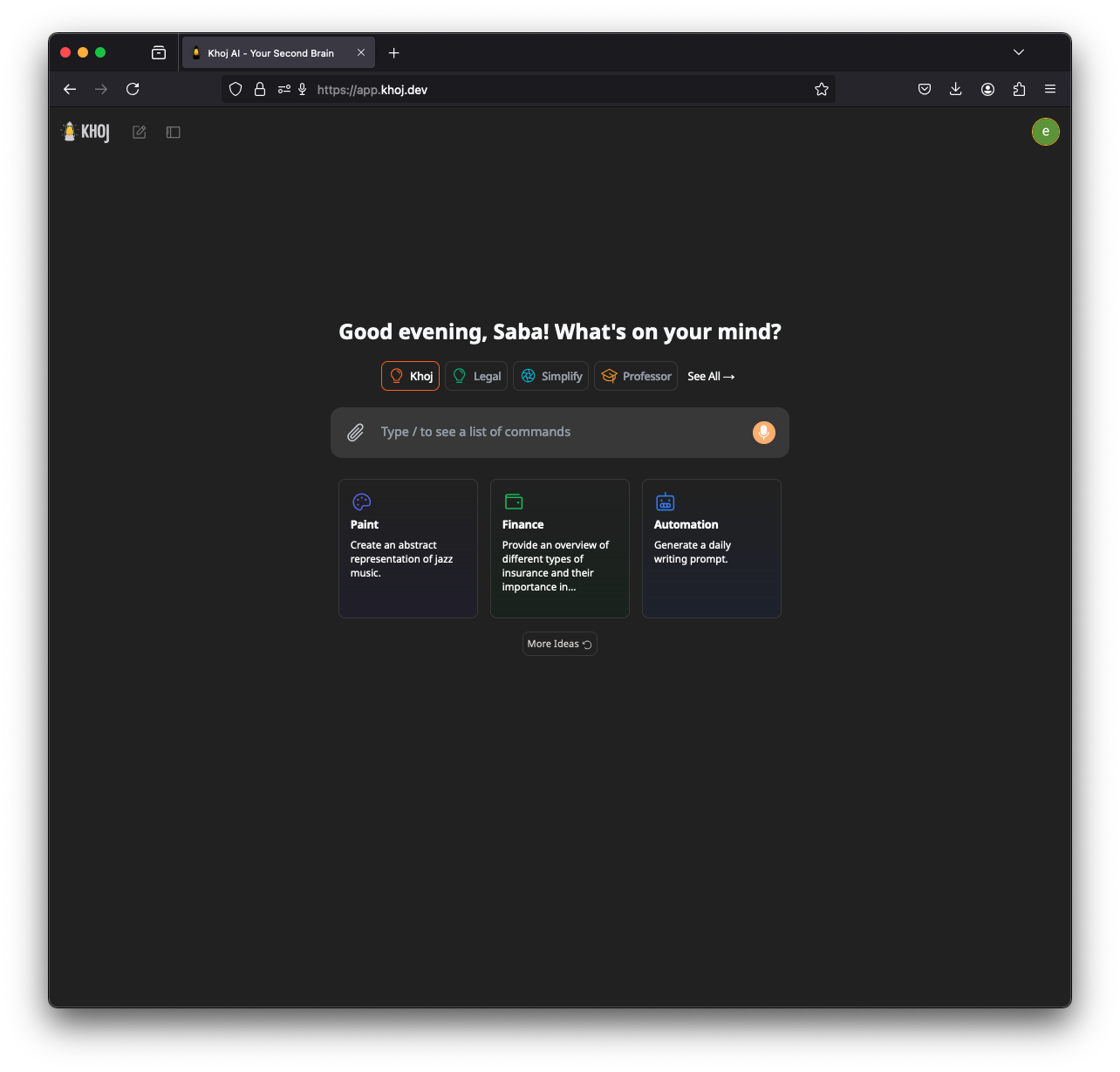
Image: the official Khoj project (documentation images at 1.42.10, "web app home"). Older screenshot from the closed hosted service; your page may differ.

At a glance:
- One app plus a database: Khoj and PostgreSQL with pgvector, which stores your text and its "embeddings" (number lists that capture meaning).
- Private if you want it: with Ollama, notes and questions stay on your machine.
- Anonymous by default: the official command skips the login (see Security).
How it fits together#
Your browser talks to the Khoj container on port 42110. Khoj keeps documents in PostgreSQL, asks SearxNG (a search engine you host) for web results, sends code to a sandbox and sends chat requests to the AI model you choose.

Drawn for this guide from the official compose file and docs. Dashed parts are optional.
There is no Redis, worker or Ollama container; you run Ollama next to it. The official file also has a computer container for an optional "operator" feature. We remove it.
Before you start#
| System | What you need |
|---|---|
| Linux | Docker Engine and the Compose plugin |
| Windows | WSL2 and Docker Desktop (WSL2 backend). The docs use a WSL2 terminal; our PowerShell blocks adapt them |
| Mac | Docker Desktop (or brew install --cask docker); Apple Silicon works |
Check Docker:
docker --version
docker compose version
The Khoj docs write docker-compose (old spelling). Use docker compose.
Checklist:
- [ ] Any existing Khoj data is backed up
- [ ] Port 42110 is free
- [ ] About 5 GB of free disk, more for models
- [ ] For local AI: Ollama installed (see our Ollama guide)
- [ ] For the HTTPS section only: a domain name and ports 80 and 443
Tested by DIY Lab Hub: not yet. Commands come from the official docs, compose file and source at the 1.42.10 tag. The PowerShell blocks are our own adaptation.
Step 1: Create the folder and save the official file#
We save the official file from the tag (the docs use master) as a reference copy. Step 3 writes the file you actually run.
Linux#
mkdir -p ~/docker_volumes/khoj/backups
cd ~/docker_volumes/khoj
curl -fsSL https://raw.githubusercontent.com/khoj-ai/khoj/1.42.10/docker-compose.yml -o official-compose-1.42.10.yml
Windows (PowerShell)#
New-Item -ItemType Directory -Force "$HOME\docker_volumes\khoj\backups" | Out-Null
Set-Location "$HOME\docker_volumes\khoj"
curl.exe -fsSL https://raw.githubusercontent.com/khoj-ai/khoj/1.42.10/docker-compose.yml -o official-compose-1.42.10.yml
Use curl.exe; plain curl in PowerShell is a different command.
Mac (Terminal)#
Same commands as Linux.
Check it worked. official-compose-1.42.10.yml exists (about 6 KB). It contains KHOJ_ADMIN_PASSWORD=password, so do not run it as it is.
Step 2: Create the secrets file#
Khoj needs three secrets: a database password, a Django secret key (signs login cookies) and the admin password. Generate long random values and keep them in a .env file next to the compose file.
Linux#
cd ~/docker_volumes/khoj
cat > .env <<EOF
POSTGRES_PASSWORD=$(openssl rand -hex 24)
KHOJ_DJANGO_SECRET_KEY=$(openssl rand -hex 32)
KHOJ_ADMIN_EMAIL=<your-email>
KHOJ_ADMIN_PASSWORD=$(openssl rand -hex 16)
EOF
chmod 600 .env
Replace <your-email> with your address in an editor.
Windows (PowerShell)#
Set-Location "$HOME\docker_volumes\khoj"
function New-Secret($bytes) {
  $b = New-Object byte[] $bytes
  [Security.Cryptography.RandomNumberGenerator]::Create().GetBytes($b)
  -join ($b | ForEach-Object { $_.ToString('x2') })
}
$text = "POSTGRES_PASSWORD=$(New-Secret 24)`nKHOJ_DJANGO_SECRET_KEY=$(New-Secret 32)`nKHOJ_ADMIN_EMAIL=<your-email>`nKHOJ_ADMIN_PASSWORD=$(New-Secret 16)`n"
[IO.File]::WriteAllText("$PWD\.env", $text, (New-Object Text.UTF8Encoding $false))
The file is written without a byte-order mark, which can confuse some tools. Replace <your-email> in a text editor.
Mac (Terminal)#
Same commands as Linux.
Check it worked. .env has four lines with long random values. On Linux and Mac, ls -l .env starts with -rw-------. Save the admin password in a password manager; you need it for the admin panel.
Tip: A
.envfile alone changes nothing: the official file writespasswordandpostgresdirectly underenvironment:. Step 3 turns them into${...}references. Create.envonce. PostgreSQL keeps the password from the first start, so a new random one later locks Khoj out of its own database.
Step 3: Replace the compose file#
This is the official file with these changes: the app image is pinned to 1.42.10; port 42110 is published on 127.0.0.1 only (the official file publishes it on every network interface, although the docs say Khoj is "only accessible on the machine it is running"); the computer service is removed; secrets come from .env; telemetry is off; services restart after a reboot. The helper images keep the official latest tag; Terrarium has no other.
services:
  database:
    image: docker.io/pgvector/pgvector:pg15
    restart: unless-stopped
    environment:
      POSTGRES_USER: postgres
      POSTGRES_PASSWORD: ${POSTGRES_PASSWORD:?Set POSTGRES_PASSWORD in .env}
      POSTGRES_DB: postgres
    volumes:
      - khoj_db:/var/lib/postgresql/data/
    healthcheck:
      test: ["CMD-SHELL", "pg_isready -U postgres"]
      interval: 30s
      timeout: 10s
      retries: 5
  sandbox:
    image: ghcr.io/khoj-ai/terrarium:latest
    restart: unless-stopped
    healthcheck:
      test: ["CMD-SHELL", "curl -f http://localhost:8080/health"]
      interval: 30s
      timeout: 10s
      retries: 2
  search:
    image: docker.io/searxng/searxng:latest
    restart: unless-stopped
    volumes:
      - khoj_search:/etc/searxng
    environment:
      - SEARXNG_BASE_URL=http://localhost:8080/
  server:
    image: ghcr.io/khoj-ai/khoj:1.42.10
    restart: unless-stopped
    depends_on:
      database:
        condition: service_healthy
    ports:
      - "127.0.0.1:42110:42110"
    extra_hosts:
      - "host.docker.internal:host-gateway"
    working_dir: /app
    volumes:
      - khoj_config:/root/.khoj/
      - khoj_models:/root/.cache/torch/sentence_transformers
      - khoj_models:/root/.cache/huggingface
    environment:
      - POSTGRES_DB=postgres
      - POSTGRES_USER=postgres
      - POSTGRES_PASSWORD=${POSTGRES_PASSWORD:?Set POSTGRES_PASSWORD in .env}
      - POSTGRES_HOST=database
      - POSTGRES_PORT=5432
      - KHOJ_DJANGO_SECRET_KEY=${KHOJ_DJANGO_SECRET_KEY:?Set KHOJ_DJANGO_SECRET_KEY in .env}
      - KHOJ_DEBUG=False
      - KHOJ_ADMIN_EMAIL=${KHOJ_ADMIN_EMAIL:?Set KHOJ_ADMIN_EMAIL in .env}
      - KHOJ_ADMIN_PASSWORD=${KHOJ_ADMIN_PASSWORD:?Set KHOJ_ADMIN_PASSWORD in .env}
      - KHOJ_TERRARIUM_URL=http://sandbox:8080
      - KHOJ_SEARXNG_URL=http://search:8080
      - KHOJ_TELEMETRY_DISABLE=True
      # Step 5: remove the # in front of the next line to use Ollama on your host
      # - OPENAI_BASE_URL=http://host.docker.internal:11434/v1/
    command: --host="0.0.0.0" --port=42110 -vv --anonymous-mode --non-interactive

volumes:
  khoj_config:
  khoj_db:
  khoj_models:
  khoj_search:
Create docker-compose.yml in the same folder with an editor (nano, notepad), paste the block above and save.
Linux#
cd ~/docker_volumes/khoj
docker compose config --quiet && echo "Compose file is valid"
Windows (PowerShell)#
Set-Location "$HOME\docker_volumes\khoj"
docker compose config --quiet; if ($?) { "Compose file is valid" }
Mac (Terminal)#
Same commands as Linux.
Check it worked. You see "Compose file is valid". A message like required variable POSTGRES_PASSWORD is missing a value means .env is missing or sits in another folder.
Never share the output of docker compose config without --quiet; it prints your secrets.
Step 4: Start Khoj and do the first run#
The first start pulls four images and downloads the embedding models. The docs give no time; expect minutes.
Linux#
cd ~/docker_volumes/khoj
docker compose up -d
docker compose logs -f server
Windows (PowerShell)#
Set-Location "$HOME\docker_volumes\khoj"
docker compose up -d
docker compose logs -f server
Mac (Terminal)#
Same commands as Linux.
Wait for the line Khoj is ready to engage, then press Ctrl+C. The docs ask for one restart after the first run:
docker compose restart server
Check it worked.
- Open
http://localhost:42110. You see the Khoj chat page without a login, because of--anonymous-mode. - Open
http://localhost:42110/server/admin/and sign in withKHOJ_ADMIN_EMAILandKHOJ_ADMIN_PASSWORD. You see a "Django administration" page with the Khoj tables.
Tip: Type
localhost, never127.0.0.1, for the admin panel;127.0.0.1causes a CSRF error (issue 786). On a Mac, use Chrome or Firefox; the docs say Safari may refuse the admin login.
Step 5: Connect Ollama for local AI#
Without a model, Khoj cannot answer. This step uses Ollama on the same computer. For a cloud model, add OPENAI_API_KEY, GEMINI_API_KEY or ANTHROPIC_API_KEY to environment: and pick current model names by hand (issue 1387).
Inside the Khoj container, localhost means the container itself, so Khoj reaches Ollama as host.docker.internal. Ollama listens only on 127.0.0.1:11434 by default, which a Linux container cannot reach (issue 1100). Ollama's FAQ says OLLAMA_HOST changes that.
Linux#
ollama pull llama3.1
sudo systemctl edit ollama
In the editor add these two lines, save and close:
[Service]
Environment="OLLAMA_HOST=0.0.0.0:11434"
sudo systemctl daemon-reload
sudo systemctl restart ollama
0.0.0.0 also opens port 11434 to your network: firewall it, or bind to the Docker bridge address shown by docker compose exec server grep host.docker.internal /etc/hosts.
Windows (PowerShell)#
ollama pull llama3.1
Try the test below first. If it says "Connection refused", set the variable, then quit Ollama from the tray and start it again:
[Environment]::SetEnvironmentVariable("OLLAMA_HOST", "0.0.0.0:11434", "User")
Mac (Terminal)#
ollama pull llama3.1
Try the test below first. If it says "Connection refused", run launchctl setenv OLLAMA_HOST "0.0.0.0:11434" and restart the Ollama app.
Now edit docker-compose.yml: remove the # in front of - OPENAI_BASE_URL=..., then recreate the server and test from inside the container (same commands on all systems):
docker compose up -d
docker compose exec server curl -i http://host.docker.internal:11434/v1/models
You should see HTTP/1.1 200 OK and your model name in the JSON (/v1/ alone returns 404; that is normal). Khoj loads the Ollama models at start. If yours does not appear, add it in the admin panel as the docs describe:
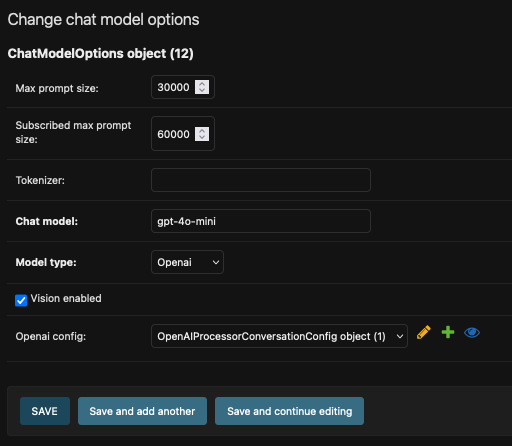
Image: the official Khoj project (documentation images at 1.42.10, "chat model options"). Older screenshot: the last field is now called "AI Model API".

- AI Model Api: name
ollama, API key any string, API base URLhttp://host.docker.internal:11434/v1/. - Chat Models: name
llama3.1(exactly as inollama list), model typeOpenai, AI model APIollama, Max prompt size20000(the docs' example; use your model's real limit). - Server Chat Settings: set the Default model to
llama3.1too. - In the web app's chat settings select the model, then run
docker compose restart server.
Check it worked. In the chat box type /general What is up?. A short reply arrives. /general is the smallest request Khoj makes, so it is the best first test.
Tip: Do not skip Server Chat Settings. Khoj uses that default model for the steps behind the scenes (picking sources, web search). If it points to a cloud model, those steps go there.
Step 6: Add your documents#
Per the docs: drag and drop files into the web app, or use "Add Documents" on the search page. For many files, the Khoj Desktop app, Obsidian plugin or Emacs package keep folders in sync; Notion and GitHub can be linked in the web app.
Test with a note holding a fact no AI could know.
Linux#
printf '# Shed inventory\nThe spare key is in the blue tin on shelf B4. Code: ZEBRA-7391.\n' > ~/khoj-test-note.md
Windows (PowerShell)#
"# Shed inventory`nThe spare key is in the blue tin on shelf B4. Code: ZEBRA-7391." | Set-Content "$HOME\khoj-test-note.md"
Mac (Terminal)#
Same command as Linux.
Drag khoj-test-note.md into the web page. After a few seconds ask: "Where is the spare key and what is the code?"
Check it worked. The answer names shelf B4, the blue tin and ZEBRA-7391, and lists khoj-test-note.md as a reference. Without a reference it guessed; check the server log for indexing errors.
Tip: Notes in another language need a matching embedding model. In the admin panel's search model configs set
bi_encodertosentence-transformers/paraphrase-multilingual-MiniLM-L12-v2andcross_encodertomixedbread-ai/mxbai-rerank-xsmall-v1, then re-index. A multilingual chat model alone does not help.
Put it behind HTTPS with Traefik#
For a server with a domain. Local-only users can skip this section.
Sub-path hosting (example.com/khoj) is not documented, so give Khoj its own name such as khoj.example.com. Set KHOJ_DOMAIN to that one name without https://; a comma list is not split (issue 1057). Leave KHOJ_ALLOWED_DOMAIN unset. It defaults to KHOJ_DOMAIN, which is right while the proxy keeps the original Host header (Traefik and Caddy do).
Before you open Khoj to the internet, remove --anonymous-mode and set up a login (see "Security and testing"), then check that a private browser window is asked to sign in. A proxy adds HTTPS, not a login.
Both routes use an external network named proxy. Create it once:
docker network create proxy
In the server service, delete the ports: lines, add KHOJ_DOMAIN, and join both networks. Add the networks: block at the end of the file:
  server:
    environment:
      - KHOJ_DOMAIN=khoj.example.com
    networks:
      - default
      - proxy

networks:
  proxy:
    external: true
With Traefik#
This assumes Traefik v3 already runs with the Docker provider. The entrypoint name https is yours; the Traefik docs often use websecure.
    labels:
      - "traefik.enable=true"
      - "traefik.docker.network=proxy"
      - "traefik.http.routers.khoj.rule=Host(`khoj.example.com`)"
      - "traefik.http.routers.khoj.entrypoints=https"
      - "traefik.http.routers.khoj.tls=true"
      - "traefik.http.routers.khoj.tls.certresolver=letsencrypt"
      - "traefik.http.services.khoj.loadbalancer.server.port=42110"
Run docker compose up -d. Check it worked: curl -I https://khoj.example.com/ returns a status line over HTTPS.
Without Traefik: Caddy#
Caddy gets and renews Let's Encrypt certificates by itself. Give it its own folder and mount the folder, not one file:
mkdir -p ~/docker_volumes/caddy/{conf,data,config}
Save as ~/docker_volumes/caddy/conf/Caddyfile:
khoj.example.com {
    reverse_proxy server:42110
}
Save as ~/docker_volumes/caddy/docker-compose.yml:
services:
  caddy:
    image: caddy:2.11.9
    restart: unless-stopped
    ports:
      - "80:80"
      - "443:443"
    volumes:
      - ./conf:/etc/caddy
      - ./data:/data
      - ./config:/config
    networks:
      - proxy

networks:
  proxy:
    external: true
Run docker compose up -d in both folders. The DNS record must point to your server, with ports 80 and 443 open. Check it worked: curl -I https://khoj.example.com/.
For a home-only name, add tls internal as the first line in the Caddyfile block. Caddy then signs its own certificate; copy its root out with docker compose cp caddy:/data/caddy/pki/authorities/local/root.crt . and trust it:
- Linux (Debian, Ubuntu): copy it to
/usr/local/share/ca-certificates/caddy-root.crt, thensudo update-ca-certificates. - Windows: in an administrator PowerShell,
Import-Certificate -FilePath .\root.crt -CertStoreLocation Cert:\LocalMachine\Root. - Mac:
sudo security add-trusted-cert -d -r trustRoot -k /Library/Keychains/System.keychain root.crt.
Tip: Behind an HTTPS proxy, do not set
KHOJ_NO_HTTPS=True. It turns off secure cookies and is meant for private HTTP networks.
Security and testing#
The default install trusts everyone who can reach the port.
| Control | How |
|---|---|
| Anonymous mode | The official command has --anonymous-mode: anyone who reaches port 42110 can use Khoj and read your notes. The admin password protects only /server/admin/ |
| Real login | Remove --anonymous-mode from command:, then docker compose up -d. The docs offer magic links (one-time sign-in links) or Google sign-in |
| Magic links | The user enters an address on the login page. In the admin panel tick the user under Users, choose "Get email login URL" and send the link. With RESEND_API_KEY and RESEND_EMAIL, Khoj emails it itself |
| Google sign-in | Needs image ghcr.io/khoj-ai/khoj-cloud (the name does not mean the closed service), no command: line, GOOGLE_CLIENT_ID and GOOGLE_CLIENT_SECRET |
| Not documented | Generic OIDC, SAML, LDAP and a switch to stop new sign-ups were not found |
| Ports | Never publish 5432 (database), 8080 (search and sandbox), 5900 or 11434 (Ollama). Only 42110, on 127.0.0.1 or behind HTTPS |
| Docker socket | Leave /var/run/docker.sock unmounted; the file mentions it only for the optional computer feature |
| Secrets | Keep them in .env with chmod 600 |
Two open reports: issue 1347 (command injection through the optional operator feature, reported on 2.0.0-beta.28; it is off unless you set KHOJ_OPERATOR_ENABLED, and we removed its container) and issue 1365 (no switch to turn code execution off). Do not share one Khoj with people you do not trust.
Tests after each change (same commands on Windows and Mac):
cd ~/docker_volumes/khoj
docker compose ps
docker compose logs --tail=100 server
curl -I http://127.0.0.1:42110/
docker compose ps shows database healthy, server on 127.0.0.1:42110->42110/tcp and no port published for the others.
What leaves your machine#
| Activity | What is sent, and where |
|---|---|
| Chat with Ollama, local embeddings | Nothing leaves your machine |
| Chat with a cloud model | Your question and relevant indexed text go to that provider (the privacy page says text may go to OpenAI) |
| Web search | SearxNG runs on your machine, but its queries go to public search engines. Pages Khoj reads are fetched from the internet |
| Optional services | Serper, Firecrawl, Exa, Olostep, E2B (remote code) and Resend (email) get their requests only if you add their key |
| Telemetry | Anonymous usage data to PostHog (client, API usage, content types, host, referrer); the docs say no content. Off with KHOJ_TELEMETRY_DISABLE=True |
The telemetry switch is not an offline mode. To be sure, test with the network blocked after the models are downloaded.
Khoj or something else?#
| Tool | Choose it when | Watch out for |
|---|---|---|
| Khoj | You live in Obsidian or Emacs and want search, chat, agents and scheduled jobs | Cloud gone, 2.0 beta, anonymous default, no OIDC |
| Open Notebook | You want a NotebookLM-style research notebook (our guide) | Notebooks, not a synced note folder |
| AnythingLLM | You want workspaces for document chat (our guide) | Desktop and Docker versions differ |
| Open WebUI | You mainly want a chat page for Ollama (our guide) | Not a note-sync tool |
Common mistakes#
| Mistake | Why it happens | Do this instead |
|---|---|---|
Creating .env and starting the unedited official file | The file hard-codes POSTGRES_PASSWORD=postgres and KHOJ_ADMIN_PASSWORD=password under environment: | Use the ${...} references from Step 3 |
Opening the admin panel on 127.0.0.1 | Cookies are set for localhost (786) | Use http://localhost:42110/server/admin/ |
Using http://localhost:11434/v1/ as the Ollama address | Inside the container localhost is the container itself (1100) | Use host.docker.internal, and bind Ollama so the container can reach it |
| Believing the admin password makes Khoj private | The official command has --anonymous-mode | Remove the flag and set up magic links, or keep the port on 127.0.0.1 |
| Trusting the docs' "only accessible on the machine" line | 42110:42110 publishes on every interface | Use 127.0.0.1:42110:42110 |
AI assistants: invent KHOJ_DISABLE_CODE_EXECUTION, KHOJ_NO_SSL or OPENAI_API_BASE | The first is only a feature request (1365); the docs use KHOJ_NO_HTTPS and OPENAI_BASE_URL | Copy names only from the compose file and docs at the tag |
AI assistants: "try Khoj Cloud", "use the 2.0 beta image as latest" | The cloud closed in April 2026; latest is 1.42.10, because the release workflow gives latest only to non-beta tags | Self-host and pin 1.42.10 yourself |
| Assuming 16 GB of GPU memory is enough | Khoj sends long, multi-step prompts (1215) | Use a smaller model or quantization; lower "Max prompt size" |
Running docker compose down --volumes as a "reset" | The docs list it under uninstall; it deletes the database | Use docker compose down (no --volumes) |
Tip: Docs pages differ in age. The docs home still says "Try Khoj Cloud", and an older Ollama page says "OpenAI Processor Conversation Config"; the current one at
docs.khoj.dev/advanced/ollama/says "AI Model API".
Tip: After you set
KHOJ_DOMAIN, open Khoj by that name only. Our reading of the settings source: its cookies are then set for that name, sohttp://localhost:42110may stop logging you in.
Troubleshooting#
| Problem | Solution |
|---|---|
| Page does not open | docker compose ps, then docker compose logs --tail=100 server. The server waits for a healthy database |
| Port 42110 already in use | Stop the other program, or change the left side: 127.0.0.1:42111:42110 |
| Answers never cite your files | Check the server log for indexing errors, re-add the file, and compare with the /general test |
| Web search or code fails | docker compose logs --tail=100 search and sandbox. One discussion calls the TimeoutError lines from search harmless when search still works |
CSRF verification failed. Request aborted.#
You used 127.0.0.1 for the admin panel, or the host name does not match behind a proxy. Use localhost locally; behind a proxy set KHOJ_DOMAIN and open that name.
DISALLOWED HOST or Bad Request (400)#
You use a custom name or plain HTTP. Per the docs set KHOJ_DOMAIN (no scheme), and KHOJ_NO_HTTPS=True only for HTTP on a private network.
curl: (7) Failed to connect to host.docker.internal port 11434 after 0 ms: Connection refused#
Ollama listens on loopback only. Set OLLAMA_HOST as in Step 5 and restart Ollama, then run the curl test again.
TypeError: can only concatenate str (not "NoneType") to str#
The chat shows an empty reply. Issue 1370: on 1.42.10 some OpenAI-compatible servers (the reporter used LiteLLM in front of Ollama with qwen3) send a first chunk with no text. The maintainer fixed it in 2.0.0-beta.28, and the reporter confirmed that on 29 July 2026. Use Ollama directly, or move to the beta after a backup. The same reporter found two other causes of empty replies: qwen3 with reasoning plus JSON output can hang, and a server addressed by a container name gets a 60-second timeout instead of 300.
cudaMalloc failed: out of memory or llama_kv_cache_init: failed to allocate buffer for kv cache#
Model plus context do not fit in GPU memory (issue 1215). The maintainer suggests a smaller model (2B to 4B, or a smaller quantization) and testing /general What is up? first.
Killed#
Docker ran out of memory. Raise its limit in Docker Desktop settings (per the docs).
Known bugs (open when read)#
- 1368: PDF indexing fails on native Windows pip installs of
2.0.0-beta.28(PermissionError: [WinError 32]). Not the Docker route. - 1387: default cloud model names include retired models. Pick current names by hand.
Updates and backups#
Update. Read the release notes, back up, change the tag in docker-compose.yml, then:
cd ~/docker_volumes/khoj
docker compose pull server
docker compose up -d server
docker compose logs --tail=100 server
The docs' own line, docker-compose up --build, does not clearly pull a newer image, so we use pull. Naming server leaves the helper images (latest tags) alone. No 1.x to 2.x migration guide was found, and no promise that you can go back. Never change versions without a database backup.
Back up. The project has no backup guide. The database holds your documents, so dump it with PostgreSQL's own tool. Save as ~/docker_volumes/khoj/backup.sh (Linux, Mac):
#!/bin/sh
set -e
umask 077
cd "$HOME/docker_volumes/khoj"
mkdir -p backups
D=$(date +%F)
docker compose exec -T database pg_dump -U postgres -d postgres -f /tmp/khoj.sql
docker compose cp database:/tmp/khoj.sql "backups/khoj-$D.sql"
docker compose exec -T server tar czf /tmp/khoj-config.tgz -C /root/.khoj .
docker compose cp server:/tmp/khoj-config.tgz "backups/khoj-config-$D.tgz"
cp .env docker-compose.yml backups/
On Windows save the same steps as backup.ps1:
Set-Location "$HOME\docker_volumes\khoj"
$d = Get-Date -Format yyyy-MM-dd
New-Item -ItemType Directory -Force backups | Out-Null
docker compose exec -T database pg_dump -U postgres -d postgres -f /tmp/khoj.sql
docker compose cp database:/tmp/khoj.sql "backups\khoj-$d.sql"
docker compose exec -T server tar czf /tmp/khoj-config.tgz -C /root/.khoj .
docker compose cp server:/tmp/khoj-config.tgz "backups\khoj-config-$d.tgz"
Copy-Item .env, docker-compose.yml backups\
The dump is written inside the container, not through a shell pipe, because PowerShell 5 corrupts piped files. The backup folder holds .env, so keep it private and copy it to another machine. Back up your original documents too.
Schedule it at 03:00. Linux and Mac: run crontab -e and add 0 3 * * * sh $HOME/docker_volumes/khoj/backup.sh. Windows Task Scheduler:
schtasks /Create /SC DAILY /ST 03:00 /TN "Khoj backup" /TR "powershell -NoProfile -File $HOME\docker_volumes\khoj\backup.ps1"
Restore test. Restore into a throwaway database, never over the live one:
docker compose exec database createdb -U postgres khoj_restore_test
docker compose cp backups/khoj-<date>.sql database:/tmp/restore.sql
docker compose exec database psql -X -v ON_ERROR_STOP=1 -U postgres -d khoj_restore_test -f /tmp/restore.sql
docker compose exec database psql -U postgres -d khoj_restore_test -c "\dt"
docker compose exec database dropdb -U postgres khoj_restore_test
The table list should show Khoj's tables. A real rebuild works the same way: start only database on an empty volume, restore into the postgres database, then start the rest. The config archive is a precaution; we did not test restoring it.
Performance and resources#
The project publishes no full-stack RAM or CPU figures, so this guide gives none. The official numbers are narrow:
- Offline chat: minimum 8 GB RAM, 16 GB of GPU memory recommended, 5 GB disk. A GPU (NVIDIA, AMD or Apple M1 and newer) speeds answers up a lot.
- Search speed: "last evaluated in 2022" on a Mac M1 with 100,000+ lines of notes: search under 100 ms, re-ranking 15 results under 2 seconds, first indexing about 10 minutes. Old figures, not a 1.42.10 benchmark.
- Measure yourself:
docker statsshows memory and CPU of the four containers. Ollama runs on the host, so it is not included.
What helps: a smaller model and a lower "Max prompt size" (how much text goes to the model).
FAQ#
Is Khoj still maintained? Slowly. The last commit is from August 2026, the last stable release from July 2025, and the team's focus moved to other products. Expect few changes.
Do I need an OpenAI key? No. Use Ollama or another OpenAI-compatible local server (the docs name llama.cpp server and vLLM). Make Server Chat Settings local too.
Should I use the 2.0 beta? Only if the 1.42.10 bug in Troubleshooting hits you; the maintainer's own answer was the beta. We did not test it. Back up first.
Which files can it read? The docs say PDF, plain text, Markdown, org-mode and Notion pages; the README also lists Word and images.
Can I use it from my phone or another PC? Yes: with HTTPS and a login, or over Tailscale. For Tailscale, publish the port on your Tailscale IP instead of 127.0.0.1, set KHOJ_DOMAIN to that IP and open http://<tailscale-ip>:42110.
Sources#
- Khoj at tag 1.42.10 (release, docker-compose.yml, pyproject.toml, settings.py), 2.0.0-beta.28 release, Docker publish workflow; image tags
latest,1.42.10,2.0.0-beta.28onghcr.io/khoj-ai/khoj(manifests read) - November 2026 - Khoj Cloud notice (15 April 2026) and README
- Docs: self-host setup, Ollama, admin panel, remote access, authentication, telemetry, privacy, online search, code execution, performance, multilingual documents, upload your data - read November 2026
- Ollama FAQ (OLLAMA_HOST); Caddy v2.11.9 - read November 2026
- GitHub issues 786, 1057, 1100, 1215, 1347, 1365, 1368, 1370, 1378, 1387 - read November 2026
Checked against the official docs on 2026-11-21.