Kopia with Docker: Fast, Encrypted Backups with a Web UI to Disk, NAS, SFTP or S3 (Linux, Windows, Mac)
Before you start
- 22 min read
- Updated November 2026
Boxes marked Run in terminal are what you type; plain text explains why. Check what you need first
What you get in one minute#
Kopia is a free, open-source backup tool: it copies the folders you choose into an encrypted, deduplicated store called a repository, keeps many dated versions (snapshots), and gives you a web page to start backups and restore files.

Logo: the official Kopia project (github.com/kopia/kopia, file icons/kopia.svg at tag v0.23.1)
Kopia encrypts everything before it leaves your machine, file names included, and after the first run uploads only what changed. The repository can live on a local disk, a NAS, an SFTP server, or S3-compatible storage such as our Garage guide.
| What | Value (official sources, read November 2026) |
|---|---|
| Current version | Kopia v0.23.1, released 16 June 2026 (previous: v0.23.0, 12 May 2026) |
| Image to pin | kopia/kopia:0.23.1 (tag checked on Docker Hub; amd64, arm64, arm/v7) |
| Time needed | About 25 minutes (our estimate, not measured) |
| RAM | No official minimum (see Performance) |
| Port | TCP 51515 (web page and API) |
| Licence | Apache-2.0 (LICENSE at the release tag); no paid edition found |
| Official docs | kopia.io/docs and README at v0.23.1 |
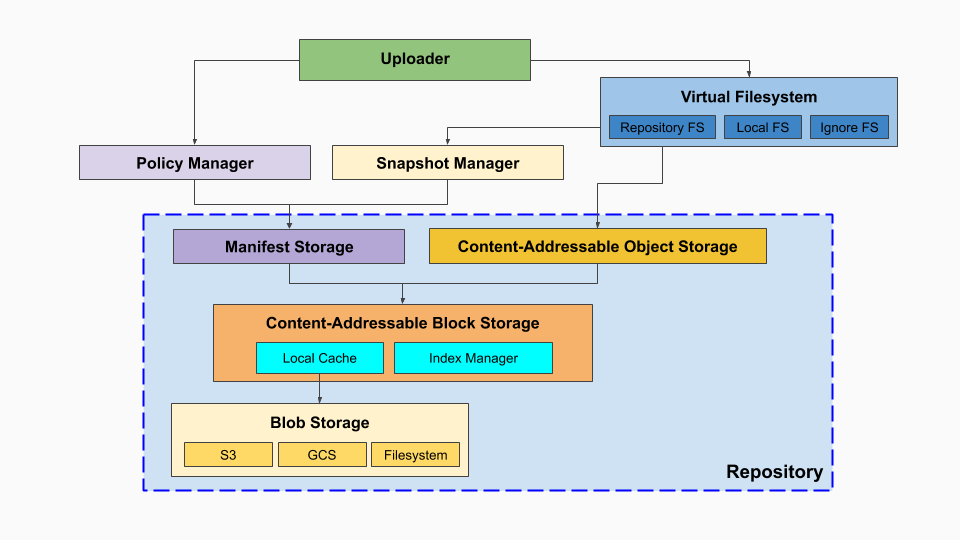
Image: the official Kopia docs (Architecture page, file site/content/docs/Advanced/Architecture/architecture.png at tag v0.23.1). We could not date it, so it may be older than v0.23.1.
At a glance:
- What it is: one program with a command line and a web page.
- Targets: local folder or NAS, SFTP, WebDAV, S3 and compatible, B2, Azure, Google Cloud.
- Desktop app: KopiaUI for Windows, Mac and Linux.
- Not a disk image: it backs up files and folders, not a bootable system.
- Not built in: single sign-on (no OIDC) and sub-paths such as
/kopia/.
Which version. We pin 0.23.1. Its release notes call it a bugfix for a rare race condition that might lose data and recommend the upgrade (issue 5371), so do not go back to v0.23.0. Open bugs against 0.23.1 are listed under Troubleshooting. We found none that stops a normal install.
How it fits together#
You mount your folders read-only; Kopia reads them, splits files into chunks, skips chunks it already has, compresses and encrypts the rest, and writes them to the repository; you steer it from the web page on port 51515.

Drawn for this guide from the official installation docs and the Dockerfile. The HTTPS route (dashed) is optional.
Four words: a repository is the encrypted store with one password. A snapshot is one dated backup of one folder. A policy is a set of rules (what to skip, how often, how many snapshots to keep). Maintenance is the cleanup Kopia runs itself.
Before you start#
You need an always-on machine, Docker with Compose, a text editor and a password manager.
| System | What to have |
|---|---|
| Linux | Docker Engine and the Compose plugin; x86-64, arm64 or ARMv7 |
| Windows | Windows 10 or later, Docker Desktop (WSL 2 backend), PowerShell |
| Mac | Docker Desktop, Intel or Apple Silicon |
docker --version
docker compose version
Checklist:
- [ ] Both commands print a version
- [ ] Port 51515 is free (we publish it on
127.0.0.1only) - [ ] You know your time zone name, such as
Europe/London - [ ] For the HTTPS section only: a domain with a DNS record, and ports 80 and 443 free
Tested by DIY Lab Hub: not yet. Commands come from the official docs, the Dockerfile and the source at v0.23.1, read in November 2026. We did not run them.
Tip: A backup on the same disk as the original does not survive a dead disk. We start local to learn the tool; Step 7 moves the repository elsewhere.
Step 1: Create the folders and the secrets file#
Everything lives under ~/docker_volumes/kopia. The folder sample-source holds one test file; later you swap it for real folders.
Kopia needs three different secrets. Keep them apart:
| Secret | What it does | Where |
|---|---|---|
| Repository password | Unlocks the repository. If you lose it, the backups cannot be read and nobody can reset it. | .env: KOPIA_PASSWORD |
| Web login | Protects the browser page | .env: KOPIA_UI_USER, KOPIA_UI_PASSWORD |
| Storage keys | Let Kopia write to S3 or SFTP (Step 7) | Typed when you create the repository |
KOPIA_UI_USER and KOPIA_UI_PASSWORD are names we chose. Kopia does not read them. Compose copies them into the documented --server-username and --server-password options.
Linux#
mkdir -p ~/docker_volumes/kopia/{config,cache,logs,repository,restore,backups,sample-source}
cd ~/docker_volumes/kopia
echo "Kopia backup test file" > sample-source/hello.txt
cat > .env << 'EOF'
KOPIA_PASSWORD=<repository-password>
KOPIA_UI_USER=kopia
KOPIA_UI_PASSWORD=<web-login-password>
EOF
chmod 600 .env
Replace both placeholders with two different passwords. Avoid $, #, spaces and quotes: Compose reads them as syntax.
Windows (PowerShell)#
$base = "$HOME\docker_volumes\kopia"
foreach ($d in "config","cache","logs","repository","restore","backups","sample-source") {
  New-Item -ItemType Directory -Force "$base\$d" | Out-Null
}
Set-Location $base
"Kopia backup test file" | Set-Content -Encoding ascii "sample-source\hello.txt"
@'
KOPIA_PASSWORD=<repository-password>
KOPIA_UI_USER=kopia
KOPIA_UI_PASSWORD=<web-login-password>
'@ | Set-Content -Encoding ascii .env
Mac (Terminal)#
Same commands as Linux.
Check it worked. ls -la (Windows: Get-ChildItem -Force) shows .env and the folders, and sample-source holds hello.txt.
Tip: Save the repository password in your password manager now. The official docs say plainly that without it there is no way to restore your files.
Step 2: Write the Compose file#
Kopia's own example uses latest, publishes the port on every interface and turns off CSRF checks (they stop another website from sending commands to your logged-in page). The source calls that flag "used for development/debugging only". We pin the tag, bind the port to 127.0.0.1 and keep the checks on. We add no privileged, no /dev/fuse and no Docker socket.
Linux#
cd ~/docker_volumes/kopia
cat > compose.yaml << 'EOF'
services:
  kopia:
    image: kopia/kopia:0.23.1
    container_name: kopia
    hostname: kopia-docker
    restart: unless-stopped
    ports:
      - "127.0.0.1:51515:51515"
    command:
      - server
      - start
      - --insecure
      - --address=0.0.0.0:51515
      - --server-username=${KOPIA_UI_USER}
      - --server-password=${KOPIA_UI_PASSWORD}
    environment:
      KOPIA_PASSWORD: ${KOPIA_PASSWORD}
      USER: backup
      TZ: <your-timezone>
    volumes:
      - ./config:/app/config
      - ./cache:/app/cache
      - ./logs:/app/logs
      - ./sample-source:/data:ro
      - ./repository:/repository
      - ./restore:/restore
EOF
Windows (PowerShell)#
Set-Location "$HOME\docker_volumes\kopia"
@'
services:
  kopia:
    image: kopia/kopia:0.23.1
    container_name: kopia
    hostname: kopia-docker
    restart: unless-stopped
    ports:
      - "127.0.0.1:51515:51515"
    command:
      - server
      - start
      - --insecure
      - --address=0.0.0.0:51515
      - --server-username=${KOPIA_UI_USER}
      - --server-password=${KOPIA_UI_PASSWORD}
    environment:
      KOPIA_PASSWORD: ${KOPIA_PASSWORD}
      USER: backup
      TZ: <your-timezone>
    volumes:
      - ./config:/app/config
      - ./cache:/app/cache
      - ./logs:/app/logs
      - ./sample-source:/data:ro
      - ./repository:/repository
      - ./restore:/restore
'@ | Set-Content -Encoding ascii compose.yaml
Mac (Terminal)#
Same commands as Linux.
Put your own time zone in place of <your-timezone>; schedules follow it. The less obvious lines:
| Line | Why |
|---|---|
hostname: kopia-docker | Docker invents a new host name per container. Kopia stores the name in its config and labels snapshots with it, so we fix one. |
USER: backup | The user name on snapshots (backup@kopia-docker). It does not change the Linux user: the container runs as root. |
KOPIA_PASSWORD | The image sets KOPIA_PERSIST_CREDENTIALS_ON_CONNECT=false: Kopia never saves the password, so it needs this at every start. |
--insecure | Plain HTTP inside the container. Without it Kopia stops with TLS not configured. To start server without encryption pass --insecure. Safe here because the host port is 127.0.0.1 only. |
--address=0.0.0.0:51515 | Kopia must listen on all addresses inside the container, or Docker cannot forward to it. |
:ro | Read-only: Kopia reads your files and never changes them. |
Check it worked. docker compose config prints the file with your values and no error. Do not share that output; it shows passwords.
Tip: The docs ask for POSIX file semantics and warn that networked and emulated file systems may not survive a crash. Docker Desktop shares folders through such a layer, so for real data prefer an S3 or SFTP repository (Step 7).
Step 3: Create the repository before the first start#
We create the repository on the command line first. In issue 4717 the wizard password differed from KOPIA_PASSWORD. All worked until a restart, then Kopia failed with invalid repository password.
With KOPIA_PASSWORD set, create does not ask for a password. run --rm starts a one-off container and deletes it afterwards.
Linux#
cd ~/docker_volumes/kopia
docker compose run --rm kopia repository create filesystem --path=/repository
docker compose run --rm kopia repository status
Windows (PowerShell)#
Set-Location "$HOME\docker_volumes\kopia"
docker compose run --rm kopia repository create filesystem --path=/repository
docker compose run --rm kopia repository status
Mac (Terminal)#
Same commands as Linux.
Check it worked. status prints lines starting Config file:, Storage type: and Encryption: (labels from the source; we did not run it). Expect /app/config/repository.config, filesystem and AES256-GCM-HMAC-SHA256.
Tip: Never run
repository createon a repository that already exists. Userepository connect(see Restore test on a new machine).
Step 4: Start Kopia and log in#
Linux#
cd ~/docker_volumes/kopia
docker compose up -d
docker compose ps
docker compose logs --tail=50 kopia
Windows (PowerShell)#
Set-Location "$HOME\docker_volumes\kopia"
docker compose up -d
docker compose ps
docker compose logs --tail=50 kopia
Mac (Terminal)#
Same commands as Linux.
Open http://127.0.0.1:51515 and log in with KOPIA_UI_USER and KOPIA_UI_PASSWORD. There is no default account.
Check it worked. docker compose ps shows kopia running, and the page opens after the login. The docs name the tabs Snapshots and Policies.
Tip: If the login is refused, you probably typed the repository password. The page wants
KOPIA_UI_PASSWORD.
Step 5: Make a policy and the first snapshot#
Compression is off by default, and switching it on later does not shrink old data. So we turn it on before the first real backup.
In the web page, as the docs describe: open Policies, enter the folder (/data, the path inside the container), set the policy and save. The editor has a compression choice (we pick zstd, a top algorithm per the FAQ) and a snapshot frequency. Kopia then starts the first snapshot; Snapshot Now on the Snapshots tab starts another. Without a snapshot frequency Kopia never runs by itself.
The same from a terminal:
Linux#
cd ~/docker_volumes/kopia
docker compose exec kopia kopia policy set --global --compression=zstd
docker compose exec kopia kopia snapshot create /data
docker compose exec kopia kopia snapshot list
Windows (PowerShell)#
Set-Location "$HOME\docker_volumes\kopia"
docker compose exec kopia kopia policy set --global --compression=zstd
docker compose exec kopia kopia snapshot create /data
docker compose exec kopia kopia snapshot list
Mac (Terminal)#
Same commands as Linux.
Check it worked. snapshot list shows the source backup@kopia-docker:/data and a line with an ID starting with k. The docs show the shape uploaded snapshot <id> (root k...) in <time>.
The docs' example of the global policy keeps 3 annual, 24 monthly, 25 weekly, 14 daily, 48 hourly and 10 latest snapshots. To run daily and keep fewer: kopia policy set --global --snapshot-interval=24h --keep-daily 7. Next day, check that snapshot list shows a new snapshot.
Tip: Policies work at four levels: global, per host, per user, per path. The most specific one wins, and a folder policy only needs the settings you change.
Step 6: Restore a file and compare it#
A backup you never restored is a guess. We restore the snapshot into the restore folder and compare. Take the ID that starts with k from snapshot list. In the web page you can also open the snapshot and choose Restore.
Linux#
cd ~/docker_volumes/kopia
docker compose exec kopia kopia snapshot restore <snapshot-root-id> /restore
diff -r sample-source restore && echo "same"
Windows (PowerShell)#
Set-Location "$HOME\docker_volumes\kopia"
docker compose exec kopia kopia snapshot restore <snapshot-root-id> /restore
(Get-FileHash sample-source\hello.txt).Hash -eq (Get-FileHash restore\hello.txt).Hash
Mac (Terminal)#
Same commands as Linux.
Check it worked. Linux and Mac print same; Windows prints True.
Tip: Restore with the snapshot ID, or
<snapshot-id>/<subpath>for one file. In v0.23.1, restoring by file system path silently dropped permissions and dates (issue 5564).
Step 7: Move the repository off this machine#
A repository on the same disk is only a practice run. You create the bucket or remote folder yourself (Kopia does not provision storage), and storage keys are not the repository password.
Garage (S3 on your own server). In our Garage guide the container is garage, S3 is on port 3900, the region is garage and the network is garage-net. Join that network in compose.yaml: add networks: [default, garage-net] to the kopia service and this at the top level:
networks:
  garage-net:
    external: true
Create the bucket and key as in that guide. The Garage docs give this form for Kopia:
Linux#
cd ~/docker_volumes/kopia
docker compose run --rm kopia repository create s3 \
  --region=garage \
  --bucket=<bucket> \
  --access-key=<key-id> \
  --secret-access-key=<secret> \
  --endpoint=garage:3900 \
  --disable-tls
docker compose run --rm kopia repository validate-provider
Windows (PowerShell)#
Set-Location "$HOME\docker_volumes\kopia"
docker compose run --rm kopia repository create s3 `
  --region=garage `
  --bucket=<bucket> `
  --access-key=<key-id> `
  --secret-access-key=<secret> `
  --endpoint=garage:3900 `
  --disable-tls
docker compose run --rm kopia repository validate-provider
Mac (Terminal)#
Same commands as Linux.
--disable-tls is fine only on a private Docker network like garage-net. For a provider on the internet, leave it out and use that provider's endpoint and --region instead; the default endpoint is s3.amazonaws.com.
SFTP. Put the key and a known_hosts file in the config folder (it appears as /app/config). On every system:
docker compose run --rm kopia repository create sftp --path=<remote-folder> --host=<sftp-host> --username=<sftp-user> --keyfile=/app/config/<key-file> --known-hosts=/app/config/<known-hosts-file>
If the connection fails, you can add --external: Kopia then calls an ssh program. An open request to add the SSH client to the image (issue 3566) suggests it may be missing; we did not check. In the web page these choices are named Local Directory or NAS, SFTP Server and Amazon S3 and Compatible Storage.
Check it worked. docker compose run --rm kopia repository status shows Storage type: as s3 or sftp.
Tip:
repository createalso reconnects/app/configto the new repository. Switching means a new repository. Rundocker compose up -d --force-recreate, make a snapshot, restore one file, and only then retire the oldrepositoryfolder.
Step 8: The desktop app KopiaUI (optional)#
KopiaUI is the same program in a desktop window. Choose it for the computer you sit at, above all on Windows: a Linux container only sees the folders you mount. Docker suits a headless server or NAS.
Linux#
curl -s https://kopia.io/signing-key | sudo gpg --dearmor -o /etc/apt/keyrings/kopia-keyring.gpg
echo "deb [signed-by=/etc/apt/keyrings/kopia-keyring.gpg] http://packages.kopia.io/apt/ stable main" | sudo tee /etc/apt/sources.list.d/kopia.list
sudo apt update
sudo apt install kopia-ui
Windows (PowerShell)#
winget install Kopia.KopiaUI
Mac (Terminal)#
brew install kopiaui
Check it worked. KopiaUI opens and asks you to create or connect a repository.
Tip: KopiaUI loads every file ending in
.configin its config folder. Rename spare copies, or it tries to connect to all of them.
Put it behind HTTPS with Traefik#
Skip this on your own computer. For https://backup.<your-domain> you need a domain, a DNS record and ports 80 and 443. Three limits:
- Browser page only. Other computers that connect as clients to a repository server need TLS and gRPC (nginx uses
grpc_pass grpcs://...). We do not cover that. - No sub-path. Behind
/kopia/the page's files return 404 (issue 4856). Use a host name. - No single sign-on. The only login is the one from Step 2.
Both routes drop the host port and use a shared proxy network. Create it once if missing:
docker network create proxy
With Traefik#
On a server that already runs Traefik v3 with the Docker provider, add labels and remove the ports: block. Our Traefik guide uses the entrypoint https, the network proxy and the resolver le. Each router that wants a Let's Encrypt certificate carries its own tls.certresolver label.
services:
  kopia:
    image: kopia/kopia:0.23.1
    container_name: kopia
    hostname: kopia-docker
    restart: unless-stopped
    command:
      - server
      - start
      - --insecure
      - --address=0.0.0.0:51515
      - --server-username=${KOPIA_UI_USER}
      - --server-password=${KOPIA_UI_PASSWORD}
    environment:
      KOPIA_PASSWORD: ${KOPIA_PASSWORD}
      USER: backup
      TZ: <your-timezone>
    volumes:
      - ./config:/app/config
      - ./cache:/app/cache
      - ./logs:/app/logs
      - ./sample-source:/data:ro
      - ./repository:/repository
      - ./restore:/restore
    networks:
      - proxy
    labels:
      - "traefik.enable=true"
      - "traefik.docker.network=proxy"
      - "traefik.http.routers.kopia.rule=Host(`backup.<your-domain>`)"
      - "traefik.http.routers.kopia.entrypoints=https"
      - "traefik.http.routers.kopia.tls=true"
      - "traefik.http.routers.kopia.tls.certresolver=le"
      - "traefik.http.services.kopia.loadbalancer.server.port=51515"

networks:
  proxy:
    external: true
Run docker compose up -d. Check it worked. curl -I https://backup.<your-domain>/ returns an HTTP status line over HTTPS with a valid certificate (status 401 while the login is on).
Without Traefik: Caddy#
Choose this if you have no Traefik. Caddy gets and renews its own certificates. Use the Kopia file above without the labels: block, then add Caddy in its own folder:
mkdir -p ~/docker_volumes/caddy/{conf,data,config}
cd ~/docker_volumes/caddy
cat > docker-compose.yml << 'EOF'
services:
  caddy:
    image: caddy:2.11.9
    container_name: caddy
    restart: unless-stopped
    ports:
      - "80:80/tcp"
      - "443:443/tcp"
      - "443:443/udp"
    volumes:
      - ./conf:/etc/caddy:ro
      - ./data:/data
      - ./config:/config
    networks:
      - proxy

networks:
  proxy:
    external: true
EOF
Save conf/Caddyfile for a public domain:
backup.example.com {
    reverse_proxy kopia:51515
}
For a home-only name use tls internal:
backup.home.arpa {
    tls internal
    reverse_proxy kopia:51515
}
Run docker compose up -d in each folder. Caddy reaches Kopia by container name, so write kopia:51515, never 127.0.0.1:51515. We mount the conf folder, not one file, so an editor that replaces the file cannot break the mount. For tls internal, each device must trust Caddy's root certificate once: see our Caddy guide. The Docker commands work unchanged in PowerShell and Terminal.
Check it worked. curl -I https://backup.example.com/ shows an HTTP status line over HTTPS.
Tip: A certificate error usually means the Caddyfile name differs from the DNS record, or port 80 or 443 does not reach the server.
Security and testing#
| Control | How |
|---|---|
| Where it listens | Keep 127.0.0.1:51515 or a private proxy network |
| Three secrets | Repository password, web login and storage keys are different values |
| No open server | Never use --allow-extremely-dangerous-unauthenticated-server-on-the-network |
| CSRF checks | Do not add --disable-csrf-token-checks |
| Source folders | Mount read-only with :ro |
| Snapshot actions | Off by default (--enable-actions is false); they run scripts |
| Config folder | repository.config can hold storage details: keep it private |
What leaves the machine: encrypted data, sent to the storage you chose; file names are encrypted too. The program can also contact github.com to learn the latest version, and the privacy policy says no personal information goes with it. The image sets KOPIA_CHECK_FOR_UPDATES=false. We did not audit the traffic.
Quick tests (on Windows use PowerShell and curl.exe):
cd ~/docker_volumes/kopia
docker compose ps
docker compose exec kopia kopia repository status
docker compose exec kopia kopia snapshot list
curl -I http://127.0.0.1:51515
Without the login the last command should not return the page; expect 401 (we did not run it).
Kopia, restic or Duplicati?#
| Kopia | restic | Duplicati | |
|---|---|---|---|
| You work with | Web page, desktop app, command line | Command line | Web page |
| Good at | UI, policies and snapshots in one tool | Small, scriptable, many back ends | Scheduled jobs in a browser |
| Our guide | This page | restic | Duplicati |
Snapshots, policies and maintenance in plain words#
Every snapshot is incremental: it uploads only content the repository lacks, moved and renamed files included. Retention is how many hourly, daily, weekly, monthly and annual snapshots Kopia keeps. It removes the rest.
Maintenance runs by itself: quick about hourly, full every 24 hours (it removes data no snapshot uses). Freed space can take hours and several cycles to show.
docker compose exec kopia kopia maintenance info
docker compose exec kopia kopia maintenance run --full
Never add --safety=none: the docs warn it can corrupt the repository.
Checks. kopia snapshot verify checks the structure. To prove the data can be read, add a share of files; the docs suggest 1 percent daily as a minimum, and 100 downloads everything (time, and fees on cloud storage):
docker compose exec kopia kopia snapshot verify --verify-files-percent=1 --file-parallelism=10
An incomplete snapshot is a checkpoint from a long backup. It goes away after a complete one exists.
Common mistakes#
| Mistake | Why it happens | Do this instead |
|---|---|---|
invalid repository password after a restart | The wizard password differed from KOPIA_PASSWORD (issue 4717) | Create the repository on the command line (Step 3) |
Login works, but Repository not configured | The server started before any repository existed (issue 4896) | Create or connect one with docker compose run --rm kopia repository ... |
No styles behind /kopia/ | No base-URL setting (issue 4856) | Give Kopia its own host name |
| Restored file has the wrong mode and date | Restore by file system path lost them in v0.23.1 (issue 5564) | Restore by <snapshot-id>/<subpath> |
| One source backed up twice in a row | The 4-hour refresh fires while it waits for a slot (issue 5784) | Stagger schedules |
snapshot create hangs after success | A notification profile points to an unreachable mail server (issue 5563) | Remove the profile and restart the server, or add --send-snapshot-report=false |
| Snapshots deleted, disk still full | Space returns only after full maintenance and its safety delay | Wait, or run maintenance run --full; never --safety=none |
permission denied on /repository or /app/logs | The container was run as another user with user: and the host folders belong to someone else (issue 1877, 2171) | Leave user: out as we do, or chown the folders to that user |
| Repository on the same disk as the files | One failure destroys both | Use another disk, NAS, SFTP or S3 |
| Copying a running database's files | They change while Kopia reads | Dump the database first, back up the dump |
AI assistants: PUID, PGID, port 8080, admin/admin, image linuxserver/kopia | Mixed up with other containers | kopia/kopia:0.23.1, port 51515, no default login, no PUID or PGID |
AI assistants: latest, LZ4, --without-password --insecure on 0.0.0.0, a KOPIA_UI_PASSWORD the app reads | Old guides and invented names | Pin 0.23.1, use zstd, always set a login. v0.23.0 removed LZ4 and limited unauthenticated insecure servers to loopback |
Tip: Do the restore test (Step 6) on day one and after every change of storage. It is the only proof that password and data both work.
Troubleshooting#
| Problem | Solution |
|---|---|
Container exits right after up -d | docker compose logs --tail=100 kopia; look for TLS not configured or invalid repository password |
| Connection refused from another computer | The port is 127.0.0.1 only; use the proxy |
| Page shows no repository | Create or connect one (Step 3), then restart |
Exact error texts#
invalid repository password:KOPIA_PASSWORDdoes not match the password the repository was created with. Check.env.TLS not configured. To start server without encryption pass --insecure: put--insecureback (Step 2) and keep the port on127.0.0.1, or configure TLS.refusing to expose unauthenticated server on non-loopback network bind: appears with--insecure --without-passwordon a non-loopback address. Remove--without-password.Repository not configured/repository not connected(issue 4896): no repository is connected. Create one on the command line.Can't assign requested address(EADDRNOTAVAIL, issue 5695): KopiaUI on macOS leaked loopback connections after about two days. Quitting it freed them.unable to save snapshot: error putting manifest: EOF: EOF(issue 5819): the link to a repository server dropped, for example when a laptop slept. Run the snapshot again.failed to rewrite 4 contents(issue 5798): full maintenance hit a pack truncated by an interrupted SFTP upload; still open.error extending object lock retention time: Failed to extend N blobs(issue 5590, closed 19 November 2026): S3 Object Lock failed on one provider. Test before relying on it.
Known bugs (open, November 2026)#
Issue 5564 (restore drops mode and time), 5784 (snapshot runs twice), 5563 (hang with a dead mail server), 5798 (maintenance blocked), 5782 (huge RAM for huge repositories), 5819 (EOF after sleep), 5763 (folder policy may not inherit) and 5648 (no SFTP time limit).
Diagnose with docker compose ps, docker compose logs --tail=100 kopia and docker inspect kopia.
Updates and backups#
Update. Read the release notes first. The upgrade page says most upgrades need nothing special. Change the tag, back up, then:
cd ~/docker_volumes/kopia
docker compose pull
docker compose up -d
docker compose exec kopia kopia --version
Never use latest as an update plan.
What to back up. The repository is the backup. The repository password, storage keys, config, .env and compose.yaml let you reach it again. The script below saves only config, .env and compose.yaml; it does not back up the repository. The archive holds .env, so keep it private and copy it off the machine.
Linux and Mac#
Save as ~/docker_volumes/kopia/backup-config.sh:
#!/usr/bin/env bash
set -euo pipefail
base="$HOME/docker_volumes/kopia"
out="$base/backups/kopia-config-$(date +%F).tar.gz"
tar -czf "$out" -C "$base" config .env compose.yaml
chmod 600 "$out"
Run it at 03:00: chmod 700 the file, then add this line with crontab -e (on a Mac write /Users/<your-user>/...):
0 3 * * * /home/<your-user>/docker_volumes/kopia/backup-config.sh
Windows (PowerShell)#
Save as $HOME\docker_volumes\kopia\backup-config.ps1:
$base = "$HOME\docker_volumes\kopia"
$out = "$base\backups\kopia-config-$(Get-Date -Format yyyy-MM-dd).tar.gz"
tar.exe -czf $out -C $base config .env compose.yaml
tar.exe ships with Windows 10 and 11. In Task Scheduler run powershell.exe -NoProfile -File <full-path-to-the-script> daily at 03:00.
Restore test on a new machine#
Copy compose.yaml, .env and the repository folder to the new machine, then connect. Never run create on an existing repository.
docker compose run --rm kopia repository connect filesystem --path=/repository
docker compose run --rm kopia snapshot list --all
docker compose run --rm kopia snapshot restore <snapshot-root-id> /restore/test
restore/test should hold your files. For S3 or SFTP use repository connect s3 or repository connect sftp with the Step 7 options.
Performance and resources#
The project gives no minimum RAM or CPU and we measured none. Run docker stats kopia. The FAQ names compression and parallel work as the big RAM and CPU users. Lower parallelism is slower but lighter (the values are our examples):
docker compose exec kopia kopia policy set --global --max-parallel-snapshots=1
docker compose exec kopia kopia policy set --global --max-parallel-file-reads=2
--max-parallel-snapshots works for the server and KopiaUI only. An extreme case, issue 5782, needed about 5.6 GB to open a 430 GB repository. Keep the cache folder so Kopia does not rebuild it.
FAQ#
Is Kopia free? Yes, under Apache-2.0. We found no paid edition. You pay only for storage.
Can I recover a forgotten repository password? Only while a computer is still connected: kopia repository change-password (command line only) sets a new one. Otherwise there is no recovery.
Can it back up other computers? A browser does not upload folders. Install Kopia on each computer, or use a repository server (kopia server user add <user>@<host>), which this guide does not set up.
Can I use /kopia on my main domain? No, there is no base-URL setting. Use a host name (issue 4856).
Does it need a GPU or an AI model? No.
Sources#
- Kopia release v0.23.1 and v0.23.0; at that tag the README, LICENSE, Dockerfile and the source of server start, repository status and passwords - read 25 November 2026
- Docs on kopia.io: installation, getting started, features, FAQs, repositories, maintenance, consistency, repository server, privacy, architecture, server start - read 25 November 2026
- Docker Hub kopia/kopia (
0.23.1checked) and caddy (2.11.9); Garage backup docs - 25 November 2026 - GitHub issues 1877, 2171, 3566, 4717, 4856, 4896, 5371, 5563, 5564, 5590, 5648, 5695, 5763, 5782, 5784, 5798 and 5819 at
github.com/kopia/kopia/issues/<number>- read 25 November 2026
Checked against the official docs on 2026-11-25.