Duplicati with Docker: Encrypted, Scheduled Backups to a Local Disk or the Cloud (Linux, Windows, Mac)
Before you start
- 21 min read
Boxes marked Run in terminal are what you type; plain text explains why. Check what you need first
What you get in one minute#
Duplicati is a free, open-source backup program with a web interface: it splits your files into blocks, compresses and encrypts them on your machine, and uploads the encrypted volumes to a local folder, a NAS or a cloud service on a schedule.

Logo: the official Duplicati project (github.com/duplicati/duplicati, file Duplicati/Server/webroot/img/logo.png at the release tag)
You set it up in a browser: pick folders, a destination, a schedule and a retention rule. Duplicati keeps several versions, so you can bring back a file as it was last week. The passphrase never leaves your server, so the storage provider only sees encrypted files.
This guide runs the official Docker image. You back up a test folder, restore a file into a separate folder, and only then use real data. A backup you have never restored is a hope, not a backup.
| What | Value (official sources, read November 2026) |
|---|---|
| Current stable | Duplicati 2.4.1.0, released October 2026 (release page). Previous stable: 2.4.0.1 |
| Image to pin | duplicati/duplicati:2.4.1.0-stable (tag checked on Docker Hub; amd64, arm64, arm/v7) |
| Time needed | About 30 minutes (our estimate) |
| RAM and size | Not documented by the project |
| Port | TCP 8200 (web interface) |
| Licence | MIT for the core; a separate proprietary/ folder and third-party parts have their own licences (LICENSE at the release tag) |
| Official docs | docs.duplicati.com |
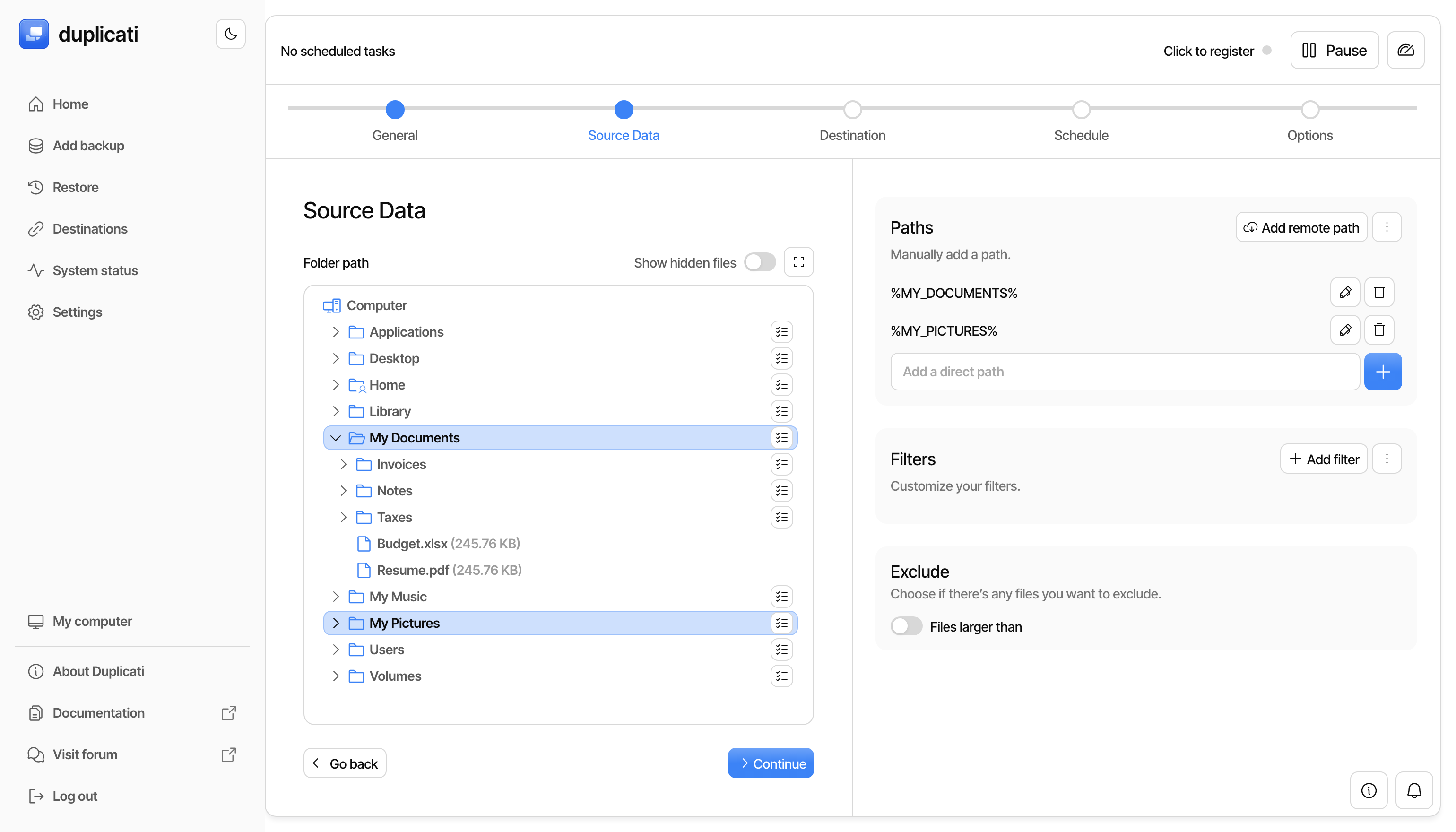
Image: the official Duplicati docs (Set up a backup in the UI)
At a glance:
- What it is: a backup client with a scheduler, encryption, compression, de-duplication and versioning.
- Three secrets, three jobs: the web password (opens the UI), the settings key (protects saved credentials) and the backup passphrase (protects your data). Never reuse one for another.
- Official image, not linuxserver:
duplicati/duplicatikeeps state in/dataand usesUIDandGID. The popular linuxserver image uses/configandPUID. - Platforms: the image is Linux. Windows and Mac use Docker Desktop, or the native app.
- Telemetry: on by default; one variable switches it off.
How it fits together#
One container reads your folders, encrypts the data and writes it to the destination. The web interface is a separate route and stays off the internet.

Drawn for this guide from the official Docker documentation. The destination holds Duplicati's own volume files, not a browsable copy. The HTTPS route (dashed) is optional.
Duplicati keeps a server database (Duplicati-server.sqlite: job settings and saved credentials) and a small database per job. The per-job database can be rebuilt from the destination, but that can take long on a big backup, so keep the state folder safe.
Before you start#
You need Docker, a folder to protect, and a destination that is not the same disk as your data.
| System | What you need | Notes |
|---|---|---|
| Linux | Docker Engine and the Compose plugin | amd64, arm64 and arm/v7 images exist |
| Windows | Docker Desktop, Linux containers | Not a Windows container. Locked-file (VSS) backups need the native service |
| Mac | Docker Desktop (Intel or Apple Silicon) | Docker Desktop must be allowed to read your source folders |
The project publishes no RAM, CPU or disk minimums, so we give none. Check your tools:
Linux#
docker --version
docker compose version
Windows (PowerShell)#
docker --version
docker compose version
Mac (Terminal)#
docker --version
docker compose version
Checklist:
- [ ] Docker and Compose answer with a version number
- [ ] Port 8200 is free
- [ ] A password manager is open: you will save three secrets
- [ ] The real destination is a different disk, NAS or cloud account (the local folder here is for the first test)
- [ ] A throw-away test folder, not your real data, for the first run
Tested on 2026-11-16: not run by DIY Lab Hub (Linux, Windows and Mac). Commands come from the official README, docs and release files.
Step 1: Create the folders and the secrets#
We use ~/docker_volumes/duplicati, as all DIY Lab Hub guides do. The .env file holds two different, strong secrets: the settings key and the web password. The generator commands are our suggestion; the project documents none.
Linux#
mkdir -p ~/docker_volumes/duplicati/{data,source,destination,restore-test,backups}
cd ~/docker_volumes/duplicati
umask 077
printf 'SETTINGS_ENCRYPTION_KEY=%s\nDUPLICATI__WEBSERVICE_PASSWORD=%s\n' "$(openssl rand -base64 24)" "$(openssl rand -base64 24)" > .env
chmod 600 .env
echo "hello duplicati" > source/hello.txt
cat .env
Windows (PowerShell)#
On Windows the state lives in a Docker volume (Step 2 explains why), so there is no data folder.
New-Item -ItemType Directory -Force "$HOME\docker_volumes\duplicati\source","$HOME\docker_volumes\duplicati\destination","$HOME\docker_volumes\duplicati\restore-test","$HOME\docker_volumes\duplicati\backups" | Out-Null
Set-Location "$HOME\docker_volumes\duplicati"
function New-Secret { $b = New-Object byte[] 24; [System.Security.Cryptography.RandomNumberGenerator]::Create().GetBytes($b); [Convert]::ToBase64String($b) }
$text = "SETTINGS_ENCRYPTION_KEY=$(New-Secret)`nDUPLICATI__WEBSERVICE_PASSWORD=$(New-Secret)`n"
[System.IO.File]::WriteAllText("$PWD\.env", $text)
icacls .env /inheritance:r /grant:r "${env:USERNAME}:(R,W)" | Out-Null
Set-Content source\hello.txt "hello duplicati"
Get-Content .env
Mac (Terminal)#
Same commands as Linux, without the data folder (the state lives in a Docker volume):
mkdir -p ~/docker_volumes/duplicati/{source,destination,restore-test,backups}
cd ~/docker_volumes/duplicati
umask 077
printf 'SETTINGS_ENCRYPTION_KEY=%s\nDUPLICATI__WEBSERVICE_PASSWORD=%s\n' "$(openssl rand -base64 24)" "$(openssl rand -base64 24)" > .env
chmod 600 .env
echo "hello duplicati" > source/hello.txt
cat .env
Check it worked. .env has two lines, both with long random values. Copy both into your password manager now, labelled "Duplicati settings key" and "Duplicati web password".
Tip: The settings key must stay the same for as long as you use this state folder. If it is lost or changed, Duplicati cannot read the credentials it saved. Store it somewhere that does not depend on this machine.
Step 2: Write the Compose file and start Duplicati#
The official image keeps its state in /data. Since version 2.3.1.0 Duplicati refuses to start if that folder is not private to the running user. The README names Docker Desktop on Windows or macOS, NTFS, exFAT and SMB shares as typical causes. So Linux bind-mounts a normal folder, and Windows and Mac use a named Docker volume, which the README recommends.
All three files pin 2.4.1.0-stable, publish the web port on 127.0.0.1 only, mount the source read-only, and set USAGEREPORTER_Duplicati_LEVEL to none, so not even the start-up telemetry event is sent. The docs say it must be set before Duplicati starts.
Linux#
cd ~/docker_volumes/duplicati
cat > docker-compose.yml << 'EOF'
services:
  duplicati:
    image: duplicati/duplicati:2.4.1.0-stable
    container_name: duplicati
    restart: unless-stopped
    ports:
      - "127.0.0.1:8200:8200"
    environment:
      SETTINGS_ENCRYPTION_KEY: ${SETTINGS_ENCRYPTION_KEY:?set it in .env}
      DUPLICATI__WEBSERVICE_PASSWORD: ${DUPLICATI__WEBSERVICE_PASSWORD:?set it in .env}
      USAGEREPORTER_Duplicati_LEVEL: none
    volumes:
      - ./data:/data
      - ./source:/source:ro
      - ./destination:/destination
      - ./restore-test:/restore-test
EOF
docker compose config --quiet
docker compose pull
docker compose up -d
docker compose ps
docker compose logs --tail=50 duplicati
Windows (PowerShell)#
Start Docker Desktop first (Linux containers). The only difference is the state volume.
Set-Location "$HOME\docker_volumes\duplicati"
$yaml = @'
services:
  duplicati:
    image: duplicati/duplicati:2.4.1.0-stable
    container_name: duplicati
    restart: unless-stopped
    ports:
      - "127.0.0.1:8200:8200"
    environment:
      SETTINGS_ENCRYPTION_KEY: ${SETTINGS_ENCRYPTION_KEY:?set it in .env}
      DUPLICATI__WEBSERVICE_PASSWORD: ${DUPLICATI__WEBSERVICE_PASSWORD:?set it in .env}
      USAGEREPORTER_Duplicati_LEVEL: none
    volumes:
      - duplicati_data:/data
      - ./source:/source:ro
      - ./destination:/destination
      - ./restore-test:/restore-test

volumes:
  duplicati_data:
    name: duplicati_data
'@
[System.IO.File]::WriteAllText("$PWD\docker-compose.yml", $yaml)
docker compose config --quiet
docker compose pull
docker compose up -d
docker compose ps
docker compose logs --tail=50 duplicati
Mac (Terminal)#
Start Docker Desktop first. This file has the same named volume as the Windows one:
cd ~/docker_volumes/duplicati
cat > docker-compose.yml << 'EOF'
services:
  duplicati:
    image: duplicati/duplicati:2.4.1.0-stable
    container_name: duplicati
    restart: unless-stopped
    ports:
      - "127.0.0.1:8200:8200"
    environment:
      SETTINGS_ENCRYPTION_KEY: ${SETTINGS_ENCRYPTION_KEY:?set it in .env}
      DUPLICATI__WEBSERVICE_PASSWORD: ${DUPLICATI__WEBSERVICE_PASSWORD:?set it in .env}
      USAGEREPORTER_Duplicati_LEVEL: none
    volumes:
      - duplicati_data:/data
      - ./source:/source:ro
      - ./destination:/destination
      - ./restore-test:/restore-test

volumes:
  duplicati_data:
    name: duplicati_data
EOF
docker compose config --quiet
docker compose pull
docker compose up -d
docker compose ps
docker compose logs --tail=50 duplicati
Check it worked. docker compose ps lists duplicati as running. The server source maps a /health page; ask it from the host:
curl -i http://127.0.0.1:8200/health
On Windows use curl.exe -i http://127.0.0.1:8200/health in PowerShell. Expected, read from the source and not run by us: an HTTP 200 answer with the text Healthy.
Tip: If Compose stops with "set it in .env", you are in the wrong folder or the file is empty. Compose reads
.envfrom the folder you run it in.
Step 3: Sign in and create your first backup#
The first screen offers to connect to the Duplicati Console, the vendor's hosted dashboard. You do not need it: choose "Proceed without connecting to console" and confirm.
Linux#
Open the interface in your browser and sign in with the web password from .env:
xdg-open http://127.0.0.1:8200
Windows (PowerShell)#
Start-Process "http://127.0.0.1:8200"
Mac (Terminal)#
open http://127.0.0.1:8200
Since version 2.4.0.1 the wizard has five steps: basic configuration, source data, storage destination, schedule, retention. Older tutorials show the destination before the source. Click "Add backup", then "Add a new backup":
- General. Name it
test-backup. Keep encryption on and use the built-in passphrase generator. Save the passphrase in your password manager: this is the third secret, and nothing can be recovered if it is lost. - Source data. Tick the
/sourcefolder (your Step 1 folder, seen from inside the container). - Destination. Choose the local folder or drive destination and type
/destination/first-backup. Click "Test now". Each job needs its own folder; two jobs in one folder keep breaking each other. - Schedule. Leave the scheduler on and pick a daily time.
- Options. Keep "Smart backup retention", the policy
1W:1D,4W:1W,12M:1M: one version a day for a week, one a week for four weeks, one a month for a year.
Click "Submit".
Check it worked. The job appears on the home page. Choose "Run now" in its menu. When it ends without a warning, ./destination/first-backup holds files ending in .aes. On Linux or Mac:
ls ~/docker_volumes/duplicati/destination/first-backup
On Windows: Get-ChildItem "$HOME\docker_volumes\duplicati\destination\first-backup".
Tip: Duplicati's output is its own volume format, not a mirror of your folders. Do not try to open the files by hand; restore through Duplicati.
Step 4: Restore a file and compare it (the restore test)#
A restore into a separate folder proves that the passphrase, destination and data all work. Never test by restoring over your real files.
Open "Restore", pick test-backup, choose the version, tick hello.txt, click "Continue", and choose to restore to another destination: /restore-test. Permissions are not restored by default, which suits this test. Click "Submit".
Linux#
The restored path may include folders, so search for the file, then compare checksums:
cd ~/docker_volumes/duplicati
find restore-test -type f
sha256sum source/hello.txt $(find restore-test -name hello.txt)
Windows (PowerShell)#
Set-Location "$HOME\docker_volumes\duplicati"
Get-ChildItem restore-test -Recurse -File
Get-FileHash source\hello.txt
Get-FileHash (Get-ChildItem restore-test -Recurse -Filter hello.txt).FullName
Mac (Terminal)#
cd ~/docker_volumes/duplicati
find restore-test -type f
shasum -a 256 source/hello.txt $(find restore-test -name hello.txt)
Check it worked. The two checksums are identical.
Version 2.4.1.0 adds an automatic restore test: the advanced option --perform-restore-test-after runs one after a backup when the last test is older than the interval you give, and a failure sends its own notification. A restore-test command exists too; run docker exec duplicati duplicati-cli help for the syntax.
Tip: Repeat the restore test after every change of destination, passphrase or Duplicati version. It is the only proof that counts.
Install natively instead (often better on Windows and Mac)#
Docker suits a Linux server. On a desktop the native app is simpler, and on Windows, installed as a service, it can read locked files through VSS. The docs warn that the service has full access to the machine: keep its password safe and never enable remote access. File names come from the 2.4.1.0 release page.
Linux#
cd /tmp
curl -LO https://github.com/duplicati/duplicati/releases/download/v2.4.1.0_stable_2026-10-29/duplicati-2.4.1.0_stable_2026-10-29-linux-x64-gui.deb
sudo apt install ./duplicati-2.4.1.0_stable_2026-10-29-linux-x64-gui.deb
On Fedora use the .rpm with sudo dnf install. The packages include a systemd service; start it and read the sign-in link:
sudo systemctl enable --now duplicati.service
sudo journalctl --unit=duplicati | less
Windows (PowerShell)#
Invoke-WebRequest -Uri "https://github.com/duplicati/duplicati/releases/download/v2.4.1.0_stable_2026-10-29/duplicati-2.4.1.0_stable_2026-10-29-win-x64-gui.msi" -OutFile "$HOME\Downloads\duplicati.msi"
Start-Process msiexec -ArgumentList "/i `"$HOME\Downloads\duplicati.msi`"" -Wait
In the installer, tick "Install Duplicati as a Windows Service" only if you need locked files or backups without a logged-in user. It shows a generated password once; copy it.
Mac (Terminal)#
cd ~/Downloads
curl -LO https://github.com/duplicati/duplicati/releases/download/v2.4.1.0_stable_2026-10-29/duplicati-2.4.1.0_stable_2026-10-29-osx-arm64-gui.dmg
open duplicati-2.4.1.0_stable_2026-10-29-osx-arm64-gui.dmg
Drag Duplicati into Applications (Intel Mac: the osx-x64 file). The wizard in Step 3 is the same.
Check it worked. The browser opens the Duplicati interface by itself the first time the app starts.
Put it behind HTTPS (with or without Traefik)#
Reach the interface at https://backup.<your-domain> instead of the loopback port. Local-only users can skip this section. Both routes need a DNS name that points at the server.
Duplicati's server blocks hostnames by default, to prevent DNS-based attacks. Set DUPLICATI__WEBSERVICE_ALLOWED_HOSTNAMES (semicolon-separated, from the official Docker page); the value * disables the protection and is discouraged. Do not add a Traefik Basic Auth middleware: a forum report shows 401 errors because it overwrites Duplicati's Authorization header.
With Traefik#
This assumes Traefik v3 with the Docker provider, an external network proxy and an entrypoint named https (use yours). Create the network once with docker network create proxy, then use this file (Windows and Mac keep the duplicati_data lines from Step 2):
services:
  duplicati:
    image: duplicati/duplicati:2.4.1.0-stable
    container_name: duplicati
    restart: unless-stopped
    environment:
      SETTINGS_ENCRYPTION_KEY: ${SETTINGS_ENCRYPTION_KEY:?set it in .env}
      DUPLICATI__WEBSERVICE_PASSWORD: ${DUPLICATI__WEBSERVICE_PASSWORD:?set it in .env}
      DUPLICATI__WEBSERVICE_ALLOWED_HOSTNAMES: backup.<your-domain>
      USAGEREPORTER_Duplicati_LEVEL: none
    volumes:
      - ./data:/data
      - ./source:/source:ro
      - ./destination:/destination
      - ./restore-test:/restore-test
    networks:
      - proxy
    labels:
      - "traefik.enable=true"
      - "traefik.docker.network=proxy"
      - "traefik.http.routers.duplicati.rule=Host(`backup.<your-domain>`)"
      - "traefik.http.routers.duplicati.entrypoints=https"
      - "traefik.http.routers.duplicati.tls=true"
      - "traefik.http.services.duplicati.loadbalancer.server.port=8200"

networks:
  proxy:
    external: true
Run docker compose up -d. Traefik supports WebSockets natively, so Duplicati needs no extra setting.
Check it worked. curl -I https://backup.<your-domain>/ returns an HTTP status line over HTTPS, and the sign-in page opens with a valid certificate.
Without Traefik: Caddy#
Caddy gets and renews a Let's Encrypt certificate for a public domain, and tls internal gives a local certificate for a home-only name. Our Caddy guide covers it in full. The image is caddy:2.11.9 (latest release read in November 2026). We mount the conf folder, not a single file, as Caddy's Docker docs advise:
mkdir -p ~/docker_volumes/caddy/{conf,data,config}
cd ~/docker_volumes/caddy
services:
  caddy:
    image: caddy:2.11.9
    container_name: caddy
    restart: unless-stopped
    ports:
      - "80:80/tcp"
      - "443:443/tcp"
      - "443:443/udp"
    volumes:
      - ./conf:/etc/caddy:ro
      - ./data:/data
      - ./config:/config
    networks:
      - proxy

networks:
  proxy:
    external: true
Save this as ~/docker_volumes/caddy/conf/Caddyfile for a public domain:
backup.example.com {
    reverse_proxy duplicati:8200
}
For a home-only name use tls internal:
backup.home.arpa {
    tls internal
    reverse_proxy duplicati:8200
}
Use the Traefik file above without labels:; Duplicati joins the proxy network and needs no host port. Start both:
cd ~/docker_volumes/caddy && docker compose up -d
cd ~/docker_volumes/duplicati && docker compose up -d
For a home-only certificate, copy Caddy's root certificate out and trust it on each device (Windows "Trusted Root Certification Authorities", macOS Keychain Access with "Always Trust", your Linux CA store):
docker exec caddy find /data -name root.crt
docker cp caddy:<path-from-find> ./caddy-root.crt
Check it worked. curl -I https://backup.example.com/ returns an HTTP status line over HTTPS (curl.exe in PowerShell). For a home-only name the browser shows a padlock only after the root is trusted.
Tip: Use a dedicated host name such as
backup.<your-domain>. We found no official sub-path recipe such as/duplicati/, so we do not teach one.
Security and testing#
| Control | How |
|---|---|
| Web port | Published on 127.0.0.1 only (Step 2). Never forward TCP 8200 on your router |
| Web password | Long and unique. The variable resets it on every start; after the first start you may remove the line, as the password stays in the data folder |
| Settings key | Keep SETTINGS_ENCRYPTION_KEY for good. It is not the UI password |
| Backup passphrase | In your password manager, not only inside the backup it protects |
.env file | chmod 600. Docker secrets or a preload file are options; Duplicati does not read _FILE variables |
| Root user | The image runs as root so it can read system files. UID and GID run it as another user; keep them stable |
| Docker socket | Not needed. Never mount it into the container |
| Deletion by an attacker | Encryption does not stop someone with your credentials from deleting remote files. Use destination features such as object locking |
Quick tests after each change:
cd ~/docker_volumes/duplicati
docker compose ps
docker compose logs --tail=100 duplicati
curl -i http://127.0.0.1:8200/health
On Windows run the same docker lines in the project folder and curl.exe -i for the health page.
What leaves the machine: your encrypted backups, update checks and any notifications you set up. The default telemetry is non-identifying per the docs; our file turns it off.
Common mistakes#
These come from the official docs, the Duplicati forum and the issue tracker.
| Mistake | Why it happens | Do this instead |
|---|---|---|
| Losing the backup passphrase | The docs say nothing can be recovered without it | Save it in a password manager when you create the job |
| Two jobs in one destination folder | The wizard accepts it, but the docs say they keep breaking each other | One folder per job |
| Never testing a restore | A green run only proves upload | Restore into a separate folder (Step 4); try --perform-restore-test-after |
| Copying a live database folder | A database written during the read gives an unusable copy. Duplicati's own article calls this the golden rule | Dump the database first, or stop the app, then back up the dump |
Bind-mounting /data from Windows or Mac | Docker Desktop and NTFS shares report the folder as open, so Duplicati refuses to start | Use a named volume (Step 2) |
Changing UID or GID between runs | The folder stays owned by the old user and fails the permission check | Pick one value and keep it |
| Keeping the password variable forever | The README says a restart resets the password to that value | Start once with it, then remove the line |
| Basic Auth middleware in front | A forum thread shows 401 errors until it was removed | Use Duplicati's password, or the documented pre-authenticated header with a long random token |
| Going back a version by changing the tag | 2.4.1.0 upgrades the local database from version 19 to 22; 2.4.0.1 cannot open it | Run DatabaseTool's downgrade first, as the release notes say |
Slash in the Azure --prefix | Issue 7666 reports it broken on the 2.4.1.0 stable image | Avoid slash prefixes on Azure for now |
AI assistants: writing /config, PUID and PGID for the official image | Those belong to the linuxserver image | Official image: /data, UID, GID |
AI assistants: inventing admin/admin, DISABLE_TELEMETRY, port 8080 or _FILE variables | Chat answers mix apps together | The first-run password comes from the variable or the log link; telemetry off is USAGEREPORTER_Duplicati_LEVEL=none; the port is 8200 |
Tip: When a snippet names a Docker image, check that it is
duplicati/duplicati. Anything starting withlscr.io/linuxserverfollows different rules for paths and users.
Tip: Choose the block size before the first real backup. It cannot be changed afterwards, because blocks of different sizes cannot be compared.
Troubleshooting#
| Problem | Solution |
|---|---|
| Container stops at start | docker compose logs --tail=100 duplicati. For a permission message use a named volume (Step 2) |
Bind for 127.0.0.1:8200 failed: port is already allocated | Another program uses 8200. Change the left number: 127.0.0.1:8201:8200 |
| Cannot sign in | Type the password from .env, or use the one-time sign-in link in the log (it expires after a few minutes) |
| Page refuses a hostname | Add it to DUPLICATI__WEBSERVICE_ALLOWED_HOSTNAMES and recreate the container |
| Sign-in works, then 401 errors behind a proxy | Remove extra authentication middleware (forum report) |
| Source folder looks empty | docker exec duplicati ls /source |
The data folder does not have secure permissions#
The message begins The data folder '<path>' does not have secure permissions. Duplicati found /data/Duplicati open to other users, usually from a Windows or Mac bind mount or a changed UID and GID. Use a named volume, or keep the IDs stable. DUPLICATI__ALLOW_INSECURE_DATAFOLDER=true is the last option.
The database appears to be encrypted#
The database appears to be encrypted, but no key was specified. A forum thread reports it: the settings key is missing or differs from the earlier one. Put the original SETTINGS_ENCRYPTION_KEY back; a new one will not decrypt old secrets.
Found 1 files that are missing from the remote storage#
Found 1 files that are missing from the remote storage, please run repair. In issue 7665 (pCloud) the file appeared on a later listing and a retry worked. Check the remote listing and retry before repairing.
Other messages in current reports#
no such table: FilesetEntryafter "Suppress" on a Sync job warning: issue 7850, open when read. This guide uses Backup jobs, not the newer Sync type.429 (Too Many Requests), thenBackend manager is stopped: Jottacloud rate limiting, issue 7671. Look higher up the log for the first provider error.MissingRemoteFileson Azure with a slash in--prefix: issue 7666, open when read.Could not load file or assembly 'System.IO.Compression, Version=10.0.0.0...: Windows service stopped after an MSI upgrade, issue 7740, open when read. Check the service after upgrading.
Known bugs (open, November 2026)#
Several reports exist on 2.4.1.0, but they concern particular backends and native Windows installs; we found no sign of broad breakage for a plain Docker, local-destination setup. The previous stable, 2.4.0.1, has its own reports and needs a database downgrade, so we pin 2.4.1.0. Issue 7664 reports jobs vanishing after a Windows upgrade; the maintainer asked whether the install switched between user and service mode, which changes the data folder.
Run docker compose ps, docker compose logs --tail=200 duplicati and docker inspect duplicati first, and note your version and image tag before asking for help.
Updates and backups#
What to back up: docker-compose.yml, .env, the state (data or the duplicati_data volume), an exported job configuration (job menu, "Export"; protect the file if it includes secrets) and your passphrases.
Update. Read the release notes, change the tag in docker-compose.yml, wait until no job is running, take the backup below, then:
cd ~/docker_volumes/duplicati
docker compose pull
docker compose up -d
docker compose logs --tail=100 duplicati
Windows and Mac use the same lines. The docs say Duplicati migrates older settings and databases itself on start. Replace the image rather than using the web updater inside the container.
State backup script.
Linux#
cd ~/docker_volumes/duplicati
docker compose down
mkdir -p backups
tar -czf "backups/duplicati-state-$(date +%F).tar.gz" data docker-compose.yml
chmod 600 backups/duplicati-state-*.tar.gz
docker compose up -d
To run it each night at 03:00, put the same lines into a script and add it with crontab -e:
0 3 * * * /home/<your-user>/docker_volumes/duplicati/state-backup.sh
Windows (PowerShell)#
The state is a named volume, so archive it with a short helper container:
Set-Location "$HOME\docker_volumes\duplicati"
docker compose down
$d = Get-Date -Format yyyy-MM-dd
docker run --rm -v duplicati_data:/data -v "${PWD}\backups:/out" alpine:3 tar czf "/out/duplicati-state-$d.tar.gz" -C /data .
docker compose up -d
Save it as state-backup.ps1 and schedule it at 03:00:
$act = New-ScheduledTaskAction -Execute "powershell.exe" -Argument "-NoProfile -File $HOME\docker_volumes\duplicati\state-backup.ps1"
Register-ScheduledTask -TaskName "duplicati-state-backup" -Action $act -Trigger (New-ScheduledTaskTrigger -Daily -At 3am)
Mac (Terminal)#
cd ~/docker_volumes/duplicati
docker compose down
mkdir -p backups
docker run --rm -v duplicati_data:/data -v "$PWD/backups:/out" alpine:3 tar czf "/out/duplicati-state-$(date +%F).tar.gz" -C /data .
docker compose up -d
Use cron at 03:00 as on Linux.
Restore test. Unpack the archive into a new empty folder, never over the live state, and list it:
mkdir -p /tmp/duplicati-restore && tar -xzf backups/duplicati-state-<date>.tar.gz -C /tmp/duplicati-restore
ls /tmp/duplicati-restore
You should see the Duplicati folder with Duplicati-server.sqlite. A full test (our suggestion): start a second copy on another port with the same settings key.
Performance and resources#
The project gives no RAM, CPU or disk numbers for 2.4.1.0, and we did not measure any. These defaults come from the 2.4.1.0 source:
| Setting | Default |
|---|---|
Block size (--blocksize) | 1 MiB (1mb). Cannot change after the first backup |
Remote volume size (--dblock-size) | 50 MiB (50mb) |
| Retries / delay | 5 times, 10 seconds apart |
Restore cache limit (--restore-cache-max) | 4 GiB. This is a cap, not a promise of use |
The docs suggest remote volumes of about 50 to 500 MiB for cloud links and 500 to 2000 MiB on a fast local network. Larger volumes lower overhead but make small restores download more.
Heavy memory use is reported on very large histories: a 2.4.0.0 release thread describes about 5 GB of memory with a 27 GB local database. One user found CUSTOMSQLITEOPTIONS_DUPLICATI=temp_store=FILE eased it, at a cost in speed. Treat that as a last resort.
Monitor with docker stats duplicati. The AutoTuneTool tests restore speed by backing up and restoring repeatedly: never aim it at real folders.
Duplicati or restic?#
Both encrypt, de-duplicate and keep versions. restic is a command-line tool with no web interface or scheduler; you write the schedule. Duplicati gives you a browser wizard, a scheduler and many destinations, in return for a local database per job to look after.
| Duplicati | restic | |
|---|---|---|
| Interface | Browser wizard and scheduler | Command line, scripted |
| Encryption | Offered in the wizard; you can opt out | Always on |
Pick Duplicati for a click-through set-up; pick restic for scripts and a single binary.
FAQ#
Is Duplicati free? Yes. The core is MIT licensed. The repository also has a proprietary/ folder under a separate Duplicati Inc licence, and the vendor offers a hosted Console. This guide uses neither.
Which channel should I use? Stable. The Docker README lists latest as the most recent stable, and beta, experimental and canary as test channels. We pin 2.4.1.0-stable so updates happen only when you choose.
What if I lose a secret? The web password can be reset by restarting with a new DUPLICATI__WEBSERVICE_PASSWORD. A lost settings key means saved credentials cannot be read; DatabaseTool has a wipe-encryption command as a last resort. A lost backup passphrase cannot be recovered.
Can I restore without the original computer? Yes. "Restore" can read the backup files directly with the destination details and the passphrase, or import an exported job. It downloads and processes more data than a restore from a configured job.
Sources#
- Duplicati release 2.4.1.0 (release notes, downgrade note, assets), LICENSE, Docker README, Options.cs and the web server source - read November 2026
- Docker Hub image duplicati/duplicati (tag
2.4.1.0-stablechecked) and the linuxserver image - read November 2026 - Official docs: Using Duplicati from Docker, Installation, Set up a backup in the UI, Restoring files, Telemetry, Server database, Access password, Retention, Upgrading, Size parameters, Windows service - read November 2026
- Duplicati article: Flawless Docker backups with persisted volumes (August 2026)
- Duplicati forum: Traefik auth and 401 errors, Encrypting the database
- GitHub issues #7664, #7665, #7666, #7671, #7674, #7740, #7850 - read November 2026
- Caddy release v2.11.9 and Caddy docs - read November 2026
Checked against the official docs on 2026-11-16.