Dockge with Docker: a simple web UI for Compose stacks (Linux, Windows, Mac)
Before you start
- 20 min read
Boxes marked Run in terminal are what you type; plain text explains why. Check what you need first
What you get in one minute#
Dockge is a free, self-hosted web page for your compose.yaml files: you create, edit, start, stop and update Docker Compose stacks in the browser, while the files stay on your disk and still work with plain docker compose.

Logo: the official Dockge project (github.com/louislam/dockge)
It suits a home lab where you already write Compose files and want a nicer editor, live pull and deploy progress, and a list of stacks with their state. One honest note first: the latest release, 1.5.0, is from March 2025. The repository still gets commits (the newest I could see is dated October 2026), but the project moves slowly. Treat it as a stable tool, not one that changes weekly.
| What | Value (official sources, read November 2026) |
|---|---|
| Current version | Dockge 1.5.0, released 30 March 2025 (latest stable). Before it: 1.4.2, January 2024 |
| Image to pin | louislam/dockge:1.5.0 (tag exists on Docker Hub for amd64, arm64 and armv7) |
| Time needed | About 15 minutes (our estimate, not measured) |
| Size and RAM | The project publishes no figures; measure with docker stats |
| Port | TCP 5001 (the web UI) |
| Licence | MIT (LICENSE at the release tag). No paid edition is mentioned |
| Official docs | README at 1.5.0 and the Compose generator |
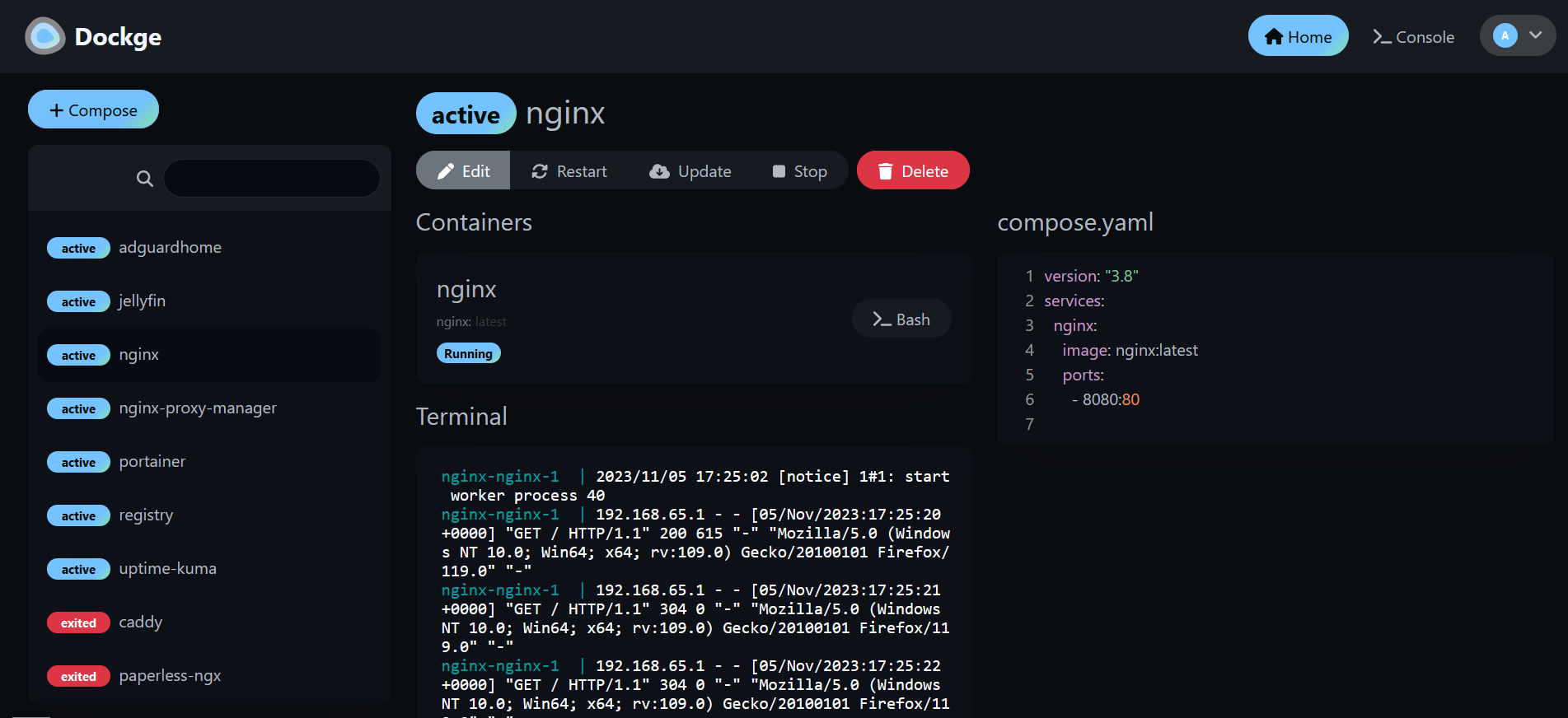
Image: the official Dockge project (README at 1.5.0). It is an older screenshot from 2023; labels and the Console tab (off by default now) may differ.
At a glance:
- What it is: one Docker container with a web UI. It edits
compose.yamlfiles in a folder you choose and runsdocker composefor you. - Files stay yours: no hidden database of stacks. Stop Dockge and the stacks and files still work.
- Needs the Docker socket: that is powerful. A hacked Dockge is a hacked Docker host. The author warns against putting it on the internet.
- Linux server only: the README lists Linux and marks Windows unsupported. Windows and Mac are browsers and SSH clients here.
- Narrow on purpose: Compose stacks only. For single containers and Docker networks you need another tool.
- Pin the tag: the official file uses
louislam/dockge:1; we pin1.5.0.
How it fits together#

Drawn for this guide from the official compose file and README. The access path (dashed) is optional but recommended.
Dockge keeps its login and settings in a small SQLite database (dockge.db) in its data folder. Your stacks are not in it.
Before you start#
Linux server: Ubuntu, Debian (Bullseye or newer), Raspbian (Bullseye or newer), CentOS, Fedora or Arch, with Docker 20 or newer (or Podman with podman-docker). Architectures: amd64, arm64, armv7. The README gives no RAM or disk figures.
docker --version
docker compose version
uname -m
Windows: not a server ("Windows (Will be supported later)", says the README). You need PowerShell for SSH and a browser:
ssh -V
Mac: not a server either; the README does not list macOS. Terminal and a browser are enough:
ssh -V
Checklist:
- [ ] Docker and the Compose plugin on the Linux server
- [ ] Port 5001 free on the server (
ss -ltn | grep 5001shows nothing) - [ ] A folder for the stacks. We use
/opt/stacks, the official default - [ ] For the HTTPS section only: a domain name with a DNS record and ports 80 and 443 free
Tested by DIY Lab Hub: not yet. The commands come from the official README, compose file and source at the 1.5.0 tag. We did not run them.
Step 1: Create the folders on the Linux server#
Dockge needs a folder for itself and a stacks folder for your compose files. The stacks path must be a full path and identical inside the container and on the host; the official compose file warns about it in capitals.
Linux#
mkdir -p ~/docker_volumes/dockge/{data,backups}
sudo mkdir -p /opt/stacks
cd ~/docker_volumes/dockge
We use /opt/stacks, the official default. Dockge runs as root, so files it creates there belong to root; use sudo to read them in a shell.
Windows (PowerShell)#
Not supported as the server. Open an SSH session to your Linux server and run the Linux commands there:
ssh <your-user>@<your-server-address>
Mac (Terminal)#
Not supported as the server. Same SSH command, then the Linux commands:
ssh <your-user>@<your-server-address>
Check it worked. Both folders exist:
ls -ld ~/docker_volumes/dockge/data /opt/stacks
Tip: Decide the stacks path now. Changing it later means editing three places and moving folders by hand.
Step 2: Write the Compose file and start Dockge#
This is the official file with three changes: the tag is 1.5.0, the UI is published on 127.0.0.1 only (the official file publishes it on every interface), and we add container_name. The README downloads the file from master; we write it out so nothing moves under you.
Linux#
cd ~/docker_volumes/dockge
cat > docker-compose.yml << 'EOF'
services:
  dockge:
    image: louislam/dockge:1.5.0
    container_name: dockge
    restart: unless-stopped
    ports:
      - "127.0.0.1:5001:5001"
    volumes:
      - /var/run/docker.sock:/var/run/docker.sock
      - ./data:/app/data
      - /opt/stacks:/opt/stacks
    environment:
      - DOCKGE_STACKS_DIR=/opt/stacks
EOF
docker compose pull
docker compose up -d
docker compose ps
docker compose logs --tail=50 dockge
Windows (PowerShell)#
Not supported as the server. Run the same file on the Linux server over SSH (Step 1).
Mac (Terminal)#
Not supported as the server. Run the same file on the Linux server over SSH.
Check it worked. docker compose ps shows dockge running. The image has a health check (every 60 seconds, 60-second start period, from the Dockerfile), so it turns healthy after about a minute. The source logs Listening on 5001, and on a fresh install No user, need setup, which is normal. The README promises "Dockge is now running on http://localhost:5001". We show no real output because we did not run it.
Tip: This
docker-compose.ymlis Dockge's own file and stays in~/docker_volumes/dockge. Dockge only lists stacks inside the stacks folder, so it does not show itself. That is fine.
Step 3: Reach the page and create your admin account#
The UI listens only on the server's loopback address. An SSH tunnel carries your local port 5001 to it.
Linux#
On the server itself, open http://127.0.0.1:5001. From another Linux computer, open the tunnel and leave it running:
ssh -N -L 5001:127.0.0.1:5001 <your-user>@<your-server-address>
Then open http://localhost:5001.
Windows (PowerShell)#
Run the same command and keep the window open:
ssh -N -L 5001:127.0.0.1:5001 <your-user>@<your-server-address>
Then open http://localhost:5001 in your browser. If ssh is missing, add the OpenSSH client in Windows optional features.
Mac (Terminal)#
Same as Linux:
ssh -N -L 5001:127.0.0.1:5001 <your-user>@<your-server-address>
Then open http://localhost:5001.
The first page is a setup page: choose a username and a password. There is no default login. Weak passwords are rejected with Password is too weak. It should contain alphabetic and numeric characters. It must be at least 6 characters in length. That is the lowest bar; choose a long one.
Check it worked. You are logged in and see the stack list with a + Compose button. If you had existing stacks, they are not listed yet (Step 5).
Tip: Save the password in a password manager before you close the page. The setup screen runs once:
Dockge has been initialized. If you want to run setup again, please delete the database.Deleting the database also deletes your settings, so do not do it lightly.
Step 4: Deploy a first test stack#
A small stack proves the whole chain.
Linux#
In Dockge click + Compose. Type the stack name whoami (lowercase only; the field says "Lowercase only"). Replace the YAML with this and press Deploy:
services:
  whoami:
    image: traefik/whoami:v1.11.0
    restart: unless-stopped
    ports:
      - "127.0.0.1:8081:80"
Then, on the server:
curl -s http://127.0.0.1:8081
sudo ls /opt/stacks/whoami
Windows (PowerShell)#
Do the clicking in your browser through the tunnel. For the check, ask the server over SSH:
ssh <your-user>@<your-server-address> "curl -s http://127.0.0.1:8081"
Mac (Terminal)#
Same in the browser, then:
ssh <your-user>@<your-server-address> "curl -s http://127.0.0.1:8081"
Check it worked. The curl prints a few lines including Hostname: (the traefik/whoami test image does that), /opt/stacks/whoami holds a compose.yaml, and Dockge shows the stack as active. Stop and Delete it when done.
Tip: Dockge writes
compose.yamlinto/opt/stacks/<name>/. If a stack lives anywhere else, Dockge cannot manage it.
Step 5: Bring your existing stacks in#
Dockge only manages stacks inside its stacks folder. The README's steps for an existing stack:
Linux#
- Stop the stack with
docker compose down. - Move its compose file (and
.env, data folders) to/opt/stacks/<stackName>/compose.yaml. - In Dockge open the top-right dropdown and click Scan Stacks Folder, then start the stack.
cd ~/my-old-stack
docker compose down
sudo mkdir -p /opt/stacks/my-old-stack
sudo mv compose.yaml .env data /opt/stacks/my-old-stack/
Dockge also accepts docker-compose.yaml, docker-compose.yml and compose.yml (checked in the source). Keep the folder and project names lowercase and equal, or the stack may show as unmanaged.
Windows (PowerShell)#
Do the moves on the Linux server over SSH, then click Scan Stacks Folder in the browser.
Mac (Terminal)#
Same: move files on the server, scan in the browser.
Check it worked. The stack is in the list and its containers run after you start it. Check your data is still there before you delete anything old.
Put it behind HTTPS (with or without Traefik)#
The author's own advice is to keep Dockge off the internet and reach it through Tailscale or WireGuard (see our wg-easy and Headscale guides). HTTPS is still worth having on a private network, so your password is not sent in clear text. If you use the SSH tunnel, skip this section. Both routes need a DNS record for a name such as dockge.<your-domain>.
With Traefik#
On a server that already runs Traefik v3 with the Docker provider, add labels and remove the host port.
This assumes an external network proxy and an entrypoint https (use your own names). Create the network once:
docker network create proxy
Replace ~/docker_volumes/dockge/docker-compose.yml:
services:
  dockge:
    image: louislam/dockge:1.5.0
    container_name: dockge
    restart: unless-stopped
    volumes:
      - /var/run/docker.sock:/var/run/docker.sock
      - ./data:/app/data
      - /opt/stacks:/opt/stacks
    environment:
      - DOCKGE_STACKS_DIR=/opt/stacks
    networks:
      - proxy
    labels:
      - "traefik.enable=true"
      - "traefik.docker.network=proxy"
      - "traefik.http.routers.dockge.rule=Host(`dockge.<your-domain>`)"
      - "traefik.http.routers.dockge.entrypoints=https"
      - "traefik.http.routers.dockge.tls=true"
      - "traefik.http.services.dockge.loadbalancer.server.port=5001"

networks:
  proxy:
    external: true
Start it with docker compose up -d in that folder. Dockge uses WebSockets (Socket.IO); Traefik passes them through. Do not rewrite the Host header (see "Troubleshooting").
Check it worked. curl -I https://dockge.<your-domain>/ returns an HTTP status line over HTTPS and the login page opens with a valid certificate.
Without Traefik: Caddy#
Choose this if you have no Traefik. Caddy gets and renews its own certificates.
Caddy's docs describe automatic Let's Encrypt certificates for a public domain, tls internal for a local certificate at home, and WebSocket support in reverse_proxy. Create the Caddy folder:
mkdir -p ~/docker_volumes/caddy/{conf,data,config}
cd ~/docker_volumes/caddy
Save this as ~/docker_volumes/caddy/docker-compose.yml. The image is caddy:2.11.9, the latest Caddy release read in November 2026:
services:
  caddy:
    image: caddy:2.11.9
    container_name: caddy
    restart: unless-stopped
    ports:
      - "80:80/tcp"
      - "443:443/tcp"
      - "443:443/udp"
    volumes:
      - ./conf:/etc/caddy:ro
      - ./data:/data
      - ./config:/config
    networks:
      - proxy

networks:
  proxy:
    external: true
Save this as ~/docker_volumes/caddy/conf/Caddyfile for a public domain:
dockge.example.com {
    reverse_proxy dockge:5001
}
For a home-only name use tls internal:
dockge.home.arpa {
    tls internal
    reverse_proxy dockge:5001
}
Caddy reaches Dockge by its container name on the shared proxy network. In Dockge's docker-compose.yml remove the ports: block, add the proxy network exactly as in the Traefik file, and leave out the labels. Then start both:
docker network create proxy
cd ~/docker_volumes/caddy && docker compose up -d
cd ~/docker_volumes/dockge && docker compose up -d
(If proxy exists, the first command only prints an error.) For a home-only certificate, Caddy's docs say that in a container you install the root certificate on each device yourself:
docker exec caddy find /data -name root.crt
docker cp caddy:<path-from-find> ./caddy-root.crt
Install caddy-root.crt as a trusted root on each device (our advice, not from the docs): Windows, "Trusted Root Certification Authorities"; macOS, Keychain Access with "Always Trust"; Linux, your CA store. Run the docker commands on the Linux server only.
Check it worked. curl -I https://dockge.example.com/ returns an HTTP status line over HTTPS. For a home-only name, the padlock appears only after the root certificate is trusted on that device.
Tip: Dockge compares the browser's
Originwith theHostheader and refuses the socket if they differ. Caddy and Traefik keep the originalHost; do not rewrite it.
Security and testing#
Anyone who gets into Dockge can start any container on the host and mount any folder. Plan for that.
| Control | How |
|---|---|
| Not on the internet | Keep 127.0.0.1:5001 plus a tunnel, or a VPN. The author says so in the project discussions. Never forward port 5001 on the router |
| Admin password | Long and unique. There is no default account; the setup page creates it. Change it in Settings, Security |
| Do not turn off authentication | Settings, Security has "Disable Auth". The UI says it is for when you put another login (Authelia, Cloudflare Access, and so on) in front. Without one, anyone who reaches the page owns the host |
| Console stays off | 1.5.0 disabled the Console tab by default "due to the security reason". DOCKGE_ENABLE_CONSOLE=true turns it on; leave it off unless you need a shell in the browser |
| Socket mount | :ro on the socket does not make the Docker API read-only (our advice) |
| Data folder | ~/docker_volumes/dockge/data holds the database with the login. chmod 700 ~/docker_volumes/dockge (our advice) |
Stack .env files | Often hold passwords. Treat /opt/stacks as secret |
| Update check | The server asks https://dockge.kuma.pet/version every 48 hours. Untick "Show update if available" under Settings, About to stop it |
Quick tests on Linux after each change:
cd ~/docker_volumes/dockge
docker compose ps
docker compose logs --tail=100 dockge
curl -I http://127.0.0.1:5001/
There is no /health page; the image's health check requests /. Windows (curl.exe) and Mac can run the same curl -I https://dockge.<your-domain>/.
Dockge, Portainer, Komodo or plain Compose?#
| Tool | Good at | Watch out for |
|---|---|---|
| Dockge | Compose files as plain files, live pull and deploy output, small and simple, several hosts through agents | Compose only; slow release pace; powerful socket access |
| Portainer | Many Docker features, including networks and single containers (the Dockge README says so). See our older Portainer guide | Bigger and more to learn. The README says you can run both |
| Komodo | Servers, stacks, builds and automations from one UI. See our Komodo guide | Heavier setup with a database and agents |
Plain docker compose | No extra service and no extra socket access | No browser editor |
If you only need Compose, Dockge is simpler. For networks or single containers it is not a replacement.
Unofficial fork. Dockge Enhanced (announcement) adds backups and more. It is not the official Dockge and we have not tested it.
Common mistakes#
From the official README, compose file, release notes, and real GitHub issues and discussions.
| Mistake | Why it happens | Do this instead |
|---|---|---|
Using a different path on each side of the stacks mount, such as /docker:/my-stacks | The compose file warns: "Left Stacks Path === Right Stacks Path (MUST)". Docker acts on host paths, so data can end up in the wrong place | Use the same full path in the mount (both sides) and in DOCKGE_STACKS_DIR |
| A stack with capital letters or an odd name shows "not managed by dockge" | Issue 19: Compose lowercases project names, but Dockge looked for the original name. The reported fix was renaming the folder to lowercase and rescanning. The UI field now says "Lowercase only" | Use lowercase names. Rename the folder in /opt/stacks, then Scan Stacks Folder |
Treating Error: spawn docker ENOENT as a missing Docker | Issues 361 and 424: reporters hit it on Windows 11 and with existing stacks. One fixed it with the right user, group and permissions on the stacks folder and socket | Run on Linux, check the stacks folder exists and is writable, test docker exec dockge docker compose version |
| Stacks vanish after a Docker upgrade but the containers keep running | Issue 899: a commenter explains that Docker 29 raised the minimum API version, so an older Dockge could no longer list stacks. Updating to 1.5.0 fixed it for the reporter | Run Dockge 1.5.0 or newer; do not pin 1.4.2. Do not delete anything until you have checked the version |
| Port-forwarding 5001 or putting it on a public name | It looks like any other web app. The author says it "can control all your docker containers" and advises Tailscale or WireGuard instead (discussion 336) | VPN or SSH tunnel; if you add HTTPS, keep it on your network |
| Pressing "Disable Auth" to skip the login | The setting exists for third-party logins in front of Dockge, and says so | Keep authentication on. Use a strong password |
| Enabling the Console because the tab is missing | 1.5.0 disabled it by default for security. It is not part of the install | Leave it off; use SSH for a shell. If you must, set DOCKGE_ENABLE_CONSOLE=true and know the risk |
Expecting /dockge as a sub-path behind a proxy | Discussions 468 and 874: the frontend assumes the root path. A base-path pull request (947) exists, but it is not in 1.5.0 | Use a host name such as dockge.<your-domain> |
| Random disconnects behind Caddy | Issue 711: one reporter fixed it by closing a download-manager browser extension; another saw it when Caddy reloaded its configuration | Test in a private window without extensions; compare with direct access |
| Moving a compose file and thinking the data moved | Discussion 484: a new volume starts empty; named volumes live outside the stack folder | Keep data inside each stack folder, like /opt/stacks/app/data, and move the whole folder |
| Swapping to another fork's image and back | A fork author warns that his image changes the database and that stock Dockge may then complain about a missing migration (discussion 844) | Back up data/ before you try any fork; restore it to go back |
| AI assistants: wrong image, port or settings | Typical wrong answers: an image named dockge/dockge (it is louislam/dockge), port 3000 (it is 5001), a version: "3.8" line (1.5.0 dropped the obsolete line), PUID and PGID (only in unreleased code), a BASE_URL setting, a login admin/admin, PostgreSQL or Redis (it uses SQLite) | Copy only from the official README and compose file at the tag you pin |
Tip: The current
masterREADME is ahead of 1.5.0. It showsPUIDandPGID, which the 1.5.0 source does not read. Always read the README at the tag you run (/blob/1.5.0/README.md).
Tip:
:1means "any 1.x". Today it is the same image as 1.5.0, but a later 1.x would arrive on the next pull. A fixed tag makes updates your decision.
Troubleshooting#
| Problem | Solution |
|---|---|
| Page does not open | docker compose ps and docker compose logs --tail=100 dockge. Is the tunnel running? |
Bind for 127.0.0.1:5001 failed: port is already allocated | Another program uses 5001. Stop it or change the left side of the port line, for example 127.0.0.1:5002:5001 |
Error: spawn docker ENOENT in the log | See "Common mistakes". Check the stacks folder exists inside the container: docker exec dockge ls /opt/stacks |
Origin (...) does not match host (...) | The proxy changed the Host header, or you use another name or port than the proxy serves. Fix the proxy. UPTIME_KUMA_WS_ORIGIN_CHECK=bypass exists but removes a security check; do not use it as a fix |
Invalid origin url (...) | The Origin header was damaged by a proxy or extension. Test without the proxy |
| Stack list empty after a Docker or OS upgrade | Check the Dockge version under Settings, About. 1.5.0 fixed the Docker 29 case (issue 899) |
| Stack shows as "unmanaged" | Folder and project name must match, in lowercase. Rename the folder, then Scan Stacks Folder |
| Console tab missing | Intentional in 1.5.0. Set DOCKGE_ENABLE_CONSOLE=true only if you accept the risk |
Error: Cannot find 'frontend-dist/index.html', did you install correctly? | The built web files are missing. Pull the image again; do not mount a folder over /app |
Failed to prepare your database: ... | Read the text after the colon. Check data/ is writable and the disk is not full. Keep the folder; do not delete it |
| Permission denied talking to Docker (on the host) | Add your user to the docker group or use sudo |
Dockge says the setup was already done#
The message is Dockge has been initialized. If you want to run setup again, please delete the database. It means an account exists. Log in. If you lost the password, the only route in the source is deleting the database file, which also resets Dockge's settings. Stop the container, back up data/, then remove data/dockge.db* and start again. Your stacks are not touched.
Known bugs#
- Issue 711: disconnects behind a proxy in one browser. No fix confirmed in the thread.
- Discussion 725: terminal output shows only some log lines behind an older proxy. No fix confirmed; compare with
docker compose logs. - Slow project: there is no 1.5.x bug-fix release; fixes may reach only the
nightlyimage, which we do not recommend for a server.
Updates and backups#
Update. There is no newer stable release than 1.5.0 today. To follow a future one, read its release notes, change the tag in docker-compose.yml, and run:
cd ~/docker_volumes/dockge
docker compose pull
docker compose up -d
docker compose logs --tail=100 dockge
With a fixed tag the pull does nothing until you change the tag. A stack's Update button in the UI pulls new images for that stack.
Back up. Dockge uses SQLite, which keeps recent writes in extra files next to dockge.db. Copy it while stopped, so the files agree. The stacks folder is root-owned, so use sudo:
cd ~/docker_volumes/dockge
docker compose stop dockge
mkdir -p backups
sudo tar -czf "backups/dockge-$(date +%F).tar.gz" data docker-compose.yml /opt/stacks
sudo chmod 600 backups/dockge-*.tar.gz
docker compose start dockge
This saves Dockge's database, its compose file and every stack's files, but not named Docker volumes or bind mounts outside /opt/stacks. Back those up per app (see our restic backup guide).
For a nightly run at 03:00, add the same commands to crontab -e with 0 3 * * *. Keep a copy on another machine.
Restore test. Unpack into a new empty folder, never over the live one:
mkdir -p /tmp/dockge-restore && sudo tar -xzf backups/dockge-<date>.tar.gz -C /tmp/dockge-restore
sudo ls /tmp/dockge-restore/data
You should see dockge.db. A real restore: stop Dockge, move data to data.old, unpack, start.
Windows (PowerShell)#
Not for the server. Copy the archive off the Linux server from your PC:
scp <your-user>@<your-server-address>:~/docker_volumes/dockge/backups/dockge-<date>.tar.gz .
Mac (Terminal)#
Use the same scp command from Terminal.
Performance and resources#
The project publishes no RAM, CPU or disk figures, so this guide gives none. Discussion 620, "Dockge and ram usage", has users asking why memory looks high, with no firm answer.
- Measure:
docker stats dockgeshows live CPU and memory. - Many stacks: no limit is documented.
- More hosts: run Dockge on each host and add it as an agent (introduced in 1.4.0), so one UI manages several hosts.
FAQ#
Is Dockge still maintained? Slowly. The last release is from March 2025, the newest commit I saw from October 2026. Some users call it abandoned. It works today, but expect few changes.
Can I run it on Windows or macOS? The README says Windows will be supported later, and does not list macOS. Run it on a Linux server and use Windows or Mac as the browser.
Does it replace Portainer? Only if you use Compose only. For networks or single containers, no. You can install both.
Does Dockge send my data anywhere? The source asks https://dockge.kuma.pet/version for the newest version every 48 hours and sends no stack content. It is the only call we found, not a full privacy audit. Untick "Show update if available" in Settings to stop it.
Does it have SSO or OIDC? Not that we could find. It has a built-in login, and "Disable Auth" for use behind another login (untested by us).
Sources#
- Dockge at tag 1.5.0 (release, README, compose.yaml, LICENSE, Dockerfile, logo, and the backend and language files for settings and messages) - read November 2026
- Dockge on Docker Hub (tag
1.5.0checked), the Compose generator and the commit history - November 2026 - GitHub issues 19, 361, 424, 711, 899; discussions 336, 468, 484, 620, 725, 844, 874, 987 - read November 2026
- Caddy v2.11.9, reverse_proxy, tls; traefik/whoami tag
v1.11.0- November 2026

Checked against the official docs on 2026-11-16.