Dozzle with Docker: live container logs in your browser, with a safe socket and login (Linux, Windows, Mac)
Before you start
- 21 min read
Boxes marked Run in terminal are what you type; plain text explains why. Check what you need first
What you get in one minute#
Dozzle is a small, free web page that shows the live logs, CPU and memory of your Docker containers, so you stop typing docker logs -f on every server.

Logo: the official Dozzle project (github.com/amir20/dozzle)
You open one address, see every container, search the logs and watch them scroll. It stores no logs: it reads what Docker already keeps, so it is a viewer, not an archive. The project is active (several releases a month), not archived and not renamed.
One thing to understand first: Dozzle needs the Docker socket, which its docs call "equivalent to root on the host". This guide turns on login first, keeps risky switches off, and shows a read-only proxy in place of the raw socket.
| What | Value (official docs, read November 2026) |
|---|---|
| Current version | Dozzle v11.4.1, released November 2026 (latest stable); previous release v11.4.0 from October 2026 |
| Image to pin | amir20/dozzle:v11.4.1 (tag checked on Docker Hub; the same tags exist on ghcr.io/amir20/dozzle) |
| Image size | About 26 MB compressed for amd64 (Docker Hub API; the README still says 7 MB). Also arm64, arm/v7, arm/v6 |
| Time needed | About 15 minutes (our estimate, not measured) |
| RAM and CPU | Not documented beyond "small memory footprint"; we did not measure |
| Ports | TCP 8080 (web page), TCP 7007 (agent, only if you use agents) |
| Needs | Docker Engine 19.03 or newer (API 1.40+) |
| Licence | MIT (LICENSE in the repository) |
| Official docs | dozzle.dev and the repository |
At a glance:
- What it is: one container with a web page, for Docker, Swarm, Kubernetes, or other hosts through agents.
- What it is not: a log database; no history after a container is removed.
- Login is off by default. Anyone who reaches the page sees every log. Step 3 turns it on.
- Actions and shell are off by default. They can stop containers and open a shell in them; keep them off unless you need them.
- Pin the tag: the docs say
latestmoves on every release. - Platforms: a Docker host. Docker Desktop on Windows and Mac should work; the docs do not cover it and we did not test it.
- Privacy: an anonymous usage beacon is on by default. Our Compose file switches it off.
How it fits together#
You open Dozzle through an HTTPS proxy. Dozzle reads Docker through the socket (or a read-only proxy) and keeps its settings in one folder. Agents let it read other hosts.

Drawn for this guide from the official docs. Dashed boxes are optional.
Before you start#
You need a Docker host (Docker Engine 19.03 or newer) and a browser.
Linux: Docker Engine with the Compose plugin:
docker --version
docker compose version
Windows: Docker Desktop with Linux containers (untested, see above). Check in PowerShell:
docker --version
docker compose version
Mac: Docker Desktop (untested). Same check in Terminal:
docker --version
docker compose version
Checklist:
- [ ] Docker and Compose work
- [ ] Port 8080 is free on the host
- [ ] For the HTTPS section only: a domain name with DNS pointing at the server, and ports 80 and 443 free
Tested by DIY Lab Hub: not yet. Every command comes from the official docs read in November 2026. We did not run them.
Step 1: Create the data folders#
Dozzle keeps users and settings in /data. The docs use a named volume; we use ~/docker_volumes/dozzle, which is easy to back up.
Linux#
mkdir -p ~/docker_volumes/dozzle/{data,backups}
cd ~/docker_volumes/dozzle
Windows (PowerShell)#
New-Item -ItemType Directory -Force "$HOME\docker_volumes\dozzle\data", "$HOME\docker_volumes\dozzle\backups" | Out-Null
Set-Location "$HOME\docker_volumes\dozzle"
Mac (Terminal)#
Same commands as Linux:
mkdir -p ~/docker_volumes/dozzle/{data,backups}
cd ~/docker_volumes/dozzle
Check it worked. ls ~/docker_volumes/dozzle (Windows: Get-ChildItem "$HOME\docker_volumes\dozzle") shows data and backups.
Step 2: Write the Compose file and start Dozzle#
This is the official example with four changes: a pinned tag, ./data instead of a named volume, the page published on 127.0.0.1 only (the official file uses every interface), and analytics off. The healthcheck block is from the docs; the image ships none.
Save this as docker-compose.yml in ~/docker_volumes/dozzle. It has no version: line:
services:
  dozzle:
    image: amir20/dozzle:v11.4.1
    container_name: dozzle
    restart: unless-stopped
    ports:
      - "127.0.0.1:8080:8080"
    volumes:
      - /var/run/docker.sock:/var/run/docker.sock
      - ./data:/data
    environment:
      DOZZLE_NO_ANALYTICS: "true"
    healthcheck:
      test: ["CMD", "/dozzle", "healthcheck"]
      interval: 3s
      timeout: 30s
      retries: 5
      start_period: 30s
Linux#
cd ~/docker_volumes/dozzle
nano docker-compose.yml
docker compose up -d
docker compose ps
docker compose logs --tail=20 dozzle
Windows (PowerShell)#
Notepad asks to create the file; say yes, and check that the name does not end in .txt.
Set-Location "$HOME\docker_volumes\dozzle"
notepad docker-compose.yml
docker compose up -d
docker compose ps
docker compose logs --tail=20 dozzle
The Dozzle docs do not describe Windows, and we did not run it.
Mac (Terminal)#
Same commands as Linux. If Docker Desktop cannot mount the socket, Docker's docs list the Advanced setting "Allow the default Docker socket to be used", which creates /var/run/docker.sock.
Check it worked. docker compose ps shows dozzle, then healthy. Open http://127.0.0.1:8080: a fresh install shows the setup wizard. The docs publish no expected log text; a public issue report on v11.4.0 shows lines like these (your version will differ):
{"level":"info","version":"v11.4.0","message":"Dozzle version v11.4.0"}
{"level":"info","version":"v11.4.0","clients":1,"message":"Connected to Docker"}
Tip: The docs warn that
docker run --health-cmddoes not work with this check (a Docker bug). Use the Composehealthcheck:block.
Step 3: Turn on login before anything else#
Login is off by default, so the wizard asks for it first. Two ways, same users.yml format.
Linux#
Way A, the setup wizard (easiest). Open http://127.0.0.1:8080, choose Dozzle account in the Login step and enter a username and password. Per the docs, Dozzle writes /data/users.yml, sets the simple provider and restarts itself.
Way B, the file. Dozzle asks for the password, so it never enters your shell history:
cd ~/docker_volumes/dozzle
docker run -it --rm amir20/dozzle:v11.4.1 generate admin --email [email protected] --name "Admin" > data/users.yml
Then add one line under environment: in docker-compose.yml and recreate:
DOZZLE_AUTH_PROVIDER: simple
docker compose up -d
Windows (PowerShell)#
Use the wizard (Way A); it needs no file redirect. For Way B use PowerShell 7 (pwsh), where > writes UTF-8. In Windows PowerShell 5.1 > writes UTF-16, and the docs do not say Dozzle can read that.
Set-Location "$HOME\docker_volumes\dozzle"
docker run -it --rm amir20/dozzle:v11.4.1 generate admin --email [email protected] --name "Admin" > data\users.yml
Mac (Terminal)#
Same commands as Linux, for both ways.
Check it worked. Reload: the page shows a login form, and after sign-in your containers. ls ~/docker_volumes/dozzle/data (Windows: Get-ChildItem "$HOME\docker_volumes\dozzle\data") lists users.yml.
Tip: Do not pass
--passwordon the command line. Real reports show a bash!replaced by history expansion (issue 4847) and a password with special characters that would not log in (issue 5586). The prompt avoids both.
The docs also list GitHub or OIDC sign-in, full OIDC and a forward proxy. Our Authentik guide covers an identity provider for those.
Step 4: Reach it from your own computer#
The page listens on the server's loopback address only. An SSH tunnel carries it to your computer without opening a port; leave the window open.
Linux#
ssh -N -L 8080:127.0.0.1:8080 <your-user>@<your-server-address>
Then open http://localhost:8080 on your computer.
Windows (PowerShell)#
ssh -N -L 8080:127.0.0.1:8080 <your-user>@<your-server-address>
If ssh is missing, add the OpenSSH client in Windows optional features.
Mac (Terminal)#
Same command as Linux.
Check it worked. http://localhost:8080 shows the login page. Skip this step if Dozzle runs on your own computer; for a permanent HTTPS address see the HTTPS section.
Step 5: Replace the raw socket with a read-only proxy#
Why. The Dozzle docs say :ro on the socket does not make it read-only: the flag "only marks the socket file read-only on disk", so create and delete calls still pass. A socket proxy answers 403 Forbidden for what you did not allow.
With POST=0 only GET and HEAD calls pass, so the actions and shell switches cannot work through this proxy (our reading of the proxy README). On this route the docs say Dozzle "will never try to write to Docker". An agent (Step 6) mounts the raw socket itself, and the docs say a proxy cannot sit in front of an agent.
Finish the wizard in Step 3 first: its restart probably needs write access to Docker.
Replace docker-compose.yml. The proxy publishes no port, so only this Compose project reaches it, as its authors ask. CONTAINERS=1 and INFO=1 are the switches the Dozzle docs name; EVENTS is on by default. The healthcheck is left out because the docs do not say how it behaves with a remote host.
services:
  dozzle:
    image: amir20/dozzle:v11.4.1
    container_name: dozzle
    restart: unless-stopped
    ports:
      - "127.0.0.1:8080:8080"
    volumes:
      - ./data:/data
    environment:
      DOZZLE_NO_ANALYTICS: "true"
      DOZZLE_AUTH_PROVIDER: simple
      DOZZLE_REMOTE_HOST: tcp://dockerproxy:2375
    depends_on:
      - dockerproxy

  dockerproxy:
    image: ghcr.io/tecnativa/docker-socket-proxy:v0.5.0
    container_name: dockerproxy
    restart: unless-stopped
    environment:
      - CONTAINERS=1
      - INFO=1
      - POST=0
    volumes:
      - /var/run/docker.sock:/var/run/docker.sock:ro
Keep DOZZLE_AUTH_PROVIDER: simple only if you did Step 3. The proxy's README says some SELinux or AppArmor systems need --privileged; add privileged: true only if the proxy cannot connect. Features that need more of the API, such as disk usage, may show errors until you add the matching switch.
Linux#
cd ~/docker_volumes/dozzle
nano docker-compose.yml
docker compose up -d
docker compose ps
Windows (PowerShell)#
Set-Location "$HOME\docker_volumes\dozzle"
notepad docker-compose.yml
docker compose up -d
docker compose ps
Mac (Terminal)#
Same commands as Linux.
Check it worked. Both containers run and the page lists your containers. docker inspect dozzle shows no docker.sock under Mounts. The maintainer says he cannot investigate remote-host problems, so read docker compose logs --tail=50 dozzle first if the list is empty.
Tip: Never publish the proxy's port 2375 on the host; its README says to keep it off public networks.
Step 6: Watch a second Docker host with an agent#
An agent is Dozzle running as agent on the other host; your main Dozzle connects to it on port 7007. The docs warn that the built-in certificate is identical in every copy of the image: it encrypts but proves nothing, and anyone who can reach 7007 can read every log on that host and run commands in its containers. So keep 7007 on a private network (a LAN, or a VPN such as our Headscale guide sets up) and make your own certificate.
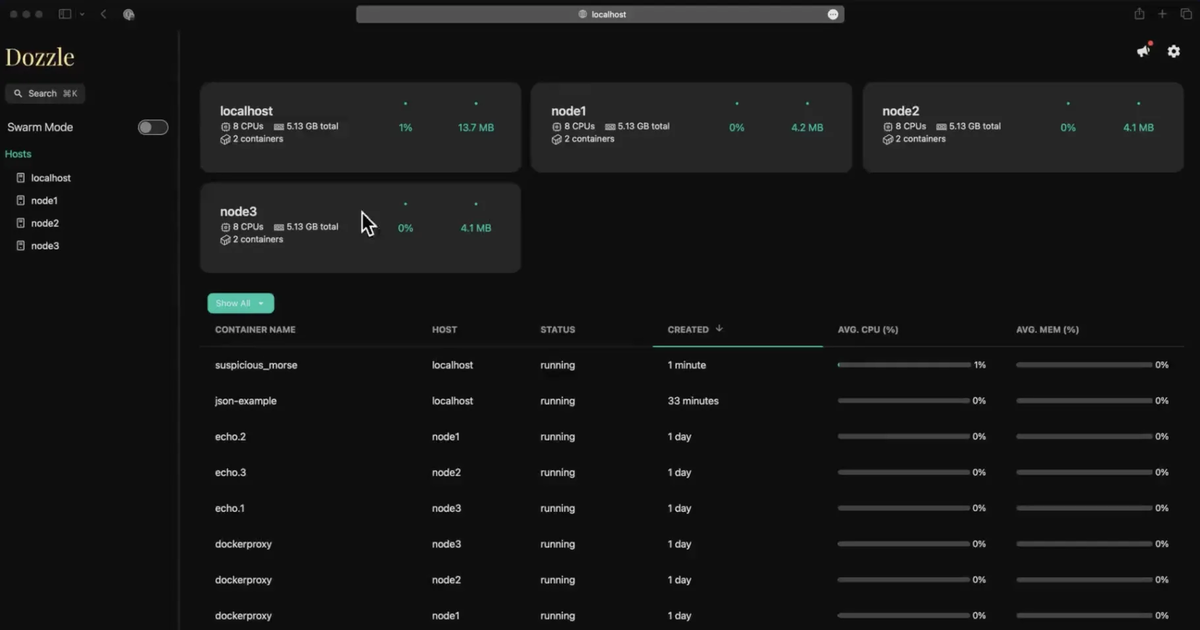
Image: the official Dozzle docs (og-image.png at v11.4.1). Version 11 redrew the interface, so yours will look different.

1. Make a certificate pair on the main host, in ~/docker_volumes/dozzle (command from the docs):
docker run --rm -v "$PWD":/out amir20/dozzle:v11.4.1 generate-certs --cert-out /out/dozzle_cert.pem --key-out /out/dozzle_key.pem
On Windows PowerShell use -v "${PWD}:/out". On Linux the container normally writes the files as root, so run sudo chown "$USER": dozzle_*.pem and chmod 600 dozzle_key.pem. Copy both files to ~/docker_volumes/dozzle-agent on the other host (for example with scp).
2. On the other host, save as docker-compose.yml in ~/docker_volumes/dozzle-agent. Replace <agent-private-ip> with its LAN or VPN address, so 7007 is not published on every interface:
services:
  dozzle-agent:
    image: amir20/dozzle:v11.4.1
    container_name: dozzle-agent
    restart: unless-stopped
    command: agent
    volumes:
      - /var/run/docker.sock:/var/run/docker.sock
      - ./dozzle_cert.pem:/dozzle_cert.pem:ro
      - ./dozzle_key.pem:/dozzle_key.pem:ro
    ports:
      - "<agent-private-ip>:7007:7007"
    healthcheck:
      test: ["CMD", "/dozzle", "healthcheck"]
      interval: 5s
      retries: 5
      start_period: 5s
3. On the main host, mount the same two files and add the agent to environment: (the |web-1 part is an optional display name):
    volumes:
      - /var/run/docker.sock:/var/run/docker.sock
      - ./data:/data
      - ./dozzle_cert.pem:/dozzle_cert.pem:ro
      - ./dozzle_key.pem:/dozzle_key.pem:ro
    environment:
      DOZZLE_REMOTE_AGENT: "<agent-private-ip>:7007|web-1"
Mounting the socket on the main host is optional; without it the page shows only the agents' containers. With the Step 5 proxy, keep its DOZZLE_REMOTE_HOST line and add the agent beside it.
Linux#
cd ~/docker_volumes/dozzle-agent
docker compose up -d
docker compose logs --tail=20 dozzle-agent
cd ~/docker_volumes/dozzle
docker compose up -d
Windows (PowerShell)#
Set-Location "$HOME\docker_volumes\dozzle-agent"
docker compose up -d
docker compose logs --tail=20 dozzle-agent
Set-Location "$HOME\docker_volumes\dozzle"
docker compose up -d
Mac (Terminal)#
Same commands as Linux.
Check it worked. The sidebar lists both hosts and the other host's containers show logs. An agent with an existing ID was found. Removing the duplicate host. means two hosts share an engine ID (see Troubleshooting); a refused connection means 7007 is not reachable.
Tip: You can also add an agent in the page under Settings, Hosts. The docs say it is saved in
/data/dozzle.yml, so/datamust be a real folder, as in our Compose file.
Put it behind HTTPS (with or without Traefik)#
For a server with a domain, put Dozzle behind HTTPS at https://dozzle.<your-domain> with no host port. Local-only users can keep the SSH tunnel and skip this. Both routes need a DNS record and no response buffering: Dozzle streams logs over Server-Sent Events and WebSockets, and a buffering proxy makes logs arrive in bursts or never (docs).
Run these on the Docker host. On Windows PowerShell write the paths as $HOME\docker_volumes\... and run the docker compose lines one per line. Create the shared network once:
docker network create proxy
With Traefik#
On a server that already runs Traefik v3 with the Docker provider, add labels and remove the host port. This assumes the external proxy network and an entrypoint named https (the Dozzle docs say websecure; use yours). Replace the Step 2 file:
services:
  dozzle:
    image: amir20/dozzle:v11.4.1
    container_name: dozzle
    restart: unless-stopped
    volumes:
      - /var/run/docker.sock:/var/run/docker.sock
      - ./data:/data
    environment:
      DOZZLE_NO_ANALYTICS: "true"
      DOZZLE_AUTH_PROVIDER: simple
    networks:
      - proxy
    labels:
      - "traefik.enable=true"
      - "traefik.docker.network=proxy"
      - "traefik.http.routers.dozzle.rule=Host(`dozzle.<your-domain>`)"
      - "traefik.http.routers.dozzle.entrypoints=https"
      - "traefik.http.routers.dozzle.tls=true"
      - "traefik.http.services.dozzle.loadbalancer.server.port=8080"
    healthcheck:
      test: ["CMD", "/dozzle", "healthcheck"]
      interval: 3s
      timeout: 30s
      retries: 5
      start_period: 30s

networks:
  proxy:
    external: true
If your Traefik uses a certificate resolver, add traefik.http.routers.dozzle.tls.certresolver=<your-resolver>. If you attach Traefik's compress middleware, exclude event streams (Dozzle FAQ), or some containers show no logs through Traefik but do directly:
http:
  middlewares:
    middlewares-compress:
      compress:
        excludedContentTypes:
          - text/event-stream
With the Step 5 proxy, keep its service and DOZZLE_REMOTE_HOST line and change only networks and labels; keep dockerproxy off the proxy network. Start with docker compose up -d.
Check it worked. curl -I https://dozzle.<your-domain>/ returns an HTTP status line over HTTPS, and the login page opens with a valid certificate.
Without Traefik: Caddy#
Choose this if you have no Traefik. Caddy gets and renews its own certificates: Let's Encrypt for a public domain, tls internal for a local certificate at home. Our Caddy guide explains it in depth.
mkdir -p ~/docker_volumes/caddy/{conf,data,config}
cd ~/docker_volumes/caddy
Save as ~/docker_volumes/caddy/docker-compose.yml. caddy:2.11.8 is the latest Caddy release read in November 2026. We mount the conf folder, not the single Caddyfile: the Caddy image docs warn that an editor replacing the file breaks reloads.
services:
  caddy:
    image: caddy:2.11.8
    container_name: caddy
    restart: unless-stopped
    ports:
      - "80:80/tcp"
      - "443:443/tcp"
      - "443:443/udp"
    volumes:
      - ./conf:/etc/caddy
      - ./data:/data
      - ./config:/config
    networks:
      - proxy

networks:
  proxy:
    external: true
Save as ~/docker_volumes/caddy/conf/Caddyfile. For a public domain:
dozzle.example.com {
    reverse_proxy dozzle:8080 {
        flush_interval -1
    }
}
flush_interval -1 is the Dozzle docs' recommendation. For a home-only name, use tls internal:
dozzle.home.arpa {
    tls internal
    reverse_proxy dozzle:8080 {
        flush_interval -1
    }
}
In ~/docker_volumes/dozzle/docker-compose.yml delete the ports: block and join the proxy network exactly as in the Traefik file (networks: under the service and the external proxy block at the bottom). Start both:
cd ~/docker_volumes/caddy
docker compose up -d
cd ~/docker_volumes/dozzle
docker compose up -d
Trust Caddy's root (home-only names). With tls internal, devices warn until they trust Caddy's own certificate authority; trust it only on devices you own.
Linux (Debian and Ubuntu style; other systems use their own CA store):
cd ~/docker_volumes/caddy
docker compose cp caddy:/data/caddy/pki/authorities/local/root.crt /tmp/caddy-root.crt
sudo cp /tmp/caddy-root.crt /usr/local/share/ca-certificates/caddy-local-root.crt
sudo update-ca-certificates
Windows (PowerShell as administrator):
Set-Location "$HOME\docker_volumes\caddy"
docker compose cp caddy:/data/caddy/pki/authorities/local/root.crt "$env:TEMP\caddy-root.crt"
certutil -addstore -f "ROOT" "$env:TEMP\caddy-root.crt"
Mac (Terminal):
cd ~/docker_volumes/caddy
docker compose cp caddy:/data/caddy/pki/authorities/local/root.crt /tmp/caddy-root.crt
sudo security add-trusted-cert -d -r trustRoot -k /Library/Keychains/System.keychain /tmp/caddy-root.crt
Firefox keeps its own store: import root.crt under Privacy and Security, Certificates.
Check it worked. curl -I https://dozzle.example.com/ returns a status line over HTTPS. For a home-only name, the browser shows a padlock only after the root is trusted.
Tip: A page that loads but shows empty logs behind a proxy almost always means buffering or compression. Check that before you suspect Dozzle.
Security and testing#
Dozzle sees every log on the host, and logs often hold tokens, e-mail addresses and stack traces. These controls matter most.
| Control | How |
|---|---|
| Login | DOZZLE_AUTH_PROVIDER=simple (Step 3). The docs say to always use authentication when Dozzle is reachable from the internet |
| Published port | 127.0.0.1:8080 (Step 2) or no host port behind a proxy. Never forward 8080 on your router |
| Docker socket | The proxy from Step 5, or accept the root-equivalent risk on a private machine |
| Actions | DOZZLE_ENABLE_ACTIONS is off by default. It allows start, stop, restart, remove and update; remove deletes the container |
| Shell | DOZZLE_ENABLE_SHELL is off by default. It equals docker exec for everyone who reaches the page |
| Roles and filters | In users.yml, roles: all,^shell is everything except shell, and filter: "label=<your-label>" limits what a user sees. Without them a user gets every role and container |
| Forward-proxy login | Dozzle trusts the Remote-User header: publish only the proxy, and use expose, never ports, for Dozzle |
| Agent port 7007 | Private network only, with your own certificate (Step 6) |
/data | Holds password hashes and the session secret. Readable only by you |
Quick tests after each change (on Windows use curl.exe, because curl is a PowerShell alias):
cd ~/docker_volumes/dozzle
docker compose ps
docker compose logs --tail=50 dozzle
curl -I http://127.0.0.1:8080/
What leaves the machine. By default: an anonymous usage beacon (the docs say b.dozzle.dev; the README still says Google Analytics), a check for new Dozzle releases, and registry checks for newer images (small HEAD requests, per the docs). Users with an e-mail address get Gravatar avatars. Our Compose file sets DOZZLE_NO_ANALYTICS; add DOZZLE_RELEASE_CHECK_MODE: manual, DOZZLE_IMAGE_CHECK_MODE: "off" and DOZZLE_DISABLE_AVATARS: "true" to stop the rest. Dozzle Cloud is a separate service you must link yourself; this guide does not use it.
Common mistakes#
These come from the docs' warnings, the issue tracker, and what AI assistants get wrong.
| Mistake | Why it happens | Do this instead |
|---|---|---|
Mounting the socket :ro and calling it safe | Many tutorials say so; the docs say :ro does not limit the API | A socket proxy (Step 5) |
| Login off and 8080 published | The official example publishes 8080:8080 on every interface and auth defaults to none | Login first (Step 3), 127.0.0.1, then HTTPS |
| Publishing Dozzle's own port in forward-proxy mode | It trusts Remote-User, so anyone who reaches it can claim any user | Publish only the proxy; use expose for Dozzle |
| Actions or shell on "just in case" | The wizard offers them and they are handy | Leave both off, or limit by role (all,^shell) |
| Logs never load behind a proxy | The proxy buffers or compresses event streams (issue 3953: "UI timed out while connecting to API" behind Caddy) | Caddy flush_interval -1; Traefik exclude text/event-stream; Nginx proxy_buffering off |
generate --password typed in a shell | Bash expands ! and $ (issues 4847, 5586) | Omit --password and answer the prompt (-it) |
Old users.yml after an upgrade | A pre-bcrypt SHA-256 hash loads, then the process exits at the first login (issue 5110) | Regenerate it with generate |
| Agent port 7007 open with the default certificate | The built-in certificate is the same in every install | Private network, private bind address, generate-certs |
Using latest | The docs say it moves on every release; v10.1.0 hid one container's logs until a fix (issue 4526) | Pin v11.4.1; read the release notes first |
| Expecting history or stopped containers | Dozzle reads what Docker keeps and shows running containers by default | Enable "Show Stopped Containers"; use a log database for history |
No /data folder | Users and settings vanish when the container is recreated | Mount ./data:/data (Step 2) |
| AI assistants: old tags and variables | They copy v10.x tags, DOZZLE_USERNAME and DOZZLE_PASSWORD (legacy login, removed; issue 2630) or DOZZLE_TAILSIZE (v11 logs "Unexpected environment variable") | Use only variables from the official list for the tag you pin |
AI assistants: docker run --health-cmd | It looks standard, but the docs say it does not work here | Compose healthcheck: with ["CMD", "/dozzle", "healthcheck"] |
Tip: Before you paste any Compose file, check three lines: the image tag, whether the socket is mounted raw, and whether
ports:binds to127.0.0.1.
Tip: After every change read
docker compose logs --tail=50 dozzle. Dozzle prints unknown variables and login problems there.
Tip: Test the login in a private browser window. If the page opens without asking, the provider setting did not apply.
Troubleshooting#
| Problem | Solution |
|---|---|
Could not connect to any Docker Engine | The socket is not mounted or Docker is not running. Issue 4947 reports it on Fedora with SELinux enforcing (closed without a fix): check the mount and the SELinux label |
client version 1.54 is too new. Maximum supported API version is 1.38 | Docker Engine is older than 19.03. Upgrade it; the docs' workaround is Dozzle v10.5.2 or earlier |
| Page loads, logs empty or slow | Proxy buffering or compression (HTTPS section); raise proxy time-outs |
| Some containers are missing | Only running containers show by default: enable "Show Stopped Containers". Also check DOZZLE_FILTER and user filters |
duplicate host ID or An agent with an existing ID was found | Two hosts share a Docker engine ID, often a cloned VM. Remove /var/lib/docker/engine-id on one and restart Docker |
| Everyone signed out after the upgrade to v11 | Expected: sessions now use a random secret saved in /data. If /data is not writable, sessions drop on every restart |
exec ...: no such file or directory on Unraid | A platform wrapper needs /bin/sh, which the scratch image lacks. Use the alpine tag variant (docs) |
| Wizard asks to restart but cannot | It cannot reach its own container (for example behind a socket proxy). Add the settings it shows to Compose and run docker compose up -d |
Known bugs (open, November 2026)#
- Issue 5584: a host with about 110 containers saw heavy disk metadata I/O from repeated whole-volume disk-usage scans. The maintainer says the scan runs after start and then at most every 20 minutes per host, and he will stop measuring volumes on a host when the first scan takes over about 30 seconds. The reporter has not proven Dozzle is the only source: test with Dozzle stopped.
Run docker compose ps, docker compose logs --tail=100 dozzle and docker inspect dozzle first. For more detail set DOZZLE_LEVEL=debug.
Updates and backups#
Update. Read the release notes, change the tag, then:
cd ~/docker_volumes/dozzle
docker compose pull
docker compose up -d
docker compose logs --tail=50 dozzle
On Windows run the same docker compose lines in PowerShell. Rolling back means redeploying the older tag (docs). Dozzle can update itself and other containers on a schedule (DOZZLE_AUTO_UPDATE), but that needs actions on, and a pinned tag only re-pulls the same image. We leave it off.
Back up. The docs say /data is small (typically well under 10 MB) and tar or rsync is enough. It holds password hashes and the session secret: keep the archive private.
Linux#
cd ~/docker_volumes/dozzle
tar -czf "backups/dozzle-$(date +%F).tar.gz" data
chmod 600 backups/dozzle-*.tar.gz
For 03:00 daily, add 0 3 * * * cd ~/docker_volumes/dozzle && tar -czf "backups/dozzle-$(date +\%F).tar.gz" data with crontab -e (cron needs % escaped).
Windows (PowerShell)#
Set-Location "$HOME\docker_volumes\dozzle"
Compress-Archive -Path data -DestinationPath "backups\dozzle-$(Get-Date -Format yyyy-MM-dd).zip"
Schedule the same line at 03:00 with Task Scheduler. For an off-machine copy see our restic guide.
Mac (Terminal)#
Same commands as Linux, with crontab -e for the schedule.
Restore test. Unpack into a new empty folder, never over the live one, and check the files:
mkdir -p /tmp/dozzle-restore && tar -xzf backups/dozzle-<date>.tar.gz -C /tmp/dozzle-restore
ls /tmp/dozzle-restore/data
You should see users.yml and, if you used the wizard, dozzle.yml. On Windows use Expand-Archive into a temporary folder.
Performance and resources#
The README says only "small memory footprint" and "tested with hundreds of containers". There is no RAM or CPU figure, so we give none. Measure your host:
- Resources:
docker stats dozzleshows live CPU and memory. - Idle load: stats keep streaming for up to 6 hours after the last browser disconnects (FAQ), so Docker shows a little CPU. Restarting Dozzle resets it.
- Fewer containers:
DOZZLE_FILTER: label=<your-label>limits what Dozzle reads. The health check adds a little CPU (docs); raiseintervalon a small board. - No shell: the default image is
FROM scratch, sodocker exec dozzle shfails. Use thealpinetag only if a platform needs a shell.
FAQ#
Does Dozzle store my logs? No. It streams what Docker keeps; when a container is removed or its log rotates, those lines are gone. For history use a log database such as Loki.
Is Dozzle free? Yes, under the MIT licence. An optional cloud service exists; the self-hosted page works without it.
Can I run it on Windows or Mac? The docs do not cover it. Docker Desktop runs Linux containers, so the same Compose file should work, but we did not test it.
Does it work with Podman, Swarm or Kubernetes? Yes per the docs, with their own setup (Podman socket, DOZZLE_MODE=swarm or k8s). This guide covers Docker and agents only.
Can it send alerts? Yes, to Slack, Discord, ntfy or any webhook (docs). Our ntfy guide covers a self-hosted receiver, and our Homepage guide uses a similar socket proxy.
Sources#
- Dozzle releases, v11.4.1, README, Dockerfile and LICENSE - read November 2026
- Dozzle docs at v11.4.1: Getting Started, Authentication, Simple authentication, Agent Mode, Remote Hosts, Actions, Shell, Reverse Proxy, Healthcheck, Setup Wizard, Environment Variables, Analytics, FAQ, What's New in v11 - read November 2026
- Dozzle on Docker Hub (tag
v11.4.1and its size checked) and Docker Socket Proxy (README, release v0.5.0) - November 2026 - Caddy v2.11.8, reverse_proxy, Automatic HTTPS and the Caddy image docs - November 2026
- Docker Desktop settings and PowerShell about_Redirection - November 2026
- Dozzle issues 2630, 3953, 4526, 4847, 4947, 5110, 5584, 5586 - November 2026
Checked against the official docs on 2026-11-05.