wg-easy with Docker: WireGuard VPN and Web UI (Linux server, Windows and Mac clients)
Before you start
- 19 min read
- 21 to run in terminal
- 4 file contents
Boxes marked Run in terminal are what you type; plain text explains why. Check what you need first
What you get in one minute#
wg-easy is a free, self-hosted WireGuard VPN server with a web admin panel: you create clients in a browser, download a config file or scan a QR code, and your phone or laptop connects to your own server.

Logo: the official wg-easy project (github.com/wg-easy/wg-easy)
It suits a VPN for your own devices, a way back into your home network while travelling, or a private tunnel to services you run. The project calls itself "the easiest way to install & manage WireGuard on any Linux host". WireGuard and the Web UI run in one container, and nothing goes through a cloud account.
| What | Value (official docs, read October 2026) |
|---|---|
| Current version | wg-easy v15.5.0, released October 2026 (latest stable) |
| Image to pin | ghcr.io/wg-easy/wg-easy:15.5.0 (checked on the registry) |
| Time needed | About 15 minutes for the Compose route (our estimate, not measured) |
| Size and RAM | Not documented by the project |
| Ports | UDP 51820 (WireGuard, forward on your router); TCP 51821 (Web UI, keep local or behind HTTPS) |
| Licence | AGPL-3.0-only (LICENSE at the release tag) |
| Official docs | wg-easy.github.io/wg-easy/latest and the repository |
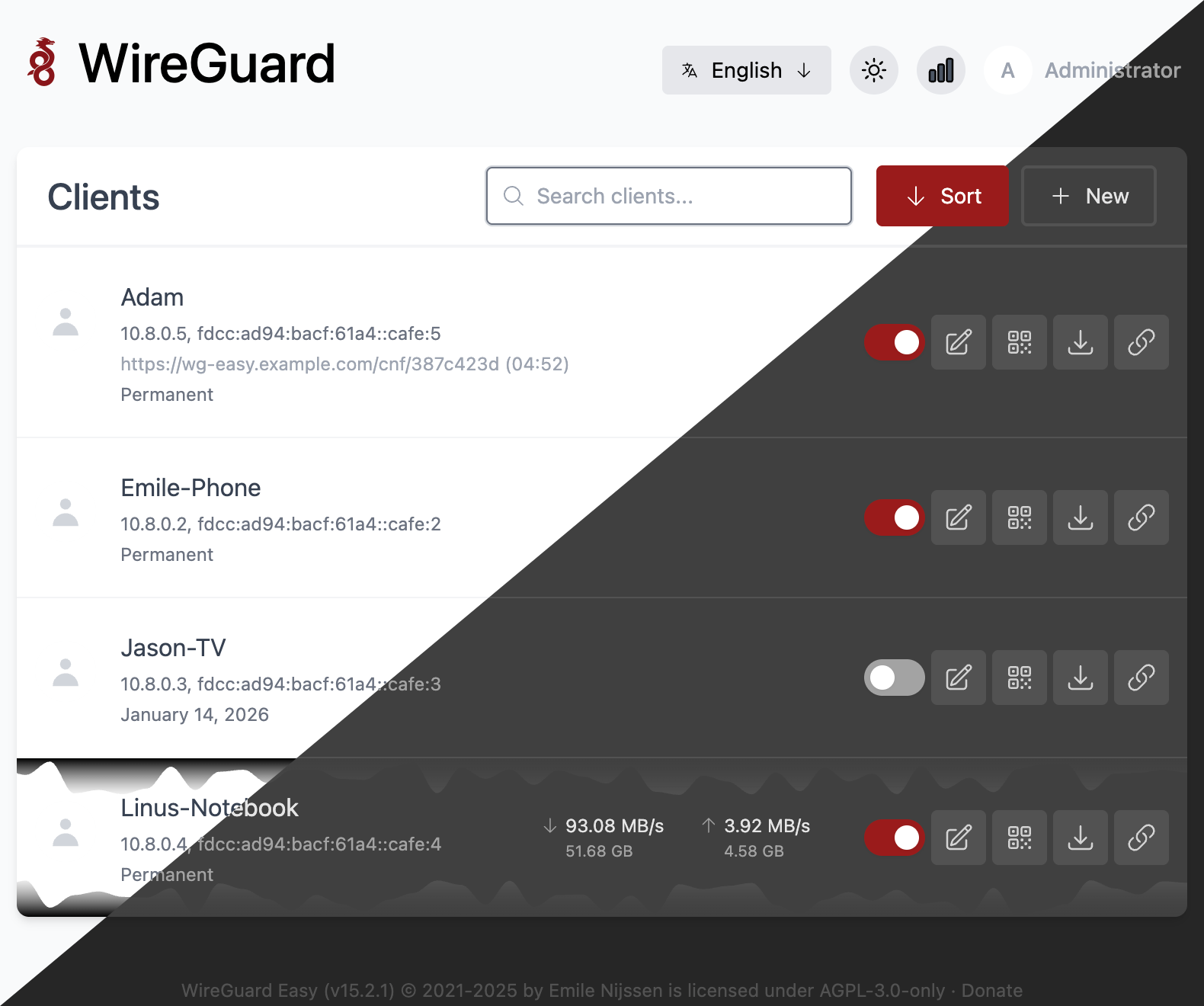
Image: the official wg-easy project (README at v15.5.0). Its footer says v15.2.1, so v15.5.0 may look slightly different.
At a glance:
- What it is: WireGuard plus a web panel in one Docker container. Clients are created, enabled and deleted in the browser.
- What devices get: a config file or QR code per client, plus a connection list.
- v15 is a rewrite: most v14 environment variables are gone; settings live in the Admin Panel. Do not reuse a v14 compose file.
- Pin the tag: the project says
lateststill points to v14. - Platforms: the server must be a Linux host (x86_64 or arm64). Windows and macOS are clients only.
- Privacy: keys and client configs stay on your server. The docs describe no telemetry; the update check is on by default and can be switched off.
How it fits together#
Devices reach the WireGuard container over one UDP port. The Web UI is a separate TCP port that should stay off the internet.

Drawn for this guide from the official compose file and docs. Only the router port forward faces the internet; the HTTPS route (dashed) is optional.
Before you start#
You need a Linux server you manage, Docker with Compose, and a way for your clients to reach it.
Linux server: Docker Engine and Docker Compose, an x86_64 or arm64 machine, and curl. The docs ask for a domain name or a public IP address.
Windows: a client only. Check the SSH client used for the tunnel in Step 3:
ssh -V
Mac: a client only. Same check in Terminal:
ssh -V
Checklist:
- [ ] Docker and Docker Compose on the Linux server (
docker --version,docker compose version) - [ ] x86_64 or arm64 (the docs say armv6 and armv7 cannot run v15)
- [ ] Admin access to your router, to forward UDP 51820
- [ ] A domain name or public IP your clients can reach
- [ ] For the HTTPS section only: a DNS record for the server, and ports 80 and 443 free
Tested by DIY Lab Hub: not yet. The commands come from the official compose file, docs and release files read in October 2026. We did not run them.
Step 1: Create the data folder on the Linux server#
wg-easy keeps its settings and WireGuard keys in one folder. We use ~/docker_volumes/wg-easy, as all DIY Lab Hub guides do.
Linux#
mkdir -p ~/docker_volumes/wg-easy/data
cd ~/docker_volumes/wg-easy
docker --version
docker compose version
Windows (PowerShell)#
Not supported as the server. The docs name Linux hosts, and the container needs the host's WireGuard kernel module and /lib/modules. Run this step on a Linux machine.
Mac (Terminal)#
Not supported as the server. The docs do not list macOS as a host, and we did not test it. Run this step on a Linux machine.
Check it worked. The folder exists:
ls -ld ~/docker_volumes/wg-easy/data
Tip: Install Docker from the official Docker documentation (docs.docker.com/engine/install), which the wg-easy basic installation page links to. Skip install scripts from blogs.
Step 2: Write the Compose file and start wg-easy#
This is the official compose file with three changes: the image is pinned to 15.5.0, the config lives in ./data, and the Web UI is published on 127.0.0.1 only. The official example publishes it on every interface. INSECURE=true is needed only while you open the Web UI over plain HTTP; you remove it in the HTTPS step.
Linux#
cd ~/docker_volumes/wg-easy
cat > docker-compose.yml << 'EOF'
services:
  wg-easy:
    image: ghcr.io/wg-easy/wg-easy:15.5.0
    container_name: wg-easy
    restart: unless-stopped
    environment:
      - INSECURE=true
    networks:
      wg:
        ipv4_address: 10.42.42.42
        ipv6_address: fdcc:ad94:bacf:61a3::2a
    volumes:
      - ./data:/etc/wireguard
      - /lib/modules:/lib/modules:ro
    ports:
      - "51820:51820/udp"
      - "127.0.0.1:51821:51821/tcp"
    cap_add:
      - NET_ADMIN
      - SYS_MODULE
    sysctls:
      - net.ipv4.ip_forward=1
      - net.ipv4.conf.all.src_valid_mark=1
      - net.ipv6.conf.all.disable_ipv6=0
      - net.ipv6.conf.all.forwarding=1
      - net.ipv6.conf.default.forwarding=1

networks:
  wg:
    driver: bridge
    enable_ipv6: true
    ipam:
      driver: default
      config:
        - subnet: 10.42.42.0/24
        - subnet: fdcc:ad94:bacf:61a3::/64
EOF
docker compose up -d
docker compose ps
docker compose logs --tail=50 wg-easy
Windows (PowerShell)#
Not supported as the server. The same file belongs on a Linux machine; see Step 1.
Mac (Terminal)#
Not supported as the server. See Step 1.
Check it worked. docker compose ps shows wg-easy running. The image's health check runs wg show every minute, so the status should turn healthy after about a minute. The docs publish no expected log text; read the log for errors.
Tip: Use
docker compose downanddocker compose up -dto change things. The docs warn againststartandstop, which can leave the container inconsistent.
Step 3: Finish the setup wizard through an SSH tunnel#
The Web UI now listens only on the server's loopback address. An SSH tunnel from your computer carries your local port to it, so you open nothing on the router.
Linux#
On the server, open http://127.0.0.1:51821. From another Linux computer, open the tunnel and leave it running:
ssh -N -L 51821:127.0.0.1:51821 <your-user>@<your-server-address>
Then open http://localhost:51821 on that computer.
Windows (PowerShell)#
Run the same tunnel from PowerShell and keep the window open:
ssh -N -L 51821:127.0.0.1:51821 <your-user>@<your-server-address>
Then open http://localhost:51821. If ssh is missing, install the OpenSSH client from Windows optional features.
Mac (Terminal)#
Same command as Linux:
ssh -N -L 51821:127.0.0.1:51821 <your-user>@<your-server-address>
Then open http://localhost:51821.
The wizard asks for an admin username and password. Choose the new setup, then enter the Host and Port. The Host goes into every client config, so use your domain name or public IP, not a home-network address such as 10.x.x.x. The port is 51820.
Check it worked. You can log in. From the server, docker exec wg-easy wg show lists the wg0 interface and its listen port once the setup has created it.
Tip: Store the admin password in a password manager before you close the wizard. A reset needs shell access to the server.
Step 4: Forward UDP 51820 on your router#
Clients connect on UDP 51820 only. Never forward TCP 51821.
Linux#
On your router, forward UDP 51820 to the server's LAN address. If the server runs a firewall, allow that port only:
sudo ufw allow 51820/udp
ufw is one example; use your own firewall. The docs only say to open UDP 51820.
Windows (PowerShell)#
The router step is identical on every system. Follow the Linux block in your router's web page; there is no server command for Windows.
Mac (Terminal)#
Same as Linux: the router step is the same, and the firewall command runs on the Linux server only.
Check it worked. After Step 5, a client connects and docker exec wg-easy wg show lists that peer with a recent handshake. A test from outside your network is the real proof; a port scan does not prove UDP is open.
Tip: Reach the admin page from outside with the HTTPS section below, not by forwarding TCP 51821.
Step 5: Create the first client and connect it#
Each device gets its own client. For each one you download the config, show a QR code, or use the CLI.
Linux#
Add a client in the Web UI, then download its config or show its QR code. From the server:
cd ~/docker_volumes/wg-easy
docker compose exec -it wg-easy cli clients:list
docker compose exec -it wg-easy cli clients:qr <client_id>
Replace <client_id> with an ID from the list.
Windows (PowerShell)#
Create the client in the Web UI on your PC, download the config and import it into the WireGuard app for Windows (the official install page lists Windows 10, 11 and newer). The file holds a private key; keep it private.
Mac (Terminal)#
Download the config in the Web UI and import it into the WireGuard app from the Mac App Store, listed on the official WireGuard install page. Keep the file private.
Check it worked. Enable the client, connect the app, and run docker exec wg-easy wg show on the server: the peer shows a recent handshake.
Tip: Never paste a client config into a chat or a screenshot. It contains the private key. Show a QR code only to your own phone.
Put it behind HTTPS (with or without Traefik)#
Once setup works, put the Web UI behind HTTPS so it is reached at https://wg-easy.<your-domain> and needs no host port. Local-only users can keep the SSH tunnel and skip this section. Both routes need a domain with a DNS record pointing to the server.
With Traefik#
On a server that already runs Traefik v3 with the Docker provider, add labels and remove the Web UI host port.
This assumes an external Docker network called proxy and an entrypoint called https (the official example names it websecure; use yours). Create the network once:
docker network create proxy
Replace docker-compose.yml with the file below. The interface_name and gw_priority settings follow the official FAQ: with two Docker networks, the interfaces can swap on restart and break routing.
services:
  wg-easy:
    image: ghcr.io/wg-easy/wg-easy:15.5.0
    container_name: wg-easy
    restart: unless-stopped
    networks:
      wg:
        interface_name: eth0
        gw_priority: 1
        ipv4_address: 10.42.42.42
        ipv6_address: fdcc:ad94:bacf:61a3::2a
      proxy:
        interface_name: eth1
        gw_priority: 0
    volumes:
      - ./data:/etc/wireguard
      - /lib/modules:/lib/modules:ro
    ports:
      - "51820:51820/udp"
    cap_add:
      - NET_ADMIN
      - SYS_MODULE
    sysctls:
      - net.ipv4.ip_forward=1
      - net.ipv4.conf.all.src_valid_mark=1
      - net.ipv6.conf.all.disable_ipv6=0
      - net.ipv6.conf.all.forwarding=1
      - net.ipv6.conf.default.forwarding=1
    labels:
      - "traefik.enable=true"
      - "traefik.docker.network=proxy"
      - "traefik.http.routers.wg-easy.rule=Host(`wg-easy.<your-domain>`)"
      - "traefik.http.routers.wg-easy.entrypoints=https"
      - "traefik.http.routers.wg-easy.tls=true"
      - "traefik.http.services.wg-easy.loadbalancer.server.port=51821"

networks:
  wg:
    driver: bridge
    enable_ipv6: true
    ipam:
      driver: default
      config:
        - subnet: 10.42.42.0/24
        - subnet: fdcc:ad94:bacf:61a3::/64
  proxy:
    external: true
The INSECURE=true line is gone, as in the official Traefik example. One closed issue (number 2772) reports a Traefik setup that needed it for an OIDC redirect; add it back only if your login loops or redirects to plain HTTP.
Start it with docker compose up -d in ~/docker_volumes/wg-easy.
Check it worked. curl -I https://wg-easy.<your-domain>/ returns an HTTP status line over HTTPS, and the Web UI opens with a valid certificate.
Without Traefik: Caddy#
Choose this if you have no Traefik. Caddy gets and renews its own certificates.
Caddy's docs describe automatic Let's Encrypt certificates for a public domain, and tls internal for a local certificate at home.
Create the Caddy folder:
mkdir -p ~/docker_volumes/caddy/{data,config}
cd ~/docker_volumes/caddy
Save this as ~/docker_volumes/caddy/docker-compose.yml. The image is caddy:2.11.7, the latest Caddy release read in October 2026:
services:
  caddy:
    image: caddy:2.11.7
    container_name: caddy
    restart: unless-stopped
    ports:
      - "80:80/tcp"
      - "443:443/tcp"
      - "443:443/udp"
    volumes:
      - ./Caddyfile:/etc/caddy/Caddyfile:ro
      - ./data:/data
      - ./config:/config
    networks:
      - proxy

networks:
  proxy:
    external: true
Save this as ~/docker_volumes/caddy/Caddyfile for a public domain:
wg-easy.example.com {
    reverse_proxy wg-easy:51821
}
For a home-only name, use tls internal instead:
wg-easy.home.arpa {
    tls internal
    reverse_proxy wg-easy:51821
}
Caddy reaches wg-easy by container name on the shared proxy network, so the Web UI needs no host port. In ~/docker_volumes/wg-easy/docker-compose.yml, remove the INSECURE=true lines and the 127.0.0.1:51821 port line, then add the proxy network exactly as in the Traefik example above. Start both stacks:
cd ~/docker_volumes/caddy && docker compose up -d
cd ~/docker_volumes/wg-easy && docker compose up -d
For a home-only certificate, Caddy's docs say that in a container you install the root certificate on each device yourself, with caddy trust or by copying it out. The exact path varies, so locate it first:
docker exec caddy find /data -name root.crt
docker cp caddy:<path-from-find> ./caddy-root.crt
Install caddy-root.crt as a trusted root on each device. These OS steps are not from the wg-easy or Caddy docs: on Windows, use "Trusted Root Certification Authorities"; on macOS, Keychain Access with "Always Trust"; on Linux, your distribution's CA store.
Windows and Mac are clients here: run docker cp and the Caddy commands on the Linux server only.
Check it worked. curl -I https://wg-easy.example.com/ returns an HTTP status line over HTTPS. For a home-only name, the browser shows a padlock only after the root is trusted on that device.
Tip: Let's Encrypt needs the DNS record to point at the server and ports 80 and 443 to reach it. A certificate error usually means the name in the Caddyfile differs from the DNS record.
Security and testing#
Once the Web UI is reachable from outside, it is an admin panel on the internet. These controls matter most.
| Control | How |
|---|---|
| Admin password | Long and unique. Enable 2FA (TOTP) on the Account page; disabling needs the current password. |
| Web UI off the internet | Keep 127.0.0.1 (Step 2) or no host port behind a proxy. Never forward 51821. |
| WireGuard port | Forward only UDP 51820. |
| Config folder | ~/docker_volumes/wg-easy/data holds server and client private keys. Readable only by you. |
| Backups | Treat as secret: chmod 600, never in a shared folder. |
| Rate limits | Not built in. The docs ask you to limit /api/auth/password, /api/auth/verify-2fa and /cnf/* in Caddy or Traefik. |
| Client IPs behind a proxy | Set TRUSTED_PROXIES to the proxy address only. Invalid values stop the container. |
| Per-client firewall | Experimental per the docs; needs iptables and ip6tables on the host. Test before relying on it. |
Quick tests on Linux after each change:
cd ~/docker_volumes/wg-easy
docker compose ps
docker compose logs --tail=100 wg-easy
docker exec wg-easy wg show
Windows and Mac can run curl -I https://wg-easy.<your-domain>/ in PowerShell or Terminal (curl.exe ships with Windows 10 and 11).
What leaves the machine: the WireGuard traffic you send through the tunnel, and the update check. DISABLE_VERSION_CHECK defaults to false; the docs do not name the server it contacts. Set DISABLE_VERSION_CHECK=true in environment: to switch it off. The README also lists Gravatar avatars, which the docs do not describe.
Common mistakes#
These come from the official issue tracker, the docs' own warnings, and common AI assistant answers.
| Mistake | Why it happens | Do this instead |
|---|---|---|
Using the latest tag | The docs say latest still points to v14. Issues #2405 (closed January 2026) and #2167 (open) report it | Pin 15.5.0 and change the tag yourself when you update |
| Keeping v14 settings in a v15 file | v15 uses other variables; most settings moved to the Admin Panel. Issue #2262 reports Error: WG_HOST Environment Variable Not Set! after a v14-style setup | Start from this guide's file; set the rest in the Admin Panel. For migration, use the official v14 to v15 guide |
| Publishing the Web UI on every interface | The official example maps 51821:51821/tcp with no address, so it listens everywhere; behind a port forward that means the internet | Publish 127.0.0.1:51821:51821/tcp, or use HTTPS with no UI port |
| Forwarding TCP instead of UDP | WireGuard uses UDP; the docs list only "UDP 51820" | Forward UDP 51820 and nothing else for the tunnel |
| Using a home-network address as the Host | The wizard Host goes into every client config, so an internal address works only at home | Use a domain name or public IP, with dynamic DNS if your IP changes |
| Copying a compose file from another issue | Issue #2499 (closed March 2026) reports wrong-login errors after a copied file was edited | Copy from the official docs or this guide, and read each variable |
| Adding a second Docker network without interface settings | Interfaces can swap on restart and break routing. Issue #1795 is open | Set interface_name and gw_priority as in the FAQ and the HTTPS section |
Running docker compose stop and start | The docs warn this can leave the container inconsistent | Use docker compose down and docker compose up -d |
| Running the server on Windows or macOS | The docs name Linux hosts only. Issue #1195 (closed August 2024) describes a Docker for Mac networking change that broke wg-easy | Run the server on Linux; use Windows or Mac as clients |
AI assistants: writing v14 variables such as PASSWORD_HASH or WG_HOST into v15 | Assistants often copy v14 examples; v15 does not read them | Use only variables listed in the official optional configuration page |
AI assistants: recommending latest or an unpinned image | Many examples use latest, which the project says to avoid | Pin 15.5.0 (or 15 if you accept minor updates) and read the release notes |
Tip: Before copying a compose file, check the image tag and variable names against the official file at the release tag you pin. Those two lines cause most v15 breakage.
Tip: Keep the Web UI on
127.0.0.1until HTTPS works. The SSH tunnel is safer than an open port while you learn the setup.
Tip: After every change run
docker compose logs --tail=100 wg-easy. Most errors print there with the exact text.
Troubleshooting#
| Problem | Solution |
|---|---|
| Unexpected behaviour after an update or new install | Check the running image with docker inspect wg-easy (Config.Image). Pin ghcr.io/wg-easy/wg-easy:15.5.0, then docker compose up -d |
Error: WG_HOST Environment Variable Not Set! | v14 settings are still in the file. Remove them and set the host in the wizard or Admin Panel (issue #2262) |
| Wrong username or password | Reset the admin password with the CLI (below) |
| Lost the 2FA code after a password reset | The reset did not clear 2FA in the reported case (issue #2460, closed February 2026). Check your version's release notes |
| Clients connect but get no internet | Two Docker networks may have swapped interfaces. Set interface_name and gw_priority (FAQ); see issue #1795 |
Connection stops after docker compose restart | Issue #2208 reports this (closed February 2026). Use down then up -d, and read the logs |
Cannot find device "wg0" | The WireGuard kernel module is not loaded: sudo modprobe wireguard (official FAQ), then restart |
can't initialize iptables table nat | sudo modprobe iptable_nat (official FAQ). Some newer kernels lack the module (issue #2645) |
| Container restarts in a loop after a kernel update | Read docker compose logs --tail=200 wg-easy. Issues #2645 (Raspberry Pi kernel 6.18) and #2627 describe missing legacy iptables modules |
H3Error: Command failed: wg show wg0 dump | Reported on v15.3.0 (issue #2697, closed July 2026). Check you run the latest 15.x and compare with the issue |
| UI does not open over plain HTTP | Add INSECURE=true to environment: (docs: plain HTTP needs it). Remove it when HTTPS is in front |
The official FAQ error texts are Error: WireGuard exited with the error: Cannot find device "wg0" and can't initialize iptables table `nat': Table does not exist (do you need to insmod?).
Resetting the admin password#
The docs use the CLI inside the container. Enter the new password at the prompt:
cd ~/docker_volumes/wg-easy
docker compose exec -it wg-easy cli db:admin:reset
Or pass it as an argument, escaping special characters for your shell:
docker compose exec -it wg-easy cli db:admin:reset --password <new_password>
Known bugs (open, October 2026)#
- Issue #2167: the
latesttag lagged behind the newest 15.x release. Pin15.5.0. - Issue #1795: internet routing fails with several Docker networks. Use the FAQ interface settings.
- Issue #2622 (feature request): v15 forces the server address to
.1in a shared WireGuard network.
Run docker compose ps, docker compose logs --tail=200 wg-easy, docker inspect wg-easy and docker exec wg-easy wg show first.
Updates and backups#
Update. Read the release notes, change the tag in docker-compose.yml, then:
cd ~/docker_volumes/wg-easy
docker compose pull
docker compose up -d
docker compose logs --tail=100 wg-easy
Back up before each update. Upgrades from 15.3.0 to 15.4.0 had failure reports in August 2026 (issues #2738 and #2777, both closed).
Back up. The Web UI Backup button downloads wg0.json (the docs use it for migration). For the full folder, stop with down (not stop), archive, and start again:
cd ~/docker_volumes/wg-easy
docker compose down
mkdir -p backups
tar -czf "backups/wg-easy-$(date +%F).tar.gz" data
chmod 600 backups/wg-easy-*.tar.gz
docker compose up -d
To run it nightly at 03:00 on Linux, add a crontab entry that runs the same commands. Keep a copy of the archive on another machine.
Restore test. Unpack one archive into a new empty folder, never over the live one, and check that wg0.json and the keys are present:
mkdir -p /tmp/restore-test && tar -xzf backups/wg-easy-<date>.tar.gz -C /tmp/restore-test
ls /tmp/restore-test/data
Windows (PowerShell)#
Not for the server. Copy the archive off the Linux server from your PC:
scp <your-user>@<your-server-address>:~/docker_volumes/wg-easy/backups/wg-easy-<date>.tar.gz .
Mac (Terminal)#
Use the same scp command from Terminal.
Performance and resources#
The docs publish no memory, CPU or disk figures, so this guide gives none. Measure your own server:
- Resources:
docker stats wg-easyshows live CPU and memory. - Health: the image's check runs
wg showevery minute;docker compose psshows the result. - Clients: the Web UI shows connected clients and per-client transfer charts.
- Metrics: the README lists Prometheus support; this guide does not cover it.
- Several instances:
WG_INTERFACEsets the interface name (defaultwg0).
FAQ#
Is wg-easy free to use? Yes, under AGPL-3.0-only. If you modify it and offer it to others over a network, the AGPL asks you to share your changes.
Does it need a GPU? The docs do not mention one. They list x86_64 and arm64 as supported.
Can I run it on a Raspberry Pi? On a 64-bit arm64 system, yes according to the docs. armv6 and armv7 cannot run v15. Kernel updates have broken the container on Raspberry Pi (issue #2645).
Does it send my data to the project? The docs describe no telemetry. The update check is on by default; DISABLE_VERSION_CHECK=true turns it off. The docs do not name the server it contacts.
Can I use Windows or macOS as the server? No. The docs say "any Linux host". Use Windows or Mac as clients.
Can I skip the reverse proxy? Yes, if the Web UI stays on your local network. The docs call that route insecure and ask for HTTPS when the UI is reachable from outside.
Sources#
- wg-easy release v15.5.0, README, docker-compose.yml, Dockerfile and LICENSE - read October 2026
- wg-easy docs at v15.5.0 (getting started, basic installation, optional configuration, unattended setup, migration, guides, FAQ, Caddy, Traefik, no reverse proxy) and rendered docs - read October 2026
- wg-easy image on GitHub Container Registry (tag
15.5.0checked) - October 2026 - Caddy release v2.11.7, Caddy command line, Caddy TLS directive and Caddy conventions - read October 2026
- WireGuard install page - read October 2026
- GitHub issues #1195, #1795, #2167, #2208, #2262, #2405, #2460, #2499, #2622, #2627, #2645, #2697, #2738, #2772, #2189, #2627 - read October 2026
Checked against the official docs on 2026-10-30.