SillyTavern with Docker: a chat front end for local LLMs (Linux, Windows, Mac)
Before you start
- 21 min read
Boxes marked Run in terminal are what you type; plain text explains why. Check what you need first
What you get in one minute#
SillyTavern is a free web app that gives your language models a better chat window: you create characters (personas with a description and a first message), keep long chats, and point it at a model running in KoboldCpp, Ollama or a cloud service.

Logo: the official SillyTavern project (github.com/SillyTavern/SillyTavern, public/img/logo.svg at release 1.19.0)
It is only the front end: it does not run a model itself, so you can switch the model behind your characters and chat history. It suits a study helper, a writing partner or a language-practice character. The project is active: version 1.19.0 came out in September 2026.
| What | Value (official sources, read November 2026) |
|---|---|
| Current version | 1.19.0 (latest release, September 2026) |
| Image to pin | ghcr.io/sillytavern/sillytavern:1.19.0 (tag seen on the registry page) |
| Time needed | About 20 minutes with Docker already installed (our estimate) |
| RAM and disk | Not documented for SillyTavern itself; the model backend is what needs memory |
| Port | TCP 8000 (default) |
| Licence | AGPL-3.0 |
| Official docs | docs.sillytavern.app and the repository |
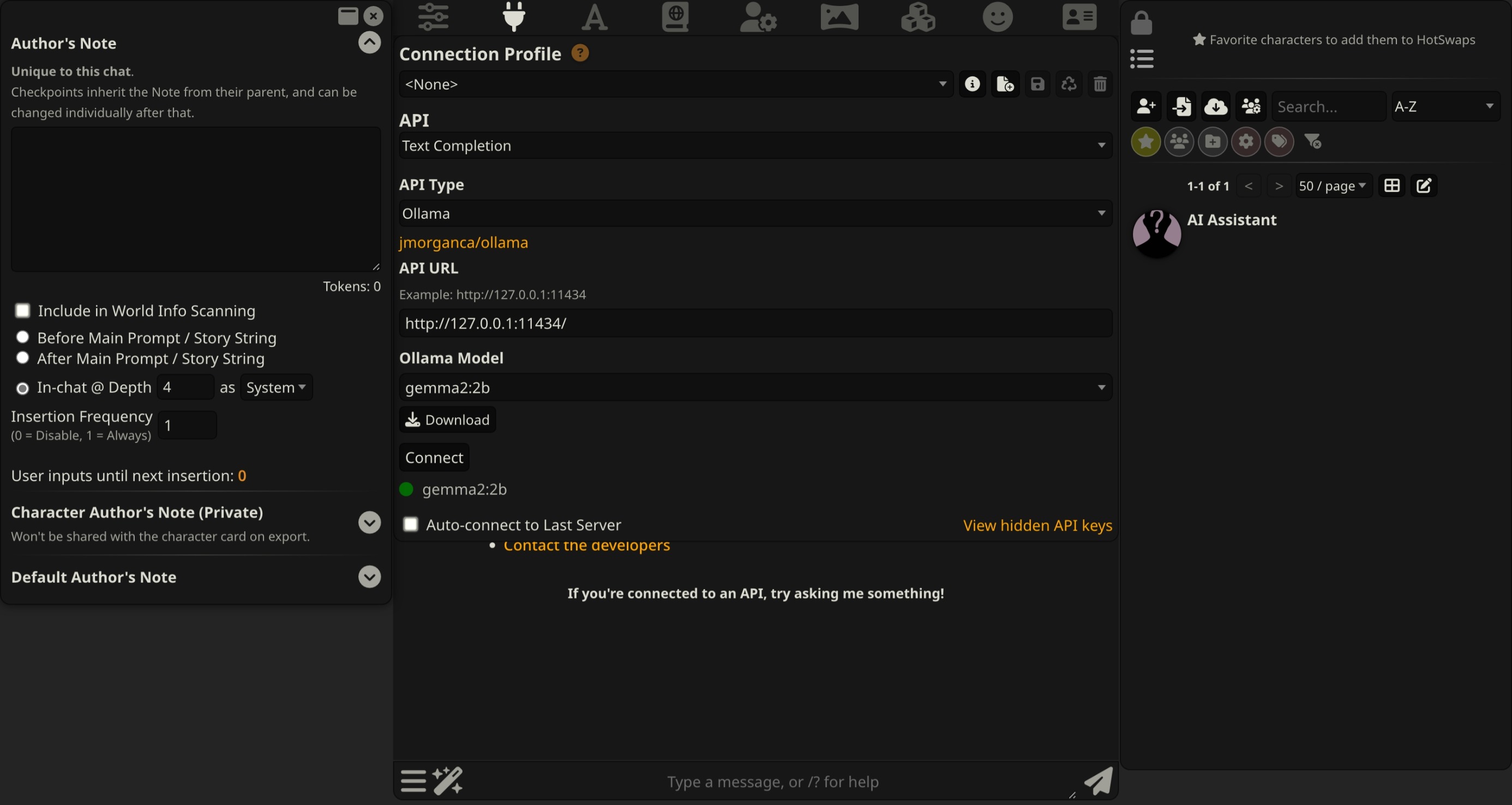
Image: the official SillyTavern docs (docs.sillytavern.app, home page screenshot). It shows an older build, so your screen may differ a little.
At a glance:
- What it is: a chat interface with character cards, lorebooks, group chats and extensions.
- What it needs: a model backend. This guide uses KoboldCpp or Ollama; cloud APIs work too.
- Default access: only this computer. Docker mode listens on all interfaces inside the container, so we publish the port on
127.0.0.1and use a whitelist. - Never open it to the internet: the docs say not to host it publicly without proper security or to port-forward it.
- Privacy: the README says it has no hosted service and does not programmatically track user data. Cloud APIs and some extensions send your text elsewhere.
- Platforms: Docker on Linux, Windows and Mac, plus a native Node.js route.
How it fits together#
You open SillyTavern in a browser. It builds the prompt from your character and chat, sends it to a model backend, and saves chats and settings in a folder on your disk.

Drawn for this guide from the official docs and compose file. Dashed parts are optional.
Before you start#
| System | What you need |
|---|---|
| Linux | Docker Engine with the Compose plugin; the docs say not to install Docker Desktop on Linux |
| Windows | Docker Desktop (WSL 2 and virtualisation on); the docs call Docker on Windows "really complicated" and suggest the native route |
| Mac | Docker Desktop |
| Native route | Node.js 20 or newer and Git (see "Without Docker") |
Check Docker (same command in all three systems):
docker --version
docker compose version
Checklist:
- [ ] A model backend running, or a cloud API key you can use (KoboldCpp guide, Ollama guide)
- [ ] Port 8000 free on this computer
- [ ] A backup plan (see "Updates and backups")
- [ ] For the HTTPS section only: a domain or home DNS name, and ports 80 and 443 free
Tested on 2026-11-05: Linux = not run, Windows = not run, Mac = not run. The files come from the official compose file, docs and source at release 1.19.0; we composed them and did not start them.
Step 1: Create the folders#
Everything lives in ~/docker_volumes/sillytavern. Chats, characters and settings are in data; config holds config.yaml.
Linux#
mkdir -p ~/docker_volumes/sillytavern/{config,data,extensions,backups}
cd ~/docker_volumes/sillytavern
Windows (PowerShell)#
$st = "$HOME\docker_volumes\sillytavern"
foreach ($d in "config","data","extensions","backups") { New-Item -ItemType Directory -Force "$st\$d" | Out-Null }
Set-Location $st
Mac (Terminal)#
Same commands as Linux.
Check it worked. ls (Linux, Mac) or Get-ChildItem (Windows) lists four empty folders.
Step 2: Write the Compose file and start SillyTavern#
This is the official compose file with changes: the image is pinned to 1.19.0, the port is published on 127.0.0.1 only (the official file publishes it everywhere), and the whitelist is set. The image always starts the server in listen mode, and the default whitelist allows only 127.0.0.1 and ::1. On Docker Engine for Linux your own browser arrives from the Docker network gateway, so we give the network a fixed range and whitelist its gateway. Otherwise you get a "Forbidden" page (docs: "Forbidden by Whitelist", issue #5210).
Linux#
cd ~/docker_volumes/sillytavern
cat > docker-compose.yml << 'EOF'
services:
  sillytavern:
    image: ghcr.io/sillytavern/sillytavern:1.19.0
    container_name: sillytavern
    hostname: sillytavern
    restart: unless-stopped
    environment:
      - NODE_ENV=production
      - SILLYTAVERN_HEARTBEATINTERVAL=30
      - 'SILLYTAVERN_WHITELIST=["::1","127.0.0.1","172.29.250.1"]'
    ports:
      - "127.0.0.1:8000:8000"
    volumes:
      - ./config:/home/node/app/config
      - ./data:/home/node/app/data
      - ./extensions:/home/node/app/public/scripts/extensions/third-party
    extra_hosts:
      - "host.docker.internal:host-gateway"
    healthcheck:
      test: ["CMD", "node", "src/healthcheck.js"]
      interval: 30s
      timeout: 10s
      start_period: 20s
      retries: 3
    networks:
      - sillytavern

networks:
  sillytavern:
    ipam:
      config:
        - subnet: 172.29.250.0/24
          gateway: 172.29.250.1
EOF
docker compose up -d
docker compose ps
docker compose logs --tail=50 sillytavern
On Linux, add - PUID=1000 and - PGID=1000 under environment: (use the numbers from id -u and id -g). The docs call this "non-root user mode"; without it the files in config and data belong to root and you need sudo to edit them.
Windows (PowerShell)#
Open the file in Notepad, paste the same YAML as in the Linux block, save it, then start:
notepad "$HOME\docker_volumes\sillytavern\docker-compose.yml"
Set-Location "$HOME\docker_volumes\sillytavern"
docker compose up -d
docker compose ps
docker compose logs --tail=50 sillytavern
Leave out PUID and PGID on Windows. Docker Desktop resolves host.docker.internal itself.
Mac (Terminal)#
Same commands as Linux, without PUID and PGID.
Check it worked. docker compose ps shows sillytavern running. The health check reads a heartbeat file every 30 seconds, so after about a minute this prints healthy (command from the docs):
docker inspect --format='{{.State.Health.Status}}' sillytavern
The log should say it is listening on 0.0.0.0:8000 inside the container (docs, remote connections). That is expected: only 127.0.0.1 on your computer can reach it.
Tip: Use
docker compose downthenup -dto change settings. Ifdocker compose upsaysPool overlaps with other one on this address space, pick another range, for example172.29.251.0/24, and change the gateway in both places.
Step 3: Open it and finish the first start#
Linux#
xdg-open http://localhost:8000
Windows (PowerShell)#
Start-Process http://localhost:8000
Mac (Terminal)#
open http://localhost:8000
On the first start SillyTavern asks for a persona name. The welcome screen's input bar can start a chat with an empty "Assistant" card (docs, quick start), enough to test the connection later.
Check it worked. The page loads. If you see "Forbidden", read the whitelist rows under "Troubleshooting".
Step 4: Connect a model backend#
Click API Connections (the plug icon) in the top bar, set API to Text Completion, pick the API Type, enter the URL and press Connect. A green dot with the model name means it works, as in the screenshot above.
Inside a container, localhost means the container itself. Use host.docker.internal for a backend on the same computer.
| Backend | API Type | API URL from the container |
|---|---|---|
| KoboldCpp on this computer | KoboldCpp | http://host.docker.internal:5001 (the docs use port 5001) |
| Ollama on this computer | Ollama | http://host.docker.internal:11434 |
| Another machine at home | the same types | http://<that-machine>:<port> |
| A cloud service | Chat Completion plus the provider | its page and your own key |
The backend must listen on an address the container can reach. Our KoboldCpp guide starts it with --host 127.0.0.1, and the Ollama FAQ says Ollama binds 127.0.0.1:11434 by default; a loopback-only backend can fail from a container. Change the bind address only on a trusted home network and let a firewall block the rest.
Linux#
Check what the backend listens on, then give the container a route:
ss -ltn | grep -E ':5001|:11434'
docker compose exec sillytavern wget -qO- http://host.docker.internal:5001/api/v1/model
If ss shows only 127.0.0.1, restart KoboldCpp with --host 0.0.0.0, or set OLLAMA_HOST=0.0.0.0:11434 as the Ollama FAQ describes for systemd.
Windows (PowerShell)#
Invoke-RestMethod http://localhost:5001/api/v1/model
docker compose exec sillytavern wget -qO- http://host.docker.internal:5001/api/v1/model
The first line tests KoboldCpp from Windows, the second from inside the container. If the second fails, restart KoboldCpp with --host 0.0.0.0 and allow the firewall prompt for private networks only.
Mac (Terminal)#
curl http://localhost:5001/api/v1/model
docker compose exec sillytavern wget -qO- http://host.docker.internal:5001/api/v1/model
Same advice as Windows.
Check it worked. The green dot and the model name appear. The KoboldCpp request above returns the loaded model name (endpoint from the KoboldCpp source).
Tip: SillyTavern and the backend on the same PC are easier without Docker: the native install talks to
http://localhost:5001. Use Docker when the backend lives elsewhere or SillyTavern runs on a server.
Make a family-friendly character and chat#
This part happens in the browser and is the same on Linux, Windows and Mac. A character card is a set of prompts that shape the model. Make a simple one:
- Open Character Management (far right of the top bar) and click Create New Character.
- Name:
Sam. Description:Sam is a friendly study helper. Sam explains school science topics in short, clear steps and asks one question at the end to check understanding. - First Message:
*Sam waves.* Hi! What are we studying today? - Click Create Character, select Sam, and type a message.
Check it worked. Sam greets you and the model answers. If the page shows an error instead, the backend or URL is wrong: see "Troubleshooting".
Tip: Community character cards can contain anything. Open the Description of a downloaded card and read it before you chat. Local APIs have no content filter (docs, API connections), so you decide what is safe for your household.
Without Docker: the native route#
Use the release branch (staging can break). On Windows install Node.js (LTS) and Git for Windows; the docs say not to install into a Windows-controlled folder or run Start.bat as administrator.
Linux#
Install Git and Node.js 20 or newer with your package manager, then:
git clone https://github.com/SillyTavern/SillyTavern -b release ~/SillyTavern
cd ~/SillyTavern
./start.sh
Windows (PowerShell)#
git clone https://github.com/SillyTavern/SillyTavern -b release "$HOME\SillyTavern"
Set-Location "$HOME\SillyTavern"
.\Start.bat
Mac (Terminal)#
Install Git and Node.js (for example with Homebrew), then use the same commands as Linux.
Check it worked. A browser opens http://localhost:8000 and the console says it is listening on 127.0.0.1:8000, which the docs give as the sign that remote connections are off. Update later with git pull (Windows: UpdateAndStart.bat).
Put it behind HTTPS (with or without Traefik)#
Skip this while you only use SillyTavern on the computer where it runs. Use it when other devices reach it. The docs warn against port forwarding, and basic auth sends the password in plain text without HTTPS, so remote use needs both HTTPS and a password.
A proxy changes two things. The whitelist also checks the forwarded client address, so we turn it off and use HTTP basic auth, as the docs' own reverse-proxy guide does. And all visitors look like one address unless we set rateLimiting.preferRealIpHeader, so one person's failed logins do not lock everyone out (issue #3503). Caddy ignores incoming X-Forwarded-* values from clients, so they cannot be spoofed.
Both routes need a name that resolves to this computer (a domain, or a home name from your router). Create a Docker network once, and a private .env file:
docker network create proxy
cd ~/docker_volumes/sillytavern
touch .env && chmod 600 .env
Put these two lines in .env (no $ in the password):
ST_USER=<choose-a-username>
ST_PASSWORD=<a-long-random-password>
Replace docker-compose.yml with this file. The Windows and Mac steps are the same: create the network, the .env file and this YAML with your editor.
services:
  sillytavern:
    image: ghcr.io/sillytavern/sillytavern:1.19.0
    container_name: sillytavern
    hostname: sillytavern
    restart: unless-stopped
    environment:
      - NODE_ENV=production
      - SILLYTAVERN_HEARTBEATINTERVAL=30
      - SILLYTAVERN_WHITELISTMODE=false
      - SILLYTAVERN_BASICAUTHMODE=true
      - SILLYTAVERN_BASICAUTHUSER_USERNAME=${ST_USER}
      - SILLYTAVERN_BASICAUTHUSER_PASSWORD=${ST_PASSWORD}
      - SILLYTAVERN_RATELIMITING_PREFERREALIPHEADER=true
    volumes:
      - ./config:/home/node/app/config
      - ./data:/home/node/app/data
      - ./extensions:/home/node/app/public/scripts/extensions/third-party
    extra_hosts:
      - "host.docker.internal:host-gateway"
    healthcheck:
      test: ["CMD", "node", "src/healthcheck.js"]
      interval: 30s
      timeout: 10s
      start_period: 20s
      retries: 3
    networks:
      - proxy

networks:
  proxy:
    external: true
These names follow the docs' rule: SILLYTAVERN_ plus the setting in capitals, dots turned into underscores; environment values override config.yaml. The container publishes no port, so only the proxy reaches it.
With Traefik#
On a server that already runs Traefik v3 with the Docker provider, add these labels under the sillytavern: service. They assume an entrypoint named https and the external proxy network:
    labels:
      - "traefik.enable=true"
      - "traefik.docker.network=proxy"
      - "traefik.http.routers.sillytavern.rule=Host(`st.<your-domain>`)"
      - "traefik.http.routers.sillytavern.entrypoints=https"
      - "traefik.http.routers.sillytavern.tls=true"
      - "traefik.http.services.sillytavern.loadbalancer.server.port=8000"
Start it with docker compose up -d.
Check it worked. curl -I https://st.<your-domain>/ answers over HTTPS with 401 (the login prompt). Add -u "<user>:<password>" and you get 200.
Without Traefik: Caddy#
Caddy gets and renews its own certificates. Its docs describe automatic Let's Encrypt certificates for a public domain (ports 80 and 443 must reach it) and tls internal for a local certificate at home. We mount the conf folder, not the single Caddyfile: the Caddy image docs warn that editors can change the file's inode so reloads silently miss your edits.
mkdir -p ~/docker_volumes/caddy/{conf,data,config}
cd ~/docker_volumes/caddy
Save as ~/docker_volumes/caddy/docker-compose.yml (the image is the latest Caddy release read in November 2026):
services:
  caddy:
    image: caddy:2.11.8
    container_name: caddy
    restart: unless-stopped
    ports:
      - "80:80/tcp"
      - "443:443/tcp"
      - "443:443/udp"
    volumes:
      - ./conf:/etc/caddy
      - ./data:/data
      - ./config:/config
    networks:
      - proxy

networks:
  proxy:
    external: true
Save as ~/docker_volumes/caddy/conf/Caddyfile for a public domain:
st.example.com {
    reverse_proxy sillytavern:8000
}
For a home-only name use tls internal:
st.home.arpa {
    tls internal
    reverse_proxy sillytavern:8000
}
Start both stacks:
cd ~/docker_volumes/caddy && docker compose up -d
cd ~/docker_volumes/sillytavern && docker compose up -d
On Windows run the same docker compose commands in PowerShell from $HOME\docker_volumes\caddy and $HOME\docker_volumes\sillytavern; on Mac use the Linux commands. With tls internal, each device must trust Caddy's local root certificate. These are Caddy's own commands from its running docs, run on the computer that runs Docker:
Linux#
docker compose cp caddy:/data/caddy/pki/authorities/local/root.crt /tmp/root.crt
sudo cp /tmp/root.crt /usr/local/share/ca-certificates/root.crt && sudo update-ca-certificates
Windows (PowerShell)#
Run PowerShell as administrator for the second command:
docker compose cp caddy:/data/caddy/pki/authorities/local/root.crt "$env:TEMP\root.crt"
certutil -addstore -f "ROOT" "$env:TEMP\root.crt"
Mac (Terminal)#
docker compose cp caddy:/data/caddy/pki/authorities/local/root.crt /tmp/root.crt
sudo security add-trusted-cert -d -r trustRoot -k /Library/Keychains/System.keychain /tmp/root.crt
Firefox and Chrome can keep their own certificate stores; import root.crt there too. Copy the file to other devices and trust it there.
Check it worked. curl -I https://st.example.com/ returns 401 over HTTPS. For a home-only name the browser shows a padlock only after the root is trusted on that device.
Tip: A certificate error usually means the name in the Caddyfile differs from the DNS record, or ports 80 and 443 do not reach this computer. Do not forward port 8000. For remote use from outside your home, the docs list Tailscale; our Ollama over Tailscale guide shows the idea. More about Caddy: our Caddy guide.
Security and testing#
The docs say the server "is not secure enough for exposure to the public internet". Treat these controls as the minimum:
| Control | How |
|---|---|
| Local only | Step 2 publishes 127.0.0.1:8000. Keep it that way until HTTPS and a password are in place. |
| Whitelist or password | The server refuses to start in listen mode with neither (it logs "Your current SillyTavern configuration is insecure"). Do not set securityOverride. |
| Change the defaults | The default basic-auth login in default/config.yaml is user and password. Always set your own. |
| Accounts | Multi-user mode (enableUserAccounts) separates data per person; the docs say its passwords are privacy, not security. |
| Private addresses | privateAddressWhitelist.enabled stops the server fetching other LAN devices (SSRF); the docs recommend it in listen mode. |
| Keys | API keys are saved in data/default-user/secrets.json. Treat data and every backup as secret. |
Quick tests after each change:
cd ~/docker_volumes/sillytavern
docker compose ps
docker compose logs --tail=100 sillytavern
docker inspect --format='{{.State.Health.Status}}' sillytavern
On Windows run them in PowerShell from $HOME\docker_volumes\sillytavern.
Extensions, plugins and downloaded content#
- UI extensions are third-party code from a Git URL that runs in the page where your chats and settings live. Install only ones you can read or trust. The "Code Runner" extension can even run code from chat messages.
- Server plugins are off by default (
enableServerPlugins: false). The docs: they "are not sandboxed" and can reach your whole file system. We do not mount apluginsfolder. - Auto-update:
extensions.autoUpdatedefaults totrue, so a trusted extension can change later. SetSILLYTAVERN_EXTENSIONS_AUTOUPDATE=falseto review updates yourself. - Data Bank (document chat, a form of RAG) can download small models from Hugging Face on first use (
extensions.models.autoDownload).
What leaves your computer: your prompts go to the backend you choose. With KoboldCpp or Ollama on your own network nothing goes outside; with a cloud API or AI Horde your text does.
Common mistakes#
These come from the official docs' warnings, the issue tracker and common assistant answers.
| Mistake | Why it happens | Do this instead |
|---|---|---|
| "Forbidden" page when you open it in Docker on Linux | The default whitelist holds only 127.0.0.1 and ::1; your browser arrives as the Docker gateway (issues #5210, #3446). whitelistDockerHosts works only where host.docker.internal exists (Docker Desktop) | Whitelist the gateway as in Step 2, or follow the docs' "Forbidden by Whitelist" section |
| Losing chats after an update | The container was started without volumes; Docker containers start empty (issue #2695) | Always map config and data as in Step 2 and back up before updating |
| Exposing port 8000 or port-forwarding | The official compose file publishes 8000:8000 on all interfaces; the docs say never to expose it without separate security | Publish on 127.0.0.1, use HTTPS plus a password, or a VPN such as Tailscale |
Writing basicAuthUser as a YAML list | Gives Basic Authentication is enabled, but username or password is not set or empty! (issue #2123) | It is a mapping: username: and password: indented under basicAuthUser:; or use the environment variables in this guide |
| Everyone locked out behind a proxy | All requests look like the proxy's address, so five failed logins block all users (issue #3503) | Set rateLimiting.preferRealIpHeader as in the HTTPS section |
| Opening the same account in two windows or on two devices | Each window saves the whole settings file; the last writer wins and chat messages can be lost (issue #5864, open) | Use one window per account, or create separate accounts |
Using http://localhost:5001 as the API URL in Docker | localhost inside the container is the container | Use http://host.docker.internal:5001, and make the backend reachable |
Running latest or staging | staging updates several times a day and the docs say it can break at any time; latest moves | Pin 1.19.0 and read the release notes before changing the tag |
| Installing extensions or plugins on a stranger's say-so | Extensions run code; server plugins are not sandboxed | Read the code, install few, keep enableServerPlugins off |
AI assistants: editing default/config.yaml, using old volume paths, or a wrong image name | Old guides mount public folders from before version 1.12.0, and assistants invent registries | Edit only config/config.yaml (or use SILLYTAVERN_* variables), use the four mounts from Step 2, and the image ghcr.io/sillytavern/sillytavern. The docs warn that editing the default config "won't have any positive effect" |
Tip: If an assistant gives you a Compose file, compare its image, volumes and variable names with the official file at the release tag. Those decide whether your data survives.
Tip: Back up before every update and before importing many character cards. Open chat-integrity bugs (see "Known bugs") make a recent backup worth more than any setting.
Tip: Write down the backend URL, your extensions and the tag you pin. It makes troubleshooting much faster.
Troubleshooting#
| Problem | Solution |
|---|---|
Browser shows "Forbidden" or the log says Blocked connection from 172.x.x.x | The gateway is not whitelisted. Use the fixed network and whitelist from Step 2; read the gateway with docker network inspect <network-name> if you changed the range |
Failed to resolve whitelist hostname host.docker.internal: getaddrinfo ENOTFOUND | Docker Engine for Linux lacks that name. Our extra_hosts line adds it; otherwise whitelist the gateway by hand |
| Page does not open from another device | By design: port 8000 is published on 127.0.0.1. Use the HTTPS section |
Pool overlaps with other one on this address space | Another Docker network uses the range; change the 172.29.250.x range and the whitelist gateway |
Bind for 127.0.0.1:8000 failed: port is already allocated | Change the left number of the port line, for example 127.0.0.1:8001:8000, and open that port |
| Red dot or no models after pressing Connect | Check the API Type and URL; from the container run the wget test from Step 4; check the backend bind address and firewall |
EACCES: permission denied, mkdir 'backups/' | A container started with --user cannot write the mounts (issue #4951, fixed). Use the PUID and PGID variables, or make the folders writable for that user |
| Server exits at start with "insecure (listening to non-localhost)" | Enable a whitelist or basic auth (see Security). Do not use securityOverride |
| Page looks broken after an update | The docs advise clearing data/_webpack and restarting |
Extension update fails with detected dubious ownership | Issue #3250 (closed); the 1.19.0 Dockerfile sets git's safe.directory. Recreate the container on the pinned tag |
Known bugs#
Open in the SillyTavern tracker in November 2026. None is specific to Docker.
- #5864: two windows on one account can silently lose settings and messages.
- #5941: the chat-loading endpoint answers
200with{}on a read error, so a client can overwrite a healthy chat with a greeting (confirmed by a maintainer; reports on 1.18.0). - #6032: switching between chats of the same character can mix chat identity and trigger integrity errors; one reporter reproduced it on 1.19.0.
- #6176: on Windows 1.19.0, a failed character-card write returned success; the integrity check stopped an overwrite in that report.
Workarounds: one window per account, frequent backups, no chat deletion or renaming while another window is open. Diagnostics: docker compose ps, docker compose logs --tail=200 sillytavern.
Updates and backups#
Update. Read the release notes, back up, change the tag in docker-compose.yml, then:
cd ~/docker_volumes/sillytavern
docker compose pull
docker compose up -d
docker compose logs --tail=100 sillytavern
Windows: same commands in PowerShell from $HOME\docker_volumes\sillytavern. Mac: same as Linux.
Back up. Stop the container so files are not half-written, archive config, data and extensions, start again. Save as ~/docker_volumes/sillytavern/backup.sh and make it executable:
#!/usr/bin/env bash
set -euo pipefail
cd ~/docker_volumes/sillytavern
docker compose down
mkdir -p backups
tar -czf "backups/sillytavern-$(date +%F).tar.gz" config data extensions
chmod 600 backups/sillytavern-*.tar.gz
docker compose up -d
If tar reports permission errors, the files belong to root: set PUID and PGID (Step 2) or use sudo. Schedule it on Linux or Mac with crontab -e (03:00 daily; Docker Desktop must be running on a Mac):
0 3 * * * /bin/bash $HOME/docker_volumes/sillytavern/backup.sh
Windows (PowerShell)#
Save as $HOME\docker_volumes\sillytavern\backup.ps1, then register a daily task (Docker Desktop must be running):
Set-Location "$HOME\docker_volumes\sillytavern"
docker compose down
New-Item -ItemType Directory -Force backups | Out-Null
Compress-Archive -Path config, data, extensions -DestinationPath "backups\sillytavern-$(Get-Date -Format yyyy-MM-dd).zip" -Force
docker compose up -d
$action = New-ScheduledTaskAction -Execute "powershell.exe" -Argument "-NoProfile -File `"$HOME\docker_volumes\sillytavern\backup.ps1`""
$trigger = New-ScheduledTaskTrigger -Daily -At 3:00AM
Register-ScheduledTask -TaskName "SillyTavern backup" -Action $action -Trigger $trigger
Each user can also use Account > Download Backup, and SillyTavern keeps automatic chat backups (50 by default). Neither replaces a copy on another disk; see also our restic Docker backups guide.
Restore test. Unpack one archive into a new empty folder, never over the live one, and check the files are there:
mkdir -p /tmp/st-restore && tar -xzf ~/docker_volumes/sillytavern/backups/sillytavern-<date>.tar.gz -C /tmp/st-restore
ls /tmp/st-restore/data/default-user
You should see your characters, chats and settings.json.
Performance and resources#
The project publishes no CPU, RAM or disk figures for SillyTavern, so we give none; measure with docker stats sillytavern. The heavy work is in the backend: see which local LLM fits your GPU and our llama.cpp server guide.
Tuning knobs from the docs:
- Slow interface: turn on "No Blur Effect (Fast UI)" in User settings and lower the streaming FPS to 10 to 15.
- Many characters: the docs say slowness appears past about 1,000 cards.
performance.lazyLoadCharacters(defaulttrue) andperformance.memoryCacheCapacity(default 100mb) help. - Input lag: browser extensions (password managers, translators, ad blockers) are the usual cause.
FAQ#
Is SillyTavern free? Yes, under AGPL-3.0.
Do I need a GPU? Not for SillyTavern. For local inference the docs suggest a 3000-series NVIDIA card with at least 6 GB of VRAM; a cloud API needs none.
Does it work with KoboldCpp and Ollama? Yes. Both are listed in the API Type menu; see Step 4 and our KoboldCpp guide.
Can I use it on my phone? It is a web page: reach it through the HTTPS route or a VPN and use your phone's browser.
Is it safe for children? SillyTavern itself has no content filter, and neither do local models. Choose characters and models yourself, supervise young users, and read downloaded cards first.
Docker or native? Docker suits a server. The native install suits one PC where the backend also runs.
Sources#
- SillyTavern release 1.19.0, README, docker-compose.yml, Dockerfile, default config.yaml and source - read November 2026
- SillyTavern docs: Docker, Windows, Linux and macOS, updating, remote connections, administration, config.yaml, multi-user, tunneling, reverse proxying, API connections, KoboldCpp, FAQ, extensions, server plugins - read November 2026
- SillyTavern image on GitHub Container Registry (tag
1.19.0seen) - November 2026 - Caddy release v2.11.8, Caddy image docs, automatic HTTPS, running Caddy, reverse_proxy and tls - read November 2026
- Docker: host.docker.internal and
--add-hostwith host-gateway; Ollama FAQ - read November 2026 - GitHub issues #2123, #2695, #3250, #3446, #3503, #4951, #5210, #5864, #5941, #6032, #6176 - read November 2026
Checked against the official docs on 2026-11-05.