Woodpecker CI with Docker: simple CI/CD for Forgejo and Gitea (Linux, Windows, Mac)
Before you start
- 20 min read
Boxes marked Run in terminal are what you type; plain text explains why. Check what you need first
What you get in one minute#
Woodpecker CI is a free, self-hosted CI/CD engine: you push code to your own Forgejo or Gitea, and Woodpecker runs your tests and builds, each step in its own Docker container, then reports the result back.

Logo: the official Woodpecker project (github.com/woodpecker-ci/woodpecker, docs/static/img/logo.svg at v3.20.1; the README puts the docs folder under CC BY-SA 4.0 and the code under Apache 2.0)
Pipelines are YAML files in your repository (.woodpecker/*.yaml). It suits lint, test and build runs on your own hardware. The project is alive: not archived, not renamed, and v3.20.1 came out on 29 October 2026.
| What | Value (official docs and releases, read November 2026) |
|---|---|
| Current version | Woodpecker v3.20.1, released 29 October 2026 (latest) |
| Images to pin | woodpeckerci/woodpecker-server:v3.20.1 and woodpeckerci/woodpecker-agent:v3.20.1 (tags checked on Docker Hub). There is no latest tag |
| Licence | Apache 2.0 (docs folder: CC BY-SA 4.0) |
| Time needed | About 30 minutes with a Forgejo you already run (our estimate, not measured) |
| RAM | README: about 100 MB for the server and 30 MB for the agent when idle |
| Ports | 8000/TCP web UI and webhooks; 9000/TCP gRPC between agent and server (we keep it inside Docker) |
| Official docs | woodpecker-ci.org/docs and the repository |
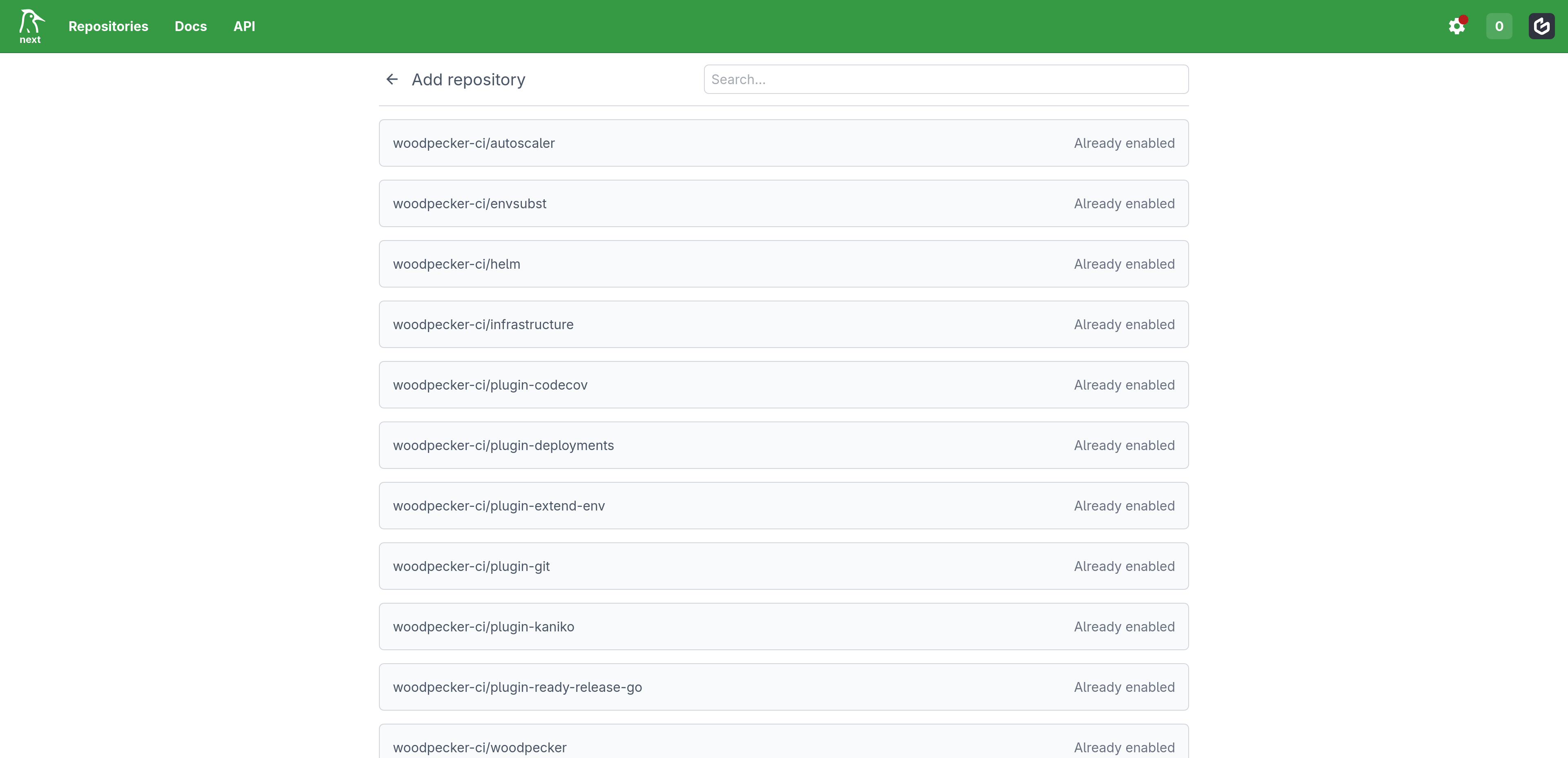
Image: the official Woodpecker docs (first pipeline page). It shows the project's own test instance, so your list will hold your repositories.
At a glance:
- Three parts: a server (web UI, webhooks, queue), an agent (runs the steps) and your forge.
- Login through your forge: you create an OAuth app in Forgejo; there is no separate Woodpecker password.
- Docker socket: the agent needs
/var/run/docker.sock. That is close to root on the host; read the security section. - Platforms: Linux; Windows through WSL 2 with Docker Desktop, per the docs; no Docker backend on macOS.
- Also for Gitea: same setup with the
WOODPECKER_GITEA_*variables (note after Step 3).
How it fits together#
You push a commit, Forgejo calls Woodpecker over a webhook, the server queues the work, and the agent runs each step as a container.

Drawn for this guide from the official Docker Compose docs. The dashed HTTPS proxy is optional for a test but needed for a real login address.
Before you start#
You need a running Forgejo or Gitea that you can administer, and a machine with Docker. If you have no Forgejo yet, follow our Forgejo guide first. Forgejo has its own Actions runner; Woodpecker is the alternative when you prefer a separate, simple CI.
| System | Server and agent | Our advice |
|---|---|---|
| Linux | Supported (Docker backend) | Use this |
| Windows | Docs: Docker backend "works through WSL2 with Docker Desktop" | Work inside a WSL 2 Linux shell |
| Mac | No Docker backend for the native agent in the docs | Use a Linux machine; the Mac is a client (browser, Git) |
Check Docker (Linux, WSL 2, or PowerShell and Terminal with Docker Desktop). To install it on Ubuntu, see our Docker installation guide:
docker --version
docker compose version
Checklist:
- [ ] Forgejo or Gitea reachable by its address from the Woodpecker machine, with HTTPS if possible
- [ ] Admin rights on that Forgejo (for the webhook setting)
- [ ] A domain name for Woodpecker (for example
woodpecker.<your-domain>) with a DNS record to the server - [ ] Ports 80 and 443 free for the HTTPS section
- [ ] A backup of anything important on the machine
Tested by DIY Lab Hub: not yet. The commands come from the official docs, Dockerfiles and release files at v3.20.1, read in November 2026. We did not run them.
Step 1: Create the folders and the secrets#
Woodpecker keeps its SQLite database in /var/lib/woodpecker. The docs call it "the most important part to be persisted", because it holds all users and repository information. We use ~/docker_volumes/woodpecker, as all DIY Lab Hub guides do.
Linux#
The server image runs as user ID 1000 (the Dockerfile has USER woodpecker), so the data folder must belong to 1000. Skipping this causes the disk I/O error: permission denied in the mistakes table.
mkdir -p ~/docker_volumes/woodpecker/{data,agent,backups}
sudo chown 1000:1000 ~/docker_volumes/woodpecker/data
cd ~/docker_volumes/woodpecker
openssl rand -hex 32
The last command prints the shared secret for server and agent (the docs use exactly this command). Copy it; you need it in Step 3.
Windows (PowerShell)#
Not tested by us. Our advice, not from the docs: use the Linux commands in a WSL 2 shell, so the data stays on a Linux file system. In PowerShell, create the folders and the secret like this:
New-Item -ItemType Directory -Force "$HOME\docker_volumes\woodpecker\data","$HOME\docker_volumes\woodpecker\agent","$HOME\docker_volumes\woodpecker\backups"
$b = New-Object byte[] 32
[Security.Cryptography.RandomNumberGenerator]::Create().GetBytes($b)
($b | ForEach-Object { $_.ToString('x2') }) -join ''
Mac (Terminal)#
macOS is not a documented Docker-backend platform and we did not test it. If you try, use the Linux commands without sudo chown:
mkdir -p ~/docker_volumes/woodpecker/{data,agent,backups}
cd ~/docker_volumes/woodpecker
openssl rand -hex 32
Check it worked. The folders exist and you hold a 64-character secret:
ls -ld ~/docker_volumes/woodpecker/data
Tip: Never paste that secret into a chat, an issue or a screenshot. Anyone with it can register an agent that runs your pipelines.
Step 2: Register an OAuth app in Forgejo#
Woodpecker logs you in through Forgejo, so Forgejo must know about it first.
Linux#
In a browser, sign in to Forgejo and open the OAuth applications settings of your user (the Woodpecker docs give the path https://forgejo.<host>/user/settings/; look for Applications). Create a new OAuth2 application:
| Field | Value |
|---|---|
| Name | Woodpecker CI (any name) |
| Redirect URI | https://woodpecker.<your-domain>/authorize |
The docs stress that the callback URL must match your http(s) scheme and hostname exactly, with /authorize as the path. Copy the client ID and the client secret now.
The docs also describe a system-wide OAuth app for admins at https://forgejo.<host>/admin/settings/applications.
Then let Forgejo call Woodpecker. By default Forgejo's webhooks only reach public addresses (ALLOWED_HOST_LIST defaults to external). Allow your case in the Forgejo environment, then restart Forgejo:
| Woodpecker runs... | Add to Forgejo's environment: |
|---|---|
| On a public domain | Nothing. The default works |
| On the same host (docs example) | FORGEJO__webhook__ALLOWED_HOST_LIST=external,loopback |
| On a private LAN address | FORGEJO__webhook__ALLOWED_HOST_LIST=external,private |
Forgejo's cheat sheet defines private as the RFC 1918 and related ranges.
Windows (PowerShell)#
Same steps in a browser. Add the Forgejo variable on the machine where Forgejo runs.
Mac (Terminal)#
Same as Windows: browser steps only.
Check it worked. The OAuth app appears in your Forgejo application list, and you hold the client ID and the client secret.
Tip: Write the redirect URI with the final HTTPS address from the start. If you change the domain later, edit the OAuth app too, or the login fails.
Step 3: Write the Compose file and start Woodpecker#
This is the official Docker Compose example with changes: the Forgejo variables instead of GitHub, the images pinned to v3.20.1 (the docs example uses the rolling v3), bind-mounted folders, restart: unless-stopped, the web port on 127.0.0.1 only, and WOODPECKER_OPEN=false. The docs example sets WOODPECKER_OPEN=true, which lets anyone who can sign in to your forge register.
Linux#
Create the secrets file. Replace the placeholders; WOODPECKER_ADMIN is your own Forgejo login name:
cd ~/docker_volumes/woodpecker
cat > .env << EOF
WOODPECKER_HOST=https://woodpecker.<your-domain>
WOODPECKER_ADMIN=<your-forgejo-username>
WOODPECKER_FORGEJO_URL=https://git.<your-domain>
WOODPECKER_FORGEJO_CLIENT=<client-id-from-step-2>
WOODPECKER_FORGEJO_SECRET=<client-secret-from-step-2>
WOODPECKER_AGENT_SECRET=<secret-from-step-1>
EOF
chmod 600 .env
Then the Compose file:
cat > docker-compose.yml << 'EOF'
services:
  woodpecker-server:
    image: woodpeckerci/woodpecker-server:v3.20.1
    container_name: woodpecker-server
    restart: unless-stopped
    ports:
      - "127.0.0.1:8000:8000"
    volumes:
      - ./data:/var/lib/woodpecker
    environment:
      - WOODPECKER_OPEN=false
      - WOODPECKER_ADMIN=${WOODPECKER_ADMIN}
      - WOODPECKER_HOST=${WOODPECKER_HOST}
      - WOODPECKER_FORGEJO=true
      - WOODPECKER_FORGEJO_URL=${WOODPECKER_FORGEJO_URL}
      - WOODPECKER_FORGEJO_CLIENT=${WOODPECKER_FORGEJO_CLIENT}
      - WOODPECKER_FORGEJO_SECRET=${WOODPECKER_FORGEJO_SECRET}
      - WOODPECKER_AGENT_SECRET=${WOODPECKER_AGENT_SECRET}

  woodpecker-agent:
    image: woodpeckerci/woodpecker-agent:v3.20.1
    container_name: woodpecker-agent
    command: agent
    restart: unless-stopped
    depends_on:
      - woodpecker-server
    volumes:
      - ./agent:/etc/woodpecker
      - /var/run/docker.sock:/var/run/docker.sock
    environment:
      - WOODPECKER_SERVER=woodpecker-server:9000
      - WOODPECKER_AGENT_SECRET=${WOODPECKER_AGENT_SECRET}
EOF
docker compose up -d
docker compose ps
docker compose logs --tail=50 woodpecker-server
Port 9000 is not published: the agent reaches the server over the Compose network. Compose reads .env automatically, which keeps secrets out of the YAML.
Windows (PowerShell)#
Create the same two files in $HOME\docker_volumes\woodpecker with the contents of the Linux blocks, for example with notepad .env and notepad docker-compose.yml. Then, in that folder:
cd $HOME\docker_volumes\woodpecker
docker compose up -d
docker compose ps
docker compose logs --tail=50 woodpecker-server
Not tested by us. If you run the stack in WSL 2, use the Linux commands.
Mac (Terminal)#
Same commands as Linux, minus the chown from Step 1. This is not a documented platform for the Docker backend; we did not test it.
Check it worked. docker compose ps lists both containers as running; the server image has a built-in health check (woodpecker-server ping), so its status should become healthy. The docs publish no expected log text, so read the log for errors:
curl -I http://127.0.0.1:8000/
Any HTTP status line means the web UI answers.
Tip: Change the tag yourself when you update. A moving tag such as
v3can pull in a new minor release on the nextdocker compose pull.
Gitea instead of Forgejo. The docs have a Gitea page with the same pattern: replace the four Forgejo variables with WOODPECKER_GITEA=true, WOODPECKER_GITEA_URL, WOODPECKER_GITEA_CLIENT and WOODPECKER_GITEA_SECRET. Register the OAuth app at https://gitea.<host>/user/settings/ with the same /authorize redirect.
Put it behind HTTPS (with or without Traefik)#
Woodpecker must know its own public address, and the OAuth redirect needs it, so do this before your first login. Both routes need a DNS record for woodpecker.<your-domain> pointing to the server. A home-only setup works with tls internal; read the self-signed certificate row in the mistakes table first.
With Traefik#
On a server that already runs Traefik v3 with the Docker provider, add the proxy network and labels to the server, and drop its host port.
Create the network once if it is missing:
docker network create proxy
In docker-compose.yml, change the woodpecker-server service like this (the default network stays, so the agent still reaches the server), and add the network block at the end of the file. The entrypoint name https follows our other guides; use yours:
  woodpecker-server:
    # image, restart, volumes and environment stay as in Step 3
    networks:
      - default
      - proxy
    labels:
      - "traefik.enable=true"
      - "traefik.docker.network=proxy"
      - "traefik.http.routers.woodpecker.rule=Host(`woodpecker.<your-domain>`)"
      - "traefik.http.routers.woodpecker.entrypoints=https"
      - "traefik.http.routers.woodpecker.tls=true"
      - "traefik.http.services.woodpecker.loadbalancer.server.port=8000"

networks:
  proxy:
    external: true
Remove the ports: lines of the server, then run docker compose up -d.
Check it worked. curl -I https://woodpecker.<your-domain>/ returns an HTTP status line over HTTPS and the page opens with a valid certificate.
Without Traefik: Caddy#
Choose this if you have no Traefik. Caddy gets and renews its certificates for you. Put the server on the shared proxy network exactly as in the Traefik block (the networks: lines, without the labels), then create the Caddy folders:
docker network create proxy
mkdir -p ~/docker_volumes/caddy/{conf,data,config}
cd ~/docker_volumes/caddy
Save this as ~/docker_volumes/caddy/docker-compose.yml. The image is caddy:2.11.8, the newest tag on Docker Hub when we checked (Caddy v2.11.9 was released on the day of writing and had no image yet). Caddy's Docker docs say to mount the conf folder, not a single file:
services:
  caddy:
    image: caddy:2.11.8
    container_name: caddy
    restart: unless-stopped
    ports:
      - "80:80/tcp"
      - "443:443/tcp"
      - "443:443/udp"
    volumes:
      - ./conf:/etc/caddy
      - ./data:/data
      - ./config:/config
    networks:
      - proxy

networks:
  proxy:
    external: true
Save one of these as ~/docker_volumes/caddy/conf/Caddyfile. For a public domain, Caddy asks Let's Encrypt for a certificate by itself:
woodpecker.example.com {
    reverse_proxy woodpecker-server:8000
}
For a home-only name, use tls internal, Caddy's own local certificate:
woodpecker.home.arpa {
    tls internal
    reverse_proxy woodpecker-server:8000
}
Start Caddy, then recreate Woodpecker with the changed file:
cd ~/docker_volumes/caddy && docker compose up -d
cd ~/docker_volumes/woodpecker && docker compose up -d
For the home-only certificate, copy Caddy's root certificate out of its data folder and install it as a trusted root on each device you browse from:
docker exec caddy find /data -name root.crt
docker cp caddy:<path-from-find> ./caddy-root.crt
On Windows import it into "Trusted Root Certification Authorities"; on macOS use Keychain Access and "Always Trust"; on Linux use your distribution's CA store (standard system steps, not from the Woodpecker or Caddy docs). Windows and Mac only browse here; run the Caddy commands on the server.
Check it worked. curl -I https://woodpecker.example.com/ returns an HTTP status line. For a home-only name, the padlock appears only after the root is trusted on that device.
Tip: Let's Encrypt needs the DNS record to point at your server and ports 80 and 443 to reach it. A certificate error usually means the name in the Caddyfile differs from the DNS record. See our Caddy guide for more.
Step 4: Log in and activate a repository#
You sign in with your Forgejo account, then tell Woodpecker which repository to watch.
Linux#
- Open
https://woodpecker.<your-domain>and choose to log in. Forgejo asks you to authorise the app. - Back in Woodpecker, open Repositories and Add repository, then enable your repository.
- Open the settings (gear icon) and go to Agents. Your agent should be listed as connected (the docs show this screen as "Settings -> Agents").
Enabling a repository needs admin rights on it, because Woodpecker adds a webhook. Your name in WOODPECKER_ADMIN makes you a server admin at first sign-in even with registration closed (we read the login code at v3.20.1).
Windows (PowerShell)#
Same steps in a browser. A reachability test:
curl.exe -I https://woodpecker.<your-domain>/
Mac (Terminal)#
Same steps; the test in Terminal:
curl -I https://woodpecker.<your-domain>/
Check it worked. You see the repository list, the agent shows as connected, and Forgejo lists a new webhook under the repository's Webhooks settings.
Tip: Other people on your Forgejo cannot sign in while
WOODPECKER_OPEN=false. Add them by letting an admin enable registration briefly, or keep it closed for a private CI.
Step 5: Write your first pipeline and add a secret#
A pipeline is a YAML file in the repository. This is the docs' first example: two steps in two containers, run on a push to main.
Linux#
In your repository, create .woodpecker/my-first-workflow.yaml:
when:
  - event: push
    branch: main

steps:
  - name: build
    image: debian
    commands:
      - echo "This is the build step"
      - echo "some-data" > some-file.txt
  - name: a-test-step
    image: alpine
    commands:
      - echo "Testing ..."
      - cat some-file.txt
Commit and push it:
mkdir -p .woodpecker
# save the YAML above as .woodpecker/my-first-workflow.yaml, then:
git add .woodpecker
git commit -m "Add first Woodpecker pipeline"
git push
The pipeline appears in Woodpecker, with an extra clone step before yours that fetches the repository into a shared workspace.
To use a secret, add it in the repository's settings (Secrets) in the web UI, then pass it into a step:
steps:
  - name: use-secret
    image: alpine
    environment:
      TOKEN_ENV:
        from_secret: secret_token
    commands:
      - test -n "$$TOKEN_ENV" && echo "secret is set"
The double $$ matters: Woodpecker evaluates expressions before the pipeline starts, and the docs say secrets in expressions must be escaped that way.
Windows (PowerShell)#
Create the file in your repository folder, then commit and push:
New-Item -ItemType Directory -Force .woodpecker
notepad .woodpecker\my-first-workflow.yaml
git add .woodpecker
git commit -m "Add first Woodpecker pipeline"
git push
Paste the YAML from the Linux block into Notepad and save it.
Mac (Terminal)#
Same commands as Linux, with your preferred editor for the file:
mkdir -p .woodpecker
git add .woodpecker
git commit -m "Add first Woodpecker pipeline"
git push
Check it worked. In the Woodpecker web UI, open the repository's Pipelines: the run shows clone, build and a-test-step as successful, and the test step prints some-data. Forgejo also shows the commit status.
Tip:
woodpecker-cli exec .woodpecker/my-first-workflow.yamltries a workflow before you push it (from the docs; we did not test it).
Security and testing#
The agent starts step containers by talking to the Docker daemon through /var/run/docker.sock. Anyone who controls that socket controls the host. The pipeline files come from your repositories, so the real question is who can change them.
| Control | How |
|---|---|
| Who can log in | Keep WOODPECKER_OPEN=false. For a shared forge, WOODPECKER_ORGS limits sign-in to listed organizations |
| Repository stays untrusted | Only instance admins can make a repository "trusted". The docs warn that trusted pipelines can allow privileged, volumes and devices, and "can at least compromise the hosts agents run on". Do not enable it |
| Pull requests from forks | By default they wait for approval. Do not approve one you have not read: an approved pipeline gets the current secrets |
| Secrets | Not exposed to pull requests by default. Enabling the pull_request event for a secret exposes it to anyone who can open one |
| Agent registration | Set WOODPECKER_DISABLE_USER_AGENT_REGISTRATION=true if you have global secrets and do not trust your users |
| Webhook URL | Keep it private. If it leaks, use "Repair repository" to rotate the secret |
| gRPC (port 9000) | Served without TLS. Keep it inside Docker. A remote agent needs a TLS proxy and WOODPECKER_GRPC_SECURE=true |
.env file | chmod 600; it holds the OAuth secret and the agent secret |
To limit the risk, run the agent on its own machine or VM (our suggestion, not from the docs).
Quick tests on Linux after each change:
cd ~/docker_volumes/woodpecker
docker compose ps
docker compose logs --tail=100 woodpecker-server
docker compose logs --tail=100 woodpecker-agent
curl -I https://woodpecker.<your-domain>/
Windows and Mac can run the same curl check in PowerShell (curl.exe -I) or Terminal.
Common mistakes#
These come from the official docs, the GitHub issue tracker and common AI answers.
| Mistake | Why it happens | Do this instead |
|---|---|---|
Copying WOODPECKER_OPEN=true from the docs example | The docs example allows registration; the setting is documented as "Enable to allow user registration" | Use WOODPECKER_OPEN=false and set WOODPECKER_ADMIN to your own login. An admin listed there can still register at first sign-in |
| A data folder owned by root | The server image runs as user 1000. Issues #5330 and #6938 report disk I/O error: permission denied; in #6938 chown -R 1000:1000 data got a fresh install to start | sudo chown 1000:1000 ~/docker_volumes/woodpecker/data before the first start |
Using woodpecker-server:latest | The docs say "No latest tag exists" to avoid accidental major upgrades | Pin v3.20.1, or accept minor updates with v3 |
| A redirect URI that does not match | The docs: scheme and hostname must match exactly, with /authorize. Issue #1560 describes a login that times out on that step | Use https://woodpecker.<your-domain>/authorize in the OAuth app and the same host in WOODPECKER_HOST |
| Forgejo behind a self-signed certificate | Issue #6693 reports x509: certificate signed by unknown authority when Woodpecker calls Forgejo | Use a public domain with a Let's Encrypt certificate. The maintainer's answer was WOODPECKER_FORGEJO_SKIP_VERIFY=true, which switches verification off, so treat it as a last resort |
| Webhooks never arrive | Forgejo only calls public hosts by default (ALLOWED_HOST_LIST=external) | Add loopback for the same host, or private for a LAN address (Step 2) |
| Adding users by hand with registration closed | Issue #6769 (closed, fix in #6823) reports unusable users with forge_id=0 | Let the user sign in once while registration is open, and stay on a current release |
WOODPECKER_ADMIN not matching the login | Issue #6231 reports no admin rights; the list is read at start | Copy the exact Forgejo login name and restart the server |
AI assistants: writing woodpecker-server:latest, WOODPECKER_GITEA_* for a Forgejo, or a Drone-style file name | Many examples are old or for another forge | Use the pinned tag, the WOODPECKER_FORGEJO_* variables from the Forgejo page, and .woodpecker/*.yaml as in the docs |
Tip: Before running a compose file from a forum or a chatbot, compare its image tags and variable names with the official Docker Compose page.
Tip: After every change read
docker compose logs --tail=100 woodpecker-server; login and migration errors print there.
Tip: If the clone step fails, the docs suggest
skip_clone: trueplus a step that pings and fetches from your Git server, so you can test the network from inside a step container.
Troubleshooting#
| Problem | Solution |
|---|---|
could not migrate datastore ... disk I/O error: permission denied | Fix the data folder owner: sudo chown 1000:1000 ~/docker_volumes/woodpecker/data (issues #5330, #6938) |
| Login page shows "The registration is closed" | The user is not in WOODPECKER_ADMIN and WOODPECKER_OPEN=false. Add the user or enable registration for a moment |
x509: certificate signed by unknown authority | Woodpecker does not trust Forgejo's certificate. Use a public certificate, or see the mistakes table |
| Pipeline never starts after a push | Check Forgejo's webhook deliveries; set ALLOWED_HOST_LIST (Step 2) |
| Run stays "pending" | No agent is online, or the agent is busy: WOODPECKER_MAX_WORKFLOWS defaults to 1 |
| Agent does not connect | Secrets differ, or WOODPECKER_SERVER is wrong. It must be woodpecker-server:9000 inside Compose |
permission denied while trying to connect to the Docker daemon socket at unix:///var/run/docker.sock | On SELinux systems add :z to the socket mount, as the docs describe |
fatal: could not read Username for 'https://<url>': No such device or address | Set WOODPECKER_AUTHENTICATE_PUBLIC_REPOS=true for internal repositories, then test the network from a step (docs troubleshooting) |
| Features work badly against Forgejo | The docs warn that Forgejo's API page size must not be below 50 (cheat sheet, [api] section) |
| Disk fills up | The agent never removes images. Clean up on the host (see Performance) |
With Forgejo in a container on the same host, the docs say to set WOODPECKER_BACKEND_DOCKER_NETWORK=<forgejo-network-name> on the agent, or to go through the docker0 gateway (usually 172.17.0.1). They warn that step containers of different pipelines can then reach each other.
Known bugs (open, November 2026)#
- Issue #7472: the Docker backend can report a detached service as failed ("no such container") when the workflow teardown removes it first.
- Issue #7110: the agent's retry window counts from the start of a long poll, so the first error after an idle period may give up without a retry.
- Issue #7085: log lines can be dropped silently when a log call fails.
Run docker compose ps, docker compose logs --tail=200 woodpecker-server and docker inspect woodpecker-server first.
Updates and backups#
Update. Read the release notes, change both tags in docker-compose.yml, back up, then:
cd ~/docker_volumes/woodpecker
docker compose pull
docker compose up -d
docker compose logs --tail=100 woodpecker-server
The docs say new versions upgrade the database automatically unless the release notes say otherwise. Issue #6938 shows an upgrade from 3.16 to 3.17 that failed on a large database, so back up first.
Back up. Woodpecker does not back up its database. Stop the stack, archive the data and agent folders and the .env, and start again:
cd ~/docker_volumes/woodpecker
docker compose down
tar -czf "backups/woodpecker-$(date +%F).tar.gz" data agent .env
chmod 600 backups/woodpecker-*.tar.gz
docker compose up -d
The archive holds secrets; never put it in a shared folder. To run it nightly at 03:00 on Linux or Mac, add a crontab entry that runs the same commands. Keep a copy on another machine.
Restore test. Unpack into a new empty folder, never over the live one:
mkdir -p /tmp/restore-test && tar -xzf backups/woodpecker-<date>.tar.gz -C /tmp/restore-test
ls -la /tmp/restore-test/data
Windows (PowerShell)#
If the stack runs in WSL 2, run the backup there. Copying the archive off a Linux server:
scp <your-user>@<your-server-address>:~/docker_volumes/woodpecker/backups/woodpecker-<date>.tar.gz .
For a nightly run, use Task Scheduler to start the WSL command.
Mac (Terminal)#
Use the same scp command from Terminal, or cron for the nightly run.
Performance and resources#
The README says "around 100 MB of RAM (Server) and 30 MB (Agent)" when idle. Steps run in their own containers on top, so your pipelines decide the real load. Measure your own:
- Live numbers:
docker stats woodpecker-server woodpecker-agentwhile a pipeline runs. - Parallel runs: an agent runs one workflow at a time by default. Raise
WOODPECKER_MAX_WORKFLOWSon the agent, or add more agents. - Database: SQLite is the default and needs no setup. The docs recommend Postgres or MariaDB for larger instances.
- Image cleanup: the agent does not remove images. The docs show a destructive clean-up command for dangling images and tell you to test it before putting it in cron:
docker image rm $(docker images --filter "dangling=true" -q --no-trunc)
FAQ#
Is Woodpecker CI free to use? Yes, under Apache 2.0. There is no paid edition in the docs we read.
How many pipelines run at once? One workflow per agent by default (WOODPECKER_MAX_WORKFLOWS is 1). Raise it, or add agents, for more parallel runs.
Does it work with GitHub or GitLab? Yes. The docs list GitHub, Gitea, Forgejo, GitLab and Bitbucket as forges. Only one forge can be set with variables; extra forges are experimental.
Can I run it without Docker? Yes. The docs list binaries and DEB and RPM packages, and a Local backend that runs steps directly on the host with no isolation. That backend is for trusted setups only.
Can I use Forgejo Actions instead? Yes. Forgejo has its own runner (see our Forgejo guide); Woodpecker is a separate program.
Sources#
- Woodpecker release v3.20.1, the repository and README and the server and agent Dockerfiles - read November 2026
- Docs at v3.20.1: Docker Compose, general, platforms, server, agent, Forgejo, Gitea, secrets, security boundaries - read November 2026
- Forgejo configuration cheat sheet (webhook
ALLOWED_HOST_LIST) - read November 2026 - Woodpecker images on Docker Hub (tags
v3.20.1andv3.20.1-alpinechecked), Caddy release v2.11.9 and Caddy running docs - read November 2026 - GitHub issues #1560, #5330, #6231, #6693, #6769, #6938, #7085, #7110 and #7472 - read November 2026
Checked against the official docs on 2026-11-05.