Firefly III with Docker: a self-hosted personal finance manager (Linux, Windows, Mac)
Before you start
- 23 min read
Boxes marked Run in terminal are what you type; plain text explains why. Check what you need first
What you get in one minute#
Firefly III is a free, self-hosted personal finance manager: you record your accounts, income and expenses in your own web app, add budgets and reports, and your financial data stays on your own server.

Logo: the official Firefly III project (github.com/firefly-iii/firefly-iii). The README credits the logo to Cherie Woo.
It suits a person or household that wants to see where the money goes without uploading bank records to a cloud service. The project says it "will never contact external servers until you explicitly tell it to". Bank import is not automatic: the separate Data Importer reads your bank's files or a third-party bank link.
The project is alive: v6.7.9 came out on 11 October 2026. It is a one-person "side gig".
| What | Value (official sources, read November 2026) |
|---|---|
| Current version | Firefly III v6.7.9 (released October 2026). Data Importer v2.3.5 (September 2026) |
| Images to pin | fireflyiii/core:version-6.7.9 and fireflyiii/data-importer:version-2.3.5 (both tags exist on Docker Hub, amd64 and arm64) |
| Time needed | About 30 minutes (our estimate, not measured) |
| Size | About 274 MB compressed for the app image on amd64 (Docker Hub). RAM is not documented |
| Ports | We publish the app on 127.0.0.1:8080 and the importer on 127.0.0.1:8081 |
| Licence | GNU AGPL v3 (README and LICENSE) |
| Official docs | docs.firefly-iii.org and the repository |
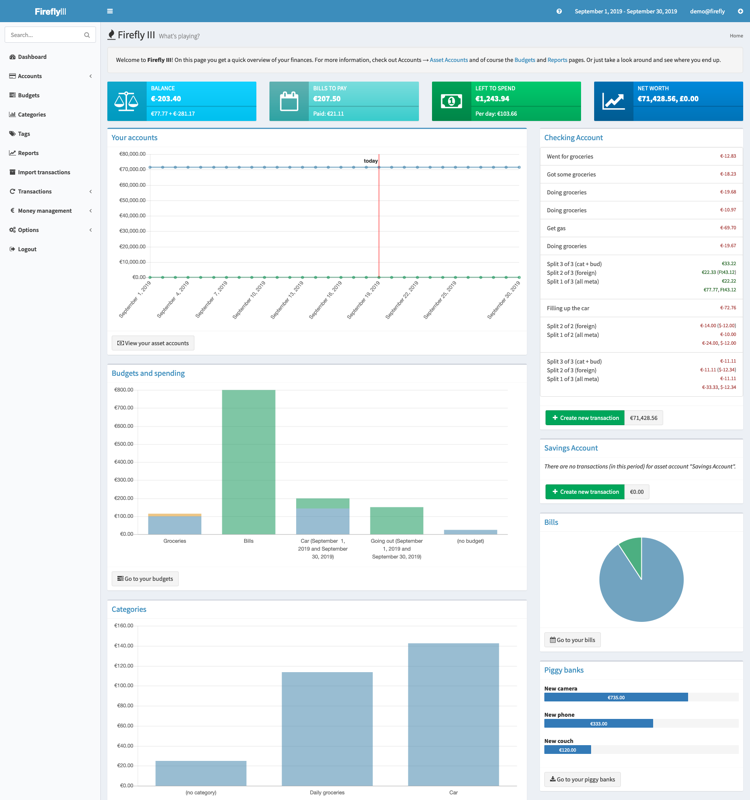
Image: the official Firefly III docs (Screenshots page, licence CC BY-SA 4.0). It is an older screenshot with demo data, so a current release looks a little different.
At a glance:
- What it is: a PHP web app with a MariaDB database, plus a small timer container for recurring jobs.
- Secrets that matter:
APP_KEY, the database password andSTATIC_CRON_TOKEN. - Cron is not built in: without the timer container, recurring transactions and auto-budgets never run.
- The Data Importer is separate: its own image, login handshake and settings.
- Platforms: Linux, Windows and Mac with Docker. Images exist for amd64 and arm64 only.
- No AI, no cloud: the project's FAQ says it will not add AI features.
How it fits together#
You use one web app. A timer container calls it every night. The optional importer talks to it through its API.

Drawn for this guide from the official compose files and docs. Dashed parts are optional.
Before you start#
You need Docker with Compose and a few GB of free disk.
Linux: Docker Engine and the Compose plugin, x86-64 or arm64, plus curl. Check:
docker --version
docker compose version
Windows: Docker Desktop with the WSL 2 backend (Linux containers). Check in PowerShell:
docker --version
docker compose version
Mac: Docker Desktop. Check in Terminal:
docker --version
docker compose version
Checklist:
- [ ] Docker and Compose answer the commands above
- [ ] Ports 8080 and 8081 are free on the machine
- [ ] You know your time zone name (for example
Europe/London); the nightly job runs at 03:00 in it - [ ] For the HTTPS section only: a domain with a DNS record for the server, and ports 80 and 443 free
Tested by DIY Lab Hub: not yet. The commands come from the official compose files, .env.example files and docs read in November 2026. We did not run them.
Step 1: Create the folder and the three settings files#
Settings live in .env (app), .db.env (database) and .importer.env (importer) in ~/docker_volumes/firefly-iii. APP_KEY must be exactly 32 characters without special characters; the blocks below use the official generator. Set the passwords now: the docs warn a database password changed after the first start is not applied.
Linux#
Edit the two variables on the first lines, then run the block:
TZ_NAME="Etc/UTC"          # for example Europe/London
OWNER_EMAIL="[email protected]"
mkdir -p ~/docker_volumes/firefly-iii/backups
cd ~/docker_volumes/firefly-iii
gen() { head /dev/urandom | LC_ALL=C tr -dc 'A-Za-z0-9' | head -c 32; }
DBPASS=$(gen)
curl -fsSLo .env https://raw.githubusercontent.com/firefly-iii/firefly-iii/v6.7.9/.env.example
curl -fsSLo .importer.env https://raw.githubusercontent.com/firefly-iii/data-importer/v2.3.5/.env.example
sed -i -e "s|^APP_KEY=.*|APP_KEY=$(gen)|" -e "s|^STATIC_CRON_TOKEN=.*|STATIC_CRON_TOKEN=$(gen)|" \
  -e "s|^DB_PASSWORD=.*|DB_PASSWORD=${DBPASS}|" -e "s|^TZ=.*|TZ=${TZ_NAME}|" \
  -e "s|^SITE_OWNER=.*|SITE_OWNER=${OWNER_EMAIL}|" -e "s|^APP_URL=.*|APP_URL=http://localhost:8080|" .env
sed -i -e "s|^FIREFLY_III_URL=.*|FIREFLY_III_URL=http://app:8080|" -e "s|^VANITY_URL=.*|VANITY_URL=http://localhost:8080|" \
  -e "s|^TZ=.*|TZ=${TZ_NAME}|" -e "s|^LOG_LEVEL=.*|LOG_LEVEL=notice|" .importer.env
printf 'MYSQL_RANDOM_ROOT_PASSWORD=yes\nMYSQL_USER=firefly\nMYSQL_PASSWORD=%s\nMYSQL_DATABASE=firefly\n' "$DBPASS" > .db.env
chmod 600 .env .db.env .importer.env
Windows (PowerShell)#
Edit the two variables on the first lines, then run the block:
$tz = "Etc/UTC"            # for example Europe/London
$owner = "[email protected]"
New-Item -ItemType Directory -Force "$HOME\docker_volumes\firefly-iii\backups" | Out-Null
Set-Location "$HOME\docker_volumes\firefly-iii"
function New-Secret { $b = New-Object byte[] 16; [Security.Cryptography.RandomNumberGenerator]::Create().GetBytes($b); -join ($b | ForEach-Object { $_.ToString('x2') }) }
$dbpass = New-Secret
$e = (Invoke-WebRequest -UseBasicParsing https://raw.githubusercontent.com/firefly-iii/firefly-iii/v6.7.9/.env.example).Content
$e = $e -replace '(?m)^APP_KEY=.*', "APP_KEY=$(New-Secret)" -replace '(?m)^STATIC_CRON_TOKEN=.*', "STATIC_CRON_TOKEN=$(New-Secret)"
$e = $e -replace '(?m)^DB_PASSWORD=.*', "DB_PASSWORD=$dbpass" -replace '(?m)^TZ=.*', "TZ=$tz"
$e = $e -replace '(?m)^SITE_OWNER=.*', "SITE_OWNER=$owner" -replace '(?m)^APP_URL=.*', 'APP_URL=http://localhost:8080'
Set-Content -Path .env -Value $e -Encoding ascii
$i = (Invoke-WebRequest -UseBasicParsing https://raw.githubusercontent.com/firefly-iii/data-importer/v2.3.5/.env.example).Content
$i = $i -replace '(?m)^FIREFLY_III_URL=.*', 'FIREFLY_III_URL=http://app:8080' -replace '(?m)^VANITY_URL=.*', 'VANITY_URL=http://localhost:8080'
$i = $i -replace '(?m)^TZ=.*', "TZ=$tz" -replace '(?m)^LOG_LEVEL=.*', 'LOG_LEVEL=notice'
Set-Content -Path .importer.env -Value $i -Encoding ascii
"MYSQL_RANDOM_ROOT_PASSWORD=yes`nMYSQL_USER=firefly`nMYSQL_PASSWORD=$dbpass`nMYSQL_DATABASE=firefly" | Set-Content -Path .db.env -Encoding ascii
Mac (Terminal)#
Same as Linux, except sed -i needs an empty suffix on a Mac. Replace each sed -i with sed -i '', and keep everything else:
TZ_NAME="Etc/UTC"          # for example Europe/London
OWNER_EMAIL="[email protected]"
mkdir -p ~/docker_volumes/firefly-iii/backups
cd ~/docker_volumes/firefly-iii
gen() { head /dev/urandom | LC_ALL=C tr -dc 'A-Za-z0-9' | head -c 32; }
DBPASS=$(gen)
curl -fsSLo .env https://raw.githubusercontent.com/firefly-iii/firefly-iii/v6.7.9/.env.example
curl -fsSLo .importer.env https://raw.githubusercontent.com/firefly-iii/data-importer/v2.3.5/.env.example
sed -i '' -e "s|^APP_KEY=.*|APP_KEY=$(gen)|" -e "s|^STATIC_CRON_TOKEN=.*|STATIC_CRON_TOKEN=$(gen)|" \
  -e "s|^DB_PASSWORD=.*|DB_PASSWORD=${DBPASS}|" -e "s|^TZ=.*|TZ=${TZ_NAME}|" \
  -e "s|^SITE_OWNER=.*|SITE_OWNER=${OWNER_EMAIL}|" -e "s|^APP_URL=.*|APP_URL=http://localhost:8080|" .env
sed -i '' -e "s|^FIREFLY_III_URL=.*|FIREFLY_III_URL=http://app:8080|" -e "s|^VANITY_URL=.*|VANITY_URL=http://localhost:8080|" \
  -e "s|^TZ=.*|TZ=${TZ_NAME}|" -e "s|^LOG_LEVEL=.*|LOG_LEVEL=notice|" .importer.env
printf 'MYSQL_RANDOM_ROOT_PASSWORD=yes\nMYSQL_USER=firefly\nMYSQL_PASSWORD=%s\nMYSQL_DATABASE=firefly\n' "$DBPASS" > .db.env
chmod 600 .env .db.env .importer.env
Check it worked. The key lines exist and the key is 32 characters (this hides the secrets):
grep -E '^(APP_KEY|STATIC_CRON_TOKEN|DB_PASSWORD|APP_URL|TZ|SITE_OWNER)=' .env | sed -E 's/^(APP_KEY|STATIC_CRON_TOKEN|DB_PASSWORD)=.*/\1=<hidden>/'
awk -F= '$1=="APP_KEY"{print length($2)}' .env
The second command must print 32. On Windows use (Get-Content .env | Where-Object { $_ -like 'APP_KEY=*' }).Length - 8, which must also be 32.
Tip: Copy
.envinto a password manager now. The.envfile callsAPP_KEYthe encryption key and the backup docs name it as something to keep. Our Vaultwarden guide shows a self-hosted one.
Step 2: Write the Compose file#
This is the official Compose file with pinned tags, restart: unless-stopped, the app on 127.0.0.1:8080 only, explicit volume and network names, and the importer behind a profile so it stays off until Step 6. The official mariadb:lts pointed to MariaDB 12.3.3 in November 2026; we pin that number.
Linux#
cd ~/docker_volumes/firefly-iii
cat > docker-compose.yml << 'EOF'
services:
  app:
    image: fireflyiii/core:version-6.7.9
    container_name: firefly_iii_core
    hostname: app
    stop_signal: SIGINT
    restart: unless-stopped
    env_file: .env
    volumes:
      - firefly_iii_upload:/var/www/html/storage/upload
    ports:
      - "127.0.0.1:8080:8080"
    networks:
      - firefly_iii
    depends_on:
      - db

  db:
    image: mariadb:12.3.3
    container_name: firefly_iii_db
    hostname: db
    restart: unless-stopped
    env_file: .db.env
    volumes:
      - firefly_iii_db:/var/lib/mysql
    networks:
      - firefly_iii

  cron:
    image: alpine:3.24.3
    container_name: firefly_iii_cron
    restart: unless-stopped
    env_file: .env
    init: true
    command: ["sh", "-c", "apk add tzdata && \
      (ln -s /usr/share/zoneinfo/$$TZ /etc/localtime || true) && \
      echo \"0 3 * * * wget -qO- http://app:8080/api/v1/cron/$$STATIC_CRON_TOKEN;echo\" \
      | crontab - && \
      exec crond -f -L /dev/stdout"]
    networks:
      - firefly_iii
    depends_on:
      - app

  importer:
    image: fireflyiii/data-importer:version-2.3.5
    container_name: firefly_iii_importer
    hostname: importer
    restart: unless-stopped
    profiles: ["importer"]
    env_file: .importer.env
    ports:
      - "127.0.0.1:8081:8080"
    networks:
      - firefly_iii
    depends_on:
      - app

volumes:
  firefly_iii_upload:
    name: firefly_iii_upload
  firefly_iii_db:
    name: firefly_iii_db

networks:
  firefly_iii:
    name: firefly_iii
    driver: bridge
EOF
Windows (PowerShell)#
The same file through a here-string:
Set-Location "$HOME\docker_volumes\firefly-iii"
@'
services:
  app:
    image: fireflyiii/core:version-6.7.9
    container_name: firefly_iii_core
    hostname: app
    stop_signal: SIGINT
    restart: unless-stopped
    env_file: .env
    volumes:
      - firefly_iii_upload:/var/www/html/storage/upload
    ports:
      - "127.0.0.1:8080:8080"
    networks:
      - firefly_iii
    depends_on:
      - db

  db:
    image: mariadb:12.3.3
    container_name: firefly_iii_db
    hostname: db
    restart: unless-stopped
    env_file: .db.env
    volumes:
      - firefly_iii_db:/var/lib/mysql
    networks:
      - firefly_iii

  cron:
    image: alpine:3.24.3
    container_name: firefly_iii_cron
    restart: unless-stopped
    env_file: .env
    init: true
    command: ["sh", "-c", "apk add tzdata && \
      (ln -s /usr/share/zoneinfo/$$TZ /etc/localtime || true) && \
      echo \"0 3 * * * wget -qO- http://app:8080/api/v1/cron/$$STATIC_CRON_TOKEN;echo\" \
      | crontab - && \
      exec crond -f -L /dev/stdout"]
    networks:
      - firefly_iii
    depends_on:
      - app

  importer:
    image: fireflyiii/data-importer:version-2.3.5
    container_name: firefly_iii_importer
    hostname: importer
    restart: unless-stopped
    profiles: ["importer"]
    env_file: .importer.env
    ports:
      - "127.0.0.1:8081:8080"
    networks:
      - firefly_iii
    depends_on:
      - app

volumes:
  firefly_iii_upload:
    name: firefly_iii_upload
  firefly_iii_db:
    name: firefly_iii_db

networks:
  firefly_iii:
    name: firefly_iii
    driver: bridge
'@ | Set-Content -Path docker-compose.yml -Encoding ascii
Mac (Terminal)#
Same file and command as Linux.
Named Docker volumes hold the database and uploads, as in the official file: the app runs as the unprivileged www-data user and may not write to a root-owned host folder. Config, secrets and backups live in ~/docker_volumes/firefly-iii.
Check it worked. Compose reads the file without errors:
docker compose config --quiet && echo OK
On Windows run the same command. It prints OK when the file is valid.
Tip: The
$$in the cron command is correct. Compose turns$$into a single$so the container's own shell readsTZandSTATIC_CRON_TOKEN. The official docs say the same.
Step 3: Start Firefly III#
Linux#
cd ~/docker_volumes/firefly-iii
docker compose up -d
docker compose ps
docker compose logs -f app
Windows (PowerShell)#
Set-Location "$HOME\docker_volumes\firefly-iii"
docker compose up -d
docker compose ps
docker compose logs -f app
Mac (Terminal)#
Same commands as Linux.
The first start downloads images and sets up the database, so it takes a few minutes. Press Ctrl+C to leave the log. The docs say Firefly III "will thank you for installing it" when it is done.
Check it worked. docker compose ps lists firefly_iii_core, firefly_iii_db and firefly_iii_cron. The app image has its own health check against /healthcheck and allows a 5-minute start period, so unhealthy in the first minutes can be normal. Then:
curl -fsS -o /dev/null http://localhost:8080/healthcheck && echo OK
On Windows use curl.exe -fsS -o NUL http://localhost:8080/healthcheck; if ($LASTEXITCODE -eq 0) { "OK" }.
Tip: Do not restart the stack over and over while it starts. Read the app and db logs first; a database password mismatch is the usual cause of start errors.
Step 4: Create the first user and turn on 2FA#
Open http://localhost:8080. The first visit shows a registration form. The first user becomes the owner, and the docs say registration is blocked after that. If Docker runs on another machine, an SSH tunnel brings the ports to your computer (the idea from our wg-easy guide).
Linux#
On the same machine, open http://localhost:8080. From another computer, keep this tunnel open:
ssh -N -L 8080:127.0.0.1:8080 -L 8081:127.0.0.1:8081 <your-user>@<your-server-address>
Windows (PowerShell)#
Same machine: open http://localhost:8080. For a remote server run the same ssh command in PowerShell (the OpenSSH client is a Windows optional feature):
ssh -N -L 8080:127.0.0.1:8080 -L 8081:127.0.0.1:8081 <your-user>@<your-server-address>
Mac (Terminal)#
Same command as Linux:
ssh -N -L 8080:127.0.0.1:8080 -L 8081:127.0.0.1:8081 <your-user>@<your-server-address>
- Register with your email and a long password from a password manager.
- Finish the wizard: currency, language and bank account names. The docs advise entering yesterday's balance, so you can create transactions from today.
- Open your profile and enable two-factor authentication. Save the eight backup codes.
Check it worked. You see the dashboard, and Accounts > Asset accounts lists your accounts.
Tip: Register before anyone else can reach the page. Until the first user exists, whoever opens the URL first can create the owner account.
Step 5: Check that the daily cron job works#
Recurring transactions, auto-budgets, bill warnings and exchange-rate updates only run when the cron job runs, and the image has no cron of its own. The cron container calls the app daily at 03:00 in your TZ. Run it once now instead of waiting:
Linux#
cd ~/docker_volumes/firefly-iii
docker compose exec cron sh -c 'wget -qO- http://app:8080/api/v1/cron/$STATIC_CRON_TOKEN; echo'
Windows (PowerShell)#
Set-Location "$HOME\docker_volumes\firefly-iii"
docker compose exec cron sh -c 'wget -qO- http://app:8080/api/v1/cron/$STATIC_CRON_TOKEN; echo'
Mac (Terminal)#
Same command as Linux.
Check it worked. The answer is JSON with "job_fired":true and "job_succeeded":true for recurring_transactions, auto_budgets, exchange_rates and bill_notifications (the docs' example, not our output). The /debug page lists "Last cron job(s)" with the time of the run.
Tip: A login page or "Unauthenticated" means the token differs from the app's. Both read
STATIC_CRON_TOKENfrom.env, exactly 32 characters; recreate withdocker compose up -d.
Step 6: Add the Data Importer (optional)#
The importer is a separate tool, not a plugin. It reads CSV and CAMT.053 files and some third-party bank services, and logs in to Firefly III with OAuth. Enable its profile with one line in .env, which Compose reads:
Linux#
cd ~/docker_volumes/firefly-iii
echo 'COMPOSE_PROFILES=importer' >> .env
docker compose up -d
docker compose ps
Windows (PowerShell)#
Set-Location "$HOME\docker_volumes\firefly-iii"
Add-Content -Path .env -Value 'COMPOSE_PROFILES=importer' -Encoding ascii
docker compose up -d
docker compose ps
Mac (Terminal)#
Same commands as Linux.
Then in Firefly III:
- Open Options > Profile > OAuth and choose "Create New Client".
- Name it
Data Importer. Set the redirect URL tohttp://localhost:8081/callback. The docs say you must always end it with/callback. - Uncheck "Confidential". The importer cannot keep a secret.
- Note the Client ID, a small number such as 3.
- Open
http://localhost:8081, enter the Client ID, authenticate, and give permission.
Check it worked. After you grant permission, the importer's start page opens with its import options.
Tip: The importer reaches Firefly III at
http://app:8080(FIREFLY_III_URL); your browser useshttp://localhost:8080(VANITY_URL).localhostinFIREFLY_III_URLwould point at the importer itself.
Put it behind HTTPS (with or without Traefik)#
Use HTTPS if Firefly III is reached over the internet or you want a padlock at home. Both routes need a domain with a DNS record for the server and free ports 80 and 443. Local-only users can skip this section.
Both routes do the same three things: the app drops its host port and joins a shared proxy network, .env gets the HTTPS address and TRUSTED_PROXIES=* (the docs say a missing value causes CSP errors and http links; * is fine here because only the proxy reaches the unpublished app), and the importer's VANITY_URL becomes the HTTPS address. Keep the importer on 127.0.0.1.
Create the network once if it is missing:
docker network create proxy
Update the settings (Linux; on Mac use sed -i ''):
cd ~/docker_volumes/firefly-iii
sed -i -e 's|^APP_URL=.*|APP_URL=https://firefly.<your-domain>|' -e 's|^TRUSTED_PROXIES=.*|TRUSTED_PROXIES=*|' .env
sed -i -e 's|^VANITY_URL=.*|VANITY_URL=https://firefly.<your-domain>|' -e 's|^TRUSTED_PROXIES=.*|TRUSTED_PROXIES=*|' .importer.env
On Windows use (Get-Content .env) -replace '^APP_URL=.*','APP_URL=https://firefly.<your-domain>' -replace '^TRUSTED_PROXIES=.*','TRUSTED_PROXIES=*' | Set-Content .env -Encoding ascii, and the same pattern for .importer.env with VANITY_URL.
With Traefik#
On a server that already runs Traefik v3 with the Docker provider, add labels and remove the host port.
This assumes an entrypoint called https; use your own name. In the app service delete the ports: lines, replace networks: and add labels::
  app:
    # ...image, env_file, volumes and depends_on as in Step 2, without the ports: lines
    networks:
      - firefly_iii
      - proxy
    labels:
      - "traefik.enable=true"
      - "traefik.docker.network=proxy"
      - "traefik.http.routers.firefly.rule=Host(`firefly.<your-domain>`)"
      - "traefik.http.routers.firefly.entrypoints=https"
      - "traefik.http.routers.firefly.tls=true"
      - "traefik.http.services.firefly.loadbalancer.server.port=8080"

networks:
  firefly_iii:
    name: firefly_iii
    driver: bridge
  proxy:
    external: true
Run docker compose up -d in ~/docker_volumes/firefly-iii.
Check it worked. curl -I https://firefly.<your-domain>/ returns an HTTP status line over HTTPS (a redirect to the login page is normal), and the browser shows a valid certificate.
Without Traefik: Caddy#
Choose this if you have no Traefik. Caddy gets and renews its own certificates.
Caddy's docs describe automatic Let's Encrypt certificates for a public domain, and tls internal for a local certificate at home. Make the same app changes as above but leave out the labels. If you already run Caddy, see our Caddy guide and only add the site block.
Create the Caddy folders:
mkdir -p ~/docker_volumes/caddy/{conf,data,config}
cd ~/docker_volumes/caddy
Save this as ~/docker_volumes/caddy/docker-compose.yml. It mounts the conf folder, not a single file, as Caddy's Docker docs advise. caddy:2.11.8 is the newest image tag on Docker Hub in November 2026 (the release page lists 2.11.9, but its image tag was not published yet):
services:
  caddy:
    image: caddy:2.11.8
    container_name: caddy
    restart: unless-stopped
    ports:
      - "80:80/tcp"
      - "443:443/tcp"
      - "443:443/udp"
    volumes:
      - ./conf:/etc/caddy
      - ./data:/data
      - ./config:/config
    networks:
      - proxy

networks:
  proxy:
    external: true
Save this as ~/docker_volumes/caddy/conf/Caddyfile for a public domain:
firefly.example.com {
    reverse_proxy firefly_iii_core:8080
}
For a home-only name, use tls internal:
firefly.home.arpa {
    tls internal
    reverse_proxy firefly_iii_core:8080
}
Start both stacks:
cd ~/docker_volumes/caddy && docker compose up -d
cd ~/docker_volumes/firefly-iii && docker compose up -d
For a home-only certificate, Caddy's docs say you install its root certificate on each device yourself. Copy it out on the Caddy machine:
docker exec caddy find /data -name root.crt
docker cp caddy:<path-from-find> ./caddy-root.crt
Import caddy-root.crt as a trusted root (these OS steps are not from the Firefly III or Caddy docs): Windows, "Trusted Root Certification Authorities"; macOS, Keychain Access with "Always Trust"; Linux, your distribution's CA store.
Windows and Mac (Docker Desktop): the YAML and Caddyfile are identical. Create the three folders, save the files with a text editor, and run the same docker compose commands.
Check it worked. curl -I https://firefly.example.com/ returns an HTTP status line over HTTPS. For a home-only name, the padlock appears only after the root is trusted on that device.
Tip: Let's Encrypt needs the DNS record to point at the server and ports 80 and 443 to reach it. A certificate error usually means the Caddyfile name differs from the DNS record.
Security and testing#
Your finances are sensitive, so the defaults matter.
| Control | How |
|---|---|
| Registration | The first visitor becomes the owner. Register at once |
| Password and 2FA | Long unique password; enable 2FA and keep the backup codes |
| Ports | Published on 127.0.0.1 only. Never forward 8080 or 8081 on your router |
| Secrets | .env, .db.env and .importer.env are chmod 600. .env supports APP_KEY_FILE; Docker secrets can need extra work because the container is not root (FAQ) |
| Cron token | The cron call puts the token in the URL, so it shows in web server logs (issue 13124; the maintainer called it "not that big of a secret"). Keep logs private |
| Audit log | Off by default; it can hold financial details if you enable it |
| Cookies | After HTTPS works, COOKIE_SECURE=true (setting exists in .env.example; our suggestion) |
| Remote user login | AUTHENTICATION_GUARD=remote_user_guard trusts a header with no checks. Use it only behind a login proxy such as our authentik guide. LDAP is no longer supported |
Tests after each change:
cd ~/docker_volumes/firefly-iii
docker compose ps
docker compose logs --tail=100 app
docker compose logs --tail=20 cron
Windows and Mac run the same commands; for HTTPS use curl -I https://firefly.<your-domain>/ (curl.exe on Windows).
Bank data and privacy#
The README says Firefly III itself never contacts outside servers until you tell it to. What can leave your machine:
| What | When it happens |
|---|---|
| Exchange rates | Off by default. If you tick "Download exchange rates from the web" at /settings/configuration, they come from a Firefly III Azure bucket (address in config/cer.php) |
Only if you set MAIL_*; the default mailer writes to the log | |
| Cron container | Runs apk add tzdata at every start, so it contacts Alpine's package mirror |
| Bank links | Only if you set up a provider in the importer: your bank login goes to the provider |
| Enable Banking IP | With ENABLE_BANKING_IMPORT_IP=autodetect the importer asks an outside service (icanhazip.com) |
| Logs | The importer's example sets LOG_LEVEL=debug; we lowered it to notice |
Importer providers, per the docs (November 2026):
| Provider | Status |
|---|---|
| CSV or CAMT.053 file | No third party. PDF will never be supported |
| Enable Banking | "Free restricted mode" for your own accounts. One docs page still says "Not yet supported" while the importer's example file has its settings, so test on a small import |
| SimpleFIN | Supported through a token from the service |
| Lunch Flow | Paid provider |
| GoCardless | Paid, and "shifting away" from this product |
| Salt Edge | Free tier ended 31 October 2025; support will be removed |
Tip: Start with a CSV or CAMT.053 export from your bank. It needs no third party and no bank login, and it shows you how the importer maps columns before you trust a bank link.
When you report a bug, never upload your CSV or CAMT file to GitHub; the docs ask you to fake names, IBANs and amounts first.
Common mistakes#
These come from the docs' warnings, the issue tracker and common AI assistant answers.
| Mistake | Why it happens | Do this instead |
|---|---|---|
| Changing the database password after the first start | It is stored in the database volume at first start. Issue 11308 (closed) reports Access denied for user 'firefly' | Set the same password in .env and .db.env before the first start. A started stack with no data worth keeping: remove containers and volumes, as the docs say |
| Switching to PostgreSQL but keeping the MariaDB mount path | Issue 9176 reports lost data after down and up | Mount /var/lib/postgresql for PostgreSQL 18 (/var/lib/postgresql/data for older), as the docs now say |
An APP_KEY that is not 32 characters, or a file path | Issue 12998 (October 2026) shows Unsupported cipher with APP_KEY=/run/secrets/app_key | Use the 32-character generator, or APP_KEY_FILE for a secret file |
No TRUSTED_PROXIES behind a reverse proxy | The app builds http links. Issue 9189 shows a page with no styles | Set TRUSTED_PROXIES=* and APP_URL to the HTTPS address |
| Running only the app container | The image has no cron, so recurring transactions never run | Keep the cron container |
STATIC_CRON_TOKEN of the wrong length | The compose comments say exactly 32 characters | Generate 32 characters, as in Step 1 |
| Using Export as a backup | The docs: "not a backup mechanism" | Back up the volumes and .env |
localhost in the importer's FIREFLY_III_URL | Inside the container it is the importer itself | Use http://app:8080, and VANITY_URL for your browser address |
The command line token or APP_KEY as the importer token | The importer's example file says both are wrong | Use a Client ID ("Confidential" unchecked) or a Personal Access Token |
| AI assistants: a wrong image name or a built-in cron | Answers mix names (fireflyiii/core is right) and claim the container schedules jobs | Copy image names and the cron container from the official compose file |
| AI assistants: LDAP, or the importer as a plugin | Old posts mention LDAP; the project says it is no longer supported and the importer is a separate tool | Use the local login or remote_user_guard, and run the importer as its own container |
Tip: Set passwords and the
APP_KEYin.envbefore the firstdocker compose up. Fixing them afterwards means wiping volumes or restoring a backup.
Tip: After any
.envchange rundocker compose up -d, notrestart. Onlyup -drecreates the container with the new values.
Tip: Before pasting a setup from a chat or blog, compare image name, port and cron job with the official compose file at the release tag you pin.
Troubleshooting#
| Problem | Solution |
|---|---|
unhealthy right after start | The image allows a 5-minute start period. Read docker compose logs app |
SQLSTATE[HY000] [1045] Access denied for user 'firefly' | Password mismatch between .env and .db.env, or changed after first start |
Unsupported cipher (AES-256-CBC) or incorrect key length | APP_KEY is not exactly 32 characters, or is a file path |
No application encryption key has been specified | APP_KEY is empty or was not read (issue 9872). Check the variable exists; do not paste its value anywhere |
| No styles, mixed content, CSP errors | Set TRUSTED_PROXIES=* and the HTTPS APP_URL, then docker compose up -d |
| 431 or 502 behind a proxy | The proxy's header or buffer size is too small (docs: 8192 or more) |
Target class [hash] does not exist after an upgrade | Docs: fresh .env, writable storage not owned by root, rm bootstrap/cache/*.php |
Allowed memory size of ... bytes exhausted | Add PHP_MEMORY_LIMIT=512M or more to .env |
permission denied on the cache folder | docker compose exec app php artisan cache:clear, or open /flush |
| Recurring transactions missing | Run the Step 5 command; check /debug for "Last cron job(s)" |
| Importer shows a 500 error | FIREFLY_III_URL must be http://app:8080 |
| Importer returns with odd errors | The OAuth redirect URL must end in /callback; open /flush |
Run these first: docker compose ps, docker compose logs --tail=200 app, docker compose logs --tail=100 db, docker inspect firefly_iii_core.
Known bugs (open, November 2026)#
- Issue 13057: on v6.7.9, creating a recurring transaction shows raw JSON. The maintainer could not reproduce it.
- Issues 13122 and 13115: Enable Banking imports can error when nothing comes back, or drop rows when two accounts at one bank share an entry reference.
Updates and backups#
Update. The docs warn an upgrade is sometimes destructive. Back up first, read the release notes, change both image tags, then:
cd ~/docker_volumes/firefly-iii
docker compose stop
docker compose pull
docker compose up -d --remove-orphans
docker compose logs --tail=100 app
This is the docs' sequence; Windows and Mac use the same commands. v6.7.9 fixed the self-hosted "Target class [hash]" error, and we found no widespread breakage report for it. Do not change the MariaDB major version in the same step: the docs warn a re-downloaded compose file may carry a database version that does not match your volume.
Back up. There is no built-in backup. Save the database, the upload volume and the settings files (with the APP_KEY). Check the volumes exist first; the docs warn Docker creates an empty one if the name is wrong.
Linux#
cd ~/docker_volumes/firefly-iii
docker volume inspect firefly_iii_db firefly_iii_upload > /dev/null
d=$(date +%F)
docker compose exec -T db sh -c 'mariadb-dump -u"$MYSQL_USER" -p"$MYSQL_PASSWORD" --single-transaction "$MYSQL_DATABASE"' > backups/firefly-db-$d.sql
docker run --rm -v firefly_iii_upload:/data:ro -v "$PWD/backups:/backup" alpine:3.24.3 tar -czf /backup/firefly-upload-$d.tar.gz -C /data .
tar -czf backups/firefly-config-$d.tar.gz .env .db.env .importer.env docker-compose.yml
chmod 600 backups/firefly-*
For a nightly run at 03:30, put these lines in a script and add a crontab entry. Copy the archives to another machine.
Windows (PowerShell)#
Set-Location "$HOME\docker_volumes\firefly-iii"
docker volume inspect firefly_iii_db firefly_iii_upload | Out-Null
$d = Get-Date -Format yyyy-MM-dd
docker compose exec -T db sh -c 'mariadb-dump -u"$MYSQL_USER" -p"$MYSQL_PASSWORD" --single-transaction "$MYSQL_DATABASE" > /tmp/firefly.sql'
docker compose cp db:/tmp/firefly.sql "backups\firefly-db-$d.sql"
docker run --rm -v firefly_iii_upload:/data:ro -v "${PWD}\backups:/backup" alpine:3.24.3 tar -czf /backup/firefly-upload-$d.tar.gz -C /data .
tar -czf "backups\firefly-config-$d.tar.gz" .env .db.env .importer.env docker-compose.yml
Schedule a saved copy with Task Scheduler. The SQL goes through a file in the container because PowerShell's > can change a dump's encoding.
Mac (Terminal)#
Same commands as Linux, with cron or launchd for the schedule.
Restore test. The docs say to restore first, before you trust a backup. Load the SQL into a throwaway MariaDB container, never over the live one:
docker run -d --name ff-restore-test -e MARIADB_RANDOM_ROOT_PASSWORD=1 -e MARIADB_DATABASE=firefly -e MARIADB_USER=firefly -e MARIADB_PASSWORD=restoretest mariadb:12.3.3
sleep 25
docker cp backups/firefly-db-<date>.sql ff-restore-test:/tmp/restore.sql
docker exec ff-restore-test sh -c 'mariadb -ufirefly -prestoretest firefly < /tmp/restore.sql'
docker exec ff-restore-test mariadb -ufirefly -prestoretest firefly -e 'SHOW TABLES;'
docker rm -f ff-restore-test
On Windows use Start-Sleep 25 and the same docker lines. The tables should include transactions and accounts.
Performance and resources#
The docs publish no memory or CPU figures, so this guide gives none. The compressed images are about 274 MB (app) and 292 MB (importer) on amd64.
- Measure:
docker statsshows CPU and memory per container. - PHP memory: the image sets
PHP_MEMORY_LIMIT=512M; raise it only if you see "Allowed memory size exhausted".
FAQ#
Is Firefly III free, and still maintained? Free under AGPL v3 and active: v6.7.9 appeared in October 2026. One developer runs it.
Does it connect to my bank automatically? No. The Data Importer imports files or uses a third-party bank service.
Can two people share one Firefly III? Each user has a separate administration, and the docs say sharing one is not possible yet.
Can it run on a Raspberry Pi? On a 64-bit system, yes (arm64). arm/v7 and arm/v6 are no longer supported.
Can I use PostgreSQL or SQLite instead? Yes, but switching later is not supported natively.
Sources#
- Firefly III v6.7.9: README,
.env.example,config/cer.php- read November 2026 - Firefly III documentation (source: github.com/firefly-iii/docs): Docker install, cron, backup, upgrade, API, multi-user, exchange rates, FAQs, debug - read November 2026
- Official compose files and tags, fireflyiii/core and fireflyiii/data-importer on Docker Hub - November 2026
- Data Importer v2.3.5 and its
.env.example- November 2026 - Docker Hub: mariadb 12.3.3, alpine 3.24.3, caddy 2.11.8 (tags checked); Caddy docs - November 2026
- GitHub issues 9176, 9189, 9872, 11308, 12998, 13057, 13115, 13122, 13124 - read November 2026
Checked against the official docs on 2026-11-05.