drawDB with Docker: a free database diagram editor you host yourself (Linux, Windows, Mac)
Before you start
- 20 min read
Boxes marked Run in terminal are what you type; plain text explains why. Check what you need first
What you get in one minute#
drawDB is a free, open-source database diagram editor that runs in your browser: you drag tables and relations onto a canvas, import an existing schema from SQL, and export clean SQL for MySQL, PostgreSQL, SQLite, MariaDB, SQL Server or Oracle.

Logo: the official drawDB project (github.com/drawdb-io/drawdb)
It is a static web app, so the Docker image is only a small nginx web server that sends the page files. Your diagrams are not stored on the server: they live in the IndexedDB of the browser you draw in. That is good for privacy and bad for backups, so this guide covers both.
| What | Value (official sources, read November 2026) |
|---|---|
| Current version | drawDB v1.9.0, released 1 November 2026 (latest) |
| Image to pin | ghcr.io/drawdb-io/drawdb:v1.9.0 (checked on the registry; the tag keeps the v) |
| Time needed | About 10 minutes for the Compose route (our estimate, not measured) |
| Size | About 30 MB compressed for linux/amd64 and for linux/arm64 (registry manifest) |
| RAM | Not documented by the project. The work happens in your browser |
| Port | 80 inside the container; we publish it as 3000 on the host |
| Licence | AGPL-3.0 (LICENSE at the release tag) |
| Official docs | drawdb-io.github.io/docs and the repository |
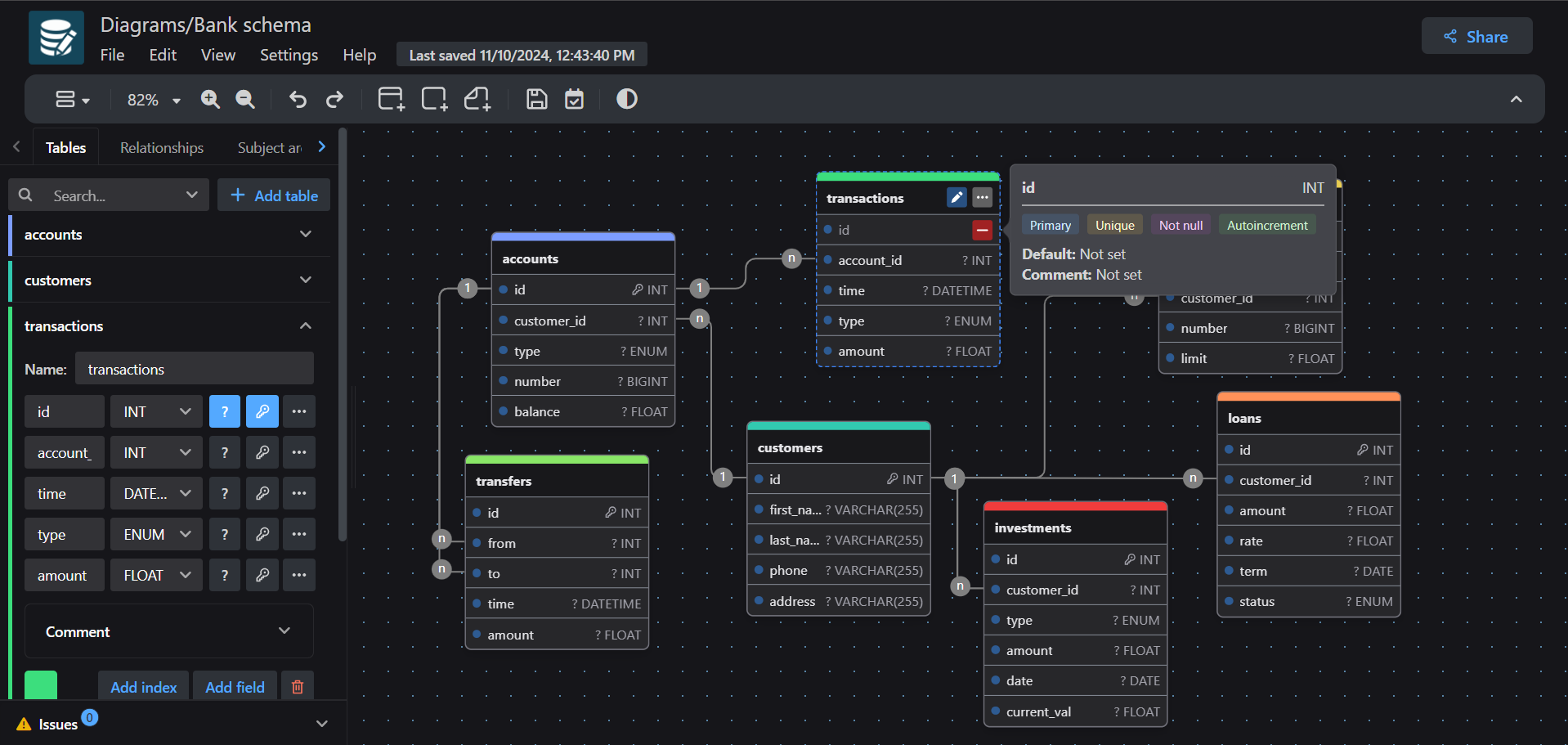
Image: the official drawDB project (README at v1.9.0). The screenshot is dated 2024, so v1.9.0 may look slightly different.
At a glance:
- What it is: an entity-relationship (ER) diagram editor with SQL, DBML and JSON import, and SQL, image, PDF, Mermaid and Markdown export.
- Where your diagrams live: in the browser (IndexedDB), per browser and per web address. Not on your server.
- No account, no login: the open-source editor needs neither. The paid drawDB Pro (cloud, teams, AI) is a separate hosted service and is not in this image.
- Status: active (v1.9.0 four days old, about 40,000 stars, not archived, not renamed).
- Optional sharing: the Share button needs a second program (
drawdb-server) and a GitHub token. You can skip it.
Related: Caddy for HTTPS, Docker on Ubuntu, and Mermaid charts for diagrams as code.
How it fits together#
Your server sends the page files once. After that the editor runs entirely in your browser and saves into the browser's own storage.

Drawn for this guide from the official Dockerfile, workflow and docs. The dashed parts are optional.
Before you start#
You need Docker with Compose on the machine that serves the page, and a browser to use it.
Linux: Docker Engine with the Compose plugin:
docker --version
docker compose version
Windows: Docker Desktop with Linux containers. Check in PowerShell:
docker --version
docker compose version
Mac: Docker Desktop (Intel or Apple silicon: the image has an arm64 build). Same check in Terminal:
docker --version
docker compose version
Checklist:
- [ ] Docker and Compose work
- [ ] Port 3000 is free on the host (change the left number in the Compose file if not)
- [ ] You know which browser you will draw in, and that its stored data is your only copy
- [ ] For the HTTPS section only: a domain name with DNS pointing at the server, and ports 80 and 443 free
Tested by DIY Lab Hub: not yet. Every command comes from the official files read in November 2026. We did not run them.
Step 1: Create the folder#
The server keeps no diagrams, so this folder only holds the Compose file and the exports you copy into it. We use ~/docker_volumes/drawdb, as all DIY Lab Hub guides do.
Linux#
mkdir -p ~/docker_volumes/drawdb/backups
cd ~/docker_volumes/drawdb
Windows (PowerShell)#
New-Item -ItemType Directory -Force "$HOME\docker_volumes\drawdb\backups" | Out-Null
Set-Location "$HOME\docker_volumes\drawdb"
Mac (Terminal)#
Same commands as Linux:
mkdir -p ~/docker_volumes/drawdb/backups
cd ~/docker_volumes/drawdb
Check it worked. ls ~/docker_volumes/drawdb (Windows: Get-ChildItem "$HOME\docker_volumes\drawdb") shows backups.
Tip: Do not add a volume for diagrams. The image has nothing to persist, and a volume gives a false feeling of safety. The backup that matters happens in the browser (see Updates and backups).
Step 2: Write the Compose file and start drawDB#
The official README shows docker run -p 3000:80. This file is that in Compose, with a pinned tag instead of latest, the port published on 127.0.0.1 only, and restart: unless-stopped. It has no version: line.
Save this as docker-compose.yml in ~/docker_volumes/drawdb:
services:
  drawdb:
    image: ghcr.io/drawdb-io/drawdb:v1.9.0
    container_name: drawdb
    restart: unless-stopped
    ports:
      - "127.0.0.1:3000:80"
Linux#
cd ~/docker_volumes/drawdb
nano docker-compose.yml
docker compose up -d
docker compose ps
docker compose logs --tail=20 drawdb
Windows (PowerShell)#
Notepad asks to create the file; say yes, and check that the name does not end in .txt.
Set-Location "$HOME\docker_volumes\drawdb"
notepad docker-compose.yml
docker compose up -d
docker compose ps
docker compose logs --tail=20 drawdb
Mac (Terminal)#
Same commands as Linux.
Check it worked. docker compose ps shows drawdb running. The page answers locally (use curl.exe on Windows):
curl -I http://127.0.0.1:3000/
curl http://127.0.0.1:3000/config.js
Expected, from the Dockerfile (we did not run it): the first call returns an HTTP 200 status line from nginx, and the second returns one line, window.__DRAWDB_CONFIG__ = { backendUrl: "", gistBackendUrl: "" };. The image ships no health check.
Tip: To reach the editor from another computer at home without HTTPS, change the port line to
"3000:80", on a network you trust only.
Step 3: Draw a table and export the SQL#
Open http://localhost:3000, choose the editor, and pick the database you will ship on (Generic, MySQL, PostgreSQL, SQLite, MariaDB, SQL Server or Oracle SQL Beta). A database-specific diagram offers that database's own types; a Generic one can export to several dialects.
- Add a table from the sidebar or toolbar, for example
users, with its fields and flags. - Add a second table,
posts, with auser_idfield. - Drag from the blue connection point on
posts.user_idtousers.id. The types must be compatible; you can change the guessed cardinality in the Relationships tab. - Export the SQL from the File menu.
The editor is a web page, so these steps are the same on every system.
Linux#
Open http://localhost:3000 in any current browser. Exports go to your Downloads folder.
Windows (PowerShell)#
Open the same address in Edge, Chrome or Firefox. To open it from PowerShell:
Start-Process "http://localhost:3000"
Mac (Terminal)#
open "http://localhost:3000"
Check it worked. The exported file has one CREATE TABLE per table and a foreign key from posts to users. Read it before you run it: the docs say check expressions go into the SQL "as written".
Tip: Draw the relation from the foreign-key field to the parent's primary key. Issue 873 reports the SQL can put the foreign key on the wrong table when it was drawn the other way round.
Step 4: Import an existing schema#
You can start from SQL you already have instead of drawing by hand. Per the docs, drawDB imports drawDB JSON and DDB files, DBML, and SQL for MySQL, PostgreSQL, SQLite, MariaDB, SQL Server and Oracle SQL. It parses the SQL, then builds tables, fields, indexes, enums and relations where the dialect gives enough information.
- Create a new diagram for the same database you are importing from.
- In the File menu choose the SQL import, then upload your
.sqlfile or paste the text. - Check the tables and fix whatever the parser could not read.
Since v1.9.0 there is also File, Import from database. drawDB shows a read-only query for your dialect; you run it in the SQL client you already use (psql, DBeaver and so on) and paste the result back. The release notes say there is no connection string, your credentials never leave your machine, and drawDB never sees row data. It works for PostgreSQL, MySQL, MariaDB, SQL Server, SQLite and Oracle.
Dump only the structure, never the rows. This command comes from PostgreSQL's own tools, not from the drawDB docs; other databases have an equivalent (for MySQL, mysqldump --no-data).
Linux#
pg_dump --schema-only --no-owner -f schema.sql <your-database>
Windows (PowerShell)#
pg_dump --schema-only --no-owner -f schema.sql <your-database>
Mac (Terminal)#
Same command as Linux.
Check it worked. The diagram shows your tables and relation lines, and the Issues panel at the bottom shows how many problems drawDB found. A schema with unusual syntax can fail to parse: see Troubleshooting.
Tip: Export a JSON of the open diagram before you import, so you can go back (see Updates and backups).
Step 5 (optional): Build the image yourself#
You do not need this for normal use. Build it to read the code first or to avoid a public registry. The README's build is docker build -t drawdb .; we check out the release tag so the result matches v1.9.0. The Dockerfile has two stages: Node 20 builds the app with a 4 GB heap setting, nginx serves the result. A small machine can still run out of memory (issue 360).
Linux#
git clone --branch v1.9.0 --depth 1 https://github.com/drawdb-io/drawdb.git
cd drawdb
docker build -t drawdb:v1.9.0 .
docker run -d --name drawdb-test -p 127.0.0.1:3001:80 drawdb:v1.9.0
Windows (PowerShell)#
Needs Git for Windows. The same lines work:
git clone --branch v1.9.0 --depth 1 https://github.com/drawdb-io/drawdb.git
Set-Location drawdb
docker build -t drawdb:v1.9.0 .
docker run -d --name drawdb-test -p 127.0.0.1:3001:80 drawdb:v1.9.0
Mac (Terminal)#
Same commands as Linux.
Check it worked. http://localhost:3001 shows the editor. Remove the test with docker rm -f drawdb-test. To use the local image in Compose, set the image: line to drawdb:v1.9.0.
Tip: Do not run
docker compose upfrom the repository's owncompose.yml, which the drawdb.app home page snippet suggests. It is a development setup that runsnpm installon every start and listens on port 5173.
Sharing, and what leaves your browser#
By default nothing leaves your browser except page requests to your own server. These features reach outside.
| Feature | What happens | Needs |
|---|---|---|
| Share link | Publishes the diagram JSON as a private GitHub Gist through a backend; the link carries a shareId. The recipient gets a copy, not a live session | drawdb-server plus a GitHub token |
| Record version | Stores versions in a gist the same way | drawdb-server plus a GitHub token |
| Bug report | Sends an e-mail through the same backend | drawdb-server plus mail settings |
| Page analytics component | src/main.jsx renders Vercel's <Analytics /> component | Nothing; see below |
Private does not mean encrypted. The docs say anyone with the Gist URL may open it, so never share secrets. Unshare invalidates a snapshot.
Without a backend, Share cannot work. The code falls back to http://localhost:5000 when no backend address is set. That is the address on the visitor's own computer, not on your server.
To enable it, run drawdb-server (MIT licence; it handles bug-report e-mail and the GitHub REST API). It has no release and no published image: run it from source with npm install and npm start. Its .env.sample lists CLIENT_URLS, PORT, GITHUB_TOKEN and mail settings. We did not run it. Then add its address to the drawDB container in Compose; the README says no rebuild is needed:
    environment:
      VITE_BACKEND_URL: "https://drawdb-server.<your-domain>"
The address must work from the browser, because the browser makes the calls. Run docker compose up -d again after the edit.
The analytics component. Vercel's docs say analytics adds routes under /_vercel/insights/* on a Vercel project; your nginx has no such route, so we expect no data to reach Vercel. We did not test it. Check your own copy in the browser's Network tab.
Put it behind HTTPS (with or without Traefik)#
For a server with a domain, put drawDB behind HTTPS at https://drawdb.<your-domain> with no host port. Local-only users can keep http://localhost:3000 and skip this. Your diagrams are stored per web address, so pick the final address early.
Run these on the Docker host. On Windows PowerShell write the paths as $HOME\docker_volumes\.... Create the shared network once:
docker network create proxy
With Traefik#
On a server that already runs Traefik v3 with the Docker provider, add labels and remove the host port. This assumes the external proxy network and an entrypoint named https; use yours. Replace the Step 2 file:
services:
  drawdb:
    image: ghcr.io/drawdb-io/drawdb:v1.9.0
    container_name: drawdb
    restart: unless-stopped
    networks:
      - proxy
    labels:
      - "traefik.enable=true"
      - "traefik.docker.network=proxy"
      - "traefik.http.routers.drawdb.rule=Host(`drawdb.<your-domain>`)"
      - "traefik.http.routers.drawdb.entrypoints=https"
      - "traefik.http.routers.drawdb.tls=true"
      - "traefik.http.services.drawdb.loadbalancer.server.port=80"

networks:
  proxy:
    external: true
If your Traefik uses a certificate resolver, add traefik.http.routers.drawdb.tls.certresolver=<your-resolver>. Start with docker compose up -d.
Check it worked. curl -I https://drawdb.<your-domain>/ returns an HTTP status line over HTTPS, and the editor opens with a valid certificate.
Without Traefik: Caddy#
Choose this if you have no Traefik. Caddy gets and renews its own certificates: Let's Encrypt for a public domain, tls internal for a local certificate at home. Our Caddy guide explains it in depth.
mkdir -p ~/docker_volumes/caddy/{conf,data,config}
cd ~/docker_volumes/caddy
Save as ~/docker_volumes/caddy/docker-compose.yml. caddy:2.11.8 is the latest Caddy release read in November 2026. We mount the conf folder, not the single Caddyfile: the Caddy image docs warn that an editor replacing the file breaks reloads.
services:
  caddy:
    image: caddy:2.11.8
    container_name: caddy
    restart: unless-stopped
    ports:
      - "80:80/tcp"
      - "443:443/tcp"
      - "443:443/udp"
    volumes:
      - ./conf:/etc/caddy
      - ./data:/data
      - ./config:/config
    networks:
      - proxy

networks:
  proxy:
    external: true
Save as ~/docker_volumes/caddy/conf/Caddyfile. For a public domain:
drawdb.example.com {
    reverse_proxy drawdb:80
}
For a home-only name, use tls internal:
drawdb.home.arpa {
    tls internal
    reverse_proxy drawdb:80
}
In ~/docker_volumes/drawdb/docker-compose.yml delete the ports: block and join the proxy network exactly as in the Traefik file (networks: under the service and the external proxy block at the bottom). Start both:
cd ~/docker_volumes/caddy
docker compose up -d
cd ~/docker_volumes/drawdb
docker compose up -d
Trust Caddy's root (home-only names). With tls internal, devices warn until they trust Caddy's own certificate authority; trust it only on devices you own.
Linux (Debian and Ubuntu style; other systems use their own CA store):
cd ~/docker_volumes/caddy
docker compose cp caddy:/data/caddy/pki/authorities/local/root.crt /tmp/caddy-root.crt
sudo cp /tmp/caddy-root.crt /usr/local/share/ca-certificates/caddy-local-root.crt
sudo update-ca-certificates
Windows (PowerShell as administrator):
Set-Location "$HOME\docker_volumes\caddy"
docker compose cp caddy:/data/caddy/pki/authorities/local/root.crt "$env:TEMP\caddy-root.crt"
certutil -addstore -f "ROOT" "$env:TEMP\caddy-root.crt"
Mac (Terminal):
cd ~/docker_volumes/caddy
docker compose cp caddy:/data/caddy/pki/authorities/local/root.crt /tmp/caddy-root.crt
sudo security add-trusted-cert -d -r trustRoot -k /Library/Keychains/System.keychain /tmp/caddy-root.crt
Firefox keeps its own store: import root.crt under Privacy and Security, Certificates.
Check it worked. curl -I https://drawdb.example.com/ returns a status line over HTTPS. For a home-only name, the browser shows a padlock only after the root is trusted.
Tip: Decide the final address before you draw anything important.
http://localhost:3000,https://drawdb.home.arpaandhttps://drawdb.example.comare three different places for the browser, each with its own empty storage.
Security and testing#
drawDB has no login. Visitors cannot see each other's diagrams, which stay in their own browsers, but anyone who reaches the page can use it. These controls matter most.
| Control | How |
|---|---|
| Who can open the page | Keep 127.0.0.1 (Step 2) or a trusted network. For a public address add a login in front |
| Login in front | Caddy basic_auth (a hashed password; the docs say plaintext is not accepted) or a single sign-on service such as our Authentik guide |
| Backend token | A GITHUB_TOKEN for drawdb-server belongs in a .env file with chmod 600, never in a diagram or a chat |
| Browser data | Your only copy of the diagrams. Export regularly |
An optional Caddy login, for a public address (use caddy hash-password to make the hash):
drawdb.example.com {
    basic_auth {
        <username> <hashed-password>
    }
    reverse_proxy drawdb:80
}
Quick tests on Linux after each change:
cd ~/docker_volumes/drawdb
docker compose ps
docker compose logs --tail=100 drawdb
curl -I https://drawdb.<your-domain>/
Windows and Mac run the curl line in PowerShell (curl.exe) or Terminal.
Common mistakes#
These come from the issue tracker, the docs' warnings and common AI assistant answers.
| Mistake | Why it happens | Do this instead |
|---|---|---|
| Expecting diagrams on the server | Diagrams live in IndexedDB. Issue 248 ("It's gone") was solved by going back to the original browser; issues 288 and 358 ask for server storage | Treat the browser as the database and export after important work |
| Changing the address after you start | Browsers store data per origin: scheme, host and port (MDN). http to https, another port or another name shows an empty editor | Pick the final address first. To move, export from the old address and import at the new one |
| Clearing site data, "Flush storage" or private windows | Flush storage "permanently removes locally saved diagrams and templates"; private-mode data is usually deleted at the end (MDN) | Export first; do not draw in a private window |
Running docker compose up from the repository | The drawdb.app home page snippet starts compose.yml, a development server on port 5173 that runs npm install on each start | Use the pinned image from Step 2, or build it as in Step 5 |
Setting VITE_BACKEND_URL and expecting Share to work | Share needs drawdb-server and a GitHub token. Issues 655 and 837 show POST /undefined/gists returning 405; issue 584 was a missing token and a bad address | Run the backend first, then set the variable to a URL your browser can reach |
| Building on a small machine or behind a mirror | Issue 360: JavaScript heap out of memory; issues 293 and 317: registry network errors | Give Docker several GB of RAM, check the network, or pull the ready image |
| Running the generated SQL without reading it | Check expressions go in "as written"; issue 873 reports a foreign key on the wrong table | Read the SQL and test it on a scratch database first |
| Using an unofficial or old image | Issue 158: a user on a third-party latest image had a bug already fixed. The project publishes on ghcr.io only (issue 131) | Pin ghcr.io/drawdb-io/drawdb:v1.9.0 |
AI assistants: inventing a Docker Hub image, adding a data volume, or using latest | Assistants guess image names and copy habits from database apps; this app is static | Use the ghcr.io image from this guide. Do not add a volume, the server holds no diagrams |
Tip: Right after your first real diagram, use Settings, "Export saved data". Open the zip once to see that your diagram is inside. A backup you have never opened is a guess.
Tip: If an assistant gives you a drawDB Compose file, check that the image is
ghcr.io/drawdb-io/drawdbwith av1.x.ytag and that there is no database service.
Tip: Behind a proxy, open the final HTTPS address, draw a test table and reload. If it survives, storage works there.
Troubleshooting#
| Problem | Solution |
|---|---|
| The editor is empty after a change of address or browser | Different storage. Go back to the old address, export, then import |
Share fails, the log shows POST /undefined/gists with 405 | No working backend address. Run drawdb-server, set VITE_BACKEND_URL and restart the container (issues 655, 837) |
The file is missing necessary properties for a diagram. | An import of a JSON export. Issue 633 (fixed) was caused by tables missing required properties. Use v1.9.0 and re-export from the source if needed |
Failed to save after importing a JSON | Open issue 1149. Export the SQL or JSON of the diagram and start a fresh one |
SQL import gives SyntaxError ... Expected ")" | A PostgreSQL default with a cast, such as DEFAULT ' '::text, was reported in issue 158 (closed). Update, or remove the cast from the script |
| PNG, JPEG, SVG or PDF export does nothing | Reported for heavy diagrams on Firefox (issue 319, open). Try another browser or export parts of the diagram |
Build error failed to resolve source metadata for docker.io/library/node:20-alpine | Network or mirror problem (issue 293, closed). Check DNS and your Docker registry mirror |
FATAL ERROR: Reached heap limit Allocation failed - JavaScript heap out of memory | Not enough RAM for the build (issue 360). Free memory or pull the ready image |
Known bugs (open, November 2026)#
- Issues 655 and 837: Share and Record version on the Docker image can fail with
/undefined/gists. - Issue 873: SQL export can put a foreign key on the wrong table.
- Issue 319: image and PDF export on heavy diagrams in Firefox.
Run docker compose ps and docker compose logs --tail=100 drawdb first. Most problems are in the browser, so read its developer tools Console and Network tabs too.
Updates and backups#
Update the server. Read the release notes, change the tag in docker-compose.yml, then:
cd ~/docker_volumes/drawdb
docker compose pull
docker compose up -d
docker compose ps
Windows (PowerShell): the same commands after Set-Location "$HOME\docker_volumes\drawdb". Mac: same as Linux. The previous release is v1.8.2. An update does not touch your diagrams; reload the page (Ctrl+F5) to get the new version.
Back up the diagrams (the part that matters). The docs describe Settings, then "Export saved data", which downloads a backup of everything stored locally. The code writes a zip with a diagrams folder and a templates folder, one JSON file per item. Do this in the browser you draw in:
- Open Settings and choose Export saved data.
- Move the zip into
~/docker_volumes/drawdb/backupsand give it a date in the name. The zip's own name looks like2026_10_3_export.zip, where the month counts from zero and the last number is a weekday, so do not read it as a date. - Copy
backupsto another machine.
For single diagrams, use File, Export, then JSON or SQL.
Linux#
Back up the Compose file and the exports, at 03:00 if you like:
cd ~/docker_volumes/drawdb
tar -czf "backups/drawdb-config-$(date +%F).tar.gz" docker-compose.yml
Schedule it with crontab -e and 0 3 * * * (cron needs % escaped as \%). Browser exports cannot be scheduled from the server. For an off-machine copy see our restic guide.
Windows (PowerShell)#
Set-Location "$HOME\docker_volumes\drawdb"
Compress-Archive -Path docker-compose.yml -DestinationPath "backups\drawdb-config-$(Get-Date -Format yyyy-MM-dd).zip"
Use Task Scheduler at 03:00 for the same line.
Mac (Terminal)#
Same commands as Linux, with crontab -e or launchd for a schedule.
Restore test. Unpack a browser backup into a new empty folder and check that your diagram is inside. To restore for real, use the File menu's import with the JSON file of a diagram, in the browser you want to use:
mkdir -p /tmp/drawdb-restore && unzip ~/docker_volumes/drawdb/backups/<your-export>.zip -d /tmp/drawdb-restore
ls /tmp/drawdb-restore/diagrams
On Windows: Expand-Archive "backups\<your-export>.zip" -DestinationPath "$env:TEMP\drawdb-restore". The docs do not describe restoring the whole zip in one step, so import the diagram files one by one and open each to check it.
Performance and resources#
The docs publish no memory or CPU figures for the container, so this guide gives none. The server only sends files; the drawing work uses your browser.
- Server load:
docker stats drawdbshows live CPU and memory; measure your own. - Big diagrams: the browser is the limit. v1.9.0 lists "Faster canvas on large diagrams"; issues 1177 and 1128 (87 tables) show where users hit limits.
- Large schemas: use subject areas (in v1.9.0 they hold their tables) to hide or show parts, or split one schema into several diagrams.
FAQ#
Is drawDB free to self-host? Yes, under AGPL-3.0. If you modify it and offer it to others over a network, the licence asks you to share your changes.
Where are my diagrams stored? In IndexedDB in your browser, per browser profile and web address. The docs tell you to export before clearing site data or moving to another browser.
Can several people edit one diagram? Not in the open-source image. Share sends a snapshot. Live collaboration and cloud storage are part of drawDB Pro, a separate hosted service.
Sources#
- drawDB release v1.9.0, README, Dockerfile, LICENSE, compose.yml, docker.yml workflow and
src/config/index.js,src/api/gists.js,src/main.jsx,src/utils/exportSavedData.jsat the same tag - read November 2026 - drawDB docs: How drawDB works, Create a database diagram, Share an OSS diagram and General settings - read November 2026
- drawDB site (FAQ, self-host snippet) and drawdb-server (README,
.env.sample, MIT licence) - read November 2026 - Image on GitHub Container Registry (tag
v1.9.0, manifest and sizes checked) - November 2026 - Caddy release v2.11.8, reverse_proxy, basic_auth and the Caddy image docs - read November 2026
- MDN: Storage quotas and eviction criteria and Vercel Web Analytics quickstart - read November 2026
- GitHub issues #131, #158, #248, #288, #293, #317, #319, #358, #360, #584, #633, #655, #837, #873, #1025, #1128, #1149, #1155, #1166, #1177 - read November 2026
Checked against the official docs on 2026-11-05.