Actual Budget with Docker: self-hosted envelope budgeting (Linux, Windows, Mac)
Before you start
- 20 min read
Boxes marked Run in terminal are what you type; plain text explains why. Check what you need first
What you get in one minute#
Actual Budget is a free, open-source envelope budgeting app that you host yourself: you give every unit of money a job in a category, and a small server keeps one budget in sync across your browser and desktop apps.

Logo: the official Actual Budget project (github.com/actualbudget/actual)
The project calls itself "a local-first personal finance tool". Your data lives on each device and the server only passes changes around, so the app works without a network. The project is active and has not been archived or renamed. The old actual-server repository was merged into the main one in February 2025, and the original paid hosted service closed in 2024, so ignore guides that mention either.
| What | Value (official docs, read November 2026) |
|---|---|
| Current version | Actual 26.11.0, released November 2026 (latest stable) |
| Image to pin | actualbudget/actual-server:26.11.0 on Docker Hub (the same image as latest in November 2026) |
| Time needed | About 15 minutes for the Compose route (our estimate, not measured) |
| Download size | About 116 MiB compressed (amd64) on Docker Hub; the -alpine variant is about 66 MiB |
| RAM | Not documented by the project; measure with docker stats |
| Port | TCP 5006 (web app and sync server) |
| Licence | MIT (LICENSE.txt at the release tag) |
| Official docs | actualbudget.org/docs and the repository |
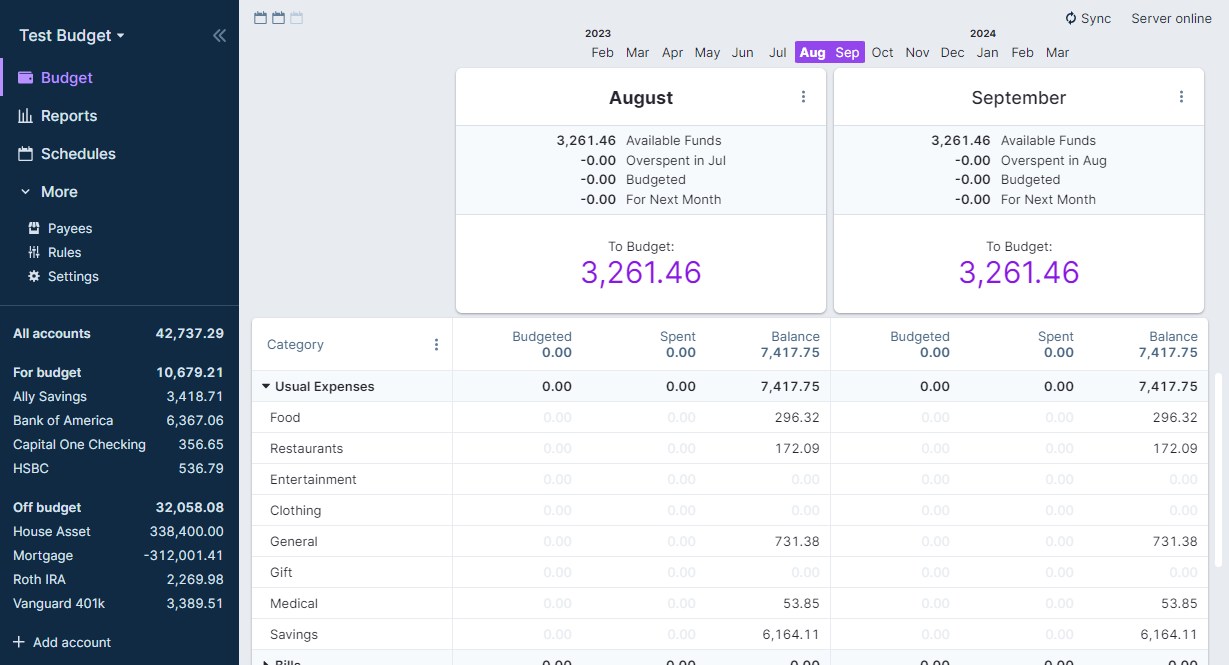
Image: the official Actual Budget project (README at v26.11.0). It shows an older look, so 26.11.0 may differ slightly.
At a glance:
- What it is: envelope (zero-sum) budgeting. Categories are the envelopes, and "To Budget" is the money still without a job.
- Server: one Docker container, one folder of data, one password. You set the password in the browser on first start.
- HTTPS is required for the browser app unless you open it as
localhost. The docs say Actual cannot run without it. - End-to-end encryption: optional, one-way, and you cannot recover your data if you forget the password.
- Bank sync: optional and third-party. You bring your own provider account, and the provider's tokens are not covered by the encryption.
- Mobile apps are deprecated. Use the web app, which you can install on a phone as a web app.
- Privacy: the project's privacy policy says nothing is collected automatically and there is no tracking.
How it fits together#
Each device keeps its own copy of the budget and syncs to your server over HTTPS. Bank sync is the only part that talks to someone else.

Drawn for this guide from the official docs and compose file. Dashed parts are optional.
Before you start#
You need a computer to run the server, Docker with Compose, and a modern browser.
| System | What to install | Notes |
|---|---|---|
| Linux server | Docker Engine and the Compose plugin | x86_64 or arm64 for the main image. The -alpine image also lists arm v7 and v6 |
| Windows | Docker Desktop | Server and browser can be the same PC |
| Mac | Docker Desktop | Intel and Apple Silicon both have an image |
Check Docker on any system:
docker --version
docker compose version
The docs ask for a recent Chrome, Firefox, Safari or Edge, because Actual needs a browser feature called SharedArrayBuffer. To install Docker, see the official Docker install pages or our Docker on Ubuntu guide.
Checklist:
- [ ] Docker and Compose work (
docker compose version) - [ ] Port 5006 is free on the server (
ss -ltn | grep 5006on Linux prints nothing) - [ ] You know where your backups will go (Step 5 and "Updates and backups")
- [ ] For the HTTPS section only: a DNS name for the server, and ports 80 and 443 free
Tested by DIY Lab Hub: not yet. The commands come from the official docs, the official compose file and the published image's own files, which we read without running them. We did not start Actual.
Step 1: Create the data folder#
Actual keeps everything in one folder, which the container sees as /data. We use ~/docker_volumes/actual, as all DIY Lab Hub guides do.
Linux#
mkdir -p ~/docker_volumes/actual/{data,backups}
chmod 700 ~/docker_volumes/actual
cd ~/docker_volumes/actual
Windows (PowerShell)#
New-Item -ItemType Directory -Force "$HOME\docker_volumes\actual\data","$HOME\docker_volumes\actual\backups" | Out-Null
Set-Location "$HOME\docker_volumes\actual"
Mac (Terminal)#
Same commands as Linux:
mkdir -p ~/docker_volumes/actual/{data,backups}
chmod 700 ~/docker_volumes/actual
cd ~/docker_volumes/actual
Check it worked. The data folder exists and is empty. The server creates server-files and user-files inside it on first start.
Tip: Keep this folder on a local disk. A network share (NFS) can break SQLite, the database Actual uses. A maintainer said exactly that in issue 4426.
Step 2: Write the Compose file and start Actual#
This is the official compose file with three changes: the image tag is pinned to 26.11.0 (the docs suggest latest), the data goes to ./data, and port 5006 is published on 127.0.0.1 only, so nobody else on your network can reach the password screen before you do. The health check is the official one.
Linux#
cd ~/docker_volumes/actual
cat > docker-compose.yml << 'EOF'
services:
  actual_server:
    image: actualbudget/actual-server:26.11.0
    container_name: actual_server
    restart: unless-stopped
    ports:
      - "127.0.0.1:5006:5006"
    volumes:
      - ./data:/data
    healthcheck:
      test: ['CMD-SHELL', 'node scripts/health-check.js']
      interval: 60s
      timeout: 10s
      retries: 3
      start_period: 20s
EOF
docker compose up -d
docker compose ps
docker compose logs --tail=50 actual_server
Windows (PowerShell)#
Set-Location "$HOME\docker_volumes\actual"
@'
services:
  actual_server:
    image: actualbudget/actual-server:26.11.0
    container_name: actual_server
    restart: unless-stopped
    ports:
      - "127.0.0.1:5006:5006"
    volumes:
      - ./data:/data
    healthcheck:
      test: ['CMD-SHELL', 'node scripts/health-check.js']
      interval: 60s
      timeout: 10s
      retries: 3
      start_period: 20s
'@ | Set-Content -Encoding ascii docker-compose.yml
docker compose up -d
docker compose ps
docker compose logs --tail=50 actual_server
Mac (Terminal)#
Same commands as Linux.
Check it worked. docker compose ps lists actual_server as running, and its status turns healthy after the first health check. The docs publish no expected log text, so read the log for errors. You can also ask the health endpoint (the health check expects the status UP):
curl -s http://127.0.0.1:5006/health
On Windows use curl.exe instead of curl.
Tip: The Docker Hub name is
actualbudget/actual-server. GitHub's registry usesghcr.io/actualbudget/actual. Both are the same software, so pick one and keep it.
Step 3: Open Actual and set the server password#
On a fresh start there is no password yet, so Actual asks you to create one. Do this straight away.
Linux#
On the server, open http://localhost:5006 in a browser. If the server has no screen, open an SSH tunnel from your own computer and leave it running:
ssh -N -L 5006:127.0.0.1:5006 <your-user>@<your-server-address>
Then open http://localhost:5006 on that computer.
Windows (PowerShell)#
If Docker runs on this PC:
Start-Process "http://localhost:5006"
For a Linux server, run the same ssh -N -L 5006:127.0.0.1:5006 <your-user>@<your-server-address> tunnel in PowerShell, then open http://localhost:5006.
Mac (Terminal)#
open http://localhost:5006
For a remote server, use the SSH tunnel command from the Linux part.
Choose a long, unique password and store it in a password manager. If you forget it, you can reset it without losing data (see Troubleshooting).
Check it worked. After you set the password you see your budget list, and Actual creates your first budget file for you.
Tip:
localhostcounts as a safe address for the browser, so plain HTTP is fine there. Openinghttp://<server-ip>:5006from another computer is not, and fails with a SharedArrayBuffer message. Use the tunnel or the HTTPS section.
Step 4: Add your accounts and install the apps you use#
Add an account with + Add account at the bottom of the sidebar. For an existing account, start with a correct opening balance on a recent date. The FAQ recommends this before you set up bank sync, because only newer transactions then arrive and reconciliation stays easy.
The browser is a full client. You can also install the web page on a device, and on a phone the installed page works offline.
Linux#
Use the browser, or the desktop app from actualbudget.org/download: Flathub, or an AppImage for x64 or arm64.
Windows (PowerShell)#
Use the browser, or install the desktop app from the Microsoft Store or the manual x64 or arm64 download on the same page.
Mac (Terminal)#
Use the browser, or download the desktop app for Intel or Apple Silicon from the same page.
In the desktop app, choose your own server on the "Where's the server?" screen and enter its URL. Do not use "Set up sync" in the desktop app: the docs warn that its built-in server beside your own can cause version mismatches.
Check it worked. A second device that logs in with the server password lists the same budget and downloads it.
Step 5: Turn on end-to-end encryption (optional)#
Encryption means the server only holds data it cannot read. It is a one-way decision, so read this before you click. It happens inside the app, so it is the same on every system.
Linux#
Open the budget in your browser or the desktop app.
Windows (PowerShell)#
Open the budget in your browser or the desktop app. No PowerShell command is needed.
Mac (Terminal)#
Open the budget in your browser or the desktop app. No Terminal command is needed.
| Question | Answer from the docs |
|---|---|
| Where do I enable it? | Open the budget, go to Settings, then the Encryption section and choose enable encryption |
| Which password? | A second one, different from the server password |
| Can I recover a forgotten password? | No. With a local copy you can reset the key, which does a sync reset and makes a new key |
| Can I turn it off? | No. Export and re-import into a new, unencrypted file instead |
| What is not covered? | The copy on each device stays unencrypted, and bank sync tokens are not covered |
Check it worked. A new device asks for the encryption password after the server password when it downloads the budget.
Tip: Write the encryption password into your password manager before you click enable. The server cannot help you if it is lost.
How envelope budgeting works in Actual#
The docs explain it in three ideas:
- Each category is a virtual envelope. You move money into it from "To Budget".
- Zero-sum: assign all income, so "To Budget" reaches zero and every unit has a job. Fixed bills such as rent get an envelope too.
- Credit cards are accounts holding negative money. A purchase lowers the category you spent from, and paying the card does not change your budget.
Read the project's envelope budgeting page and Starting Fresh guide next.
Optional: connect your bank#
Bank sync is the one feature that leaves your server, so it is off until you set it up.
| Provider | Region (per the docs) | Note |
|---|---|---|
| SimpleFIN Bridge | North America | The docs quote a paid plan, $1.50 a month or $15 a year |
| Enable Banking | Europe | Listed in the current docs |
| GoCardless BankAccountData | Europe | Not accepting new accounts |
| Akahu | New Zealand | Listed in the current docs |
| Pluggy.ai | Brazil | Listed in the current docs |
You create the provider account yourself and paste its token into Actual (for SimpleFIN: + Add account, then Link bank account with SimpleFIN). The token is stored on your server, and end-to-end encryption does not cover it.
Version 26.11 added automatic sync. It is off by default, runs only while Actual is open, and the shortest custom interval is 15 minutes. A private SimpleFIN bridge on your own network is blocked unless you list it in ACTUAL_SIMPLEFIN_ALLOWED_NETWORKS.
Tip: Skip old history on the first bank sync: set the opening balance on a recent date, then sync.
Put it behind HTTPS (with or without Traefik)#
The docs say HTTPS is needed to safely use all of Actual's features, and the browser app will not run without it unless you use localhost. Both routes give you https://budget.<your-domain> with no host port. Single-machine users can skip this section.
Both routes change the Compose file from Step 2: remove the ports: block and join the shared proxy network. Create it once:
docker network create proxy
The command is the same on Windows and Mac, and an "already exists" error is harmless.
With Traefik#
On a server that already runs Traefik v3 with the Docker provider, add labels and remove the host port. This assumes an external network called proxy and an entrypoint called https; the official examples name it websecure, so use yours.
Replace docker-compose.yml with:
services:
  actual_server:
    image: actualbudget/actual-server:26.11.0
    container_name: actual_server
    restart: unless-stopped
    volumes:
      - ./data:/data
    healthcheck:
      test: ['CMD-SHELL', 'node scripts/health-check.js']
      interval: 60s
      timeout: 10s
      retries: 3
      start_period: 20s
    networks:
      - proxy
    labels:
      - "traefik.enable=true"
      - "traefik.docker.network=proxy"
      - "traefik.http.routers.actual.rule=Host(`budget.<your-domain>`)"
      - "traefik.http.routers.actual.entrypoints=https"
      - "traefik.http.routers.actual.tls=true"
      - "traefik.http.services.actual.loadbalancer.server.port=5006"

networks:
  proxy:
    external: true
If your Traefik issues certificates through a named resolver, add the label traefik.http.routers.actual.tls.certresolver=<your-resolver>. Then run docker compose up -d in ~/docker_volumes/actual.
Check it worked. curl -I https://budget.<your-domain>/ returns an HTTP status line over HTTPS, and the browser shows a valid certificate.
Without Traefik: Caddy#
Choose this if you have no Traefik. Caddy gets and renews its own certificates. For a public domain it uses Let's Encrypt. At home, with no public domain, tls internal makes Caddy sign a local certificate. Our Caddy guide covers it in depth.
Create the Caddy folders and put the Actual Compose file from the Traefik example in place, but without the labels: block:
mkdir -p ~/docker_volumes/caddy/{conf,data,config}
cd ~/docker_volumes/caddy
On Windows use New-Item -ItemType Directory -Force "$HOME\docker_volumes\caddy\conf","$HOME\docker_volumes\caddy\data","$HOME\docker_volumes\caddy\config". Save this as ~/docker_volumes/caddy/docker-compose.yml. It mounts the conf folder, not a single file, because Caddy's Docker docs warn that single-file mounts can break reloads. 2.11.8 is the newest Caddy image tag we found in November 2026:
services:
  caddy:
    image: caddy:2.11.8
    container_name: caddy
    restart: unless-stopped
    ports:
      - "80:80/tcp"
      - "443:443/tcp"
      - "443:443/udp"
    volumes:
      - ./conf:/etc/caddy
      - ./data:/data
      - ./config:/config
    networks:
      - proxy

networks:
  proxy:
    external: true
Save one of these as ~/docker_volumes/caddy/conf/Caddyfile. The first is for a public domain (the docs' own example adds encode gzip zstd):
budget.example.com {
    encode gzip zstd
    reverse_proxy actual_server:5006
}
The second is for a home-only name. .home.arpa is reserved for home networks, so point it at your server in your router, your DNS or a hosts file:
budget.home.arpa {
    tls internal
    encode gzip zstd
    reverse_proxy actual_server:5006
}
Start both stacks:
cd ~/docker_volumes/caddy && docker compose up -d
cd ~/docker_volumes/actual && docker compose up -d
For tls internal, each device must trust Caddy's root certificate. Caddy's docs describe copying it out of the container. Run the copy on the server, then install the file on each device you own:
Linux#
cd ~/docker_volumes/caddy
docker compose cp caddy:/data/caddy/pki/authorities/local/root.crt /tmp/caddy-root.crt
sudo cp /tmp/caddy-root.crt /usr/local/share/ca-certificates/caddy-local-root.crt
sudo update-ca-certificates
Windows (PowerShell)#
Run PowerShell as administrator:
Set-Location "$HOME\docker_volumes\caddy"
docker compose cp caddy:/data/caddy/pki/authorities/local/root.crt "$env:TEMP\caddy-root.crt"
certutil -addstore -f "ROOT" "$env:TEMP\caddy-root.crt"
Mac (Terminal)#
cd ~/docker_volumes/caddy
docker compose cp caddy:/data/caddy/pki/authorities/local/root.crt /tmp/caddy-root.crt
sudo security add-trusted-cert -d -r trustRoot -k /Library/Keychains/System.keychain /tmp/caddy-root.crt
Firefox and Chrome may keep their own certificate store, so import root.crt there too. For a phone, copy the file over and install it as a CA certificate. Trust it only on devices you own.
Check it worked. curl -I https://budget.example.com/ returns a status line over HTTPS. For a home name, the browser shows a padlock once the root is trusted. Open the site by the name in the Caddyfile, not by IP address.
Tip: Let's Encrypt needs your DNS record to point at the server and ports 80 and 443 to reach it. A certificate error usually means the Caddyfile name differs from the DNS record.
Security and testing#
| Control | How |
|---|---|
| Server password | Long and unique. Set it first, before anything else can reach port 5006 |
| Port | Keep 127.0.0.1:5006, or no host port behind a proxy. Never forward 5006 on your router |
| Encryption | Optional end-to-end encryption (Step 5), kept in a password manager |
| Bank tokens | Not covered by end-to-end encryption, so protect the server and backups |
| Single sign-on | Optional OpenID: the first user to log in with it becomes the server owner, permanently. Our authentik guide shows one provider |
| Backups | Contain your whole budget: chmod 600, never in a shared folder |
Tests after each change:
cd ~/docker_volumes/actual
docker compose ps
docker compose logs --tail=100 actual_server
curl -I https://budget.<your-domain>/
On Windows use curl.exe. Remote access without opening ports is possible with a private VPN such as our wg-easy guide.
What leaves the machine: nothing by default. The privacy policy (effective January 2024) says the project collects nothing automatically. We did not capture network traffic. Bank sync contacts your provider, and Caddy or Traefik contacts Let's Encrypt for a public domain.
Common mistakes#
These come from the official docs, GitHub issues and common AI assistant answers.
| Mistake | Why it happens | Do this instead |
|---|---|---|
Opening http://<server-ip>:5006 from another computer | Actual needs HTTPS or localhost for SharedArrayBuffer; issue 1667 shows the confusion, and issue 7747 asks for a clearer warning | Use localhost via an SSH tunnel, or the HTTPS section |
Trying the nightly or edge tag, then going back to latest | A newer build migrates the budget database. Issue 6819 (closed January 2026) reports Error: Missing migration file, and the maintainer said you cannot go back | Use one or the other. Keep a backup before any non-release tag |
Putting /data on an NFS share | NFS and SQLite do not play well together. Issue 4426 (closed February 2025) is a Docker NFS volume failing | Use a local folder or bind mount |
Hitting 413 Content Too Large or PayloadTooLargeError | Actual limits uploads to 20 MB (50 MB for encrypted sync), and your proxy has its own limit. Issue 6326 (closed December 2025) reported a 413 on /sync/sync; the maintainer pointed to the FAQ, though that reporter's own cause was a browser language setting | Raise the ACTUAL_UPLOAD_* variables and the proxy's body limit, as the FAQ says, and check the browser console |
| Running as a non-root user without fixing ownership | A root-owned file in a user-owned folder gives EACCES: permission denied, open '/data/.migrate' (issue 2321, closed February 2024) | Give the same user the whole data folder, or leave the image's default user |
| Forgetting the encryption password | The server never holds it. The docs say data cannot be recovered | Store it in a password manager; keep a local copy and an export |
| Thinking encryption protects bank tokens | The current docs say bank sync tokens are stored separately on the server, unencrypted by E2EE | Protect the server and backups; use self-hosting only if you trust it |
| Copying the Traefik example from the docs | It sets certResolver: le but defines letsencrypt | Use this guide's labels or fix the name |
AI assistants: adding an ACTUAL_PASSWORD variable | Assistants copy a pattern from other apps. The image has no such variable; the password is set in the browser | Set it on first start, or reset it with the script below |
AI assistants: recommending the edge tag, the image actualbudget/actual, or PUID/PGID | Old or invented answers. The live docs say nightly, the Docker Hub image is actualbudget/actual-server, and its entrypoint is a plain init program | Pin 26.11.0 and use the compose file here |
Tip: Before you paste any compose file, check three lines: the image name, the tag and the port. Most failed installs start there.
Tip: Back up before every update, and update by changing the tag, not by trying a different channel.
Tip: When the page does not load, suspect the browser address first. Try
localhostthrough a tunnel before you change the container.
Troubleshooting#
| Problem | Solution |
|---|---|
| Page will not load, or a SharedArrayBuffer message | Use localhost or HTTPS, and a recent Chrome, Firefox, Safari or Edge. The docs list all three conditions |
Container shows unhealthy | docker inspect --format '{{json .State.Health}}' actual_server, then read docker compose logs --tail=100 actual_server |
| Forgot the server password | Reset it with the command below. No data is lost |
PayloadTooLargeError: request entity too large or 413 | Raise ACTUAL_UPLOAD_FILE_SIZE_LIMIT_MB and the sync size limits, and the proxy's limit |
| Devices stop syncing, or "Syncing has been reset" | Choose the right device and use Reset Sync in Settings, or revert the other devices when asked |
| Budget file keeps growing | Reset Sync, or export and re-import: both squeeze the history into one file |
This budget cannot be loaded with this version of the app. Make sure the app is up-to-date. | Seen after going from edge to a stable release. Follow the docs' migration repair, after you have exported every budget |
| Config option ignored | Add DEBUG=actual:config to environment: and read the log |
Resetting the server password#
The docs run a script inside the container. It asks for the new password twice:
cd ~/docker_volumes/actual
docker exec -it actual_server node /app/src/scripts/reset-password.js
The docs open a shell first and run the same script; this is the one-line form. Everyone logged in must sign in again.
Known bugs (open, November 2026)#
- Issue 9423: changes are not immediately synced between browser tabs (opened early November 2026).
- Issue 9415: an arithmetic error message, "safeNumber: can't safely perform arithmetic with number" (opened early November 2026).
Run docker compose ps, docker compose logs --tail=200 actual_server and docker inspect actual_server first.
Updates and backups#
Update. Read the release notes, back up, change the tag in docker-compose.yml, then:
cd ~/docker_volumes/actual
docker compose pull
docker compose up -d
docker compose logs --tail=100 actual_server
Windows and Mac use the same commands. Update the desktop apps too: a device with an old version may report "Update Required".
Back up, two ways. First, export from the app: Settings, then Data, then Export data. That zip is what the docs tell you to restore from. Second, copy the server folder. Stopping the container first gives a consistent copy of the database.
Linux#
cat > ~/docker_volumes/actual/backup.sh << 'EOF'
#!/usr/bin/env bash
set -euo pipefail
cd ~/docker_volumes/actual
docker compose down
mkdir -p backups
tar -czf "backups/actual-$(date +%F).tar.gz" data
chmod 600 backups/actual-*.tar.gz
docker compose up -d
EOF
chmod +x ~/docker_volumes/actual/backup.sh
To run it nightly at 03:00, run crontab -e and add this line:
0 3 * * * /bin/bash $HOME/docker_volumes/actual/backup.sh
Windows (PowerShell)#
Set-Location "$HOME\docker_volumes\actual"
docker compose down
New-Item -ItemType Directory -Force backups | Out-Null
tar -czf "backups\actual-$(Get-Date -Format yyyy-MM-dd).tar.gz" data
docker compose up -d
Save these lines as backup.ps1 and schedule it at 03:00 in Task Scheduler (a daily task that runs powershell.exe -NoProfile -File <path-to-backup.ps1>).
Mac (Terminal)#
Same script and cron line as Linux.
Restore test. Unpack one archive into a new empty folder, never over the live one, and check what is there:
mkdir -p /tmp/restore-test && tar -xzf ~/docker_volumes/actual/backups/actual-<date>.tar.gz -C /tmp/restore-test
ls /tmp/restore-test/data
You should see server-files and user-files. To restore an app export, close the budget, choose Import file on the budget list, pick Actual and select the zip. Keep a copy on another machine; our restic guide automates that.
Performance and resources#
The docs publish no RAM or CPU figures, so this guide gives none. Measure your own server:
- Live use:
docker stats actual_servershows CPU and memory. - Image size: about 116 MiB to download for amd64. The docs call the smaller
-alpineimage good for low-powered devices. - Large budgets: the budget file grows because every change is stored. Reset Sync shrinks it. Release 26.11 lists speed-ups for opening large budgets.
- Limits: uploads are 20 MB, 20 MB for sync files and 50 MB for encrypted sync files by default.
FAQ#
Is Actual Budget free? Yes, under the MIT licence. Self-hosting needs only your own server.
Is there a phone app? The docs call the mobile apps deprecated. Install the web app on your phone through HTTPS instead.
Can several people share one server? Yes, with an OpenID provider. The docs warn that two people editing the same budget at the same time can conflict.
Does it send my data to the project? The privacy policy says no data is collected automatically. Bank sync sends data to the provider you choose.
Can I skip the reverse proxy? Yes, on one machine through localhost or an SSH tunnel. Other devices need HTTPS.
Sources#
- Actual Budget release v26.11.0, README, docker-compose.yml, LICENSE.txt and desktop app icon - read November 2026
- Docs: installing Actual, Docker, server configuration, activating HTTPS, reverse proxies, OpenID, syncing and encryption, envelope budgeting, bank sync, backup and restore, password reset, SharedArrayBuffer, FAQ, privacy policy, release notes and downloads - read November 2026
- actualbudget/actual-server on Docker Hub (tag
26.11.0, same digest aslatest) and ghcr.io/actualbudget/actual - November 2026 - Caddy release v2.11.9, the caddy image on Docker Hub (tag
2.11.8) and Caddy automatic HTTPS - November 2026 - GitHub issues #1667, #2321, #4426, #6326, #6819, #7747, #9415 and #9423 - read November 2026

Checked against the official docs on 2026-11-05.