Wazuh with Docker: free security monitoring (SIEM/XDR) for your home lab (Linux, Windows, Mac)
Before you start
- 21 min read
Boxes marked Run in terminal are what you type; plain text explains why. Check what you need first
What you get in one minute#
Wazuh is a free, open-source security platform that collects logs and file-change data from your computers, checks them against detection rules and shows alerts in a web dashboard. Think of it as a security camera system for your machines: an agent on each PC or server reports in, and you see failed logins, changed system files, known-vulnerable software and misconfigurations in one place.

Logo: the official Wazuh project (wazuh.com, as shown in the wazuh-dashboard-plugins README)
It is an enterprise tool, so it is heavy: three containers (indexer, manager, dashboard) and, per the docs, 4 CPU cores and 8 GB of RAM for the Docker host. A spare mini PC or a VM is fine; a Raspberry Pi with 4 GB is not.
| What | Value (official docs, read November 2026) |
|---|---|
| Current version | Wazuh 4.14.9, released October 2026 (latest stable). 5.0.0 is still a release candidate |
| Images to pin | wazuh/wazuh-manager, wazuh/wazuh-indexer, wazuh/wazuh-dashboard, all :4.14.9 (tags checked on Docker Hub) |
| Time needed | About 30 minutes plus the image download (our estimate, not measured) |
| Host needs (single node) | 4 CPU cores, 8 GB RAM, 50 GB disk; Linux or Windows (Docker Desktop with WSL 2); AMD64 or ARM64 |
| Ports | 443 dashboard, 1514 and 1515 agents, 55000 server API, 9200 indexer API, 514/udp syslog |
| Licence | GPLv2 and Apache 2.0 (the quickstart page and the LICENSE file at the release tag) |
| Official docs | documentation.wazuh.com and github.com/wazuh/wazuh |
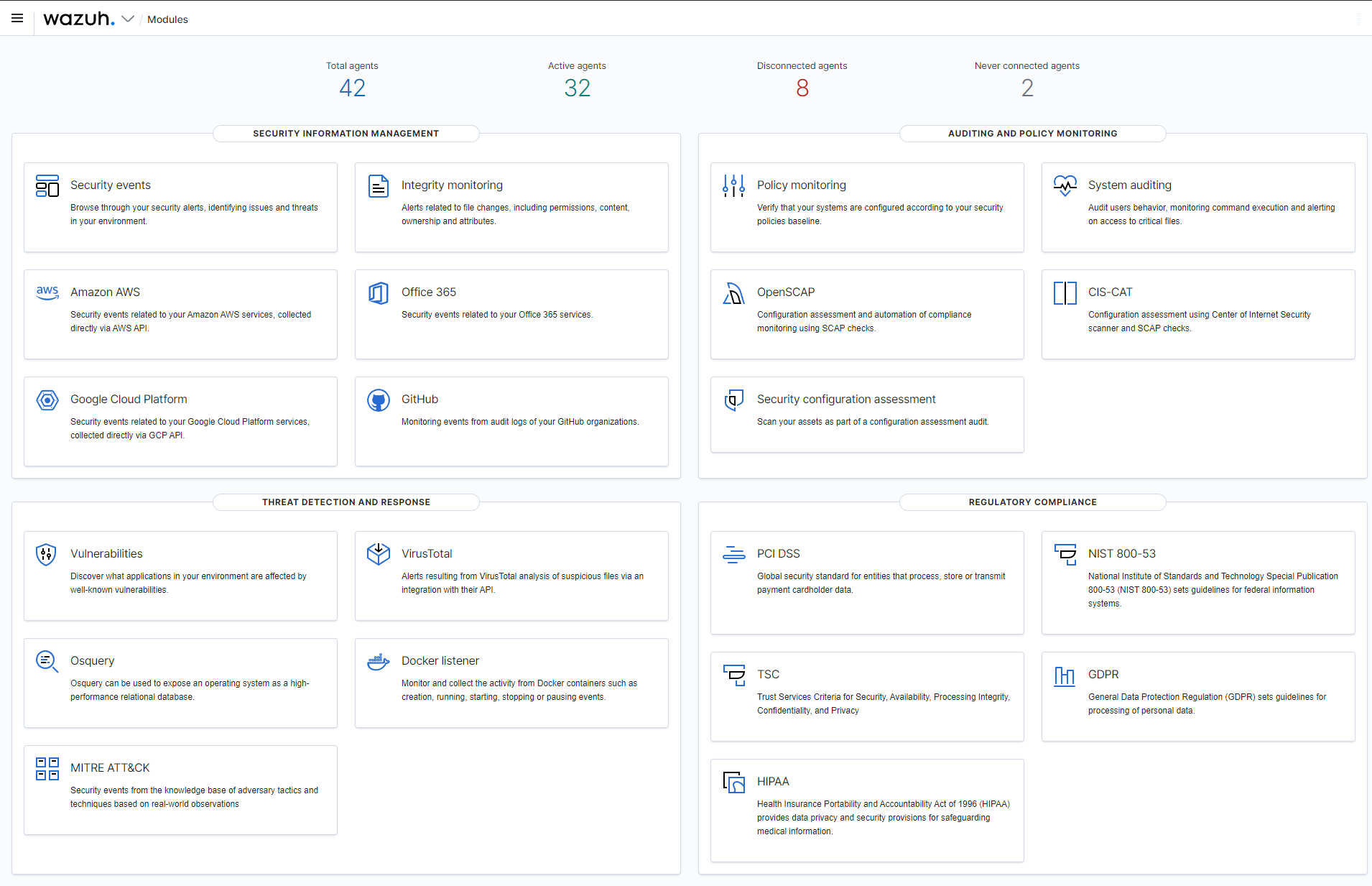
Image: the official Wazuh project (wazuh-dashboard-plugins at v4.14.9). It comes from an older release, so the 4.14.9 dashboard looks a little different.

At a glance:
- What it is: an agent on every machine, a manager that analyses events, an indexer that stores alerts and a dashboard to read them.
- Project status: active and maintained. Stable is 4.14.9; 4.14.10 and 5.0.0 are release candidates. This guide stays on 4.14.9.
- Not a firewall: Wazuh watches and alerts. To block bad IPs at your web server, use our CrowdSec guide; the two work well together.
- Passwords: the Docker files ship with public default passwords. Changing them is a required step here, not an extra.
- Platforms: the stack runs on Linux, or on Windows with Docker Desktop. macOS is not a documented host. Agents run natively on Linux, Windows and macOS.
- Privacy: everything stays on your machine. The agent talks only to your manager.
How it fits together#
Agents send events to the manager. The manager hands alerts to the indexer. You open the dashboard, which reads the indexer.

Drawn for this guide from the official single-node compose file at v4.14.9. The proxy (dashed) is optional.
Before you start#
You need one machine for the stack and, later, the machines you want to watch.
| Item | Single-node stack (official) |
|---|---|
| CPU and RAM | At least 4 cores and 8 GB for the Docker host |
| Disk | At least 50 GB for images and volumes |
| Architecture | AMD64 or ARM64 |
| OS | Linux (Docker Engine) or Windows (Docker Desktop with WSL 2) |
| Software | Docker, Docker Compose, Git |
For monitoring up to 25 agents with 90 days of alerts, the quickstart page lists 4 vCPU, 8 GiB and 50 GB. The jump to 100 agents needs 8 vCPU and 200 GB.
Linux:
docker --version
docker compose version
git --version
Windows (PowerShell): Docker Desktop must use the WSL 2 backend.
docker --version
docker compose version
git --version
Mac (Terminal): the docs list Linux and Windows hosts only. A Mac is fine as a browser and as an agent (Step 6), but run the stack on Linux or Windows.
Checklist:
- [ ] 8 GB of RAM free for Docker (close other heavy programs)
- [ ] 50 GB of free disk
- [ ] Internet access: the certificate tool downloads a script from
packages.wazuh.com - [ ] Ports 443, 1514 and 1515 free on the host
- [ ] A password manager open: you will create three new passwords
- [ ] For the HTTPS section only: a DNS record and ports 80 and 443
Tested by DIY Lab Hub: not yet. Every command comes from the official docs and raw files read in November 2026. We did not run them.
Step 1: Set vm.max_map_count on the Docker host#
The indexer needs more memory-mapped areas than Linux allows by default. The docs say the indexer can fail without this.
Linux#
sudo sysctl -w vm.max_map_count=262144
echo "vm.max_map_count=262144" | sudo tee /etc/sysctl.d/99-wazuh-max-map-count.conf
sudo sysctl --system
Windows (PowerShell)#
The docs say to run sysctl "within the WSL 2 environment". Elastic's docs (the indexer is built on the same family of software) name the Docker Desktop instance, so we use that. It is not kept after a restart of Docker Desktop.
wsl -d docker-desktop -u root
sysctl -w vm.max_map_count=262144
exit
Mac (Terminal)#
Not a documented host. Do this step on your Linux or Windows machine.
Check it worked. On Linux:
sysctl vm.max_map_count
Expected: vm.max_map_count = 262144.
Tip: On Windows, repeat this after every Docker Desktop restart. A missing setting is the classic reason the indexer will not start.
Step 2: Download the official files at the right tag and make certificates#
Wazuh keeps its Docker files in a Git repository. Clone the exact release tag, never the default branch: main is the development branch.
Linux#
mkdir -p ~/docker_volumes/wazuh
cd ~/docker_volumes/wazuh
git clone https://github.com/wazuh/wazuh-docker.git -b v4.14.9
cd wazuh-docker/single-node
docker compose -f generate-indexer-certs.yml run --rm generator
ls config/wazuh_indexer_ssl_certs
Windows (PowerShell)#
New-Item -ItemType Directory -Force "$HOME\docker_volumes\wazuh" | Out-Null
Set-Location "$HOME\docker_volumes\wazuh"
git clone https://github.com/wazuh/wazuh-docker.git -b v4.14.9
Set-Location wazuh-docker\single-node
docker compose -f generate-indexer-certs.yml run --rm generator
Get-ChildItem config\wazuh_indexer_ssl_certs
Mac (Terminal)#
Not a documented host. One open issue (number 2045) reports Permission denied from this certificate step on macOS with Colima.
Check it worked. The folder lists root-ca.pem, root-ca-manager.pem, wazuh.indexer.pem, wazuh.manager.pem, wazuh.dashboard.pem, admin.pem and the matching -key.pem files. These are self-signed certificates for traffic between the containers.
The official compose file keeps Wazuh's data in Docker named volumes, which Docker stores itself. Configuration and certificates live in the folder you just created, ~/docker_volumes/wazuh/wazuh-docker/single-node.
Tip: Never share the
configfolder. It holds the root CA private key and, after Step 5, your password hashes.
Step 3: Keep the admin ports private#
The official file publishes the indexer API (9200) and the server API (55000) on every interface, with default passwords. Only agents (1514, 1515) and your browser (443) need to reach the host. A Compose override file changes this without editing the official file. It is read automatically and needs Docker Compose 2.24.4 or newer for !override.
Linux#
cd ~/docker_volumes/wazuh/wazuh-docker/single-node
cat > docker-compose.override.yml << 'EOF'
services:
  wazuh.manager:
    ports: !override
      - "1514:1514"
      - "1515:1515"
      - "127.0.0.1:55000:55000"
  wazuh.indexer:
    ports: !override
      - "127.0.0.1:9200:9200"
EOF
docker compose config --quiet && echo "compose file OK"
This also drops the 514/udp syslog port. Add "514:514/udp" back to the manager list if you want devices to send syslog to Wazuh.
Windows (PowerShell)#
Set-Location "$HOME\docker_volumes\wazuh\wazuh-docker\single-node"
@'
services:
  wazuh.manager:
    ports: !override
      - "1514:1514"
      - "1515:1515"
      - "127.0.0.1:55000:55000"
  wazuh.indexer:
    ports: !override
      - "127.0.0.1:9200:9200"
'@ | Set-Content -Encoding utf8 docker-compose.override.yml
docker compose config --quiet; if ($?) { "compose file OK" }
Mac (Terminal)#
Not a documented host; see Step 1.
Check it worked. The command prints compose file OK. If you see an error about an unknown tag, update Docker Compose.
Tip: Docker publishes ports around host firewalls such as
ufw. Binding to127.0.0.1in the file is the reliable way to keep a port private.
Step 4: Start the stack and open the dashboard#
Linux#
cd ~/docker_volumes/wazuh/wazuh-docker/single-node
docker compose up -d
docker compose ps
Windows (PowerShell)#
Set-Location "$HOME\docker_volumes\wazuh\wazuh-docker\single-node"
docker compose up -d
docker compose ps
Mac (Terminal)#
Not a documented host. Open the dashboard from your Mac in a browser (next paragraph).
Open https://<DOCKER_HOST_IP> (or https://localhost on the same machine). The browser warns about the certificate because it is self-signed; that is expected until you add real HTTPS below. The docs give the default login: user admin, password SecretPassword.
Check it worked. The indexer needs about a minute to start. Until then the dashboard container logs Wazuh dashboard server is not ready yet, and you may see Failed to connect to Wazuh indexer port 9200. The docs call this normal. docker compose ps should show three running containers, and you can log in.
Tip: Log in once to see it work, then do Step 5 straight away. Do not leave
SecretPasswordon a machine other people can reach.
Step 5: Change the default passwords#
Three accounts matter: admin and kibanaserver (indexer users) and wazuh-wui (server API user). The docs warn that you can change only one indexer user at a time. Follow the order exactly: a changed password in the compose file alone does nothing (issue 838).
- Log out of the dashboard first, or old session cookies cause errors.
- In
docker-compose.yml, replace everySecretPassword(admin) with your new one, in both the manager and the dashboard sections. If it contains$, double it (Secret$$Password). - Stop the stack and make a hash of the new password.
- Put the hash into
config/wazuh_indexer/internal_users.yml, underadmin:(hash: "<NEW_HASH>"). - Start the stack and apply the change inside the indexer container.
Linux#
cd ~/docker_volumes/wazuh/wazuh-docker/single-node
docker compose down
docker run --rm -ti wazuh/wazuh-indexer:4.14.9 bash /usr/share/wazuh-indexer/plugins/opensearch-security/tools/hash.sh
nano config/wazuh_indexer/internal_users.yml
docker compose up -d
docker compose exec wazuh.indexer bash
Enter the new password at the hash prompt and copy the hash. Inside the indexer container, wait one to five minutes after start, then run the docs' commands:
export INSTALLATION_DIR=/usr/share/wazuh-indexer
export CONFIG_DIR=$INSTALLATION_DIR/config
CACERT=$CONFIG_DIR/certs/root-ca.pem
KEY=$CONFIG_DIR/certs/admin-key.pem
CERT=$CONFIG_DIR/certs/admin.pem
export JAVA_HOME=/usr/share/wazuh-indexer/jdk
bash /usr/share/wazuh-indexer/plugins/opensearch-security/tools/securityadmin.sh -cd $CONFIG_DIR/opensearch-security/ -nhnv -cacert $CACERT -cert $CERT -key $KEY -p 9200 -icl
exit
For wazuh-wui, change API_PASSWORD in the manager and dashboard sections of docker-compose.yml and password: in config/wazuh_dashboard/wazuh.yml, then docker compose down and docker compose up -d. The docs require 8 to 64 characters with an upper-case letter, a lower-case letter, a number and a symbol; otherwise the manager will not start.
Windows (PowerShell)#
Edit the two files in Notepad (notepad docker-compose.yml, notepad config\wazuh_indexer\internal_users.yml). The Docker commands are the same as on Linux:
docker compose down
docker run --rm -ti wazuh/wazuh-indexer:4.14.9 bash /usr/share/wazuh-indexer/plugins/opensearch-security/tools/hash.sh
docker compose up -d
docker compose exec wazuh.indexer bash
Then run the export and securityadmin.sh block from the Linux tab inside the container.
Mac (Terminal)#
Not a documented host.
Check it worked. Refresh the dashboard and log in as admin with the new password. The old one is refused.
Tip:
internal_users.ymlalso ships demo users (kibanaro,logstash,readall,snapshotrestore). The docs only walk throughadminandkibanaserver. If you do not need the others, delete their blocks before you run the apply step; custom users you want to keep must stay in that file.
Step 6: Connect your first agent#
The agent is the part that watches a machine. It talks to the manager on port 1515 once (enrolment) and then on 1514. Use the Docker host's address as <DOCKER_HOST_IP>. The manager must be the same version as the agent or newer, so install 4.14.9 agents.
Linux#
Debian and Ubuntu, as root (the docs also cover Yum, DNF and ZYpp):
curl -s https://packages.wazuh.com/key/GPG-KEY-WAZUH | sudo gpg --no-default-keyring --keyring gnupg-ring:/usr/share/keyrings/wazuh.gpg --import && sudo chmod 644 /usr/share/keyrings/wazuh.gpg
echo "deb [signed-by=/usr/share/keyrings/wazuh.gpg] https://packages.wazuh.com/4.x/apt/ stable main" | sudo tee /etc/apt/sources.list.d/wazuh.list
sudo apt-get update
sudo WAZUH_MANAGER="<DOCKER_HOST_IP>" apt-get install wazuh-agent
sudo systemctl daemon-reload
sudo systemctl enable --now wazuh-agent
Windows (PowerShell)#
Run PowerShell as administrator:
Invoke-WebRequest -Uri https://packages.wazuh.com/4.x/windows/wazuh-agent-4.14.9-1.msi -OutFile wazuh-agent-4.14.9-1.msi
msiexec.exe /i .\wazuh-agent-4.14.9-1.msi /q WAZUH_MANAGER="<DOCKER_HOST_IP>"
Start-Service wazuhsvc
Mac (Terminal)#
Apple silicon shown; for Intel use the intel64 file name (macOS Big Sur or later for Apple silicon).
curl -O https://packages.wazuh.com/4.x/macos/wazuh-agent-4.14.9-1.arm64.pkg
echo "WAZUH_MANAGER='<DOCKER_HOST_IP>'" > /tmp/wazuh_envs && sudo installer -pkg wazuh-agent-4.14.9-1.arm64.pkg -target /
sudo launchctl bootstrap system /Library/LaunchDaemons/com.wazuh.agent.plist
Check it worked. On the Docker host:
cd ~/docker_volumes/wazuh/wazuh-docker/single-node
docker compose exec wazuh.manager /var/ossec/bin/agent_control -l
Your machine appears as Active. In the dashboard, open Agents; the docs also point you there. The docs' expected format is ID: 001, Name: <host>, IP: <ip>, Active.
Tip: Do not run the agent as a container on your Docker host and expect it to watch the host. The docs say the containerized agent cannot monitor the host system. Install it natively, as above.
Put it behind HTTPS (with or without Traefik)#
The dashboard already speaks HTTPS, but with Wazuh's own certificate, so browsers warn. A reverse proxy in front gives you a trusted certificate and one clean address. Skip this section if you only use the dashboard at home and accept the warning. Both routes need a DNS name that points to the Docker host.
The dashboard listens with HTTPS on 5601 inside the container, so the proxy must connect to it over HTTPS and trust Wazuh's root CA. Both routes use the same Compose change. Replace docker-compose.override.yml with this (it keeps Step 3 and removes the dashboard's host port):
services:
  wazuh.manager:
    ports: !override
      - "1514:1514"
      - "1515:1515"
      - "127.0.0.1:55000:55000"
  wazuh.indexer:
    ports: !override
      - "127.0.0.1:9200:9200"
  wazuh.dashboard:
    ports: !reset []
    networks:
      - default
      - proxy

networks:
  proxy:
    external: true
Create the shared network once, then restart: docker network create proxy and docker compose up -d.
With Traefik#
On a server that already runs Traefik v3 (v3.7.17 is current) with the Docker and File providers. Add these labels to wazuh.dashboard in the override file, using your own entrypoint name and domain:
    labels:
      - "traefik.enable=true"
      - "traefik.docker.network=proxy"
      - "traefik.http.routers.wazuh.rule=Host(`wazuh.<your-domain>`)"
      - "traefik.http.routers.wazuh.entrypoints=https"
      - "traefik.http.routers.wazuh.tls=true"
      - "traefik.http.services.wazuh.loadbalancer.server.port=5601"
      - "traefik.http.services.wazuh.loadbalancer.server.scheme=https"
      - "traefik.http.services.wazuh.loadbalancer.serverstransport=wazuh@file"
Traefik's docs say a ServersTransport must be defined with the File provider, not labels. Copy config/wazuh_indexer_ssl_certs/root-ca.pem into the Traefik container (for example at /certs/wazuh-root-ca.pem) and add this to your dynamic configuration folder:
http:
  serversTransports:
    wazuh:
      serverName: "wazuh.dashboard"
      rootCAs:
        - "/certs/wazuh-root-ca.pem"
The certificate Wazuh's tool creates for the dashboard names wazuh.dashboard, which is why serverName is set. We read this in the tool's script; we did not run it.
Check it worked. curl -I https://wazuh.<your-domain>/ returns an HTTP status over HTTPS, and the browser shows a valid padlock.
Without Traefik: Caddy#
Choose this if you have no Traefik. Caddy gets and renews its own certificates: Let's Encrypt for a public domain, or tls internal for a local one at home.
mkdir -p ~/docker_volumes/caddy/{conf,data,config}
cp ~/docker_volumes/wazuh/wazuh-docker/single-node/config/wazuh_indexer_ssl_certs/root-ca.pem ~/docker_volumes/caddy/conf/wazuh-root-ca.pem
Save ~/docker_volumes/caddy/docker-compose.yml. It mounts the whole conf folder, because Caddy's Docker docs warn against single-file mounts. The image tag 2.11.8 exists on Docker Hub (2.11.9 was released today but was not yet published as an image):
services:
  caddy:
    image: caddy:2.11.8
    container_name: caddy
    restart: unless-stopped
    ports:
      - "80:80/tcp"
      - "443:443/tcp"
      - "443:443/udp"
    volumes:
      - ./conf:/etc/caddy
      - ./data:/data
      - ./config:/config
    networks:
      - proxy

networks:
  proxy:
    external: true
Save ~/docker_volumes/caddy/conf/Caddyfile. Caddy's docs show tls_trust_pool and tls_server_name for an HTTPS upstream you trust:
wazuh.example.com {
    reverse_proxy https://wazuh.dashboard:5601 {
        transport http {
            tls_trust_pool file /etc/caddy/wazuh-root-ca.pem
            tls_server_name wazuh.dashboard
        }
    }
}
For a home-only name, add tls internal as the first line inside the block (use a name like wazuh.home.arpa). Start it:
cd ~/docker_volumes/caddy && docker compose up -d
On Windows run the same files from $HOME\docker_volumes\caddy with Docker Desktop; on a Mac, use a Linux or Windows host. For a home-only certificate, copy Caddy's root (docker exec caddy find /data -name root.crt, then docker cp) to each device and trust it: on Windows in "Trusted Root Certification Authorities", on macOS in Keychain Access, on Linux in your CA store. Those OS steps are not from Caddy's docs.
Check it worked. curl -I https://wazuh.example.com/ returns an HTTP status line. We did not test this proxy setup, so if the login page loops, check docker logs caddy --tail 50.
Tip: Do not use
tls_insecure_skip_verifyto "make the error go away". Caddy's docs call it not recommended; the trust pool above takes two lines.
Security and testing#
A SIEM that is easy to break into is worse than none. Check these.
| Control | How |
|---|---|
| Default passwords | Changed in Step 5 for admin, kibanaserver and wazuh-wui |
| Indexer and server API | Bound to 127.0.0.1 (Step 3); never forward 9200 or 55000 on your router |
| Agent ports | 1514 and 1515 only to your own network; never forward them to the internet |
| Config folder | Holds the root CA key and hashes: readable only by you (chmod -R go-rwx config on Linux) |
| Dashboard | Only through HTTPS; the compose file sets a 15-minute session |
| Repository | Agents' package repo disabled after install, as the docs advise, so upgrades are your decision |
Tests after each change:
cd ~/docker_volumes/wazuh/wazuh-docker/single-node
docker compose ps
docker compose logs --tail=100 wazuh.manager
docker compose logs --tail=100 wazuh.indexer
curl -I https://wazuh.<your-domain>/
Windows and Mac can use curl.exe -I (PowerShell) or curl -I (Terminal) against the dashboard address; run the Docker commands in the stack folder.
What to try first#
Make a failed SSH login on a Linux agent and look in Security events a minute later. Wazuh's active response can block such a source automatically; the docs have an SSH brute-force example. We did not test it.
Common mistakes#
These come from the official docs and real reports in the wazuh-docker issue tracker.
| Mistake | Why it happens | Do this instead |
|---|---|---|
Cloning without -b v4.14.9 | The repository's default branch is development (README "Branch Convention"). Issues 2742 and 2792 show 5.0 images use other credential files | Always clone with -b v4.14.9 and use docs for the same version |
Skipping vm.max_map_count | The setting is not a Docker setting; it belongs to the kernel of the host or WSL 2 VM | Do Step 1; on Windows repeat it after Docker Desktop restarts |
| Starting with too little RAM | Issue 1699 shows wazuh.indexer exited with code 137 followed by endless "not ready yet" | Give Docker at least 8 GB; check docker stats and docker compose logs wazuh.indexer |
Leaving SecretPassword | The docs list it as the default; issue 906's author wanted to expose the dashboard publicly | Do Step 5 before anything else can reach the host |
| Changing the password only in the compose file | The indexer stores a hash. Issue 838: the password "did not get used"; maintainers say follow the full procedure | Hash it, edit internal_users.yml, run securityadmin.sh |
| Debugging the dashboard in the first minute | The docs say the indexer needs about a minute, and the log shows "not ready yet" meanwhile | Wait two minutes first. If it persists (issues 999 and 1699), read the indexer log |
| Skipping the firewall check for the certificate step | Issue 736: certificates failed when firewalld started after the Docker network existed | Restart Docker after changing the firewall, and make sure the host reaches packages.wazuh.com |
| Installing an agent newer than the manager | The docs guarantee compatibility only when the manager is the same or newer | Install 4.14.9 agents; disable the package repository after installing |
Running docker compose down -v | The uninstall docs: -v deletes all Wazuh data, configurations and logs | Use down without -v, except when you want to start fresh |
| AI assistants: mixing install routes | Assistants copy the assisted installer's random password from wazuh-passwords.txt, /var/ossec host paths or wazuh-install.sh into a Docker answer | In Docker the default is admin / SecretPassword; run manager tools with docker compose exec |
| AI assistants: suggesting 5.x or Elastic names | Assistants mention Kibana, ELASTIC_PASSWORD or 5.0 file names | Use only the 4.14.9 file names in this guide |
Tip: After every change, read
docker compose logs --tail=100 wazuh.managerfirst. Most configuration mistakes print a clear line there.
Tip: Back up
config/before you edit it. The password change touches several files, and one wrong edit can lock you out.
Tip: Alerts keep growing. Plan disk space before you add many agents, not after the indexer fills it.
Troubleshooting#
| Problem | Solution |
|---|---|
Wazuh dashboard server is not ready yet | Wait two minutes. Still there? docker compose logs wazuh.indexer --tail 100; check RAM and vm.max_map_count |
wazuh.indexer exited with code 137 | The process was killed; low memory is a common cause (our reading). Raise Docker's memory or close programs |
| Browser certificate warning | Expected with Wazuh's self-signed certificate. Use the HTTPS section for a trusted one |
Agent shows Never connected | Check the host address, ports 1514 and 1515 (Test-NetConnection <DOCKER_HOST_IP> -Port 1514 on Windows), and the agent log |
Permission denied during certificate creation | Reported on macOS with Colima (issue 2045, open). Use a Linux or Windows host |
| Certificate step cannot download the tool | The generator fetches wazuh-certs-tool.sh from packages.wazuh.com; check internet and firewall |
| Manager will not start after a password change | The wazuh-wui password must be 8 to 64 characters with upper, lower, number and symbol |
maximum shards open [1000]/[1000] | Issue 1437 (open). A community workaround raises cluster.max_shards_per_node; the real fix is an index retention policy (see the docs' index lifecycle management page) |
| Config error after cloning another tag | Issue 2079 (open) shows ossec.conf errors on a v4.14.1 clone; our reading: files and images came from different versions. Re-clone the tag you pin |
Diagnostics:
docker compose ps
docker compose logs --tail=100 wazuh.manager
docker compose logs --tail=100 wazuh.indexer
docker compose logs --tail=100 wazuh.dashboard
docker stats --no-stream
Known bugs (open, November 2026)#
- Issue 2771: the 4.14 manager and agent images have no
difftool, so file integrity monitoring withreport_changesnever shows what changed. - Issue 2045: certificate creation fails on macOS with Colima.
- Issue 1437: the 1,000-shard limit can stop the dashboard from starting on a long-running stack.
Updates and backups#
Update. Read the release notes first. The docs' default route replaces the Compose files with the new tag's. Back up, then:
cd ~/docker_volumes/wazuh/wazuh-docker/single-node
docker compose down
git fetch --all --tags
git checkout v<NEW_VERSION>
docker compose up -d
The docs say data and certificates stay in volumes. Keep your override file and passwords: if git checkout refuses because you edited tracked files, stash or copy your edits first. Wait for a stable release; today's candidates (4.14.10 and 5.0.0) are not for production.
Back up. The official file has no backup tool, so we use Docker's own volume-backup pattern. This stops the stack briefly, saves every Wazuh volume and the config folder:
cd ~/docker_volumes/wazuh/wazuh-docker/single-node
mkdir -p ~/docker_volumes/wazuh/backups
docker compose down
for v in $(docker volume ls -q --filter "label=com.docker.compose.project=single-node"); do
  docker run --rm -v "$v":/data:ro -v ~/docker_volumes/wazuh/backups:/backup alpine:3.23 tar czf "/backup/$v-$(date +%F).tar.gz" -C /data .
done
tar czf ~/docker_volumes/wazuh/backups/wazuh-config-$(date +%F).tar.gz config docker-compose.override.yml
chmod 600 ~/docker_volumes/wazuh/backups/*.tar.gz
docker compose up -d
The project name is the folder name (single-node). Run it weekly, not nightly: the stack is down while it runs. On Linux a cron job at 03:00 works. The archives hold keys and hashes, so copy them to another machine and never to a shared folder.
Restore test. Unpack one archive into a throw-away volume and list it:
docker volume create restore-test
docker run --rm -v restore-test:/data -v ~/docker_volumes/wazuh/backups:/backup alpine:3.23 tar xzf /backup/<volume-archive>.tar.gz -C /data
docker run --rm -v restore-test:/data alpine:3.23 ls /data
docker volume rm restore-test
Windows (PowerShell)#
The same idea in PowerShell (not run by us). Windows Task Scheduler can repeat it weekly:
Set-Location "$HOME\docker_volumes\wazuh\wazuh-docker\single-node"
$backup = "$HOME\docker_volumes\wazuh\backups"
New-Item -ItemType Directory -Force $backup | Out-Null
docker compose down
foreach ($v in docker volume ls -q --filter "label=com.docker.compose.project=single-node") {
  docker run --rm -v "${v}:/data:ro" -v "${backup}:/backup" alpine:3.23 tar czf "/backup/$v-$(Get-Date -Format yyyy-MM-dd).tar.gz" -C /data .
}
docker compose up -d
Mac (Terminal)#
Not a documented host.
Performance and resources#
- Documented needs: 4 cores, 8 GB RAM and 50 GB disk for a single node. We did not measure idle use, so we give no RAM figure of our own.
- Heap: the compose file starts the indexer with a 1 GB heap (
-Xms1g -Xmx1g). The tuning page recommends half the system RAM with both values equal, for example 4 GB on an 8 GB host. ChangeOPENSEARCH_JAVA_OPTSindocker-compose.ymlonly after the stack is stable. - Download size: the manager image is about 1.0 GB, the indexer about 1.1 GB and the dashboard about 0.5 GB (compressed, from Docker Hub).
- Watch it:
docker statsshows live CPU and memory per container. - Scaling: for more than 100 agents the docs recommend a distributed deployment; the multi-node stack needs 16 GB and 100 GB.
FAQ#
Is Wazuh free? Yes. The docs say its components follow the GPL version 2 and the Apache License 2.0. There is also a paid cloud and support service, which you do not need here.
Is Wazuh the same as CrowdSec? No. CrowdSec reads web logs and blocks bad IPs; Wazuh watches your machines for changes, logins and vulnerabilities. See our CrowdSec guide. Use both if you want blocking and visibility.
Can I run it on a Raspberry Pi? ARM64 is supported, but the docs ask for 8 GB of RAM. A Pi with less is not advised.
Does it need a GPU? No. The docs do not mention one.
Does Wazuh send my data to the project? The docs describe no telemetry for the Docker stack, but we did not inspect network traffic. Agents report only to your manager.
Can I use a Mac as the server? The docs list Linux and Windows. Use a Mac as an agent and a browser, and see our Caddy guide for HTTPS.
Sources#
- Wazuh release v4.14.9, README and LICENSE - read November 2026
- wazuh-docker at v4.14.9 (README,
single-node/docker-compose.yml,generate-indexer-certs.yml,config/files) - read November 2026 - Wazuh Docker deployment, changing the default password, upgrading and uninstalling - read November 2026
- Quickstart (hardware and licence), Wazuh indexer tuning and the agent pages for Linux, Windows and macOS - read November 2026
- Docker Compose merge and override and volume backups - read November 2026
- Caddy reverse_proxy and Caddy release v2.11.9; Traefik ServersTransport and Docker labels - read November 2026
- Elastic: install Elasticsearch with Docker (WSL 2 setting) - read November 2026
- wazuh-docker issues #736, #838, #906, #999, #1437, #1699, #2045, #2079, #2742, #2771, #2792 - read November 2026
Checked against the official docs on 2026-11-05.