Agent Zero with Docker: a self-hosted AI agent with its own Linux computer (Linux, Windows, Mac)
Before you start
- 20 min read
Boxes marked Run in terminal are what you type; plain text explains why. Check what you need first
What you get in one minute#
Agent Zero is a free, open-source AI agent that works inside its own Linux computer in a Docker container: you chat with it in a web page, and it runs shell commands, browses the web, edits documents and remembers things, while you watch.
Logo: the official Agent Zero project (github.com/agent0ai/agent-zero)
The project calls it "an open agent framework for work that needs more than chat", with a browser, projects, skills, plugins and an optional bridge back to your real computer. This guide installs the safest form: one container, one mounted data folder, a login, and a model you choose, which can be a local one from Ollama (see our Ollama guide). For a coding-only agent, compare OpenHands.
| What | Value (official docs, read October 2026) |
|---|---|
| Current version | v2.14, released 13 October 2026 (latest) |
| Image to pin | agent0ai/agent-zero:v2.14 (tag checked on Docker Hub; Linux amd64 and arm64) |
| Licence | MIT (LICENSE in the repository) |
| Time needed | About 30 minutes plus the download (our estimate, not measured) |
| Download size | Image about 3.1 GB compressed on amd64, 2.7 GB on arm64 (Docker Hub). Unpacked size not measured |
| RAM and disk | The docs' server page: 2 GB RAM, 1 vCPU, 20 GB disk minimum; 4+ GB, 2+ vCPU, 50+ GB recommended |
| Ports | Web page on container port 80. This guide publishes it on 127.0.0.1:5080 only |
| Official docs | github.com/agent0ai/agent-zero and its docs/ folder |
At a glance:
- What it is: a web page plus an agent that has a full Linux system, a browser and a desktop inside one container.
- Where it can write: its own container, plus the one folder you mount (
/a0/usr). Nothing else on your disk. - Local models: supported through Ollama, LM Studio, llama.cpp, vLLM and oMLX. Small models often fail at tool use (see Common mistakes).
- Privacy: the first-run wizard offers cloud keys, account sign-in and local models. Choose local to keep prompts on your machine.
- Honest limit: the agent can run any command in its container and reach every network place your computer can reach. Treat it like a stranger with a keyboard.
How it fits together#
Your browser talks to one container on 127.0.0.1:5080. The container reads and writes one data folder and sends prompts to the model. The dashed boxes are optional and add risk.

Drawn for this guide from the official README and installation docs. Dashed means optional.
Before you start#
Agent Zero offers three official routes:
| Route | What it does | Our view |
|---|---|---|
| Docker and Compose (this guide) | You see every flag and pin the version | Start here |
| A0 Launcher (desktop app) | Checks Docker and manages instances | Fine on a personal computer; not covered |
A0 Install (terminal installer from bash.agent-zero.ai or ps.agent-zero.ai) | Downloads a script and runs it in your shell | Official, but read the script first; not used here |
Linux: Docker Engine with the Compose plugin (the server page asks for Docker Engine 24.0 or newer), an x86_64 or arm64 machine.
docker --version
docker compose version
Windows: Docker Desktop for Windows, started, with PowerShell.
docker --version
docker compose version
Mac: Docker Desktop for Mac (Apple silicon or Intel), started. The docs add one Mac setting: in Docker Desktop go to Settings, then Advanced, and enable "Allow the default Docker socket to be used (requires password)".
docker --version
docker compose version
Checklist:
- [ ] Docker running (
docker psshows a table, not an error) - [ ] Port 5080 free on your computer
- [ ] About 10 GB of free disk for the image and a few chats (more with local models)
- [ ] A model plan: local Ollama (Step 4) or a hosted provider key
- [ ] For the HTTPS section only: a domain with a DNS record and ports 80 and 443 free
Tested by DIY Lab Hub: not yet. The commands come from the official README, installation guide and server guide at the v2.14 tag, read in October 2026. The Compose file is our translation of the official docker run command. We did not run it.
Step 1: Create the folders#
Everything lives under ~/docker_volumes/agent-zero. The usr folder is the only part of your disk the agent will see. The docs say to map /a0/usr, and never the whole /a0.
Linux#
mkdir -p ~/docker_volumes/agent-zero/{usr,backups}
cd ~/docker_volumes/agent-zero
Windows (PowerShell)#
New-Item -ItemType Directory -Force -Path "$HOME\docker_volumes\agent-zero\usr", "$HOME\docker_volumes\agent-zero\backups" | Out-Null
Set-Location "$HOME\docker_volumes\agent-zero"
Mac (Terminal)#
Same commands as Linux:
mkdir -p ~/docker_volumes/agent-zero/{usr,backups}
cd ~/docker_volumes/agent-zero
Check it worked. ls -d ~/docker_volumes/agent-zero/usr (Linux, Mac) or Test-Path "$HOME\docker_volumes\agent-zero\usr" (Windows, prints True).
Tip: Put nothing private in this folder. Chats, memory, settings and secrets all land here, and the agent reads all of it. Never your home folder, never a folder with SSH keys or password exports.
Step 2: Set a login, write the Compose file and start Agent Zero#
Anyone who can open the page can give the agent commands, so set a login first. The page checks two variables: AUTH_LOGIN (the user name, not true) and AUTH_PASSWORD. Login is required whenever AUTH_LOGIN is not empty. We pass them through a .env file next to the Compose file. Use letters and digits in the password: the docs warn against ', ", \ and $. A random hex string is safe.
The Compose file maps the official docker run -p 80:80 -v a0_usr:/a0/usr to a bind mount in ~/docker_volumes. It also keeps two lines from the project's own Compose file: ulimits (many open files) and extra_hosts (so the container can reach Ollama on your computer as host.docker.internal).
Linux#
cd ~/docker_volumes/agent-zero
(umask 077; printf 'AUTH_LOGIN=agentzero\nAUTH_PASSWORD=%s\n' "$(openssl rand -hex 16)" > .env)
cat > docker-compose.yml << 'EOF'
services:
  agent-zero:
    image: agent0ai/agent-zero:v2.14
    container_name: agent-zero
    restart: unless-stopped
    ports:
      - "127.0.0.1:5080:80"
    env_file:
      - .env
    volumes:
      - ./usr:/a0/usr
    ulimits:
      nofile:
        soft: 65535
        hard: 65535
    extra_hosts:
      - "host.docker.internal:host-gateway"
EOF
docker compose up -d
docker compose ps
Read your password once and store it in a password manager: grep AUTH_PASSWORD .env.
Windows (PowerShell)#
Create the login file, then the Compose file with an editor (save as UTF-8):
Set-Location "$HOME\docker_volumes\agent-zero"
$b = New-Object byte[] 16
[Security.Cryptography.RandomNumberGenerator]::Create().GetBytes($b)
$pw = ($b | ForEach-Object { $_.ToString('x2') }) -join ''
"AUTH_LOGIN=agentzero`nAUTH_PASSWORD=$pw" | Set-Content -Encoding ascii .env
notepad docker-compose.yml
Paste the YAML from the Linux block into Notepad and save. Then:
docker compose up -d
docker compose ps
Read your password once with Get-Content .env and store it in a password manager.
Mac (Terminal)#
Same commands as Linux (the printf line, the cat > docker-compose.yml block, then docker compose up -d). On a Mac, openssl is already installed.
Check it worked. The first start downloads the image, so wait a few minutes. docker compose ps shows agent-zero as running. Then:
curl -I http://localhost:5080/
On Windows use curl.exe -I http://localhost:5080/. The docs' server page expects HTTP/1.1 302 FOUND with Location: /login when a login is set (their example uses another port). "Connection refused" in the first minute usually means it is still starting.
Tip: The login is stored in the container's environment. If you later change it in Settings, Authentication, the page writes it to
usr/.envinside your data folder, and by our reading of the code that file wins over the Compose.env. Change it in one place only.
Step 3: Open the page and finish first-run setup#
Linux#
xdg-open http://localhost:5080
Windows (PowerShell)#
Start-Process "http://localhost:5080"
Mac (Terminal)#
open http://localhost:5080
Log in with agentzero and your password. On the welcome screen send a message. If no model is set up yet, Agent Zero holds the message and offers Cloud, Account (sign in with a ChatGPT, GitHub, Google or xAI account) or Local. Choose Local to keep everything on your computer.
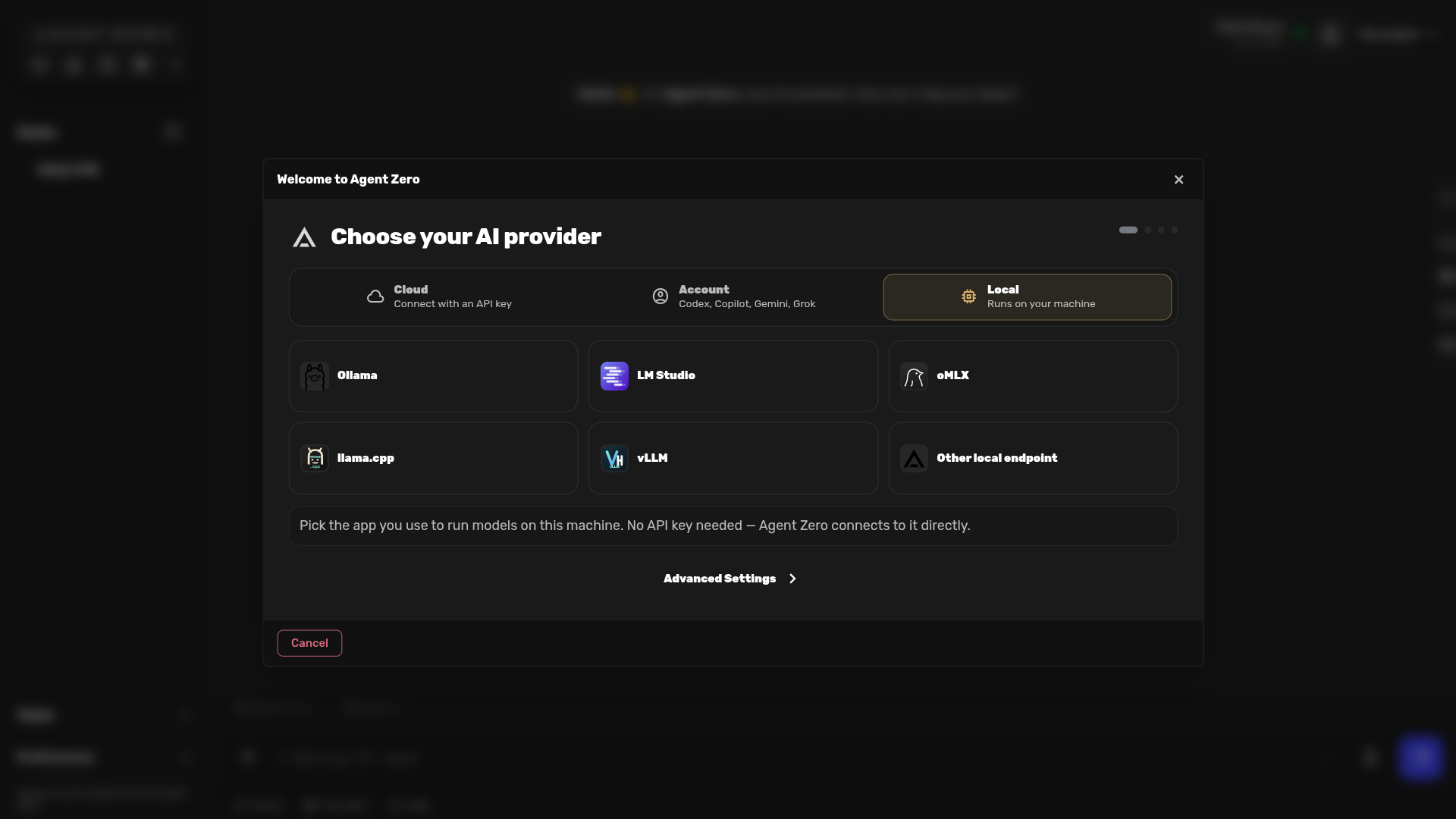
Image: the official Agent Zero docs (First-Run Onboarding)
The wizard asks for a main model (chat and tool use) and a utility model (summaries and memory). The docs say utility models of about 4B often fail at memory work. The built-in embedding model runs on your CPU, and changing it later re-indexes all memory.
Check it worked. The page shows the dashboard and a New Chat button, and the wizard's last screen says setup is done.
Step 4: Connect a local model with Ollama#
Inside the container, localhost means the container itself. Agent Zero's default Ollama address is therefore http://host.docker.internal:11434, and Ollama must listen on an address Docker can reach, not just 127.0.0.1. The commands come from Ollama's FAQ; for a full install see our Ollama guide.
The docs' examples use gpt-oss:20b. The Ollama library lists it as a 14 GB download with tool support that runs "on systems with as little as 16GB memory". Ollama's default context is 4096 tokens (its FAQ), small for an agent. We use 32768: our choice, not from the Agent Zero docs.
Linux#
curl -fsSL https://ollama.com/install.sh | sh
sudo systemctl edit ollama.service
In the editor add these lines, save, then restart:
[Service]
Environment="OLLAMA_HOST=0.0.0.0:11434"
Environment="OLLAMA_CONTEXT_LENGTH=32768"
sudo systemctl daemon-reload
sudo systemctl restart ollama
ollama pull gpt-oss:20b
Windows (PowerShell)#
Download and run OllamaSetup.exe from ollama.com/download. Ollama on Windows reads your user environment variables (its FAQ). setx is our shortcut for the Settings screen it describes. Quit Ollama from the tray, set the variables, start Ollama again from the Start menu, then pull:
setx OLLAMA_HOST "0.0.0.0:11434"
setx OLLAMA_CONTEXT_LENGTH "32768"
ollama pull gpt-oss:20b
Mac (Terminal)#
brew install ollama
launchctl setenv OLLAMA_HOST "0.0.0.0:11434"
launchctl setenv OLLAMA_CONTEXT_LENGTH "32768"
Quit and restart the Ollama app, then:
ollama pull gpt-oss:20b
If you started Ollama yourself with ollama serve, put the variables in front of that command instead.
Now tell Agent Zero. In the page open Settings, choose Ollama as the provider for the Chat model and the Utility model, and enter the model name without a prefix: gpt-oss:20b. Leave the API URL empty (the default is http://host.docker.internal:11434). Click Save.
| Field | Value |
|---|---|
| Provider | Ollama |
| Model name | gpt-oss:20b (name only, as Ollama serves it) |
| API URL | empty, or http://host.docker.internal:11434 |
| Utility model | Same provider; a very small model may fail at memory work |
Check it worked. On your computer curl http://127.0.0.1:11434/api/tags lists the model (Windows: curl.exe). In Agent Zero a short message such as "Say hello and tell me what tools you have" gets an answer. Then run ollama ps to see the model loaded.
Tip:
OLLAMA_HOST=0.0.0.0makes Ollama answer other devices on your network too, and it has no login. The docs say to "keep that port limited to trusted clients": allow port 11434 only from your own machine in your firewall.
Step 5: Run a first task in the data folder#
Give the agent a small job where a mistake costs nothing. In a new chat ask:
Create /a0/usr/workdir/hello.py that prints hello, run it and show me the output.
Watch the log in the chat: you see each tool call. Then look for the file on your own computer, outside the container.
Linux#
find ~/docker_volumes/agent-zero/usr -name hello.py
Windows (PowerShell)#
Get-ChildItem "$HOME\docker_volumes\agent-zero\usr" -Recurse -Filter hello.py
Mac (Terminal)#
Same command as Linux:
find ~/docker_volumes/agent-zero/usr -name hello.py
Check it worked. The path of hello.py is printed. On Linux the files may be owned by root, since the agent typically runs as root (issue 1955); use sudo to delete them. That ownership detail is our reading, not a documented step.
Tip: Keep important work in
/a0/usror a project. The docs say: "Avoid storing important work only in temporary directories." Anything else inside the container disappears when you recreate it.
What the agent can reach, and the optional A0 CLI#
Inside the container the agent has a full Linux system (shell, browser, XFCE desktop, LibreOffice) and typically runs as root. Docker says containers "can make outgoing connections", and the Agent Zero docs describe no limit, so assume it reaches the internet and any address your computer can reach.
| What | Reach in this guide |
|---|---|
| Your files | Only usr (mounted at /a0/usr) |
| Docker on your computer | None: no Docker socket is mounted |
| Ollama and other services on your computer | Yes, through host.docker.internal (this is what Step 4 needs) |
| The internet and your home network | Yes, by default (Docker's default bridge) |
| Other projects' secrets in the same instance | Yes: issue 1955 (open) says an agent in one project can read another project's secrets.env |
The A0 CLI Connector (a0 on your host) is the optional bridge to your real computer. It lets the agent read and write real files and, if you allow it (keys F3 and F4), run code there. The README says to grant this only "for machines and workspaces you trust". This guide does not install it.
Put it behind HTTPS (with or without Traefik)#
This section is for a server with a domain, or a home name you want a padlock on. With only localhost, skip it. The agent runs commands, so keep the login from Step 2 and do not publish port 5080 beyond your own machine. Windows and Mac users only need a browser; the commands run on the machine that hosts Agent Zero. Both routes use an external network named proxy:
docker network create proxy
If it exists already, that is fine.
With Traefik#
On a server that already runs Traefik v3 with the Docker provider, replace the Compose file with this one. It removes the published port and uses entrypoint https and network proxy; use your own names.
services:
  agent-zero:
    image: agent0ai/agent-zero:v2.14
    container_name: agent-zero
    restart: unless-stopped
    env_file:
      - .env
    volumes:
      - ./usr:/a0/usr
    ulimits:
      nofile:
        soft: 65535
        hard: 65535
    extra_hosts:
      - "host.docker.internal:host-gateway"
    networks:
      - proxy
    labels:
      - "traefik.enable=true"
      - "traefik.docker.network=proxy"
      - "traefik.http.routers.agent-zero.rule=Host(`agent.<your-domain>`)"
      - "traefik.http.routers.agent-zero.entrypoints=https"
      - "traefik.http.routers.agent-zero.tls=true"
      - "traefik.http.services.agent-zero.loadbalancer.server.port=80"

networks:
  proxy:
    external: true
Run docker compose up -d. Check it worked. curl -I https://agent.<your-domain>/ returns an HTTP status line over HTTPS (a redirect to /login), and the page asks for your login.
Without Traefik: Caddy#
Choose this if you have no Traefik. Caddy gets and renews its own certificates. Two cases:
| Case | What you do |
|---|---|
| Public domain | A DNS A record to the server, ports 80 and 443 open. Caddy gets a Let's Encrypt certificate itself |
| Home only, no domain | Use tls internal (Caddy's own local certificate) and trust Caddy's root certificate on each device |
Use the Traefik Compose file above but delete the labels: block. Then create the Caddy folder:
mkdir -p ~/docker_volumes/caddy/{data,config}
cd ~/docker_volumes/caddy
Save as ~/docker_volumes/caddy/docker-compose.yml (caddy:2.11.7 is the latest Caddy release read in October 2026):
services:
  caddy:
    image: caddy:2.11.7
    container_name: caddy
    restart: unless-stopped
    ports:
      - "80:80/tcp"
      - "443:443/tcp"
      - "443:443/udp"
    volumes:
      - ./Caddyfile:/etc/caddy/Caddyfile:ro
      - ./data:/data
      - ./config:/config
    networks:
      - proxy

networks:
  proxy:
    external: true
Save as ~/docker_volumes/caddy/Caddyfile. Caddy's reverse_proxy also carries WebSocket connections (its docs), which the live chat view needs:
agent.example.com {
    reverse_proxy agent-zero:80
}
Home-only variant:
agent.home.arpa {
    tls internal
    reverse_proxy agent-zero:80
}
Start both stacks:
cd ~/docker_volumes/caddy && docker compose up -d
cd ~/docker_volumes/agent-zero && docker compose up -d
For tls internal, install Caddy's root certificate on each device you browse from. Copy it out and import it (the OS steps are not from the Agent Zero or Caddy docs: Windows "Trusted Root Certification Authorities", macOS Keychain Access with "Always Trust", Linux your distribution's CA store):
docker exec caddy find /data -name root.crt
docker cp caddy:<path-from-find> ./caddy-root.crt
Check it worked. curl -I https://agent.example.com/ returns an HTTP status line over HTTPS. For a home name the browser shows a padlock only after the root is trusted.
Tip: After you switch to HTTPS, send a chat message and watch the answer appear while it works. If the page loads but the answer never shows, the proxy is not passing WebSocket traffic: the docs' server page lists it as a required setting.
Security and testing#
| Control | How |
|---|---|
| Where the port listens | 127.0.0.1:5080 in Step 2. Docker says a plain -p 5080:80 is open to the outside world, and the loopback address limits it to your computer |
| Login | AUTH_LOGIN and AUTH_PASSWORD in .env, chmod 600 on Linux and Mac |
| Secrets | Use Secrets in the page, not chat text. Keep your own copy: backups may leave them out |
| Network | The container can make outgoing connections; limit them in your firewall if you need to. Do not mix several clients' credentials in one instance (issue 1955) |
Quick tests (Linux and Mac; the same in PowerShell):
cd ~/docker_volumes/agent-zero
docker compose ps
docker compose logs --tail=100 agent-zero
docker inspect agent-zero --format '{{json .Mounts}}'
The last line should list only your usr folder, and no docker.sock.
Common mistakes#
| Mistake | Why it happens | Do this instead |
|---|---|---|
Mapping the whole /a0 folder | The project's own Compose file at v2.14 mounts ./agent-zero:/a0. The installation guide says that "can break upgrades" | Mount only usr to /a0/usr, as in Step 2 |
AUTH_LOGIN=true | It looks like an on/off switch. The docs: it is the user name | AUTH_LOGIN=agentzero plus AUTH_PASSWORD, then restart the container |
127.0.0.1 as the Ollama address | Inside the container that is the container itself | Leave the default http://host.docker.internal:11434, with extra_hosts on Linux |
Ollama listening only on 127.0.0.1 | That is Ollama's default. Docker cannot reach it through the gateway | OLLAMA_HOST=0.0.0.0:11434, and firewall the port |
| A 7B model as the main model | Issue 1967 (open, v2.14, qwen2.5-coder:7b): repeated or skipped memory_save calls and "Repeated response detected" | Try a stronger tool-capable model, and a bigger utility model than 4B |
| Copying a model name written for another provider | OpenRouter wants anthropic/claude-sonnet-4-5; native providers want the bare name. The FAQ's answer to "Invalid model ID" | For Ollama use the bare name, such as gpt-oss:20b |
| One instance for several clients | Issue 1955 (open): an agent in one project can read another project's secrets.env | One instance per client, or no shared secrets |
| Leaving a hung chat for hours | Issues 1889 and 1923 (open): the backend or browser worker can wedge; messages sent then may be lost | docker restart agent-zero, then resend your message |
| Pasting many images into one long chat | Issue 1857 (open): every turn re-sends all earlier images, and hosted providers can answer 413 | Start a new chat after image-heavy work |
| Using a rootless Docker or strict AppArmor profile and expecting it to work | Issue 1984 (open): it "doesnt work out of the box" in rootless mode | Use standard Docker, in a VM you can wipe if you need more isolation |
AI assistants: telling you to mount .env at /a0/.env | Older answers copy the December 2025 server page. The v2.14 code reads its own settings file at usr/.env | Use env_file or usr/.env as in Step 2, and always set AUTH_LOGIN |
AI assistants: an old image such as the hacker branch, -v ./agent-zero:/a0 or v0.9 steps | Older tutorials predate v2. The docs call the "hacker" branch deprecated (it is now a profile in the main image) | Use agent0ai/agent-zero:v2.14 and the usr mount from Step 2 |
Tip: Before you paste any Agent Zero command from a forum or an AI chat, look at the image tag, the mount and the port. A mount of
/a0or a published-p 80:80on a public server is what you do not want.
Tip: Test a new model on one small task first. If it only chats and never calls tools, a stronger model fixes it, not more settings.
Troubleshooting#
| Problem | Solution |
|---|---|
port is already allocated on 5080 | Change the host port in the Compose file, for example "127.0.0.1:5090:80", and open that port |
| Login says "Invalid Credentials" | Read the file inside the container: docker exec agent-zero printenv AUTH_LOGIN; fix .env; docker compose up -d --force-recreate |
| Chat does nothing, or "Invalid model ID" | The docs: no API key or model is set in Settings, or the model name has the wrong format. Ollama takes the bare name |
| Model cannot be reached | The URL must work from the container: host.docker.internal, Ollama on 0.0.0.0, extra_hosts on Linux |
| Stuck on the updating screen | The docs: reload the page, then restart the container, then docker exec -it agent-zero /exe/trigger_self_update.sh and check /exe/a0-self-update.log |
| New instance fails to load settings | The docs' tip: remove usr/settings.json and restart to regenerate default settings |
| Chat shows a loading splash forever | Issue 1840 (open): click another chat and back |
Known bugs#
The open issues behind the Common mistakes table (1857, 1889, 1923, 1955, 1967, 1984) were all still open on 2026-10-31.
Diagnostics: docker compose ps, docker logs agent-zero --tail=100, docker inspect agent-zero, docker stats agent-zero.
Updates and backups#
Update. Read the release notes first. The docs recommend the built-in updater (Settings, Update, Self Update). We keep the tag pinned in Compose so what runs is written down; our advice, not the docs', is to use one way or the other, not both. To move to a newer tag, back up first (below), change the tag, then:
cd ~/docker_volumes/agent-zero
docker compose pull
docker compose up -d
docker compose logs --tail=100 agent-zero
The docs say a v1.20 instance cannot be updated in place to v2.x: back up in the page, start a new container on another port and restore into it.
Back up. In the page: Settings, Backup & Restore, Create Backup. On disk: archive the usr folder, which holds chats, memory, settings and secrets.env, so protect the archive. Stop the container first:
cd ~/docker_volumes/agent-zero
docker compose stop
tar -czf "backups/agent-zero-usr-$(date +%F).tar.gz" usr .env docker-compose.yml
chmod 600 backups/*.tar.gz
docker compose start
On Windows run docker compose stop, then tar -czf "backups\agent-zero-usr-$(Get-Date -Format yyyy-MM-dd).tar.gz" usr .env docker-compose.yml in PowerShell (Windows 10 and 11 ship tar), then docker compose start. On Mac use the Linux commands.
Schedule. Linux and Mac: a crontab entry at 03:00 that runs those lines. Windows: a Task Scheduler task that runs a .ps1 file with them. Keep a copy off the machine.
Restore test. Unpack into a new empty folder, never over the live one:
mkdir -p /tmp/restore-test && tar -xzf backups/agent-zero-usr-<date>.tar.gz -C /tmp/restore-test
ls /tmp/restore-test/usr
The built-in Time Travel snapshots of /a0/usr help undo agent edits, but the README says they are "not a replacement for Git or backups".
Performance and resources#
The docs' server page gives 2 GB RAM, 1 vCPU and 20 GB disk as the minimum, and 4+ GB, 2+ vCPU and 50+ GB as recommended. They give no figure for a local model, so check its size on the Ollama library first.
- Measure:
docker stats agent-zerofor the container,ollama psfor the model. - Keep the model loaded:
OLLAMA_KEEP_ALIVE=-1avoids reload waits (our suggestion). - Context window: in the model settings set the total first, then the share for chat history. The docs warn that a large fraction of a huge window is still enormous.
FAQ#
Is Agent Zero free? The software is MIT licensed. Hosted models cost money, because agents send many prompts. A local model costs only hardware and power.
Is it a coding agent like OpenHands? It can write and run code, but it is a general agent that also browses, edits documents and keeps memory per project. For a coding-focused tool see our OpenHands guide.
Does it need a GPU? The container does not. A good local model does: gpt-oss:20b is a 14 GB download and runs on systems with as little as 16 GB of memory, per the Ollama library page.
Is the Docker route safe? Safer than running an agent on your own account, but not risk-free. The agent has root inside the container and can reach the network. Keep the mount small, the port on 127.0.0.1, set a login and never mount your home folder.
Does it work offline? The container and a local Ollama model need no cloud account, only the internet once to pull the image and the model.
Can I use it from my phone? Yes, through HTTPS with the Traefik or Caddy route above and your login. Do not publish the plain HTTP port.
Sources#
- Agent Zero at the v2.14 tag, read October 2026: README, LICENSE, release v2.14, installation, server guide, troubleshooting, usage, A0 CLI Connector, onboarding, Compose file and login code
- Image on Docker Hub (tag
v2.14, amd64 and arm64), Ollama FAQ and gpt-oss - October 2026 - Docker security, port publishing, networking, Caddy v2.11.7 and Caddy reverse_proxy - October 2026
- GitHub issues 1840, 1857, 1889, 1923, 1955, 1967, 1984 - October 2026
Checked against the official docs on 2026-10-31.