Trilium Notes with Docker: self-hosted hierarchical notes and desktop sync (Linux, Windows, Mac)
Before you start
- 20 min read
Boxes marked Run in terminal are what you type; plain text explains why. Check what you need first
What you get in one minute#
Trilium Notes is a free, self-hosted note-taking app where notes sit in a tree of any depth, one note can live in several places, and your desktop apps sync with a server that you run.

Logo: the official Trilium Notes project (github.com/TriliumNext/Trilium)
The project calls itself a "hierarchical note taking application with focus on building large personal knowledge bases". It suits a personal wiki, a journal, research notes or a code snippet library. Your notes stay in one database on your own disk, with no cloud account.
| What | Value (official docs, read November 2026) |
|---|---|
| Current version | Trilium Notes v0.106.1, released 23 October 2026 (a security release for servers) |
| Image to pin | triliumnext/trilium:v0.106.1 (tag checked on Docker Hub: amd64, arm64 and arm) |
| Time needed | About 20 minutes for the server, plus the desktop app (our estimate, not measured) |
| Size and RAM | Image about 173 MB compressed (Docker Hub). The docs publish no RAM figure |
| Port | TCP 8080 inside the container (the Compose file in this guide publishes it on 127.0.0.1 only) |
| Licence | AGPL-3.0, "version 3 or later" (README licence section) |
| Official docs | docs.triliumnotes.org and the repository |
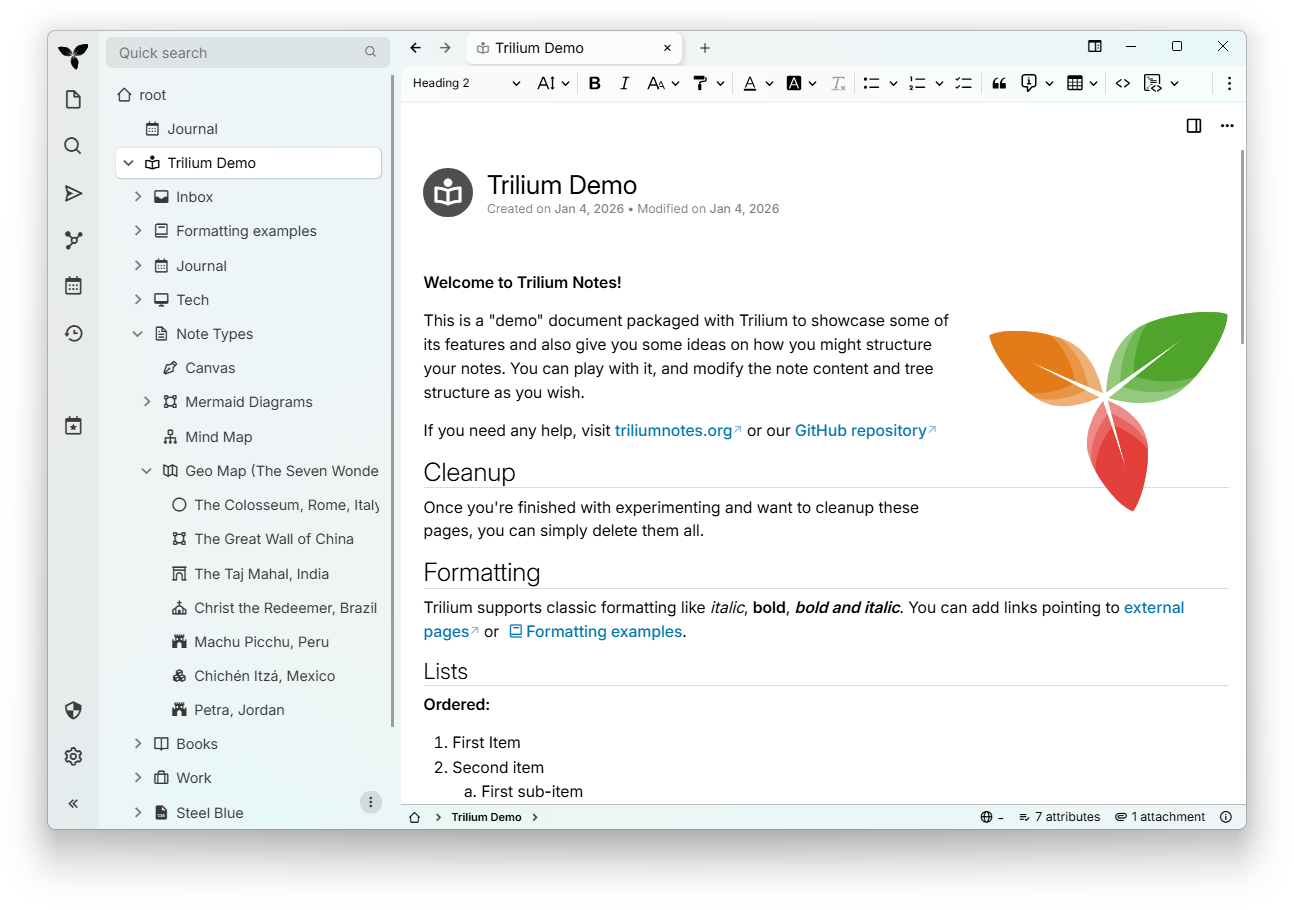
Image: the official Trilium Notes project (README at v0.106.1)
At a glance:
- Which project: use TriliumNext/Trilium. The original developer (zadam) gave the repository to the community project; the old address
github.com/zadam/triliumnow redirects there. The project is active (a release on 23 October 2026). - Server plus desktop: the desktop app keeps a full local copy and works offline. A server you run gives a web version and a sync hub in a star shape.
- Pin the tag: the docs say to avoid
latest, because an automatic minor-version jump can disturb sync. - One folder: database,
config.ini, logs and automatic backups all sit in one data folder. - Platforms: the docs say Docker runs the server on Windows, Linux and macOS. Desktop apps exist for all three.
- Privacy: per-note encryption ("protected notes") is built in.
How it fits together#
Desktop apps and browsers talk to one server container. Only the optional HTTPS front door (dashed) faces your network.

Drawn for this guide from the official docs. Sync needs the HTTPS route; the docs tell you to use a valid certificate, not plain HTTP.
Before you start#
You need a computer that runs Docker around the clock (a small Linux server is the usual choice) and, for sync, a name or address your desktop can reach over HTTPS.
| System | What the docs say |
|---|---|
| Linux server | Docker Engine and Docker Compose. Images exist for amd64, arm64 and arm v7; the docs call the ARM builds "legacy", best effort |
| Windows | Docker Desktop can run the server (system requirements page: "Windows, Linux and macOS"). The desktop app supports Windows 11, also on ARM |
| Mac | Docker Desktop can run the server. The desktop app needs macOS Ventura or newer |
| RAM and CPU | Not documented by the project |
Check Docker on your server:
docker --version
docker compose version
Windows (PowerShell) and Mac (Terminal) use the same two commands.
Checklist:
- [ ] Docker and Docker Compose work (
docker compose version) - [ ] Port 8080 is free on the host (
ss -ltn | grep 8080on Linux) - [ ] You know your time zone name, such as
Europe/Berlin - [ ] For the HTTPS section only: a DNS record for the server, and ports 80 and 443 free
Tested by DIY Lab Hub: not yet. The commands come from the official Compose file, Dockerfile, docs and release read in November 2026. We did not run them, and the output shown below is from the docs or labelled as expected.
Tip: If Docker is not installed yet, use the official instructions at docs.docker.com/engine/install (the Trilium docs link there too). Our own walkthrough is Docker installation on Ubuntu.
Step 1: Create the folders#
Trilium keeps everything in one data folder. We use ~/docker_volumes/trilium-notes, as all DIY Lab Hub guides do, with data for Trilium and backups for your own archives.
Linux#
mkdir -p ~/docker_volumes/trilium-notes/{data,backups}
cd ~/docker_volumes/trilium-notes
Windows (PowerShell)#
New-Item -ItemType Directory -Force "$HOME\docker_volumes\trilium-notes\data","$HOME\docker_volumes\trilium-notes\backups" | Out-Null
Set-Location "$HOME\docker_volumes\trilium-notes"
Mac (Terminal)#
Same commands as Linux:
mkdir -p ~/docker_volumes/trilium-notes/{data,backups}
cd ~/docker_volumes/trilium-notes
Check it worked. The data folder exists and is empty:
ls -la ~/docker_volumes/trilium-notes
On Windows run Get-ChildItem "$HOME\docker_volumes\trilium-notes".
Tip: Keep the data folder on a normal local disk. The docs say a SMB/CIFS share needs the mount options
nobrlandnoperm, and an old report (issue 5177) shows a core dump on such a mount.
Step 2: Write the Compose file and start Trilium#
This follows the official docker-compose.yml at v0.106.1 with four changes: the image is pinned to v0.106.1 (the official file says latest), the data folder is ./data, the port is published on 127.0.0.1 only (the official file publishes 8080 on every interface), and the time zone is set with TZ instead of mounting /etc/timezone, which does not exist on Windows and Mac. The docs name TZ for time zone problems.
Linux#
cd ~/docker_volumes/trilium-notes
cat > docker-compose.yml << 'EOF'
services:
  trilium:
    image: triliumnext/trilium:v0.106.1
    container_name: trilium
    restart: unless-stopped
    environment:
      - TRILIUM_DATA_DIR=/home/node/trilium-data
      - TZ=Etc/UTC
    ports:
      - "127.0.0.1:8080:8080"
    volumes:
      - ./data:/home/node/trilium-data
EOF
docker compose up -d
docker compose ps
Change Etc/UTC to your time zone identifier, for example Europe/Berlin.
Windows (PowerShell)#
Set-Location "$HOME\docker_volumes\trilium-notes"
@'
services:
  trilium:
    image: triliumnext/trilium:v0.106.1
    container_name: trilium
    restart: unless-stopped
    environment:
      - TRILIUM_DATA_DIR=/home/node/trilium-data
      - TZ=Etc/UTC
    ports:
      - "127.0.0.1:8080:8080"
    volumes:
      - ./data:/home/node/trilium-data
'@ | Set-Content -Encoding ascii docker-compose.yml
docker compose up -d
docker compose ps
Docker Desktop must be running. We did not test the server on Windows.
Mac (Terminal)#
Same commands as Linux. Docker Desktop must be running. We did not test the server on a Mac.
Check it worked. docker compose ps lists trilium as running. The image has a health check (every 60 seconds, 30 seconds grace), so the status turns healthy after about a minute. The docs publish no expected log text. Then ask the page for its headers:
curl -I http://127.0.0.1:8080/
On Windows use curl.exe -I http://127.0.0.1:8080/. A fresh server redirects to /setup, as issue 10975 reports.
Step 3: Create your first notes, or keep the server empty#
Open the setup page in a browser. The page offers three choices: start a new document, sync from an existing desktop, or sync from an existing server (issue 10975 lists them).
Linux#
On the server itself, open http://127.0.0.1:8080. From another computer, open an SSH tunnel, leave it running, and open http://localhost:8080 there:
ssh -N -L 8080:127.0.0.1:8080 <your-user>@<your-server-address>
Windows (PowerShell)#
With Docker Desktop on this PC, open http://127.0.0.1:8080. For a remote Linux server, run the same tunnel command in PowerShell (the OpenSSH client ships with Windows 10 and 11).
Mac (Terminal)#
With Docker Desktop on this Mac, open http://127.0.0.1:8080. For a remote Linux server, use the same ssh -N -L command as Linux.
What to pick:
| You are... | Do this |
|---|---|
| Starting fresh | Choose the new document, set a password, wait for the initialization to finish |
| Already using the desktop app | Do not initialize the server. The docs say to deploy the server "but uninitialized", then push from the desktop (Step 5) |
| Moving from the original Trilium (zadam) | Install this version as usual; the docs say it uses your existing database. Versions up to v0.90.4 match zadam's v0.63.7; later ones changed the sync protocol |
Check it worked. The setup finishes and you can sign in with the password you chose. The docs say protected notes cannot be recovered without it.
Tip: Save the password in a password manager before you click on. The docs' reset steps clear protected notes for good.
Step 4: Install the desktop app#
The desktop app is the full program with its own local database. Download it from the latest release page. Assets of v0.106.1:
| System | Release file |
|---|---|
| Linux (x64 or arm64) | TriliumNotes-v0.106.1-linux-x64.AppImage, .deb, .rpm, .flatpak or .zip |
| Windows | TriliumNotes-v0.106.1-windows-x64.exe (or .zip; arm64 builds exist) |
| Mac | TriliumNotes-v0.106.1-macos-arm64.dmg (Apple silicon) or -macos-x64.dmg (Intel) |
Linux#
chmod +x TriliumNotes-v0.106.1-linux-x64.AppImage
./TriliumNotes-v0.106.1-linux-x64.AppImage
The README prefers your distribution's package where one exists.
Windows (PowerShell)#
Run the downloaded installer, or unzip the .zip and start trilium.exe:
Start-Process "$HOME\Downloads\TriliumNotes-v0.106.1-windows-x64.exe"
Mac (Terminal)#
Open the .dmg and drag the app to Applications:
open ~/Downloads/TriliumNotes-v0.106.1-macos-arm64.dmg
Check it worked. The app starts and shows its own setup page. To keep it separate from the server for now, start a new local document.
Tip: Use the same Trilium version on the desktop and on the server. The next steps and the upgrade section explain why.
Step 5: Sync the desktop with the server#
Sync needs an address the desktop can reach. Plain HTTP over a network is unsafe; the docs say to use a valid TLS certificate, so finish the HTTPS section below first.
Linux#
In the desktop app, open Options, Sync, Sync server and enter your server address, such as https://notes.<your-domain>. Press Test sync. If it works, the desktop starts pushing all data to the server. The docs say this can take a while and you can keep working; the server shows its login screen once the sync is complete.
Windows (PowerShell)#
The same menu: Options, Sync, Sync server, then Test sync. Nothing needs the command line.
Mac (Terminal)#
The same menu, in the app window: Options, Sync, Sync server, then Test sync.
To add a second device (a new desktop), follow the docs: install the app, pick "set up sync with a sync server" when asked, enter the server address plus your username and password, and press Finish setup.
Check it worked. Create a note on one device, wait a moment, and see it on the other. Also check the clocks: the docs say client and server must agree within five minutes.
Tip: Trilium is offline first. If sync cannot connect, keep writing; it syncs later.
Put it behind HTTPS (with or without Traefik)#
Sync from other devices needs HTTPS, so this section is not optional for that use. You need a DNS name for the server; local-only users can skip it. Pick one route. In both, set trustedReverseProxy (the docs), so Trilium reads the real client address from X-Forwarded-For for sign-in and rate limiting.
With Traefik#
On a server that already runs Traefik, add the official labels and drop the published port. This is the docs' Traefik example with the image pinned, the data folder set and a proxy network. The entrypoint name https is the one in the docs; use yours.
docker network create proxy
Replace ~/docker_volumes/trilium-notes/docker-compose.yml with:
services:
  trilium:
    image: triliumnext/trilium:v0.106.1
    container_name: trilium
    restart: unless-stopped
    networks:
      - proxy
    environment:
      - TRILIUM_DATA_DIR=/home/node/trilium-data
      - TZ=Etc/UTC
      - TRILIUM_NETWORK_TRUSTEDREVERSEPROXY=<your-proxy-network-range>
    volumes:
      - ./data:/home/node/trilium-data
    labels:
      - traefik.enable=true
      - traefik.docker.network=proxy
      - traefik.http.routers.trilium.entrypoints=https
      - traefik.http.routers.trilium.rule=Host(`notes.<your-domain>`)
      - traefik.http.routers.trilium.tls=true
      - traefik.http.routers.trilium.service=trilium
      - traefik.http.services.trilium.loadbalancer.server.port=8080
      - traefik.http.services.trilium.loadbalancer.server.scheme=http
      - traefik.http.routers.trilium.middlewares=trilium-headers@docker
      - traefik.http.middlewares.trilium-headers.headers.customrequestheaders.X-Forwarded-Proto=https

networks:
  proxy:
    external: true
Find the range for <your-proxy-network-range> with docker network inspect proxy; the docs use the form 172.18.0.0/16. Then run docker compose up -d.
Tip: Use Traefik 3.6.7 or newer. The docs say Traefik 3.6.4 introduced a change that rejects some URLs Trilium uses and returns HTTP 400 (issue 11110 closed as a Traefik 3.6.6 problem).
Check it worked. curl -I https://notes.<your-domain>/ returns a status line over HTTPS, and the page opens with a valid certificate.
Without Traefik: Caddy#
Choose this when you have no Traefik. Caddy gets and renews certificates for you. For a public domain it uses Let's Encrypt; for a home-only name, tls internal makes a local certificate. The full Caddy walkthrough is in Caddy reverse proxy with Docker; here is the short version.
docker network create proxy
mkdir -p ~/docker_volumes/caddy/{conf,data,config}
cd ~/docker_volumes/caddy
On Windows use New-Item -ItemType Directory -Force "$HOME\docker_volumes\caddy\conf","$HOME\docker_volumes\caddy\data","$HOME\docker_volumes\caddy\config". Save as ~/docker_volumes/caddy/docker-compose.yml. We mount the folder conf, because the Caddy Docker docs warn against mounting a single file. The tag 2.11.8 exists on Docker Hub (checked 5 November 2026):
services:
  caddy:
    image: caddy:2.11.8
    container_name: caddy
    restart: unless-stopped
    ports:
      - "80:80/tcp"
      - "443:443/tcp"
      - "443:443/udp"
    volumes:
      - ./conf:/etc/caddy
      - ./data:/data
      - ./config:/config
    networks:
      - proxy

networks:
  proxy:
    external: true
Save conf/Caddyfile for a public domain (Caddy handles WebSockets itself and sets X-Forwarded-Proto):
notes.example.com {
    reverse_proxy trilium:8080
}
For a home-only name, add tls internal:
notes.home.arpa {
    tls internal
    reverse_proxy trilium:8080
}
In the Trilium Compose file, remove the ports: lines, add the proxy network exactly as in the Traefik example (without the labels), and set TRILIUM_NETWORK_TRUSTEDREVERSEPROXY=true. With no published port only Caddy can reach Trilium, so trusting the left-most X-Forwarded-For value is acceptable; if you keep a published port, use your proxy network's range instead. Start both:
cd ~/docker_volumes/caddy && docker compose up -d
cd ~/docker_volumes/trilium-notes && docker compose up -d
For a home-only name, trust Caddy's root certificate on each device (the root is public; its key is not):
# Linux
cd ~/docker_volumes/caddy
docker compose cp caddy:/data/caddy/pki/authorities/local/root.crt /tmp/caddy-root.crt
sudo cp /tmp/caddy-root.crt /usr/local/share/ca-certificates/caddy-local-root.crt && sudo update-ca-certificates
# Windows, as administrator
Set-Location "$HOME\docker_volumes\caddy"
docker compose cp caddy:/data/caddy/pki/authorities/local/root.crt "$env:TEMP\caddy-root.crt"
certutil -addstore -f "ROOT" "$env:TEMP\caddy-root.crt"
# Mac
cd ~/docker_volumes/caddy
docker compose cp caddy:/data/caddy/pki/authorities/local/root.crt /tmp/caddy-root.crt
sudo security add-trusted-cert -d -r trustRoot -k /Library/Keychains/System.keychain /tmp/caddy-root.crt
Check it worked. curl -I https://notes.example.com/ returns a status line over HTTPS. For a home-only name, the browser shows a padlock once the root is trusted.
Tip: Do not turn off certificate checks for your desktop app. The docs mention the
NODE_TLS_REJECT_UNAUTHORIZED=0switch for self-signed certificates and warn it exposes you to man-in-the-middle attacks. Trusting Caddy's root is the safe fix.
Security and testing#
A notes server holds your private thoughts and may sit on the internet, so treat it as one.
| Control | How |
|---|---|
| Server updates | v0.106.1 fixes a pre-login flaw in the Docker image (Brotli request bodies, CVE-2026-111497). Update servers that face the internet |
| Port | Publish 127.0.0.1:8080 only, or no host port behind a proxy. Never forward 8080 on a router |
| HTTPS | Mandatory for sync; the docs say plain HTTP is a risk |
| Two-factor | Options, Password & Auth, Two-factor authentication, Set up: scan the QR code, save the 8 recovery codes (the docs). OpenID Connect is available too |
| Protected notes | Per-note encryption with a separate password prompt; lose the password and the notes are gone |
| Data folder | Holds the database and config.ini. Keep it readable only by you; treat backup archives as secret |
Quick tests on the server:
cd ~/docker_volumes/trilium-notes
docker compose ps
docker compose logs --tail=100 trilium
curl -I https://notes.<your-domain>/
On Windows and Mac, docker compose is the same; use curl.exe on Windows.
The docs name outbound requests for features such as link previews and LLM providers; this guide does not cover them.
Trilium or another notes tool?#
| Need | Look at |
|---|---|
| Your own tree of notes, offline desktop, sync, per-note encryption | Trilium (this guide) |
| A team wiki with books and chapters | BookStack |
| A shared knowledge base for a team | Outline |
| Plain files synced between devices | Syncthing |
Common mistakes#
These come from the official docs' warnings and real GitHub issues in the Trilium repository.
| Mistake | Why it happens | Do this instead |
|---|---|---|
Using the latest tag | The official Compose file defaults to it, with a comment that it "may cause unintended updates"; the docs warn it can disrupt sync | Pin v0.106.1 and change the tag yourself when you update |
| Updating only the server image | Sync needs the same protocol version everywhere. Issue 9186 (closed March 2026): desktop at protocol 36, server at 37, "use same Trilium version on all instances" | Update the server and every desktop to the same release, then test sync |
Pulling the old triliumnext/notes image | Old tutorials use it. In issue 10634 (closed July 2026) a maintainer says notes is the old image; the right one is triliumnext/trilium. The reporter saw The version of the database (238) is newer than what the application expects (232) | Use triliumnext/trilium:<tag>. Never run an older version on a migrated database |
| Starting the server setup before your desktop sync | The docs ask for a server that is "deployed but uninitialized" when you push an existing desktop | Leave the server on its setup page and push from the desktop |
| Traefik 3.6.4 to 3.6.6 in front | Traefik rejected percent-encoded URLs Trilium uses, giving HTTP 400 (issue 11110, closed August 2026; fixed in 3.6.7) | Run Traefik 3.6.7 or newer, or follow the docs' encodedCharacters change |
| Data folder on a SMB/CIFS share | The docs ask for the mount options nobrl and noperm; issue 5177 (closed 2024) shows a crash on such a mount | Use a local disk and back up to the share |
Using --user or a mismatched owner on the data folder | The docs say --user is unsupported; use USER_UID and USER_GID. Issue 11831 (closed October 2026): the process ran as 1001 while /home/node belonged to 1000, giving EACCES: permission denied, mkdir '/home/node/trilium-data' | Set USER_UID and USER_GID to match the folder owner, as the error text says |
Serving Trilium under a sub-path such as /trilium | A reporter's setup page never finished behind a path rewrite (issue 10975, closed August 2026) | Give Trilium its own sub-domain, as in this guide |
| Skipping a backup before an upgrade | The database migrates on start and older versions cannot read it | Archive the data folder first (see Updates and backups) |
AI assistants: pulling zadam/trilium or triliumnext/notes, using latest, or inventing variable names | Older tutorials and models learned them. zadam/trilium stops at 0.63.7 in May 2024 on Docker Hub | Use triliumnext/trilium:v0.106.1 and only the variables on the docs' Configuration page, such as TRILIUM_NETWORK_PORT |
Tip: Before you paste a Compose file, read three lines: the image name, the tag, and the ports. Those cause most of the problems above.
Tip: After every change, read
docker compose logs --tail=100 trilium. Permission and database-version errors print there in plain words.
Tip: Take a backup (see Updates and backups) before you test anything risky, such as restoring over a live database.
Troubleshooting#
| Problem | Solution |
|---|---|
| Container restarts or exits at start | docker compose logs --tail=100 trilium. A permission block says PERMISSION ERROR DIAGNOSTICS; fix the folder owner or USER_UID and USER_GID |
Could not setup sync since local sync protocol version is 36 while remote is 37 | The desktop and the server differ. Install the same version on both (issue 9186) |
The version of the database (238) is newer than what the application expects (232) | An older image is reading a migrated database. Run the right image and tag, or restore a backup from before the migration (issue 10634) |
Banner "Server communication error" or HTTP 400 on search/... | Traefik 3.6.4 to 3.6.6. Upgrade Traefik to 3.6.7 or later (issue 11110) |
| Login or client address looks wrong behind a proxy | Set TRILIUM_NETWORK_TRUSTEDREVERSEPROXY (docs: Trusted proxy) |
| Sync fails with a certificate error | Use a certificate that the desktop trusts; for Caddy's local CA, install the root on the desktop |
| Sync fails with "504 Gateway Timeout" | A long first sync can outlast the proxy's timeout. The docs say to raise the timeout at the proxy (their Nginx example uses 300 seconds) |
| Browser keeps reconnecting (WebSocket) | Issue 7653 (closed November 2025) is a proxy that drops the upgrade. Caddy and Traefik pass it by default |
| Forgot the password | Use the docs' "Resetting your password"; protected notes cannot be recovered |
Resetting your password#
The docs give two routes, both on the machine that runs the server: switch authentication off, restart, set a new password under Options, Password, Reset password, switch it back on; or edit document.db with an SQLite client. Read the "Resetting your password" page first. Protected notes are lost.
Known bugs (open, November 2026)#
- Issue 11234: OpenID sign-in behind Nginx Proxy Manager fails with
auth_verification cookie not found(v0.105.0). - Issue 11435: the Mac desktop app crashes at start on macOS 26 (reported September 2026).
Diagnostics to run first: docker compose ps, docker compose logs --tail=200 trilium, and docker inspect trilium (check Config.Image).
Updates and backups#
Update. The docs say Trilium has no automatic upgrades: pull the new image and restart. The database migrates on start and Trilium makes a backup before it. Read the release notes first, back up, then change the tag in docker-compose.yml:
cd ~/docker_volumes/trilium-notes
docker compose pull
docker compose up -d
docker compose logs --tail=100 trilium
Update every desktop app to the same release afterwards. The release page names changes of the sync version.
Back up. The docs say to back up the single data directory. For a consistent copy, stop Trilium for a moment, archive, and start it again:
cd ~/docker_volumes/trilium-notes
docker compose stop
tar -czf "backups/trilium-$(date +%F).tar.gz" data
chmod 600 backups/trilium-*.tar.gz
docker compose start
Trilium also writes its own database copies (daily, weekly, monthly and before a migration) into data/backup. They live in the same folder, so copy the archive to another machine too. A nightly run at 03:00 on Linux or Mac:
crontab -e
# add this line, with your own path:
# 0 3 * * * cd "$HOME/docker_volumes/trilium-notes" && docker compose stop && tar -czf "backups/trilium-$(date +\%F).tar.gz" data && docker compose start
Windows (PowerShell)#
Set-Location "$HOME\docker_volumes\trilium-notes"
docker compose stop
Compress-Archive -Path data -DestinationPath "backups\trilium-$(Get-Date -Format yyyy-MM-dd).zip" -Force
docker compose start
Save these lines as a .ps1 file and schedule it in Task Scheduler (a daily trigger at 03:00 and the action pwsh -File <path-to-script>).
Mac (Terminal)#
Use the Linux commands. crontab -e works on macOS; Terminal may need Full Disk Access for scheduled jobs.
Restore test. Extract an archive into a new empty folder, never over the live one, and check the database file is there:
mkdir -p /tmp/trilium-restore-test
tar -xzf backups/trilium-<date>.tar.gz -C /tmp/trilium-restore-test
ls -l /tmp/trilium-restore-test/data
You should see document.db. To restore for real, stop Trilium, replace the data folder with the extracted one, and start it again. If you sync, restore all members of the sync cluster, or the older copy is overwritten by the newer one (docs).
For a thorough backup plan across machines, see restic Docker backups.
Performance and resources#
The docs publish no memory or CPU figures, so this guide gives none. Measure your own server:
- Live use:
docker stats triliumshows CPU and memory. - Health: the image checks itself every minute;
docker compose psshows the result. - Large trees: the README says Trilium scales well beyond 100,000 notes.
- Metrics: the docs describe Prometheus metrics and a Grafana dashboard (not covered here).
FAQ#
Is TriliumNext the same as Trilium? Yes. The original developer handed the repository to the community, and the README says there is no special migration step: install it and it uses your existing database. Versions after v0.90.4 changed the sync protocol, so you cannot sync them with zadam's last version (v0.63.7).
Is the project still maintained? Yes. v0.106.1 came out on 23 October 2026 and the repository had a code push on 5 November 2026. The original developer announced maintenance mode in January 2024 (issue 4620); the community project carries on.
Does it have a phone app? The README points to the mobile web interface of a server, and to third-party apps: TriliumDroid, Pocket Trilium (Android) and Trinote (iOS). These are not official; disable automatic server updates when using TriliumDroid, because the sync version must match.
Is it free? Yes, under AGPL-3.0 (version 3 or later).
Can I use it without the desktop app? Yes. The README names the latest Chrome and Firefox for the web version.
Sources#
- Trilium Notes repository, README, release v0.106.1, docker-compose.yml and Dockerfile - read November 2026
- Trilium docs: Using Docker, Synchronization, Backup, Upgrading, Data directory, Configuration, Trusted proxy, Traefik, HTTPS (TLS), Two-factor authentication, Resetting your password, System requirements - read November 2026
- Trilium image on Docker Hub (tag
v0.106.1checked) and Caddy image (tag2.11.8checked) - November 2026 - Caddy reverse_proxy directive - read November 2026
- GitHub issues 4620, 5177, 7653, 9186, 10634, 10975, 11110, 11234, 11435, 11831, 12469 - read November 2026
Checked against the official docs on 2026-11-05.