Plane with Docker: self-hosted project management, a Jira alternative (Linux, Windows, Mac)
Before you start
- 20 min read
Boxes marked Run in terminal are what you type; plain text explains why. Check what you need first
What you get in one minute#
Plane is an open-source project management tool for tracking work items, running cycles (sprints) and planning roadmaps, and its Community Edition is free to run on your own server with Docker.

Logo: the official Plane project (github.com/makeplane/plane)
The README calls it an open-source tool to "track issues, run cycles, and manage product roadmaps". People use it where they might use Jira, but with the data on their own machine. This guide installs the free Community Edition. A closed-source Commercial Edition also exists, explained below.
| What | Value (official docs and release files, read November 2026) |
|---|---|
| Current version | Plane v1.4.3, released October 2026 (marked "Latest" on GitHub) |
| Images | makeplane/plane-frontend, plane-backend, plane-proxy, plane-admin, plane-space, plane-live, all tag v1.4.3 (amd64 and arm64, checked on Docker Hub) |
| Time needed | About 20 minutes by the docs' own estimate; plan 40 minutes with HTTPS |
| Size and RAM | Docs ask for 2 CPU cores and 4 GB RAM (8 GB recommended for production). No idle RAM figure is published |
| Ports | 80 and 443 (the bundled proxy); the database, queue and storage publish no host port |
| Licence | Community Edition: AGPL-3.0 (LICENSE.txt at the release tag). Commercial Edition: closed source |
| Official docs | developers.plane.so/self-hosting and the repository |
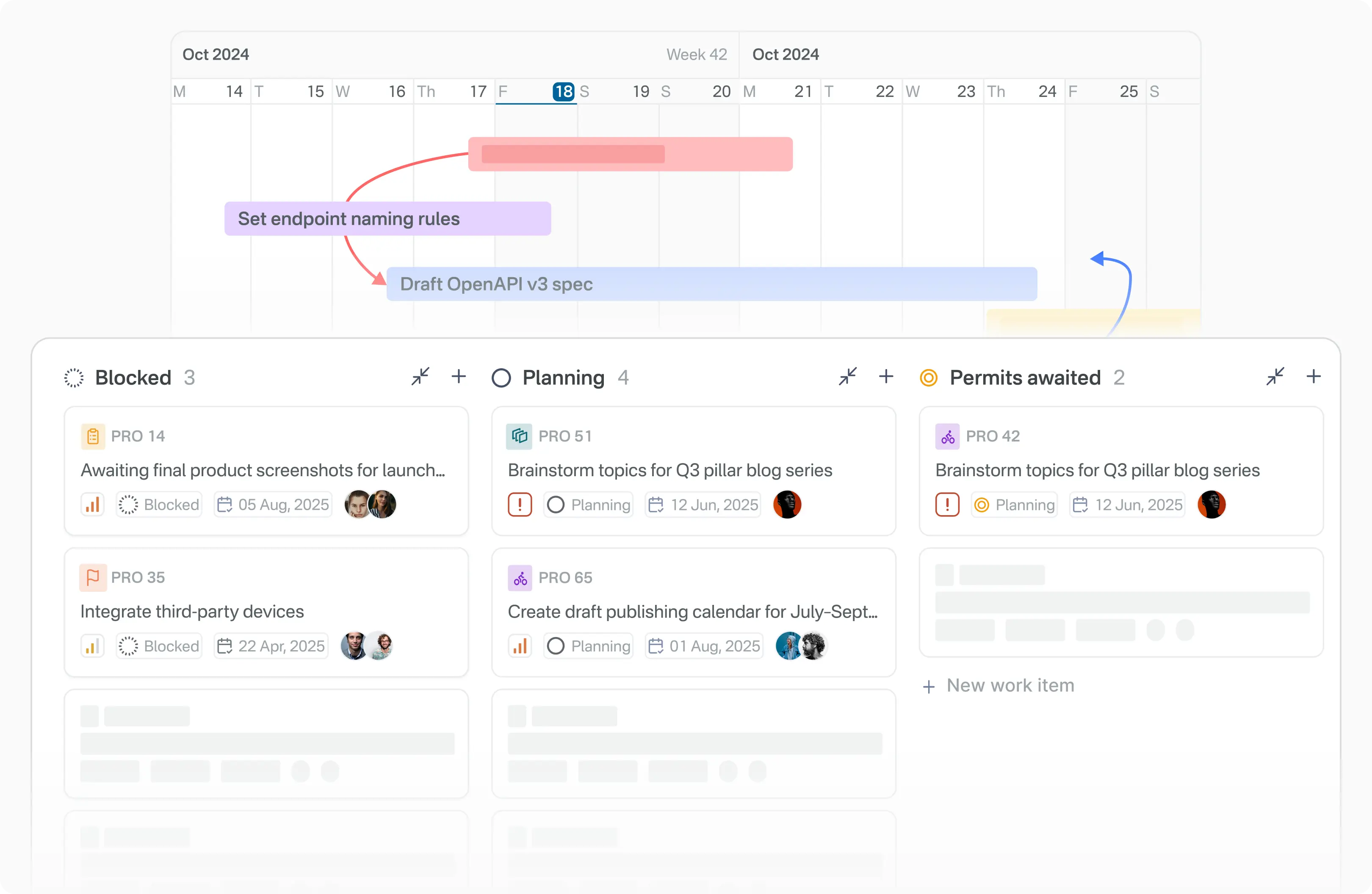
Image: the official Plane project (README at v1.4.3)
At a glance:
- What it is: a multi-container web app (web, API, workers, Postgres, queue, cache, file storage). The official script starts all of it.
- What you get: work items, cycles, modules, saved views, pages and analytics (the README's feature list).
- Community vs Commercial: Community is AGPL-3.0 and free. Commercial is closed-source and adds paid plans. The docs' main Docker page installs Commercial by default, so read the next section first.
- Two secrets to change:
SECRET_KEYandLIVE_SERVER_SECRET_KEYship with placeholder values. A fresh install can crash-loop until you change them (open issue #9525). - Alive and maintained: not archived, not renamed. The docs moved to
developers.plane.so. v1.4.3 fixes access-control bugs, and the release says self-hosted instances should upgrade. - Platforms: the server runs on Linux, Mac (Docker Desktop) or Windows with WSL2, per the docs' OS list. We tested none of these on this page.
How it fits together#
Your browser reaches one proxy, which sends each path to the right Plane app. Everything saves to Postgres, a queue and an object store in Docker volumes.

Drawn for this guide from the official compose file and architecture docs. The dashed Caddy or Traefik box is the optional HTTPS route.
Before you start#
Community or Commercial?#
Plane's docs separate the edition (the code you run) from the plan (the features a licence key unlocks).
| Community | Commercial | Airgapped | |
|---|---|---|---|
| Source code | Open, AGPL-3.0 | Closed | Closed |
| Cost | Free, no key | Free plan: 12 seats per workspace; paid plans need a licence key | Enterprise Grid only, through sales |
| Features | Same as the Cloud Free tier | Same as Cloud | Same as Commercial, works offline |
| Install | setup.sh from GitHub (this guide) | curl -fsSL https://prime.plane.so/install/ | sh - (Prime CLI) | Special package |
| Release cycle | Its own codebase, features arrive last | Ships with Cloud's features sooner | Same as Commercial |
Pick Community if you want open code you can audit and no licence server. Pick Commercial if you need paid-plan features. Moving from Community to Commercial later is a documented path, and the docs say there are no forced migrations.
Tip: AGPL-3.0 means: if you change Plane and let other people use your changed copy over a network, you must offer them your changes. Running it unchanged for your own team asks nothing extra.
What you need#
Linux server: 2 CPU cores, 4 GB RAM (8 GB for production), Docker Engine and Docker Compose v2, curl and openssl. The Community docs name an AWS t3.medium (2 vCPU, 4 GB) as the minimum. Check:
docker --version
docker compose version
curl --version | head -1
Windows: the docs list "Windows with WSL2" (the Community steps also mention Git Bash). This guide uses Ubuntu in WSL2 with Docker Desktop's WSL integration. Check:
docker --version
wsl -l -v
Mac: Docker Desktop. Check in Terminal:
docker --version
docker compose version
Checklist:
- [ ] 2 cores and 4 GB RAM free for Plane (8 GB if several people will use it)
- [ ] Docker Compose v2:
docker compose versionworks (the docs say olddocker-composecauses errors) - [ ] Ports 80 and 443 free, or ready to change them in
plane.env - [ ] A backup place that is not this machine
- [ ] For the HTTPS section only: a domain name with a DNS record pointing at the server
Tested by DIY Lab Hub: not yet. Every command comes from the official setup.sh, docker-compose.yml, variables.env and docs at release v1.4.3, read in November 2026. We did not run them.
Step 1: Create the folder#
Plane's script creates a plane-app folder next to itself, and everything it manages lives there. Data stays in Docker volumes that the script backs up. We put the install under ~/docker_volumes/plane, like all DIY Lab Hub guides.
Linux#
mkdir -p ~/docker_volumes/plane
cd ~/docker_volumes/plane
Windows (PowerShell)#
Open Ubuntu in WSL2 (install it once with wsl --install -d Ubuntu), then run the Linux commands inside it. Keep the folder in the Ubuntu home directory.
wsl -d Ubuntu
Mac (Terminal)#
Same commands as Linux:
mkdir -p ~/docker_volumes/plane
cd ~/docker_volumes/plane
Check it worked. pwd prints a path ending in docker_volumes/plane.
Tip: Always run
setup.shfrom this folder. The script builds its paths from the folder you are in, so running it elsewhere creates a second, emptyplane-appand looks like a lost database.
Step 2: Download the official script and install#
The official Community route is the setup.sh file attached to each GitHub release. The script asks GitHub for the latest release, downloads that release's docker-compose.yml and variables.env, and pulls the images.
Linux#
cd ~/docker_volumes/plane
curl -fsSL -o setup.sh https://github.com/makeplane/plane/releases/latest/download/setup.sh
chmod +x setup.sh
./setup.sh install
The docs show the same actions as a menu (run ./setup.sh, choose 1 for Install). The script also accepts the word install, start, stop, restart, upgrade, logs or backup.
Windows (PowerShell)#
Run the Linux commands inside the Ubuntu window from Step 1. From PowerShell you can also call them without opening a shell:
wsl -d Ubuntu -- bash -lc "cd ~/docker_volumes/plane && curl -fsSL -o setup.sh https://github.com/makeplane/plane/releases/latest/download/setup.sh && chmod +x setup.sh && ./setup.sh install"
Mac (Terminal)#
Same commands as Linux. The script has a branch for macOS.
cd ~/docker_volumes/plane
curl -fsSL -o setup.sh https://github.com/makeplane/plane/releases/latest/download/setup.sh
chmod +x setup.sh
./setup.sh install
Check it worked. The script ends with "Most recent version of Plane is now available for you to use" (from the script source). Then check the version it chose:
ls plane-app
grep '^APP_RELEASE=' plane-app/plane.env
You should see docker-compose.yaml, plane.env and archive, and APP_RELEASE=v1.4.3. If a newer release is out when you read this, read its notes before you carry on. This guide was checked against v1.4.3.
Tip: The script finds the latest release through the GitHub API without a login. If that lookup fails it stops with "Failed to check for the latest release". Wait a few minutes (rate limit) and run it again.
Step 3: Set the secret keys and the address#
plane.env is the one file you edit. Two values are placeholders in the official file, which says "change this before deploying to production".
Linux#
cd ~/docker_volumes/plane/plane-app
sed -i "s|^SECRET_KEY=.*|SECRET_KEY=$(openssl rand -hex 32)|" plane.env
sed -i "s|^LIVE_SERVER_SECRET_KEY=.*|LIVE_SERVER_SECRET_KEY=$(openssl rand -hex 32)|" plane.env
chmod 600 plane.env
grep -c 'change-this-key' plane.env
The last command should print 0. We use openssl rand -hex 32 because the official file suggests it, and because the script reads values by splitting on =, so a key with an = inside breaks.
Then set the address people will type. For a first test on the same machine keep the defaults (http://localhost). For other computers on your network, edit these two lines to the same value, for example http://<server-ip>:
WEB_URL=http://<server-ip>
CORS_ALLOWED_ORIGINS=http://<server-ip>
Windows (PowerShell)#
Run the Linux block inside Ubuntu (WSL2). The file is ~/docker_volumes/plane/plane-app/plane.env in the Ubuntu home. To open it from PowerShell:
wsl -d Ubuntu -- nano ~/docker_volumes/plane/plane-app/plane.env
Mac (Terminal)#
macOS sed needs an empty backup suffix after -i:
cd ~/docker_volumes/plane/plane-app
sed -i '' "s|^SECRET_KEY=.*|SECRET_KEY=$(openssl rand -hex 32)|" plane.env
sed -i '' "s|^LIVE_SERVER_SECRET_KEY=.*|LIVE_SERVER_SECRET_KEY=$(openssl rand -hex 32)|" plane.env
chmod 600 plane.env
grep -c 'change-this-key' plane.env
Check it worked. grep -c 'change-this-key' plane.env prints 0.
Tip: Never paste
plane.envinto a chat or an issue: it now holds your secret keys. Share only the variable names.
The internal database, queue and storage passwords stay at the defaults in the official file. No host port is published for them (checked in the compose file), so only containers on Plane's own network can reach them. To change them, follow the docs for external services; editing one password alone can break the connection strings.
Step 4: Start Plane#
Linux#
cd ~/docker_volumes/plane
./setup.sh start
The script pulls images, waits for the migrator to finish, then waits for the API. The first start takes several minutes. It ends with "You can access the application at" followed by your WEB_URL.
Windows (PowerShell)#
wsl -d Ubuntu -- bash -lc "cd ~/docker_volumes/plane && ./setup.sh start"
Mac (Terminal)#
Same commands as Linux:
cd ~/docker_volumes/plane
./setup.sh start
Check it worked. All containers are up and the proxy answers:
docker ps --format 'table {{.Names}}\t{{.Status}}'
curl -I http://localhost
Expect containers named plane-app-... for web, space, admin, live, api, worker, beat-worker, plane-db, plane-redis, plane-mq, plane-minio and proxy (the service list in the v1.4.3 compose file; the docs' sample output is older). The migrator container runs once and then exits. curl prints an HTTP status line instead of "connection refused".
Tip: If the script says "API Service did not respond to health-check", do not wait for hours. Read
./setup.sh logsand see Troubleshooting. The most common cause on a new install is a placeholder secret key.
Step 5: Create the admin account and your first project#
Linux#
Open http://localhost (or your WEB_URL) in a browser. Plane shows "Let's secure your instance": enter an email and password for the instance admin. Then create a workspace and a project.
xdg-open http://localhost
Windows (PowerShell)#
Start-Process "http://localhost"
Mac (Terminal)#
open http://localhost
Next, visit /god-mode (append it to your address). This is the instance admin area. The docs recommend setting up SMTP there so invitations work. Under Authentication you can switch off "Allow anyone to sign up without an invite", and under General switch off "Let Plane collect anonymous usage data".
Check it worked. You can sign in, create a workspace and a project, add a work item, and see it on a board.
Tip: Store the admin password in a password manager now. The docs' reset page needs shell access to the server.
Put it behind HTTPS (with or without Traefik)#
The bundled proxy serves plain HTTP on port 80 by default (SITE_ADDRESS=:80). For a server people reach from outside, put HTTPS in front. Home-only users can stay on HTTP on a trusted network. Both routes below need a domain with a DNS record pointing at the server and ports 80 and 443 reachable.
The official Community docs say: disable the bundled proxy service, put your proxy on the same Docker network (usually plane-app_default), and route paths to the containers. Plane's own table:
| Path | Container | Port |
|---|---|---|
/* (everything else) | web | 3000 |
/spaces/* | space | 3000 |
/god-mode/* | admin | 3000 |
/live/* | live | 3000 |
/api/*, /auth/*, /static/* | api | 8000 |
/uploads/* (your bucket name) | plane-minio | 9000 |
Edit the compose file first. In ~/docker_volumes/plane/plane-app/docker-compose.yaml, delete the whole proxy: service (the block under the comment "Comment this if you already have a reverse proxy running"). Then set the real address in plane.env:
WEB_URL=https://plane.example.com
CORS_ALLOWED_ORIGINS=https://plane.example.com
Tip:
./setup.sh upgradereplacesdocker-compose.yamlwith the new release's file and moves your edited one toplane-app/archive/<timestamp>.docker-compose.yaml. After every upgrade, repeat your proxy edits. Keep a copy of your edited file somewhere safe.
With Traefik#
On a server that already runs Traefik v3 with the Docker provider, add the official labels and join the shared network.
This assumes an external Docker network proxy and an entrypoint named https (use your own names). Create the network once:
docker network create proxy
Add this to each of web, api, admin, space, live and plane-minio in docker-compose.yaml. Plane's official labels (shown for web and api) set the router and port; we add the entrypoint, TLS and network lines. Keep default in the list so the service still reaches Plane's other containers:
  web:
    networks:
      - default
      - proxy
    labels:
      - "traefik.enable=true"
      - "traefik.docker.network=proxy"
      - "traefik.http.routers.plane-web.rule=Host(`plane.example.com`)"
      - "traefik.http.routers.plane-web.entrypoints=https"
      - "traefik.http.routers.plane-web.tls=true"
      - "traefik.http.services.plane-web.loadbalancer.server.port=3000"
  api:
    networks:
      - default
      - proxy
    labels:
      - "traefik.enable=true"
      - "traefik.docker.network=proxy"
      - "traefik.http.routers.plane-api.rule=Host(`plane.example.com`) && (Path(`/api`) || PathPrefix(`/api/`) || Path(`/auth`) || PathPrefix(`/auth/`) || Path(`/static`) || PathPrefix(`/static/`))"
      - "traefik.http.routers.plane-api.entrypoints=https"
      - "traefik.http.routers.plane-api.tls=true"
      - "traefik.http.services.plane-api.loadbalancer.server.port=8000"
Do the same for the other four services with these rules and ports (from the official page):
| Router | Rule after Host(...) | Port |
|---|---|---|
plane-admin | Path(/god-mode) or PathPrefix(/god-mode/) | 3000 |
plane-space | Path(/spaces) or PathPrefix(/spaces/) | 3000 |
plane-live | Path(/live) or PathPrefix(/live/) | 3000 |
plane-minio | Path(/uploads) or PathPrefix(/uploads/) | 9000 |
At the bottom of the file add the network:
networks:
  proxy:
    external: true
Apply it with ./setup.sh restart.
Check it worked. curl -I https://plane.example.com/ returns an HTTP status line over HTTPS, and the browser shows a valid certificate.
Without Traefik: Caddy#
Choose this if you have no Traefik. Caddy gets and renews its own certificates.
Caddy's docs describe automatic Let's Encrypt certificates for a public domain and tls internal for a local certificate at home. See also our Caddy guide. Start Plane first, so its network plane-app_default exists (check with docker network ls). Create the Caddy folders, mounting the conf folder, not a single file:
mkdir -p ~/docker_volumes/caddy/{conf,data,config}
cd ~/docker_volumes/caddy
Save as ~/docker_volumes/caddy/docker-compose.yml. The image is caddy:2.11.8, the newest tag we found on Docker Hub in November 2026:
services:
  caddy:
    image: caddy:2.11.8
    container_name: caddy
    restart: unless-stopped
    ports:
      - "80:80/tcp"
      - "443:443/tcp"
      - "443:443/udp"
    volumes:
      - ./conf:/etc/caddy
      - ./data:/data
      - ./config:/config
    networks:
      - plane

networks:
  plane:
    external: true
    name: plane-app_default
Save as ~/docker_volumes/caddy/conf/Caddyfile, Plane's official Caddy template with your domain:
plane.example.com {
    request_body {
        max_size 50MB
    }

    redir /spaces /spaces/ permanent
    reverse_proxy /spaces/* space:3000

    redir /god-mode /god-mode/ permanent
    reverse_proxy /god-mode/* admin:3000

    reverse_proxy /live/* live:3000
    reverse_proxy /api/* api:8000
    reverse_proxy /auth/* api:8000
    reverse_proxy /static/* api:8000

    reverse_proxy /uploads/* plane-minio:9000
    reverse_proxy /uploads plane-minio:9000

    reverse_proxy /* web:3000
}
For a home-only name, add tls internal as the first line inside the block (for example plane.home.arpa). Caddy then uses its own local certificate, and each device must trust Caddy's root certificate once (the steps are in our Caddy guide). Then start it:
docker compose up -d
Windows and Mac are clients here: you only open the https address in a browser.
Check it worked. curl -I https://plane.example.com/ returns an HTTP status line over HTTPS. For tls internal the browser shows a padlock only after the root is trusted.
Tip: Plane's bundled proxy is also Caddy, and its
Caddyfile.cereadsSITE_ADDRESSandCERT_EMAILfromplane.env. Setting those can give a Let's Encrypt certificate without a second Caddy. We read this in the file only; the official SSL page covers the Commercial Edition, and we did not run it.
Security and testing#
| Control | How |
|---|---|
| Secret keys | Change SECRET_KEY and LIVE_SERVER_SECRET_KEY (Step 3); chmod 600 plane.env |
| Sign-up | In /god-mode, switch off "Allow anyone to sign up without an invite" for a private team |
| Sign-in limits | v1.4.3 rate-limits email and password sign-in; the release notes list it as a security fix |
| Ports | Only the proxy publishes 80 and 443. Postgres, RabbitMQ, Valkey and storage publish none |
| Firewall | Allow 80 and 443 only, for example sudo ufw allow 80,443/tcp (ufw is one example) |
| Updates | v1.4.3 fixed several access-control bugs; the notes say self-hosted instances should upgrade |
| Telemetry | The docs say Plane collects the instance admin's name and email, an instance ID and anonymised usage data; switch it off in God mode |
| Backups | The backup folder holds your whole database: keep it private (chmod 700) |
Quick tests after each change:
cd ~/docker_volumes/plane
docker ps --format 'table {{.Names}}\t{{.Status}}'
./setup.sh logs
curl -I https://plane.example.com/
On Windows run the first two inside Ubuntu; curl.exe -I https://plane.example.com/ works in PowerShell.
Common mistakes#
These come from the official issue tracker, the docs' own warnings and the setup script.
| Mistake | Why it happens | Do this instead |
|---|---|---|
Leaving SECRET_KEY as change-this-key-on-deployment | The placeholder is in the official variables.env. Issue #9525 (open, October 2026) reports the API container in a reboot loop until it was changed, and the docs page does not say so | Set both keys with openssl rand -hex 32 before the first start (Step 3) |
Keeping WEB_URL=http://localhost on a real server | It is the default. Links, redirects and CORS use it | Set WEB_URL and CORS_ALLOWED_ORIGINS to the exact address people type |
A proxy that does not send X-Forwarded-Proto | Upload links then come back as http://. Issue #5827 (closed) was fixed by adding the forwarded headers | Use the official Caddy or Traefik setup; with other proxies pass the forwarded headers |
| Upgrading without a backup | Failures happen: issue #8176 (open) reports a migrator loop after 0.15.1 to 1.3.0, and #6455 (closed) reports lost content | Run ./setup.sh backup and copy plane.env first |
Editing docker-compose.yaml and then running upgrade | The script moves your file to archive/ and downloads a fresh one | Re-apply your proxy edits after each upgrade |
Using a database on localhost | Inside the container, localhost is the container itself. The docs list plane-migrator-1 container exited with status 1 for this | Use an address the container can reach |
Running an old docker-compose | The docs list "Error during docker compose execution" for permission problems and old Compose | Use Docker Compose v2 and sudo or the docker group |
Running setup.sh from another folder | The script creates plane-app beside itself | cd ~/docker_volumes/plane first |
| Installing Commercial when you wanted Community | The main Docker Compose docs page installs Commercial with the Prime CLI | Use setup.sh from the GitHub release (Step 2) |
AI assistants: telling you to run sudo prime-cli upgrade or prime-cli backup | These are Commercial tools; the docs say they only work on instances installed with prime-cli | On Community use ./setup.sh upgrade and ./setup.sh backup |
AI assistants: copying an old compose file from the deploy/selfhost path or a v0.x guide | Older paths and images appear in old answers (issue #7178 links one) | Use the compose file and variables.env attached to the release |
Tip: Read the compose file you actually run before you ask a chatbot about it. Check the image names (
makeplane/plane-frontend,plane-backend,plane-proxy) and the tag against the release page.
Tip: After any change run
./setup.sh logsand pick the service. Most errors print there with their exact text.
Tip: Test your backup on a spare machine before you need it. An untested backup is a guess.
Troubleshooting#
| Problem | Solution |
|---|---|
| API container restarts in a loop on a fresh install | Check the log for the "SECRET_KEY is set to a known insecure or placeholder value" warning; set a real SECRET_KEY in plane.env, then ./setup.sh restart (issue #9525) |
Failed to check for the latest release. Exiting... | The script could not read GitHub's release API (a rate limit, for example). Wait and rerun; v1.4.3 made the lookup stop with an error |
| "Waiting for API Service to Start" for 300 s | Run ./setup.sh logs for api and migrator. Reports exist after restore (issue #7178) and after big upgrades (#8176) |
plane-migrator-1 container exited with status 1 | An external database set to localhost; use a reachable address (official docs) |
| Page says Plane cannot start because a service did not start | Read the api and migrator logs; check WEB_URL and that all containers are up |
Uploads fail or go to http:// behind HTTPS | Pass X-Forwarded-Proto, set WEB_URL to https and try MINIO_ENDPOINT_SSL=1 (docs: "Force HTTPS for MinIO when dealing with SSL termination") |
setup.sh fails on Synology | Issue #8714 (open): one user removed --policy always from the pull line, which is a workaround we did not test |
| Podman | setup.sh is not compatible with podman-compose (issue #6679, closed); the docs have a separate Podman page |
Known bugs (open, November 2026)#
- Issue #9525: the docs do not mention the placeholder secret key. The same report describes missing proxy and live variables in v1.3.1; the v1.4.3 compose file we read passes them.
- Issue #8176: migrator loops after an upgrade from 0.15.1. One commenter renamed a mis-cased Postgres table; that is a community workaround, not official advice.
- Issue #8390:
CORS_ALLOWED_ORIGINSreported as ignored, with the app host used instead.
Diagnostics:
cd ~/docker_volumes/plane
docker ps --format 'table {{.Names}}\t{{.Status}}'
docker compose -f plane-app/docker-compose.yaml --env-file plane-app/plane.env ps
./setup.sh logs
Updates and backups#
Back up first. The official script copies the Postgres, file-storage, RabbitMQ and Valkey data into plane-app/backup/<date>:
cd ~/docker_volumes/plane
./setup.sh backup
cp plane-app/plane.env plane-app/backup/plane.env.$(date +%F)
chmod -R go-rwx plane-app/backup
The script copies files out of the running database container. For a second, safer copy of the database, add a standard Postgres dump (our addition, not in Plane's docs; user and database are both plane in the official file):
docker compose -f plane-app/docker-compose.yaml --env-file plane-app/plane.env exec -T plane-db pg_dump -U plane plane | gzip > plane-app/backup/plane-db-$(date +%F).sql.gz
Update. Read the release notes, then:
cd ~/docker_volumes/plane
curl -fsSL -o setup.sh https://github.com/makeplane/plane/releases/latest/download/setup.sh
./setup.sh upgrade
It stops the services and downloads the new files; your plane.env is not overwritten. Compare plane-app/variables-upgrade.env with plane.env, copy any new variables across, re-apply your proxy edits, then ./setup.sh start.
Schedule (Linux and Mac). A nightly 03:00 backup in crontab -e. TERM is set because the script clears the screen:
0 3 * * * cd $HOME/docker_volumes/plane && TERM=xterm ./setup.sh backup >> backup.log 2>&1
Windows (PowerShell). Use Task Scheduler to run this once a day:
wsl -d Ubuntu -- bash -lc "cd ~/docker_volumes/plane && TERM=xterm ./setup.sh backup"
Restore test. The official restore script needs jq. Stop Plane, download it next to setup.sh, point it at a backup folder with the *.tar.gz files, then start:
cd ~/docker_volumes/plane
./setup.sh stop
curl -fsSL -o restore.sh https://github.com/makeplane/plane/releases/download/v1.4.3/restore.sh
chmod +x restore.sh
./restore.sh plane-app/backup/<date>
./setup.sh start
Practise this on a spare machine, not the live one: it replaces the current volumes. Issue #7178 reports a restore followed by a stuck start.
Performance and resources#
The docs give no measured idle RAM, and we ran nothing, so we publish none. What they do say:
- Minimum: 2 CPU cores and 4 GB RAM; 8 GB recommended for production.
- Measure yours:
docker stats --no-streamlists every container. - Replicas:
plane.envhasWEB_REPLICAS,API_REPLICAS,WORKER_REPLICASand others, all1. The compose file setsGUNICORN_WORKERSto 1 directly. - Uploads:
FILE_SIZE_LIMITdefaults to 5 MB (5242880 bytes). - Production advice from the docs: use an external database and storage, so a machine failure does not take your data with it.
FAQ#
Is Plane free to self-host? The Community Edition is: it is AGPL-3.0, with no licence key. The Commercial Edition has a free plan of 12 seats per workspace, and paid plans need a licence key.
Is Plane dead, archived or renamed? No. The repository is active, v1.4.3 came out in October 2026, and the self-hosting docs moved to developers.plane.so.
Can I switch between editions? Community to Commercial is documented ("Upgrade Community to Commercial"). The docs say there are no forced migrations.
Does it send my data to the project? The docs describe anonymised usage data, the admin's name and email, and an instance ID. You can turn it off in /god-mode. The Commercial Edition also talks to a licence server.
Can Windows or Mac be the server? The docs list macOS and Windows with WSL2 among supported systems, but we tested neither. For a team, use a Linux server.
Sources#
- Plane repository, release v1.4.3, README and LICENSE.txt - read November 2026
- Release files at v1.4.3: setup.sh, docker-compose.yml, variables.env, restore.sh - read November 2026
- Plane self-hosting docs: overview, Docker Compose, editions, self-hosting 101, architecture, reverse proxy, instance admin, telemetry, upgrade, backup and restore, installation errors - read November 2026
- Docker Hub images makeplane/plane-proxy (tag
v1.4.3checked) and the Caddy image (tag2.11.8checked); Caddy tls directive - November 2026 - GitHub issues #5827, #6455, #6679, #7178, #8176, #8390, #8714, #9525 - read November 2026
- Related guides on this site: Caddy as a reverse proxy, Restic backups for Docker, Docker installation on Ubuntu
Checked against the official docs on 2026-11-05.