Syncthing with Docker: Sync Files Between Your Devices Without a Cloud (Linux, Windows, Mac)
Before you start
- 20 min read
Boxes marked Run in terminal are what you type; plain text explains why. Check what you need first
What you get in one minute#
Syncthing is a free, open-source program that keeps folders identical on two or more of your own devices, directly from device to device, with no cloud account and no central server holding your files.

Logo: the official Syncthing project (github.com/syncthing/syncthing)
You install it on each device, exchange one device ID per pair, and choose which folders to share. Every connection is encrypted with TLS. It suits documents, photos and notes shared between a laptop, a desktop and an always-on home server. Sync is not a backup, and this guide says why.
| What | Value (official docs, read October 2026) |
|---|---|
| Current version | Syncthing v2.1.7, released 21 October 2026 (latest stable) |
| Image to pin | syncthing/syncthing:2.1.7 on Docker Hub (the tag exists; amd64, arm64 and arm v7) |
| Licence | MPL-2.0 (LICENSE in the repository) |
| Time needed | About 30 minutes for a server and one computer (our estimate, not measured) |
| Size and RAM | Image about 21 MB compressed (Docker Hub, amd64). The docs give no RAM figure |
| Ports | TCP and UDP 22000 (sync), UDP 21027 (local discovery), TCP 8384 (admin page, local only by default) |
| Official docs | docs.syncthing.net and the repository |
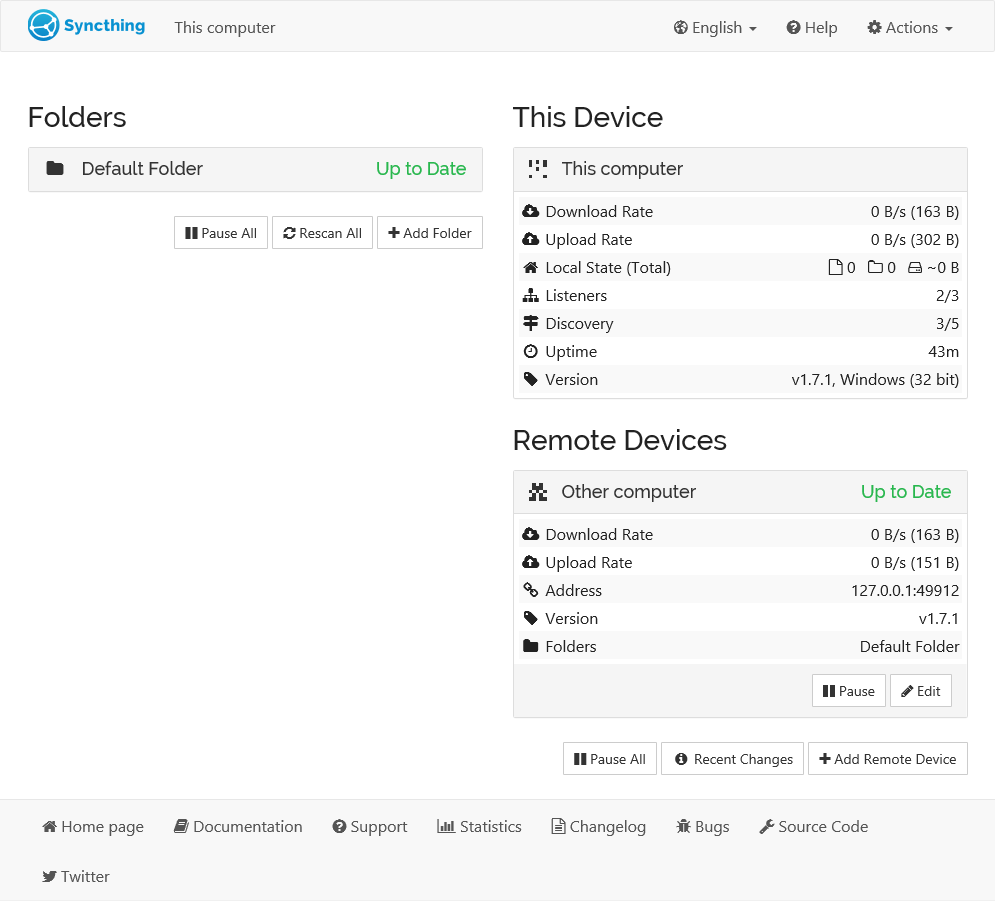
Image: the official Syncthing docs (Getting Started). It was taken with v1.7.1, so v2 looks slightly different.
At a glance:
- What it is: a peer-to-peer sync tool with a web admin page on each device. Both sides must add each other's device ID before anything connects.
- Where it runs: Docker on one Linux server, the normal programs on Windows and Mac.
- v2 is a big step: a new database (a slow first-start migration) and single-dash flags no longer work.
- Safety: set a password on the admin page, keep it on localhost or behind HTTPS, and never forward port 8384.
- Privacy: global discovery and relays are on by default; a table below shows what they send.
- Backups: deletions and mistakes sync to every device. Pair Syncthing with restic backups.
How it fits together#
Your devices connect to each other on port 22000. Public discovery servers help them find each other; relays are only a fallback.

Drawn for this guide from the official docs. Dashed parts are public helpers that are on by default and used only sometimes.
Before you start#
Linux server: Docker Engine and Docker Compose, x86_64, arm64 or arm v7, and curl.
docker --version
docker compose version
Windows: Windows 10 or 11, 64-bit. No Docker is needed; the guide uses the official program from the project's release page. Check PowerShell and the SSH client:
$PSVersionTable.PSVersion
ssh -V
Mac: macOS with Homebrew installed.
brew --version
ssh -V
Checklist:
- [ ] Docker and Docker Compose on the Linux server
- [ ] An SSH login to the server (used for the admin page tunnel)
- [ ] Router access, only if you want direct connections from outside your home (forward 22000)
- [ ] Your folders backed up elsewhere first
- [ ] For the HTTPS section only: a DNS name for the server and ports 80 and 443 free
Tested by DIY Lab Hub: not yet. The commands come from the official README, docs and release files read in October 2026; we did not run them.
Step 1: Create the folders#
Syncthing needs a place for its config (keys and database) and a place for the synced files. We use ~/docker_volumes/syncthing on the server, as all DIY Lab Hub guides do.
Linux#
mkdir -p ~/docker_volumes/syncthing/{config,data,backups}
cd ~/docker_volumes/syncthing
id -u
id -g
The image runs as user and group 1000. If id -u or id -g prints another number, set it as PUID and PGID in Step 2, or Syncthing cannot write to these folders.
Windows (PowerShell)#
Create a folder for the program and a folder to sync:
New-Item -ItemType Directory -Force "$HOME\syncthing" | Out-Null
New-Item -ItemType Directory -Force "$HOME\Sync" | Out-Null
Mac (Terminal)#
Homebrew installs the program, so you only need the folder to sync:
mkdir -p ~/Sync
Check it worked. On Linux, ls -ld ~/docker_volumes/syncthing/data shows the folder. On Windows, Test-Path "$HOME\Sync" prints True. On Mac, ls -d ~/Sync shows the folder.
Tip: Syncthing v2 creates no default folder on first start, so the folder list starts empty. That is normal.
Step 2: Start Syncthing#
The compose file is the official example with a pinned image, our folder layout and no version: line. It uses host network mode because the project says Docker's default network hides your LAN addresses and breaks local discovery.
Linux#
cd ~/docker_volumes/syncthing
cat > docker-compose.yml << 'EOF'
services:
  syncthing:
    image: syncthing/syncthing:2.1.7
    container_name: syncthing
    hostname: my-syncthing
    restart: unless-stopped
    network_mode: host
    environment:
      - PUID=1000
      - PGID=1000
      - STGUIADDRESS=
      - STNOUPGRADE=1
    volumes:
      - ./config:/var/syncthing/config
      - ./data:/var/syncthing/data
EOF
docker compose up -d
docker compose ps
docker compose logs --tail=50 syncthing
STGUIADDRESS= is empty on purpose: the image sets 0.0.0.0:8384, and emptying it makes Syncthing use the config value, 127.0.0.1:8384 by default (local only). STNOUPGRADE=1 stops the program replacing itself inside the container; you update by changing the tag.
Windows (PowerShell)#
Download the official zip, compare its checksum with the one on the release page, and unpack it:
$v = "2.1.7"
$dir = "$HOME\syncthing"
$zip = "$dir\syncthing-windows-amd64-v$v.zip"
$base = "https://github.com/syncthing/syncthing/releases/download/v$v"
Invoke-WebRequest "$base/syncthing-windows-amd64-v$v.zip" -OutFile $zip
Invoke-WebRequest "$base/sha256sum.txt.asc" -OutFile "$dir\sha256sum.txt.asc"
(Get-FileHash $zip -Algorithm SHA256).Hash.ToLower()
Select-String "syncthing-windows-amd64-v$v.zip" "$dir\sha256sum.txt.asc"
Expand-Archive $zip -DestinationPath $dir -Force
& "$dir\syncthing-windows-amd64-v$v\syncthing.exe" --version
The two hashes must match. Then start it (your browser opens the admin page):
& "$HOME\syncthing\syncthing-windows-amd64-v2.1.7\syncthing.exe"
To start it at log-on, use Task Scheduler or the Startup folder (autostart page); add --no-console to hide the window.
Mac (Terminal)#
The docs list Homebrew for macOS:
brew install syncthing
syncthing --version
brew services start syncthing
The Homebrew formula (2.1.7 when we read it) defines a background service without a browser window, so open http://127.0.0.1:8384 yourself. The docs only say to follow what brew prints; read it after the install.
Check it worked. On Linux, docker compose ps shows syncthing running; the image's health check turns it healthy after about a minute. On Windows and Mac, --version prints syncthing v2.1.7. The docs publish no fixed log text; read the log for errors.
Tip: On a Linux desktop you can skip Docker: the official apt repository has a
stable-v2channel (apt.syncthing.net).
Step 3: Open the admin page and set a password#
The admin page listens on localhost only. On the server you reach it through an SSH tunnel, so nothing is opened on the router.
Linux#
From another Linux computer, open the tunnel and leave it running:
ssh -N -L 9090:127.0.0.1:8384 <your-user>@<your-server-address>
Then open http://localhost:9090. On the server itself, use http://127.0.0.1:8384.
Windows (PowerShell)#
Windows 10 and later can run the same command with the OpenSSH client:
ssh -N -L 9090:127.0.0.1:8384 <your-user>@<your-server-address>
For the Windows program itself, open http://127.0.0.1:8384 in a browser.
Mac (Terminal)#
ssh -N -L 9090:127.0.0.1:8384 <your-user>@<your-server-address>
Open http://localhost:9090 for the server. The Homebrew install on the Mac itself uses http://127.0.0.1:8384.
Now set the password on every device: Actions > Settings > GUI, enter a user name and a long password, save. The docs warn that a network-reachable page without one exposes your whole installation. Leave "Use HTTPS for GUI" off if you will use the proxy route below.
Check it worked. Reload the page: it asks for the user name and password. On the server, ss -ltn | grep 8384 shows the port bound to 127.0.0.1.
Tip: Use
localhostor127.0.0.1in the address bar; another host name gives "Host check error" (see Troubleshooting).
Step 4: Open the sync ports#
Direct connections need TCP and UDP 22000 (QUIC) on each device. UDP 21027 is for finding devices on the same network. Never open 8384.
Linux#
The docs list the three ports for a local firewall. ufw is one example:
sudo ufw allow 22000/tcp
sudo ufw allow 22000/udp
sudo ufw allow 21027/udp
sudo ufw status verbose
For direct connections from outside your home, forward 22000 TCP and UDP on your router to the server, with the same external and internal port (UPnP can do it for you). Without a forward, relays may still connect you, but slowly.
Windows (PowerShell)#
Same router step. If your firewall asks, allow Syncthing. Windows may set a new network to "Public", which the FAQ says often forces relays; set home networks to "Private".
Mac (Terminal)#
Same router step. If the macOS firewall asks, allow Syncthing.
Check it worked. After Step 5, Remote Devices shows a connection type that does not start with "Relay".
Tip: A LAN address as the GUI listen address does not limit access to your LAN, the docs warn. Use a firewall.
Step 5: Pair two devices#
Two devices connect only if each has the other's device ID. IDs are not secret.
Linux#
On the server's admin page, Actions > Show ID gives its ID. Click Add Remote Device, paste the other computer's ID and name it. Repeat on the other computer with the server's ID.
Windows (PowerShell)#
Same clicks in the admin page at http://127.0.0.1:8384.
Mac (Terminal)#
Same clicks in the admin page at http://127.0.0.1:8384.
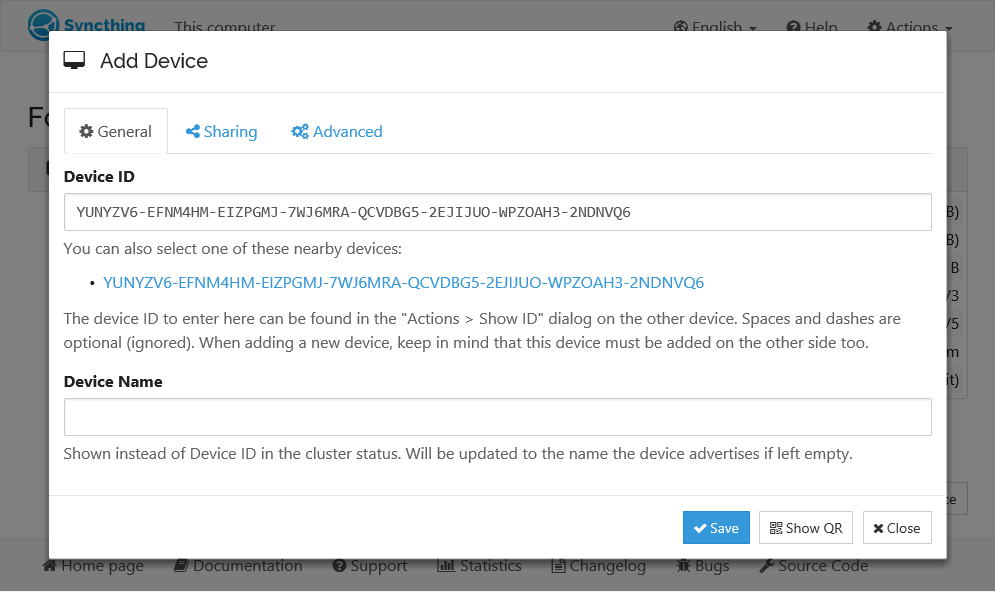
Image: the official Syncthing docs (Getting Started). v1.7.1 screenshot; v2 is similar.
Check it worked. After a minute the other device shows under Remote Devices as connected. The docs say it can take about a minute after you save.
Tip: Add the device on both sides. One-sided pairing never connects, and the log says nothing wrong.
Step 6: Share a folder#
Pick a folder type before you share, because it decides who can change what.
| Folder type | What it does | Use it for |
|---|---|---|
| Send & Receive | Changes go both ways (the default) | Normal two-way sync |
| Send Only | Ignores changes from others; "Override Changes" forces your copy on everyone | A master copy |
| Receive Only | Takes changes, never sends yours; "Revert Local Changes" undoes yours | A mirror on the server |
Linux#
Click Add Folder, give it a label, and use the path inside the container, for example /var/syncthing/data/documents (that is ~/docker_volumes/syncthing/data/documents on the host). On the Sharing tab tick the other device and save.
Windows (PowerShell)#
Click Add Folder, set the path to your sync folder (for example $HOME\Sync), tick the server on the Sharing tab and save. If the GUI offers the server's folder, accept it and pick a local path.
Mac (Terminal)#
Same clicks. Use the full path to your Sync folder.
Check it worked. Create a small file on one device. It appears on the other within moments and the folder shows Up to Date.
Tip: Share an empty folder or a clean copy first. If both sides hold different versions of a file, one is renamed to a
.sync-conflict-copy, which is then synced too.
Put it behind HTTPS (with or without Traefik)#
Skip this section if the SSH tunnel is enough; it is the simplest and safest route. Use it for https://syncthing.<your-domain> from outside; you need a DNS name pointing at the server and ports 80 and 443 free, and the password from Step 3.
Both routes use bridge networking so a proxy container can reach the admin page by name. The project warns this hides your LAN addresses, so local discovery stops working. Add the server's address by hand on your other devices (Edit device > Advanced > Addresses, for example tcp://<server-lan-ip>:22000, dynamic, the form used in the firewall docs).
Stop the old container first:
cd ~/docker_volumes/syncthing
docker compose down
docker network create proxy
With Traefik#
On a server that already runs Traefik v3 with the Docker provider, replace the compose file with this one. The admin page needs no host port; only 22000 is published.
services:
  syncthing:
    image: syncthing/syncthing:2.1.7
    container_name: syncthing
    hostname: my-syncthing
    restart: unless-stopped
    environment:
      - PUID=1000
      - PGID=1000
      - STNOUPGRADE=1
    volumes:
      - ./config:/var/syncthing/config
      - ./data:/var/syncthing/data
    ports:
      - "22000:22000/tcp"
      - "22000:22000/udp"
    networks:
      - proxy
    labels:
      - "traefik.enable=true"
      - "traefik.docker.network=proxy"
      - "traefik.http.routers.syncthing.rule=Host(`syncthing.<your-domain>`)"
      - "traefik.http.routers.syncthing.entrypoints=https"
      - "traefik.http.routers.syncthing.tls=true"
      - "traefik.http.services.syncthing.loadbalancer.server.port=8384"

networks:
  proxy:
    external: true
Start it with docker compose up -d. This assumes your Traefik entrypoint is called https; use yours.
Check it worked. curl -I https://syncthing.<your-domain>/ returns an HTTP status line over HTTPS, and the browser asks for your Syncthing password.
Without Traefik: Caddy#
Choose this if you have no Traefik. Caddy gets and renews its own certificates. Caddy's docs describe automatic Let's Encrypt for a public domain and tls internal for a local certificate at home.
Use the compose file above, but delete the labels: block. Then create Caddy:
mkdir -p ~/docker_volumes/caddy/{data,config}
cd ~/docker_volumes/caddy
cat > docker-compose.yml << 'EOF'
services:
  caddy:
    image: caddy:2.11.7
    container_name: caddy
    restart: unless-stopped
    ports:
      - "80:80/tcp"
      - "443:443/tcp"
      - "443:443/udp"
    volumes:
      - ./Caddyfile:/etc/caddy/Caddyfile:ro
      - ./data:/data
      - ./config:/config
    networks:
      - proxy

networks:
  proxy:
    external: true
EOF
Save this as ~/docker_volumes/caddy/Caddyfile for a public domain:
syncthing.example.com {
    reverse_proxy syncthing:8384
}
For a home-only name, use Caddy's own certificate:
syncthing.home.arpa {
    tls internal
    reverse_proxy syncthing:8384
}
Start both stacks:
cd ~/docker_volumes/syncthing && docker compose up -d
cd ~/docker_volumes/caddy && docker compose up -d
For tls internal, each device must trust Caddy's root certificate. Find and copy it from the container, then import it into the system trust store of the device:
docker exec caddy find /data -name root.crt
docker cp caddy:<path-from-find> ./caddy-root.crt
Windows uses "Trusted Root Certification Authorities", macOS uses Keychain Access with "Always Trust", Linux uses your distribution's CA store. Those import steps are not from the Syncthing or Caddy docs. Run the Docker commands on the Linux server only.
Check it worked. curl -I https://syncthing.example.com/ returns an HTTP status line over HTTPS. For a home-only name, the browser shows a padlock only after the root is trusted.
Tip: A certificate error usually means the name in the Caddyfile differs from the DNS record, or ports 80 and 443 do not reach the server.
Security and testing#
| Control | How |
|---|---|
| Admin password | Set in Step 3 on every device. Long and unique |
| Admin page reach | Localhost plus SSH tunnel, or HTTPS behind a proxy. Never forward 8384 |
| Sync ports | Open only 22000 TCP/UDP (and 21027 UDP on your LAN) |
| Config folder | ~/docker_volumes/syncthing/config holds the device keys. Anyone who gets cert.pem, key.pem and config.xml can impersonate the device. Keep it on an encrypted disk with the data |
| Lost device | Remove it from your other devices at once |
Quick checks on Linux after each change:
cd ~/docker_volumes/syncthing
docker compose ps
docker compose logs --tail=100 syncthing
ss -ltn | grep -E '8384|22000'
What leaves your machine: relays and discovery#
Syncthing has no account, but it does talk to a few public services. This table comes from the docs' security page.
| Feature | Default | What is sent | To whom | Turn off |
|---|---|---|---|---|
| Global discovery | On | Your device ID and listening ports every 30 minutes; lookups carry the ID you search for | Discovery servers run by the project lead | Settings > Connections |
| Local discovery | On | Device ID and port, broadcast on your LAN every 30 seconds | Your local network | Settings > Connections |
| Relays | On | Your IP and device ID, and the other device's ID when a relay is used. Data stays end-to-end encrypted | Public relays run by anyone | Settings > Connections |
| Upgrade check | On | A request to the download site at start and every 12 hours, with no identifying data | Release host (download from GitHub) | STNOUPGRADE=1 stops auto-upgrades; the GUI still checks |
| Usage reporting | Off | A report you can preview | Project server | Choose "No" when asked |
| Crash reporting | On | Version and a technical trace, no file names or device IDs | Project server | Advanced settings |
Turning off global discovery and relays means devices only connect with a fixed address, for example tcp://<address>:22000. If you want to reach the server from outside without opening 22000, use a VPN. Our wg-easy guide shows one.
Sync is not a backup#
The official FAQ answers "Is Syncthing my ideal backup application?" with "No". Every change, including a deletion or a virus encrypting your files, is passed on to all devices.
- Versioning is off by default. You can enable trash can, simple or staggered versioning per folder. Old versions go to a
.stversionsfolder inside the shared folder. - Versioning only covers changes that arrive from other devices. If you overwrite a file on one device, that device keeps no old copy.
- Do the real backup separately: snapshot the server's data folder with restic to a different disk or machine.
Common mistakes#
These come from the official docs and real forum threads (read October 2026).
| Mistake | Why it happens | Do this instead |
|---|---|---|
| Treating Syncthing as a backup | Deletions and overwrites sync to every device. The FAQ says it is not a great backup tool | Use restic as well. Turn on versioning for folders you cannot lose |
| Opening the admin page to the network with no password | The docs show how to set 0.0.0.0:8384, and people stop there | Set a user name and password and HTTPS first, or keep localhost with an SSH tunnel |
| Folder not writable in Docker | The image runs as UID/GID 1000. In forum thread 25807 a folder owned by another user gave "permission denied" and "folder marker missing" | chown the folder to the container user, or set PUID and PGID to your own IDs. Do not chmod 777 |
| "Folder marker missing" after a reboot | The disk was not mounted yet when Syncthing started. The maintainer's guess in thread 26818 was exactly that | Make the mount happen first (a systemd mount timeout in fstab). Do not delete .stfolder as a fix |
| Running v1 flags or scripts on v2 | v2 accepts only double-dash long flags, so -home breaks (thread 26169) | Write --home, --gui-address and so on. See syncthing serve --help |
| Expecting the v2 database migration to be instant | The first start converts the database. On a slow NAS it took hours (threads 26169, 26199) | Wait, watch the log, and copy the config folder before upgrading |
| Everything is slow | The connection is a relay, or "TCP WAN" through NAT (thread 27269). The FAQ points here first | Check Remote Devices for the connection type. Forward 22000 or fix the network profile |
| Pairing one side only | Both devices must list each other. The docs state it | Add the ID on both devices |
| AI assistants: inventing flags or an old apt channel | Many answers copy v1 text: -gui-address, a plain stable channel, or a compose file with version: "3" | Use --gui-address, the stable-v2 channel from apt.syncthing.net, and no version: line |
| AI assistants: "forward port 8384 to reach the admin page" | Generic home-server advice | Forward only 22000. Reach the admin page by SSH tunnel or HTTPS |
Tip: Before you paste any compose file or command from a chat, check the image tag, the flag names and the ports against the official README-Docker.md and the command-line page.
Tip: Run
docker compose logs --tail=100 syncthingafter every change. Syncthing prints the exact error text there.
Tip: Never put the Syncthing config folder inside a folder you sync. The keys belong to one machine.
Troubleshooting#
| Problem | Solution |
|---|---|
| Admin page does not open from another computer | By design it listens on localhost. Use the SSH tunnel in Step 3 |
| Admin page shows "Host check error" | Open it as http://localhost, http://127.0.0.1 or http://[::1]. Behind a proxy, bind to a non-localhost address (the bridge setup above), or set gui.insecureSkipHostcheck after the proxy has authentication (FAQ) |
| Devices never connect | Both sides need the other's ID. Check ports 22000 TCP/UDP and the firewall. Wait a minute after saving |
| Connection type starts with "Relay" | A direct connection was not possible. Follow Step 4. On Windows set the network profile to Private |
| Forgot the admin password | Stop Syncthing, then run syncthing generate --gui-password=<new> --gui-user=<name>, or delete the <user> and <password> lines in config.xml (FAQ) |
| "Failed to start filesystem watcher ... increase inotify limits" | Linux limits watches. echo 204800 | sudo tee /proc/sys/fs/inotify/max_user_watches for now; see the FAQ for a permanent change |
| High CPU after an upgrade to 2.1.6 | Reported in forum thread 27193 and fixed in 2.1.7. Run 2.1.7 |
| Database corrupt | The FAQ says it is almost always bad hardware. Stop Syncthing, delete the database folder, restart, and it re-hashes your folders |
Error: folder marker missing#
The exact text is folder marker missing (this indicates potential data loss, search docs/forum to get information about how to proceed). Syncthing found no .stfolder and stops syncing that folder on purpose. If the disk is simply not mounted, mount it. If the folder was moved, move it back or remove and re-add it. Never remove the marker to silence the message.
Known issues (October 2026)#
- Staggered versioning permissions: thread 25579 describes
.stversionspermission errors traced to a change in 1.29.7 and 2.0.0. Read it before changing permissions.
For any problem run docker compose ps, docker compose logs --tail=200 syncthing and docker inspect syncthing.
Updates and backups#
Update. Read the release notes, copy the config folder (see backup below), change the tag in docker-compose.yml, then:
cd ~/docker_volumes/syncthing
docker compose pull
docker compose up -d
docker compose logs --tail=100 syncthing
On Windows, download the new zip as in Step 2. On Mac, brew upgrade syncthing. A jump from v1 to v2 migrates the database on first start, so expect a delay.
Back up the config. The config folder holds your device ID and keys; losing it means a new identity and re-pairing. Stop the container, archive, start:
cd ~/docker_volumes/syncthing
docker compose down
tar -czf "backups/syncthing-config-$(date +%F).tar.gz" config
chmod 600 backups/syncthing-config-*.tar.gz
docker compose up -d
For a nightly run at 03:00 on Linux, add a crontab entry for the same commands. The synced data itself should be backed up with restic.
Restore test. Unpack into a new folder, never over the live one:
mkdir -p /tmp/restore-test && tar -xzf backups/syncthing-config-<date>.tar.gz -C /tmp/restore-test
ls /tmp/restore-test/config
You should see config.xml, cert.pem and key.pem.
Windows (PowerShell)#
The program keeps its config in %LOCALAPPDATA%\Syncthing. Stop Syncthing, then copy it:
Copy-Item "$env:LOCALAPPDATA\Syncthing" "$HOME\syncthing-config-backup" -Recurse
Mac (Terminal)#
The config is in ~/Library/Application Support/Syncthing. Stop it, then copy:
brew services stop syncthing
cp -R ~/Library/Application\ Support/Syncthing ~/syncthing-config-backup
brew services start syncthing
Performance and resources#
The docs give no memory figure, so this guide gives none. Measure your own server:
- Resources:
docker stats syncthingshows live CPU and memory. - CPU: hashing, encryption and scanning cost CPU. Once folders are in sync, the FAQ says CPU use should be negligible. Set the environment variable
GOMAXPROCS=2to cap cores. - Memory knobs: the tuning page lists settings that lower peak memory.
FAQ#
Is Syncthing free? Yes. It is open source under MPL-2.0 and has no account or subscription.
Can I use it on a phone? The docs list community apps for Android (Syncthing-Fork, BasicSync). The old official Android app was archived in December 2024. There is no official iOS client.
Does it send my files to the cloud? No. Files go from device to device. Discovery servers and relays see device IDs and IP addresses, never file contents.
Can I run the server on Windows or Mac with Docker? The project recommends host network mode, which Docker Desktop supports only from version 4.34 after you enable it. We have not tested that, so this guide uses native installs there.
Sources#
- Syncthing release v2.1.7, v2.0.0 release notes, README, README-Docker.md, Dockerfile and LICENSE - read October 2026
- Syncthing documentation: Getting Started, Firewall Setup, Security Principles, Relaying, GUI listen address, Folder Types, File Versioning, Starting Syncthing Automatically, FAQ and command line - read October 2026
- Syncthing downloads and Debian and Ubuntu repository - October 2026
- Docker Hub: syncthing/syncthing (tag
2.1.7checked) and Docker host network driver - October 2026 - Homebrew formula: syncthing - October 2026
- Caddy release v2.11.7 and the Caddy documentation - October 2026
- Syncthing forum threads 25579, 25807, 26169, 26199, 26818, 27193 and 27269 - read October 2026
Checked against the official docs on 2026-10-31.