Sunshine and Moonlight: Stream Games and Your Desktop from Your Own PC (Linux, Windows, Mac)
Before you start
- 19 min read
Boxes marked Run in terminal are what you type; plain text explains why. Check what you need first
What you get in one minute#
Sunshine is a free, open-source game stream host: it runs on your own PC, captures a game or your whole desktop, and sends it to the Moonlight app on another screen with low delay and no subscription.

Logo: the official Sunshine project (github.com/LizardByte/Sunshine)
Sunshine is the host (the PC that has the games). Moonlight is the client (a laptop, phone, tablet or TV). Your PC does the work and the client only shows the picture and sends your keys, mouse and gamepad back. It suits couch gaming, using a strong PC from a weak laptop, and remote desktop. This guide covers both sides on Linux, Windows and Mac, and keeps everything private: no cloud account, no port forwarding.
| What | Value (official sources, read October 2026) |
|---|---|
| Sunshine version | v2026.914.233613, released September 2026 (latest stable) |
| Moonlight PC version | v6.2.0, released October 2026 (latest stable) |
| Licence | GPL-3.0 for both (LICENSE in each repository) |
| Time needed | About 45 minutes for one host and one client (our estimate, not measured) |
| Host needs | A GPU with a hardware encoder (AMD, Intel or NVIDIA), 4 GB RAM or more; software encoding also works. Details in "Before you start" |
| Ports (host) | TCP 47984, 47989, 48010; UDP 47998, 47999, 48000, 48002, 48010 (and UDP 5353 for finding the PC); web UI TCP 47990 |
| Official docs | docs.lizardbyte.dev/projects/sunshine and moonlight-stream.org |
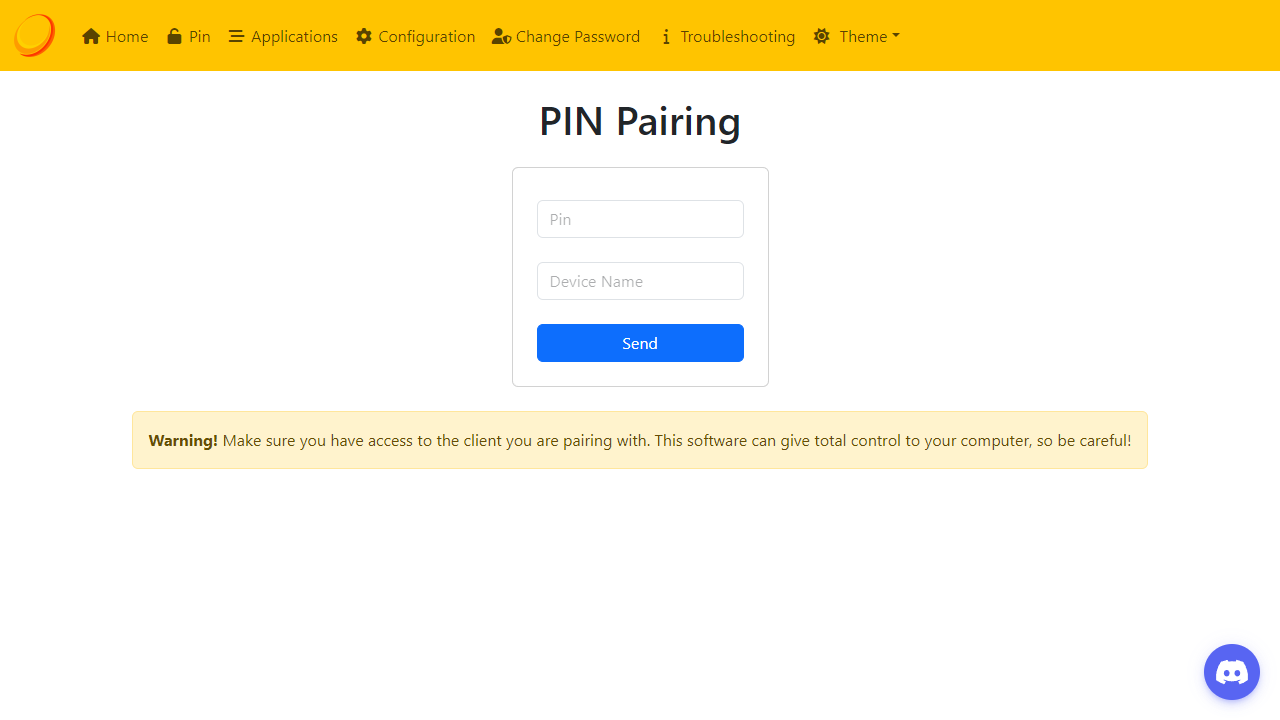
Image: the official Moonlight docs (Setup Guide). It may be an older look of the Sunshine page; yours can differ slightly.
At a glance:
- What it is: a host program (Sunshine) plus a client app (Moonlight). You pair them once with a PIN.
- Where it runs: Sunshine on Linux, Windows or macOS; Moonlight on Windows, Mac, Linux, Android, iOS, Apple TV, ChromeOS and more.
- Update Linux hosts now: the September 2026 release fixes a high-severity local privilege bug for Linux (details in Security).
- Safety: the web UI needs an account and defaults to your home network only. Never forward its port.
- Away from home: use your own VPN (wg-easy or Headscale) instead of opening ports on your router.
How it fits together#
Sunshine captures the game on your PC and sends video and audio as a UDP stream over your home network, or over your VPN when you are away. Moonlight shows it and sends your input back.

Drawn for this guide from the official docs. The dashed VPN route is only for playing away from home.
Before you start#
Host PC (the one with the games). The Sunshine README lists these as a work in progress, so do not buy hardware from them:
| Item | Minimum from the README | For 4K |
|---|---|---|
| GPU | AMD VCE 1.0 or newer; Intel Skylake or newer (Windows) or VAAPI-capable (Linux); NVIDIA with NVENC | AMD VCE 3.1+; GTX 1080+ (Windows) or RTX 2000+ (Linux) |
| CPU and RAM | Ryzen 3 or Core i3; 4 GB RAM or more | Ryzen 5 or Core i5 |
| OS | Windows 11+, macOS 14.2+, Debian 13+, Fedora 43+, Ubuntu 22.04+ | same |
| Network | 5 GHz Wi-Fi (802.11ac) on host and client | CAT5e Ethernet or better |
The README says Windows 11. The Moonlight Setup Guide still says "Windows 10 or 11"; we have not tested Windows 10. A Mac host is marked experimental and gamepads do not work there.
Check your system: uname -m (Linux, Mac) or [Environment]::OSVersion.Version (PowerShell).
Checklist:
- [ ] A monitor, or a cheap HDMI dummy plug, connected to the host GPU (the Moonlight docs say a black screen often means no display)
- [ ] The host and client on the same home network for the first pairing
- [ ] A fixed address (DHCP reservation) for the host in your router
- [ ] Your host's important files backed up
- [ ] Nothing forwarded on your router for these ports
Tested by DIY Lab Hub: not yet. The commands come from the official docs and release files read in October 2026; we did not run them.
Step 1: Install Sunshine on the host#
We pin v2026.914.233613. Compare the SHA-256 value you get with the digest GitHub shows next to each file on the release page.
Linux#
The package name depends on your distribution. Find yours:
. /etc/os-release && echo "$ID $VERSION_ID"
On Ubuntu 24.04 (amd64) the download and install look like this. Use ubuntu22.04, ubuntu26.04, ubuntu26.10 or debiantrixie for other releases, and arm64 for ARM:
V=2026.914.233613
cd ~/Downloads
curl -LO "https://github.com/LizardByte/Sunshine/releases/download/v$V/sunshine_$V-1+ubuntu24.04_amd64.deb"
sha256sum "sunshine_$V-1+ubuntu24.04_amd64.deb"
sudo apt install "./sunshine_$V-1+ubuntu24.04_amd64.deb"
On Fedora 43 (x86_64), the release has an RPM (also fc44, fc45, fc46):
V=2026.914.233613
cd ~/Downloads
curl -LO "https://github.com/LizardByte/Sunshine/releases/download/v$V/Sunshine-$V-1.fc43.x86_64.rpm"
sudo dnf install "./Sunshine-$V-1.fc43.x86_64.rpm"
The docs also describe a LizardByte package repository (Cloudsmith) that keeps apt or dnf updated; its setup is a curl ... | sudo bash script, so read it first.
Windows (PowerShell)#
Download the installer, check its hash, then run it. On an ARM64 PC replace AMD64 with ARM64 (the docs call ARM64 experimental, without proper hardware acceleration):
$v = "2026.914.233613"
$msi = "$HOME\Downloads\Sunshine-Windows-AMD64-installer.msi"
Invoke-WebRequest "https://github.com/LizardByte/Sunshine/releases/download/v$v/Sunshine-Windows-AMD64-installer.msi" -OutFile $msi
(Get-FileHash $msi -Algorithm SHA256).Hash.ToLower()
Start-Process msiexec.exe -ArgumentList "/i `"$msi`"" -Wait
The docs say to choose the options in the installer carefully and not to enable features blindly. Leave the optional gamepad driver off unless you want it: the Virtual HID Driver is a separate, paid-licence add-on, and ViGEmBus is end of life. The installer sets Sunshine up as a Windows service.
Mac (Terminal)#
Sunshine on macOS is experimental. Download the disk image for your chip (arm64 for Apple silicon, x86_64 for Intel) and drag the app into Applications:
V=2026.914.233613
curl -L -o ~/Downloads/Sunshine-macOS.dmg "https://github.com/LizardByte/Sunshine/releases/download/v$V/Sunshine-macOS-arm64.dmg"
shasum -a 256 ~/Downloads/Sunshine-macOS.dmg
open ~/Downloads/Sunshine-macOS.dmg
The docs also list Homebrew: brew tap LizardByte/homebrew then brew install sunshine.
Check it worked. On Linux, run sunshine --version. On Windows, run & "$env:ProgramFiles\Sunshine\sunshine.exe" --version. On Mac, open Sunshine from Applications once. The --version flag is listed in the program's own help text; we show no sample output because we did not run it.
Tip: Install the newest stable version, not an old one from a forum post. Sunshine older than v2026.914.233613 has a known Linux security bug.
Step 2: Start Sunshine and create the web UI account#
Sunshine is set up in a web page on the host, served at https://localhost:47990. Its certificate is self-signed, so your browser warns you. The docs say to ignore that warning for this page.
Linux#
Start it once, then enable it for every login. The docs give this service name (it is also aliased as sunshine.service):
systemctl --user start app-dev.lizardbyte.app.Sunshine
systemctl --user --now enable app-dev.lizardbyte.app.Sunshine
If keyboard, mouse or gamepads do nothing later, the docs say to add your user to the input group (sudo usermod -aG input "$USER", then log out and in).
Windows (PowerShell)#
The installer made a service, so Sunshine is running. Open the page from PowerShell:
Start-Process "https://localhost:47990"
Mac (Terminal)#
Start Sunshine from Applications, or from the terminal with sunshine if you used Homebrew. The first time, macOS asks for screen recording and microphone access: allow both. Then:
open "https://localhost:47990"
On the first visit, create a user name and a long password. Keep them in a password manager: the Moonlight docs warn that anyone who can reach this page can add new clients, which means controlling your PC.
Check it worked. You land on the Sunshine home page after you sign in. Its Troubleshooting tab shows the log.
Tip: If you ever forget the password, stop guessing: run
sunshine --creds <new-user> <new-password>on the host (the docs give this command; on Windows use the full path tosunshine.exein%ProgramFiles%\Sunshine).
Step 3: Open the host firewall for your home network#
These ports come from the Moonlight docs. On Windows the installer should add its own rules.
| Protocol | Ports | What for |
|---|---|---|
| TCP | 47984, 47989, 48010 | pairing and control (47984 and 47989 are the two the docs say you can test) |
| UDP | 47998, 47999, 48000, 48002, 48010 | the stream itself; only active while you stream |
| UDP | 5353 | finding the PC on your network (listed in the Windows firewall rule) |
| TCP | 47990 | the web UI (Sunshine only lets your home network in by default) |
Linux#
Only needed if you run a firewall. This ufw example (standard Ubuntu syntax, the ports are from the docs) allows the stream ports from your home network only. Replace the network with yours:
sudo ufw allow from <your-lan>/24 to any port 47984,47989,48010 proto tcp
sudo ufw allow from <your-lan>/24 to any port 47998,47999,48000,48002,48010 proto udp
sudo ufw allow from <your-lan>/24 to any port 5353 proto udp
sudo ufw allow from <your-lan>/24 to any port 47990 proto tcp
sudo ufw status verbose
Windows (PowerShell)#
The Moonlight docs give these two commands if the automatic rules are missing. Run PowerShell as administrator:
netsh advfirewall firewall add rule name="GameStream UDP" dir=in protocol=udp localport=5353,47998-48010 action=allow
netsh advfirewall firewall add rule name="GameStream TCP" dir=in protocol=tcp localport=47984,47989,48010 action=allow
If Windows asks what kind of network this is, choose Private (home). The Moonlight docs give that advice for VPN adapters, and a Public profile is stricter.
Mac (Terminal)#
The docs do not describe a macOS firewall step. If macOS asks whether Sunshine may accept incoming connections, allow it. You can see what is listening with lsof -iTCP:47989 -sTCP:LISTEN.
Check it worked. Linux: sudo ufw status verbose lists the rules. Windows: Get-NetTCPConnection -LocalPort 47989 -State Listen. Both only prove the host listens; the real test is Step 5.
Step 4: Install Moonlight on the client#
Moonlight is a separate project. We pin v6.2.0.
Linux#
The Moonlight README lists Flatpak for most distributions, Snap for Ubuntu-based ones, and an AppImage:
flatpak install flathub com.moonlight_stream.Moonlight
flatpak run com.moonlight_stream.Moonlight
AppImage instead:
curl -L -o ~/Downloads/Moonlight-6.2.0-x86_64.AppImage https://github.com/moonlight-stream/moonlight-qt/releases/download/v6.2.0/Moonlight-6.2.0-x86_64.AppImage
chmod +x ~/Downloads/Moonlight-6.2.0-x86_64.AppImage
~/Downloads/Moonlight-6.2.0-x86_64.AppImage
Windows (PowerShell)#
$exe = "$HOME\Downloads\MoonlightSetup-6.2.0.exe"
Invoke-WebRequest "https://github.com/moonlight-stream/moonlight-qt/releases/download/v6.2.0/MoonlightSetup-6.2.0.exe" -OutFile $exe
Start-Process $exe -Wait
The installer may download the Microsoft Visual C++ runtime. Without internet, use the portable zip (MoonlightPortable-x64-6.2.0.zip) from the same release.
Mac (Terminal)#
The release has one universal disk image (Intel and Apple silicon):
curl -L -o ~/Downloads/Moonlight-6.2.0.dmg https://github.com/moonlight-stream/moonlight-qt/releases/download/v6.2.0/Moonlight-6.2.0.dmg
open ~/Downloads/Moonlight-6.2.0.dmg
Drag Moonlight into Applications. Phones and TVs: install Moonlight from the Play Store or App Store.
Check it worked. Moonlight opens to an empty list of PCs, or it already shows your host after a few seconds.
Step 5: Pair Moonlight with Sunshine#
Do this at home, on the same network. The Moonlight docs add that iPhone, iPad and Apple TV clients must pair on the same network.
First find the host's address if Moonlight does not list it.
Linux#
On the host:
hostname -I
In Moonlight, click the host if it appears. Otherwise click Add PC (the plus) and type that address. Moonlight shows a PIN.
Windows (PowerShell)#
On the host:
Get-NetIPAddress -AddressFamily IPv4 | Where-Object { $_.InterfaceAlias -notlike "Loopback*" } | Select-Object InterfaceAlias, IPAddress
In Moonlight on your client, click the host or Add PC and type the address. Moonlight shows a PIN.
Mac (Terminal)#
On the host:
ipconfig getifaddr en0
(en0 is usually Wi-Fi on a Mac; if it prints nothing, try en1.) In Moonlight click the host or Add PC and type the address. Moonlight shows a PIN.
Now on the host, open the web UI (https://localhost:47990), choose PIN in the top bar, type the PIN and a name for the device, and click Send. Sunshine should show a success message. If you are on another device on the same network, use the host's address instead of localhost.
Check it worked. In Moonlight, opening the host now lists its apps, such as Desktop, instead of asking for a PIN.
Tip: Pairing from far away is the mistake that fails most often. Pair once on your home network. After that, a VPN address can reach the same host.
Step 6: Stream, and add a game#
In Moonlight, open the host and choose Desktop to stream everything you see, or pick an app to start it. The docs say Sunshine ships with a Steam entry and the Desktop entry. To add more, open the web UI, choose Applications, and add the command or the program; the docs warn that a launcher like Steam must be started "detached" or the stream ends at once.
Linux#
Keys to remember in Moonlight (from its docs; the same on every system):
| Keys | What it does |
|---|---|
| Ctrl+Alt+Shift+Q | End the stream (the game keeps running on the host) |
| Ctrl+Alt+Shift+Z | Release or capture the mouse and keyboard |
| Ctrl+Alt+Shift+S | Show the stats overlay |
Windows (PowerShell)#
The docs say Sunshine uses the Desktop Duplication API, which captures only from the GPU that drives the display. If you use a second GPU, connect a display or dummy plug to it.
Mac (Terminal)#
If Sunshine runs on your Mac, the docs say Command keys are not forwarded: the right Option key acts as Command.
Check it worked. You see your desktop or game on the client, hear sound, and the mouse moves it. Press Ctrl+Alt+Shift+S to see delay and packet loss.
Tip: Start with the Desktop entry. If the desktop streams fine but a game gives a black screen, the problem is that game, not your network.
Put it behind HTTPS#
Sunshine's web UI already uses HTTPS with its own certificate and belongs on your home network only, so no Traefik or Caddy is needed. Do not publish this page on the internet; use a VPN (next section).
Play away from home with a VPN, not port forwarding#
The Moonlight docs offer UPnP, manual port forwarding and several VPNs. We teach the VPN route because it opens nothing on your router and keeps the web UI off the internet.
- Run your own VPN: wg-easy (WireGuard) or Headscale (self-hosted Tailscale control server). Put the host and your client on it.
- Pair once at home (Step 5).
- Away from home, connect the VPN on the client first, then open Moonlight.
- If the host does not appear, Add PC with the host's VPN address (the VPN address is shown in your wg-easy or Headscale client list).
The docs warn that a relayed connection is too slow for streaming (with Tailscale, check that tailscale ping <host-name> reports a direct path), and that some mobile networks interfere with WireGuard UDP.
Security and testing#
| Control | How |
|---|---|
| Web UI account | Created in Step 2. Long and unique. Never share it |
| Who can open the web UI | Sunshine's origin_web_ui_allowed defaults to lan. Set it to pc (this PC only) in the web UI's Configuration page if you only configure from the host. Never wan |
| Router | No port forward for 47984, 47989, 47990, 48010 or the UDP ports. Keep Sunshine's upnp setting at its default (disabled) |
| Linux host | Run v2026.914.233613 or newer: it fixes advisory GHSA-fp6g-27w5-489j (high, CVSS 7.8). The bug lets a local low-privilege user gain more rights; the advisory says network access alone is not enough |
| Encryption | Stream encryption defaults to off at home (lan_encryption_mode = 0) and "if supported" over the internet (wan_encryption_mode = 1). A VPN encrypts it anyway |
| Config files | sunshine_state.json holds your login by default. Treat the config folder as a secret |
Quick tests:
sunshine --version
ss -ltn | grep -E '47984|47989|47990|48010'
Get-NetTCPConnection -LocalPort 47990 -State Listen
Common mistakes#
These come from the official docs and real GitHub issues (read October 2026).
| Mistake | Why it happens | Do this instead |
|---|---|---|
| Forwarding all ports, including 47990, on the router | Old guides use UPnP or "forward everything". The web UI can add clients | Use a VPN. Keep 47990 on your LAN |
| Pairing for the first time from outside | iPhone, iPad and Apple TV clients must pair on the same network; the docs advise everyone to pair at home first | Pair at home first, then add the VPN address |
| Installing the Flatpak or AppImage and expecting KMS capture on Linux | They are convenient, and the docs say they do not support KMS capture | Use the distro package (.deb or .rpm) |
| Running Sunshine in Docker | It looks tidy, but the docs say the images are not recommended for most users | Use the native installer for your OS |
| Black screen with no monitor | The GPU has no active display. Docs: use a dummy HDMI plug. On a Linux gamescope session, issue 5958 shows a black screen until the local mouse moves | Attach a display or plug; test with the Desktop entry |
| Using Remote Desktop (RDP) on the host, then streaming | RDP locks the PC, so apps will not start | In Moonlight, log back in through the Desktop entry, then start your app |
| Updating Windows blindly to the latest | Issue 5978 (one crash report on 2026.914.233613) and issue 5903 (the .exe files are unsigned, so Windows 11 Smart App Control blocks the service) are open | Keep the previous MSI, update on a day you can roll back, and read the open issues first |
| Expecting gamepads on a Mac host | macOS support is experimental, and the docs say gamepads do not work | Use Windows or Linux for gamepad games |
| AI assistants: telling you to turn on GameStream in GeForce Experience, or to forward 47990 and "all of 47984-48010 TCP" | Many answers copy advice from the GameStream era | Sunshine needs no NVIDIA software. Use the port table in Step 3 and a VPN |
AI assistants: port = 47990 in sunshine.conf | The setting is the base of a family of ports (default 47989); the others are offsets | Leave port at its default unless you must change it |
Tip: After every update on Windows, start Sunshine and stream the Desktop for five minutes before you rely on it. Keep the old installer in a folder named for its version.
Tip: Before you paste any command from a chat, check it against the Sunshine docs and the Moonlight Setup Guide. Port lists and package names change.
Tip: If your game is choppy, first plug the host and the client into Ethernet or use 5 GHz Wi-Fi, and lower the bitrate in Moonlight. Many "Sunshine problems" are Wi-Fi problems.
Troubleshooting#
| Problem | Solution |
|---|---|
| Moonlight does not list the host | Use Add PC and type the address. Check Step 3, UDP 5353 and that both are on the same network. Turn off a VPN on the host: the Moonlight docs say some VPNs block local access |
| Web UI does not open from another PC | By default only the home network is allowed (origin_web_ui_allowed = lan). Check TCP 47990 in the firewall and use https://; accept the certificate warning |
| Pairing fails after typing the PIN | Pair on the home network, and check that you typed the PIN on the web UI of the right host |
| No mouse or keyboard on Linux | Add your user to the input group, then log out and in |
| Black screen on Linux (portal capture) | In the web UI open Troubleshooting and use Reset XDG Portal Capture, then approve the prompt again |
| Choppy or laggy video | Lower the bitrate, use a wired link or 5 GHz, press Ctrl+Alt+Shift+S, and test the link with iperf3 as the Sunshine docs describe |
| Forgot the web UI password | sunshine --creds <new-user> <new-password> on the host |
| Windows service will not start | See the error below; check Smart App Control |
Error: StartService FAILED 4551#
The exact text is StartService FAILED 4551: Application Control policy blocked this file. In issue 5903, Windows 11 with Smart App Control blocked the unsigned sunshine.exe of v2026.914.233613 even though the MSI is signed. We found no fix in the issue. Options are an older release you trust, or turning Smart App Control off, which lowers your protection. Read the issue before you decide.
Error: RemoteDesktop Start: no streams in response#
From the docs: portal capture on Linux can lose its saved token after a crash. Use Reset XDG Portal Capture as in the table, or delete portal_token in ~/.config/sunshine and start Sunshine again.
Known issues (October 2026)#
- Windows crash (issue 5978): one report of repeated full-PC crashes on v2026.914.233613 with an RTX 5070 Ti, fixed for that user by going back to 2026.516.143833. Not reproduced by us.
- Slow start (issue 5999): a Windows user reports 10 to 20 seconds longer start-up on the latest stable.
- VPN breaks after a LAN connection (issue 5990): a user's Tailscale connection stopped working after the client had connected on the home network once. No answer in the issue yet.
- macOS mouse dies (issue 5874): remote mouse input stops after some uptime on a Mac host; restarting Sunshine fixes it.
Updates and backups#
Update. Read the release notes first: v2026.914.233613 requires the optional Virtual HID Driver to be 2026.914.1218.10 or newer. Then install the new package over the old one. On Linux repeat the apt install or dnf install with the new file. On Windows run the new MSI (the docs say to uninstall by hand before switching installer types). On a Mac replace the app or run brew upgrade sunshine. Update Moonlight the same way; on Windows run the new installer.
Back up the config. The folder holds your login, paired clients and apps. It is ~/.config/sunshine on Linux and Mac and %ProgramFiles%\Sunshine\config on Windows.
Linux#
mkdir -p ~/sunshine-backups
tar -czf "$HOME/sunshine-backups/sunshine-config-$(date +%F).tar.gz" -C ~/.config sunshine
chmod 600 ~/sunshine-backups/sunshine-config-*.tar.gz
For a nightly copy at 03:00, add this line with crontab -e (the % must be escaped in cron):
0 3 * * * tar -czf "$HOME/sunshine-backups/sunshine-config-$(date +\%F).tar.gz" -C "$HOME/.config" sunshine
Windows (PowerShell)#
$dest = "$HOME\sunshine-backups"
New-Item -ItemType Directory -Force $dest | Out-Null
Copy-Item "$env:ProgramFiles\Sunshine\config" "$dest\sunshine-config-$(Get-Date -Format yyyy-MM-dd)" -Recurse
Schedule it in Task Scheduler (daily, 03:00) if you want it nightly.
Mac (Terminal)#
Same commands as Linux (use crontab -e for the nightly line, or a launchd job).
Restore test. Unpack into a new folder, never over the live one:
mkdir -p /tmp/sunshine-restore-test
tar -xzf ~/sunshine-backups/sunshine-config-<date>.tar.gz -C /tmp/sunshine-restore-test
ls /tmp/sunshine-restore-test/sunshine
You should see files such as sunshine.conf, apps.json and sunshine_state.json; the config docs name them, and some appear only after you change a setting.
Performance and resources#
We measured nothing; these are the project's own numbers and knobs.
- Network matters more than speed: the Sunshine docs say stability and low variation matter most. Test with
iperf3 -son the host and a 60-second UDP reverse test from the client. - Settings in the web UI:
max_bitratecaps the bitrate (0 follows Moonlight),minimum_fps_targetcontrols how low the frame rate may go on a still screen, and stream encryption costs speed on weak hosts. - Moonlight side: Ctrl+Alt+Shift+S shows decode time and loss. Moonlight supports up to 4K and up to 120 FPS on capable hardware.
FAQ#
Is Sunshine free? Yes. Sunshine and Moonlight are open source under GPL-3.0 with no accounts. The only paid part is the optional Virtual HID Driver for Windows gamepads.
Do I need an NVIDIA graphics card? No. Sunshine supports AMD, Intel and NVIDIA hardware encoding, and software encoding on any CPU. NVIDIA's own GeForce Experience streaming is being discontinued and is not needed.
Which devices can play? The Moonlight site lists PC, Mac, Linux, Android, iOS, Apple TV, ChromeOS and community ports for consoles and TVs. Use the client page for your device.
Sources#
- Sunshine release v2026.914.233613, README, LICENSE and security advisory GHSA-fp6g-27w5-489j - read October 2026
- Sunshine docs: Getting Started, Configuration and Troubleshooting - read October 2026
- Moonlight website, Setup Guide and Troubleshooting - read October 2026
- Moonlight PC release v6.2.0 and README - read October 2026
- Sunshine issues 5874, 5903, 5958, 5978, 5990 and 5999 - read October 2026
- Our own guides: wg-easy and Headscale
Checked against the official docs on 2026-10-31.