KoboldCpp: Run Local LLMs From One File (Linux, Windows, Mac)
Before you start
- 20 min read
Boxes marked Run in terminal are what you type; plain text explains why. Check what you need first
What you get in one minute#
KoboldCpp is a free program that runs GGUF language models on your own computer from a single downloaded file: no installer, no Python, no account, and it gives you a chat web page and an OpenAI-compatible API on port 5001.

Logo: the official KoboldCpp project (koboldcpp.net, the kobold mascot used as the site icon)
It is built on llama.cpp and adds a bundled chat and writing interface and several API styles in one server. It suits a private chat assistant, a backend for your coding tools, or story writing. The project is active: version 1.124.2 came out in October 2026.
| What | Value (official sources, read 2026-11-05) |
|---|---|
| Current version | v1.124.2 (latest release, October 2026) |
| Licence | GNU AGPL v3.0 (bundled parts keep their own licences, such as MIT for llama.cpp) |
| Download size | 65 MB (Mac) to 600 MB (CUDA builds), plus a model of 2.5 to 5 GB or more |
| Port | TCP 5001 (default, change with --port) |
| Official sources | github.com/LostRuins/koboldcpp, koboldcpp.net and the wiki |
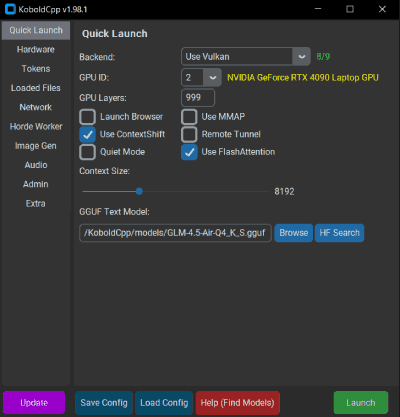
Image: the official KoboldCpp project (README media at v1.124.2). It shows version 1.98.1, so the current launcher looks different.

At a glance:
- Platforms: Windows, Linux x86-64 and Apple Silicon Macs. Intel Macs need a source build.
- Pick the build by GPU: NVIDIA gets the CUDA file; AMD and Intel use the
nocudafile with Vulkan; no GPU works too, just slower. - APIs on one port: KoboldAI, OpenAI-compatible and Ollama-style, plus a web UI at
http://localhost:5001. - Not safe by default: with no
--hostit listens on all network interfaces and has no password. Step 3 fixes that. - Privacy: the docs say it runs offline. A few optional features (Share, AI Horde, web search, tunnels) do go online.
How it fits together#
You download two things once: the KoboldCpp file and a GGUF model. KoboldCpp loads the model onto your GPU or CPU and serves a web UI and an API on one port.

Drawn for this guide from the official README. The dashed Caddy box is optional and only for sharing the server.
Before you start#
KoboldCpp needs no installation, but you must pick the right file. The wiki's RAM rule of thumb is old (2048-token context, 4-bit models): about 4 GB for a 3B model, 8 GB for 7B, 16 GB for 13B. A GPU is optional.
| System | Files to choose from (v1.124.2) | Notes from the docs |
|---|---|---|
| Windows | koboldcpp.exe (NVIDIA CUDA, 594 MB), koboldcpp-nocuda.exe (CPU + Vulkan, 85.7 MB), koboldcpp-oldpc.exe (458 MB) | oldpc is for an older CPU or older NVIDIA GPU (CUDA 11 + AVX1) |
| Linux x86-64 | koboldcpp-linux-x64 (600 MB), -nocuda (102 MB), -oldpc (454 MB) | Other CPUs (such as Raspberry Pi) need a source build |
| Mac | koboldcpp-mac-arm64 (65.2 MB) | Apple Silicon only; Intel Macs need a source build |
| Your GPU | Choose | Start flag |
|---|---|---|
| NVIDIA | the CUDA file (koboldcpp.exe, koboldcpp-linux-x64) | --usecuda |
| AMD (and Intel) | the nocuda file | --usevulkan |
| None | the nocuda file | --usecpu |
| Apple Silicon | koboldcpp-mac-arm64 | none (Metal is used automatically) |
Checklist:
- [ ] About 3 GB free disk space for the program and the example model
- [ ] Port 5001 free
- [ ] Windows: your antivirus will not block the download (see Troubleshooting)
- [ ] Mac: an Apple Silicon (M-series) Mac
Tested on 2026-11-05: Linux = not run, Windows = not run, Mac = not run. Everything comes from the official README, wiki and source code of v1.124.2.
Tip: Download only from
github.com/LostRuins/koboldcpp/releasesorkoboldcpp.net. The README warns thatkoboldcpp.comis a malicious fake site.
Step 1: Download the right KoboldCpp file#
We pin the release tag v1.124.2 in the URL so the file never changes under you. The latest URL in the README moves with every release.
Linux#
mkdir -p ~/koboldcpp/models
cd ~/koboldcpp
curl -fLo koboldcpp-linux-x64 https://github.com/LostRuins/koboldcpp/releases/download/v1.124.2/koboldcpp-linux-x64
chmod +x koboldcpp-linux-x64
sha256sum koboldcpp-linux-x64
./koboldcpp-linux-x64 --version
No NVIDIA GPU? Replace the file name with koboldcpp-linux-x64-nocuda in all three places.
Windows (PowerShell)#
New-Item -ItemType Directory -Force "$HOME\koboldcpp\models" | Out-Null
Set-Location "$HOME\koboldcpp"
curl.exe -fLo koboldcpp.exe https://github.com/LostRuins/koboldcpp/releases/download/v1.124.2/koboldcpp.exe
Get-FileHash .\koboldcpp.exe -Algorithm SHA256
.\koboldcpp.exe --version
Use curl.exe, not curl: in PowerShell curl is an alias of another command. For a PC without an NVIDIA GPU use koboldcpp-nocuda.exe instead.
Mac (Terminal)#
mkdir -p ~/koboldcpp/models
cd ~/koboldcpp
curl -fLo koboldcpp-mac-arm64 https://github.com/LostRuins/koboldcpp/releases/download/v1.124.2/koboldcpp-mac-arm64
chmod +x koboldcpp-mac-arm64
shasum -a 256 koboldcpp-mac-arm64
./koboldcpp-mac-arm64 --version
If macOS blocks the file, allow it in System Settings > Privacy & Security, as the README says and Apple explains on its support page.
Check it worked. --version prints the version and exits. The hash must match the SHA-256 digest GitHub shows beside the file on the release page. The first characters are:
| File | SHA-256 starts with |
|---|---|
koboldcpp-linux-x64 | c66ae0106673 |
koboldcpp.exe | e306b58f9770 |
koboldcpp-mac-arm64 | f6424d36081a |
Tip: Keep the old file when you update, so you can go back if a new release breaks your model.
Step 2: Download a GGUF model#
KoboldCpp ships no model. A .gguf file is one self-contained model at one compression level; you need only one file. Q4_K_M is a 4-bit compression: smaller and a little less accurate than Q8_0.
We use Gemma 3 4B at Q4_K_M (2.49 GB), the README's "lightweight and fast" example. Models have their own licences, so read the model card. For better answers with 8 GB or more of memory, the README calls Qwen3-VL-8B (Q4_K_S, 4.80 GB) the most recommended all-rounder.
Linux#
cd ~/koboldcpp/models
curl -fLo gemma-3-4b-it-Q4_K_M.gguf https://huggingface.co/ggml-org/gemma-3-4b-it-GGUF/resolve/main/gemma-3-4b-it-Q4_K_M.gguf
ls -lh
Windows (PowerShell)#
Set-Location "$HOME\koboldcpp\models"
curl.exe -fLo gemma-3-4b-it-Q4_K_M.gguf https://huggingface.co/ggml-org/gemma-3-4b-it-GGUF/resolve/main/gemma-3-4b-it-Q4_K_M.gguf
Get-ChildItem | Select-Object Name, Length
Mac (Terminal)#
Same commands as Linux:
cd ~/koboldcpp/models
curl -fLo gemma-3-4b-it-Q4_K_M.gguf https://huggingface.co/ggml-org/gemma-3-4b-it-GGUF/resolve/main/gemma-3-4b-it-Q4_K_M.gguf
ls -lh
Check it worked. The file is about 2.5 GB (we read 2,489,757,856 bytes on Hugging Face). A much smaller file usually means the download stopped or an error page was saved.
Tip: Want a ten-second test first? A maintainer suggests
baby_llama.gguf(about 39 MB) fromhuggingface.co/concedo/koboldcppto test downloading and loading. It proves the setup works, not that answers are good.
Step 3: Start the server#
You can double-click the program instead (the launcher opens, you pick the model and click Launch), but the command line is repeatable and works without a screen. With a valid --model the launcher is skipped.
--host 127.0.0.1 keeps the server on this computer (the default is every network interface). --contextsize sets the memory for the conversation; the v1.124.2 source default is 16384 and the wiki says 8192, so we set it.
Linux#
cd ~/koboldcpp
./koboldcpp-linux-x64 --model ~/koboldcpp/models/gemma-3-4b-it-Q4_K_M.gguf --contextsize 8192 --host 127.0.0.1
Add --usecuda (NVIDIA) or --usevulkan (AMD and others) to choose the backend, or --usecpu for CPU only. With none of them KoboldCpp tries to pick the best backend itself.
Windows (PowerShell)#
Set-Location "$HOME\koboldcpp"
.\koboldcpp.exe --model "$HOME\koboldcpp\models\gemma-3-4b-it-Q4_K_M.gguf" --contextsize 8192 --host 127.0.0.1
Add --usecuda or --usevulkan the same way. Windows may show a firewall prompt. With --host 127.0.0.1 nothing outside this PC needs to reach the server.
Mac (Terminal)#
cd ~/koboldcpp
./koboldcpp-mac-arm64 --model ~/koboldcpp/models/gemma-3-4b-it-Q4_K_M.gguf --contextsize 8192 --host 127.0.0.1
Check it worked. When the model has loaded, the terminal prints lines like these. This is the wording in the program's source code (with --host set, the address shows that host), not our own run:
Starting Kobold API on port 5001 at http://127.0.0.1:5001/api/
Starting OpenAI Compatible API on port 5001 at http://127.0.0.1:5001/v1/
Starting llama.cpp secondary WebUI at http://127.0.0.1:5001/lcpp/
======
Please connect to custom endpoint at http://127.0.0.1:5001
Keep this terminal open: closing it stops the server. If the window closes at once, start it again from a terminal and read the last lines.
Tip: The first start is slow: the program unpacks itself and loads several GB. Wait for the "Please connect" line before you open the browser.
Step 4: Chat in the browser#
The bundled KoboldAI Lite page is the main interface; it also holds stories, characters and memory.
Linux#
xdg-open http://localhost:5001
Windows (PowerShell)#
Start-Process http://localhost:5001
Mac (Terminal)#
open http://localhost:5001
Type in the box at the bottom and press Submit. A more classic chat page, the llama.cpp web UI, runs in parallel at http://localhost:5001/lcpp/.
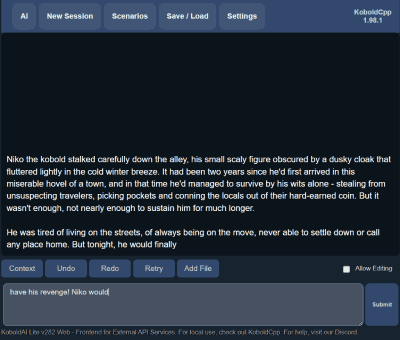
Image: the official KoboldCpp project (README media at v1.124.2). It shows version 1.98.1; newer versions look different.

Check it worked. The model answers in the page. If the page says it cannot connect, wait for the load to finish and check the address printed in the terminal.
Tip: Lite keeps your chats in the browser's own storage, not on the server. Use Save / Load to export a file; clearing browser data deletes the rest.
Step 5: Call the API from your own tools#
Other programs reach the model through an OpenAI-compatible URL. The README lists the base addresses on the default port:
| Interface | Address |
|---|---|
| OpenAI-compatible API | http://localhost:5001/v1 |
| KoboldAI API (and interactive docs) | http://localhost:5001/api |
| KoboldAI Lite web UI | http://localhost:5001 |
| llama.cpp web UI | http://localhost:5001/lcpp |
It also offers Ollama, Anthropic, AUTOMATIC1111, ComfyUI and XTTS style endpoints. If an app insists on the Ollama address, start with --port 11434 (stop Ollama first if it uses that port); the wiki calls this a compatibility option, not the normal route.
Linux#
curl -s http://localhost:5001/api/extra/version
curl -s http://localhost:5001/v1/models
curl -s http://localhost:5001/v1/chat/completions \
  -H "Content-Type: application/json" \
  -d '{"model":"koboldcpp","messages":[{"role":"user","content":"Say hello in five words."}],"max_tokens":40}'
Windows (PowerShell)#
Invoke-RestMethod http://localhost:5001/api/extra/version
Invoke-RestMethod http://localhost:5001/v1/models
$body = @{ model = "koboldcpp"; messages = @(@{ role = "user"; content = "Say hello in five words." }); max_tokens = 40 } | ConvertTo-Json -Depth 5
Invoke-RestMethod http://localhost:5001/v1/chat/completions -Method Post -ContentType "application/json" -Body $body
Mac (Terminal)#
Same commands as Linux.
Check it worked. /api/extra/version returns JSON that includes the version, /v1/models lists the loaded model, and the chat call returns a JSON answer in the usual OpenAI chat format (a choices list with the reply). Use the id that /v1/models returns as the model value; "koboldcpp" is only a placeholder.
To use a coding tool or chat front end, set its base URL to http://localhost:5001/v1 and give it any API key text (it is ignored until you set --password). Our guides for Aider, Cline, Continue and Open WebUI are written for Ollama, but those tools also accept an OpenAI-compatible base URL.
Tip: Open
http://localhost:5001/apifor the interactive reference, or the online KoboldCpp API reference. Check an endpoint there before you let an assistant invent one.
Step 6: Save your settings#
The launcher's Save Config button, or --exportconfig on the command line (it writes the file and exits), saves a .kcpps settings file. --config starts from it later; explicit flags override it.
Linux#
cd ~/koboldcpp
./koboldcpp-linux-x64 --model ~/koboldcpp/models/gemma-3-4b-it-Q4_K_M.gguf --contextsize 8192 --host 127.0.0.1 --exportconfig ~/koboldcpp/gemma.kcpps
./koboldcpp-linux-x64 --config ~/koboldcpp/gemma.kcpps
Windows (PowerShell)#
Set-Location "$HOME\koboldcpp"
.\koboldcpp.exe --model "$HOME\koboldcpp\models\gemma-3-4b-it-Q4_K_M.gguf" --contextsize 8192 --host 127.0.0.1 --exportconfig "$HOME\koboldcpp\gemma.kcpps"
.\koboldcpp.exe --config "$HOME\koboldcpp\gemma.kcpps"
Mac (Terminal)#
cd ~/koboldcpp
./koboldcpp-mac-arm64 --model ~/koboldcpp/models/gemma-3-4b-it-Q4_K_M.gguf --contextsize 8192 --host 127.0.0.1 --exportconfig ~/koboldcpp/gemma.kcpps
./koboldcpp-mac-arm64 --config ~/koboldcpp/gemma.kcpps
Check it worked. gemma.kcpps exists in the folder, and the second command starts the same server as Step 3.
Choosing models and context (what the numbers mean)#
| Setting | What it does | Official advice |
|---|---|---|
--contextsize | The maximum text, in tokens, the model sees at once. More context needs more memory | Lower it if you run out of RAM or VRAM |
--gpulayers | How many layers move to the GPU. Default -1 = automatic fit, 0 = none | Lower it if the GPU runs out of VRAM; autofit is an estimate |
Quantization (Q4_K_M, Q8_0) | How compressed the model file is | Bigger files are better quality; smaller ones fit easier |
max_tokens (API) | Length of one reply | Cannot exceed half of --contextsize (maintainer, issue #2579) |
A model that fits in VRAM runs far faster than one split with the CPU. KoboldCpp is built on llama.cpp (see our llama.cpp server guide); you pick and download the model file yourself, where Ollama pulls models by name. Not sure what fits? See which local LLM fits your GPU.
Tip:
--analyze model.ggufprints the metadata, tensor names and types inside a GGUF, so you can check what a file really is.
Put it behind HTTPS (with or without Traefik)#
Skip this while only you use the server on the same computer. Use it when other devices reach KoboldCpp over a network: it serves plain HTTP, so a password alone travels in clear text. Keep --host 127.0.0.1 so only the proxy on the same machine reaches port 5001, and still set --password (see Security).
With Traefik#
KoboldCpp is a program, not a container, so there are no labels. If you already run Traefik, add a file-provider service that points to http://<this-computer>:5001 (set --host to this machine's LAN address) as in the Traefik file provider docs. Otherwise use Caddy.
Without Traefik: Caddy#
Caddy gets and renews its own certificates. Its docs describe automatic Let's Encrypt certificates for a public domain (ports 80 and 443 must reach it) and tls internal for a local certificate at home. Create a Caddyfile. For a public domain with a DNS record pointing at the server:
kobold.example.com {
    reverse_proxy localhost:5001
}
For a home-only name, use tls internal:
kobold.home.arpa {
    tls internal
    reverse_proxy localhost:5001
}
Caddy flushes event-stream responses at once, so streamed tokens pass through.
Linux#
Install Caddy from its official Debian/Ubuntu repository (other distributions are on the Caddy install page):
sudo apt install --yes debian-keyring debian-archive-keyring apt-transport-https curl
curl -1sLf 'https://dl.cloudsmith.io/public/caddy/stable/gpg.key' | sudo gpg --dearmor -o /usr/share/keyrings/caddy-stable-archive-keyring.gpg
curl -1sLf 'https://dl.cloudsmith.io/public/caddy/stable/debian.deb.txt' | sudo tee /etc/apt/sources.list.d/caddy-stable.list
sudo chmod o+r /usr/share/keyrings/caddy-stable-archive-keyring.gpg
sudo chmod o+r /etc/apt/sources.list.d/caddy-stable.list
sudo apt update
sudo apt install caddy
The package runs Caddy as a service reading /etc/caddy/Caddyfile. Put your Caddyfile there, then sudo systemctl reload caddy.
Windows (PowerShell)#
Download the Windows build from the Caddy releases (open "Assets"), or use the community packages Chocolatey or Scoop that the install page lists. Then, in the folder with your Caddyfile:
caddy run --config Caddyfile
Mac (Terminal)#
Homebrew is a community-maintained route on the Caddy install page:
brew install caddy
caddy run --config Caddyfile
For tls internal, each device must trust Caddy's local root certificate. On the same machine, caddy trust installs it into the local trust store (it may ask for permission). For other devices, copy Caddy's root.crt from its data folder and import it into each system's trust store. Those import steps differ by system and are not from the KoboldCpp docs.
Check it worked. curl -I https://kobold.example.com/ returns an HTTP status line over HTTPS. For a home-only name, the browser shows a padlock only after the root is trusted on that device.
Tip: A certificate error usually means the name in the Caddyfile differs from the DNS record, or ports 80 and 443 do not reach the server. Do not forward port 5001 itself on your router.
Security and testing#
By default KoboldCpp accepts connections on every network interface and needs no password, so anyone on your network can use your GPU. The source confirms the default: with no --host it binds all addresses.
| Control | How |
|---|---|
| Local only | --host 127.0.0.1 (Step 3) |
| Password | --password (or the KCPP_PASSWORD environment variable). Clients send Authorization: Bearer <key>. It covers the text endpoints; the help says image endpoints are not secured |
| Admin mode | Leave --admin off. If you need it on a shared instance, also set --adminpassword, as the wiki warns |
| Limits for a shared server | --maxrequestsize, --ratelimit and --genlimit (all from the wiki's security answer) |
| HTTPS | Caddy (above), or --ssl cert.pem key.pem with unencrypted PEM files |
| Online features | Leave --remotetunnel off: it opens a public internet address through Cloudflare, a route we do not teach. Reach your server from outside with a VPN instead, see our Tailscale guide (written for Ollama; the idea is the same) |
Prefer the environment variable to --password on the command line, because command-line arguments can be seen in the process list. Set it only for that terminal, and use the settings file from Step 6:
Linux#
read -rs KCPP_PASSWORD && export KCPP_PASSWORD
./koboldcpp-linux-x64 --config ~/koboldcpp/gemma.kcpps
Windows (PowerShell)#
$env:KCPP_PASSWORD = "<YOUR_KEY>"
.\koboldcpp.exe --config "$HOME\koboldcpp\gemma.kcpps"
Mac (Terminal)#
read -rs KCPP_PASSWORD && export KCPP_PASSWORD
./koboldcpp-mac-arm64 --config ~/koboldcpp/gemma.kcpps
Test it. Without the key you should get HTTP 401 with the message "Authentication key is missing or invalid." (from the source). With the key the request works:
curl -i http://localhost:5001/v1/chat/completions -H "Content-Type: application/json" -d '{"messages":[{"role":"user","content":"hi"}],"max_tokens":5}'
curl -s http://localhost:5001/v1/chat/completions -H "Authorization: Bearer $KCPP_PASSWORD" -H "Content-Type: application/json" -d '{"messages":[{"role":"user","content":"hi"}],"max_tokens":5}'
On Windows, send the same with Invoke-RestMethod and a header: -Headers @{ Authorization = "Bearer $env:KCPP_PASSWORD" }.
What leaves your computer: the wiki says KoboldCpp runs fully offline and does not send your inputs elsewhere. A user suspected telemetry; it was only DNS lookups, and the maintainer says there is none (issue #2517). Features that go online when you choose them: model downloads, Share > Web URL (uploads the story to a public pastebin), AI Horde, web search and tunnels.
Common mistakes#
These come from the project's wiki and issue tracker, and from common AI assistant answers.
| Mistake | Why it happens | Do this instead |
|---|---|---|
Leaving the default --host and no password | The server accepts every interface and has no key by default, so other devices on your network can use your GPU | Add --host 127.0.0.1 and, when sharing, --password |
Downloading from koboldcpp.com or a mirror | The README warns koboldcpp.com is a malicious fake site | Use only GitHub releases or koboldcpp.net |
| Picking the CUDA build on a PC without NVIDIA | The first file in the list looks like the main one; it is for NVIDIA users | Use the nocuda file with --usevulkan (AMD, Intel) or --usecpu |
Setting max_tokens above half the context | A maintainer says the generation amount cannot be higher than half of --contextsize (issue #2579) | Raise --contextsize first, or ask for a shorter reply |
| Expecting the GPU to work without Vulkan packages (Linux) | In issue #2412 the launcher read vulkaninfo --summary and found no GPU on a system missing vulkan-tools and the driver package | Install your distribution's Vulkan driver and tools, then run vulkaninfo --summary |
| Loading a model the release does not know yet | New architectures arrive with the next release (issues #2570, #2561) | Check the model's date, update, or try the project's rolling build |
| Assuming the Mac file uses the GPU | Version 1.123 ran on the CPU instead of Metal (issue #2539, fixed in a patch) | Watch CPU use while generating; update to the latest release |
Trusting --password for image generation | The help text says image endpoints are not secured | Keep image models off any shared server or put a proxy in front |
AI assistants: inventing flags such as --gpu_layers, --stream or --smartcontext | Old forum posts list flags the wiki now calls deprecated or outdated | Run --help and use --gpulayers; trust the wiki's flag reference |
AI assistants: telling Mac users to add --usecuda or suggesting CLBlast | Examples are written for NVIDIA PCs; CLBlast was removed | Mac uses Metal automatically; use --usevulkan or --usecpu on PCs without CUDA |
AI assistants: pointing apps at /api/v1/chat or port 11434 | They mix up the KoboldAI, OpenAI and Ollama styles | Use http://localhost:5001/v1 for OpenAI-style tools |
Tip: Before you paste a long command from a chat assistant, run
koboldcpp --help(use your file name) and check every flag name there. The help text of your exact version is the authority.
Tip: Change one thing at a time when speed is bad: first the backend flag, then
--gpulayers, then--contextsize. The logs at start-up show which backend and layers were really used.
Troubleshooting#
| Problem | Solution |
|---|---|
| The window closes at once | Start it from a terminal and read the last lines; the wiki says the program probably crashed |
| Browser cannot connect | Wait for the model to load; check the address in the terminal and your --port |
| Slow generation | Check the backend and that layers are offloaded; try --usecuda or --usevulkan |
| Out of RAM or VRAM | Smaller model, shorter --contextsize, fewer --gpulayers |
| Garbled or incoherent answers | A wrong chat template: try --jinja or the Jinja toggle in the launcher |
| Crash at start on an older computer | Try an oldpc file or --noavx2 |
| Antivirus flags the file | Seen on 1.115 (issue #2267): the maintainer calls it a false positive; check the hash, and report it to the vendor |
| Windows Smart App Control blocks it | Right-click the file > Properties > Unblock (issue #1946) |
| Model download stalls at 0% | Check free disk space; try a tiny download first (issue #2563) |
Unable to detect VRAM. Auto Selected Default Backend#
Seen with the Linux nocuda file on Arch Linux with an AMD card (issue #2412, closed). The launcher reads vulkaninfo --summary; the fix was installing the missing vulkan-tools and driver packages. Run vulkaninfo --summary to check.
CUDA error: invalid configuration argument#
Reported at warm-up with a Gemma 4 12B model on an RTX 4070 and the 1.123.1 CUDA build (issue #2555, open). The same file ran with --usevulkan, a possible workaround.
Known bugs (open or recent, November 2026)#
- Issue #2522 (open): an RX 580 on Windows does not use the GPU through Vulkan, even with newer drivers.
- Issue #2347 (open): with two GPUs some layers ran on the CPU and speed fell; a maintainer advised autofit.
- Issue #2494 (closed): a Gemma 4 model worked on 1.119 but not 1.121 (RX 7900 GRE); retry on the latest release.
Updates and backups#
Update. Read the release notes, download the new file under a new name and keep the old one next to it. Models and .kcpps files stay as they are. New model support only arrives with a new release; an unstable rolling build has it sooner.
Linux#
cd ~/koboldcpp
curl -fLo koboldcpp-linux-x64-new https://github.com/LostRuins/koboldcpp/releases/download/<new-tag>/koboldcpp-linux-x64
chmod +x koboldcpp-linux-x64-new
./koboldcpp-linux-x64-new --version
Windows (PowerShell)#
Set-Location "$HOME\koboldcpp"
curl.exe -fLo koboldcpp-new.exe https://github.com/LostRuins/koboldcpp/releases/download/<new-tag>/koboldcpp.exe
.\koboldcpp-new.exe --version
Mac (Terminal)#
cd ~/koboldcpp
curl -fLo koboldcpp-mac-arm64-new https://github.com/LostRuins/koboldcpp/releases/download/<new-tag>/koboldcpp-mac-arm64
chmod +x koboldcpp-mac-arm64-new
./koboldcpp-mac-arm64-new --version
What to back up. The program and models are downloads you can fetch again. Back up your .kcpps settings files, any file you set with --savedatafile, and the story files you saved from Lite. A small archive on Linux or Mac. To run it every night at 03:00, add the same command to crontab -e after the schedule 0 3 * * *:
mkdir -p ~/koboldcpp/backups
tar -czf ~/koboldcpp/backups/koboldcpp-$(date +%F).tar.gz -C ~/koboldcpp --exclude=models --exclude=backups --exclude='koboldcpp-*' .
On Windows use Task Scheduler to run this PowerShell line:
Compress-Archive -Path "$HOME\koboldcpp\*.kcpps" -DestinationPath "$HOME\koboldcpp\backups-$(Get-Date -Format yyyy-MM-dd).zip"
Restore test. Unpack an archive into a new empty folder (never over the live one) and check that your .kcpps files are there.
Performance and resources#
The project publishes no speed or VRAM tables for current models, so this guide gives none. Measure your own computer:
- Benchmark:
--benchmark results.csvruns a benchmark instead of starting the server and appends the timings (prompt speed and generation speed) to the file. - Backend: the start-up log names the backend and the layers it offloaded.
- Several users: multiuser mode is on by default and queues requests.
- Memory saving: a shorter
--contextsize, fewer GPU layers, a smaller quantization, or--quantkvto compress the context cache.
FAQ#
Is KoboldCpp free? Yes. It is under the GNU AGPL v3.0. Models have their own licences.
Do I need Python, Docker or a GPU? No to all three. The release files are self-contained and the README calls the Docker image "for experts only", mainly for cloud GPU rentals. A GPU is optional; CPU-only works, just slower.
KoboldCpp, llama.cpp or Ollama? They share the llama.cpp engine. KoboldCpp is one file with a built-in UI and several API styles; llama.cpp's server is the upstream project; Ollama pulls models for you. Pick the workflow you like.
Can I use it from my phone or another PC? Yes, but not by default: set --host to a LAN address, add --password, and prefer HTTPS or a VPN.
Sources#
- KoboldCpp repository and README, release v1.124.2 and its source file koboldcpp.py - read on 2026-11-05
- KoboldCpp wiki (FAQ and command-line reference) and koboldcpp.net - read on 2026-11-05
- GitHub issues #1946, #2267, #2347, #2412, #2494, #2516, #2517, #2522, #2539, #2555, #2561, #2563, #2570, #2579 - read on 2026-11-05
- Model files: Gemma 3 4B GGUF and Qwen3-VL-8B GGUF (file sizes read from Hugging Face)
- Caddy install, automatic HTTPS, reverse_proxy and command line docs - read on 2026-11-05; Apple: open an app from an unidentified developer (linked by the README)
Checked against the official docs on 2026-11-05.