Lemonade: a local LLM server for AMD GPUs and Ryzen AI NPUs with an OpenAI-compatible API (Linux, Windows, Mac)
Before you start
- 20 min read
Boxes marked Run in terminal are what you type; plain text explains why. Check what you need first
What you get in one minute#
Lemonade is a free, open-source local AI server, sponsored by AMD, that runs language models (and image and speech models) on your own Radeon GPU, Ryzen AI NPU or CPU and serves them through an OpenAI-compatible HTTP API on port 13305, so any app that speaks the OpenAI API can use your hardware instead of a cloud.

Logo: the official Lemonade project (github.com/lemonade-sdk/assets, brand kit)
You install it like a normal program, pull a model with one command, and chat in its web app or point Open WebUI and scripts at http://localhost:13305. It is built around AMD hardware but also runs on NVIDIA and Intel GPUs (Vulkan), the CPU and Apple Silicon. The catch: the NPU only works on newer Ryzen AI chips, and the project changes fast.
| What | Value (official sources, read November 2026) |
|---|---|
| Current version | Lemonade v2026.45.3, released November 2026; the project publishes a new release every week |
| Licence | Apache 2.0 |
| Time needed | About 15 minutes plus the model download (our estimate) |
| Disk and RAM | A small model is about 3 GB; budget the model file plus 2 to 4 GB of memory (FAQ) |
| Ports | TCP 13305 (API and web app, localhost by default) |
| Official docs | lemonade-server.ai and github.com/lemonade-sdk/lemonade |
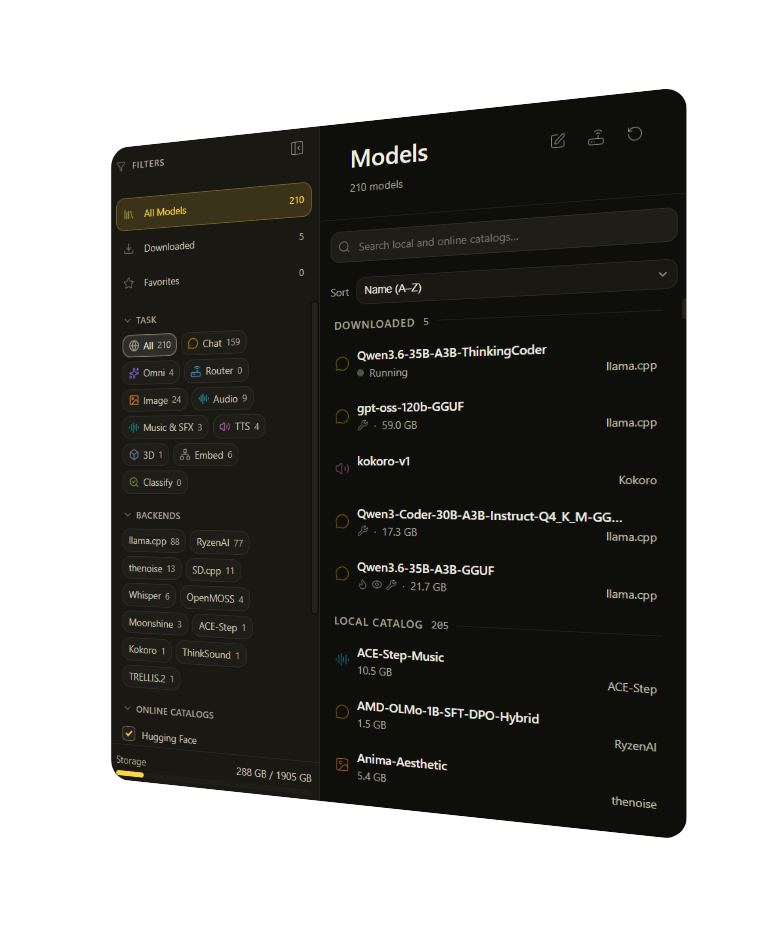
Image: the official Lemonade README (github.com/lemonade-sdk/lemonade). It predates the redesigned app in release 2026.45.3, so your screen will look different.
At a glance:
- What it is: a background service (
lemond), a command-line tool (lemonade) and a web app, from a normal installer. - What it serves: the OpenAI API, plus Ollama-style and Anthropic-style APIs, on one port.
- Hardware: Radeon and Ryzen AI GPUs, the Ryzen AI 300-series NPU, NVIDIA and other GPUs, Apple Silicon, or any x86 CPU.
- Safety: localhost only, with no password, until you change that. Set an API key before you share it.
- Status: not dead and not archived. The project is now simply called "Lemonade"; the server is
lemondand the CLI islemonade, while the packages are still namedlemonade-server.
How it fits together#
Your apps send OpenAI-style requests to Lemonade's one port. Lemonade picks the backend that fits the model and runs it on the GPU, NPU or CPU.

Drawn for this guide from the Lemonade README, FAQ and configuration docs, November 2026. Dashed parts are optional or only used when you pull a model.
Before you start#
Which hardware does what. This is the part people get wrong, so check it first (Lemonade README and FAQ, AMD's Getting Started playbook):
| Your machine | What you get |
|---|---|
| Ryzen AI 300, 400, Max 300 or Z2 Extreme (XDNA 2 NPU) | GPU (Vulkan or ROCm) plus the NPU. Windows: NPU-only, Hybrid (NPU reads the prompt, GPU writes the answer) and FastFlowLM. Linux: NPU through FastFlowLM only |
| Ryzen 7000, 8000 or 200 series (XDNA 1 NPU) | No NPU support or plans (FAQ). The GPU works through Vulkan |
| Radeon GPU | Vulkan on any card; ROCm on RX 7000 (gfx110X), RX 9000 (gfx120X) and Ryzen AI Max (gfx1151), on Windows and Ubuntu |
| NVIDIA or Intel GPU | Vulkan, or CUDA on NVIDIA Turing and newer |
| Apple Silicon Mac | llama.cpp with Metal. No NPU, no ROCm |
| Any x86 CPU | Works, slowest |
Software and size:
- OS: Windows 11; Ubuntu 24.04+, Debian 13, Fedora 43 or 44, Arch Linux or the Snap; macOS on Apple Silicon (the FAQ says Apple Silicon; the llama.cpp page also mentions Intel Macs, so treat Intel as unconfirmed).
- Memory and disk: AMD's playbook recommends 16 GB of RAM for a roughly 3 GB model and 32 GB or more for a roughly 20 GB one; 4 to 30 GB of disk for models.
- Drivers: a current AMD GPU driver (Adrenalin on Windows, Radeon Software for Linux). For the Windows NPU, the Ryzen AI driver from AMD's Ryzen AI Software instructions.
- Linux NPU: NPU firmware 1.1.0.0 or later and kernel 7.0+ with
amdxdna(oramdxdna-dkms); see the FastFlowLM on Linux page.
Checklist:
- [ ] Your hardware appears in the table above (the NPU only on the first row)
- [ ] GPU driver up to date
- [ ] Port 13305 free
- [ ] 15 GB or more of free disk
- [ ] Any existing Lemonade config backed up
Not run by DIY Lab Hub. Every command comes from the official Lemonade docs, the release page and AMD's playbook, read in November 2026 (no AMD hardware was used to write this guide).
Step 1: Install Lemonade#
The installer sets up the server, the CLI and the web app and starts the service in the background.
Linux#
Pick the line for your distribution (from the official install pages):
| Distribution | Install |
|---|---|
| Ubuntu 24.04+ (PPA) | sudo add-apt-repository ppa:lemonade-team/stable then sudo apt install lemonade-server |
| Debian 13 | Enable trixie-backports (see below), download lemonade-server_<version>-debian13_amd64.deb from the releases page, then sudo apt install ./lemonade-server_*-debian13_amd64.deb |
| Fedora 43 or 44 | Download the .rpm for your release, then sudo dnf install ./lemonade-server-*-fc43.x86_64.rpm (use fc44 on Fedora 44) |
| Arch Linux | sudo pacman -S lemonade-server |
| Snap | sudo snap install lemonade-server (see the ROCm warning in Common mistakes) |
Debian needs the backports repository because the package depends on libcpp-httplib0.41:
echo "deb http://deb.debian.org/debian trixie-backports main" | sudo tee /etc/apt/sources.list.d/backports.list
sudo apt update
Then start the service (the Arch docs say it is not started automatically; running this on the others is harmless):
sudo systemctl enable --now lemond
sudo systemctl --no-pager status lemond
Windows (PowerShell)#
Download and run the installer. Use the full package (lemonade.msi) for the desktop app, or lemonade-server-minimal.msi for the server without the app:
Invoke-WebRequest -Uri "https://github.com/lemonade-sdk/lemonade/releases/latest/download/lemonade.msi" -OutFile "$HOME\Downloads\lemonade.msi"
Start-Process "$HOME\Downloads\lemonade.msi"
Lemonade then runs in the background with a tray icon; AMD's playbook says the installer adds lemonade to your PATH.
Mac (Terminal)#
Download Lemonade-<version>-Darwin.pkg from the latest release and double-click it. It installs a background service that runs lemond and a Lemonade app. The docs do not say where the package puts the lemonade command, so test it below in a new Terminal.
Check it worked. In a new terminal (Linux, Windows and Mac):
lemonade --version
lemonade status
AMD's playbook shows the expected status line (from the docs): Server is running on port 13305. You can also run curl http://localhost:13305/live, which needs no API key and returns {"status": "ok"} (Windows: curl.exe http://localhost:13305/live).
Step 2: Download a model and chat#
Start small. Lemonade's own quick start uses Gemma-4-E2B-it, a roughly 3 GB model with vision.
Linux#
lemonade pull Gemma-4-E2B-it-GGUF
lemonade run Gemma-4-E2B-it-GGUF
run loads the model and opens the web app. On a server with no desktop, open http://localhost:13305 in a browser on the same machine.
Windows (PowerShell)#
lemonade pull Gemma-4-E2B-it-GGUF
lemonade run Gemma-4-E2B-it-GGUF
The desktop app opens by itself. With the minimal installer, open http://localhost:13305 in a browser instead.
Mac (Terminal)#
Same commands as Linux:
lemonade pull Gemma-4-E2B-it-GGUF
lemonade run Gemma-4-E2B-it-GGUF
Check it worked. lemonade list --downloaded shows the model, and a question typed in the chat window gets an answer. The Server Logs pane prints timing after each reply; AMD's playbook shows this layout (an example from the docs on unnamed hardware, not our measurement):
=== Telemetry ===
Input tokens: 24
Output tokens: 527
TTFT (s): 0.052
TPS: 95.99
=================
Step 3: Call it from code#
Lemonade speaks the OpenAI API, so any OpenAI client library works with a different base URL. The docs accept both http://localhost:13305/v1 and http://localhost:13305/api/v1; the README's Python example and the Open WebUI guide use /api/v1.
Linux#
curl http://localhost:13305/v1/chat/completions \
  -H "Content-Type: application/json" \
  -d '{"model": "Gemma-4-E2B-it-GGUF", "messages": [{"role": "user", "content": "Say hello in five words."}], "stream": false}'
Windows (PowerShell)#
Invoke-WebRequest -Uri "http://localhost:13305/v1/chat/completions" -Method POST `
  -Headers @{ "Content-Type" = "application/json" } `
  -Body '{"model": "Gemma-4-E2B-it-GGUF", "messages": [{"role": "user", "content": "Say hello in five words."}], "stream": false}'
Mac (Terminal)#
Same command as Linux.
For Python, install the client (pip install openai) and use the README's example. The key is required by the library but unused unless you set one in Step 5:
from openai import OpenAI

client = OpenAI(base_url="http://localhost:13305/api/v1", api_key="lemonade")
reply = client.chat.completions.create(
    model="Gemma-4-E2B-it-GGUF",
    messages=[{"role": "user", "content": "What is the capital of France?"}],
)
print(reply.choices[0].message.content)
Check it worked. The reply JSON has "object": "chat.completion" and a choices list with the answer. A Missing model field in request error means the model name is absent; this exact message is new in release 2026.45.3.
Clients: Open WebUI (add a connection with the URL http://localhost:13305/api/v1 and any text as the key), Aider and goose.
Step 4: Choose where the model runs (GPU or NPU)#
By default Lemonade picks a backend itself. See what it found, then change it only if you have a reason.
Linux#
lemonade backends
lemonade backends install llamacpp:vulkan
lemonade config set llamacpp.backend=rocm
lemonade run Gemma-4-E2B-it-GGUF --llamacpp vulkan
These install a backend, set the default llama.cpp backend (ROCm needs a supported Radeon) and pick one for a single run. For the Linux NPU, finish the firmware and kernel steps on the FastFlowLM page, then run lemonade backends install flm:npu.
Windows (PowerShell)#
The same lemonade backends, lemonade config set llamacpp.backend=... and --llamacpp vulkan commands work. For the NPU on a Ryzen AI 300-series or newer:
lemonade backends install flm:npu
lemonade run Qwen3-4B-Hybrid
The first line installs FastFlowLM; run lemonade list to see its models. Qwen3-4B-Hybrid is AMD's example of a Hybrid model (the NPU reads your prompt, the GPU writes the answer). For more NPU speed, AMD's FAQ says to switch the NPU to turbo mode:
cd C:\Windows\System32\AMD
.\xrt-smi configure --pmode turbo
Mac (Terminal)#
Nothing to choose: the Mac package uses llama.cpp with Metal. lemonade backends shows what is installed.
Check it worked. lemonade backends lists the installed backends, and the web app's Server Logs show which one loaded the model.
Tip: On a Ryzen AI Max (Strix Halo) PC under Windows, the FAQ suggests dedicated GPU memory of
64/64 (auto); a larger share can stop big models loading, because the CPU cannot read dedicated GPU memory.
Step 5: Lock it down before anyone else can reach it#
Out of the box Lemonade binds localhost and needs no key, which is fine for you alone. Reaching it from another PC needs host set to 0.0.0.0, which the docs warn also exposes the internal shutdown and config endpoints. Set an API key first.
Linux#
Keep the key in a file only root can read and give it to the service with a systemd drop-in (the docs say "override or drop-in"):
sudo mkdir -p /etc/lemonade
echo "LEMONADE_API_KEY=$(openssl rand -hex 24)" | sudo tee /etc/lemonade/lemonade.env > /dev/null
sudo chmod 600 /etc/lemonade/lemonade.env
sudo systemctl edit lemond
In the editor, add these lines and save:
[Service]
EnvironmentFile=/etc/lemonade/lemonade.env
sudo systemctl restart lemond
Windows (PowerShell)#
The docs say to set LEMONADE_API_KEY as a system environment variable. Run this in a PowerShell opened as administrator (the last line prints the key once so you can copy it), then quit Lemonade from the tray and start it again:
$bytes = New-Object byte[] 24
[Security.Cryptography.RandomNumberGenerator]::Create().GetBytes($bytes)
$key = ($bytes | ForEach-Object { $_.ToString('x2') }) -join ''
setx /M LEMONADE_API_KEY $key
$key
Mac (Terminal)#
The docs do not show how to give an API key to the macOS service. Keep the Mac on localhost, do not set host, and use Linux or Docker (Step 6) if you need a shared server.
Check it worked. With a key set, a request without it is refused, and a request with it works:
curl -i http://localhost:13305/v1/models
curl -i http://localhost:13305/v1/models -H "Authorization: Bearer <YOUR_KEY>"
The first call returns 401 with the body {"error": "Invalid or missing API key"} (from the API docs). On Windows use curl.exe. The lemonade command reads LEMONADE_API_KEY from your own shell, so set it there too or its calls get 401.
Only then open it to the network, and only on a trusted network:
lemonade config set host=0.0.0.0
Step 6: Optional - run it in Docker (Linux)#
Use this on a Linux server when you want the API in a container. The official image is ghcr.io/lemonade-sdk/lemonade-server (rolling tags latest, candidate, edge, plus v<version> for each stable release). We pin v2026.45.3; the tag exists (registry checked in November 2026).
Linux#
mkdir -p ~/docker_volumes/lemonade/{data/huggingface,data/llama,data/cache,config,backups}
cd ~/docker_volumes/lemonade
echo "LEMONADE_API_KEY=$(openssl rand -hex 24)" > .env
chmod 600 .env
sudo chown -R 10001:10001 data config
The container runs as user 10001, hence the chown. Save this as docker-compose.yml, our bind-mount version of the official example (the paths inside the container are the official ones):
services:
  lemonade:
    image: ghcr.io/lemonade-sdk/lemonade-server:v2026.45.3
    container_name: lemonade-server
    restart: unless-stopped
    env_file:
      - .env
    ports:
      - "127.0.0.1:13305:13305"
    volumes:
      - ./data/huggingface:/opt/lemonade/.cache/huggingface
      - ./data/llama:/opt/lemonade/llama
      - ./data/cache:/opt/lemonade/.cache/lemonade
      - ./config:/opt/lemonade/.config/lemonade
    # AMD GPU with ROCm (Linux only): also put {"llamacpp": {"backend": "rocm"}} in ./config/config.json
    # devices:
    #   - /dev/kfd:/dev/kfd
    #   - /dev/dri:/dev/dri
    # group_add:
    #   - video
    #   - render
Without the devices lines the container uses the CPU. If group_add fails on names, the docs say to use the numeric IDs from getent group render video. Start it and pull a model:
docker compose up -d
docker exec lemonade-server lemonade pull Qwen3-0.6B-GGUF
Windows (PowerShell)#
Skip this step and use the installer from Step 1. The docs describe Docker GPU access only for Linux ROCm and ROCm inside WSL, and no NPU route.
Mac (Terminal)#
Skip this step and use the installer from Step 1; the docs describe no GPU route for Docker on a Mac.
Check it worked. docker compose ps shows the container healthy (the image has a built-in check on /live), and:
curl http://127.0.0.1:13305/live
curl http://127.0.0.1:13305/v1/models -H "Authorization: Bearer <YOUR_KEY>"
Put it behind HTTPS (with or without Traefik)#
This is for a server with a domain or home name that other devices reach; on one PC, skip it. Lemonade's docs say a reverse proxy must be allowed explicitly: put its address in allowed_origins, or browser apps get 403. Native installs: lemonade config set allowed_origins="https://lemonade.example.com". Docker: put it in ~/docker_volumes/lemonade/config/config.json:
{
  "allowed_origins": "https://lemonade.example.com"
}
With Traefik#
Use the Step 6 setup on the Traefik host. Remove the ports lines, and add the external proxy network (docker network create proxy if missing) and these labels:
    networks:
      - proxy
    labels:
      - "traefik.enable=true"
      - "traefik.docker.network=proxy"
      - "traefik.http.routers.lemonade.rule=Host(`lemonade.example.com`)"
      - "traefik.http.routers.lemonade.entrypoints=https"
      - "traefik.http.routers.lemonade.tls=true"
      - "traefik.http.services.lemonade.loadbalancer.server.port=13305"

networks:
  proxy:
    external: true
Run docker compose up -d. Check it worked. curl -I https://lemonade.example.com/live returns an HTTP status line over HTTPS.
Without Traefik: Caddy#
Choose this if you have no Traefik. Caddy gets and renews its own certificates. Caddy's docs describe two cases:
| Your case | What happens |
|---|---|
| Public domain | Automatic Let's Encrypt certificate. The DNS record must point at the server and ports 80 and 443 must reach it |
| Home only, no domain | tls internal: Caddy makes its own local certificate, and you trust Caddy's root on your devices |
Caddyfile for a public domain; the home-only version adds tls internal and a name such as lemonade.home.arpa:
lemonade.example.com {
    reverse_proxy lemonade-server:13305
}
lemonade.home.arpa {
    tls internal
    reverse_proxy lemonade-server:13305
}
For Docker, run Caddy on the same proxy network: create ~/docker_volumes/caddy/{conf,data,config}, save the Caddyfile as conf/Caddyfile and this as docker-compose.yml. We mount the folder conf, not a single file (Caddy's Docker docs warn that an editor replacing the file breaks reloads). Our Caddy guide goes deeper.
services:
  caddy:
    image: caddy:2.11.8
    container_name: caddy
    restart: unless-stopped
    ports:
      - "80:80/tcp"
      - "443:443/tcp"
      - "443:443/udp"
    volumes:
      - ./conf:/etc/caddy
      - ./data:/data
      - ./config:/config
    networks:
      - proxy

networks:
  proxy:
    external: true
If Lemonade is a native install instead, install Caddy on the same machine (Linux: the official apt repository on caddyserver.com; Windows: winget install CaddyServer.Caddy; Mac: brew install caddy) and change the Caddyfile target to reverse_proxy localhost:13305.
For a home-only certificate, copy Caddy's root.crt (pki/authorities/local/root.crt in its data folder; docker cp for the container) to each device and trust it. These OS steps are not from the Lemonade docs: Windows, "Trusted Root Certification Authorities"; macOS, Keychain Access with "Always Trust"; Linux, your CA store.
Check it worked. curl -I https://lemonade.example.com/live returns an HTTP status line over HTTPS. For a home-only name, the browser shows a padlock only after the root is trusted on that device.
Security and testing#
- Local by default.
hostislocalhost. Confirm what is listening: Linuxss -tlnp | grep 13305, WindowsGet-NetTCPConnection -LocalPort 13305, Maclsof -iTCP:13305 -sTCP:LISTEN. You want127.0.0.1unless you chose otherwise. - Key. Keep it in
/etc/lemonade/lemonade.envor.envwithchmod 600, never in a script or Git repository. - Never forward port 13305 on your router. Use HTTPS (above) or a VPN such as our WireGuard guide.
- Tests. Status:
lemonade statusandcurl http://localhost:13305/live(Docker:docker compose ps). Function: the chat request from Step 3.
What Lemonade contacts (README, configuration docs and site, November 2026):
| Part | What goes out | Control |
|---|---|---|
| Model downloads | Requests to Hugging Face or ModelScope when you pull a model. The site says "zero telemetry" | lemonade config set offline=true skips downloads |
| Backend downloads | Fetches backend programs (llama.cpp builds) on first use | no_fetch_executables=true |
| Update check | Checks downloaded Hugging Face models for newer versions at start-up (default on) | auto_check_model_updates=false |
| Discovery | UDP broadcast so other Lemonade tools can find the server (default on) | lemonade config set broadcast=false |
| Cloud offload | Experimental: sends requests to a cloud provider you add | Only if you install a provider yourself |
Common mistakes#
Rows come from the official docs or real issues in the Lemonade tracker (state as read in November 2026).
| Mistake | Why it happens | Do this instead |
|---|---|---|
| Expecting the NPU on a Ryzen 7000, 8000 or 200 series | Those chips have the older XDNA 1 NPU; Lemonade's FAQ says no engine supports it | Use the GPU (Vulkan). The NPU needs Ryzen AI 300 or newer |
| Expecting the same NPU modes on Linux as on Windows | Hybrid and NPU-only recipes are Windows-only; Linux needs FastFlowLM, kernel 7.0+ with amdxdna and firmware 1.1.0.0+ | Follow the FastFlowLM Linux page, or use the GPU |
Setting host=0.0.0.0 without an API key | The docs warn this exposes the internal shutdown and config endpoints to the whole network | Set LEMONADE_API_KEY first (Step 5); never forward the port |
Putting a reverse proxy in front and getting 403 | The proxy's HTTPS address is a new origin and must be listed (docs) | Add the exact https:// address to allowed_origins |
| Using the Hybrid recipe on Windows build 26300 | Issue 4038 (open, November 2026): the system's ONNX runtime 1.17.1 shadows the bundled 1.23.2 and ryzenai-server exits; no client-side workaround found | Use a GPU (llama.cpp) model on that build; watch the issue |
| Installing the Snap and expecting ROCm | Issues 1784 (open since May 2026) and 4026 (open, October 2026): the Snap's confinement hides the Radeon from the ROCm backend; one reporter fixed it with --devmode | Use the PPA, .deb, .rpm or Arch package, or Docker with /dev/kfd and /dev/dri |
| Loading a model that cannot start and losing the others | Issue 3899 (open, October 2026): a failed load evicts every loaded model, then retries | Try a new model while nothing important is loaded |
| AI assistants and old guides mixing command names | Issue 4027 (open, October 2026): a user found the docs and coding assistants saying lemonade while his install had lemonade-server. Current docs: CLI lemonade, service lemond, port 13305 | Run lemonade --help on your install; if an assistant cannot point to a docs page for a flag, treat it as a guess |
Tip: Run
lemonade backendsbefore you debug a slow model. It shows which backend is installed; many "slow" reports are a model that quietly fell back to the CPU.
Tip: Do not turn on
auto_update_models. The docs warn that it can change a model's answers, use a lot of bandwidth and delay start-up; uselemonade update-models --checkand update by hand.
Troubleshooting#
| Problem | Solution |
|---|---|
lemonade is not found | Open a new terminal. On Mac, open the Lemonade app instead |
| Nothing answers on 13305 | sudo systemctl enable --now lemond (Linux), start Lemonade from the Start menu (Windows), or docker compose ps |
| Port 13305 is in use | lemonade config set port=9000, or start once with lemond --port 9000 |
Model missing from lemonade list | It may not fit your hardware; lemonade config set disable_model_filtering=true shows all |
| Answers are slow | lemonade backends, then lemonade config set llamacpp.backend=vulkan or rocm; check the model fits your memory |
401 from every request | A key is set; send Authorization: Bearer <YOUR_KEY> |
| Need detail | lemonade logs, lemonade config set log_level=debug, or docker logs lemonade-server --tail 100 |
Exact error texts#
Could not connect to Lemonade server is what lemonade pull prints when the service is not running (Arch install page). Start lemond.
{"error": "Invalid or missing API key"} is the 401 body, and {"error": "Origin not allowed"} the 403 body, from the API docs.
Missing model field in request is the same error on every model route in release 2026.45.3, which also returns 405 (not 404) for a GET on a POST-only path.
The requested API version [23] is not available, only API versions [1, 17] are supported in this build. is the message in issue 4038 (Hybrid models, Windows build 26300).
Other open issue in November 2026: 4054 (the llamacpp-hrx backend errors on prompts above about 33K tokens on Strix Halo). The Snap and eviction bugs are in Common mistakes.
Updates and backups#
Update. The project ships weekly; read the release notes first. Release 2026.45.3 has breaking API changes (405, Missing model field, 400). On the Ubuntu PPA:
sudo apt update && sudo apt install --only-upgrade lemonade-server
On Debian and Fedora install the newer .deb or .rpm as in Step 1; Arch: sudo pacman -Syu; Windows and Mac: run the newer installer. For Docker, change the tag in docker-compose.yml and run docker compose pull && docker compose up -d.
Back up the settings, not the models. config.json is a small file with your changes. Models can be downloaded again (they sit in the Hugging Face cache folder). A Linux package keeps it in /var/lib/lemonade/config.json, Windows in %USERPROFILE%\.config\lemonade\config.json, a Mac user install in ~/.config/lemonade/config.json, Docker in ~/docker_volumes/lemonade/config/.
Linux and Mac (Docker path shown; use the paths above for native installs):
mkdir -p ~/docker_volumes/lemonade/backups
tar -czf ~/docker_volumes/lemonade/backups/lemonade-config-$(date +%F).tar.gz -C ~/docker_volumes/lemonade config
Windows (PowerShell):
New-Item -ItemType Directory -Force "$HOME\backups" | Out-Null
Copy-Item "$env:USERPROFILE\.config\lemonade\config.json" "$HOME\backups\lemonade-config-$(Get-Date -Format yyyy-MM-dd).json"
Schedule it with cron at 03:00 on Linux and Mac, or Windows Task Scheduler. API keys live in the environment, not in config.json.
Restore test. Extract the archive into a new folder and check the file is there:
mkdir restore-test && tar -xzf ~/docker_volumes/lemonade/backups/lemonade-config-<date>.tar.gz -C restore-test
ls restore-test/config
Performance and resources#
- Memory rule. Model file size plus about 2 to 4 GB for the KV cache and runtime (Lemonade FAQ). Check the file size on the model's Hugging Face page.
- Speed. The docs publish no figures for your hardware. Measure it:
lemonade bench <MODEL>compares backends and context sizes, andcurl http://localhost:13305/api/v1/statsshows the last request. - Context size.
ctx_sizedefaults to-1: Lemonade works out the largest context that fits in your free device memory. Set a number to limit it. - One model at a time.
max_loaded_modelsdefaults to 1.auto_evictcan free memory by idle time and memory pressure. - NPU. Turbo mode (Step 4) is the documented switch. A quiet NPU on short prompts in Hybrid mode is normal (FAQ). Docker:
docker stats lemonade-server.
FAQ#
Is Lemonade dead or renamed? No. A release came out in November 2026 and the site promises one every week. The name changed from "Lemonade Server" to "Lemonade" (server lemond, CLI lemonade) and version numbers now look like 2026.45.3. Tutorials with lemonade-server run are out of date.
Do I need AMD hardware? No. Lemonade runs on the CPU, on NVIDIA and Intel GPUs through Vulkan or CUDA, and on Apple Silicon. Only the NPU and ROCm need AMD parts. If you have no AMD hardware, our Ollama and llama.cpp server guides cover the same job.
How is it different from Ollama or LM Studio? All three serve local models. Lemonade puts one API in front of GPU, NPU and CPU engines, with AMD engineers tuning the Ryzen AI paths. Our LM Studio server guide is the closest alternative.
Does it work offline? After the model and backend are downloaded, yes: set offline=true. One 2026.43.3 report (issue 4007, closed) found a vLLM model still contacting Hugging Face, so test on your own network.
Can I use cloud models too? Yes, as an experimental Cloud Offload feature. That sends prompts to the provider you add, so leave it off for private work.
Sources#
- Lemonade on GitHub and the README (Apache 2.0) - read November 2026
- Release v2026.45.3 - read November 2026
- lemonade-server.ai - read November 2026
- Install pages: Windows, Linux, Ubuntu, Debian, Fedora, Arch, macOS, Docker - read November 2026
- Configuration, FAQ, CLI reference, API spec and Lemonade-specific API - read November 2026
- AMD Getting Started with Lemonade playbook (validated August 2026) and FastFlowLM on Linux (March 2026) - read November 2026
- Open WebUI integration page, Caddy docs and Traefik Docker provider - read November 2026
- GitHub issues in lemonade-sdk/lemonade: #4038, #3899, #1784, #4026, #4027, #4007, #4054 - read November 2026
Checked against the official docs on 2026-11-05.