Dograh with Docker: Self-Hosted Voice AI Agents (Linux, Windows, Mac)
Before you start
- 21 min read
Boxes marked Run in terminal are what you type; plain text explains why. Check what you need first
What you get in one minute#
Dograh is an open-source, self-hostable platform for building voice AI agents, the kind of product Vapi and Retell sell as a service: you design the conversation as a graph, talk to it in your browser, and later connect a phone number.

Logo: the official Dograh project (github.com/dograh-hq/dograh)
A call runs three jobs in a loop: speech to text (STT), a language model (LLM), and text to speech (TTS). Dograh runs the loop and the builder; you pick who does each job. It suits appointment booking, lead screening or a support line.
Read this first: the default "Dograh" mode uses Dograh's hosted service for all three jobs, so audio and text leave your machine. Fully local needs your own models (Step 6).
| What | Value (official sources, read October 2026) |
|---|---|
| Current version | 1.49.0, released 12 October 2026 (GitHub latest release) |
| Images to pin | dograhai/dograh-api:1.49.0 and dograhai/dograh-ui:1.49.0 (tags checked on Docker Hub) |
| Licence | BSD 2-Clause (LICENSE in the repository) |
| Time needed | About 20 minutes plus model downloads (our estimate; the docs say the first start takes 2-3 minutes) |
| Size | About 540 MB and 100 MB per image, compressed (Docker Hub). No RAM measured by us |
| Ports | 3010 (UI), 8000 (API), 5432 (Postgres), 6379 (Redis), 9000 and 9001 (MinIO) |
| Official docs | docs.dograh.com and the repository |
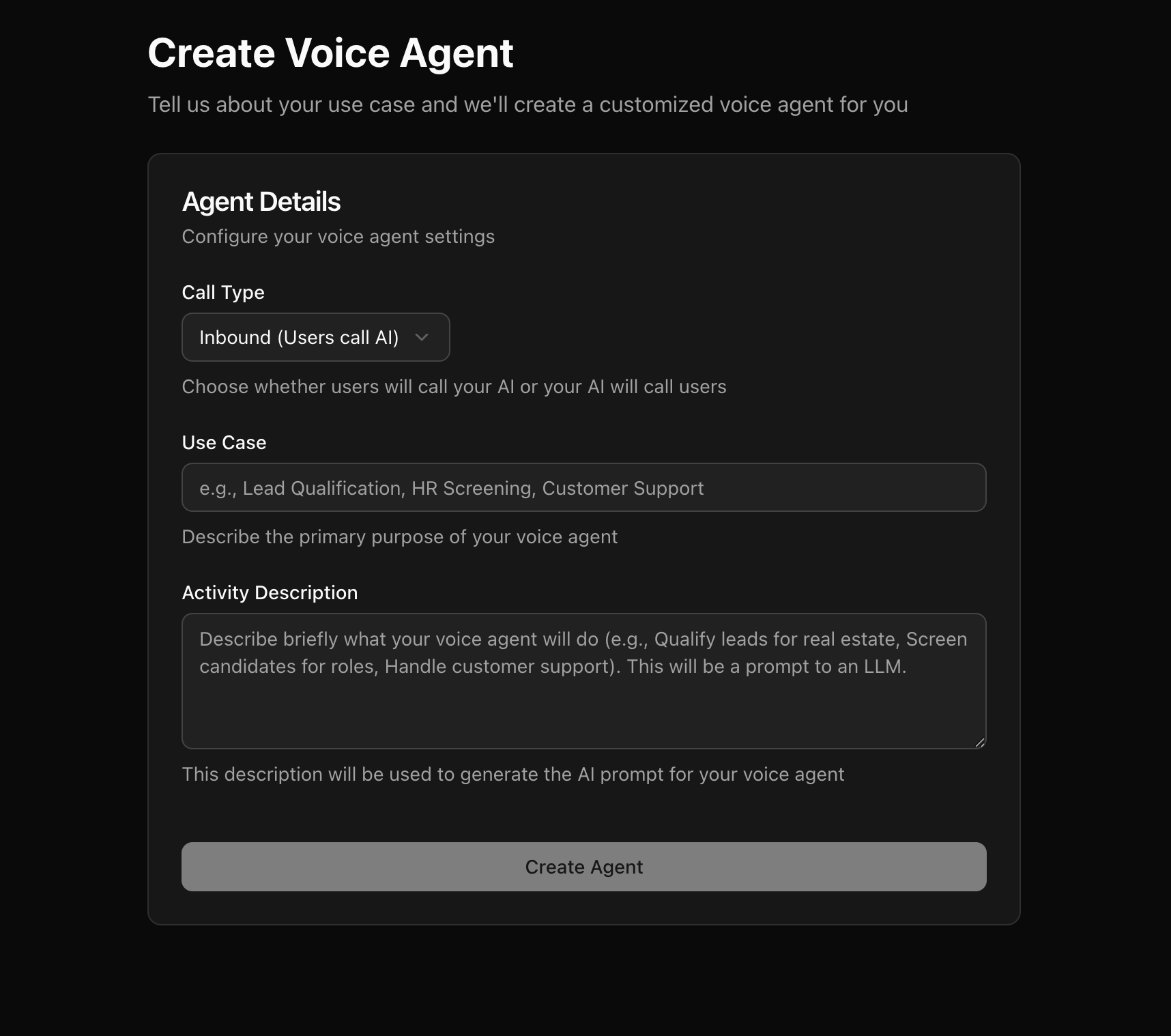
Image: the official Dograh docs (Your First Agent in 5 Minutes)
At a glance:
- What it is: a visual agent builder, a call engine with a browser test mode, and run history with transcripts and recordings.
- Stack: five containers: UI, API, Postgres, Redis and MinIO.
- Cloud or local: each of STT, LLM and TTS can be a cloud provider or a local OpenAI-compatible server such as Ollama or Speaches.
- Phone calls: Dograh sells no numbers or minutes. You bring Twilio, Telnyx, Vonage and similar, or your own PBX.
- Telemetry: anonymous usage data is on by default; you can switch it off.
How it fits together#
You build and test in the UI. The API runs each call: caller audio goes to STT, the text to the LLM, the reply to TTS.

Drawn for this guide from the official compose file and docs. Dashed boxes are only for real phone calls.
Before you start#
You need Docker, 10 GB of disk and 8 GB of RAM, of which 4 GB must be available to Docker. These are the docs' minimums for the platform alone; local models need more.
| System | Requirements (prerequisites page) |
|---|---|
| Linux | Kernel 3.10+, x86_64 or ARM64, Docker 20.10+ with Compose, curl, 2 CPU cores |
| Windows | Windows 10 or 11 with WSL2 and Docker Desktop (4 GB RAM, 8 recommended; 2 CPUs, 4 recommended) |
| Mac | macOS 10.15+, Docker Desktop, curl. The images are also arm64 |
Our override file in Step 3 needs Docker Compose 2.24.4 or newer:
docker --version
docker compose version
Checklist:
- [ ] Docker running, Compose 2.24.4 or newer
- [ ] Ports 3010 and 8000 free (
lsof -i :3010on Linux and Mac,netstat -ano | findstr :3010in PowerShell) - [ ] A place to keep backups of
.envand the Dograh folder - [ ] For HTTPS: a domain with a DNS record for the server, and ports 80 and 443 free
- [ ] For phone calls: an account with a telephony provider
Tested by DIY Lab Hub: not yet. Linux = not run, Windows = not run, Mac = not run. The commands come from the official compose file, scripts and docs at release 1.49.0, read in October 2026.
Step 1: Create the folder#
Compose file, .env, backups and model files live in one folder. Postgres, Redis and MinIO keep the named Docker volumes of the official file.
Linux#
mkdir -p ~/docker_volumes/dograh/{backups,models}
cd ~/docker_volumes/dograh
Windows (PowerShell)#
New-Item -ItemType Directory -Force "$HOME\docker_volumes\dograh\backups","$HOME\docker_volumes\dograh\models" | Out-Null
Set-Location "$HOME\docker_volumes\dograh"
Mac (Terminal)#
Same commands as Linux:
mkdir -p ~/docker_volumes/dograh/{backups,models}
cd ~/docker_volumes/dograh
Check it worked. docker compose version shows 2.24.4 or higher and the folder exists.
Tip: The folder name becomes the Compose project name (volumes like
dograh_postgres_data). Keep the namedograh.
Step 2: Download the official files and create the secrets#
The compose file will not start alone: it needs a .env with secrets. The official script creates them, then asks Start Dograh now? [Y/n]. Answer n. Yes starts the stack with the tunnel profile, which opens a public *.trycloudflare.com address to your API. We do not use that; Step 3 starts Dograh without it.
We download from the 1.49.0 release tag. The files at the tag and at main were identical when we checked.
Linux#
curl -o docker-compose.yaml https://raw.githubusercontent.com/dograh-hq/dograh/dograh-v1.49.0/docker-compose.yaml
curl -o start_docker.sh https://raw.githubusercontent.com/dograh-hq/dograh/dograh-v1.49.0/scripts/start_docker.sh
chmod +x start_docker.sh
./start_docker.sh
Windows (PowerShell)#
Invoke-WebRequest -OutFile docker-compose.yaml https://raw.githubusercontent.com/dograh-hq/dograh/dograh-v1.49.0/docker-compose.yaml
Invoke-WebRequest -OutFile start_docker.ps1 https://raw.githubusercontent.com/dograh-hq/dograh/dograh-v1.49.0/scripts/start_docker.ps1
.\start_docker.ps1
If PowerShell refuses to run the script, run Unblock-File .\start_docker.ps1 first (our note, not from the docs).
Mac (Terminal)#
Same commands as Linux:
curl -o docker-compose.yaml https://raw.githubusercontent.com/dograh-hq/dograh/dograh-v1.49.0/docker-compose.yaml
curl -o start_docker.sh https://raw.githubusercontent.com/dograh-hq/dograh/dograh-v1.49.0/scripts/start_docker.sh
chmod +x start_docker.sh
./start_docker.sh
Check it worked. The script prints lines such as "Created OSS_JWT_SECRET in .env." (from its source; we did not run it) and ends with "Dograh was not started." after you type n.
Tip:
.envnow holds every password; back it up. The Postgres password is baked into its volume at first start, so losing.envhurts.
Step 3: Pin the version, close extra ports and start#
The official file uses :latest and publishes Postgres (5432) and Redis (6379) on every interface. Our override file, which Compose reads automatically, does four things:
- pins
dograh-apianddograh-uito1.49.0(the docs say both must use the same tag); - publishes the API and UI on
127.0.0.1only; - removes the Postgres and Redis host ports (other containers still reach them);
- lets the API container reach the host as
host.docker.internalon Linux too.
We also switch telemetry off in .env.
Linux#
cat > docker-compose.override.yaml << 'EOF'
services:
  api:
    image: ${REGISTRY:-dograhai}/dograh-api:1.49.0
    ports: !override
      - "127.0.0.1:8000:8000"
    extra_hosts:
      - "host.docker.internal:host-gateway"
  ui:
    image: ${REGISTRY:-dograhai}/dograh-ui:1.49.0
    ports: !override
      - "127.0.0.1:3010:3010"
  postgres:
    ports: !reset []
  redis:
    ports: !reset []
EOF
echo "ENABLE_TELEMETRY=false" >> .env
chmod 600 .env
docker compose up -d
docker compose ps
Windows (PowerShell)#
$override = @'
services:
  api:
    image: ${REGISTRY:-dograhai}/dograh-api:1.49.0
    ports: !override
      - "127.0.0.1:8000:8000"
    extra_hosts:
      - "host.docker.internal:host-gateway"
  ui:
    image: ${REGISTRY:-dograhai}/dograh-ui:1.49.0
    ports: !override
      - "127.0.0.1:3010:3010"
  postgres:
    ports: !reset []
  redis:
    ports: !reset []
'@
[System.IO.File]::WriteAllText("$PWD\docker-compose.override.yaml", $override)
Add-Content -Path .env -Value "ENABLE_TELEMETRY=false"
docker compose up -d
docker compose ps
Mac (Terminal)#
Same commands as Linux. Docker Desktop already knows host.docker.internal; the extra line does no harm.
Check it worked. The first start downloads the images (2-3 minutes per the docs). docker compose ps lists api, ui, postgres, redis and minio; the API turns healthy after its 60-second start period. The health endpoint answers with JSON that includes auth_provider (local by default, per the docs):
curl http://localhost:8000/api/v1/health
Windows: Invoke-RestMethod http://localhost:8000/api/v1/health.
Tip: After any
.envchange rundocker compose up -d, notdocker compose restart. The README warns that restart does not apply.envchanges.
Step 4: Open the UI and create your account#
Linux#
Open http://localhost:3010 and sign up with an email and password (built-in local login).
Windows (PowerShell)#
Open http://localhost:3010 in Edge or Chrome and sign up the same way.
Mac (Terminal)#
Open http://localhost:3010 in Safari or Chrome and sign up.
Anyone who can reach the page can sign up, so close signup once your account exists:
echo "ENABLE_SIGNUP=false" >> .env
docker compose up -d
PowerShell: Add-Content -Path .env -Value "ENABLE_SIGNUP=false", then docker compose up -d.
Check it worked. You see the agent list, and the login page no longer shows a sign-up link (the docs describe this for ENABLE_SIGNUP=false).
Tip:
http://localhost:3010allows the microphone without HTTPS, because browsers treat localhost as secure. A LAN address does not, so the microphone is blocked there.
Step 5: Build your first agent and test it#
Linux#
- Create an agent. Pick Inbound or Outbound (it only changes the starting prompt) and describe the job, for example "Book a haircut appointment, ask for the preferred date and time, confirm before ending the call."
- In the editor, start a Web Call (Test Audio), allow the microphone and talk.
- Use Test Chat to iterate on prompts as text.
Windows (PowerShell)#
Same steps in Edge or Chrome. With silence on the call, see "Common mistakes".
Mac (Terminal)#
Same steps. Allow the microphone for your browser if macOS asks.
Check it worked. The live transcript shows your words and the agent's reply. The default Dograh mode needs no key: the hosted service does the speech work.
Step 6: Choose your models: cloud or fully local#
Open Models (and Providers for accounts) in the sidebar. Version 1.49 has three modes:
| Mode | What happens | Where the data goes |
|---|---|---|
| Dograh | One Dograh connection manages LLM, STT and TTS | To Dograh's hosted service (default MPS_API_URL is services.dograh.com) |
| BYOK | Separate connections for LLM, STT and TTS: OpenAI, Groq, Deepgram, ElevenLabs and many more | To each provider you pick |
| Realtime | A speech-to-speech provider plus a separate LLM | To those providers |
The docs warn that providers receive prompts, history and audio; read their retention and training policies.
For fully local, use BYOK with the provider Local Models (Speaches) for each job. Dograh accepts any OpenAI-compatible endpoint: Ollama or vLLM for the LLM, Speaches for speech. Our guides cover the parts: Ollama, Speaches speech to text and Kokoro Web (another OpenAI-compatible voice server).
The simplest layout puts both servers on Dograh's Docker network: no extra host ports, no localhost mistakes. Add this under services: in docker-compose.override.yaml (images pinned as in our guides, which also cover GPUs):
  ollama:
    image: ollama/ollama:0.40.11
    restart: unless-stopped
    volumes:
      - ./models/ollama:/root/.ollama
    networks:
      - app-network
  speaches:
    image: ghcr.io/speaches-ai/speaches:0.8.3-cpu
    restart: unless-stopped
    environment:
      - WHISPER__TTL=300
    volumes:
      - ./models/hf-cache:/home/ubuntu/.cache/huggingface/hub
    networks:
      - app-network
Linux#
mkdir -p models/ollama models/hf-cache
sudo chown -R 1000:1000 models/hf-cache
docker compose up -d
docker compose exec ollama ollama pull llama3.2
docker compose exec speaches curl -X POST http://localhost:8000/v1/models/Systran/faster-whisper-small
docker compose exec speaches curl -X POST http://localhost:8000/v1/models/speaches-ai/Kokoro-82M-v1.0-ONNX
The chown is needed because Speaches runs as uid 1000 (see our Speaches guide).
Windows (PowerShell)#
docker compose up -d
docker compose exec ollama ollama pull llama3.2
docker compose exec speaches curl -X POST http://localhost:8000/v1/models/Systran/faster-whisper-small
docker compose exec speaches curl -X POST http://localhost:8000/v1/models/speaches-ai/Kokoro-82M-v1.0-ONNX
Mac (Terminal)#
Same commands as Linux, without chown. Docker on a Mac cannot use the Apple GPU, so models run on the CPU.
In Models, create a BYOK configuration with these values (field names and defaults are from Dograh's provider code at 1.49.0):
| Job | Provider | Model | Base URL |
|---|---|---|---|
| LLM | Local Models (Speaches) | llama3.2 | http://ollama:11434/v1 |
| STT | Local Models (Speaches) | Systran/faster-whisper-small, language en | http://speaches:8000/v1 |
| TTS | Local Models (Speaches) | speaches-ai/Kokoro-82M-v1.0-ONNX, voice af_heart | http://speaches:8000/v1 |
Leave the API keys empty (the docs say self-hosted servers usually need none). Make it the organization default and repeat the Web Call.
Check it worked. The call works and docker compose logs api --tail 50 shows traffic to ollama and speaches, not to services.dograh.com. We did not test this chain. The Kokoro model name comes from the current Speaches docs and may differ in 0.8.3; docker compose exec speaches curl http://localhost:8000/v1/models lists the ids your server really has.
Tip: Dograh's local defaults are
http://localhost:11434/v1andhttp://localhost:8000/v1. Inside the API containerlocalhostis the container itself, and 8000 is Dograh's own port. Replace both.
Step 7 (optional): Connect a phone provider#
Skip this if browser calls are enough. Real calls need your provider's credentials and a public HTTPS address the provider can reach.
Linux#
Open /telephony-configurations, click Add configuration, choose the provider (Twilio, Vonage, Plivo, Telnyx and others), enter the credentials and save. Add a phone number in E.164 format (+, country code, number). For inbound calls, assign an Inbound workflow to it.
Windows (PowerShell)#
The same screens in your browser; nothing runs in PowerShell.
Mac (Terminal)#
The same screens in your browser.
Check it worked. An outbound test call rings your own phone. The public address you gave the provider must match PUBLIC_BASE_URL exactly (HTTPS section).
Tip: Dograh does not sell phone service. Read the provider's price page before building; every minute is billed by them, and cloud STT, LLM and TTS add their own. We list no prices because Dograh publishes none.
Costs, privacy and the law#
Costs. The software is free. You pay for the machine, the phone provider and any cloud AI service. The default Dograh mode runs on credits of the hosted service (a user in issue #736 shows a key with 500 credits; the docs state no amounts).
Privacy. In cloud modes your prompts, transcripts and audio go to those providers. Every call stores a transcript and recording in your MinIO volume. Local models keep call content on your machine.
The law. General information, not legal advice. Twilio's help pages say US federal and state laws and EU laws apply to recording calls, some places need one participant's consent and others every participant's, and you should ask legal counsel. The FCC ruled on 8 February 2024 that calls made with AI-generated voices are "artificial" under the US Telephone Consumer Protection Act. Tell callers they speak to an AI and are recorded, get consent where required, and check the rules where your callers live.
Put it behind HTTPS (with or without Traefik)#
Use this for a server with a domain or phone webhooks; local-only users can skip it. The routes mirror the project's own nginx file: /api/v1/ to the API (with WebSockets), /voice-audio/ to MinIO, the rest to the UI.
One limit. The proxy carries the UI, API, phone WebSocket and recordings, not the WebRTC audio of browser Web Calls. The docs ask for TCP 3478 and 5349 and UDP 3478, 5349 and 49152-49200 for that, and offer setup_remote.sh (own nginx and coturn) as the route. We have not tested Web Calls through a proxy.
Add these lines to .env (from the project's remote setup script), then run docker compose up -d:
ENVIRONMENT=production
PUBLIC_HOST=voice.example.com
PUBLIC_BASE_URL=https://voice.example.com
With Traefik#
On a server that already runs Traefik v3 with the Docker provider, add labels and join the external proxy network. This assumes an entrypoint called https. Create the network if missing:
docker network create proxy
Merge this into docker-compose.override.yaml (the ui and api keys join the entries you have; minio is new). Traefik prefers longer rules, so the path routers win over the plain host router:
services:
  ui:
    networks:
      - proxy
    labels:
      - "traefik.enable=true"
      - "traefik.docker.network=proxy"
      - "traefik.http.routers.dograh-ui.rule=Host(`voice.example.com`)"
      - "traefik.http.routers.dograh-ui.entrypoints=https"
      - "traefik.http.routers.dograh-ui.tls=true"
      - "traefik.http.services.dograh-ui.loadbalancer.server.port=3010"
  api:
    networks:
      - proxy
    labels:
      - "traefik.enable=true"
      - "traefik.docker.network=proxy"
      - "traefik.http.routers.dograh-api.rule=Host(`voice.example.com`) && PathPrefix(`/api/v1/`)"
      - "traefik.http.routers.dograh-api.entrypoints=https"
      - "traefik.http.routers.dograh-api.tls=true"
      - "traefik.http.services.dograh-api.loadbalancer.server.port=8000"
  minio:
    networks:
      - proxy
    labels:
      - "traefik.enable=true"
      - "traefik.docker.network=proxy"
      - "traefik.http.routers.dograh-audio.rule=Host(`voice.example.com`) && PathPrefix(`/voice-audio/`)"
      - "traefik.http.routers.dograh-audio.entrypoints=https"
      - "traefik.http.routers.dograh-audio.tls=true"
      - "traefik.http.services.dograh-audio.loadbalancer.server.port=9000"

networks:
  proxy:
    external: true
Check it worked. curl -I https://voice.example.com/ returns an HTTP status line over HTTPS and the UI opens with a valid certificate. We did not run this.
Without Traefik: Caddy#
Choose this if you have no Traefik. Caddy gets and renews certificates by itself. Step 3 published the API, UI and MinIO on 127.0.0.1, so Caddy on the same machine reaches them without Docker networks.
| Case | What you need |
|---|---|
| Public domain | DNS A record to the server, ports 80 and 443 open. Caddy gets a Let's Encrypt certificate automatically. |
| Home only | A local name pointing at the server, and tls internal (Caddy's own certificate, trusted by each device). |
Install Caddy from the official install page.
Linux#
sudo apt install --yes debian-keyring debian-archive-keyring apt-transport-https curl
curl -1sLf 'https://dl.cloudsmith.io/public/caddy/stable/gpg.key' | sudo gpg --dearmor -o /usr/share/keyrings/caddy-stable-archive-keyring.gpg
curl -1sLf 'https://dl.cloudsmith.io/public/caddy/stable/debian.deb.txt' | sudo tee /etc/apt/sources.list.d/caddy-stable.list
sudo chmod o+r /usr/share/keyrings/caddy-stable-archive-keyring.gpg
sudo apt install caddy
Put the Caddyfile in /etc/caddy/Caddyfile, then sudo systemctl reload caddy.
Windows (PowerShell)#
choco install caddy (or scoop install caddy), save the Caddyfile in the Dograh folder, then caddy run --config Caddyfile.
Mac (Terminal)#
brew install caddy
caddy run --config Caddyfile
The Caddyfile for a public domain:
voice.example.com {
    handle /api/v1/* {
        reverse_proxy 127.0.0.1:8000
    }
    handle /voice-audio/* {
        reverse_proxy 127.0.0.1:9000
    }
    handle {
        reverse_proxy 127.0.0.1:3010
    }
}
For a home-only name, add tls internal inside the block (for example voice.home.arpa) and run caddy trust on the Caddy machine. For other devices, copy Caddy's pki/authorities/local/root.crt and trust it. These OS steps are not from the Caddy docs: on Linux copy it to /usr/local/share/ca-certificates/caddy-root.crt and run sudo update-ca-certificates; on Windows (administrator PowerShell) certutil -addstore -f "ROOT" caddy-root.crt; on Mac sudo security add-trusted-cert -d -r trustRoot -k /Library/Keychains/System.keychain caddy-root.crt.
Check it worked. curl -I https://voice.example.com/ (Windows: curl.exe -I) returns an HTTP status line over HTTPS. With tls internal the padlock appears only after the root is trusted. A failed Let's Encrypt certificate usually means the DNS record or port 80.
Tip: If webhook signatures fail behind Caddy, compare the URL your provider calls with
PUBLIC_BASE_URLcharacter by character.
Security and testing#
Dograh holds prompts, call recordings and provider keys, so treat it like any app with secrets.
| Control | How |
|---|---|
| Signup | ENABLE_SIGNUP=false after your first account |
| Secrets | Only in .env, chmod 600. The compose fallbacks (postgres, redis, minioadmin) apply only if .env is missing |
| Ports | No host ports for Postgres and Redis; API and UI on 127.0.0.1; outside access only through HTTPS |
| Firewall | The compose file warns the API trusts forwarded headers from any peer, so firewall port 8000 |
| Phone webhooks | Signatures are checked per provider; TELEPHONY_WS_TOKEN_SECRET can sign the media WebSocket URL |
Quick tests (Windows: same lines, with curl.exe -I):
docker compose ps
docker compose logs api --tail 100
curl -I https://voice.example.com/
Common mistakes#
These come from the official files, the docs' warnings, open issues and common AI answers.
| Mistake | Why it happens | Do this instead |
|---|---|---|
Running docker compose up on the downloaded file alone | It needs secrets; its header says it "will fail or come up misconfigured" and OSS_JWT_SECRET is required | Run the official script first (Step 2) |
Answering Y to "Start Dograh now?" | The script starts the tunnel profile: a public *.trycloudflare.com address to your API | Answer n, then docker compose up -d |
| Leaving Postgres and Redis open | The official file publishes 5432 and 6379 on every interface | Use the override in Step 3 |
Typing localhost for Ollama or Speaches | Inside the API container localhost is the container; the defaults are wrong in Docker and 8000 is Dograh's own port | Use service names such as http://ollama:11434/v1 |
| Silence in a Web Call, log says "Data channel not established within 10s after connection" | Reported on Windows with Docker Desktop (issue #800) and on a Linux server (#811); Test Chat still works | Try the docs' setup_local script, which adds coturn, and a second browser |
Old dograh-ui with a new dograh-api | The docs warn the UI expects matching API responses | Change both tags together |
Editing .env, then docker compose restart | The README says restart does not apply .env changes | Use docker compose up -d |
| A proxy that rewrites URLs in front of phone webhooks | Providers sign the full URL (webhooks docs; issue #830 for Twilio region ie1) | Keep PUBLIC_BASE_URL identical to the provider's URL |
AI assistants: docker run dograh/dograh or one container | They guess one image; Dograh is five containers and the images are dograh-api and dograh-ui | Use the official compose file and script (Steps 2 and 3) |
| AI assistants: "no keys needed, so it is all local" | The README says no keys are needed because Dograh's hosted stack does the work | Use BYOK with local models (Step 6) |
AI assistants: port 3000 or a v1.49.0 Docker tag | The UI is on 3010 and Docker tags are bare (1.49.0; dograh-v1.49.0 is the GitHub tag) | Use the ports and tags in this guide |
Tip: After every start, read
docker compose logs api --tail 100. Most problems, from a missing secret to a refused model, print there in plain words.
Tip: Test Chat first. If chat works and Test Audio does not, your models and prompts are fine and the problem is browser audio or networking.
Tip: Local models answer slower than hosted ones. Start with a small model and measure before choosing a bigger one.
Troubleshooting#
| Problem | Solution |
|---|---|
| Port 3010 or 8000 in use | lsof -i :3010 (Linux, Mac) or netstat -ano | findstr :3010 (PowerShell); stop that program or change the published port in the override |
OSS_JWT_SECRET must be set to a strong secret | .env is missing or has no secret; run the Step 2 script again, it keeps existing values |
| Login or UI fails | docker compose ps (the API must be healthy), then docker compose logs api --tail 100 |
| No audio in Web Call | See "Data channel not established" below |
| Phone call never reaches the agent | The provider needs your public HTTPS address; check the number format and the provider's error log |
Data channel not established within 10s after connection#
Seen on Windows with Docker Desktop (issue #800) and on a Linux server with coturn (issue #811). The #811 reporter traced it to ICE: on a one-IP server the pair that looks "completed" uses a private Docker address the browser cannot reach, and coturn refuses the relay pair. That is a user's analysis, not a maintainer statement. The docs offer the setup_local script (adds coturn) and FORCE_TURN_RELAY=true in .env to prove media really uses TURN; set it back to false afterwards.
Tool messages found but no tools provided#
openai.BadRequestError: Error code: 400 - Tool messages found but no tools provided. Tools must be specified if tool calls or tool messages are present.
Issue #841 reports this from strict OpenAI-compatible servers (vLLM, Speaches) at the end-call node. A fix is linked there; read your release notes.
Known bugs (open, October 2026)#
- #800, #811: WebRTC data channel never established (above).
- #736: STT answers HTTP 402 with the Dograh-managed key.
- #852: the agent goes silent mid-call although the LLM returns 200.
Updates and backups#
Update. Read the release notes, set both image tags in docker-compose.override.yaml to the same new version (no v), then:
docker compose pull
docker compose up -d
docker compose ps --format "table {{.Service}}\t{{.Image}}"
The last line shows the running tags; api and ui must match. The docs warn that rolling back across a database migration is not always safe, so back up first.
Back up the database, the recordings and .env. Check volume names with docker volume ls first; ours follow the project name dograh.
Linux#
cd ~/docker_volumes/dograh
D=$(date +%F)
docker compose exec -T postgres pg_dump -U postgres -Fc -f /tmp/dograh.dump postgres
docker compose cp postgres:/tmp/dograh.dump backups/dograh-$D.dump
docker run --rm -v dograh_minio-data:/data -v "$PWD/backups:/backup" alpine tar czf /backup/minio-$D.tar.gz -C /data .
cp .env backups/env-$D && chmod 600 backups/env-$D
Save these lines as a script and run it at 03:00 with crontab -e: 0 3 * * * /path/to/backup.sh.
Windows (PowerShell)#
Set-Location "$HOME\docker_volumes\dograh"
$d = Get-Date -Format yyyy-MM-dd
docker compose exec -T postgres pg_dump -U postgres -Fc -f /tmp/dograh.dump postgres
docker compose cp postgres:/tmp/dograh.dump "backups\dograh-$d.dump"
docker run --rm -v dograh_minio-data:/data -v "${PWD}\backups:/backup" alpine tar czf "/backup/minio-$d.tar.gz" -C /data .
Copy-Item .env "backups\env-$d"
Run a saved script daily at 03:00 with Task Scheduler.
Mac (Terminal)#
Same commands as Linux, with crontab -e for 03:00.
Restore test. Restore into a throwaway database, never over the live one:
docker compose cp backups/dograh-<date>.dump postgres:/tmp/restore.dump
docker compose exec -T postgres createdb -U postgres restoretest
docker compose exec -T postgres pg_restore -U postgres -d restoretest /tmp/restore.dump
docker compose exec -T postgres psql -U postgres -d restoretest -c "\dt"
docker compose exec -T postgres dropdb -U postgres restoretest
The table list should not be empty. We did not run these; they are standard PostgreSQL tools.
Performance and resources#
The docs give limits, not measurements: 8 GB RAM (4 GB for Docker), 2 cores and 10 GB disk locally; 8 GB and 4 vCPUs for a remote server. We measured nothing, so we give no RAM figure.
- Watch it:
docker statsshows CPU and memory per container. - More calls: the docs describe several API workers (
FASTAPI_WORKERS) behind nginx; see their Scaling page. - Call speed: each turn adds STT, LLM and TTS time. With OpenRouter, set a provider order: the default spreads requests to the cheapest provider and can add delay (docs).
FAQ#
Is Dograh free? The software is free under BSD 2-Clause. You pay for phone minutes and any cloud AI service you use.
Can it run fully offline? Only with BYOK and local models for all three jobs, and no phone provider. The default Dograh mode needs the hosted service.
Can I use my own phone system? Yes: the docs list Asterisk ARI and bring-your-own SIP, plus providers such as Twilio.
Does it send data to the project? Anonymous telemetry unless ENABLE_TELEMETRY=false. In Dograh mode your call content also goes to the hosted service.
Sources#
- Dograh repository at tag dograh-v1.49.0: README, compose file, start_docker.sh, start_docker.ps1, LICENSE, provider settings and release 1.49.0 - read October 2026
- Docs at docs.dograh.com: Docker, Prerequisites, Update, Model configurations, Telephony, Webhooks, Environment variables - read October 2026
- Dograh images on Docker Hub (tag 1.49.0 checked) and GitHub issues #736, #800, #811, #830, #841, #852, #952
- Docker Compose merge rules, Caddy install, Caddy v2.11.7, Speaches text to speech
- Twilio: legal considerations with recording and FCC release on AI-generated voices, 8 February 2024
Checked against the official docs on 2026-10-31.