Seerr with Docker: Media Requests for Jellyfin, the Jellyseerr Successor (Linux, Windows, Mac)
Before you start
- 20 min read
Boxes marked Run in terminal are what you type; plain text explains why. Check what you need first
What you get in one minute#
Seerr is a free, self-hosted request page for your media server: people sign in with their Jellyfin account, search for a movie or show, press Request, and you approve it in one click.

Logo: the official Seerr project (github.com/seerr-team/seerr)
It suits a family or friends server where people keep asking "can you add this?" It can also pass approved requests to Radarr and Sonarr if you run them.
The name, honestly: Jellyseerr and Overseerr no longer develop separately. Their teams merged into one project called Seerr, announced in February 2026. The Jellyseerr repository now redirects to seerr-team/seerr. The Overseerr repository says it "will no longer receive new features or major updates". Seerr is alive and releases often; a migration section is below.
| What | Value (official docs, read November 2026) |
|---|---|
| Current version | Seerr v3.5.1, released October 2026 (latest stable) |
| Image to pin | ghcr.io/seerr-team/seerr:v3.5.1 (tag checked on the registry) |
| Time needed | About 20 minutes with a working Jellyfin server (our estimate, not measured) |
| Download size | About 254 MB (amd64) or 308 MB (arm64), compressed, from the Docker Hub tag page |
| RAM | Not documented by the project; we did not measure it |
| Port | TCP 5055 (the web page) |
| Licence | MIT (LICENSE at the release tag) |
| Official docs | docs.seerr.dev and the repository |
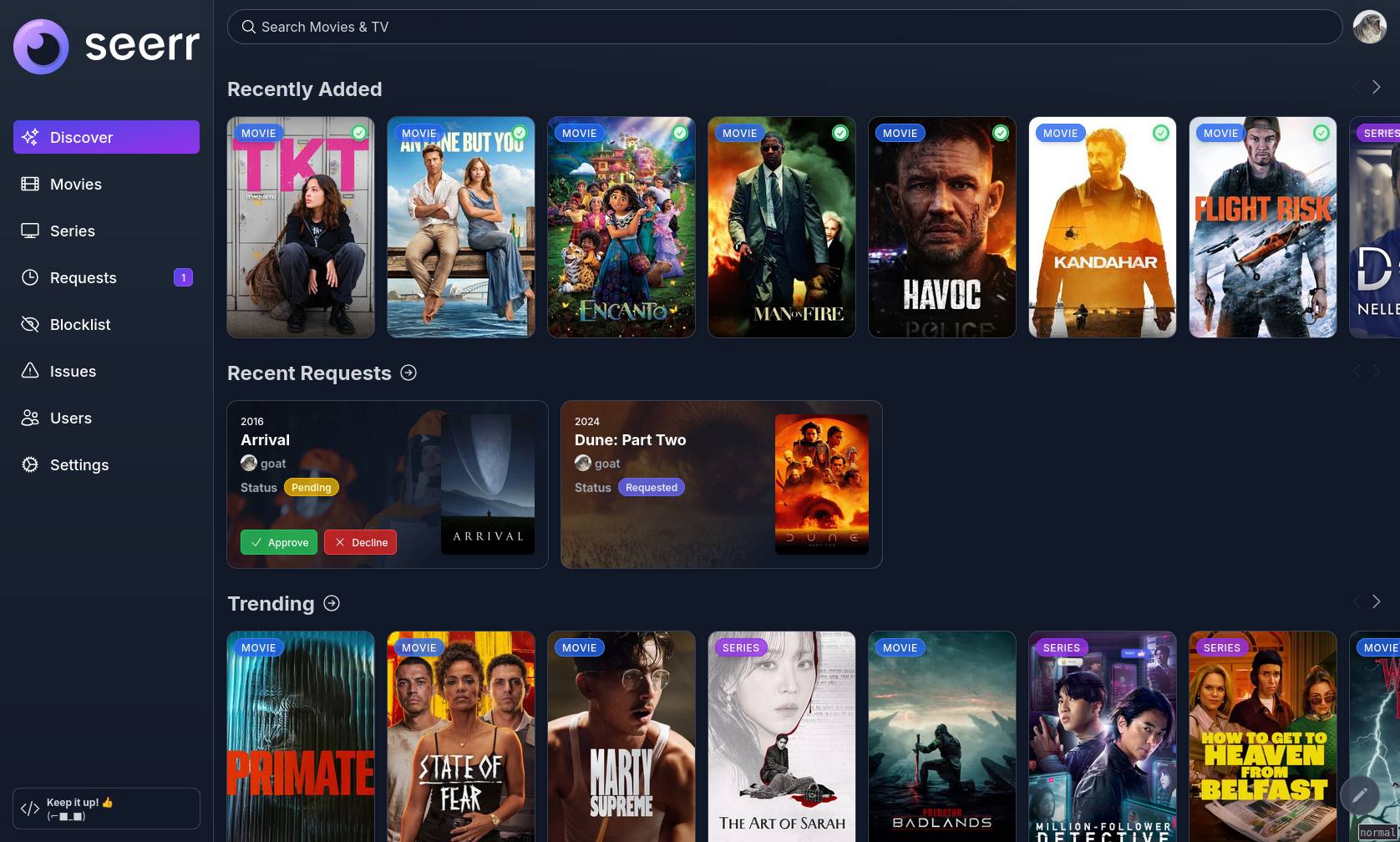
Image: the official Seerr project (README preview at v3.5.1). The film posters belong to their studios.
At a glance:
- What it is: a web app for requests, approvals and "is it already available?" checks. It does not play or store media.
- Who signs in: your Jellyfin users, with their Jellyfin passwords. One media server per Seerr: Jellyfin, Emby or Plex.
- Optional: Radarr (movies) and Sonarr (shows), version 3 or 4, to act on approved requests.
- Pin the tag: the docs say
latestalways means the newest stable release. We pinv3.5.1and change it on purpose. - Rootless: the container runs as user
node(UID 1000), so the config folder must belong to that user. - Legal use only: Seerr only keeps and forwards a list. What Radarr and Sonarr fetch is your responsibility; use media you have the right to have.
How it fits together#
People talk to Seerr on one TCP port. Seerr asks Jellyfin who they are, asks TMDB for titles and posters, and optionally hands approved requests to Radarr and Sonarr. It keeps everything in one config folder.

Drawn for this guide from the official docs. Dashed parts are optional.
Before you start#
You need a Jellyfin server that already works, Docker with Compose on the machine that will run Seerr, and a Jellyfin account with administrator rights. If you have no Jellyfin yet, start with our Jellyfin with Docker guide.
| System | What to use |
|---|---|
| Linux | Docker Engine and the Compose plugin. The docs call Docker the recommended method |
| Windows | Docker Desktop with the WSL 2 backend. The docs say WSL 2 must be installed to prevent database corruption |
| Mac | Docker Desktop. The docs group macOS with Linux for the commands |
Check Docker on every system:
docker --version
docker compose version
Checklist:
- [ ] Jellyfin works and you know an admin username and password
- [ ] Docker and Compose run (commands above)
- [ ] For the HTTPS section only: a DNS name for this machine, and ports 80 and 443 free
Tested on 2026-11-05: Linux = not run, Windows = not run, Mac = not run. The commands come from the official docs, the Dockerfile and the release files read in November 2026. We did not start containers for this guide.
Step 1: Create the folders and a shared network#
Seerr keeps its settings and database in one folder. We use ~/docker_volumes/seerr, as all DIY Lab Hub guides do. The proxy network lets Seerr reach Jellyfin and Caddy by container name.
Linux#
mkdir -p ~/docker_volumes/seerr/{config,backups}
cd ~/docker_volumes/seerr
sudo chown -R 1000:1000 config
docker network create proxy
The chown is from the official docs: the container runs as the node user (UID 1000). If docker network create says the network exists, that is fine.
Windows (PowerShell)#
The docs say not to keep the config folder on a Windows folder, because the shared-folder layer has no file locking and will "eventually corrupt your database". Use a named volume, which lives inside the Docker VM:
New-Item -ItemType Directory -Force "$HOME\docker_volumes\seerr\backups" | Out-Null
Set-Location "$HOME\docker_volumes\seerr"
docker volume create seerr-data
docker network create proxy
Mac (Terminal)#
Same commands as Linux (the docs list macOS with Linux):
mkdir -p ~/docker_volumes/seerr/{config,backups}
cd ~/docker_volumes/seerr
sudo chown -R 1000:1000 config
docker network create proxy
Check it worked. The folders and the network exist:
ls -ld ~/docker_volumes/seerr/config
docker network ls --filter name=proxy
On Windows, run docker volume ls --filter name=seerr-data and docker network ls --filter name=proxy.
Tip: Skipping the ownership step is the most common first-start failure. The container cannot write to a folder owned by another user and stops with
EACCES: permission denied.
Step 2: Write the Compose file and start Seerr#
This is the official Compose file with four changes: the image is pinned to v3.5.1, the config path is ./config, the log level is info (the code default is debug), and Seerr joins the proxy network. The health check, init: true, no-new-privileges and cap_drop: ALL are from the docs. Set TZ to your own time zone name.
Linux#
cd ~/docker_volumes/seerr
cat > docker-compose.yml << 'EOF'
services:
  seerr:
    image: ghcr.io/seerr-team/seerr:v3.5.1
    init: true
    container_name: seerr
    environment:
      - LOG_LEVEL=info
      - TZ=Etc/UTC
      - PORT=5055
    ports:
      - "5055:5055"
    volumes:
      - ./config:/app/config
    healthcheck:
      test: wget --no-verbose --tries=1 --spider http://localhost:5055/api/v1/settings/public || exit 1
      start_period: 20s
      timeout: 3s
      interval: 15s
      retries: 3
    security_opt:
      - no-new-privileges
    cap_drop:
      - ALL
    networks:
      - proxy
    restart: unless-stopped

networks:
  proxy:
    external: true
EOF
docker compose up -d
docker compose ps
docker compose logs --tail=30 seerr
Windows (PowerShell)#
The same file, with the named volume from the Windows docs:
Set-Location "$HOME\docker_volumes\seerr"
@'
services:
  seerr:
    image: ghcr.io/seerr-team/seerr:v3.5.1
    init: true
    container_name: seerr
    environment:
      - LOG_LEVEL=info
      - TZ=Etc/UTC
      - PORT=5055
    ports:
      - "5055:5055"
    volumes:
      - seerr-data:/app/config
    healthcheck:
      test: wget --no-verbose --tries=1 --spider http://localhost:5055/api/v1/settings/public || exit 1
      start_period: 20s
      timeout: 3s
      interval: 15s
      retries: 3
    security_opt:
      - no-new-privileges
    cap_drop:
      - ALL
    networks:
      - proxy
    restart: unless-stopped

volumes:
  seerr-data:
    external: true

networks:
  proxy:
    external: true
'@ | Set-Content -Encoding utf8 docker-compose.yml
docker compose up -d
docker compose ps
docker compose logs --tail=30 seerr
Mac (Terminal)#
Same commands and file as Linux.
Check it worked. docker compose ps shows seerr as running, and after the 20-second start period as healthy. The log contains a line like the one below, copied from a user's log in the issue tracker (version number aside, yours should look alike). The page answers on the health URL:
[info]: Starting Seerr version 3.5.1
curl -i http://localhost:5055/api/v1/settings/public
On Windows use curl.exe -i .... Expect HTTP/1.1 200 OK; the health check uses this same URL.
Tip:
init: trueis required for the Seerr image. The migration guide says the new container has no init process of its own. Do not copy a Jellyseerr Compose file without checking it.
Step 3: Sign in with your Jellyfin admin account#
The first visit runs the setup. Open the page on any system:
Linux#
On the same machine: http://localhost:5055. From another computer: http://<seerr-machine-address>:5055.
Windows (PowerShell)#
The same address in a browser.
Mac (Terminal)#
The same address in a browser.
In the setup, choose Jellyfin and fill in the connection. The docs say to use an account with administrative privileges. The email can be any address: it is only for notifications, password resets and local sign-in, and is not tied to Jellyfin.
The most important field is the Internal URL: the address Seerr itself uses to reach Jellyfin. The docs say that in a normal bridged Docker network, localhost and 127.0.0.1 point at the Seerr container, not at your host.
| Where Jellyfin runs | Internal URL |
|---|---|
In Docker on this machine, also on the proxy network | http://jellyfin:8096 (the container name; add networks: [proxy] to its Compose file) |
| On another machine | http://<jellyfin-machine-address>:8096 |
| On this machine, not in Docker | http://<this-machine-LAN-address>:8096, not localhost |
The External URL is only for the "Play on Jellyfin" buttons: use the address your users open in a browser.
Check it worked. You land on the Discover page, signed in as the owner. The docs call the first account the "Owner": it cannot be deleted or edited by others.
Tip: If Jellyfin sits behind a proxy with a home-only certificate (Caddy
tls internal), Seerr will refuse it as untrusted. Use the plainhttp://internal address inside Docker, or mount your CA and setNODE_EXTRA_CA_CERTSas the docs describe.
Step 4: Choose libraries and scan#
Seerr needs to know what you already have, so it does not offer a request for it.
Linux#
In the web page: Settings, then Jellyfin. Select the libraries Seerr should scan. If a library is missing, press Sync Libraries. Then start a manual scan.
Windows (PowerShell)#
The same page; nothing to run in PowerShell.
Mac (Terminal)#
The same page; nothing to run in Terminal.
Check it worked. Search for a title you know is in Jellyfin. It shows as available, with a "Play on Jellyfin" button. Then search for one you do not have and press Request. The request appears under Requests, where the owner can approve or decline it.
Step 5: Connect Radarr and Sonarr (optional)#
Without these, Seerr only keeps the list and you add media by hand. With them, an approved request is sent on. Use only Radarr and Sonarr v3 or v4; the docs say v2 is not supported.
Linux#
In Settings, then Services, add each server: a name, hostname, port, API key, quality profile, root folder and minimum availability. Defaults from the docs are port 7878 for Radarr and 8989 for Sonarr. The API key is in each app under Settings, General, Security. Mark one server as Default, or requests will fail.
Windows (PowerShell)#
The same page. If Radarr or Sonarr runs in Docker on the proxy network, use its container name as the hostname.
Mac (Terminal)#
The same page. A URL base set in Radarr or Sonarr must be entered in Seerr too.
Check it worked. The Test button shows a success message and the profile and folder lists fill in. Approve a test request: it appears in Radarr or Sonarr.
Coming from Jellyseerr or Overseerr#
The migration guide says there are no manual migration steps: Seerr migrates your instance automatically the first time it starts with your old config. Overseerr users get one extra migration for their settings. Back up first.
- Stop the old container and copy the whole config folder somewhere safe.
- Change the image to
ghcr.io/seerr-team/seerr:v3.5.1. - Add
init: trueand remove anyuser:line. The Seerr image does not usePUIDorPGID. - Give the old folder to UID 1000:
docker run --rm -v /path/to/config:/data alpine chown -R 1000:1000 /data(from the migration guide). - Start it and read
docker compose logs --tail=50 seerr.
Seerr supports Jellyfin, Emby and Plex, but one at a time. Overseerr users who use Plex stay on Plex. Back up again after the first successful start.
Put it behind HTTPS (with or without Traefik)#
For a server with a domain, put Seerr behind HTTPS and stop publishing port 5055. Local-only users can skip this section. Both routes assume the proxy network from Step 1 and a DNS name that points at the server. Seerr's docs support subdomains only: a base URL such as example.com/seerr is not supported.
With Traefik#
On a server that already runs Traefik v3 with the Docker provider, add labels and remove the host port. The labels follow the Traefik example in the Seerr docs, with the router name changed and the entrypoint named https (use the name of yours):
services:
  seerr:
    image: ghcr.io/seerr-team/seerr:v3.5.1
    init: true
    container_name: seerr
    environment:
      - LOG_LEVEL=info
      - TZ=Etc/UTC
    volumes:
      - ./config:/app/config
    healthcheck:
      test: wget --no-verbose --tries=1 --spider http://localhost:5055/api/v1/settings/public || exit 1
      start_period: 20s
      timeout: 3s
      interval: 15s
      retries: 3
    security_opt:
      - no-new-privileges
    cap_drop:
      - ALL
    networks:
      - proxy
    labels:
      - "traefik.enable=true"
      - "traefik.docker.network=proxy"
      - "traefik.http.routers.seerr.rule=Host(`seerr.<your-domain>`)"
      - "traefik.http.routers.seerr.entrypoints=https"
      - "traefik.http.routers.seerr.tls=true"
      - "traefik.http.services.seerr.loadbalancer.server.port=5055"
    restart: unless-stopped

networks:
  proxy:
    external: true
Run docker compose up -d in ~/docker_volumes/seerr. Then turn on Settings, Network, Enable Proxy Support in Seerr.
Check it worked. curl -I https://seerr.<your-domain>/ returns an HTTP status line over HTTPS, with a valid certificate.
Without Traefik: Caddy#
Choose this if you have no Traefik. Caddy gets and renews its own certificates. The Seerr docs give a one-line Caddy example. We run Caddy in Docker and mount its folder, not a single Caddyfile, because Caddy's Docker docs warn that a single-file mount can miss edits.
mkdir -p ~/docker_volumes/caddy/{conf,data,config}
cd ~/docker_volumes/caddy
Save as ~/docker_volumes/caddy/docker-compose.yml. The image caddy:2.11.8 exists on Docker Hub as of November 2026:
services:
  caddy:
    image: caddy:2.11.8
    container_name: caddy
    restart: unless-stopped
    ports:
      - "80:80/tcp"
      - "443:443/tcp"
      - "443:443/udp"
    volumes:
      - ./conf:/etc/caddy
      - ./data:/data
      - ./config:/config
    networks:
      - proxy

networks:
  proxy:
    external: true
Save this as ~/docker_volumes/caddy/conf/Caddyfile for a public domain, where Caddy gets a Let's Encrypt certificate by itself:
seerr.example.com {
    reverse_proxy seerr:5055
}
For a home-only name, use Caddy's own certificate instead:
seerr.home.arpa {
    tls internal
    reverse_proxy seerr:5055
}
Caddy reaches Seerr by container name on the proxy network. In the Seerr Compose file, delete the ports: lines (or change them to "127.0.0.1:5055:5055" to keep a local test port), then start both:
cd ~/docker_volumes/caddy && docker compose up -d
cd ~/docker_volumes/seerr && docker compose up -d
For tls internal, each device must trust Caddy's root certificate. Our Caddy guide shows the commands for Linux, Windows and Mac. On Windows and Mac the Docker commands above run the same way in PowerShell or Terminal. Then enable Settings, Network, Enable Proxy Support in Seerr, and set the Application URL under Settings, General.
Check it worked. curl -I https://seerr.example.com/ returns an HTTP status line. For a home-only name, the browser shows a padlock once the root is trusted.
Tip: Let's Encrypt needs the DNS record to point at your server and ports 80 and 443 to reach it. A certificate error usually means the name in the Caddyfile differs from the DNS record.
Security and testing#
Seerr signs people in with Jellyfin credentials and can talk to Radarr and Sonarr. Treat it as an admin tool.
| Control | How |
|---|---|
| New Jellyfin sign-ins | On by default: anyone with access to your Jellyfin server can sign in and gets the default permissions. Set the default permissions low, or untick Enable New Jellyfin Sign-In in Settings, Users and import the people you want |
| Default permissions | Do not give "auto-approve" or admin rights to everyone. Give approval rights to a few trusted people |
| Owner account | The first account is the owner. Use a long, unique Jellyfin password for it |
| Internet exposure | Prefer HTTPS with a proxy. If you only need it at home, keep port 5055 on your LAN and never forward it on the router |
| API key | Under Settings, General. Do not share it: the docs say it can give administrator access |
| Proxy support | Enable it behind a proxy, so Seerr sees client addresses; the fail2ban page says this is needed |
| Failed sign-ins | The docs include a fail2ban filter that reads the Seerr log |
| Config folder and backups | settings.json holds service keys. Keep the folder and every backup readable only by you (chmod 600 on archives) |
What leaves your network: lookups to TMDB for titles and posters, calls to your media server and Radarr and Sonarr, and any notification service you configure. The docs describe no telemetry.
Quick tests after each change:
cd ~/docker_volumes/seerr
docker compose ps
docker compose logs --tail=100 seerr
curl -i http://localhost:5055/api/v1/settings/public
Windows and Mac can run the curl check in PowerShell (curl.exe) or Terminal.
Tip: The health check only asks one public URL. In one report, a PostgreSQL setup hung while the health check stayed green. Judge Seerr by trying a search and a request, not only by the "healthy" label.
Common mistakes#
These come from the official docs' warnings, the project's issue tracker, and common AI assistant answers.
| Mistake | Why it happens | Do this instead |
|---|---|---|
| Skipping the folder ownership | The container runs as UID 1000. Issues #2970 (April 2026) and #3552 (September 2026) report EACCES: permission denied at start | Run chown -R 1000:1000 on the config folder, as the docs say |
Using PUID and PGID | Third-party images read them; the official image never did. Issue #2546 (February 2026) | Set folder ownership instead; the image is rootless |
http://localhost:8096 as the Jellyfin address | Inside the container, localhost is Seerr itself. Issue #1358 (the project's earlier Jellyseerr days) shows INVALID_URL | Use the container name on a shared network, or the Jellyfin machine's LAN address |
| Copying an old Jellyseerr Compose file | Old files have the old image name, may lack init: true or carry a user: line | Follow the migration guide: new image, init: true, no user: |
| Putting the config folder on a Windows folder | The docs say the shared-folder layer lacks file locking and will corrupt the database | Use a named volume such as seerr-data |
Using latest for a server others rely on | Tags move; issue #2423 (February 2026) reported a start failure after an upgrade, fixed in 3.0.1 | Pin v3.5.1, read the release notes, then change it |
Serving Seerr under example.com/seerr | The docs: base URLs cannot be configured; only subdomains are supported | Use seerr.example.com |
| Leaving new sign-ins open to everyone with a Jellyfin account | The default is on, with default permissions | Review defaults or switch it off |
| AI assistants: inventing image names or variables | Assistants often suggest fallenbagel/jellyseerr, sctx/overseerr, PUID/PGID, or a Jellyfin URL in an environment variable | Use ghcr.io/seerr-team/seerr:<tag>; the docs set Jellyfin in the web page |
AI assistants: telling you to forward 5055 or use latest | Many blog examples do both | Use HTTPS with a proxy and a pinned tag |
Tip: Before you paste a Compose file from any site, check four lines against the Seerr docs: the image name,
init: true, nouser:orPUID, and the config volume.
Tip: After every change run
docker compose logs --tail=100 seerr. Permission, network and TMDB errors print there.
Tip: Back up the config folder before every version change and before any migration. The migration guide marks it as a danger notice.
Troubleshooting#
| Problem | Solution |
|---|---|
Container restarts, log shows EACCES: permission denied | Fix ownership of the config folder: sudo chown -R 1000:1000 ~/docker_volumes/seerr/config, then docker compose up -d |
INVALID_URL or "server is not reachable" when connecting Jellyfin | Do not use localhost. Use the container name on proxy, or the LAN address; test with docker exec seerr wget -qO- http://jellyfin:8096/System/Info/Public |
[TMDB] failed to retrieve/fetch XXX | The docs list four fixes: change DNS servers, use an HTTP(S) proxy, turn on Force IPv4 Resolution First in Settings, Network and restart, and test with docker exec -it seerr sh -c "apk update && apk add curl && curl -L https://api.themoviedb.org" |
| Your admin account lost its rights | Documented when the Jellyfin user ID changed. Follow the "Account does not have admin privileges" steps in the docs: back up settings.json, delete it, redo the setup with the same login, stop, restore the file, start |
| Self-signed certificate refused | Mount your CA as PEM and set NODE_EXTRA_CA_CERTS (docs, Self-Signed Certificates) |
| Web push fails | Pi-hole: allow fcm.googleapis.com (Chromium browsers) or push.services.mozilla.com (Firefox). Brave: switch on "Use Google services for push messaging" |
| Scans hang or the page stops answering | See the known report below; restart the container and read the log |
Known reports (read November 2026)#
- Jellyfin 12 and scans. Issue #3516 (September 2026, closed) reported the web page hanging during scheduled Jellyfin scans on v3.4.1. The maintainer ran Jellyfin 12 without trouble and asked for a support ticket. If it happens, try 3.5.1, read the log, then ask on the project's Discord.
- PostgreSQL on 3.4.x. Issue #3363 (August 2026, closed) described the connection pool running dry during a Radarr scan. This guide uses the default SQLite. Seerr 3.5.1 is newer than that report.
- Radarr and Sonarr keys. Issue #3416 (August 2026, closed) reported empty keys after a failed settings migration. Check Settings, Services after any upgrade.
Run docker compose ps, docker compose logs --tail=200 seerr and docker inspect seerr first. The project asks for support questions on its Discord and keeps GitHub issues for bugs.
Updates and backups#
Update. Read the release notes, change the tag in docker-compose.yml, then:
cd ~/docker_volumes/seerr
docker compose pull seerr
docker compose up -d
docker compose logs --tail=50 seerr
Use the same commands in PowerShell and Terminal. Back up before you update.
Back up. What to save: settings.json (all integrations and notification settings) and the database db/db.sqlite3. The docs say: stop Seerr, then back up the config folder.
Linux#
cd ~/docker_volumes/seerr
docker compose down
tar -czf "backups/seerr-$(date +%F).tar.gz" -C config .
chmod 600 backups/seerr-*.tar.gz
docker compose up -d
If tar cannot read a file, run it with sudo; the files belong to UID 1000. To run it nightly at 03:00, put these lines in a script and add 0 3 * * * /home/<you>/docker_volumes/seerr/backup.sh with crontab -e. Keep a copy of the archive on another machine; our restic guide shows how.
Windows (PowerShell)#
The config lives in a named volume, so a small throwaway container makes the archive:
Set-Location "$HOME\docker_volumes\seerr"
docker compose down
$stamp = Get-Date -Format yyyy-MM-dd
docker run --rm -v seerr-data:/data -v "${HOME}\docker_volumes\seerr\backups:/backup" alpine:3.23 tar -czf "/backup/seerr-$stamp.tar.gz" -C /data .
docker compose up -d
Save these lines as seerr-backup.ps1 and schedule them with Task Scheduler at 03:00, for example schtasks /Create /SC DAILY /ST 03:00 /TN "Seerr backup" /TR "powershell.exe -NoProfile -File $HOME\docker_volumes\seerr\seerr-backup.ps1".
Mac (Terminal)#
Same commands as Linux. For nightly runs, crontab -e works on macOS; launchd is the Apple-native option.
Restore test. Unpack one archive into a new empty folder, never over the live one. The docs say the folder should hold db/db.sqlite3 and settings.json:
mkdir -p /tmp/seerr-restore-test
tar -xzf backups/seerr-<date>.tar.gz -C /tmp/seerr-restore-test
ls -R /tmp/seerr-restore-test | head -20
To restore for real: docker compose down, replace the folder contents with the unpacked files, run sudo chown -R 1000:1000 config, then docker compose up -d. The docs also show an SQLite .backup command for a running instance, but its two file names do not match (seerr_db.sqlite3.bak and seerr_dump.sqlite3.bak), so we stop the container instead.
Performance and resources#
The project publishes no memory or CPU figures, so this guide gives none. Measure your own server:
- Resources:
docker stats seerrshows live CPU and memory. - Health: the image's health check runs every 15 seconds;
docker compose psshows the result. - Scans: a full Jellyfin scan runs every 24 hours; large libraries take longer. Jobs can be started by hand under Settings, Jobs & Cache.
- Disk: image caching stores posters in
config/cache/images. The docs say it "can use a significant amount of disk space". - DNS: the docs describe an experimental DNS cache setting in Settings, Network that helps when a local resolver such as Pi-hole or AdGuard Home is overloaded. Our AdGuard Home guide covers one such resolver.
- Database: SQLite is the default. PostgreSQL is optional (
DB_TYPEand related variables); this guide does not use it.
FAQ#
Is Seerr free to use? Yes, under the MIT licence.
Are Jellyseerr and Overseerr dead? They are superseded. The two teams merged into Seerr in February 2026. Overseerr's repository says it gets no new features. Jellyseerr's repository now redirects to Seerr.
Can it run with Plex and Jellyfin together? No. The release announcement says only one media server integration can be used at a time.
Does Seerr download anything? No. It keeps requests and can pass them to Radarr and Sonarr. Those tools do the fetching, and what they fetch is your responsibility.
Does it send my data to the project? The docs describe no telemetry. It contacts TMDB, your own media server, and the Radarr, Sonarr and notification services you configure.
Sources#
- Seerr release v3.5.1, README, Dockerfile and LICENSE - read November 2026
- Seerr docs at v3.5.1: Docker, migration guide, troubleshooting, backups, media server, services, users and network settings, reverse proxy, fail2ban, database and self-signed certificates - read November 2026
- Seerr release announcement (February 2026) - read November 2026
- Seerr image tags on GitHub Container Registry and Docker Hub (tag
v3.5.1checked) - November 2026 - Overseerr README, which points to Seerr - read November 2026
- Caddy release notes, Caddy image on Docker Hub (tag
2.11.8checked) and Caddy conventions - November 2026 - GitHub issues #1358, #2423, #2546, #2970, #3363, #3416, #3516, #3552, #3620 - read November 2026
- Our guides: Jellyfin with Docker, Caddy reverse proxy, restic backups
Checked against the official docs on 2026-11-05.