DockerSelf-HostingAI Coding Agents
Penpot with Docker: self-host the open-source Figma alternative (Linux, Windows, Mac)
Before you start
- 22 min read
Boxes marked Run in terminal are what you type; plain text explains why. Check what you need first
What you get in one minute#
Penpot is a free, open-source design and prototyping tool that runs in the browser, and you can host it on your own server so your files, your team and your invitations stay with you.

Logo: the official Penpot project (github.com/penpot/penpot)
Designers and developers share a file in real time. Penpot uses open standards (SVG, CSS, HTML, JSON), so developers can read designs, and it has design tokens, components, flex and grid layouts, plugins and an optional MCP server for AI tools. This guide builds a small private team server: invite-only, with email, HTTPS and backups.
| What | Value (official docs, read November 2026) |
|---|---|
| Current version | Penpot 2.18.6, released 2026-11-04 (latest release on GitHub) |
| Images to pin | penpotapp/frontend, backend, exporter, admin-console and mcp, tag 2.18.6 (all five checked on Docker Hub; amd64 and arm64) |
| Time needed | About 30 minutes plus the download (our estimate, not measured) |
| Download size | About 1.5 GB compressed for the five Penpot images (sum of the Docker Hub sizes) |
| RAM | Not published for small teams; see "Performance and resources" |
| Ports | 9001 (web app, we bind it to the server itself), 8025 (Mailpit inbox, local only) |
| Licence | MPL-2.0 (LICENSE at the 2.18.6 tag) |
| Official docs | help.penpot.app/technical-guide and the repository |
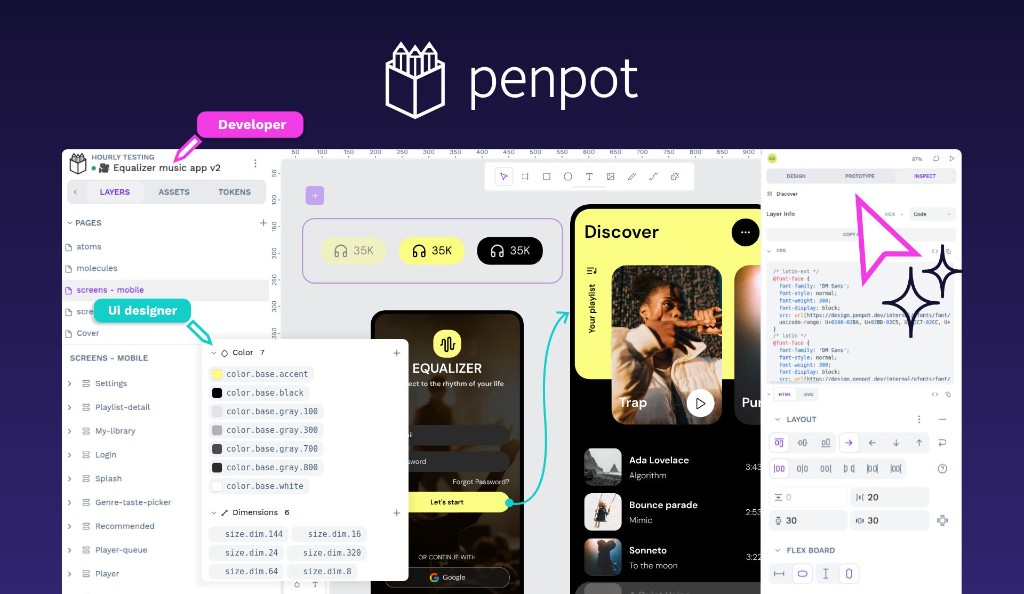
Image: the official Penpot project (link-preview image in the repository at 2.18.6). It is a promotional picture, not a screenshot of this exact version.

At a glance:
- What it is: a design tool like Figma, in your browser. Eight containers: web server, backend, exporter, admin console, MCP server, PostgreSQL, Valkey and Mailpit (test email).
- Free or paid: the open-source edition is free. The docs describe a paid Enterprise plan with Organizations, an Admin Console and SSO modules.
- Platforms: the server runs in Docker (amd64 and arm64 images). Designers need a browser; the docs recommend current Chrome.
- Effort: the docs say you need Docker, DNS and proxy knowledge. For a quick try, use the free cloud service.
- Privacy: the example file turns telemetry on. We turn it off.
How it fits together#
Designers reach one address. Behind it, a web container passes requests to the backend, which stores users and files in PostgreSQL and images in one volume, and sends invitation emails.

Drawn for this guide from the official compose file and docs. The Valkey cache, exporter, admin console and MCP containers are left out to keep it readable. The dashed step is the optional HTTPS proxy.
Before you start#
Penpot's docs ask for Docker and Docker Compose plus basic DNS and proxy knowledge, and give no per-system support list. A team server belongs on Linux; Windows and Mac work for trying it out (we did not test them).
| System | What you need |
|---|---|
| Linux (server) | Docker Engine with the Compose plugin, amd64 or arm64, curl, openssl. The docs say 4 CPUs and 16 GB RAM serve thousands of users; no figure is published for small teams |
| Windows | Docker Desktop and PowerShell |
| Mac | Docker Desktop and Terminal (arm64 images exist) |
| Designers | A current browser. The docs recommend the latest Chrome and say the browser does heavy work, so their computers matter |
Check Docker (all systems):
docker --version
docker compose version
If Docker is missing, use our Docker install guide or the official docs.
Checklist:
- [ ] Docker and Compose answer both commands
- [ ] Port 9001 on this machine is free
- [ ] Disk: about 1.5 GB for the images, and the docs suggest 50 GB or more for a real team's database
- [ ] HTTPS section only: a domain with a DNS record for the server, and ports 80 and 443 free
- [ ] Mail account or SMTP service for invitations (you can start without one)
Tested by DIY Lab Hub: not yet. The commands come from the official compose file and docs at release 2.18.6, read in November 2026. We did not run them.
Step 1: Create the folder#
Everything for Penpot lives in ~/docker_volumes/penpot: the Compose file, the secrets file and your backups. The data itself lives in two Docker volumes, as the official file does.
We use Docker volumes, not bind-mounted folders: the docs describe volumes, and the user ID the containers write with is not documented.
Linux#
mkdir -p ~/docker_volumes/penpot/backups
cd ~/docker_volumes/penpot
Windows (PowerShell)#
New-Item -ItemType Directory -Force "$HOME\docker_volumes\penpot\backups"
Set-Location "$HOME\docker_volumes\penpot"
Mac (Terminal)#
Same commands as Linux:
mkdir -p ~/docker_volumes/penpot/backups
cd ~/docker_volumes/penpot
Check it worked. pwd (or Get-Location in PowerShell) shows the new folder.
Step 2: Create the secrets file#
One small .env file holds the settings you change: the version, the address, the flags, a secret key and a database password. The official file ships change-this-insecure-key as the secret and penpot as the database password. We generate our own.
The secret key matters. The docs say that without a fixed key, sessions and invitations stop working after every restart.
The flags below are the official defaults for a first run on this machine. disable-email-verification and disable-secure-session-cookies make a plain-HTTP start possible; the HTTPS section removes them.
Linux#
cat > .env << EOF
PENPOT_VERSION=2.18.6
PENPOT_PUBLIC_URI=http://localhost:9001
PENPOT_FLAGS="disable-email-verification enable-smtp enable-prepl-server disable-secure-session-cookies enable-mcp enable-admin-console"
PENPOT_SECRET_KEY=$(openssl rand -hex 64)
PENPOT_DB_PASSWORD=$(openssl rand -hex 24)
EOF
chmod 600 .env
Windows (PowerShell)#
function New-Hex($n) { $b = New-Object byte[] $n; [System.Security.Cryptography.RandomNumberGenerator]::Create().GetBytes($b); -join ($b | ForEach-Object { $_.ToString('x2') }) }
$text = @"
PENPOT_VERSION=2.18.6
PENPOT_PUBLIC_URI=http://localhost:9001
PENPOT_FLAGS="disable-email-verification enable-smtp enable-prepl-server disable-secure-session-cookies enable-mcp enable-admin-console"
PENPOT_SECRET_KEY=$(New-Hex 64)
PENPOT_DB_PASSWORD=$(New-Hex 24)
"@
[System.IO.File]::WriteAllText("$HOME\docker_volumes\penpot\.env", ($text -replace "`r`n", "`n"))
Mac (Terminal)#
Same commands as Linux (openssl ships with macOS):
cat > .env << EOF
PENPOT_VERSION=2.18.6
PENPOT_PUBLIC_URI=http://localhost:9001
PENPOT_FLAGS="disable-email-verification enable-smtp enable-prepl-server disable-secure-session-cookies enable-mcp enable-admin-console"
PENPOT_SECRET_KEY=$(openssl rand -hex 64)
PENPOT_DB_PASSWORD=$(openssl rand -hex 24)
EOF
chmod 600 .env
Check it worked. The file has five lines and two long random values. Never paste its content anywhere.
Tip: Back up
.envwith your data. The secret key is needed to keep sessions and invitations valid, and the database password must match the existing database. A new random password with an old volume gives a login failure.
Step 3: Write the Compose file and start Penpot#
This is the official 2.18.6 file with these changes: values come from .env, the tag is pinned, the web port and Mailpit inbox listen on 127.0.0.1 only (the official file publishes them on every interface), telemetry is off, restart: unless-stopped replaces always, and the volumes have fixed names. All services are kept: the frontend waits for them, and a forum thread reports a restart loop after removing the MCP service.
Save the file below as docker-compose.yml in the Penpot folder. Open an empty file with nano docker-compose.yml (Linux, Mac) or notepad docker-compose.yml (Windows), paste, and save.
name: penpot

x-flags: &penpot-flags
  PENPOT_FLAGS: ${PENPOT_FLAGS}

x-uri: &penpot-public-uri
  PENPOT_PUBLIC_URI: ${PENPOT_PUBLIC_URI}

x-body-size: &penpot-http-body-size
  PENPOT_HTTP_SERVER_MAX_BODY_SIZE: 367001600
  PENPOT_HTTP_SERVER_MAX_MULTIPART_BODY_SIZE: 367001600

x-secret-key: &penpot-secret-key
  PENPOT_SECRET_KEY: ${PENPOT_SECRET_KEY}

x-database: &penpot-database
  PENPOT_DATABASE_URI: postgresql://penpot-postgres/penpot
  PENPOT_DATABASE_USERNAME: penpot
  PENPOT_DATABASE_PASSWORD: ${PENPOT_DB_PASSWORD}

networks:
  penpot:

volumes:
  penpot_postgres_v15:
    name: penpot_postgres_v15
  penpot_assets:
    name: penpot_assets

services:
  penpot-frontend:
    image: "penpotapp/frontend:${PENPOT_VERSION:-2.18.6}"
    restart: unless-stopped
    ports:
      - "127.0.0.1:9001:8080"
    volumes:
      - penpot_assets:/opt/data/assets
    depends_on:
      - penpot-backend
      - penpot-admin-console
      - penpot-mcp
      - penpot-exporter
    networks:
      - penpot
    environment:
      << : [*penpot-flags, *penpot-http-body-size, *penpot-public-uri]
      PENPOT_ADMIN_CONSOLE_URI: http://penpot-admin-console:3000

  penpot-backend:
    image: "penpotapp/backend:${PENPOT_VERSION:-2.18.6}"
    restart: unless-stopped
    volumes:
      - penpot_assets:/opt/data/assets
    depends_on:
      penpot-postgres:
        condition: service_healthy
      penpot-valkey:
        condition: service_healthy
    networks:
      - penpot
    environment:
      << : [*penpot-flags, *penpot-public-uri, *penpot-http-body-size, *penpot-secret-key, *penpot-database]
      PENPOT_ADMIN_CONSOLE_URI: http://penpot-admin-console:3000
      PENPOT_REDIS_URI: redis://penpot-valkey/0
      PENPOT_OBJECTS_STORAGE_BACKEND: fs
      PENPOT_OBJECTS_STORAGE_FS_DIRECTORY: /opt/data/assets
      PENPOT_TELEMETRY_ENABLED: "false"
      PENPOT_SMTP_DEFAULT_FROM: ${PENPOT_SMTP_DEFAULT_FROM:[email protected]}
      PENPOT_SMTP_DEFAULT_REPLY_TO: ${PENPOT_SMTP_DEFAULT_FROM:[email protected]}
      PENPOT_SMTP_HOST: ${PENPOT_SMTP_HOST:-penpot-mailpit}
      PENPOT_SMTP_PORT: ${PENPOT_SMTP_PORT:-1025}
      PENPOT_SMTP_USERNAME: ${PENPOT_SMTP_USERNAME:-}
      PENPOT_SMTP_PASSWORD: ${PENPOT_SMTP_PASSWORD:-}
      PENPOT_SMTP_TLS: ${PENPOT_SMTP_TLS:-false}
      PENPOT_SMTP_SSL: "false"

  penpot-admin-console:
    image: "penpotapp/admin-console:${PENPOT_VERSION:-2.18.6}"
    restart: unless-stopped
    depends_on:
      penpot-postgres:
        condition: service_healthy
    networks:
      - penpot
    environment:
      << : [*penpot-public-uri, *penpot-secret-key, *penpot-database]
      PENPOT_INTERNAL_URI: http://penpot-frontend:8080

  penpot-mcp:
    image: "penpotapp/mcp:${PENPOT_VERSION:-2.18.6}"
    restart: unless-stopped
    networks:
      - penpot

  penpot-exporter:
    image: "penpotapp/exporter:${PENPOT_VERSION:-2.18.6}"
    restart: unless-stopped
    depends_on:
      penpot-valkey:
        condition: service_healthy
    networks:
      - penpot
    environment:
      << : [*penpot-flags, *penpot-secret-key, *penpot-public-uri]
      PENPOT_INTERNAL_URI: http://penpot-frontend:8080
      PENPOT_REDIS_URI: redis://penpot-valkey/0

  penpot-postgres:
    image: "postgres:15"
    restart: unless-stopped
    stop_signal: SIGINT
    healthcheck:
      test: ["CMD-SHELL", "pg_isready -U penpot"]
      interval: 2s
      timeout: 10s
      retries: 5
      start_period: 2s
    volumes:
      - penpot_postgres_v15:/var/lib/postgresql/data
    networks:
      - penpot
    environment:
      - POSTGRES_INITDB_ARGS=--data-checksums
      - POSTGRES_DB=penpot
      - POSTGRES_USER=penpot
      - POSTGRES_PASSWORD=${PENPOT_DB_PASSWORD}

  penpot-valkey:
    image: valkey/valkey:8.1
    restart: unless-stopped
    healthcheck:
      test: ["CMD-SHELL", "valkey-cli ping | grep PONG"]
      interval: 1s
      timeout: 3s
      retries: 5
      start_period: 3s
    networks:
      - penpot
    environment:
      - VALKEY_EXTRA_FLAGS=--maxmemory 128mb --maxmemory-policy volatile-lfu

  penpot-mailpit:
    image: axllent/mailpit:v1
    restart: unless-stopped
    expose:
      - "1025"
    ports:
      - "127.0.0.1:8025:8025"
    networks:
      - penpot
Then check the file and start Penpot. The first start downloads about 1.5 GB.
Linux#
docker compose config --quiet
docker compose up -d
docker compose ps
curl -I http://localhost:9001
Windows (PowerShell)#
docker compose config --quiet
docker compose up -d
docker compose ps
curl.exe -I http://localhost:9001
Mac (Terminal)#
Same commands as Linux.
Check it worked. docker compose config --quiet prints nothing when the file is valid. docker compose ps should list eight services; Postgres and Valkey show healthy. Per the docs, Penpot now listens on http://localhost:9001, and a status line from curl means the web container answers. The docs publish no log text to compare, so read docker compose logs --tail=50 penpot-backend for errors.
Tip: After you edit
.envor the Compose file, rundocker compose up -dagain. A plainrestartkeeps the old settings, and a changed address or flag then seems to be ignored.
Step 4: Create your account, then close sign-up#
Open http://localhost:9001 in your browser and create the first account. Registration with email and password is on by default.
When your team's accounts exist, close sign-up so strangers cannot create accounts. The docs call disable-registration "only recommended for demo instances", but for a private team server it is the simple switch, with one catch (next step).
Add disable-registration to the end of the PENPOT_FLAGS line in .env, then recreate the containers.
Linux#
sed -i 's/^PENPOT_FLAGS="\(.*\)"$/PENPOT_FLAGS="\1 disable-registration"/' .env
docker compose up -d
grep PENPOT_FLAGS .env
Windows (PowerShell)#
(Get-Content .env) -replace '^PENPOT_FLAGS="(.*)"$', 'PENPOT_FLAGS="$1 disable-registration"' | Set-Content .env
docker compose up -d
Select-String PENPOT_FLAGS .env
If your PowerShell is version 5.1, Set-Content may add a byte order mark. Edit .env in Notepad instead and add disable-registration before the closing quote.
Mac (Terminal)#
macOS sed needs an empty backup suffix:
sed -i '' 's/^PENPOT_FLAGS="\(.*\)"$/PENPOT_FLAGS="\1 disable-registration"/' .env
docker compose up -d
grep PENPOT_FLAGS .env
Check it worked. The flags line ends with disable-registration, and the sign-up page no longer lets a new visitor register.
New accounts are now made by you, on the server. The docs describe a script for it; it works because the enable-prepl-server flag is set:
docker compose exec penpot-backend python3 manage.py create-profile
The docs show this command without options and say the container name depends on your system. A report in the Penpot tracker (issue 11376) uses -n "<full name>" -e <email>; run the plain command first and answer what it asks.
Step 5: Make invitations work (email)#
A team needs email: the docs say people accept an invitation from an email before they join. Our Compose file sends mail to Mailpit, the test mail server from the official file. Open http://127.0.0.1:8025 on the server to read what Penpot "sent". The messages stay in memory only, and nothing reaches a real inbox.
When you want real invitations, put your mail provider's data in .env. Open it with nano .env (Linux, Mac) or notepad .env (Windows). The docs show port 587 with TLS on:
PENPOT_SMTP_HOST=smtp.example.com
PENPOT_SMTP_PORT=587
PENPOT_SMTP_USERNAME=<your-smtp-user>
PENPOT_SMTP_PASSWORD=<your-smtp-password>
PENPOT_SMTP_TLS=true
PENPOT_SMTP_DEFAULT_FROM="Penpot <[email protected]>"
Then recreate the containers and invite a test address:
Linux#
cd ~/docker_volumes/penpot
docker compose up -d
Windows (PowerShell)#
Set-Location "$HOME\docker_volumes\penpot"
docker compose up -d
Mac (Terminal)#
Same commands as Linux.
Check that the mail arrives. Other ports and SSL settings are not described in the docs, so test them yourself. For your own mail server, see our Stalwart Mail guide. A $ in a password must be written $$ in .env.
Three behaviours to know:
- With
disable-email-verification, inviting someone who already has an account adds them at once, with no email (issue 11376; the docs were corrected after 2.18.6). - With
disable-registration, a new person cannot sign up through an invitation link. Create the account first with the script above (a forum thread still asks about this in 2026). - No mail server? The docs list
enable-log-invitation-tokensandenable-log-emails, which print links to the log. To limit sign-up to one company domain instead, seePENPOT_REGISTRATION_DOMAIN_WHITELIST.
Check it worked. Invite a second address from the team page. With Mailpit the message appears at http://127.0.0.1:8025. With a real server, it appears in the inbox.
Put it behind HTTPS (with or without Traefik)#
The docs "strongly recommend" HTTPS, and copy and paste fails without it (issue 8281). Anyone on another computer needs it. If you only use Penpot on the machine it runs on, skip this section. Both routes need a name for the server, such as penpot.example.com (public) or penpot.home.arpa (home only).
First change .env: set the real address, and remove disable-email-verification and disable-secure-session-cookies, as the official file says to when Penpot faces the internet:
PENPOT_PUBLIC_URI=https://penpot.example.com
PENPOT_FLAGS="enable-smtp enable-prepl-server enable-mcp enable-admin-console disable-registration"
Without disable-email-verification, Penpot sends a verification mail, so configure real SMTP first (Step 5). Both routes use an external Docker network called proxy (the same command works in PowerShell and Terminal):
docker network create proxy
docker compose reads a file named docker-compose.override.yml automatically.
With Traefik#
On a server that already runs Traefik v3 with the Docker provider, add labels to the web container. This follows the commented Traefik example in the official file and names the port. Use your own resolver name instead of letsencrypt and your entry point name instead of https (the official example says websecure).
Save as docker-compose.override.yml:
services:
  penpot-frontend:
    networks:
      - penpot
      - proxy
    labels:
      - "traefik.enable=true"
      - "traefik.docker.network=proxy"
      - "traefik.http.routers.penpot.rule=Host(`penpot.example.com`)"
      - "traefik.http.routers.penpot.entrypoints=https"
      - "traefik.http.routers.penpot.tls=true"
      - "traefik.http.routers.penpot.tls.certresolver=letsencrypt"
      - "traefik.http.services.penpot.loadbalancer.server.port=8080"

networks:
  proxy:
    external: true
Start it with docker compose up -d.
Check it worked. curl -I https://penpot.example.com/ returns an HTTP status line over a valid certificate, and the login page opens.
Without Traefik: Caddy#
Choose this if you have no Traefik. Caddy gets and renews its own certificates, and its proxy supports WebSockets. The Penpot docs show reverse_proxy :9001. We run Caddy in Docker on the shared network, so it reaches the web container by name. More in our Caddy guide.
Create the Caddy folder:
mkdir -p ~/docker_volumes/caddy/{conf,data,config}
cd ~/docker_volumes/caddy
Save as ~/docker_volumes/caddy/docker-compose.yml. The image caddy:2.11.8 exists on Docker Hub (release 2.11.9 had no image yet). We mount the conf folder, not one file, as the Caddy image docs advise:
services:
  caddy:
    image: caddy:2.11.8
    container_name: caddy
    restart: unless-stopped
    ports:
      - "80:80/tcp"
      - "443:443/tcp"
      - "443:443/udp"
    volumes:
      - ./conf:/etc/caddy
      - ./data:/data
      - ./config:/config
    networks:
      - proxy

networks:
  proxy:
    external: true
Save the site as ~/docker_volumes/caddy/conf/Caddyfile. For a public domain:
penpot.example.com {
    reverse_proxy penpot-frontend:8080
}
For a home-only name, Caddy signs a local certificate:
penpot.home.arpa {
    tls internal
    reverse_proxy penpot-frontend:8080
}
Now attach Penpot's web container to the same network. Save this as docker-compose.override.yml in the Penpot folder:
services:
  penpot-frontend:
    networks:
      - penpot
      - proxy

networks:
  proxy:
    external: true
Start both stacks:
cd ~/docker_volumes/caddy && docker compose up -d
cd ~/docker_volumes/penpot && docker compose up -d
On Windows, run the same Compose commands folder by folder in PowerShell. A home-only certificate needs Caddy's root trusted on each device; steps for Linux, Windows and Mac are in our Caddy guide.
Check it worked. curl -I https://penpot.example.com/ returns a status line over HTTPS. For a home-only name, add -k until the root is trusted.
Tip: Let's Encrypt needs the DNS record to point at the server and ports 80 and 443 to reach it. For testing, Caddy's docs suggest the staging server, because the real one limits failed tries.
Security and testing#
Penpot is a web application with accounts and file uploads. Treat it like any internet-facing service.
| Control | How |
|---|---|
| Run the latest patch | 2.18.6 fixes an upload bug (issue 12771): a request could make the server store one of its own files as an asset. Do not stay on 2.18.5 or older with open sign-up |
| Secrets | .env is chmod 600 and never in a shared folder. A changed secret key ends all sessions |
| Sign-up | disable-registration once your team has accounts, or limit it by email domain |
| Flags | On the internet, remove disable-email-verification and disable-secure-session-cookies (the official file says so) |
| Ports | Penpot (9001) and Mailpit (8025) listen on 127.0.0.1. Only the proxy opens 80 and 443 |
| Login | Email and password, or OpenID Connect, Google, GitHub, GitLab or LDAP (open docs). See our Authentik and Pocket ID guides |
| MCP | It is reachable at the same address and lets a connected AI client edit the open design. Connect only clients you trust |
What leaves the machine, per the docs: telemetry (we set it off; the official file asks you to leave it on to help the project), plus nginx proxies to GitHub (libraries, templates) and Google (fonts). enable-air-gapped-conf removes both, and with them the templates dashboard and Google fonts.
Quick tests:
cd ~/docker_volumes/penpot
docker compose ps
docker compose logs --tail=100 penpot-backend
curl -I https://penpot.example.com/
Penpot and Figma: the honest gaps#
We did not compare feature by feature, so test your must-haves in the free cloud service first. These points come from Penpot's docs and tracker:
- Browser only. A desktop app is a feature request (issue 6199, open). The docs recommend a powerful computer and current Chrome.
- Self-hosted lags the cloud. Images are published shortly after the cloud update.
- The new renderer is a beta. WebGL (since 2.16) is off by default; view mode and exports still use the old renderer.
- Moving from Figma is a one-off. The docs describe an exporter plugin; Auto Layout becomes Flex and Grid, plugins do not come along, and there is no continuous sync.
- Governance is paid. Organizations, the Admin Console and SSO modules are Enterprise. OIDC and LDAP login are in the open docs.
- Own plugin system. Do not expect a Figma plugin to run.
Common mistakes#
These come from the Penpot docs, GitHub issues, forum threads and common AI assistant answers.
| Mistake | Why it happens | Do this instead |
|---|---|---|
Changing PENPOT_PUBLIC_URI but the app still calls localhost:9001 | A restart keeps old settings, and the address must match the browser's. One forum thread ended with a firewall rule rejecting application/transit+json; issue 10167 closed with "ensure PENPOT_PUBLIC_URI is correctly set" | Edit .env, run docker compose up -d, and check the proxy or firewall for blocked API calls |
| Plain HTTP on another computer | Login fails with "Something wrong has happened" without disable-secure-session-cookies (issue 6788); with it, copy and paste crashes (issue 8281) | Use the HTTPS section; keep the flag for the same machine only |
| Demo flags and default secrets on a public server | The official file ships change-this-insecure-key, database password penpot, and warns about two flags | Remove both flags, set up SMTP, use the generated values from Step 2 |
Removing the penpot-mcp service | After 2.15 the frontend restarts when the MCP host is missing (forum, May 2026) | Keep the service, or follow that thread's disable-mcp settings |
| Updating across many versions at once | The docs advise small steps. In issue 8788 a 2.13.3 to 2.14.0 update left a file with custom fonts unopenable until the reporter rolled back | Back up, update one minor version at a time, open a test file |
| Expecting real invitations from the default mail setup | The example sends all mail to Mailpit, which keeps it in memory | Set the PENPOT_SMTP_* values (Step 5) and test with your own address |
| Sharing a PostgreSQL with other apps | Since 2.16 the backend opens 60 connections at start and keeps them (issue 12622, open) | Use the dedicated Postgres from this guide |
| AI assistants: pasting an old compose file | Many examples use Redis, latest, or PENPOT_STORAGE_ASSETS_*. Valkey replaced Redis, and the storage variables became PENPOT_OBJECTS_STORAGE_* in 2.11 | Start from the official file at your tag, or this guide, and compare variable names with the configuration page |
AI assistants: docker-compose v1 commands or a version: line | Old snippets use them; current Compose warns that version is obsolete | Use docker compose and no version: line |
Tip: Run
docker compose configafter every edit. It prints the final values, so you see the address and flags Penpot will really get.
Tip: Back up before every update. In issue 8788 the file opened again only after rolling back, so keep a backup from before the update.
Tip: Test invitations with an address you control before you tell the team. A silent mail problem looks like "nobody joins".
Troubleshooting#
| Problem | Solution |
|---|---|
| Black page or "Something wrong has happened." | Open the browser console (F12). PENPOT_PUBLIC_URI must match the address in the bar. For HTTP on another host the cookie flag is needed (issue 6788). Run docker compose up -d after edits |
Stylesheet blocked, MIME type text/html | Reported in issue 10049 (open, cause not confirmed). Check that your proxy sends everything to Penpot, clear the cache, read docker compose logs penpot-frontend |
penpot-frontend keeps restarting | docker compose logs penpot-frontend. If the MCP host is missing, keep penpot-mcp in the file |
| Invitation mail does not arrive | Look in Mailpit at http://127.0.0.1:8025. For a real server, read docker compose logs penpot-backend and check port, TLS and password |
| Export fails or times out | docker compose logs penpot-exporter; see the known bugs below |
| Postgres is not healthy | docker compose logs penpot-postgres. A changed PENPOT_DB_PASSWORD with an old volume fails |
| A file will not open after an update | Roll back to the earlier tag, restore your backup and report it (issue 8788) |
Known bugs (open, November 2026)#
- Issue 11661: exports can time out because the exporter's cookie gets the wrong domain when
PENPOT_INTERNAL_URIhas a port, as in the official file. - Issue 10339: zombie
chrome-headlessprocesses after exporting elements. - Issue 12003: the built-in MCP plugin on a multi-user self-hosted instance can be refused for a missing user token.
- Issue 12622: 60 idle database connections.
Diagnostics: docker compose ps, docker compose logs --tail=200 <service>, the browser console, and the crash report Penpot shows.
Updates and backups#
Update. Read the release notes first. The docs say to update in small steps and that images follow the cloud release. Back up, change PENPOT_VERSION in .env, then:
cd ~/docker_volumes/penpot
docker compose pull
docker compose up -d
docker compose logs --tail=100 penpot-backend
Version 2.18 added the penpot-admin-console service, which our file has. Older files need the changes from the docs ("Upgrade to 2.18").
Back up. Two volumes hold your data: Postgres and assets. The docs say you cannot just copy a volume folder, so we dump the database with PostgreSQL's own pg_dump (standard PostgreSQL, not a Penpot command) and archive the assets with a temporary container. You can also export single files as .penpot from the dashboard.
Linux#
Save as ~/docker_volumes/penpot/backup.sh:
#!/usr/bin/env bash
set -euo pipefail
cd ~/docker_volumes/penpot
STAMP=$(date +%F)
mkdir -p backups
docker compose exec -T penpot-postgres pg_dump -U penpot -Fc -f /tmp/penpot.dump penpot
docker compose cp penpot-postgres:/tmp/penpot.dump "backups/penpot-db-$STAMP.dump"
docker compose exec -T penpot-postgres rm /tmp/penpot.dump
docker run --rm -v penpot_assets:/data:ro -v "$PWD/backups:/backup" postgres:15 tar czf "/backup/penpot-assets-$STAMP.tar.gz" -C /data .
cp .env "backups/env-$STAMP"
chmod 600 backups/*
find backups -type f -mtime +14 -delete
Make it runnable and add a nightly 03:00 entry:
chmod +x ~/docker_volumes/penpot/backup.sh
(crontab -l 2>/dev/null; echo "0 3 * * * $HOME/docker_volumes/penpot/backup.sh") | crontab -
Windows (PowerShell)#
Save as $HOME\docker_volumes\penpot\backup.ps1:
Set-Location "$HOME\docker_volumes\penpot"
$stamp = Get-Date -Format yyyy-MM-dd
New-Item -ItemType Directory -Force backups | Out-Null
docker compose exec -T penpot-postgres pg_dump -U penpot -Fc -f /tmp/penpot.dump penpot
docker compose cp penpot-postgres:/tmp/penpot.dump "backups\penpot-db-$stamp.dump"
docker compose exec -T penpot-postgres rm /tmp/penpot.dump
docker run --rm -v penpot_assets:/data:ro -v "${PWD}\backups:/backup" postgres:15 tar czf "/backup/penpot-assets-$stamp.tar.gz" -C /data .
Copy-Item .env "backups\env-$stamp"
Get-ChildItem backups -File | Where-Object LastWriteTime -lt (Get-Date).AddDays(-14) | Remove-Item
Schedule it with Task Scheduler:
$a = New-ScheduledTaskAction -Execute "powershell.exe" -Argument "-NoProfile -File `"$HOME\docker_volumes\penpot\backup.ps1`""
$t = New-ScheduledTaskTrigger -Daily -At 3:00
Register-ScheduledTask -TaskName "Penpot backup" -Action $a -Trigger $t
Mac (Terminal)#
Use the Linux script. Schedule it with the same crontab line; Docker Desktop must be running at 03:00. Keep a copy of backups/ on another machine, for example with restic.
Restore test. Check that a dump can be read, using a throwaway container (replace the date):
cd ~/docker_volumes/penpot
docker run --rm -v "$PWD/backups:/b:ro" postgres:15 pg_restore -l /b/penpot-db-<date>.dump
On Windows, use ${PWD}\backups for the folder. A list of tables means the dump is readable. For a full restore test, load the dump with pg_restore into an empty database, unpack the assets into an empty volume and start a second Penpot with the same .env. Do it once before you rely on the backups.
Performance and resources#
The project publishes no minimum for a small team. Its guidance is for large installs: 4 CPUs and 16 GB RAM for thousands of users, and 50 to 100 GB of database space for up to 10 editors, plus about 5 GB per extra editor. We did not measure memory, so measure yours:
docker stats --no-stream
- Valkey is capped at 128 MB in the official file and uses RAM only.
- Exports run in a headless browser in the exporter container and are the usual heavy part. The docs list
PENPOT_EXPORTER_MAX_CONCURRENT_JOBSand related limits (commented out in the official file). - Images are processed with ImageMagick limits (2 threads, 256 MiB, 30 seconds per operation by default).
- Autosave history is off for self-hosted installs; the docs warn that switching it on can grow the database a lot.
- Clients: the canvas runs in the browser, so designers' computers matter.
FAQ#
Is Penpot free to self-host? Yes, under MPL-2.0. The paid Enterprise plan adds organizations, an Admin Console and SSO modules.
Can I move from Figma? The docs describe a Penpot Exporter plugin that runs inside Figma, for a one-off move with cleanup afterwards. We did not try it.
Does it need a GPU? The docs name none for the server. The browser may use WebGL if you switch on the beta renderer.
Can I run it on Windows or a Mac? The images exist for amd64 and arm64, so Docker Desktop should work. The docs give no support list and we did not test it. Use Linux for a team.
Does Penpot send my data anywhere? The official file turns telemetry on; we turn it off. Libraries, templates and Google fonts load through proxies unless you set enable-air-gapped-conf.
Can AI tools use my designs? The MCP server lets an MCP client read and change the open file. Only connect clients you trust, because they can edit.
Sources#
- Penpot release 2.18.6, README, LICENSE and docker-compose.yaml - read November 2026
- Penpot technical guide: install with Docker, recommended settings, configuration (docs source at tag 2.18.6) - read November 2026
- Penpot user guide: Enterprise plan, migration guide, export and import files, WebGL troubleshooting, MCP server - read November 2026
- Docker Hub tags: penpotapp/frontend, backend, exporter, admin-console, mcp and Caddy - November 2026
- Caddy reverse_proxy docs and Caddy release v2.11.9 - read November 2026
- Penpot issues 5516, 6199, 6788, 8281, 8788, 10049, 10167, 10339, 11376, 11661, 12003, 12622, 12771
- Penpot community threads: How to disable MCP, Public-uri stuck on localhost:9001 behind Caddy, Selfhosting penpot: got problems of rendering/export, Recommended client_max_body_size?, Invitation only self-hosted setup
Checked against the official docs on 2026-11-05.