Firecrawl with Docker: Turn Websites into Clean Markdown for Your LLM (Linux, Windows, Mac)
Before you start
- 19 min read
- 19 to run in terminal
- 5 file contents
Boxes marked Run in terminal are what you type; plain text explains why. Check what you need first
What you get in one minute#
Firecrawl is an open-source API that takes a URL and returns the page as clean Markdown (or structured JSON), so your LLM, RAG pipeline or AI agent can read websites without HTML clutter. Self-hosted, the whole stack runs in Docker on your own machine.

Logo: the official Firecrawl project (github.com/firecrawl/firecrawl)
Use it to feed documentation into a local chatbot, build a knowledge base from your own sites, or give a coding agent a "read this page" tool. You send POST /v2/scrape with a URL and get Markdown back. A crawl follows links across a site, and with a model connected you can ask for JSON fields instead of text.
| What | Value (official docs, read October 2026) |
|---|---|
| Version to use | v2.11.162, the release the official self-hosting guide is verified against (July 2026). New v2.11.x tags appear several times a day |
| How it installs | Clone the repository at that tag and build with Docker Compose. There is no single pinned image for the whole stack |
| Time needed | About 30-60 minutes; most of it is the first build (our estimate, not measured) |
| Size and RAM | No published minimum. Compose caps the API at 4 CPUs / 8 GB and Playwright at 2 CPUs / 4 GB. Users report about 9 GB of images |
| Port | TCP 3002 (the API); every other service stays inside Docker |
| Licence | "primarily licensed under the GNU Affero General Public License v3.0 (AGPL-3.0). The SDKs and some UI components are licensed under the MIT License." (README) |
| Official docs | Self-hosting guide and SELF_HOST.md |
At a glance:
- What it is: an API plus workers, a headless Chromium (Playwright), Redis, RabbitMQ and PostgreSQL, started by one Compose file.
- What you get back: Markdown, HTML, links or LLM-extracted JSON for one page (
/v2/scrape) or a whole site (/v2/crawl). - No API key by default: the self-hosted API is open. Keep it on
127.0.0.1or put HTTPS and a password in front. - Less than the cloud: no screenshots, page actions, Agent or Browser, and no Fire-engine anti-bot service (details below).
- Platforms: Linux, Windows and Mac all work through Docker Engine or Docker Desktop.
- Privacy: pages are fetched from your own IP. Search goes to DuckDuckGo unless you connect SearXNG. AI features use only the model you connect.
How it fits together#
Your app calls one local port. The API puts the job in a queue, a worker fetches the page (with Chromium when it needs JavaScript), and Markdown comes back.

Drawn for this guide from the official Compose file and docs at v2.11.162. Dashed parts are optional.
What the self-hosted version leaves out#
The official docs list these limits for the default stack:
| You want | Self-hosted default stack |
|---|---|
| Scrape, crawl, map, search | Included (fetch and Playwright) |
LLM extraction (json format) | Works once you connect Ollama or an OpenAI-compatible API |
| Fire-engine: handling IP blocks and bot detection | Not included. The old SELF_HOST.md says self-hosted instances "do not have access to Fire-engine" |
| Screenshots, page actions (click, scroll) | Not available; both need Fire-engine |
| Agent, Browser, Interact, dashboard, enterprise controls | Cloud only |
| Authentication, TLS, backups, monitoring | Yours to build |
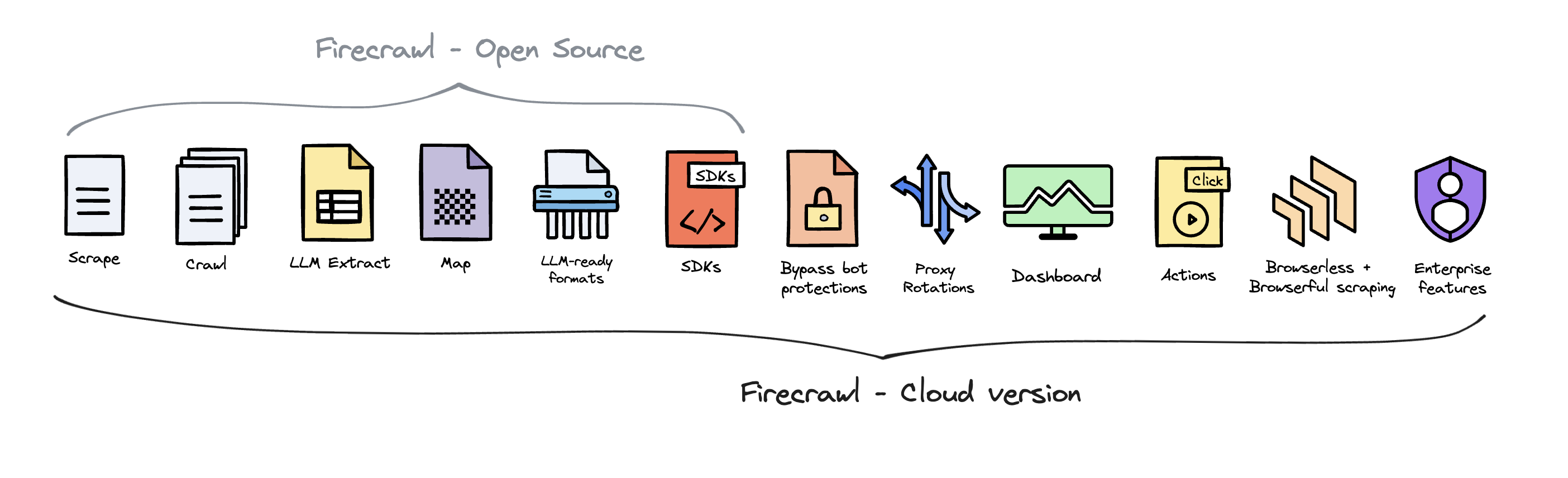
Image: the official Firecrawl project (README, "Open Source vs Cloud")
Before you start#
The docs list Git, Docker Engine or Docker Desktop, Docker Compose v2 (docker compose) and curl. They add: "Firecrawl does not publish a verified minimum host size for this stack."
| System | What you need |
|---|---|
| Linux | Docker Engine with the Compose plugin, Git, curl, openssl |
| Windows | Docker Desktop (WSL 2 backend), Git for Windows, PowerShell |
| Mac | Docker Desktop, Git (Xcode command line tools or Homebrew), Terminal |
| All | Free disk for a large build (users report about 9 GB of images, more during the build) and free port 3002 |
Check the tools on Linux and Mac:
git --version
docker --version
docker compose version
On Windows (PowerShell):
git --version
docker --version
docker compose version
Checklist:
- [ ]
docker compose versionprints v2 or newer (not the olddocker-compose) - [ ] Port 3002 is free on your machine
- [ ] Docker Desktop users: enough memory and disk set in Docker Desktop's resource settings
- [ ] For the HTTPS section only: a domain with a DNS record for the server, and ports 80 and 443 free
Tested by DIY Lab Hub: not yet. The commands come from the official guide and files at v2.11.162, read in October 2026. We checked one change of our own (the 127.0.0.1 port binding) with docker compose config; we did not run a full build.
Step 1: Get the pinned release#
The docs say to check out an exact release, because "a checkout of main and floating image tags can change independently". We keep the source in ~/docker_volumes/firecrawl/app.
Linux#
mkdir -p ~/docker_volumes/firecrawl/backups
cd ~/docker_volumes/firecrawl
git clone https://github.com/firecrawl/firecrawl.git app
cd app
git checkout v2.11.162
Windows (PowerShell)#
New-Item -ItemType Directory -Force "$HOME\docker_volumes\firecrawl\backups" | Out-Null
Set-Location "$HOME\docker_volumes\firecrawl"
git clone https://github.com/firecrawl/firecrawl.git app
Set-Location app
git checkout v2.11.162
Mac (Terminal)#
Same commands as Linux:
mkdir -p ~/docker_volumes/firecrawl/backups
cd ~/docker_volumes/firecrawl
git clone https://github.com/firecrawl/firecrawl.git app
cd app
git checkout v2.11.162
Check it worked. git describe --tags prints v2.11.162. Git also warns about a "detached HEAD"; that is normal for a tag checkout.
Step 2: Write the .env file#
This is the official minimal .env, with two changes: a random database password and PORT=127.0.0.1:3002. In this Compose file, PORT sets only the host side of the port mapping, so the API is published on your own computer only.
Linux#
cd ~/docker_volumes/firecrawl/app
cat > .env <<EOF
USE_DB_AUTHENTICATION=false
POSTGRES_USER=postgres
POSTGRES_PASSWORD=$(openssl rand -hex 24)
POSTGRES_DB=postgres
PORT=127.0.0.1:3002
EOF
chmod 600 .env
Windows (PowerShell)#
Set-Location "$HOME\docker_volumes\firecrawl\app"
$bytes = New-Object byte[] 24
[System.Security.Cryptography.RandomNumberGenerator]::Create().GetBytes($bytes)
$pw = ($bytes | ForEach-Object { $_.ToString('x2') }) -join ''
@("USE_DB_AUTHENTICATION=false", "POSTGRES_USER=postgres", "POSTGRES_PASSWORD=$pw",
  "POSTGRES_DB=postgres", "PORT=127.0.0.1:3002") | Set-Content -Path .env -Encoding ascii
Mac (Terminal)#
Same commands as Linux (openssl ships with macOS).
Check it worked. The file has five lines and a long password:
grep -c . .env
grep -E 'PORT|POSTGRES_DB' .env
On Windows use Get-Content .env. Keep POSTGRES_DB=postgres: the docs say the bundled pg_cron setup targets that database at this release.
Tip: Do not copy
apps/api/.env.exampleas your.env. The docs say it "is for API development, not a drop-in Compose file", and the root.envonly changes variables the Compose file references.
Step 3: Build and start the stack#
The first build compiles the API (Node.js, Go and Rust parts), a Chromium image and a PostgreSQL image. Expect it to take a while.
Linux#
cd ~/docker_volumes/firecrawl/app
docker compose up --build -d
docker compose ps --all
Windows (PowerShell)#
Set-Location "$HOME\docker_volumes\firecrawl\app"
docker compose up --build -d
docker compose ps --all
Mac (Terminal)#
Same commands as Linux.
Check it worked. docker compose ps --all shows api, playwright-service, redis, rabbitmq, nuq-postgres and foundationdb running, and the one-shot foundationdb-init exited. The docs say warnings about unset optional variables "are expected for this baseline".
Potential issue: if api restarts with Port 3002 did not become available within 30000ms, the machine is short of RAM or CPU (see Troubleshooting).
Step 4: Check health and run your first scrape#
The docs give two tests: a heartbeat and one real scrape. Only the scrape proves the whole chain works.
Linux#
curl --fail --silent --show-error --max-time 5 http://localhost:3002/v0/health/readiness

curl --fail-with-body --silent --show-error --max-time 75 \
  -X POST http://localhost:3002/v2/scrape \
  -H 'Content-Type: application/json' \
  -d '{"url": "https://example.com", "formats": ["markdown"], "timeout": 60000}'
Windows (PowerShell)#
Invoke-RestMethod -Uri http://localhost:3002/v0/health/readiness -TimeoutSec 5

$body = @{ url = "https://example.com"; formats = @("markdown"); timeout = 60000 } | ConvertTo-Json
$r = Invoke-RestMethod -Method Post -Uri http://localhost:3002/v2/scrape `
  -ContentType "application/json" -Body $body -TimeoutSec 75
$r.success
$r.data.markdown
Mac (Terminal)#
Same commands as Linux.
Check it worked. Expected output from the official docs (not our own run). The heartbeat returns:
{"status":"ok"}
A successful scrape has this shape:
{
  "success": true,
  "data": {
    "markdown": "...",
    "metadata": {
      "statusCode": 200
    }
  }
}
Tip: Keep the client timeout (
--max-time 75) longer than the request'stimeout(60000 ms). The docs do this so Firecrawl can return its own timeout message instead of curl cutting the call off.
Step 5: Crawl a site politely#
A crawl starts from one URL and follows links. It returns a job ID; you then poll for results. Firecrawl "respects robots.txt directives" by default; the override (ignoreRobotsTxt) is a cloud Enterprise option. Set limit low and use delay (seconds between pages, which "forces concurrency to 1") on sites you do not own.
Linux#
curl -s -X POST http://localhost:3002/v2/crawl \
  -H 'Content-Type: application/json' \
  -d '{"url": "https://example.com", "limit": 5, "delay": 2}'

curl -s http://localhost:3002/v2/crawl/<jobId>
Windows (PowerShell)#
$body = @{ url = "https://example.com"; limit = 5; delay = 2 } | ConvertTo-Json
$job = Invoke-RestMethod -Method Post -Uri http://localhost:3002/v2/crawl -ContentType "application/json" -Body $body
$job.id
Invoke-RestMethod -Uri "http://localhost:3002/v2/crawl/$($job.id)"
Mac (Terminal)#
Same commands as Linux. Replace <jobId> with the id from the first answer.
Check it worked. The first call returns "success": true and an id. Polling shows "status": "scraping" and then "completed", with one data entry per page. Pages blocked by robots.txt appear in the crawl errors (GET /v2/crawl/<jobId>/errors, field robotsBlocked).
Tip: Scraping is your responsibility. The README says: "It is the sole responsibility of end users to respect websites' policies when scraping." Read the site's terms, crawl your own sites first, and keep
limitanddelayconservative.
Step 6 (optional): Add Ollama for JSON extraction and SearXNG for search#
Local LLM extraction. The json format needs a model. The compose file passes OLLAMA_BASE_URL and MODEL_NAME, and the source picks Ollama when OLLAMA_BASE_URL is set. The old SELF_HOST.md marks Ollama "Experimental". Install Ollama and pull a model first; see our Ollama guide.
The API container reaches your computer as host.docker.internal (the Compose file maps it). Add two lines to .env, then recreate the API.
Linux#
cd ~/docker_volumes/firecrawl/app
printf 'OLLAMA_BASE_URL=http://host.docker.internal:11434/api\nMODEL_NAME=<model-you-pulled>\n' >> .env
docker compose up -d
On Linux, Ollama listens on 127.0.0.1 by default and containers cannot reach that. The Ollama FAQ says to change the bind address with OLLAMA_HOST (for example 0.0.0.0:11434). Then block port 11434 from outside in your firewall.
Windows (PowerShell)#
Set-Location "$HOME\docker_volumes\firecrawl\app"
Add-Content -Path .env -Value "OLLAMA_BASE_URL=http://host.docker.internal:11434/api", "MODEL_NAME=<model-you-pulled>" -Encoding ascii
docker compose up -d
Mac (Terminal)#
Same commands as Linux. Docker Desktop provides host.docker.internal.
Then ask for JSON instead of Markdown (request format from the official extraction docs):
curl -s -X POST http://localhost:3002/v2/scrape \
  -H 'Content-Type: application/json' \
  -d '{"url": "https://example.com", "formats": [{"type": "json", "prompt": "Extract the page title."}]}'
In PowerShell, build the body with @{ url = "https://example.com"; formats = @(@{ type = "json"; prompt = "Extract the page title." }) } | ConvertTo-Json -Depth 5 and send it like Step 4.
Check it worked. The answer has data.json with your field. If it fails, docker compose logs --tail=200 api shows the model error. Small local models follow prompts less reliably than large ones; test with a short prompt first.
Private search. With no setting, the /v2/search endpoint at v2.11.162 uses DuckDuckGo. Set SEARXNG_ENDPOINT to a SearXNG instance with the JSON format enabled, and Firecrawl uses it first. The address must be reachable from inside the container, not localhost. Our SearXNG guide shows how to enable JSON.
Put it behind HTTPS (with or without Traefik)#
Skip this section if only your own computer calls Firecrawl. HTTPS encrypts the connection but does not add a login, and the self-hosted API has none. Both routes below therefore add basic authentication at the proxy. Make a password hash once with Caddy's own tool (Docker works on all three systems):
docker run --rm caddy:2.11.7 caddy hash-password --plaintext '<your-password>'
Both routes put the API on a shared Docker network called proxy. Create it once (same command in PowerShell):
docker network create proxy
With Traefik#
On a server that already runs Traefik v3 with the Docker provider, add an override file next to the Compose file. Compose reads docker-compose.override.yml automatically, so the official file stays untouched. Our entrypoint is called https; use your own name. In labels, write every $ of the hash as $$.
services:
  api:
    networks:
      backend: {}
      proxy:
        aliases:
          - firecrawl-api
    labels:
      - "traefik.enable=true"
      - "traefik.docker.network=proxy"
      - "traefik.http.routers.firecrawl.rule=Host(`firecrawl.<your-domain>`)"
      - "traefik.http.routers.firecrawl.entrypoints=https"
      - "traefik.http.routers.firecrawl.tls=true"
      - "traefik.http.routers.firecrawl.middlewares=firecrawl-auth"
      - "traefik.http.middlewares.firecrawl-auth.basicauth.users=<user>:<hash-with-doubled-dollars>"
      - "traefik.http.services.firecrawl.loadbalancer.server.port=3002"

networks:
  proxy:
    external: true
Save it as docker-compose.override.yml in ~/docker_volumes/firecrawl/app (Windows: $HOME\docker_volumes\firecrawl\app) and run docker compose up -d. We checked that Compose merges this file as intended with docker compose config.
Check it worked. curl -I https://firecrawl.<your-domain>/v0/health/readiness returns 401 without a password and 200 with -u <user>:<your-password>.
Without Traefik: Caddy#
Choose this if you have no Traefik. Caddy gets and renews certificates itself. Use the same override file but without the labels: block; the firecrawl-api alias lets Caddy find the API. Then create the Caddy folder:
mkdir -p ~/docker_volumes/caddy/{data,config}
On Windows: New-Item -ItemType Directory -Force "$HOME\docker_volumes\caddy\data", "$HOME\docker_volumes\caddy\config".
Save this as docker-compose.yml in that folder (caddy:2.11.7 is the latest Caddy release in October 2026):
services:
  caddy:
    image: caddy:2.11.7
    container_name: caddy
    restart: unless-stopped
    ports:
      - "80:80/tcp"
      - "443:443/tcp"
      - "443:443/udp"
    volumes:
      - ./Caddyfile:/etc/caddy/Caddyfile:ro
      - ./data:/data
      - ./config:/config
    networks:
      - proxy

networks:
  proxy:
    external: true
And this as Caddyfile for a public domain (Let's Encrypt):
firecrawl.example.com {
    basic_auth {
        <user> <hash>
    }
    reverse_proxy firecrawl-api:3002
}
For a home-only name, add tls internal as the first line inside the block and use a name such as firecrawl.home.arpa. Start Caddy with docker compose up -d in its folder (same in PowerShell and Terminal).
For tls internal, every device must trust Caddy's root certificate. Find and copy it out:
docker exec caddy find /data -name root.crt
docker cp caddy:<path-from-find> ./caddy-root.crt
Install it as a trusted root: Windows "Trusted Root Certification Authorities"; macOS Keychain Access with "Always Trust"; Linux your distribution's CA store. These OS steps are general practice, not from the Firecrawl docs.
Check it worked. curl -I -u <user>:<your-password> https://firecrawl.example.com/v0/health/readiness returns 200 over HTTPS. Use curl.exe in Windows PowerShell.
Tip: Let's Encrypt needs the DNS record to point at the server and ports 80 and 443 to reach it. A certificate error usually means the Caddyfile name differs from the DNS record.
Security and testing#
The docs are blunt: "The default API is unauthenticated." Anyone who reaches port 3002 can make your server fetch any page.
| Control | How |
|---|---|
| API off the network | PORT=127.0.0.1:3002 in .env (Step 2), or HTTPS with basic auth |
| Database and queues | Never add ports: for nuq-postgres, redis or rabbitmq. The docs say they "should remain private by default" |
| Secrets | .env holds the database password: chmod 600 .env on Linux and Mac; never commit it |
| Admin routes | Off unless you set BULL_AUTH_KEY. If you set it, use a strong key; never publish ADMIN_INTERNAL_PORT (its routes need no key) |
| Firewall | On a server, allow only 80/443 (and SSH). Port 3002 stays closed |
Quick tests after each change (same on all three systems):
docker compose ps --all
docker compose logs --tail=100 api
curl -s http://localhost:3002/v0/health/readiness
What leaves your machine: page requests to the sites you scrape (from your IP), search queries to DuckDuckGo (or your SearXNG), prompts to the model provider you connect (none with local Ollama), and during the build, downloads from GitHub, npm, Go, Rust and Debian mirrors. The docs describe no telemetry for the self-hosted stack, and we did not find any setting for it.
Common mistakes#
These come from the official issue tracker, the docs' own warnings, and answers AI assistants give.
| Mistake | Why it happens | Do this instead |
|---|---|---|
| Opening the stack to the internet with default database credentials | Issue #2528 (closed): a VPS install exposed PostgreSQL with postgres/postgres, and a botnet connected | Keep only port 3002 published, bind it to 127.0.0.1, set a random POSTGRES_PASSWORD |
Building from main or latest | The images have no version tags for Playwright and Postgres; issue #1750 asked for them and was closed "not planned" | Check out a tag (v2.11.162) and build with --build |
Changing PORT and getting Port 3002 did not become available | Issue #2204: the start-up harness waited for 3002 even when the port changed | Change only the host side (PORT=127.0.0.1:3002 or another host port); leave INTERNAL_PORT alone |
| Running on a busy small server | Issue #2366: the API never came up and logs showed Can't accept connection due to RAM/CPU load | Give Docker more memory, stop heavy neighbours, read docker compose logs api |
| Letting the disk fill up | Issue #2404 (an API container used all free disk, fixed by PR #2455) and #2057 (25 GB on a VPS) | Watch docker system df, keep the pinned release current, prune old build cache |
| Expecting screenshots or clicks | Issue #2059: "Screenshot is not available on self-host yet." The docs say actions need Fire-engine | Use Markdown/HTML formats, or the cloud for those features |
Pointing REDIS_URL at localhost | The docs: "localhost points back to that container, not the Redis service" | Leave the default redis://redis:6379 |
AI assistants: giving a one-line docker run ghcr.io/firecrawl/firecrawl command | The stack needs Redis, RabbitMQ, PostgreSQL and Playwright; one image alone does not start | Use the official Compose file at a release tag |
AI assistants: adding ignoreRobotsTxt: true or an fc- API key to self-hosted calls | Copied from cloud examples: robots override is Enterprise-only, and self-hosted needs no key | Leave robots handling on and drop the Authorization header for local calls |
Tip: When an AI assistant writes Firecrawl code for you, check that the URL is
http://localhost:3002and nothttps://api.firecrawl.dev. Cloud examples are everywhere and send your data to the hosted service.
Troubleshooting#
| Problem | Solution |
|---|---|
api keeps restarting | docker compose logs --tail=200 api; check RAM/CPU and that you are on tag v2.11.162 |
Error: listen EADDRINUSE: address already in use 0.0.0.0:3002 | Another process owns 3002 (issue #2247). Stop it or publish a different host port: PORT=127.0.0.1:3010 |
| Heartbeat OK but scrape fails | docker compose logs --tail=200 api playwright-service; the heartbeat does not test Playwright, Redis or the network |
| Scrape times out | Check the server can reach the target site; keep --max-time above the request timeout |
| PostgreSQL will not start | Check .env syntax, keep POSTGRES_DB=postgres, keep user and password consistent |
Search returns {"success":true,"data":{}} | DuckDuckGo or Google returned nothing or rate-limited you (issues #2139, #5472). Connect SearXNG |
Webhook to another container fails with Connection violated security rules. | Webhooks to private addresses were blocked in issue #2194 (closed in 2025). Check your release, or poll the job instead |
"The engine used does not support the following features: waitFor -- your scrape may be partial"#
A maintainer explains in issue #2815: Firecrawl fell back from Playwright to plain fetch, which ignores waitFor. Check that playwright-service is running and read its logs. The maintainer also suggests forcing Playwright for a domain with FORCED_ENGINE_DOMAINS.
"You're bypassing authentication"#
The docs say this warning is expected with USE_DB_AUTHENTICATION=false. It is a reminder that the API is open: keep it on a trusted network.
Known bugs#
- Issue #5472 (open, October 2026): search returns empty results, with Google
429 Too Many Requestsin the logs. Use SearXNG. - Issue #4265 (closed August 2026):
foundationdb-initfailed with "Database already exists". It only matters if you switch the queue to FoundationDB; newer releases widen the check.
Diagnostics: docker compose ps --all, docker compose logs --tail=200, docker inspect <container>, docker stats.
Updates and backups#
Update. Firecrawl tags new releases very often. Pick a newer tag, read what changed in the Compose file, then rebuild:
cd ~/docker_volumes/firecrawl/app
git fetch --tags
git diff v2.11.162 <new-tag> -- docker-compose.yaml
git checkout <new-tag>
docker compose up --build -d
The same commands work in PowerShell after Set-Location "$HOME\docker_volumes\firecrawl\app". To roll back, check out the old tag and run docker compose up --build -d again.
Back up. The Compose file has no persistent volumes for PostgreSQL, Redis or RabbitMQ, so there is no scrape history to save. The docs say to add and test persistence yourself if you need it; this guide does not. What you need to keep is your .env, your override file and the tag you run:
cd ~/docker_volumes/firecrawl/app
git describe --tags > ../backups/firecrawl-tag.txt
tar -czf "../backups/firecrawl-config-$(date +%F).tar.gz" .env $(ls docker-compose.override.yml 2>/dev/null)
chmod 600 ../backups/firecrawl-config-*.tar.gz
Windows (PowerShell):
Set-Location "$HOME\docker_volumes\firecrawl\app"
git describe --tags | Set-Content ..\backups\firecrawl-tag.txt
$files = @(".env") + @(Get-ChildItem docker-compose.override.yml -ErrorAction SilentlyContinue | ForEach-Object Name)
Compress-Archive -Path $files -DestinationPath "..\backups\firecrawl-config-$(Get-Date -Format yyyy-MM-dd).zip" -Force
Mac: same commands as Linux.
Schedule. Linux and Mac: add a crontab line for 03:00, 0 3 * * * cd ~/docker_volumes/firecrawl/app && tar -czf ../backups/firecrawl-config-$(date +\%F).tar.gz .env (cron needs the \%). Windows: create a daily 03:00 task in Task Scheduler that runs the PowerShell lines above.
Restore test. Unpack into an empty folder and compare with the live file:
mkdir -p /tmp/fc-restore && tar -xzf ~/docker_volumes/firecrawl/backups/firecrawl-config-<date>.tar.gz -C /tmp/fc-restore
diff /tmp/fc-restore/.env ~/docker_volumes/firecrawl/app/.env && echo "backup matches"
On Windows, use Expand-Archive into a new folder and Compare-Object (Get-Content <file1>) (Get-Content <file2>).
Performance and resources#
The docs publish no measured figures and say "The Compose limits are not verified minimum requirements." These are the limits and knobs in the v2.11.162 Compose file:
| Setting | Default | What it does |
|---|---|---|
| API container | 4 CPUs, 8 GB RAM | Raise cpus / mem_limit in an override if you have more |
| Playwright container | 2 CPUs, 4 GB RAM, 1 GB tmpfs | Chromium for JavaScript pages |
NUM_WORKERS_PER_QUEUE | 8 | Worker processes per queue |
CRAWL_CONCURRENT_REQUESTS | 10 | Pages in flight; also Playwright's max pages |
MAX_CONCURRENT_JOBS | 5 | Crawl jobs at the same time |
BROWSER_POOL_SIZE | 5 | Browser instances in the pool |
Set them in .env and run docker compose up -d. Lower numbers suit a laptop; higher numbers hit target sites harder. Watch the stack with docker stats and disk use with docker system df.
FAQ#
Is self-hosted Firecrawl free? Yes. The server is AGPL-3.0; the SDKs and some UI parts are MIT. If you change the server and offer it to others over a network, the AGPL asks you to share those changes.
Do I need an API key? No. With USE_DB_AUTHENTICATION=false the docs say "requests do not need an API key or Authorization header". That is also why it must stay private.
Does it need a GPU? Firecrawl itself does not mention one. A GPU only helps the model you connect for JSON extraction, such as Ollama.
Can it scrape sites with strong bot protection? Often not. That needs Fire-engine, which the self-hosted stack does not include. Respect the site's wishes and terms anyway.
Does it work on Apple Silicon or Raspberry Pi? The docs do not list supported CPU types. The registry has arm64 builds of some images and the build files handle arm64, but we have not tested it.
Can my AI agent use it? Yes. The official self-hosting guide ("Where to go next") explains how to point the Firecrawl CLI and Firecrawl's local agent server at your own API URL instead of the cloud.
Sources#
- Firecrawl self-hosting guide, Open source or Firecrawl Cloud, Crawl and JSON extraction - read October 2026
- SELF_HOST.md on main and at v2.11.162, docker-compose.yaml at v2.11.162, README and LICENSE - read October 2026
- Release v2.11.162 and tags - read October 2026
- Firecrawl CLI: connect to self-hosted Firecrawl - October 2026
- Ollama FAQ, Caddy release v2.11.7 and Caddy basic_auth - read October 2026
- GitHub issues #1750, #2057, #2059, #2139, #2194, #2204, #2247, #2366, #2404, #2528, #2815, #4265, #5472 - read October 2026
Checked against the official docs on 2026-10-30.