Docling: Turn PDFs and Office Files into Clean Markdown for RAG (Linux, Windows, Mac)
Before you start
- 16 min read
Boxes marked Run in terminal are what you type; plain text explains why. Check what you need first
What you get in one minute#
Docling is a free, open-source tool from IBM that reads PDFs, Word, PowerPoint, Excel, HTML and images and turns them into clean Markdown or JSON, keeping headings, tables and reading order, so a RAG system can use them.

Logo: the official Docling project (github.com/docling-project/docling)
Plain "PDF to text" tools mash two columns into one and turn tables into soup. Docling looks at the page layout first, so a table stays a table and a heading stays a heading. It runs on your own machine, so private documents never leave it. This guide shows two routes: the docling command (pip) for quick jobs, and docling-serve (Docker) when you want an always-on service with a REST API.
At a glance#
- What you get: a
doclingcommand, or a local API with a small web page, that converts documents to Markdown, JSON or ready-made chunks. - Time needed: about 10 minutes for pip, 15 for Docker (the first start downloads a big image or models).
- Difficulty: easy for the command, medium for Docker plus HTTPS.
- You need: Python 3.10 or newer (pip route) or Docker with Compose (service route), and a few GB of free disk.
| What | Value |
|---|---|
| Current version | Docling v2.142.1 (23 Oct 2026) and docling-serve v1.38.1 (23 Oct 2026), GitHub releases |
| Pinned image (official, Quay) | quay.io/docling-project/docling-serve-cpu:v1.38.1 |
| Port | 5001 (API at /docs, web page at /ui) |
| Image size | about 4.4 GB for the CPU image (official README) |
| Licence | MIT |
| Official docs | docling-project.github.io/docling |
Why this version? We looked at the newest open issues of both projects (October 2026). They are narrow bugs about single file types and OCR engines, not install failures or data loss. So this guide uses the latest releases. Perplexity research was not available for this guide, so every command comes from the official READMEs and docs at the release tags.
How it fits together#
Your files go into Docling, either through the docling command or through docling-serve, and clean Markdown or JSON comes out, ready to be split into chunks for a vector database.

Which route should you pick?
docling command (pip) | docling-serve (Docker) | |
|---|---|---|
| Good for | One-off jobs, scripts, Python code | An always-on service for apps and teammates |
| Models | Downloaded to your user folder on first use | Already inside the image |
| Size | Several GB of Python packages (PyTorch) | About 4.4 GB image (CPU) |
| Interface | Command line and Python | REST API, /docs, /ui web page |
| HTTPS needed? | No | Yes, if anyone else can reach it |
Before you start#
You need either Python 3.10+ or Docker, plus patience for the first download.
| System | pip route | Docker route |
|---|---|---|
| Linux | Python 3.10+, python3 -m venv | Docker Engine + Compose plugin |
| Windows | Python 3.10+ from python.org, PowerShell | Docker Desktop (WSL2 backend) |
| Mac | Python 3.10+ (Homebrew), Apple Silicon or Intel | Docker Desktop |
Docling works on x86_64 and arm64 for all three systems. On an Intel Mac, PyTorch no longer ships new wheels, so you install docling[mac_intel] (Step 1). Python 3.9 is no longer supported.
Check your tools:
python3 --version
docker --version
docker compose version
Checklist:
- [ ] Python 3.10+ (pip route) or Docker with Compose (Docker route)
- [ ] At least 10 GB free disk for the pip route, 8 GB for the Docker image
- [ ] Port 5001 is free (Docker route)
- [ ] You backed up any file you are about to replace
Tested on 2026-10-26: not run. Commands checked against the official Docling docs and docling-serve docs at the release tags.
Step 1: Install Docling with pip#
Make a virtual environment so Docling's many packages stay in one folder, then pip install docling.
Linux#
mkdir -p ~/docker_volumes/docling && cd ~/docker_volumes/docling
python3 -m venv .venv
source .venv/bin/activate
pip install docling
No GPU? The official docs suggest the CPU-only PyTorch build, which is much smaller:
pip install docling --extra-index-url https://download.pytorch.org/whl/cpu
Windows (PowerShell)#
$d = "$HOME\docker_volumes\docling"
New-Item -ItemType Directory -Force $d | Out-Null
Set-Location $d
py -m venv .venv
.\.venv\Scripts\Activate.ps1
pip install docling
If PowerShell refuses to run the activate script, run Set-ExecutionPolicy -Scope CurrentUser RemoteSigned once.
Mac (Terminal)#
mkdir -p ~/docker_volumes/docling && cd ~/docker_volumes/docling
python3 -m venv .venv
source .venv/bin/activate
pip install docling
Intel Mac only (Python 3.12 or lower):
pip install "docling[mac_intel]"
Check it worked#
docling --version
Expected: version information for Docling. The first real conversion downloads the layout and table models, so it is slower once.
Step 2: Convert your first document#
Give docling a file path or a URL. It writes a .md file into the current folder.
The commands are the same on all three systems. Activate the virtual environment first (Step 1).
Linux#
This is the official quickstart:
docling https://arxiv.org/pdf/2206.01062
Now your own file, with Markdown and JSON in an out folder:
docling report.pdf --to md --to json --output out
Windows (PowerShell)#
docling .\report.pdf --to md --to json --output .\out
Mac (Terminal)#
Same commands as Linux.
The options you will use most (all from the official CLI reference):
| Option | What it does |
|---|---|
--to md / json / html / text / chunks | Output format. Repeat it for several. Default is Markdown |
--output <folder> | Where results go |
--ocr / --no-ocr | OCR for scanned pages (on by default) |
--ocr-mode full_page | Run OCR over the whole page, replacing any existing text |
--ocr-engine <name> and --ocr-lang en,de | Pick the engine (auto, easyocr, rapidocr, tesseract, tesserocr, ocrmac) and languages |
--tables / --no-tables and --table-mode fast | Table structure, accurate is the default |
--image-export-mode placeholder / embedded / referenced | What happens with pictures. referenced saves PNG files next to the Markdown |
--page-range 1-4 | Convert only some pages |
--device auto / cpu / cuda / mps | Pick the accelerator (GPU) |
--pipeline vlm | Use a vision-language model such as Granite Docling instead of the standard pipeline |
Example for a scanned German PDF with pictures saved as files:
docling scan.pdf --ocr-mode full_page --ocr-lang de --image-export-mode referenced --output out
Check it worked#
Open out/report.md. Headings should start with #, tables should look like | a | b | rows and the text should read in the right order, even for two-column pages.
Step 3: Run docling-serve in Docker#
One Compose file starts an API and a small web page on port 5001. The image already contains the models.
Use the official CPU image. It is the smallest. (Official image variants: docling-serve base, docling-serve-cpu, and docling-serve-cu128 / -cu130 for NVIDIA GPUs.)
Linux#
mkdir -p ~/docker_volumes/docling/{backups,input,output}
cd ~/docker_volumes/docling
nano docker-compose.yml
services:
  docling-serve:
    image: quay.io/docling-project/docling-serve-cpu:v1.38.1
    container_name: docling-serve
    restart: unless-stopped
    ports:
      - "127.0.0.1:5001:5001"
    env_file:
      - .env
    environment:
      DOCLING_SERVE_ENABLE_UI: "true"
Create the .env file with a long random key (the service then requires it on every request):
echo "DOCLING_SERVE_API_KEY=$(openssl rand -hex 24)" > .env
chmod 600 .env
docker compose up -d
The port is bound to 127.0.0.1, so only this machine can reach it. That is on purpose: Step 5 shows how to publish it safely.
Windows (PowerShell)#
$d = "$HOME\docker_volumes\docling"
New-Item -ItemType Directory -Force "$d\backups","$d\input","$d\output" | Out-Null
Set-Location $d
notepad docker-compose.yml
Paste the same Compose file as in the Linux tab, save, then create the key and start:
$key = -join ((48..57 + 97..102) | Get-Random -Count 48 | ForEach-Object { [char]$_ })
"DOCLING_SERVE_API_KEY=$key" | Set-Content .env -Encoding ascii
docker compose up -d
Mac (Terminal)#
Same commands as Linux:
mkdir -p ~/docker_volumes/docling/{backups,input,output} && cd ~/docker_volumes/docling
nano docker-compose.yml   # paste the file from the Linux tab
echo "DOCLING_SERVE_API_KEY=$(openssl rand -hex 24)" > .env && chmod 600 .env
docker compose up -d
On Apple Silicon the image is arm64 and runs on the CPU inside Docker (a container cannot use the Mac GPU). For GPU speed on a Mac, use the pip route in Step 1.
Check it worked#
docker compose ps
docker logs docling-serve --tail 20
Expected: the container is running and the log shows the server listening on port 5001. Open http://127.0.0.1:5001/ui for the web page and http://127.0.0.1:5001/docs for the interactive API docs. Because you set an API key, the web page and API ask for it.
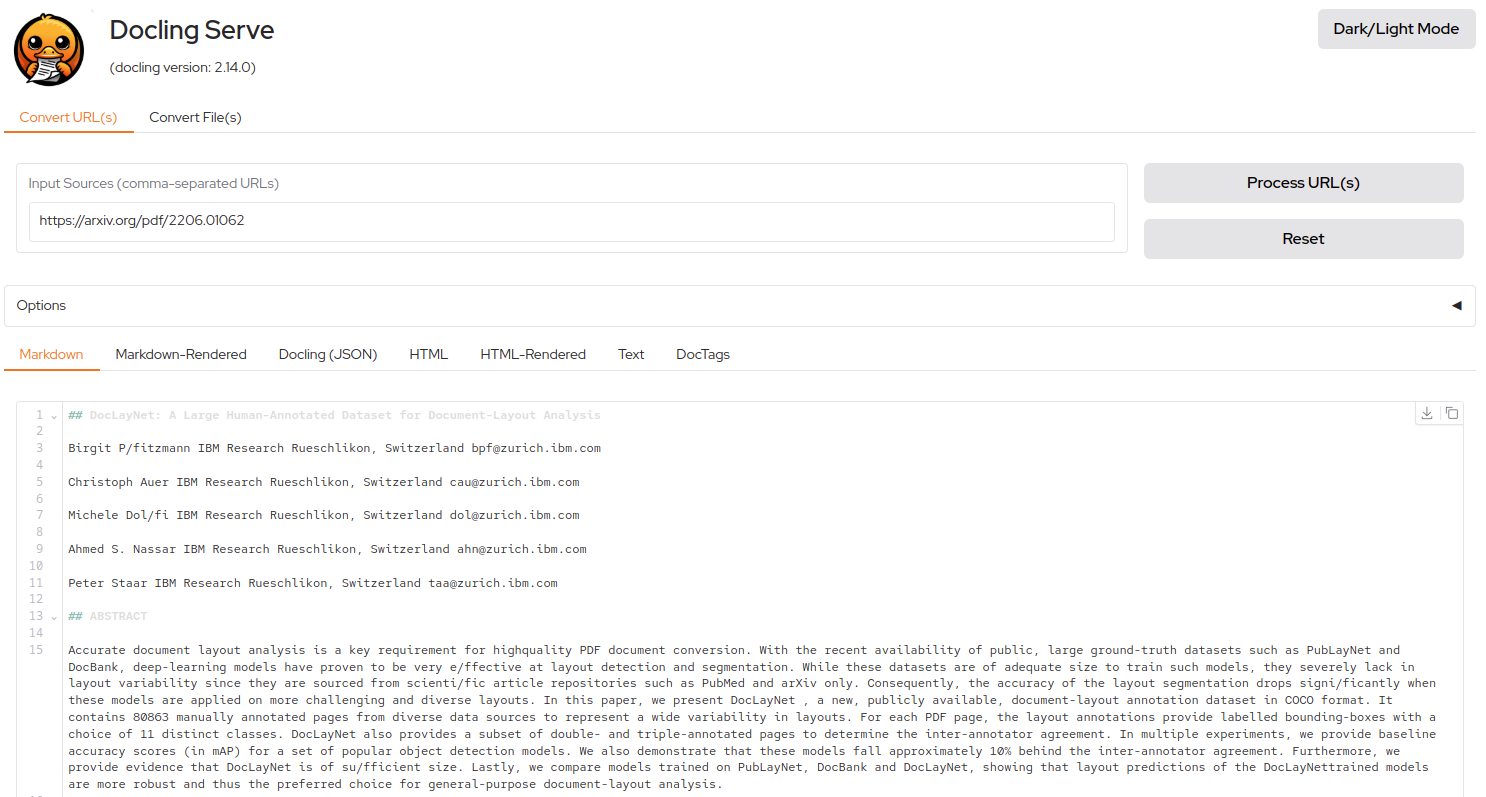
Image: the official Docling Serve docs (README)
Step 4: Convert a file through the API#
Send the file with curl and the key header. The answer is JSON with the Markdown inside document.md_content.
Linux#
KEY=$(grep DOCLING_SERVE_API_KEY .env | cut -d= -f2)
curl -s -X POST http://127.0.0.1:5001/v1/convert/file \
  -H "X-Api-Key: $KEY" \
  -F "[email protected];type=application/pdf" \
  -F "to_formats=md" > result.json
Windows (PowerShell)#
Use curl.exe so it is not the PowerShell alias:
$key = (Get-Content .env).Split("=")[1]
curl.exe -s -X POST http://127.0.0.1:5001/v1/convert/file -H "X-Api-Key: $key" -F "[email protected];type=application/pdf" -F "to_formats=md" -o result.json
Mac (Terminal)#
Same commands as Linux.
Other form fields from the official usage page: from_formats, to_formats, do_ocr, ocr_lang, table_mode, image_export_mode. A file on the web works too, through /v1/convert/source with {"sources": [{"kind": "http", "url": "..."}]}. For big files use the /async variants of both endpoints.
Check it worked#
python3 -c "import json; print(json.load(open('result.json'))['document']['md_content'][:300])"
Expected: the first 300 characters of your document as Markdown. status in the result should be success.
Put it behind HTTPS (with or without Traefik)#
Do this only if other people or other machines must reach the service. Never open port 5001 to the internet as it is.
With Traefik#
For a server with a domain and Traefik already running on the external proxy network.
docker network create proxy
Change the service like this (the labels are our example, adapt names to your Traefik):
services:
  docling-serve:
    image: quay.io/docling-project/docling-serve-cpu:v1.38.1
    container_name: docling-serve
    restart: unless-stopped
    env_file:
      - .env
    environment:
      DOCLING_SERVE_ENABLE_UI: "true"
    networks:
      - proxy
    labels:
      - traefik.enable=true
      - traefik.docker.network=proxy
      - traefik.http.routers.docling.rule=Host(`docling.<your-domain>`)
      - traefik.http.routers.docling.entrypoints=https
      - traefik.http.routers.docling.tls=true
      - traefik.http.services.docling.loadbalancer.server.port=5001

networks:
  proxy:
    external: true
There is no ports: entry: Traefik reaches the container over the proxy network.
Without Traefik: Caddy#
Choose Caddy if you have no Traefik yet and run one small server.
| Case | Result | You do |
|---|---|---|
| Public domain | Automatic Let's Encrypt | DNS A record to the server, ports 80 and 443 open |
| Home only | tls internal (local certificate) | Trust Caddy's root certificate on each device |
Caddyfile for a public domain (keep the 127.0.0.1:5001:5001 port from Step 3):
docling.example.com {
    reverse_proxy localhost:5001
}
Caddyfile for home only (point the name at the Caddy machine):
docling.home.arpa {
    tls internal
    reverse_proxy localhost:5001
}
Trust the root certificate (pki/authorities/local/root.crt in Caddy's data directory):
# Linux: on the Caddy machine
sudo caddy trust
# other Linux devices, with root.crt copied over
sudo cp root.crt /usr/local/share/ca-certificates/caddy-root.crt && sudo update-ca-certificates
# Windows (PowerShell as administrator)
certutil -addstore -f ROOT root.crt
# Mac
sudo security add-trusted-cert -d -r trustRoot -k /Library/Keychains/System.keychain root.crt
Run Caddy (Linux: install from the official apt repository on caddyserver.com/docs/install first):
# Linux
sudo systemctl reload caddy
# Windows (PowerShell)
winget install CaddyServer.Caddy
caddy run
# Mac
brew install caddy && caddy run
Or use Docker on the app's network. Remove the ports: entry of docling-serve, add the proxy network to it, use reverse_proxy docling-serve:5001 in the Caddyfile and save this in ~/docker_volumes/caddy (create the network once: docker network create proxy):
services:
  caddy:
    image: caddy:2.11.7
    container_name: caddy
    restart: unless-stopped
    ports:
      - "80:80"
      - "443:443"
    volumes:
      - ./Caddyfile:/etc/caddy/Caddyfile:ro
      - ./caddy_data:/data
      - ./caddy_config:/config
    networks:
      - proxy
networks:
  proxy:
    external: true
Caddy passes everything the API needs by default. Large PDFs are uploaded as normal requests, so you need no special setting.
Check it worked: curl -I https://docling.example.com/docs answers HTTP/2 200.
Security and testing#
Docling reads files you give it, so treat the API like any service that parses untrusted documents.
- Never expose port 5001 directly. Keep the
127.0.0.1binding and publish only through HTTPS (above), WireGuard or Tailscale. - Keep the API key on. With
DOCLING_SERVE_API_KEYset, every request needs theX-Api-Keyheader. The key lives in.env(chmod 600 .env), never in the Compose file or a chat. - Limit what one request can cost. The official config has
DOCLING_SERVE_MAX_FILE_SIZE,DOCLING_SERVE_MAX_NUM_PAGESandDOCLING_SERVE_MAX_DOCUMENT_TIMEOUT(default 7 days, far too long for a shared service). Add them underenvironment:. - Remote services stay off.
DOCLING_SERVE_ENABLE_REMOTE_SERVICESdefaults tofalse, so the service does not call outside APIs. Leave it that way for private documents. - Browser access: CORS defaults to
*. If a web page calls the API, setDOCLING_SERVE_CORS_ORIGINSto that page's address.
Tests:
docker compose ps
docker logs docling-serve --tail 100
curl -I https://docling.<your-domain>/docs
Expected: container running, no errors in the log, and HTTP/2 200 from the last command.
Using the output for RAG#
Markdown keeps the structure, so you can split by headings instead of cutting text at a fixed length.
Three ways, from easiest to most control:
- Ready-made chunks.
docling file.pdf --to chunksgives you chunks using the defaulthybridchunker (--chunks-type hierarchicalis the other option;--chunks-max-tokenssets the size). The API hasto_formats=chunkstoo. - Python with the HybridChunker. It splits by document structure and then by token limit:
from docling.document_converter import DocumentConverter
from docling.chunking import HybridChunker

doc = DocumentConverter().convert("report.pdf").document
chunker = HybridChunker()
for chunk in chunker.chunk(dl_doc=doc):
    text = chunker.contextualize(chunk)   # chunk text plus its headings
    print(text[:80])
- Plug-ins. Docling has official integrations for LangChain, LlamaIndex, Haystack and Crew AI (see the integrations page), and a server mode (docling-serve) so other programs can call it.
Embed each chunk and store it in a vector database. We cover one in the Qdrant guide. Open WebUI can also use Docling as its document reader: in its admin settings under Documents, choose Docling as the content extraction engine and give it your docling-serve address (VERIFY the exact menu and variable names in your Open WebUI version).
How Docling compares#
| Docling | Marker | Unstructured | |
|---|---|---|---|
| Main idea | Layout-aware conversion to a rich document model | PDF to Markdown with a focus on speed | Partition many file types into elements |
| Output | Markdown, JSON, HTML, chunks | Markdown, JSON | Elements (JSON) |
| Runs locally | Yes, MIT licence | Yes (check its licence for your use) | Open source library plus a hosted service |
| Service mode | docling-serve | Separate server projects | Hosted API or self-hosted |
The Docling column comes from its official docs. The other two are our short summary from general knowledge, not official claims (VERIFY on their pages before you choose). All three are good. Docling is a strong pick when tables and reading order matter.
Troubleshooting#
| Problem | Solution |
|---|---|
pip install docling is very slow or huge | Use the CPU-only PyTorch index (Step 1) on Linux |
| Intel Mac: PyTorch install errors | pip install "docling[mac_intel]" with Python 3.12 or lower |
| First conversion hangs | It is downloading models. Wait, and check your internet access |
401 or Unauthorized from the API | Send the header X-Api-Key: <your key> |
| Port 5001 already in use | Change the left side of the port line, for example 127.0.0.1:5002:5001 |
| A conversion stops with a timeout | Raise DOCLING_SERVE_MAX_SYNC_WAIT (default 120 seconds) or use the /async endpoints |
| Scanned page comes out empty | Use --ocr-mode full_page and set the right --ocr-lang |
| Tesseract not found | Install Tesseract on the system and set TESSDATA_PREFIX (path ends with /) |
| Container uses a lot of RAM | Lower DOCLING_SERVE_ENG_LOC_NUM_WORKERS (default 2) |
Behind a proxy the page works but /ui calls fail | Make sure the proxy forwards the X-Api-Key header and the same host name |
Known bugs#
Open on GitHub at the time of writing (read 2026-10-26), all narrow:
- docling #4940: tesserocr can crash the process when two conversions run at the same time. Use another OCR engine or run one conversion at a time.
- docling #4886: RapidOCR on the GPU crashed a whole system in one report. Use
--device cpufor OCR if you see it. - docling-serve #731: a legacy
.docsaved by WPS Office can be detected as Excel and fail. Re-save it as.docx. - If a new release misbehaves for you, set the image tag back to the previous version and check the release notes.
Diagnostic commands: docker logs docling-serve --tail 100, docker compose ps, docker inspect docling-serve, docling -v file.pdf (verbose log).
Updates and backups#
Update by changing the tag. There is little to back up: your config and the converted files.
Docker route:
cd ~/docker_volumes/docling
# read the release notes, edit the image tag in docker-compose.yml, then:
docker compose pull && docker compose up -d
On Windows use the same docker compose lines in PowerShell. pip route: pip install --upgrade docling inside the virtual environment.
Backup script (Linux/Mac). It saves the Compose file, .env and your converted files:
cd ~/docker_volumes/docling
mkdir -p backups
tar czf backups/docling-$(date +%F).tgz docker-compose.yml .env output
Windows (PowerShell):
Set-Location "$HOME\docker_volumes\docling"
Compress-Archive -Path docker-compose.yml,.env,output -DestinationPath "backups\docling-$(Get-Date -Format yyyy-MM-dd).zip" -Force
The backup holds your API key. Keep it private.
Schedule: Linux/Mac cron at 03:00 (0 3 * * * <path-to-script>). Windows: Task Scheduler running the PowerShell lines.
Restore test#
mkdir -p /tmp/restore && tar xzf ~/docker_volumes/docling/backups/docling-*.tgz -C /tmp/restore
ls /tmp/restore
rm -rf /tmp/restore
Expected: docker-compose.yml, .env and output. Starting a fresh container from the restored files is the full test: copy them into a new folder and run docker compose up -d there.
Performance and resources#
Docling is heavy compared with simple PDF tools, because it runs several AI models per page. We did not measure RAM or speed ourselves, so measure on your files:
docker stats --no-stream docling-serve
Tips from the official docs:
--device cuda(NVIDIA) or--device mps(Apple Silicon, pip route) speeds up pages a lot. For Docker on NVIDIA use the-cu128or-cu130image with an explicit version tag (they have nolatest).--table-mode fastand--no-tablestrade table quality for speed.--no-ocrskips OCR when your PDFs already have text.--num-threads(default 4) and--page-batch-size(default 4) set how much work runs in parallel.- In docling-serve,
DOCLING_SERVE_ENG_LOC_NUM_WORKERSsets the workers (default 2). Each worker keeps its own models in memory unlessDOCLING_SERVE_ENG_LOC_SHARE_MODELSis true.
FAQ#
Does Docling send my documents to the cloud? No. It runs locally, and docling-serve keeps remote services off by default (DOCLING_SERVE_ENABLE_REMOTE_SERVICES=false).
Which formats does it read? PDF, DOCX, PPTX, XLSX, HTML, images (PNG, TIFF, JPEG), Markdown, CSV, EPUB, email files, audio and more. Output formats include Markdown, JSON, HTML, text and chunks.
Do I need a GPU? No. The CPU image and the CPU PyTorch build work, only slower. A GPU helps for big batches.
Which image tag should I use? The pinned v1.38.1 CPU image. The official README also offers latest and main; we pin so updates are your choice.
Can I use it with Qdrant, Open WebUI or LangChain? Yes. Convert to Markdown or chunks, embed, and store them (see the Qdrant guide linked above). LangChain and LlamaIndex have official Docling integrations.
Sources#
- Caddy docs: automatic HTTPS, tls internal, reverse_proxy, install (Caddy 2.11.7, read 2026-10-26)
- Docling README and docs (v2.142.1, read 2026-10-26): installation, CLI reference
- docling-serve README, configuration, usage and deployment docs (v1.38.1, read 2026-10-26)
- GitHub releases: Docling and docling-serve (both 23 Oct 2026)
- Official images on Quay: docling-serve-cpu
Checked against the official docs on 2026-10-26. Not run by DIY Lab Hub. Items marked VERIFY are not confirmed in the official docs.